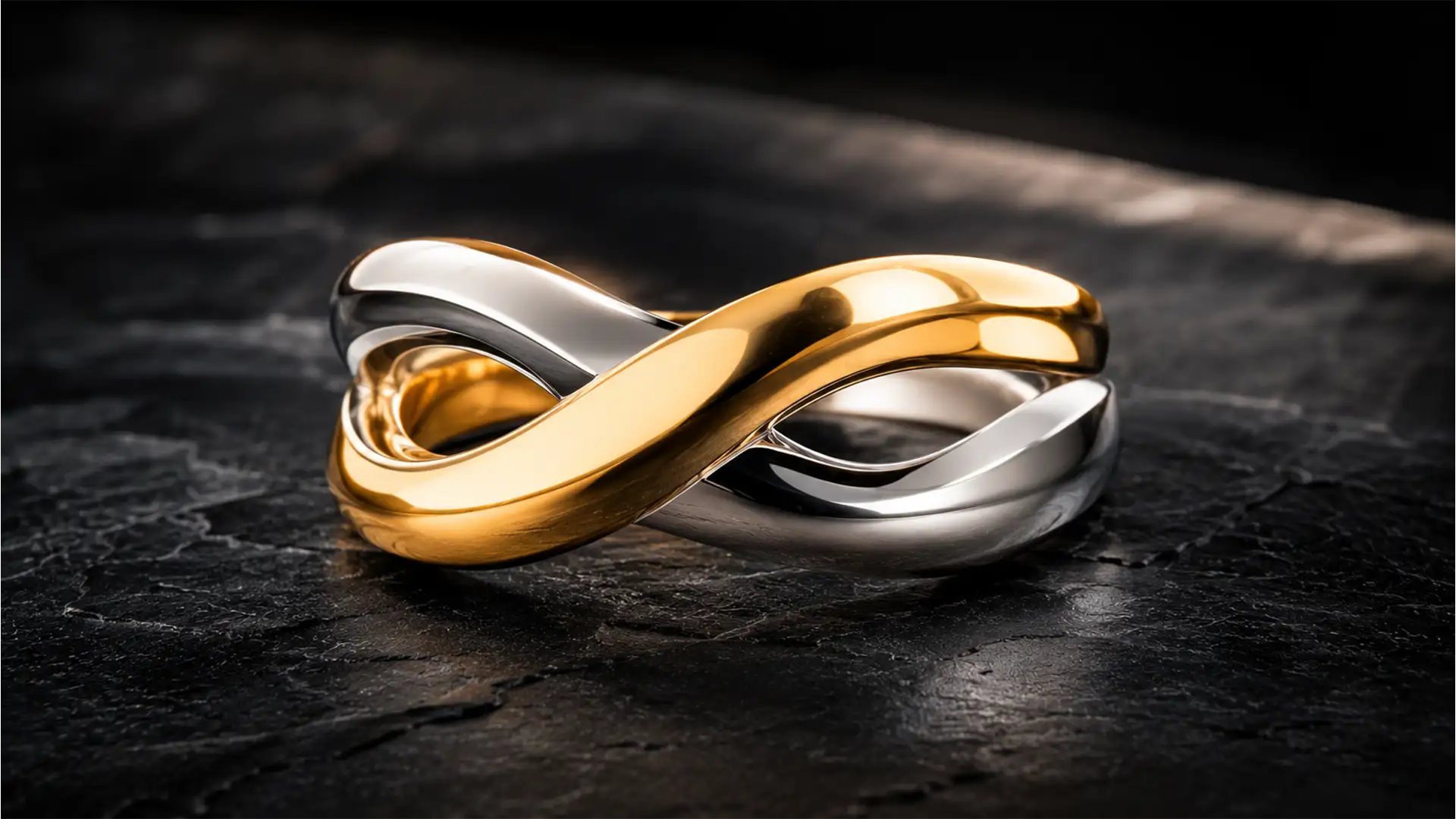

As we look ahead to upcoming commercial catalog seasons, mixed-metal designs are aggressively dominating the market. But for retouchers working in Photoshop v25.x to v27.x, these stunning pieces present a massive headache: cross-metal color contamination. You know the exact frustration—that muddy “color bleeding” where the warm, rich tones of a gold band reflect directly onto the cool, neutral tones of a silver setting. Global color corrections only make it worse, leaving your silver looking tarnished or your gold desaturated. If you want to maintain absolute purity at every pixel boundary, you need advanced masking strategies. Let’s break down the fix.
The Challenge of Retouching Mixed Metal Jewelry for 2026 Trends
High-contrast, bi-metal designs require pristine separation. When shooting macro jewelry photography, environmental reflections are unavoidable. The gold bounces yellow light onto the silver, and the silver reflects cool tones back onto the gold.
If you attempt to fix this with a global desaturation or a basic color balance layer, the entire piece loses its premium feel. The secret to retouching mixed metal jewelry for 2026 trends lies in localized, non-destructive editing that treats each metal as an entirely separate entity while preserving the global lighting structure.
3 Workflows to Eliminate Color Contamination
Depending on your deadline and the required fidelity of the catalog, there are three distinct ways to tackle this color contamination in Photoshop.
Method A: The Quick Fix (Object Selection Tool)
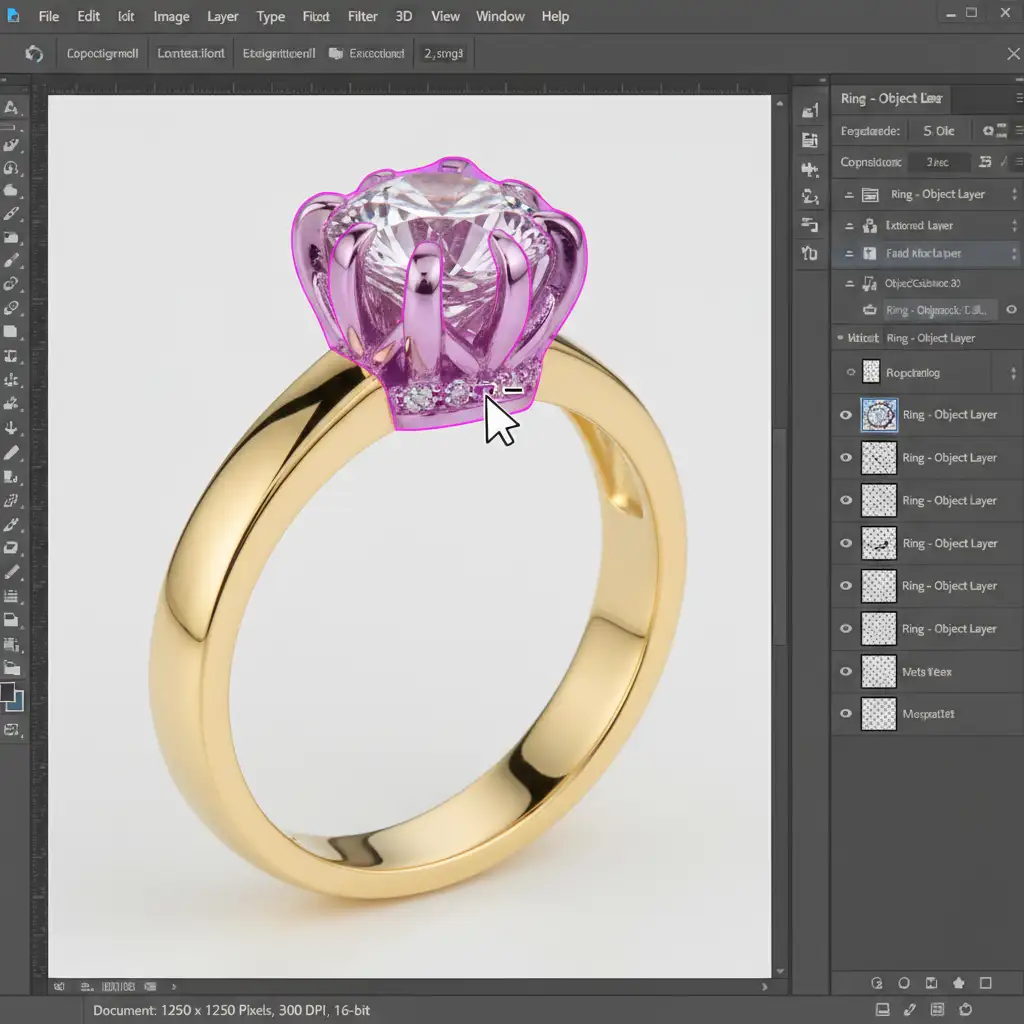
When processing high-volume e-commerce batches, you need speed. The updated AI tools in recent Photoshop builds can handle basic separation.
- Select the Object Selection Tool.
- Hover over the jewelry piece to let Photoshop detect the distinct metals.
- Hold Alt/Option to activate Object Subtract and carefully remove the gold portions from your selection, leaving only the silver isolated.
- Add a Hue/Saturation adjustment layer.
- Target the Yellows channel in the properties panel and drop the saturation to zero.
This instantly neutralizes the gold bleed resting on the silver surfaces.
Method B: The Pro Workaround (Vector Clipping Paths)
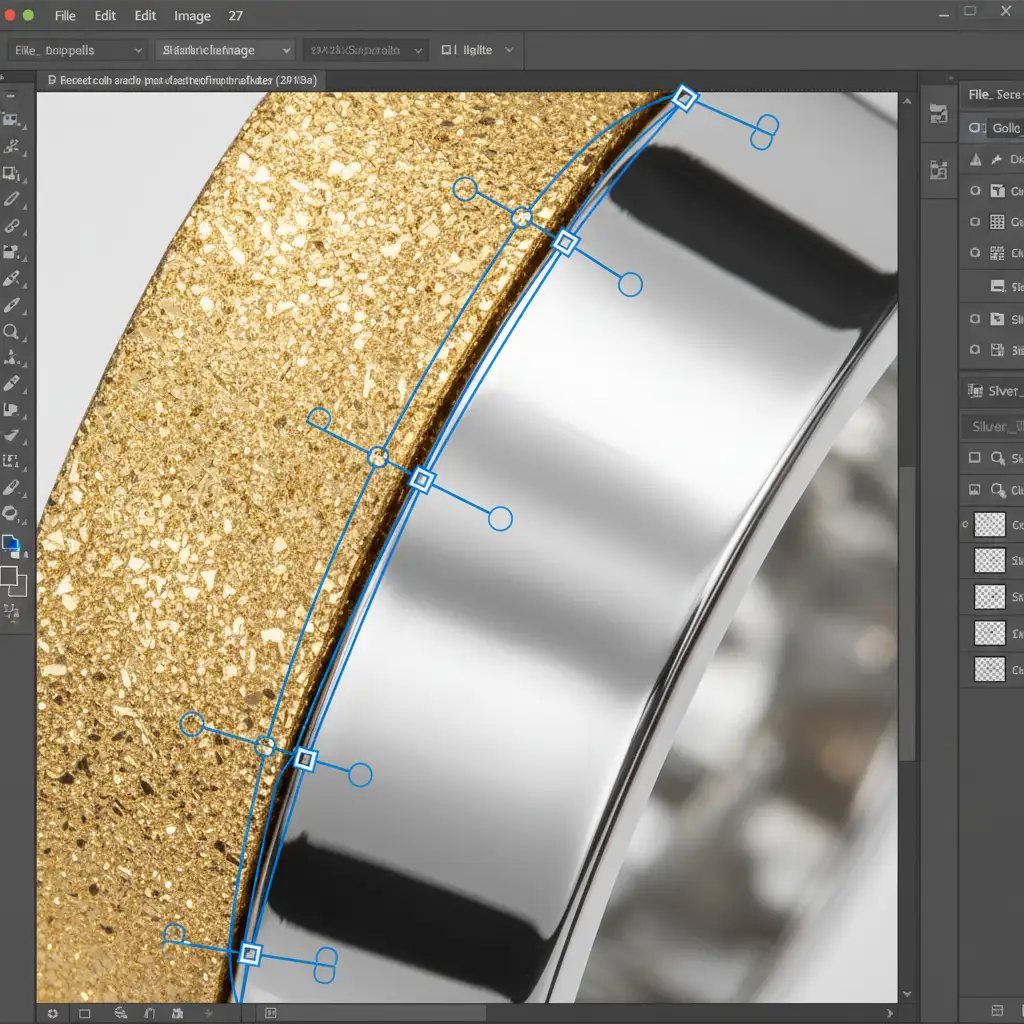
For high-end commercial retouching, AI selections often fail at the exact pixel boundary where the two metals meet. This requires manual precision.
- Select the Pen Tool and create rigorous vector clipping paths along the exact intersection of the gold and silver.
- Convert these paths into vector masks for absolute hard boundaries.
- Apply a Selective Color adjustment layer clipped to your gold mask. Add yellow and magenta to the neutrals to boost gold richness.
- Apply a second Selective Color layer clipped to your silver mask. Remove yellows from the neutrals and highlights to ensure pure silver neutrality.
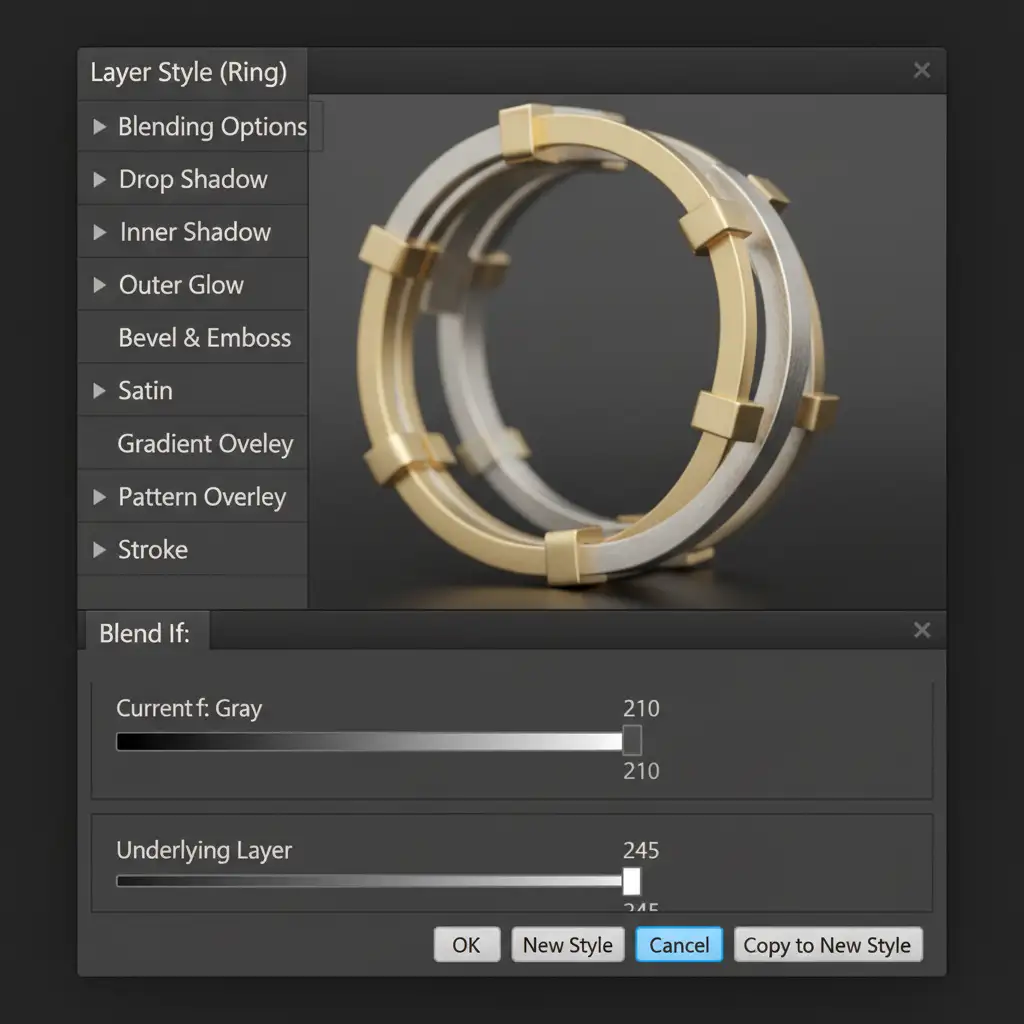
Method C: The Technical Deep-Dive (Luminosity Masking & Blend If)
The most advanced method ensures that color grading doesn’t destroy the natural lighting of the piece. When you manipulate color, you risk tinting the pure white specular highlights, which makes the metal look like cheap plastic.
To prevent this, we use luminosity masking combined with layer styles.
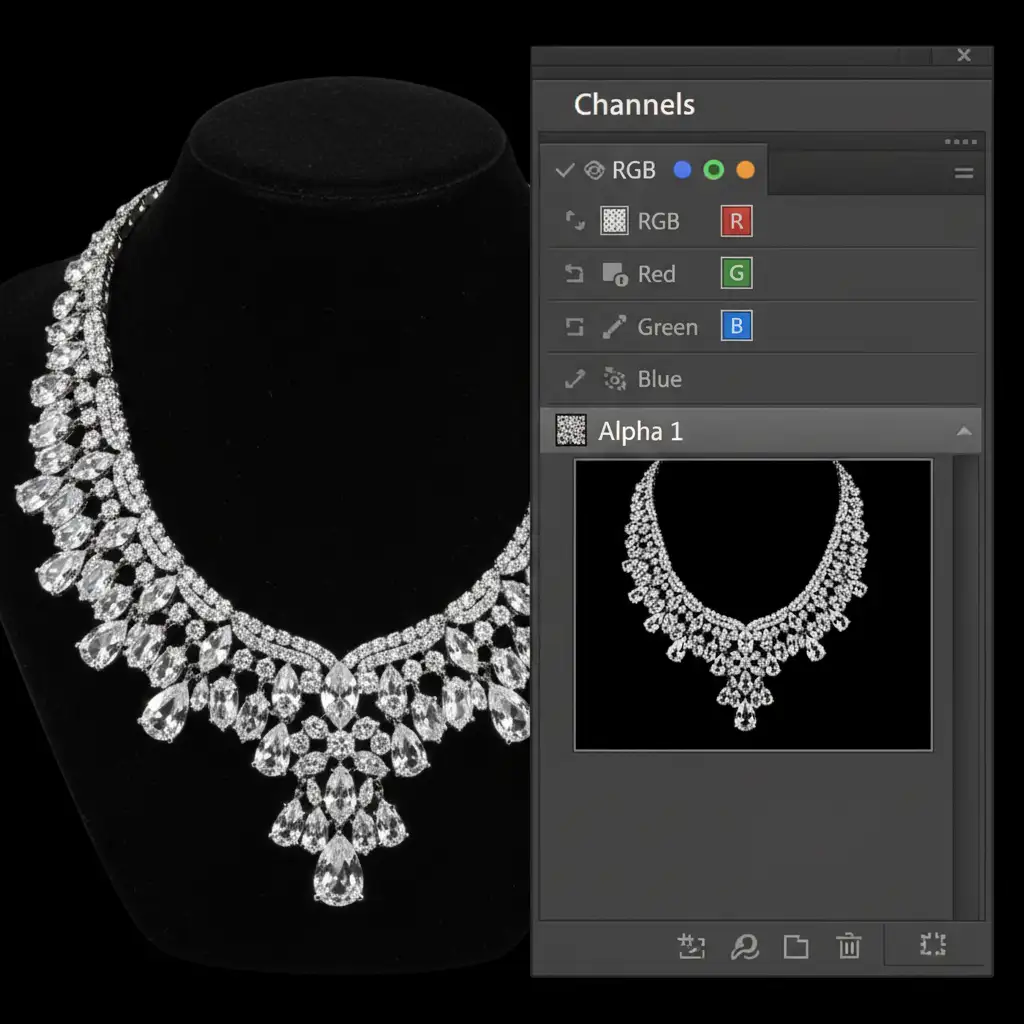
- Open the Channels panel.
- Ctrl/Cmd-click the RGB channel to select the image’s highlights.
- Save this selection as a custom Alpha Channel.
- Apply your color corrections (like the Selective Color adjustments from Method B).
- Double-click your adjustment layer to open the Layer Style dialog box.
- Navigate to the Blend If sliders (Underlying Layer).
- Alt/Option-click the white highlight slider to split it, dragging the left half toward the midtones.
This forces your color grading to apply only to the midtones and shadows, protecting the pure white specular highlights on both metals and preventing cross-contamination of environmental reflections.
Outsource Your High-End Jewelry Retouching
Mastering vector masks, managing alpha channels, and fine-tuning Blend If sliders takes years of specialized practice. When you are processing hundreds of SKUs for a seasonal catalog launch, spending 45 minutes fixing color contamination on a single ring simply isn’t scalable.
Struggling to keep your mixed-metal jewelry catalogs looking pristine? Outsource your complex masking and high-end retouching to the experts at Image Work India & Cloud Retouch. Our dedicated team of specialized jewelry retouchers guarantees flawless, commercial-grade results, ensuring your gold stays rich, your silver stays pure, and your pixel boundaries remain razor-sharp. Contact us today to scale your post-production workflow.




