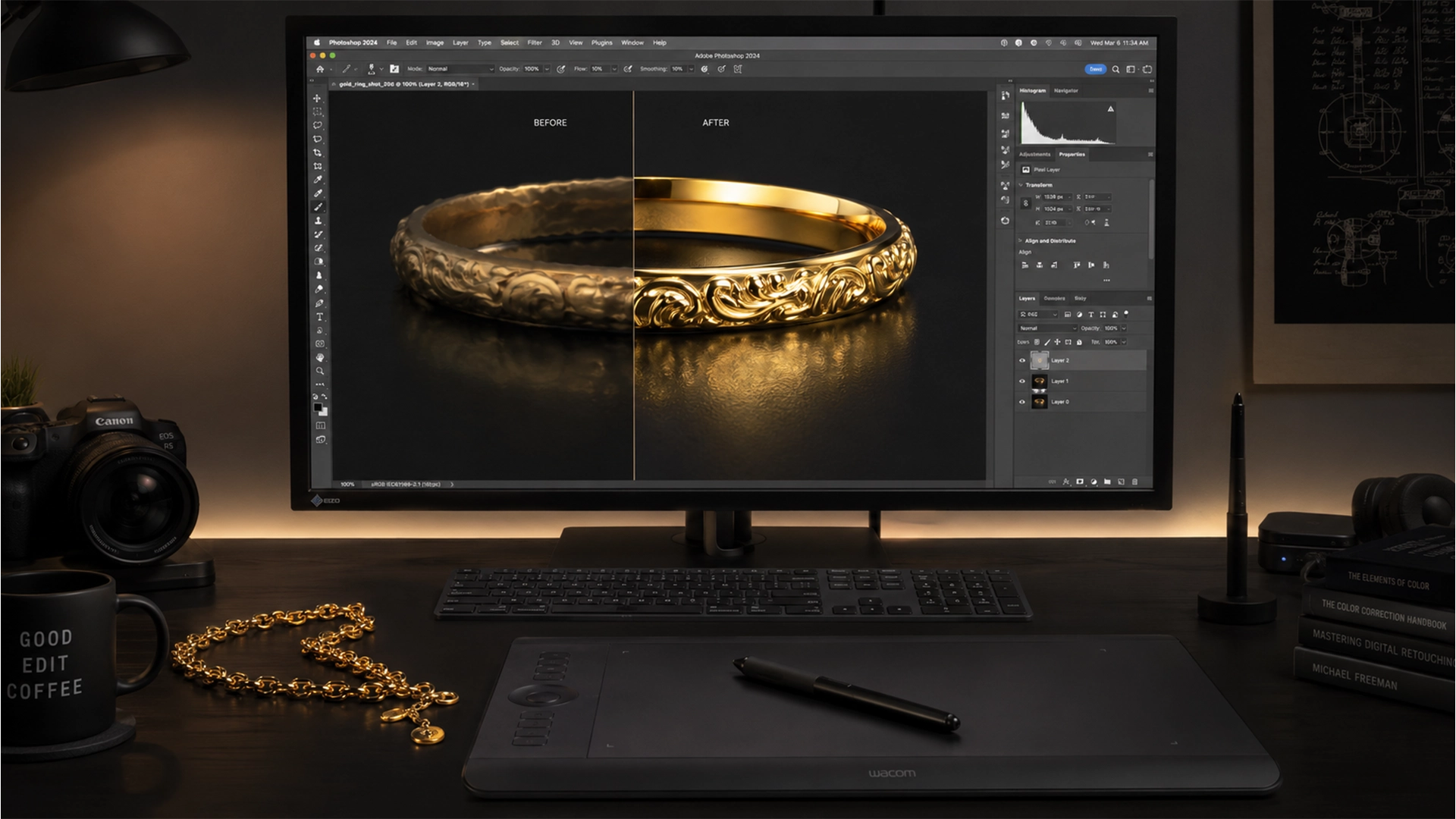

You just used Photoshop’s Generative Fill to clean up a stunning gold ring, but instead of a crisp, luxurious shine, you’re left with a flat, warped, “muddy metal” mess. Firefly AI is incredible for many tasks, but it notoriously struggles with high-index reflective surfaces, turning brilliant specular highlights into dull matte textures. If you’re tired of AI ruining your commercial jewelry shots, you aren’t alone.
In this guide, we’ll dive into the technical reasons behind these errors and show you exactly how to fix Generative Fill reflection artifacts on gold jewelry using pro-level techniques like frequency separation and gradient mapping.
The Problem: Why Firefly AI Creates the “Muddy Metal” Artifact
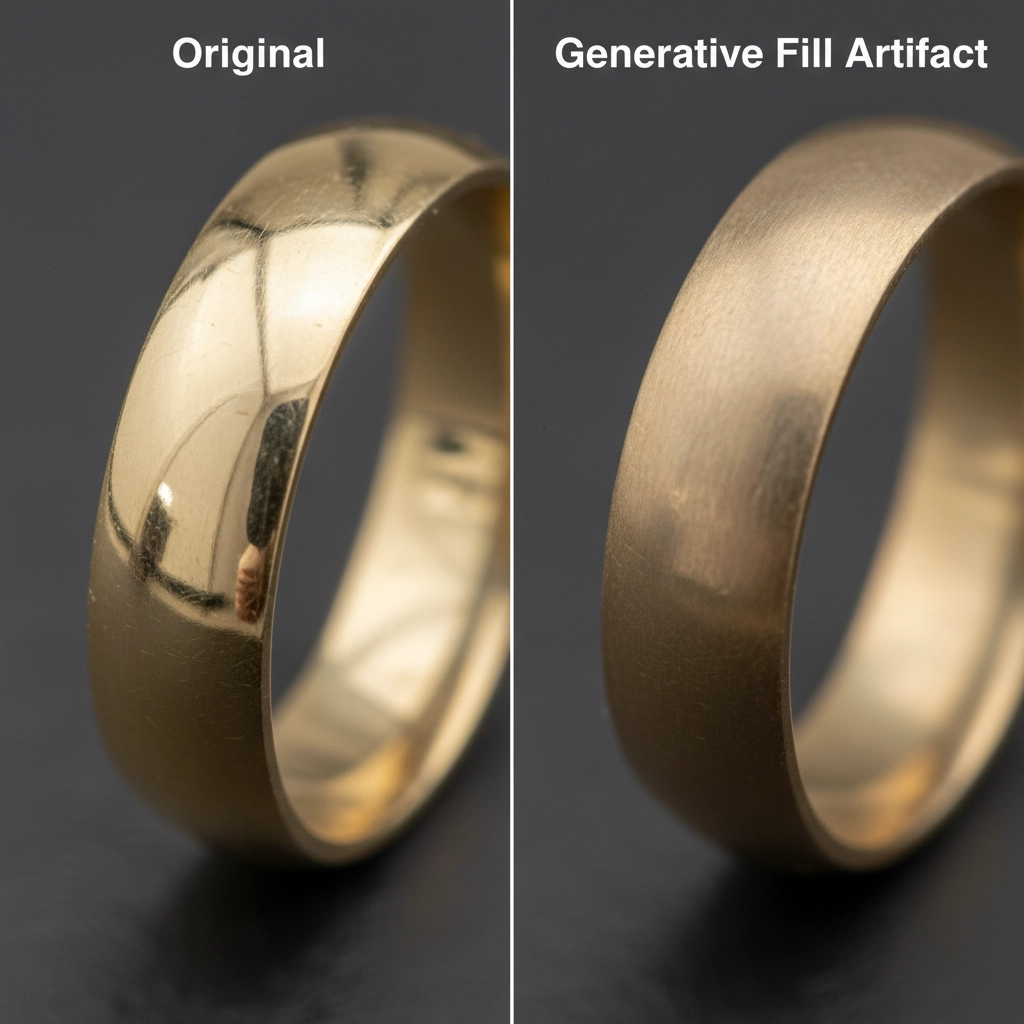
Photoshop v25.0 and later versions utilizing the Firefly AI model struggle significantly with polished metals. The core issue arises because the AI interpolates specular highlights and hard environmental reflections as flat, matte textures.
Why does this happen? The AI’s training dataset lacks the specific context required to understand microscopic geometric light bounces on polished gold and silver. Instead of reconstructing a crisp metallic shine, the AI averages out pixel values. The result is a flat, warped artifact—commonly referred to in the retouching industry as “muddy metal.”
3 Ways to Fix Generative Fill Reflection Artifacts on Gold Jewelry
To restore the natural brilliance of your jewelry photography, you need to combine AI generation with manual, high-end retouching techniques. Here are three proven methods to overcome the muddy metal look.
Method 1: The Quick Fix (Luminosity & Dodge and Burn)
If the AI generated the correct underlying structure but ruined the lighting, you can manually restore the shine.
- Constrain the Selection: Never use the Lasso tool for jewelry. Use the Pen Tool for a precise, hard-edged selection around the area you need to generate.
- Blend Mode Adjustment: After running Generative Fill, change the AI generated layer’s blend mode to Luminosity. This forces the AI to only affect the lightness values, preserving your original color.
- Dodge and Burn: Create a new layer above your Generative Fill layer, fill it with 50% gray, and set the blend mode to Overlay. Use the Dodge and Burn tools to manually paint back the missing specular highlights and deepen the shadows to restore contrast.
Method 2: The Pro Workaround (Frequency Separation)
For a flawless finish, you must separate your image’s texture from its color tone before letting the AI touch it. This is where frequency separation saves the day.
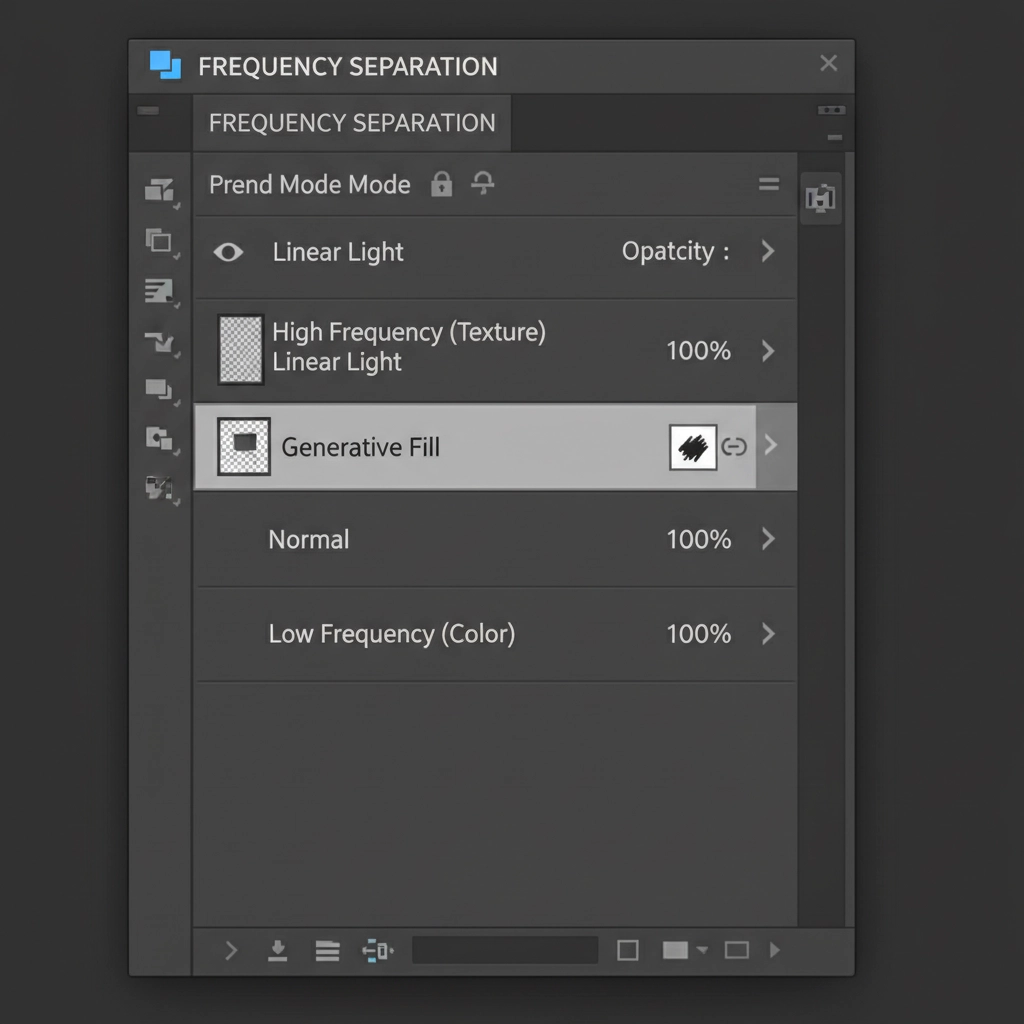
- Separate the Frequencies: Before using Generative Fill, separate your jewelry image into a High Frequency layer (which holds the crisp reflection data and high-frequency texture) and a Low Frequency layer (which holds the color and tone).
- Target the Low Frequency: Apply your Generative Fill only to the Low Frequency layer.
- The Result: This allows the AI to fix underlying color and structural issues, while the High Frequency layer sitting on top preserves the original, crisp microscopic light bounces and specular highlights.
Method 3: The Technical Deep-Dive (Gradient Maps & Blend-If)
Sometimes, the AI completely destroys the metal tone, turning warm 18k gold into a sickly yellow-green. To fix this, we use precise color grading combined with luminosity masking.
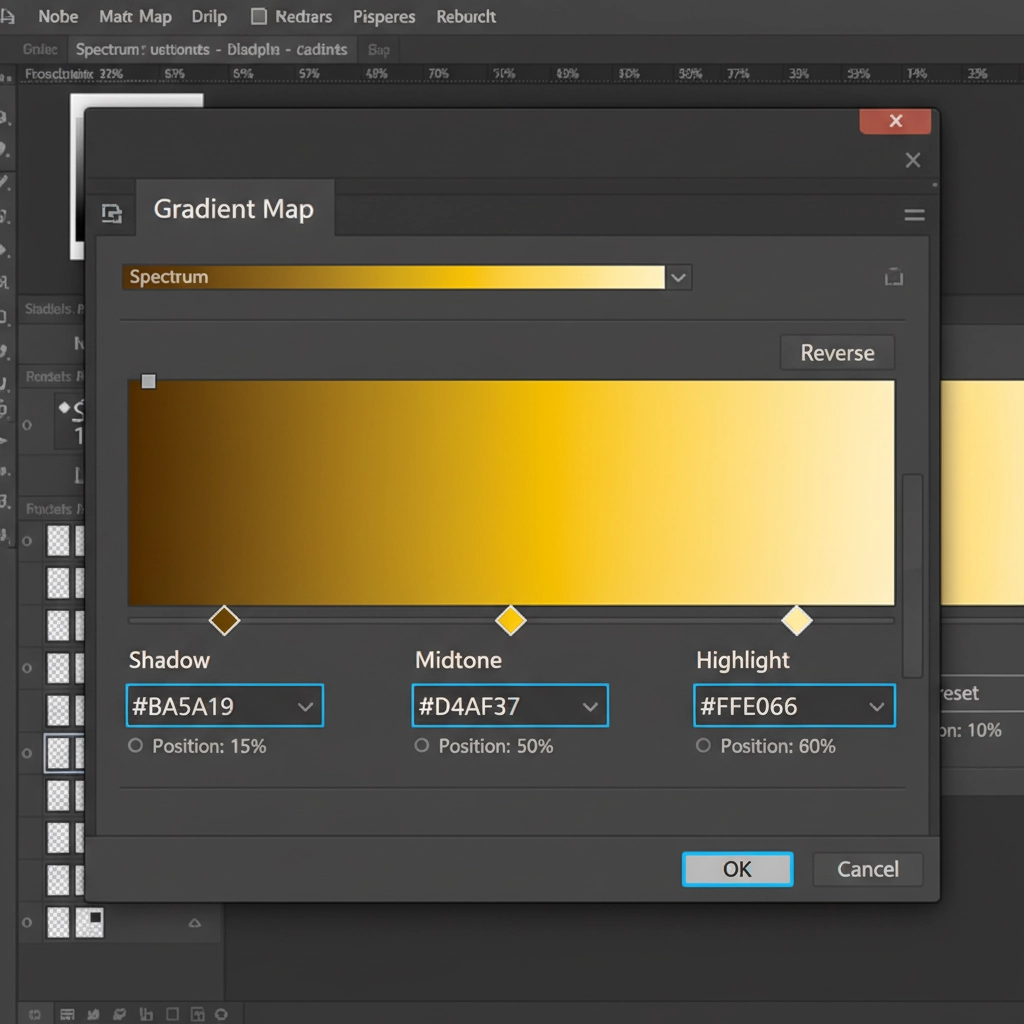
- Apply a Gradient Map: Create a Gradient Map adjustment layer and turn it into a clipping mask directly over your Generative Fill layer.
- Input Accurate Hex Codes: Map your gradient to accurate gold tonal values. Use #FFE066 for the brightest highlights, #D4AF37 for the rich midtones, and #8A5A19 for the deep shadows.
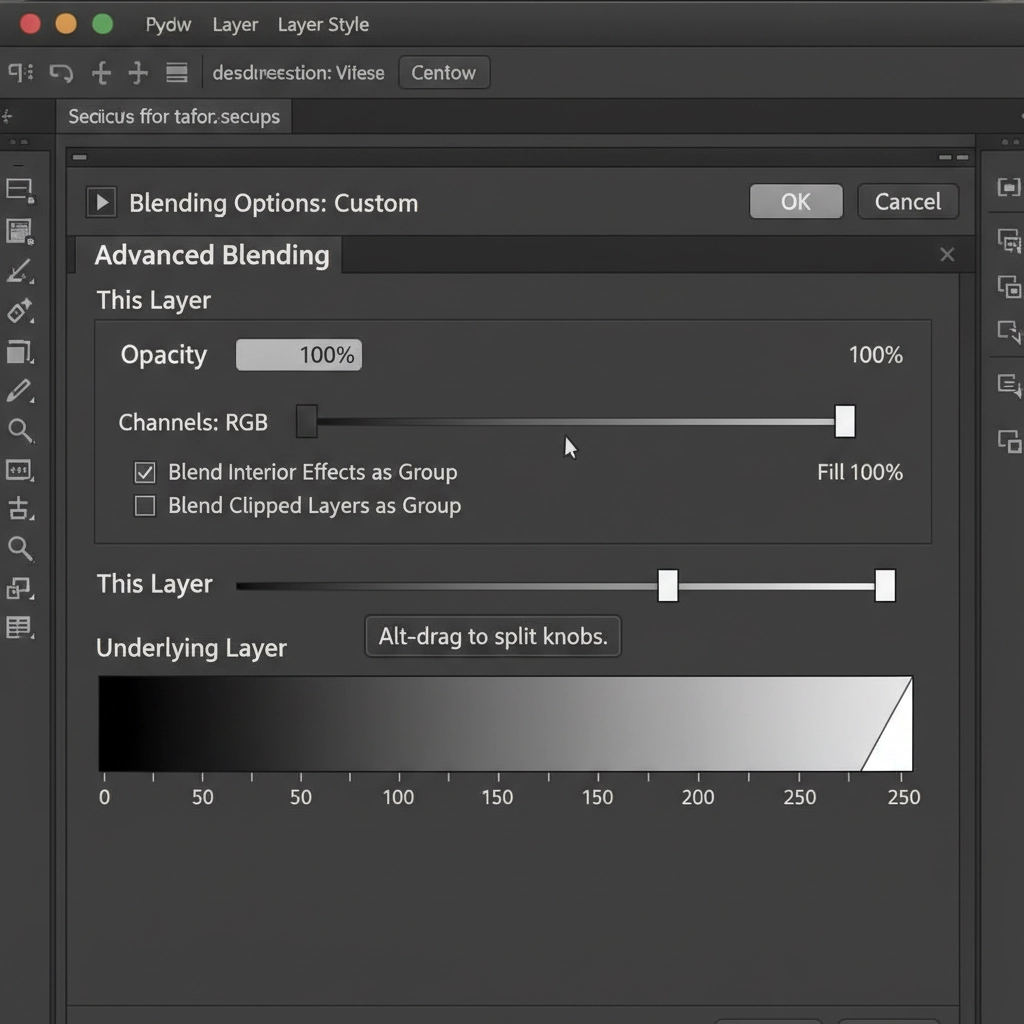
- Refine with Blend-If Sliders: Finally, double-click the Gradient Map layer to open the Layer Style dialog box. Navigate to the ‘Blend If’ section at the bottom. Adjust the Underlying Layer sliders by holding Alt (or Option on Mac) to split the white slider. Drag the left half inwards to ensure the original, brightest specular highlights punch through the AI-generated pixels and gradient map.
Stop Fighting the AI: Get Pixel-Perfect Jewelry Retouching
While Photoshop’s Firefly AI is a powerful starting point, AI tools still fundamentally struggle with high-end commercial perfection. Fixing Generative Fill reflection artifacts on gold jewelry requires a deep understanding of light behavior, frequency separation, and advanced color mapping. Spending hours fixing “muddy metal” artifacts eats into your profit margins and slows down your delivery times.
If you don’t have the time to manually rebuild specular highlights on every image, let the experts handle it.
Hire Image Work India and Cloud Retouch for flawless, pixel-perfect jewelry retouching. Our team of senior retouchers specializes in high-end commercial jewelry, ensuring your gold and silver pieces maintain their natural brilliance, crisp reflections, and luxurious shine—no AI artifacts allowed.
[Contact us today] to elevate your jewelry photography to commercial perfection.




