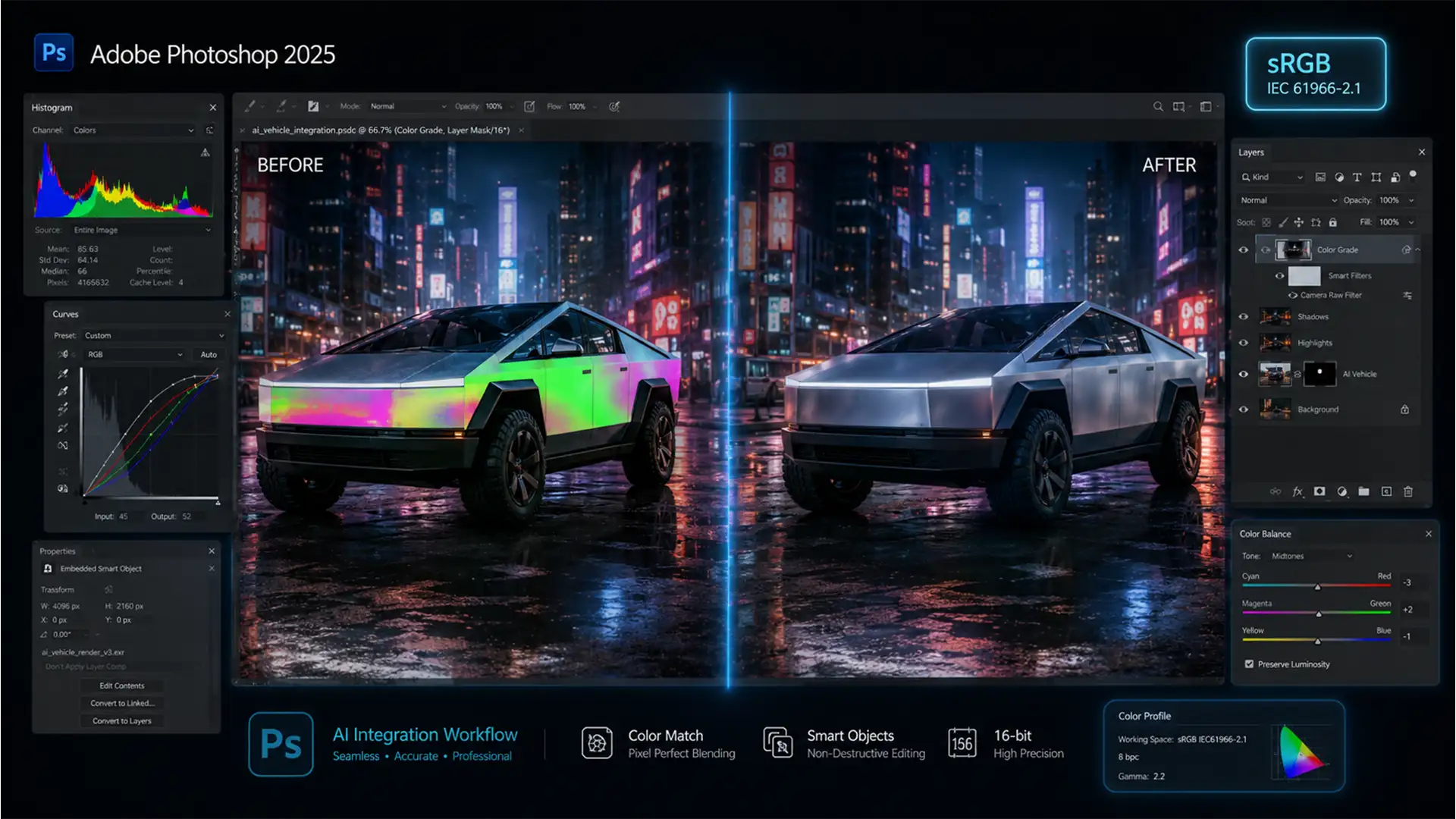

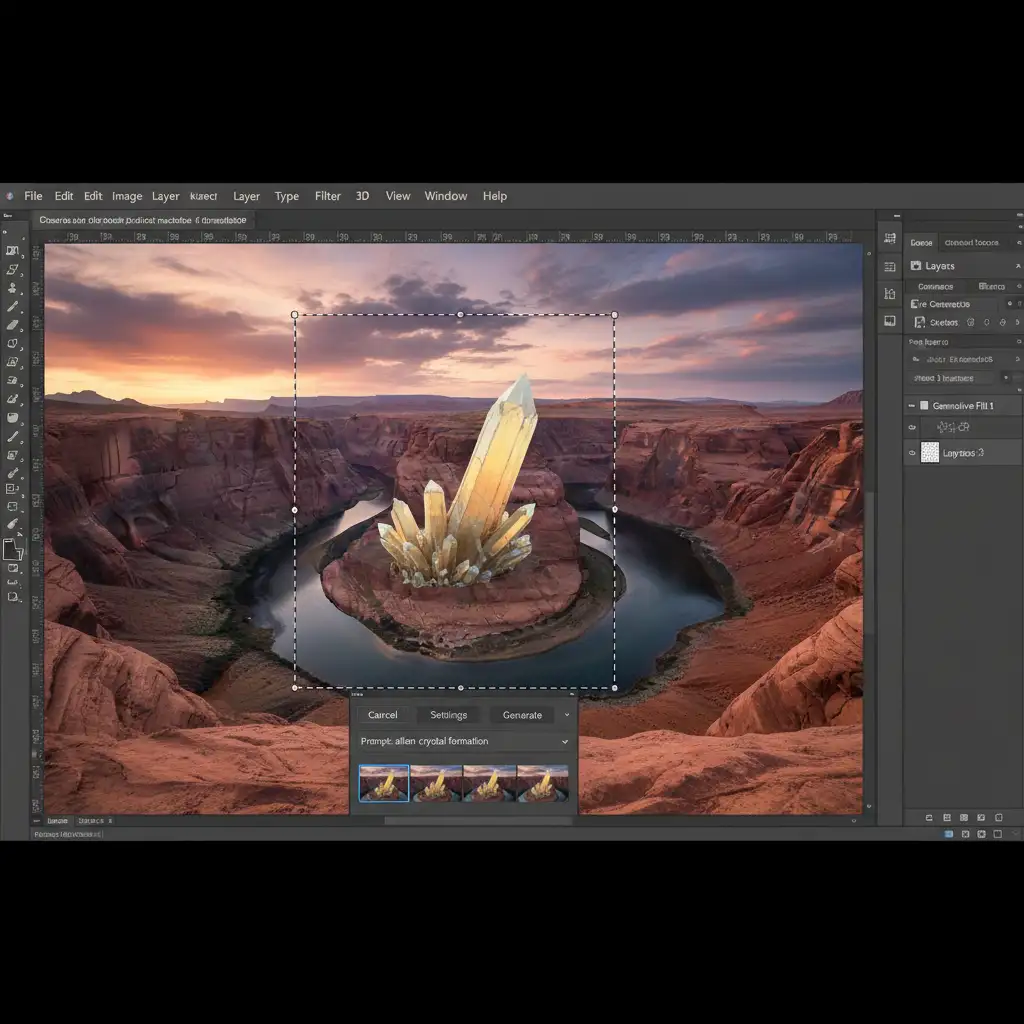
You type the perfect prompt, hit generate, and hold your breath. But instead of a seamless addition, Photoshop spits out an object with muddy contrast, weird temperature shifts, and glaring edge artifacts. It looks like a cheap sticker slapped onto your high-end plate.
If you’re struggling to fix generative fill color mismatch photoshop issues, you aren’t alone. Since version 25.0, Adobe Firefly’s native AI processing often clashes with wider color gamuts and bit depths, ruining commercial edits. Stop wasting time fighting the AI or settling for amateur results. Here are three professional, guaranteed workflows to perfectly blend your generated pixels every time.
Why Does Photoshop Generative Fill Cause Color Mismatches?
Before applying a fix, you need to understand the technical anomaly causing the problem. Adobe Firefly image models process data natively in the sRGB IEC61966-2.1 color space.
When you run Generative Fill in a document utilizing a wider color gamut (like ProPhoto RGB or Adobe RGB) or higher bit depths (16-bit rather than 8-bit), the AI model interpolates the lighting based on its external training dataset rather than adapting perfectly to your surrounding pixel luminosity. The result? Immediate color shifts, flat contrast discrepancies, and visible edge artifacts.
Method 1: The Quick Fix Using Clipped Adjustment Layers
When you need a rapid correction, manual color grading is your best friend. Instead of trying to regenerate the prompt dozens of times, you can force the AI-generated pixels to match your scene.
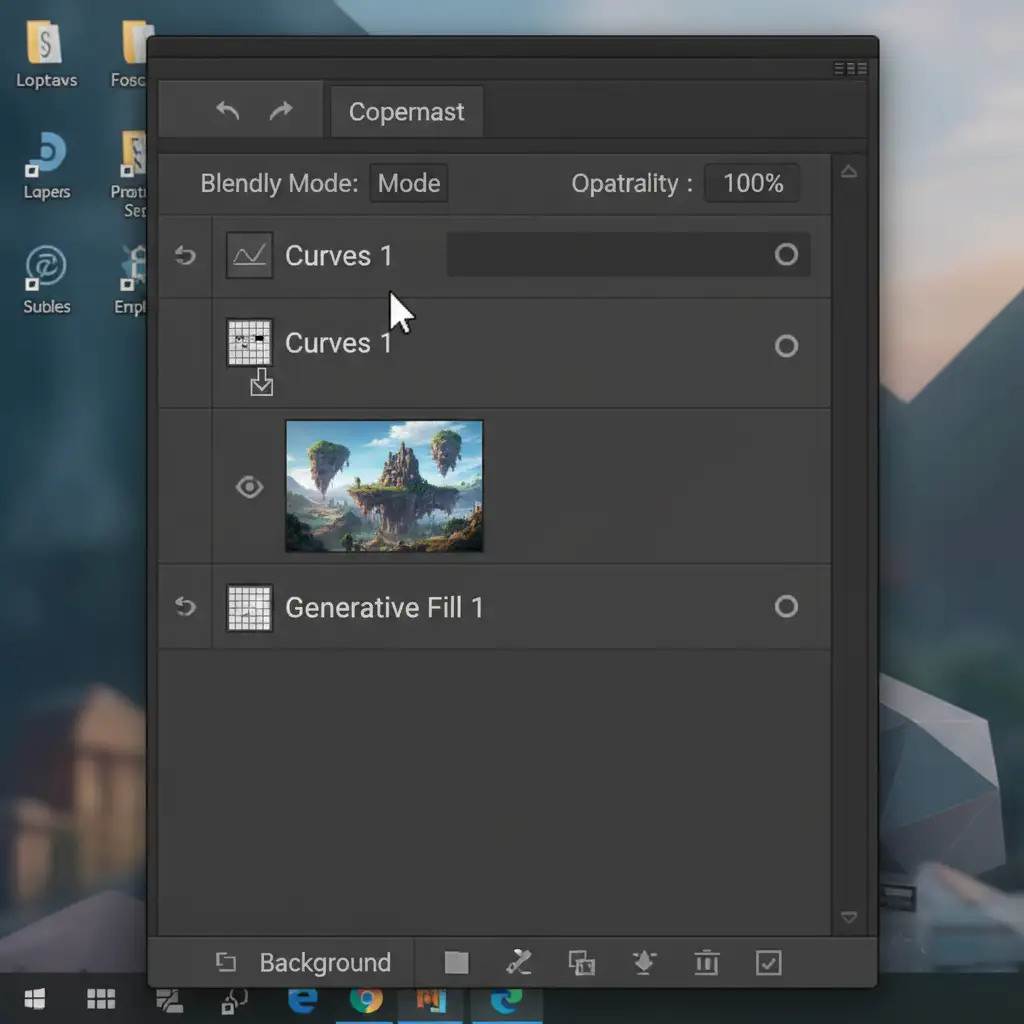
- Select your Generative Fill layer in the Layers panel.
- Create a Curves or Color Balance Adjustment layer.
- Create a clipping mask by holding Alt (Windows) or Option (Mac) and clicking exactly on the line between the Adjustment layer and the Generative Fill layer.
- Manually tweak the RGB channels. Adjust the highlights and shadows to execute basic histogram matching with the surrounding plate.
Method 2: The Pro Workaround with the Match Color Tool
For more complex lighting discrepancies where manual curves aren’t cutting it, you can leverage Photoshop’s legacy color algorithms to do the heavy lifting.
- Duplicate your Generative Fill layer (to preserve the original AI generation) and rasterize it.
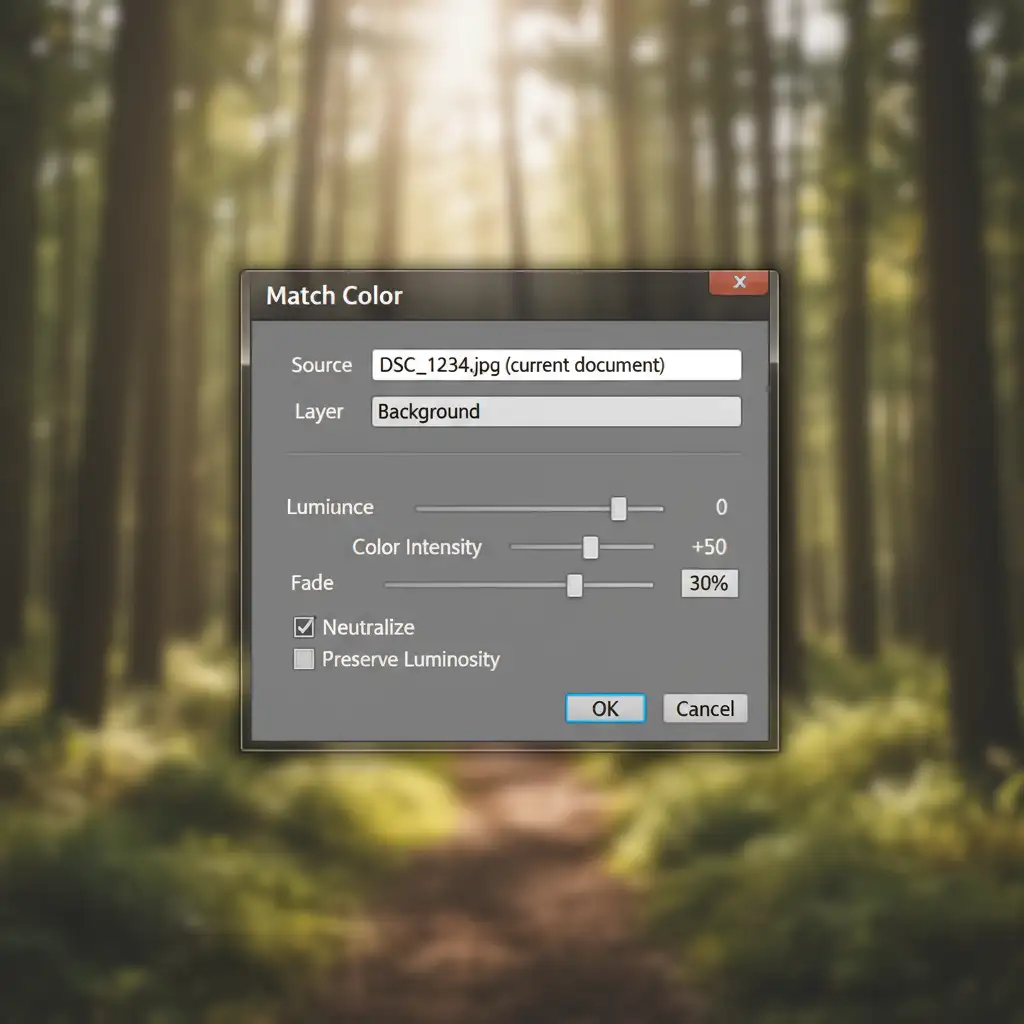
- Navigate to Image > Adjustments > Match Color.
- In the dialog box, set the Source to your current document.
- Set the Layer dropdown to your Background layer (or whichever layer contains your original plate).
- Adjust the Luminance and Color Intensity sliders. Crucially, push the Fade slider up to naturally blend the AI generation into the original plate’s luminosity, mimicking advanced luminosity masking without the complex channel selections.
Method 3: The Technical Deep-Dive (Color Profile Management)
The most robust way to fix generative fill color mismatch issues in Photoshop is to prevent them from happening in the first place by catering to Adobe Firefly’s native environment.
If you are working on assets meant for digital delivery, converting your workspace before generating is the ultimate solution.
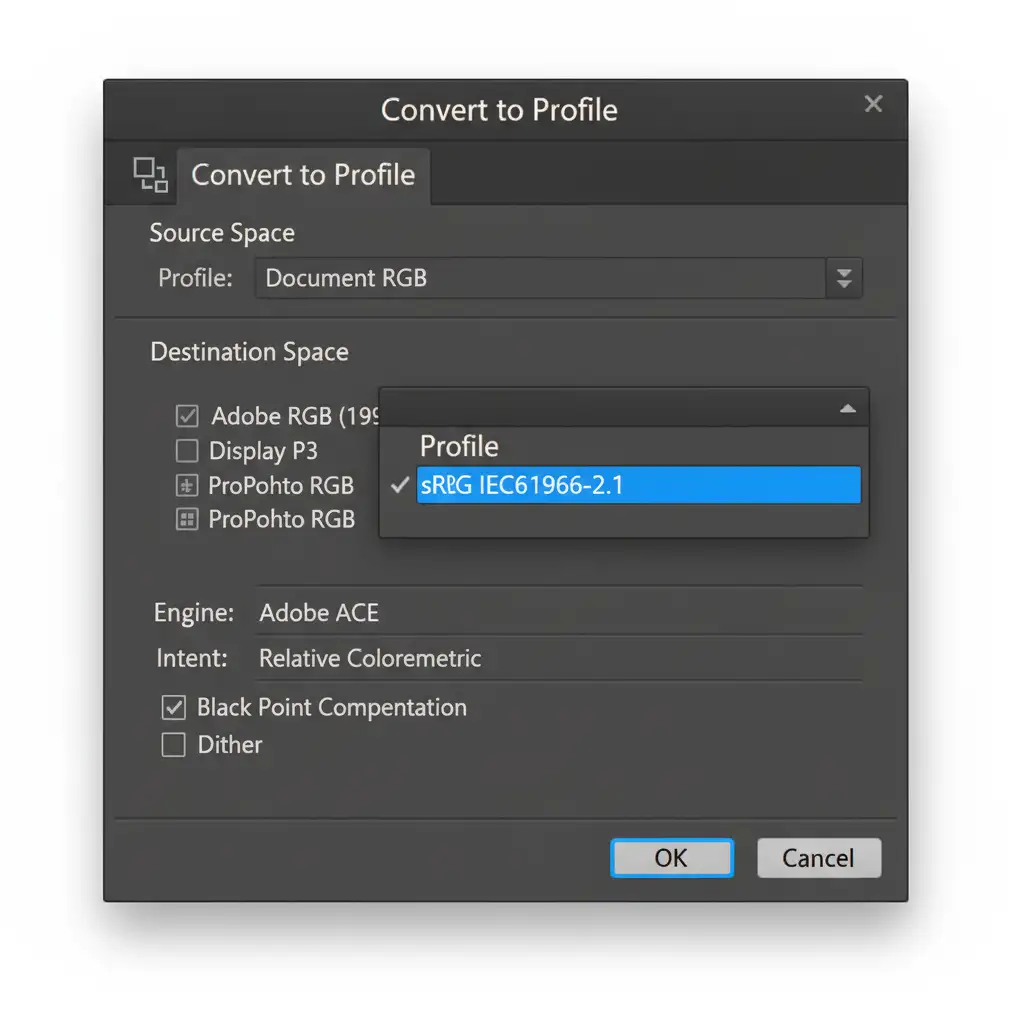
- Before using Generative Fill, navigate to Edit > Convert to Profile.
- Under the Destination Space, select sRGB IEC61966-2.1.
- Click OK.
- Run your Generative Fill prompt.
- Pro Tip: Add specific lighting descriptors to your text prompt, such as “matching ambient light” or “lit by studio strobes,” to guide the AI’s initial rendering.
By aligning your color profile with the AI’s native processing space, you eliminate the mathematical translation errors that cause temperature shifts.
When AI Fails: Get Pixel-Perfect Commercial Retouching
Generative Fill is a powerful conceptual tool, but it frequently falls short of the flawless, high-end standards required for commercial advertising, e-commerce, and professional photography. Tweaking curves and fighting color profiles eats into your valuable time.
Struggling to get flawless, commercial-grade results with AI? Let the experts at Image Work India and Cloud Retouch handle your high-end photo retouching for pixel-perfect precision. Our team of professional retouchers doesn’t rely on unpredictable algorithms—we deliver meticulously crafted, color-accurate imagery that elevates your brand.
Contact Image Work India today to scale your retouching workflow with guaranteed, professional results.




