![Fix Photoshop 2024 HDR to SDR Color Shift Bug [Full Guide]](https://imageworkindia.com/wp-content/uploads/2026/05/photoshop-2024-hdr-sdr-color-shift-fix-Featured-Image.webp)

You spent hours color grading a masterpiece in Photoshop 2024. It looks stunning on your Apple Liquid Retina XDR or Windows HDR monitor. But the moment you export it as a JPEG or PNG, the image looks flat, washed out, or uncharacteristically dark.
This rendering mismatch is a massive headache for retouchers. Fortunately, resolving this Photoshop 2024 HDR to SDR color shift fix is straightforward once you understand how modern displays interact with Adobe’s color management. Here is exactly how to fix it.
Understanding the Photoshop 2024 HDR Color Shift Bug
In Photoshop 2024 (v25.x), the canvas natively utilizes OS-level HDR APIs to display 32-bit float or high-luminance data. This means your software is pushing the absolute maximum brightness and contrast your premium monitor can handle.
However, standard web browsers, social media platforms, and default image viewers operate in standard dynamic range (SDR). When you export your file, the system forcefully compresses the expanded dynamic range into SDR space. Because the highlight data is stripped rather than properly mapped, you experience that infamous darkened or washed-out export bug.
To fix this, you need to master SDR rendering and color space calibration.
Step-by-Step Fixes for the HDR to SDR Export Issue
Depending on your workflow, there are three proven methods to stop the color shift dead in its tracks.
Method 1: The Quick Fix (Technology Previews)
If you are editing purely for web delivery (SDR) and don’t need to view the image in HDR while working, the fastest solution is to disable Photoshop’s native HDR display feature.
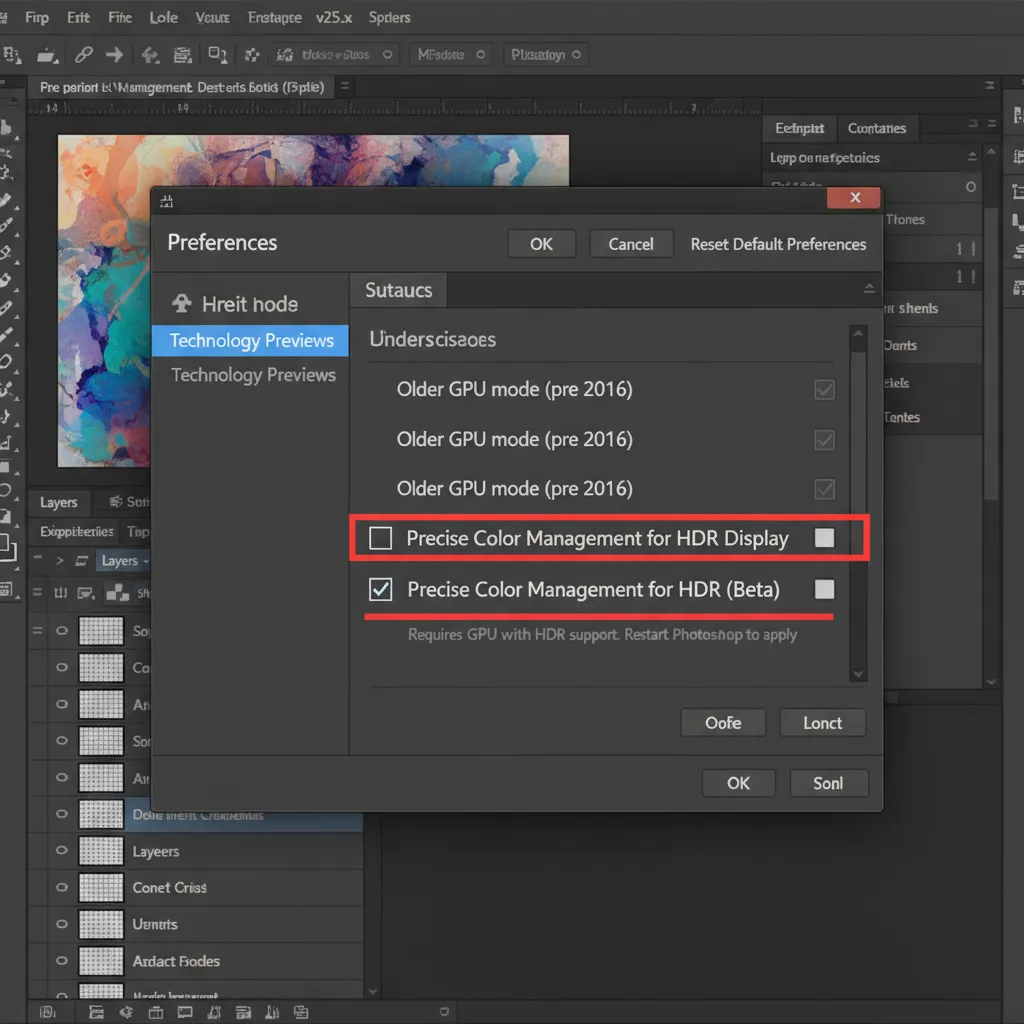
- Navigate to Edit > Preferences > Technology Previews.
- Locate the checkbox labeled Precise Color Management for HDR Display.
- Toggle this setting OFF.
- Restart Photoshop.
By turning this off, Photoshop will restrict its canvas rendering to match standard SDR outputs, ensuring what you see on the screen matches your final JPEG export.
Method 2: The Pro Workaround (HDR Toning and Local Adaptation)
If you are working with genuine 32-bit float HDR files and need to export them for SDR screens without losing critical highlight details, you must manually compress the histogram.
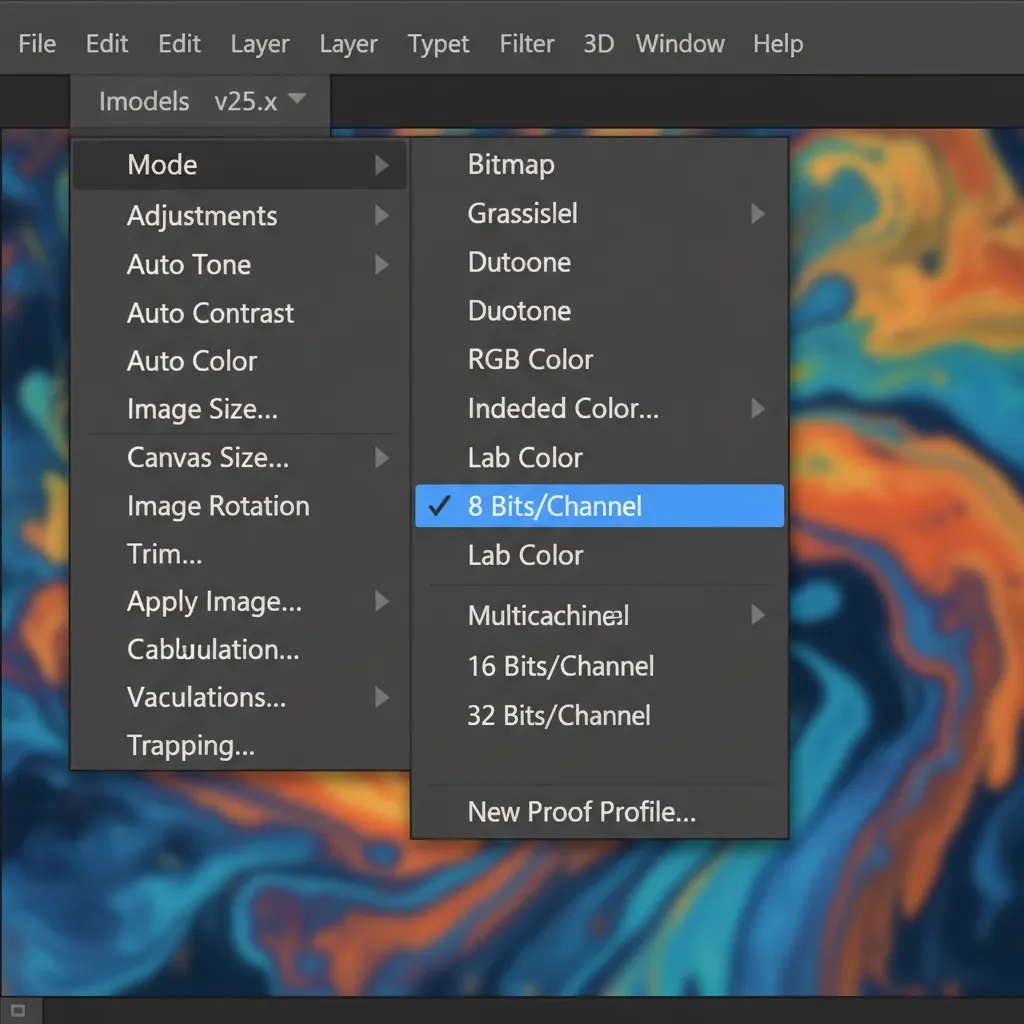
- Go to Image > Mode > 8 Bits/Channel.
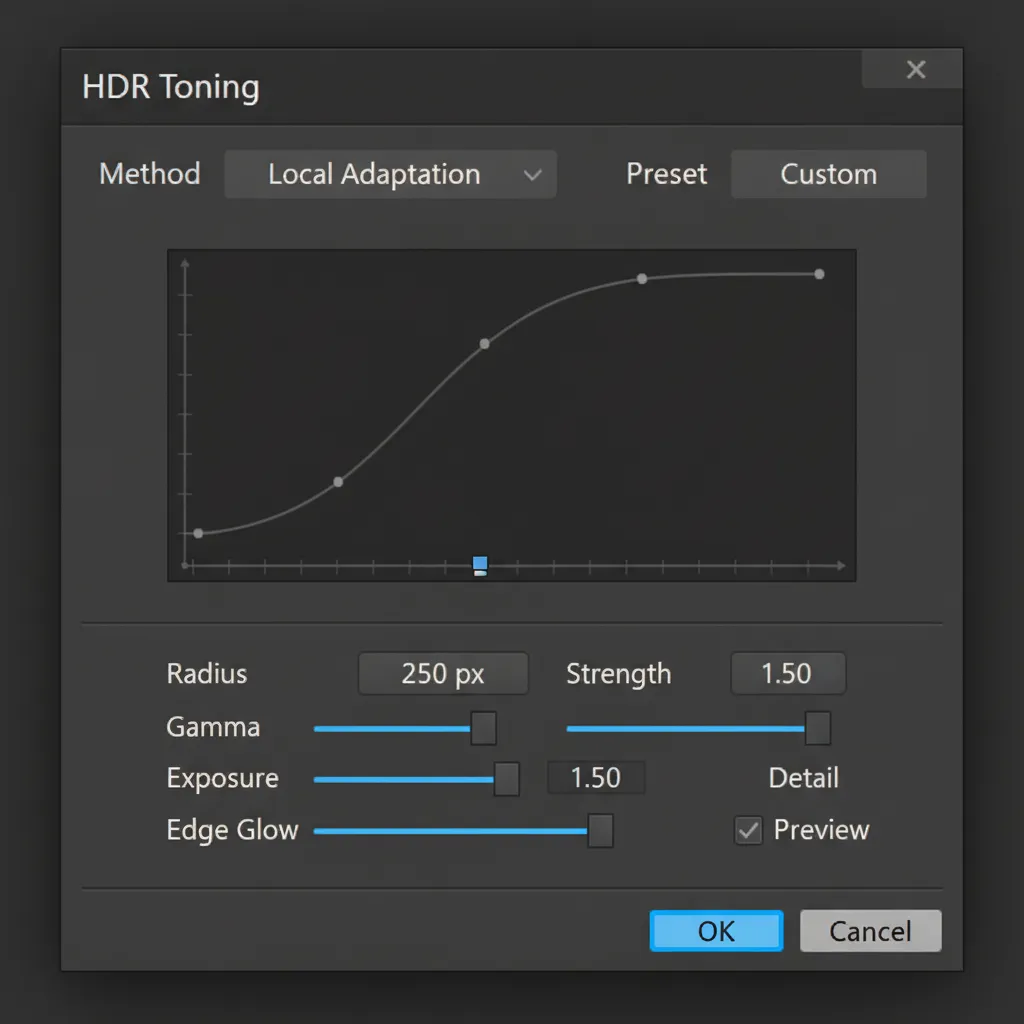
- A prompt will appear asking how you want to handle the conversion. Select Local Adaptation from the HDR Toning dialog dropdown.
- Use the toning curve and radius sliders to manually pull down the highlights and lift the shadows.
This method ensures you are safely mapping the HDR data into the SDR bounds, preventing unexpected gamut warnings or clipping during export.
Method 3: The Technical Deep-Dive (OS and Color Workspace Sync)
For professionals, the ultimate fix requires synchronizing your OS settings, Advanced Color Management, and GPU acceleration.
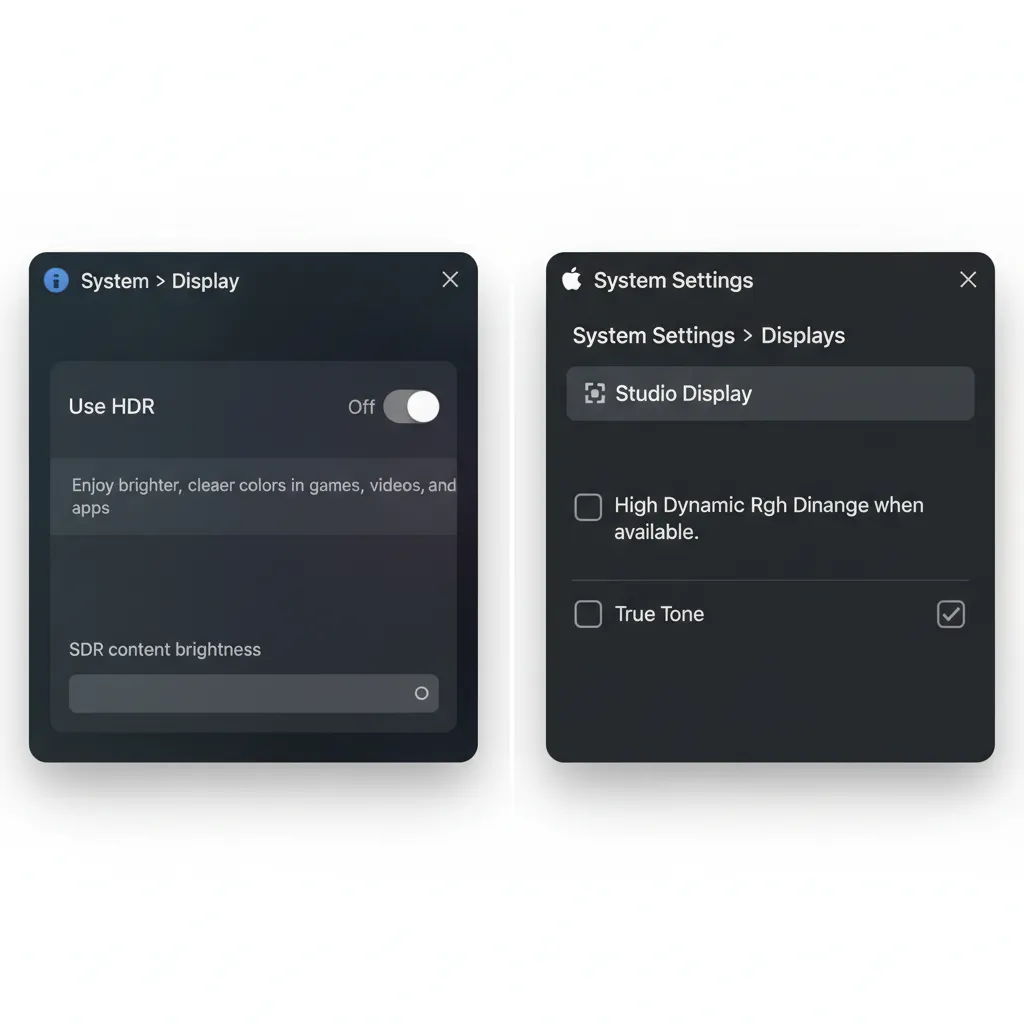
- Disable OS HDR: First, turn off HDR in your Windows Display Settings or macOS System Settings. If your OS is forcing HDR but Photoshop is exporting SDR, a mismatch is guaranteed.
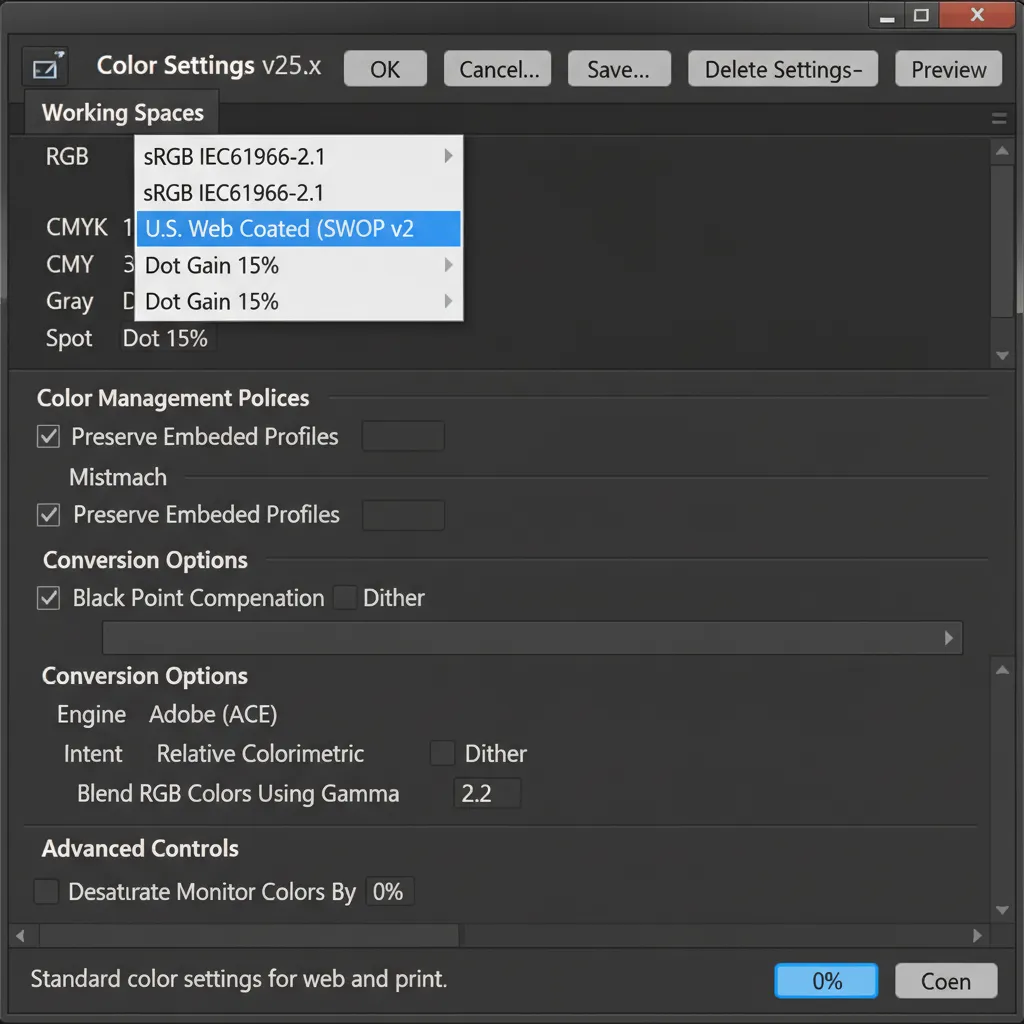
- Set the Right Working Space: Open Photoshop and navigate to Edit > Color Settings. Under Working Spaces, set your RGB profile to sRGB IEC61966-2.1. This is the universal standard for web delivery.
- Verify GPU ICC Profile: Go to Edit > Preferences > Performance > Advanced Settings. Ensure that OpenCL/GPU acceleration is checking your specific monitor ICC profile rather than defaulting to a generic virtual HDR profile.
Stop Fighting Photoshop—Let the Experts Handle Your Color Grading
Managing 32-bit float data, dealing with gamut warnings, and troubleshooting monitor ICC profiles can drain the joy out of photography and design. If you are constantly battling inconsistent colors across different devices, it’s time to streamline your workflow.
Outsource your complex color grading, HDR toning, and post-production to Image Work India and Cloud Retouch. Our dedicated team of expert retouchers ensures 100 percent color accuracy and consistency for every single project, whether it’s destined for a billboard or an e-commerce website.
Stop wasting hours on technical troubleshooting. Partner with Image Work India and Cloud Retouch today, and let us bring your true vision to life—flawlessly.




