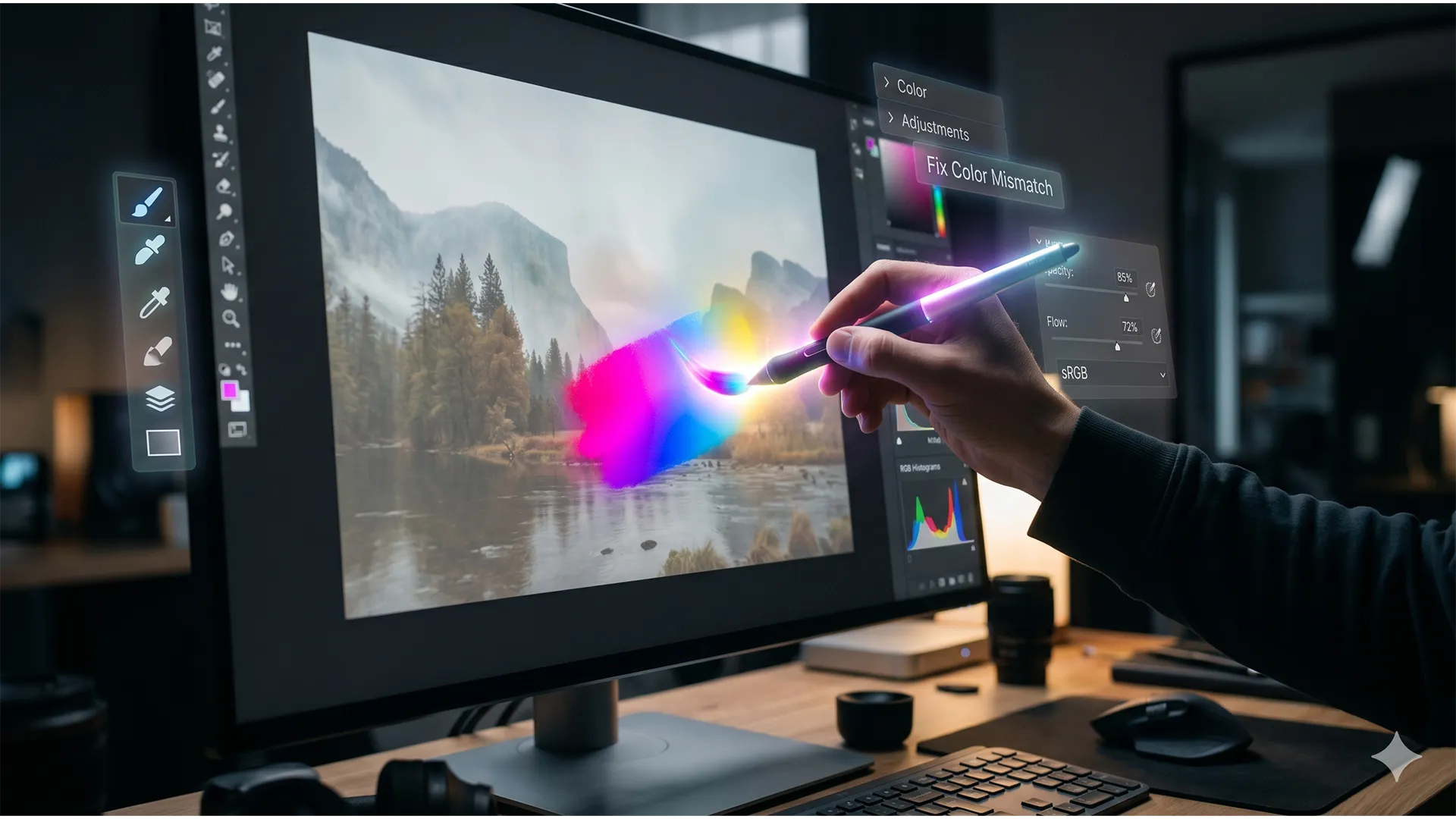

You’ve made the perfect selection, typed in your prompt, and hit “Generate.” But instead of a seamless, magical edit, Photoshop spits out a washed-out, muddy patch that looks like a cheap sticker slapped onto your high-end photo.
If you are trying to fix Photoshop Generative Fill color mismatch issues, you are not alone. Since the introduction of Photoshop v25.0 and Adobe Firefly AI, professional retouchers have been battling AI-generated patches that aggressively clash with their original image’s color grading, lighting, and texture.
Fortunately, fixing this doesn’t require regenerating the image fifty times. Below, we break down exactly why this happens and provide three professional workflows to seamlessly blend your AI outputs with your original pixels.
Why Does Firefly AI Create a Color Profile Mismatch?
Before we jump into the solutions, it helps to understand why the AI is failing your image. The mismatch usually comes down to two technical culprits:
- Color Space Conflicts: Adobe’s Firefly AI models are heavily optimized for the web-standard sRGB color space. If your document is set to a wider gamut like ProPhoto RGB or a print profile like CMYK, the AI generates pixels in sRGB, resulting in a severe Color Profile Mismatch when placed into your working file.
- The “Perfect Pixel” Problem: Generative Fill creates artificially clean pixels. Real photographs have a distinct Grain Structure and sensor noise. When smooth AI pixels sit next to real photographic grain, our eyes immediately register the patch as “fake,” even if the base colors are close.
Here is how to fix both issues permanently.
3 Proven Methods to Fix Photoshop Generative Fill Color Mismatch
Method 1: The Quick Fix (Clipped Adjustment Layers)
If your generated patch is only slightly off in luminosity or saturation, the fastest way to fix it is through non-destructive adjustment layers.
- Generate your AI patch using Generative Fill.
- Open your Layers panel and add a Curves or Hue/Saturation Adjustment Layer directly above the AI layer.
- Hold Alt (Windows) or Option (Mac) and click between the adjustment layer and the AI layer to create a Clipping Mask.
- Tweak the curves or saturation. Because it is clipped, your adjustments will only affect the mismatched AI pixels, allowing you to manually sync the lighting to the surrounding image.
Method 2: The Pro Workaround (Match Color & Grain Structure)
When the color mismatch is severe, manual curve adjustments can take too long. Photoshop’s built-in Match Color tool is the perfect automated workaround.
- Duplicate your AI-generated layer (always keep the original as a backup) and Rasterize it.
- Navigate to Image > Adjustments > Match Color.
- In the dialog box, go to the “Image Statistics” section at the bottom.
- Set the Source to your current document, and set the Layer to your original background image. Photoshop will mathematically force the AI patch to adopt the color grading of your original photo.
Don’t Forget the Grain: Once the colors match, you must fix the texture. Go to Filter > Noise > Add Noise. Add a very subtle amount of monochromatic noise (usually between 1% and 3%) to the rasterized AI layer so it perfectly mimics the Grain Structure of the original photograph.
Method 3: The Technical Deep-Dive (Color Profile Standardization)
The best way to fix a problem is to prevent it from happening in the first place. If you consistently experience washed-out AI generations, you need to standardize your Color Space before you use the AI tools.
- Before making any selections, navigate to Edit > Color Settings.
- Look under the Working Spaces section.
- Click the RGB dropdown menu and select sRGB IEC61966-2.1.
- Alternatively, if you must work in a different color space for print, use Edit > Convert to Profile to temporarily switch to sRGB, run your Generative Fill prompts, and then convert back to your intended output profile once the image is flattened.
Stop Fighting AI Artifacts: Let the Pros Handle It
While Adobe’s Firefly AI is a powerful tool, it still requires a deep understanding of color science, masking, and texturing to achieve truly photorealistic results. If you are spending hours trying to fix Photoshop Generative Fill color mismatch errors, you are losing valuable time that could be spent growing your business.
Need pixel-perfect editing without the AI artifacts?
Hire the expert retouchers at Image Work India & Cloud Retouch. Our team of professional editors doesn’t rely on unpredictable AI algorithms. We manually blend, color grade, and perfect your high-end imagery to ensure flawless, commercial-ready results every single time.
[Contact Image Work India today] and let us elevate your visual content to the next level.




