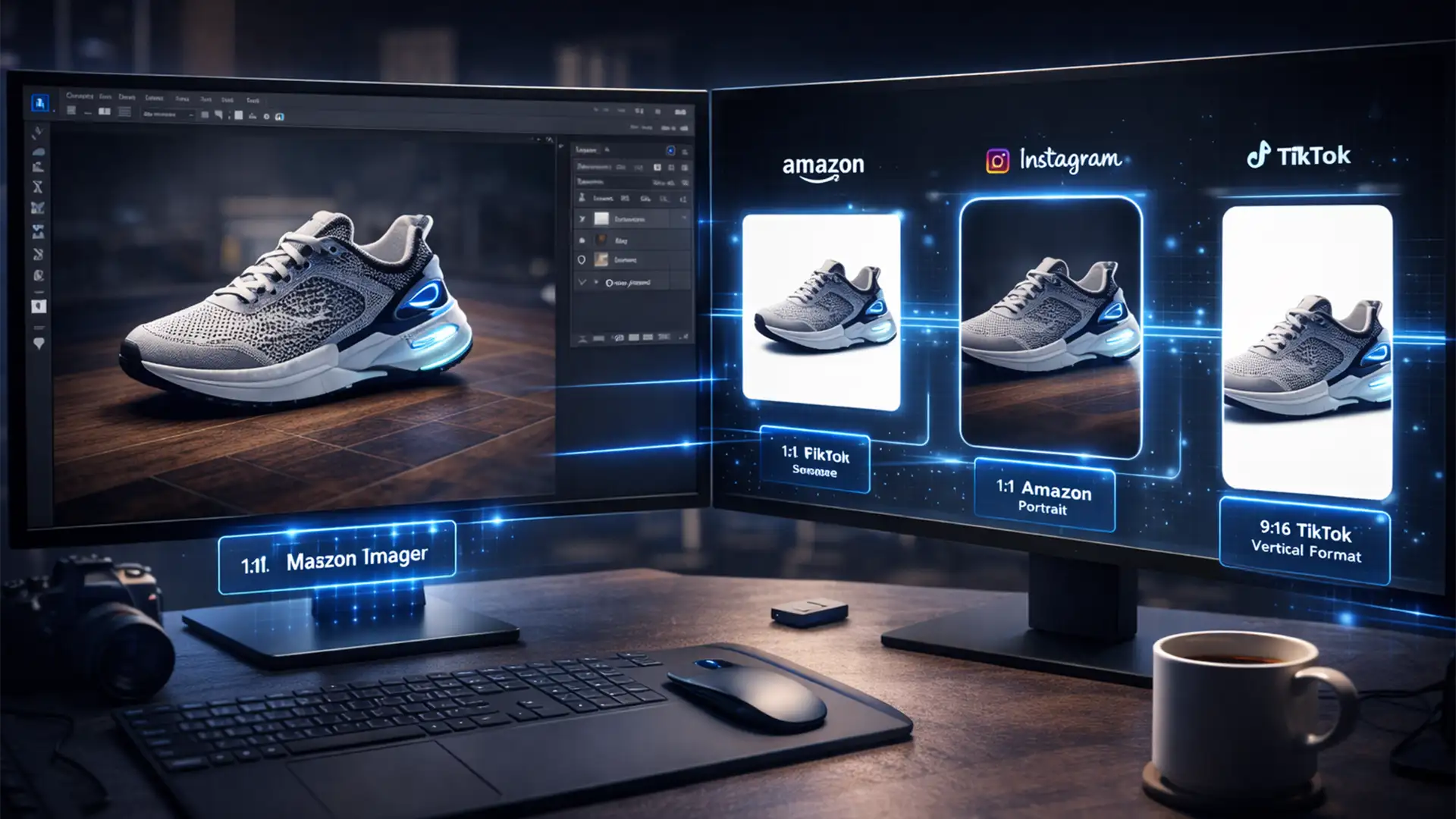

Are you spending more time cropping product photos than actually selling them? For ecommerce sellers, adapting a single master image to meet the stringent dimension and background requirements of different platforms is a massive time-drain. Manual resizing inevitably leads to pixelation, misaligned framing, and complete version control chaos.
If you are exhausted by manually formatting files for Amazon’s pure white 1:1 squares, Instagram’s 4:5 feeds, and Shopify’s 16:9 banners, it is time to upgrade your tech stack. Mastering automated product image variations for multi-platform ecommerce will buy back your sanity, protect your profit margins, and ensure your catalog looks pristine across every channel.
Here is the ultimate guide to automating your Photoshop workflow (v25.x to v27.x) to generate flawless multi-platform variations in seconds.
The Multi-Platform Nightmare: Why Manual Resizing Fails
Every platform has strict visual guidelines. Amazon demands a pure white background with specific image-to-frame ratios. Instagram requires a 4:5 aspect ratio for maximum feed real estate. TikTok and Pinterest demand 9:16 vertical dominance.
When you manually crop and resize a master file for each platform, you risk human error. Inconsistent framing makes your brand look unprofessional, and repeated manual saving destroys your file organization. By leveraging Photoshop’s advanced automation tools, you can standardize your aspect ratios, ensure lossless scaling, and process thousands of files simultaneously.
3 Workflows for Automated Product Image Variations
Depending on your technical comfort level and the size of your catalog, Photoshop offers three distinct ways to handle multi-platform image generation.
Method A: The Quick Fix (Automated Actions & Batch Processing)
If you need a straightforward way to process hundreds of images into a specific format, recording Automated Actions is your best starting point.
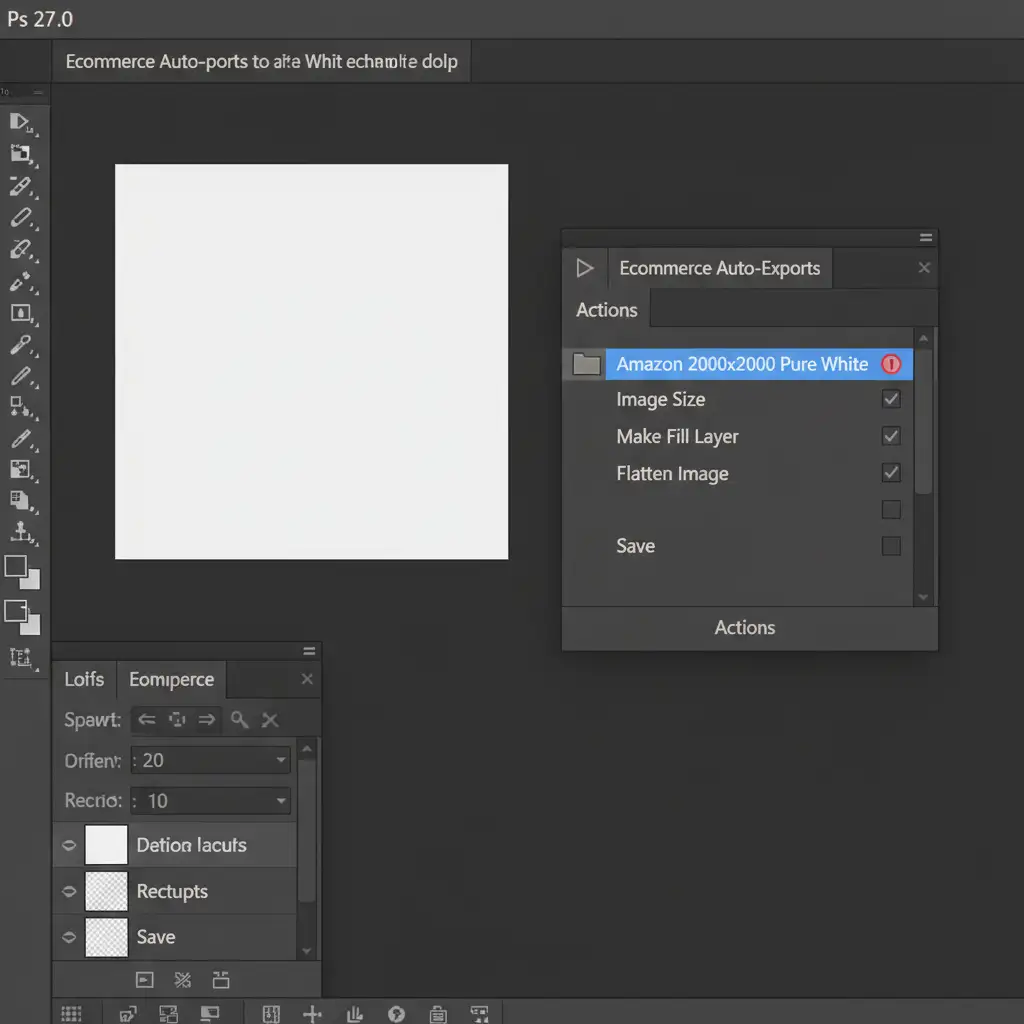
- Create a New Action Set: Open your master image in Photoshop. Open the Actions panel (Window > Actions) and create a new set named “Ecommerce Auto-Exports”.
- Record the Steps: Click the record button. Scale your image to 2000x2000px, apply a pure white background fill layer, flatten the image, and save it to a designated “Amazon Ready” folder. Stop the recording.
- Repeat for Social: Create separate actions for Instagram (1080x1350px) and TikTok (1080x1920px).
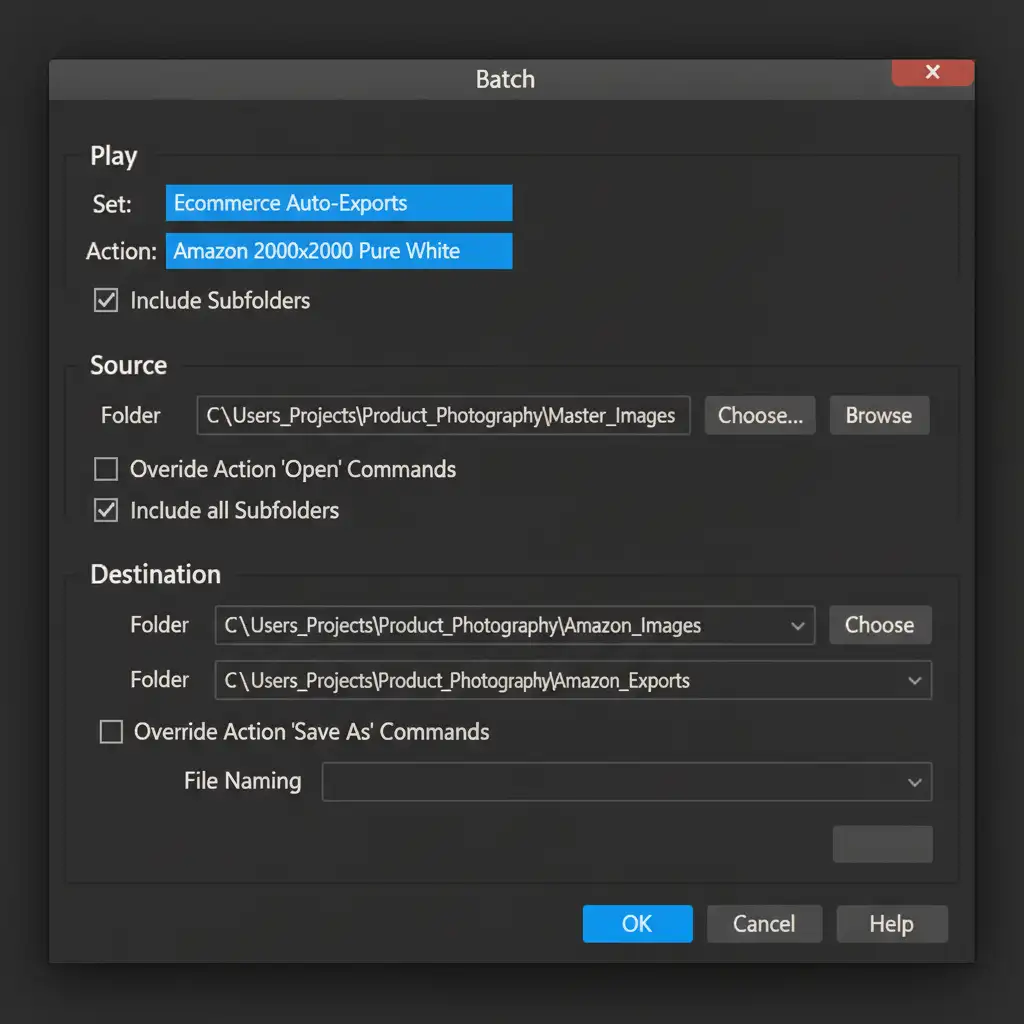
- Deploy Batch Processing: Go to File > Automate > Batch. Select your recorded action, choose your source folder of master images, and let Photoshop do the heavy lifting.
Method B: The Pro Workaround (Artboards + Smart Objects)
For visual control over how a single product fits into multiple aspect ratios simultaneously, the Artboards method is superior.
- Convert to Smart Object: Open your master image. Right-click the background layer and select “Convert to Smart Object”. This ensures lossless scaling when you resize the product later.
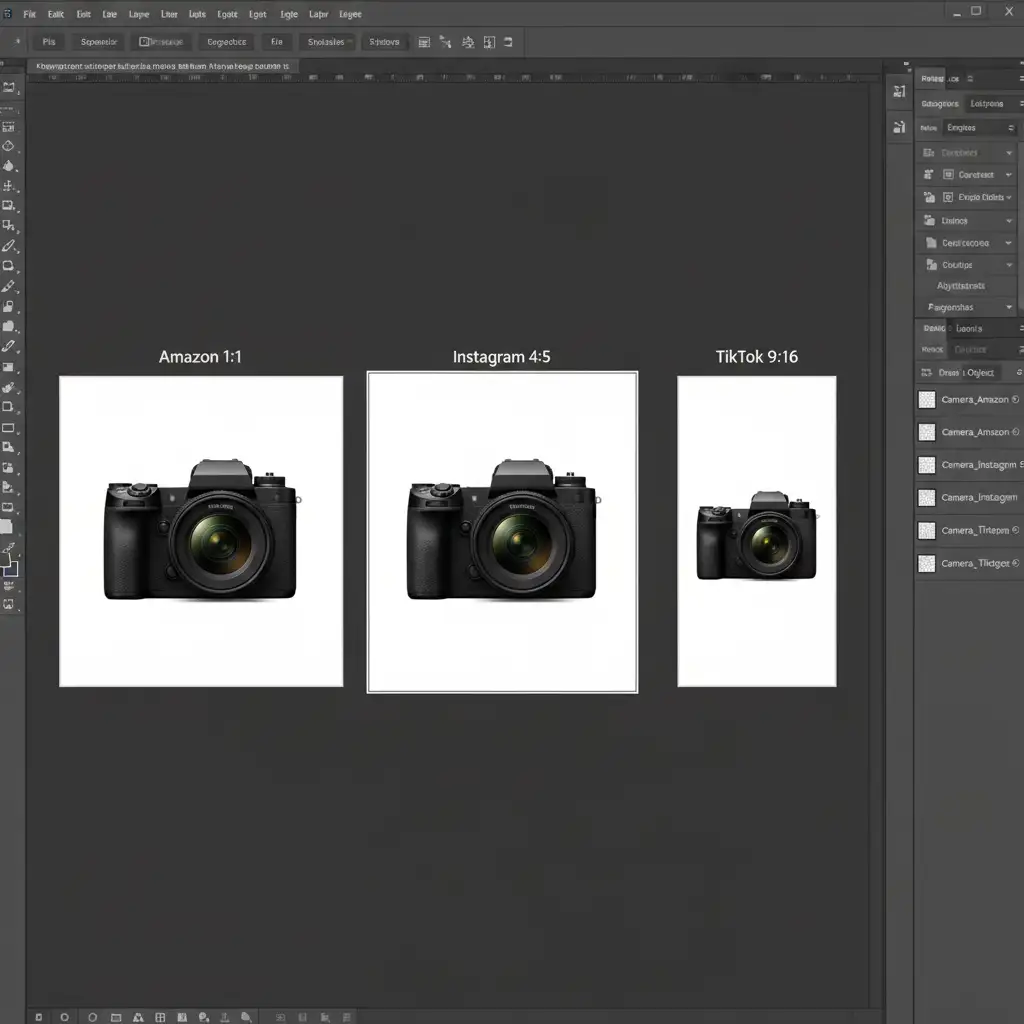
- Build the Artboard Matrix: Create an Artboard document (File > New > Artboard). Set up pre-sized artboards side-by-side: Amazon (2000×2000), IG (1080×1350), and TikTok (1080×1920).
- Align and Duplicate: Duplicate your Smart Object across all three artboards. Because they are linked Smart Objects, any retouching or color correction applied to one will automatically update across all platforms.
- Export Simultaneously: Use File > Export > Export As. Select all artboards on the left panel and export them to their respective formats in one click.
Method C: The Technical Deep-Dive (Image Processor Pro & Droplets)
For enterprise-level volume, standard batching isn’t enough. You need Image Processor Pro (a free, advanced script plugin) and Photoshop Droplets.
- Install Image Processor Pro: This script allows you to run multiple resizing and formatting parameters at once, outputting to dynamically named subfolders.
- Configure Advanced Parameters: Set the script to convert profiles to the sRGB color space (mandatory for web consistency), strip EXIF data for faster page loading, and embed correct resolution metadata.
- Create a Droplet: In the Image Processor Pro dialog, choose “Save as Droplet”. Save it to your desktop.
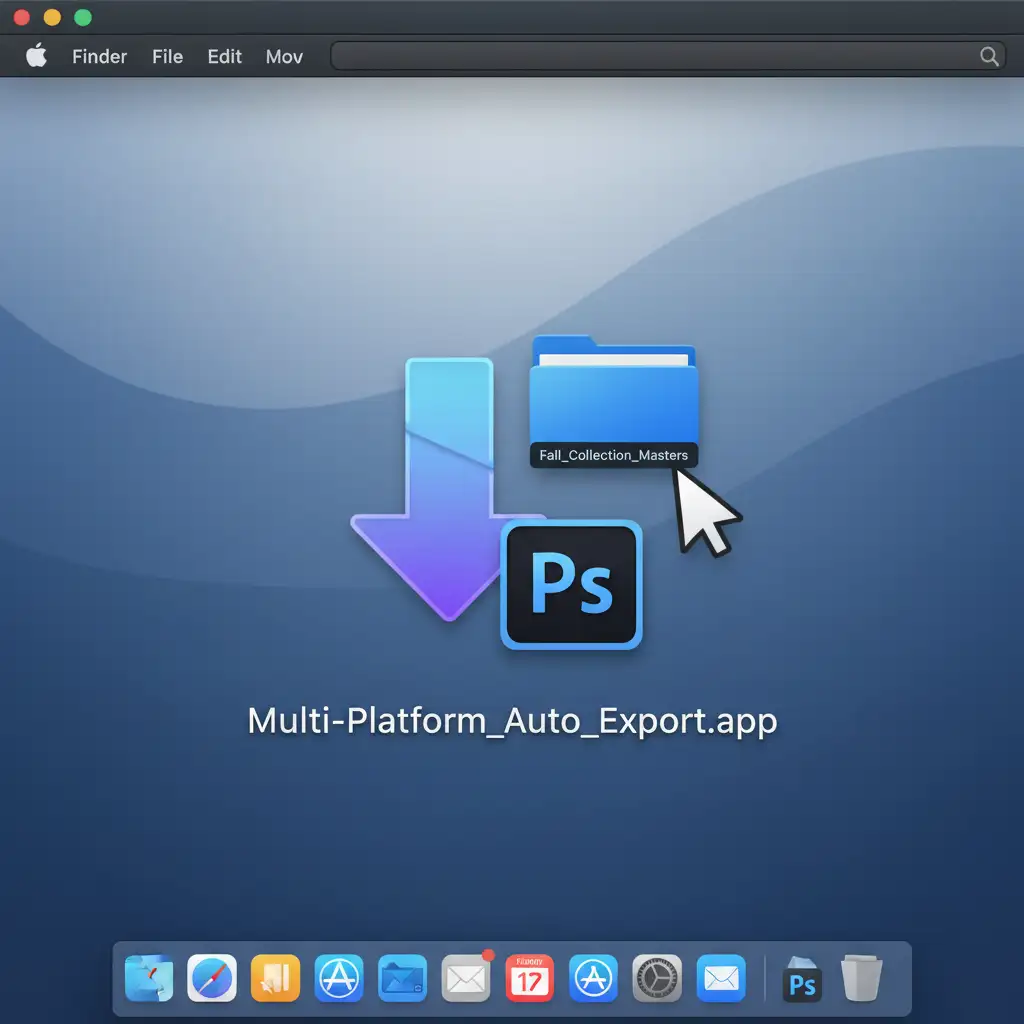
- Drag and Drop Execution: You now have a standalone application icon on your desktop. Simply drag a folder of 500 master images onto the Droplet icon. Photoshop will automatically open in the background, process all variations, and organize them into platform-specific folders.
Scale Your Ecommerce Catalog with Image Work India & Cloud Retouch
Building an automated product image variations for multi-platform ecommerce workflow takes technical setup and ongoing maintenance. Even with automation, complex product catalogs often require meticulous background removal, color correction, and shadow creation before the batch processing can even begin.
Need a flawless catalog but lack the time to build and manage Photoshop scripts? Let Image Work India and Cloud Retouch handle your high-volume product image editing. Our expert teams specialize in multi-platform compliance, ensuring your products look stunning and meet exact specifications for Amazon, Shopify, Instagram, and beyond.
Stop wrestling with aspect ratios and start scaling your sales. Contact Image Work India today to streamline your ecommerce image production.




