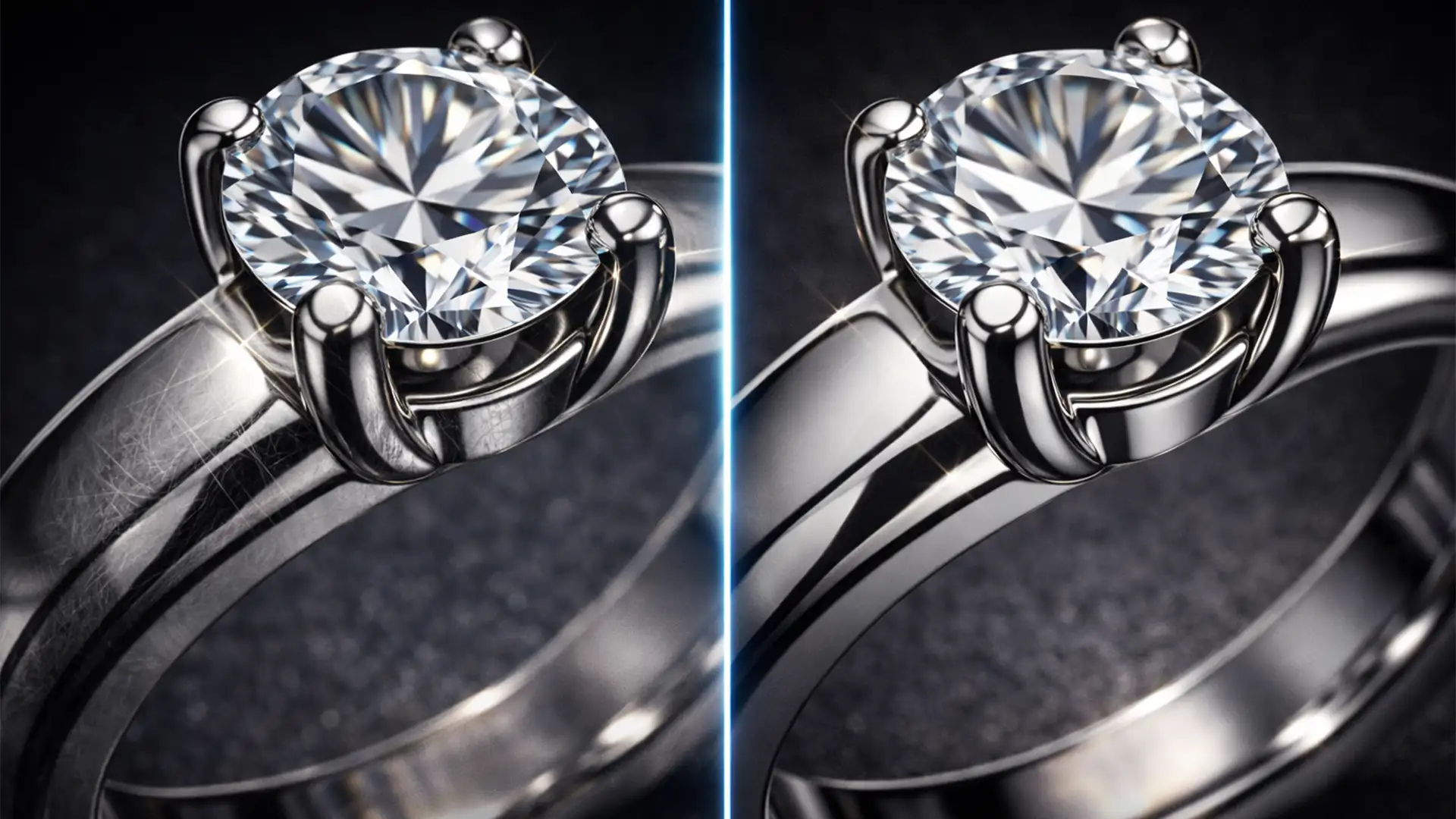

You just shot a stunning macro photo of a diamond ring, but a distracting studio softbox reflection is ruining the main stone. You reach for Photoshop’s Generative Remove, expecting instant perfection. But instead of a pristine gem, you’re left with a muddy, smudged, plastic-looking blob. Sound familiar?
You are not alone. While Adobe’s Firefly AI is a powerful tool, fixing AI reflection removal artifacts in jewelry has become a massive headache for professional retouchers. Gemstones rely on complex physics, and AI algorithms simply do not understand how light works inside a diamond.
In this guide, we will break down exactly why Generative Fill destroys your gems and show you three professional techniques to restore sharp facets and brilliant sparkle to your jewelry photography.
Why Adobe Firefly AI Struggles with Jewelry Photography
In Photoshop v25.x and v26.x, Adobe’s Generative Remove and Generative Fill tools use the Firefly AI model to analyze surrounding pixels and eliminate unwanted elements. For organic textures or simple backgrounds, this works flawlessly. For jewelry macro photography, it is a disaster.
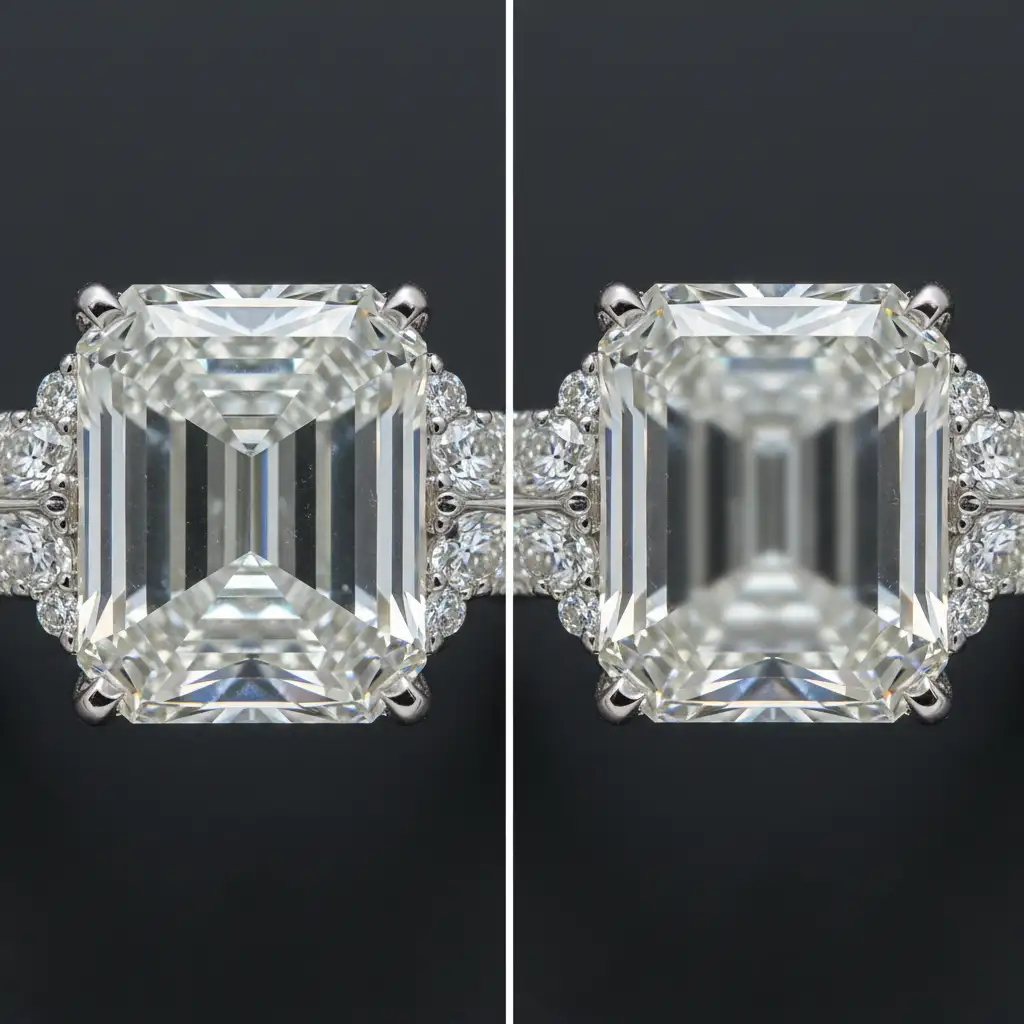
Gemstones possess a unique refractive index and high light dispersion. When the AI attempts to remove a camera reflection from a facet, it mathematically averages out the surrounding pixels. This process destroys the micro-contrast of the cuts and entirely eliminates crucial specular highlights. The algorithm hallucinates a flat, matte texture instead of the sharp, high-contrast light reflections necessary to make a diamond look real.
How to Fix AI Reflection Removal Artifacts in Jewelry
To achieve a flawless professional finish, you must adopt a hybrid workflow. Let the AI handle the heavy lifting of color correction and base reflection removal, but use advanced Photoshop techniques to restore the structural integrity of the stone.
Method 1: The Quick Sparkle Recovery (Blend If)
If the AI successfully removed the distracting reflection but killed the diamond’s overall sparkle, you can use Photoshop’s ‘Blend If’ feature to punch the original highlights back through the muddy AI layer.
- Duplicate your original, unedited background layer.
- Drag this duplicate so it sits directly above your AI-generated layer.
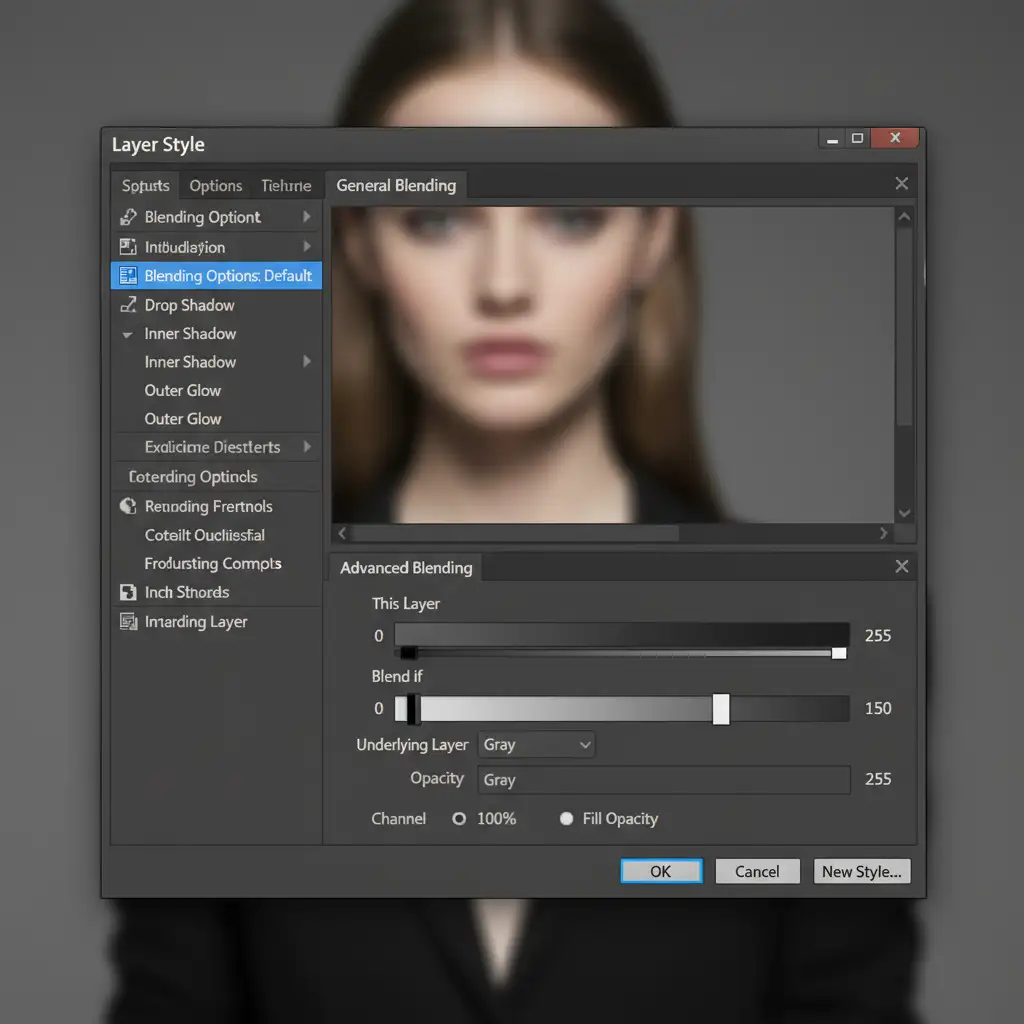
- Double-click the top layer to open the Layer Style panel.
- Navigate to the Blend If section at the bottom (Underlying Layer).
- Hold Alt (Windows) or Option (Mac) to split the black slider, and drag the right half to roughly 150.
This hides the shadows and midtones of the original image, ensuring only the brightest original specular highlights (the sparkle) show through over the smooth AI cleanup.
Method 2: The Pro Workaround (Frequency Separation)
For high-end retouching, you need to separate the gemstone’s color from its physical texture. By using Frequency Separation, you can trick the AI into only fixing the color cast of the reflection while leaving the sharp facet lines completely untouched.
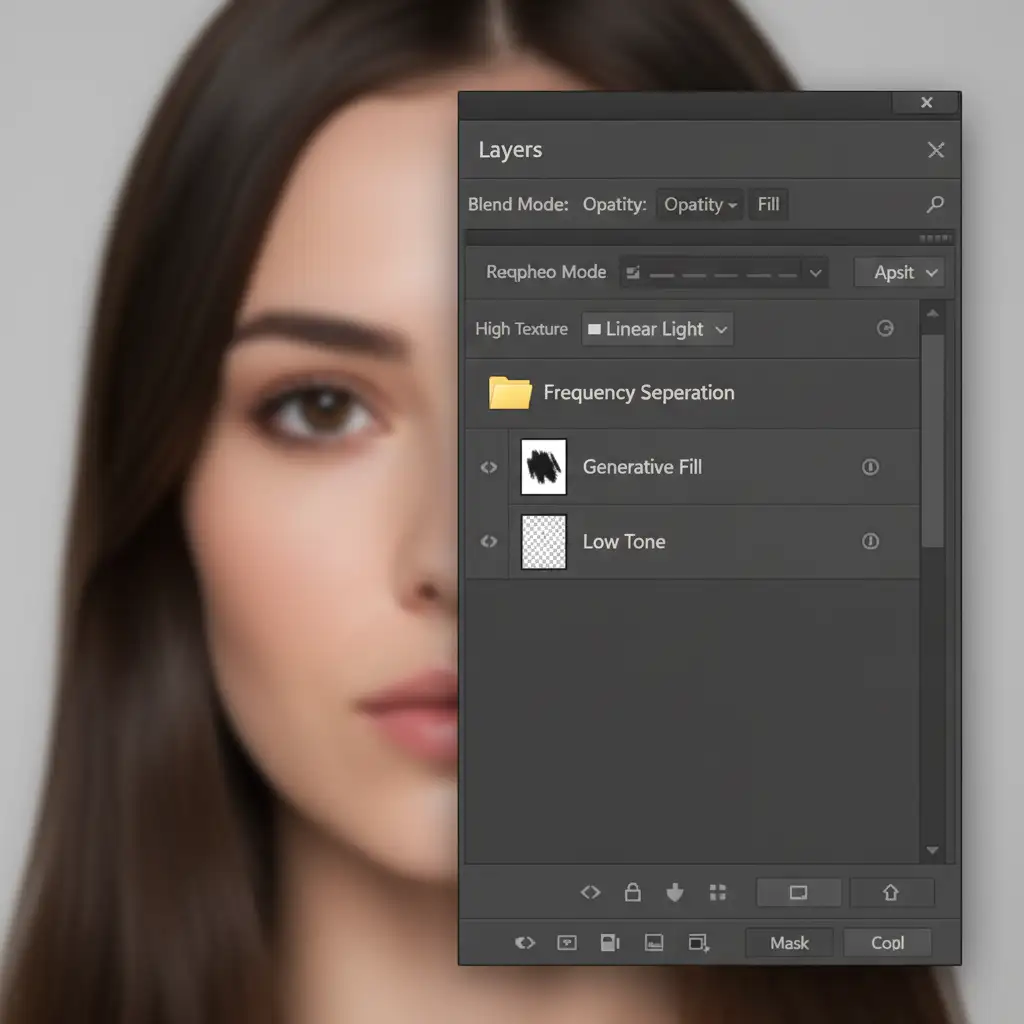
- Run your standard Frequency Separation action to split your image into a High (Texture/Sparkle) layer and a Low (Color/Tone) layer.
- Select the Low frequency layer.
- Use the Lasso tool to select the distracting reflection.
- Apply Generative Remove or Generative Fill.
Because the AI is only operating on the Low layer, it eliminates the distracting white or colored reflection block, but the gemstone’s original crisp facet lines remain perfectly intact on the High layer above it.
Method 3: Technical Deep-Dive (High Pass Overlay Masking)
When the AI completely hallucinates the wrong facet structure, you need to manually force the original geometry back into the image without bringing back the reflection.
- Create a merged copy of your original unedited layer (Ctrl+Alt+Shift+E or Cmd+Option+Shift+E).
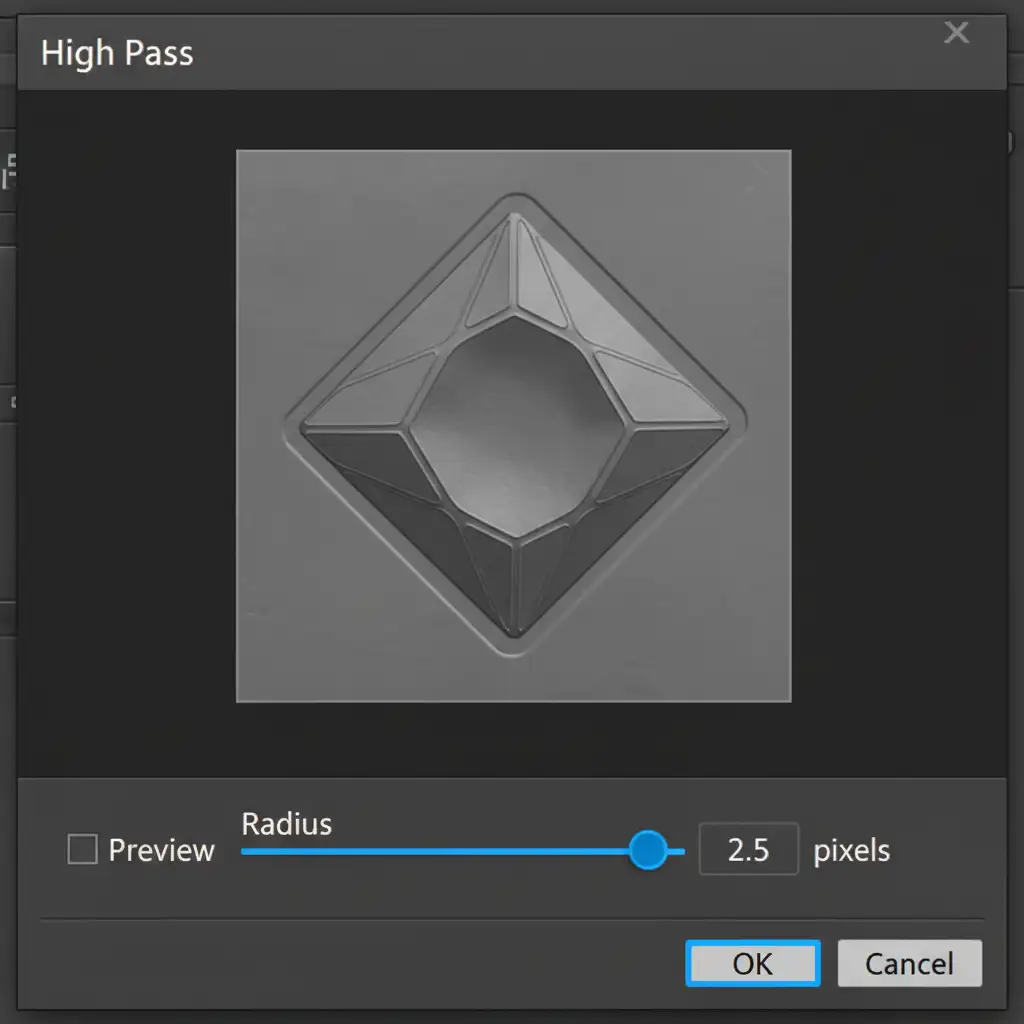
- Go to Filter > Other > High Pass.
- Set the Radius between 2.0px and 3.0px (just enough to see the facet edges) and click OK.
- Change this layer’s blend mode to Linear Light.
- Add an inverted (black) layer mask.
- Select a soft white brush, lower the flow to 10%, and selectively paint over the muddy AI-generated areas.
This paints the crisp facet edges back into the gemstone. Finish by creating a 50% gray layer and utilizing manual dodge and burn to enhance the micro-contrast along the newly restored facet lines.
Stop Struggling with Muddy Gemstones
While AI tools like Generative Fill can speed up basic background cleanups, high-end jewelry photography requires a master’s touch. Fixing AI reflection removal artifacts in jewelry takes time, deep technical knowledge of Photoshop, and an understanding of how light interacts with complex refractive surfaces.
If you want to skip the frustration of muddy gemstones and plastic-looking diamonds, let the experts handle it. Image Work India and Cloud Retouch specialize in pixel-perfect, hand-finished jewelry retouching. We blend cutting-edge technology with traditional, high-end dodge and burn techniques to guarantee maximum sparkle, accurate facet definition, and flawless color correction.
Stop letting AI ruin your finest shots. Contact Image Work India and Cloud Retouch today to elevate your jewelry photography to the luxury standard.




