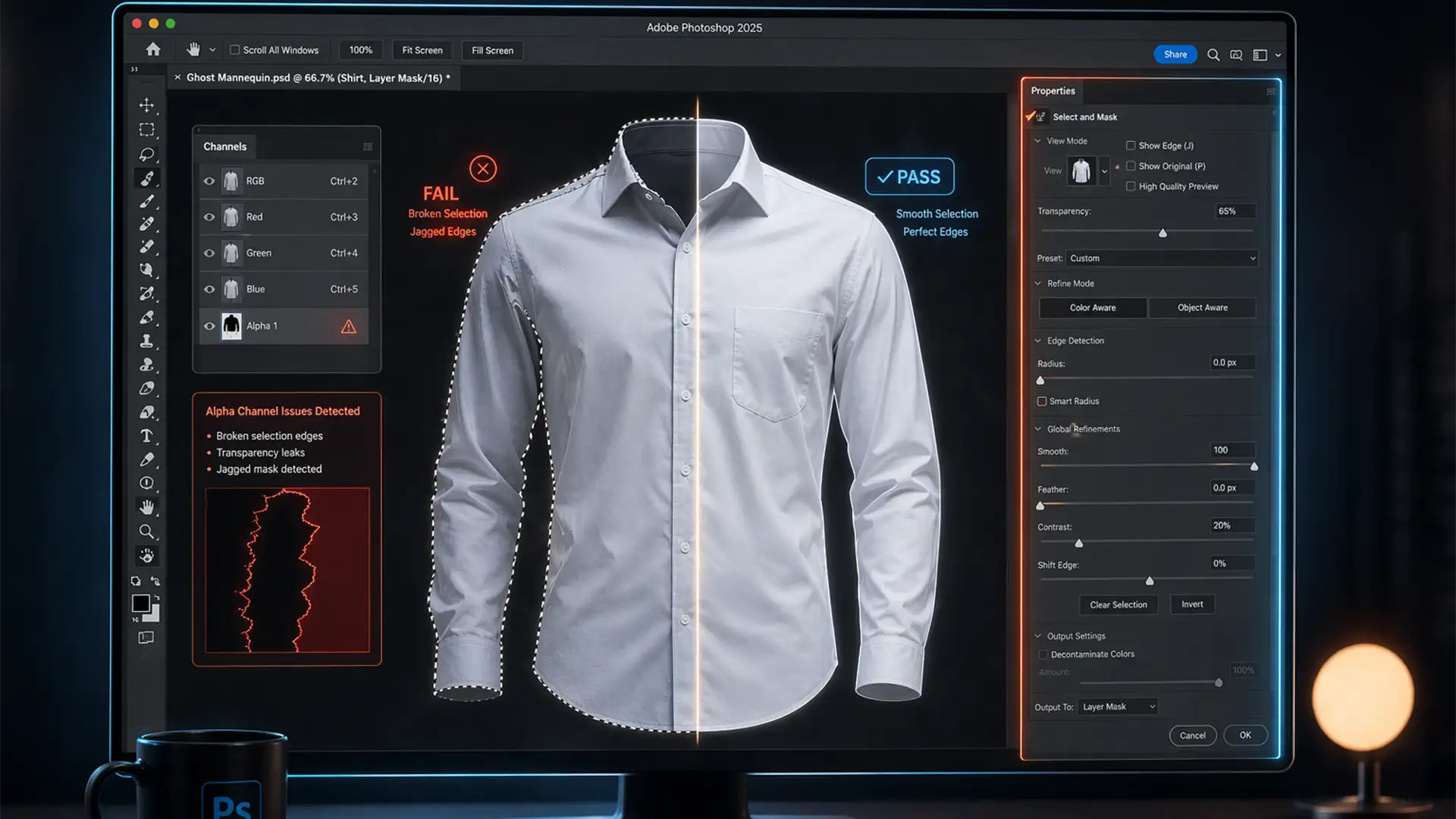

Imagine setting up a massive batch processing run for your latest e-commerce apparel shoot. You execute your trusted action script, step away for a coffee, and return to an absolute disaster. Every single image features jagged edges, broken marching ants, and ruined alpha channels.
If you are running Photoshop v26.x or v27.x (Photoshop 2025), you aren’t alone. The new “Broken Border” bug is wreaking havoc on automated ghost mannequin and background removal workflows. The edge detection radius simply fails to scale across different image resolutions during automated runs. Fortunately, we have the exact technical workflows to stabilize your Photoshop actions today.
Understanding the Photoshop 2025 ‘Broken Border’ Bug
The Photoshop 2025 Select and Mask action bug is a critical software defect affecting high-volume photo editors. When an action script calls upon the Select and Mask workspace, the edge detection radius algorithm miscalculates the boundaries of the subject.
Instead of dynamically adjusting to varying image resolutions and aspect ratios during batch processing, the tool hardcodes the radius from the original recorded action. This results in severe masking failures—particularly devastating for intricate ghost mannequin apparel retouching where clean, sharp edges are mandatory for a usable alpha channel.
To restore your workflow, you need to bypass direct UI recording and utilize alternative masking logic. Here are three proven methods to fix the issue.
How to Fix the Select and Mask Action Bug
Method 1: The Quick Fix (Bypass Workspace Recording)
The most immediate workaround is to stop recording manual brush strokes inside the Select and Mask workspace. When you record a manual Refine Edge brush stroke, Photoshop 2025 struggles to translate those X/Y coordinates to images of different sizes.
Step-by-Step Fix:
- Delete your current Select and Mask step in your action.
- Record a new step using Select > Subject.
- Without deselecting, open Select > Mask.
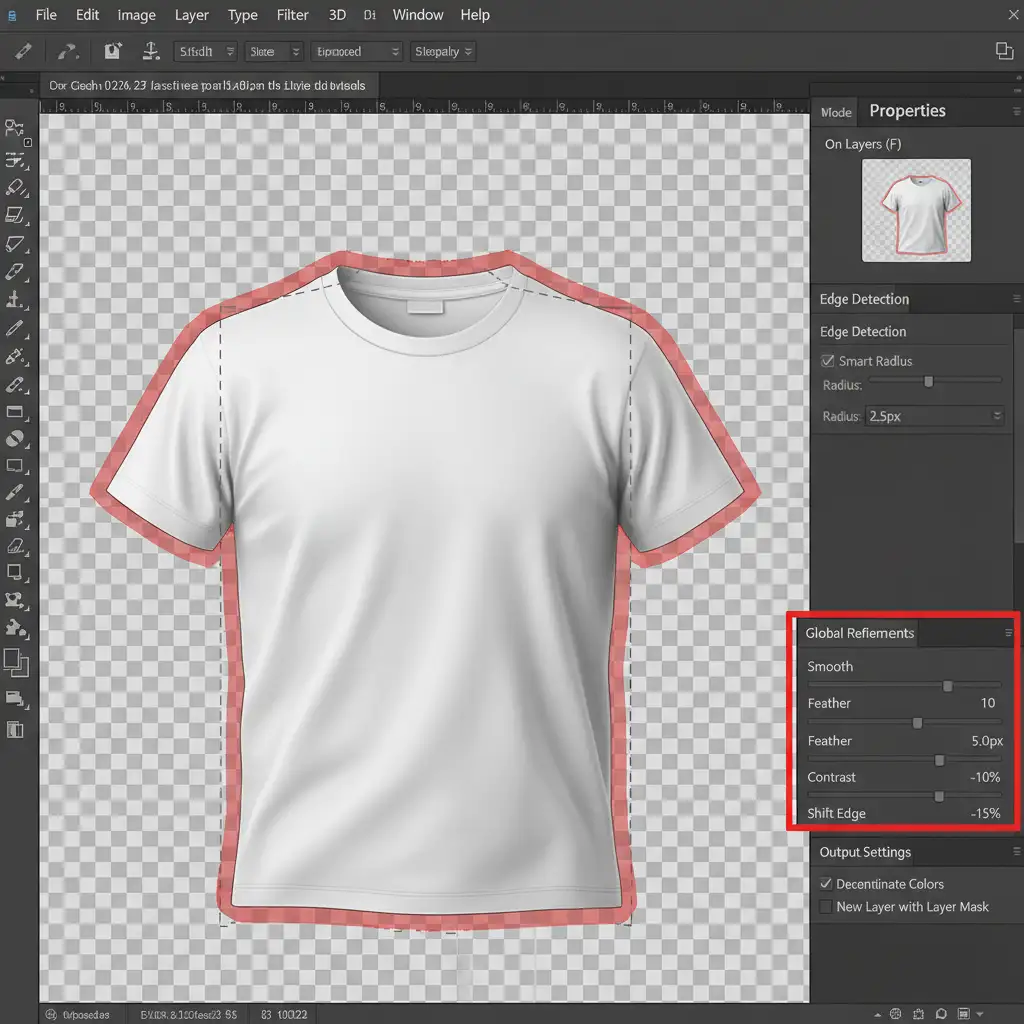
- Crucial: Do not use the Refine Edge brush. Instead, rely exclusively on the Global Refinements sliders in the Properties panel (Smooth, Feather, Contrast, and Shift Edge).
- Output to a New Layer with Layer Mask.
Method 2: The Pro Workaround (Smart Objects & Minimum Filter)
If global sliders aren’t giving you the crisp edges required for apparel retouching, you need to bypass the Select and Mask edge detection during batching entirely.
Step-by-Step Fix:
- Start your action by converting the target layer into a Smart Object.
- Create your selection using a standard tool (like the Object Selection Tool) and apply a standard Layer Mask.
- Instead of using Select and Mask to clean the edges, go to Filter > Other > Minimum.
- Set the Minimum filter radius to 1-2 pixels to effectively “choke” the mask, removing any background fringing.
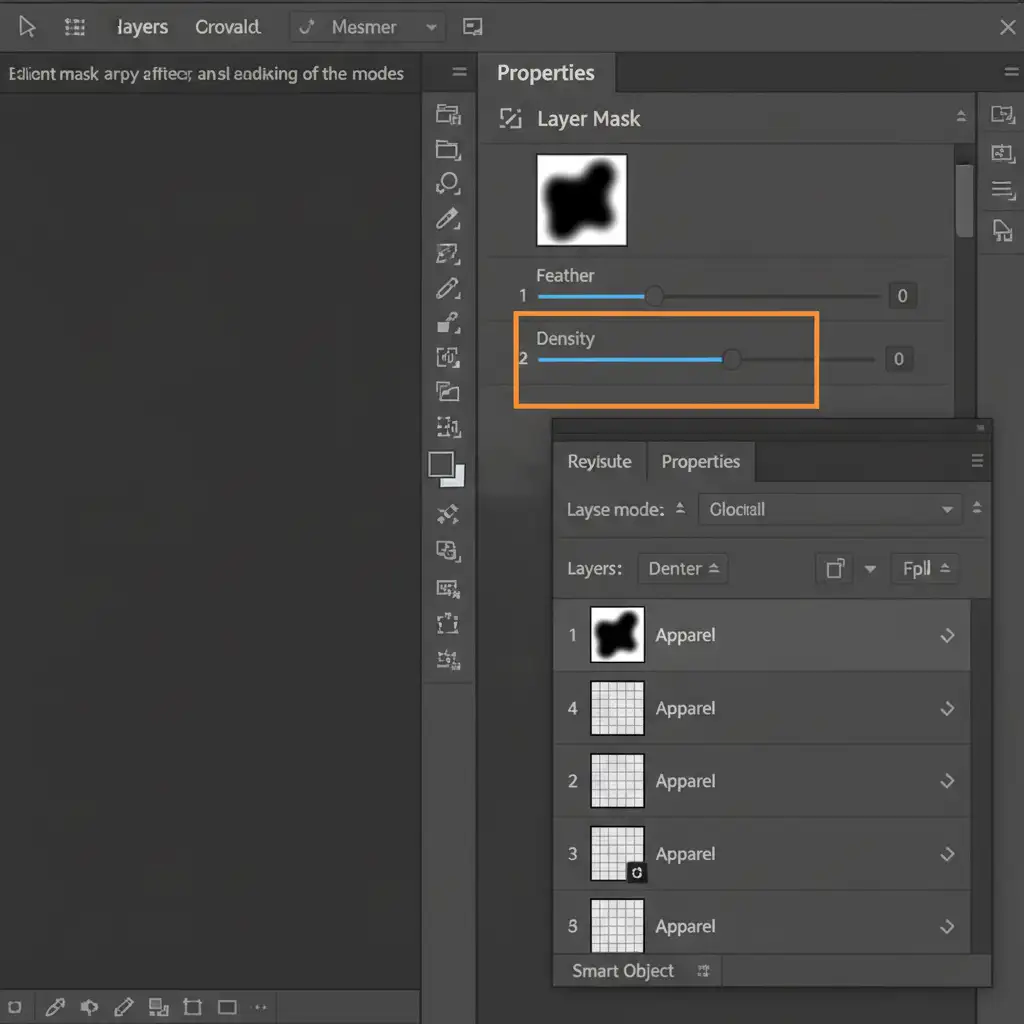
- Because the layer is a Smart Object, you can adjust the mask feathering directly in the Properties panel nondestructively.
Method 3: The Technical Deep-Dive (Performance Tweaks)
If your action script is still failing or crashing mid-batch, the issue may be tied to how Photoshop 2025 handles hardware rendering. Disabling specific performance features forces Photoshop to process the action script more reliably.
Step 1: Disable Native Canvas and GPU Acceleration
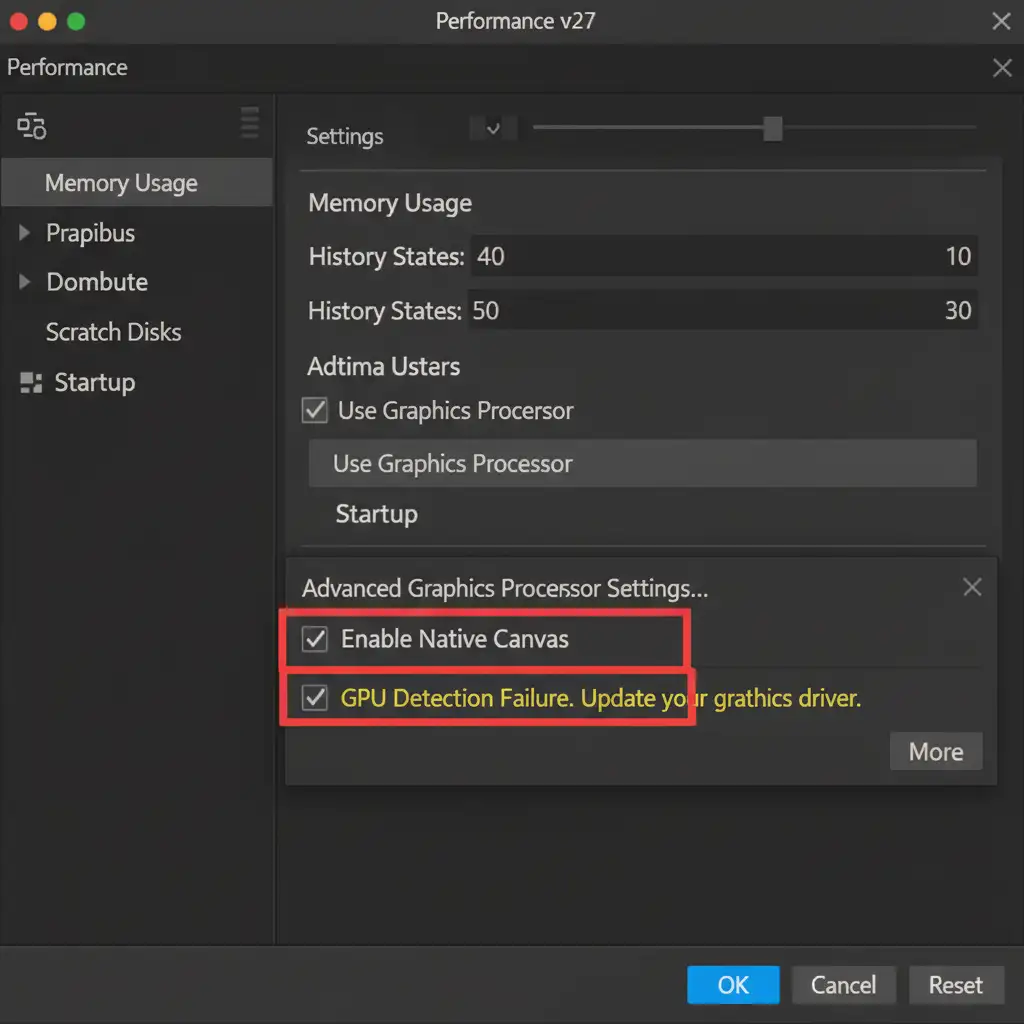
Navigate to Edit > Preferences > Performance. You need to disable Native Canvas and temporarily turn off GPU acceleration for image processing. This prevents the graphics card from misinterpreting the edge detection radius during rapid batching. After doing this, clear your Photoshop cache (Edit > Purge > All).
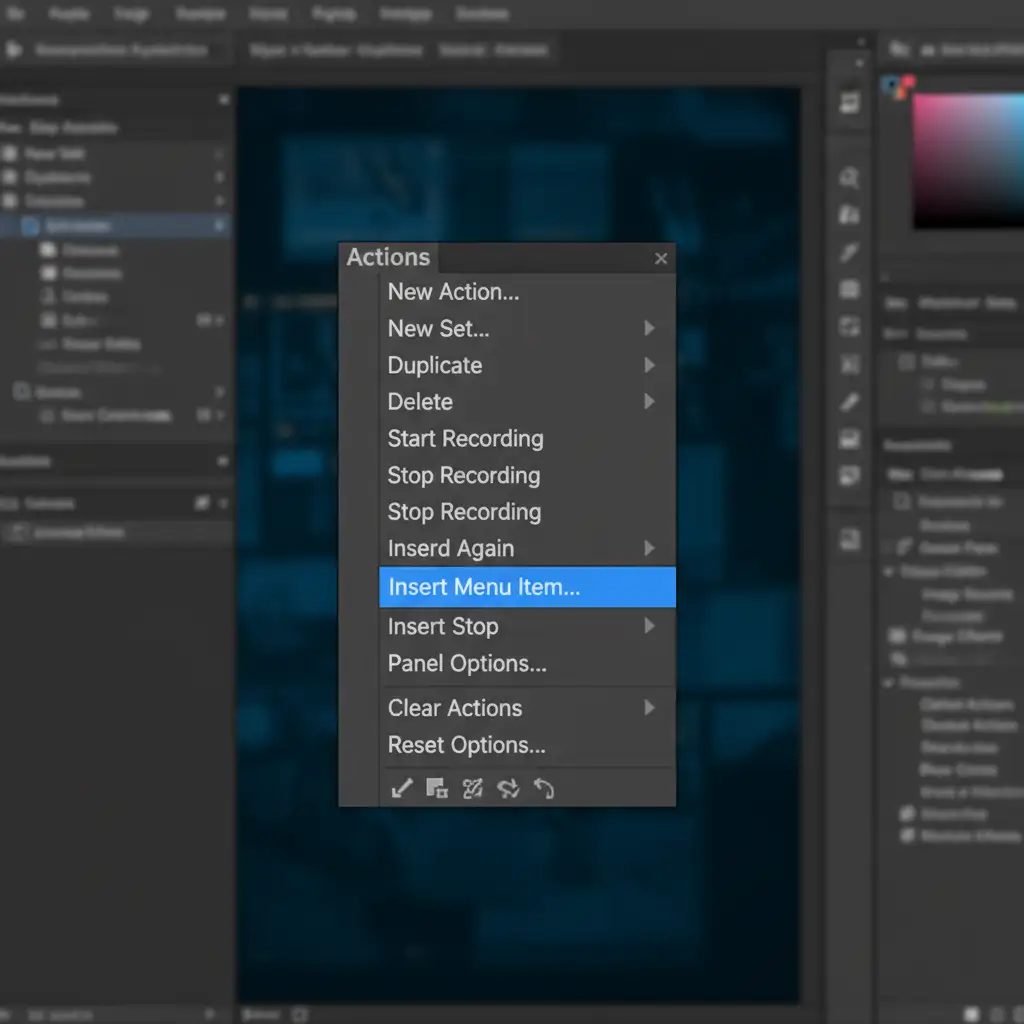
Step 2: Rebuild with ‘Insert Menu Item’
Reset your Select and Mask workspace settings to default. Then, instead of recording yourself clicking through the UI, use the Actions panel menu to select Insert Menu Item. Choose Select > Select and Mask. This forces the action to trigger the command cleanly without attaching corrupted, hardcoded UI data from your specific monitor resolution.
Why Let Bugs Slow You Down? Outsource Your E-Commerce Editing
Software updates shouldn’t bring your studio’s production to a grinding halt. While these workarounds will fix the Photoshop 2025 Select and Mask action bug, troubleshooting software defects eats into your valuable time and profit margins.
Need flawless bulk editing without dealing with Photoshop bugs? Image Work India and Cloud Retouch provide pixel-perfect ghost mannequin, apparel retouching, and background removal services at scale. Our expert retouching teams handle the technical headaches so you can focus on shooting and scaling your business.
[Contact Image Work India Today for a Free Trial] and let us perfect your e-commerce imagery.




