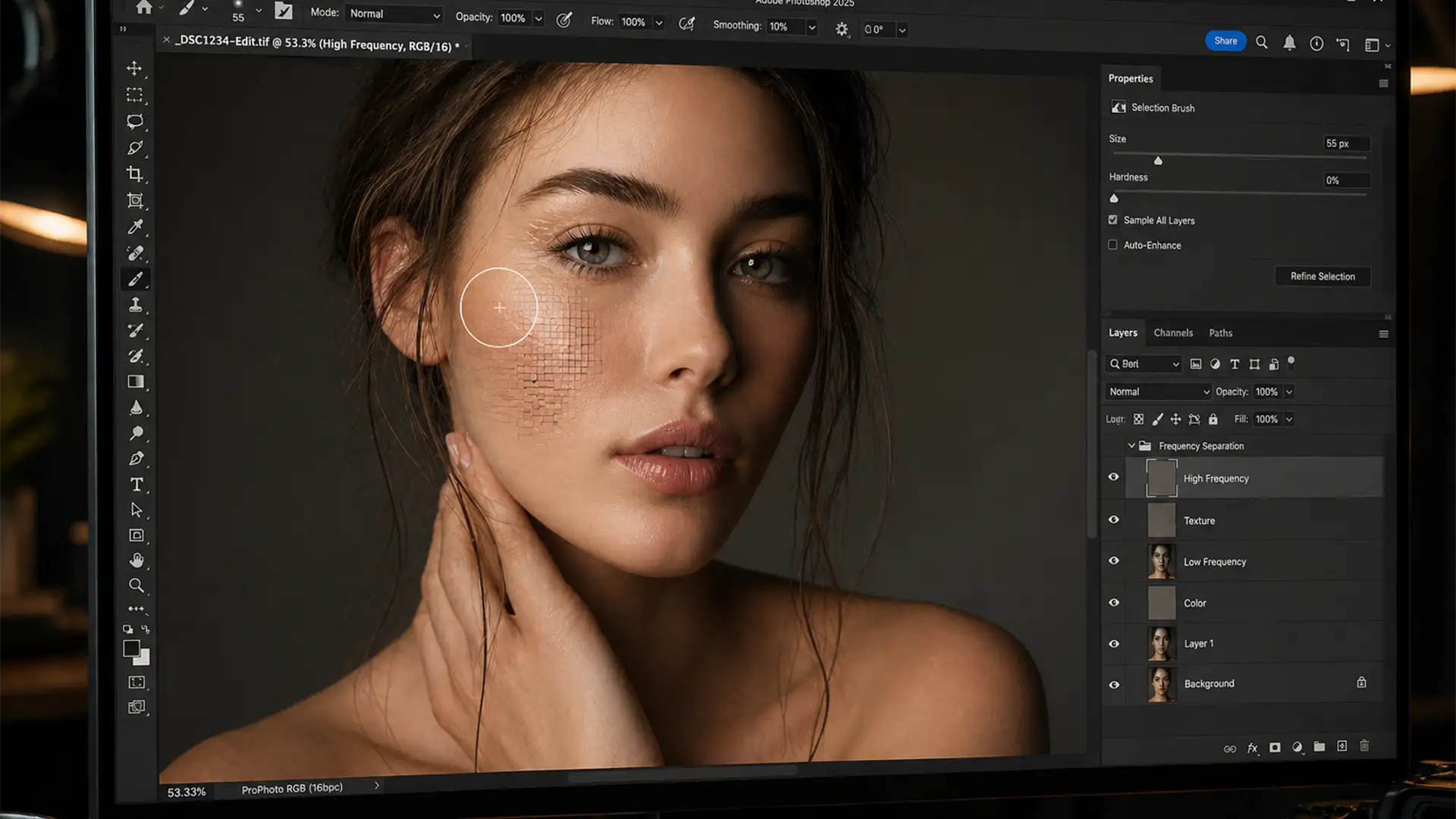

You are rushing to meet a tight client deadline. You swipe the new Selection Brush over a minor background distraction, expecting a seamless blend. Instead, Photoshop leaves behind a bizarre, repeating mosaic pattern that ruins the image.
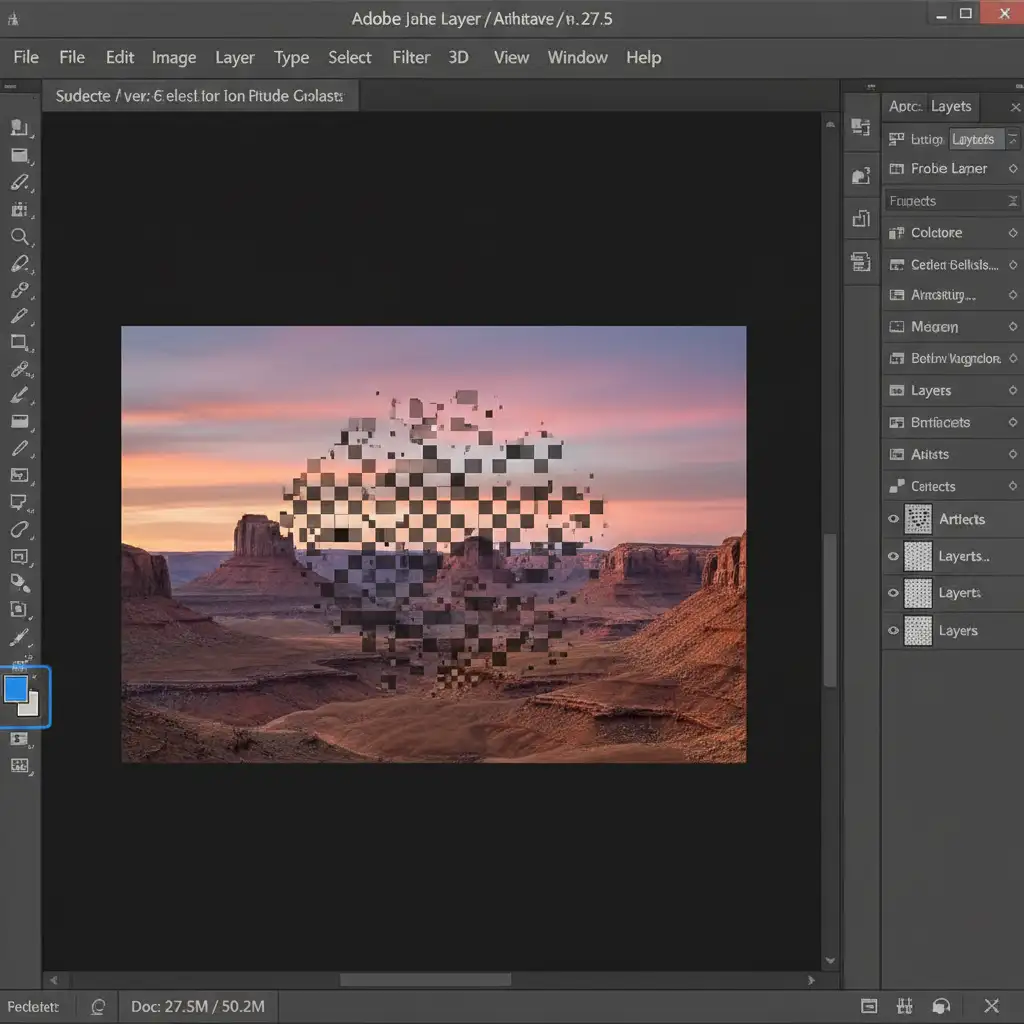
If this sounds familiar, you are not alone. This Photoshop Selection Brush pattern bug fix is currently one of the most searched solutions among professional retouchers using Adobe Photoshop v27.4 and v27.5. The bug transforms what should be a clean Generative AI removal into a frustrating grid of pixel repeating artifacts.
Fortunately, this is a known conflict between your system’s VRAM cache and Adobe’s hardware acceleration rendering, and it is entirely fixable. Here is exactly how to resolve the error and get back to flawless retouching.
Understanding the Photoshop Selection Brush Pattern Bug
Before diving into the fixes, it helps to understand why your tools are suddenly failing. In the recent v27.4 and v27.5 updates, Adobe made background changes to how the software handles hardware acceleration.
When you use the Selection Brush or the AI Remove Tool, the software relies heavily on your computer’s VRAM and Generative AI models to process the fill. If there is a mismatch in memory allocation—often triggered by outdated GPU Studio drivers—the AI fails to blend the pixels correctly, resulting in harsh, mosaic-like artifacts.
How to Fix the Photoshop Selection Brush Pattern Bug
Depending on your system setup and immediate workflow needs, you can solve this issue using one of three methods, ranging from a quick settings toggle to a complete version rollback.
Method 1: The Quick Fix (Disable GPU Acceleration)
The fastest way to bypass the pattern bug is to stop Photoshop from relying on your graphics card for AI brush rendering.
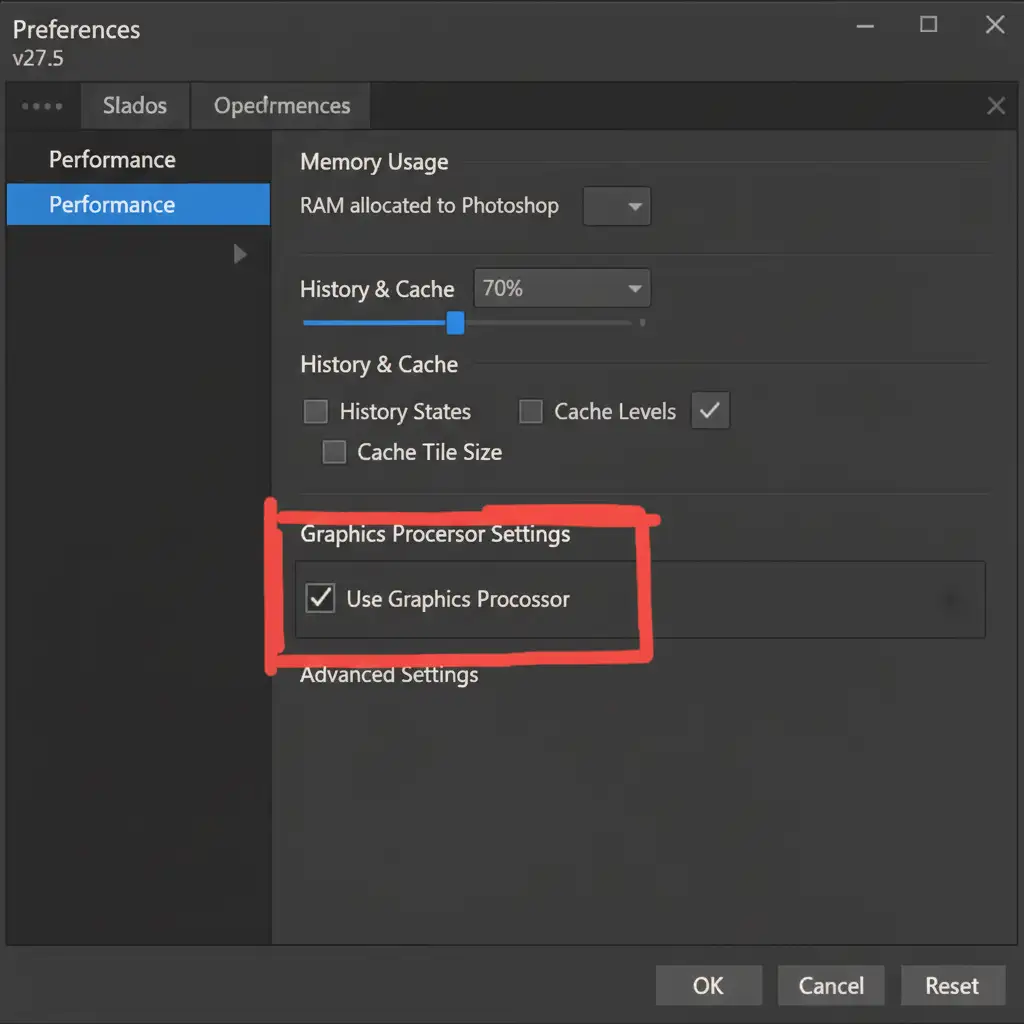
- Navigate to Edit > Preferences > Performance (Windows) or Photoshop > Settings > Performance (Mac).
- Look for the Graphics Processor Settings section.
- Uncheck the box labeled Use Graphics Processor.
- Click OK and restart Photoshop.
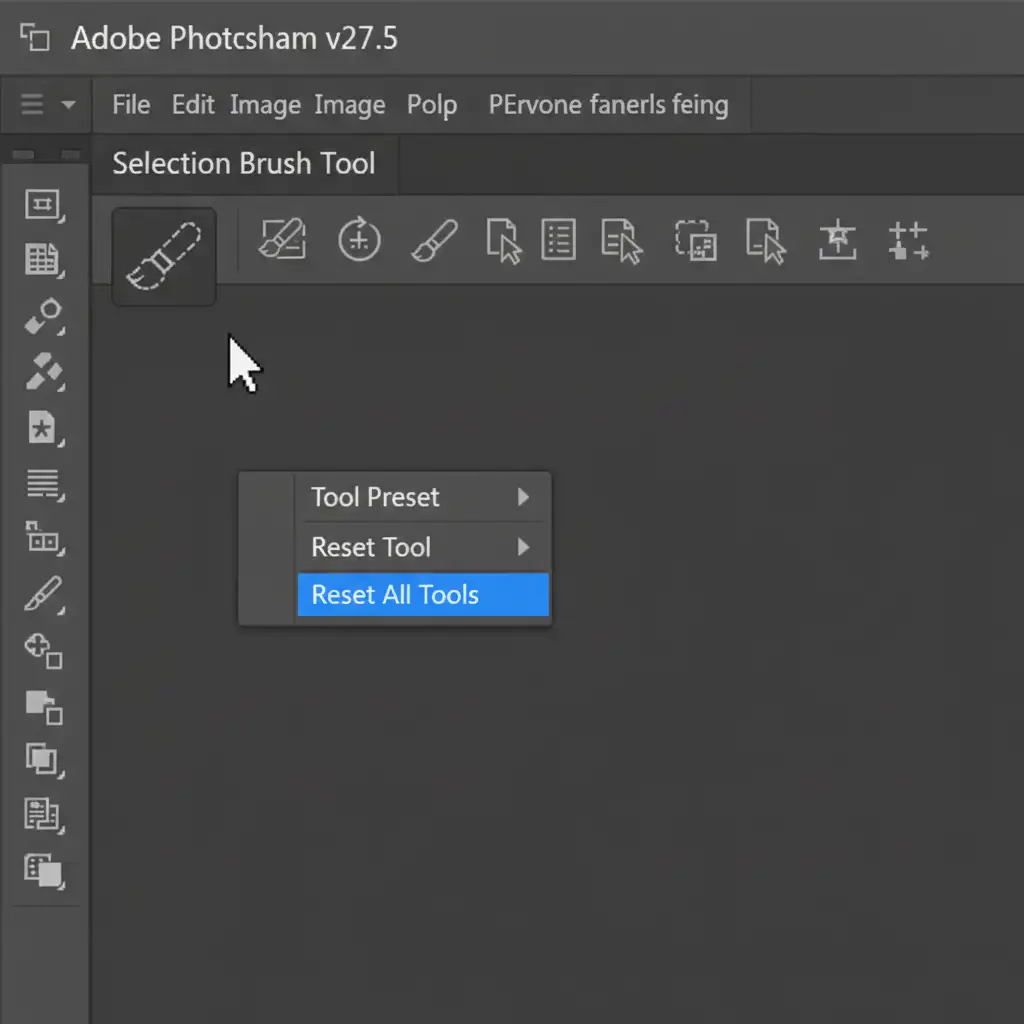
If disabling the GPU acceleration doesn’t immediately clear the glitch, you may also need to reset the tool’s specific settings. Right-click the Selection Brush or Remove Tool icon in the top-left options bar and select Reset Tool.
Method 2: The Pro Workaround (Manual Masking)
If you cannot afford to disable GPU acceleration because it slows down the rest of your editing workflow, you need to bypass the buggy AI tools entirely and rely on traditional, stable methods.
Instead of using the Selection Brush:
- Select the standard Lasso Tool to draw marching ants around the object you want to remove.
- Duplicate your background layer (Ctrl/Cmd + J) to work non-destructively.
- Go to Edit > Content-Aware Fill to remove the object.
- If Content-Aware Fill leaves minor imperfections, use the standard Healing Brush (not the AI Remove Tool) to clean up the edges.
- Apply layer masks to manually hide any remaining artifacts, ensuring a perfect, studio-grade blend.
Method 3: The Technical Deep-Dive (Cache, Drivers, and Rollbacks)
For users who want to permanently fix the root cause of the pixel repeating error without altering their workflow, follow these technical maintenance steps.
Step A: Purge the VRAM Cache
Sometimes, corrupted temporary files cause the Generative AI to stall.
- Navigate to Edit > Purge > All. This clears your history states, clipboard, and video cache, forcing Photoshop to generate fresh data on your next brush stroke.
Step B: Update GPU Studio Drivers
The v27.5 update requires the latest driver architecture. If you are using an NVIDIA or AMD graphics card, open your respective control panel (like NVIDIA GeForce Experience) and switch your driver preference from “Game Ready” to “Studio Driver.” Download and install the latest version.
Step C: Rollback to Photoshop v27.3
If you have updated your drivers, purged your cache, and the bug still persists, the most stable solution is to downgrade to the previous, bug-free version of the software.
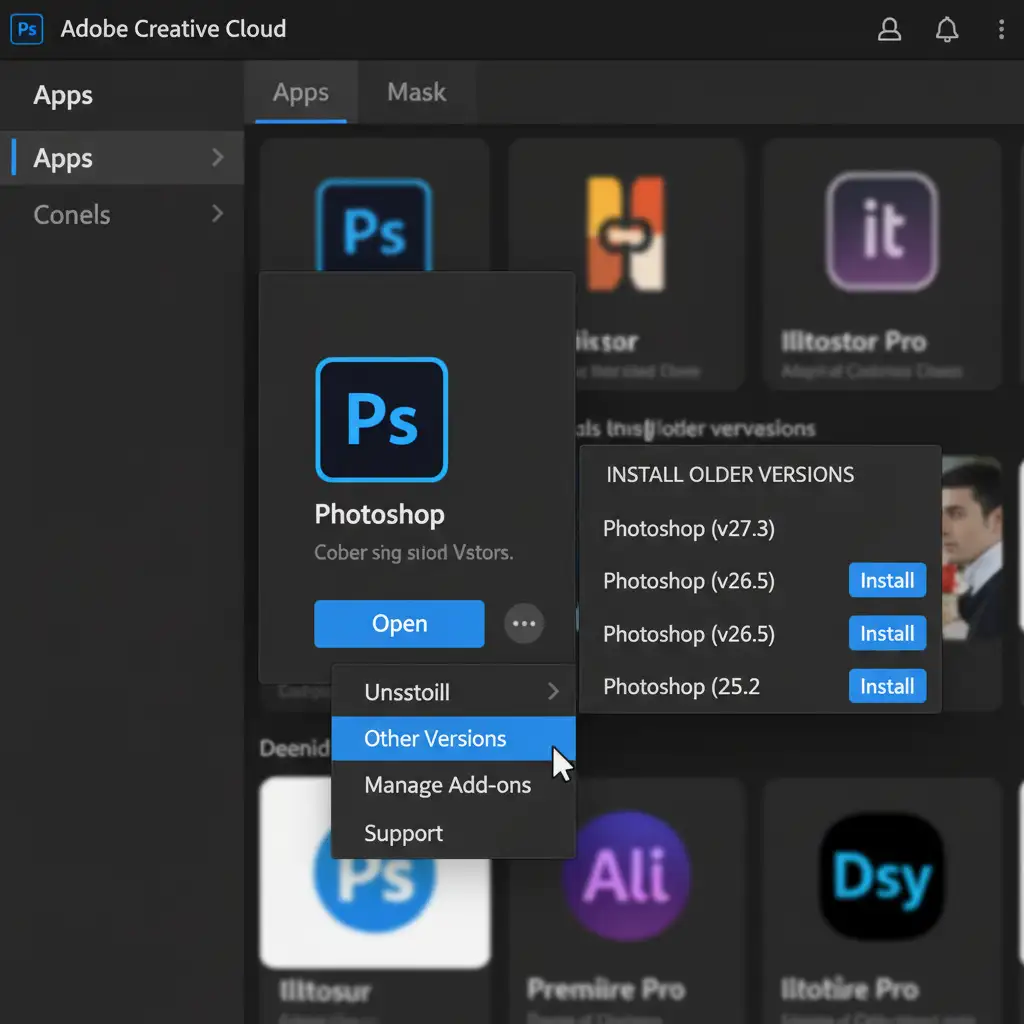
- Open the Creative Cloud Desktop App.
- Navigate to the All Apps section and find Photoshop.
- Click the three horizontal dots next to the “Open” button.
- Select Other Versions from the dropdown menu.
- Locate version v27.3 and click Install to roll back.
Stop Fighting Software Bugs: Let the Pros Handle Your Retouching
Software updates are supposed to make your life easier, not introduce frustrating glitches like the Photoshop Selection Brush pattern bug. Troubleshooting hardware acceleration conflicts, managing VRAM caches, and constantly downgrading software versions drains valuable time that you should be spending shooting, directing, or growing your business.
If you are tired of fighting with unpredictable Generative AI tools and software bugs, it is time to outsource to the experts.
At Image Work India and Cloud Retouch, we provide flawless, manual high-end retouching services. Our team of professional retouchers doesn’t rely on buggy automated brushes; we guarantee pixel-perfect precision, flawless masking, and immaculate color correction on every single image.
Don’t let software errors slow down your studio workflow. [Contact Image Work India and Cloud Retouch today] to get your retouching done right the first time, every time.




