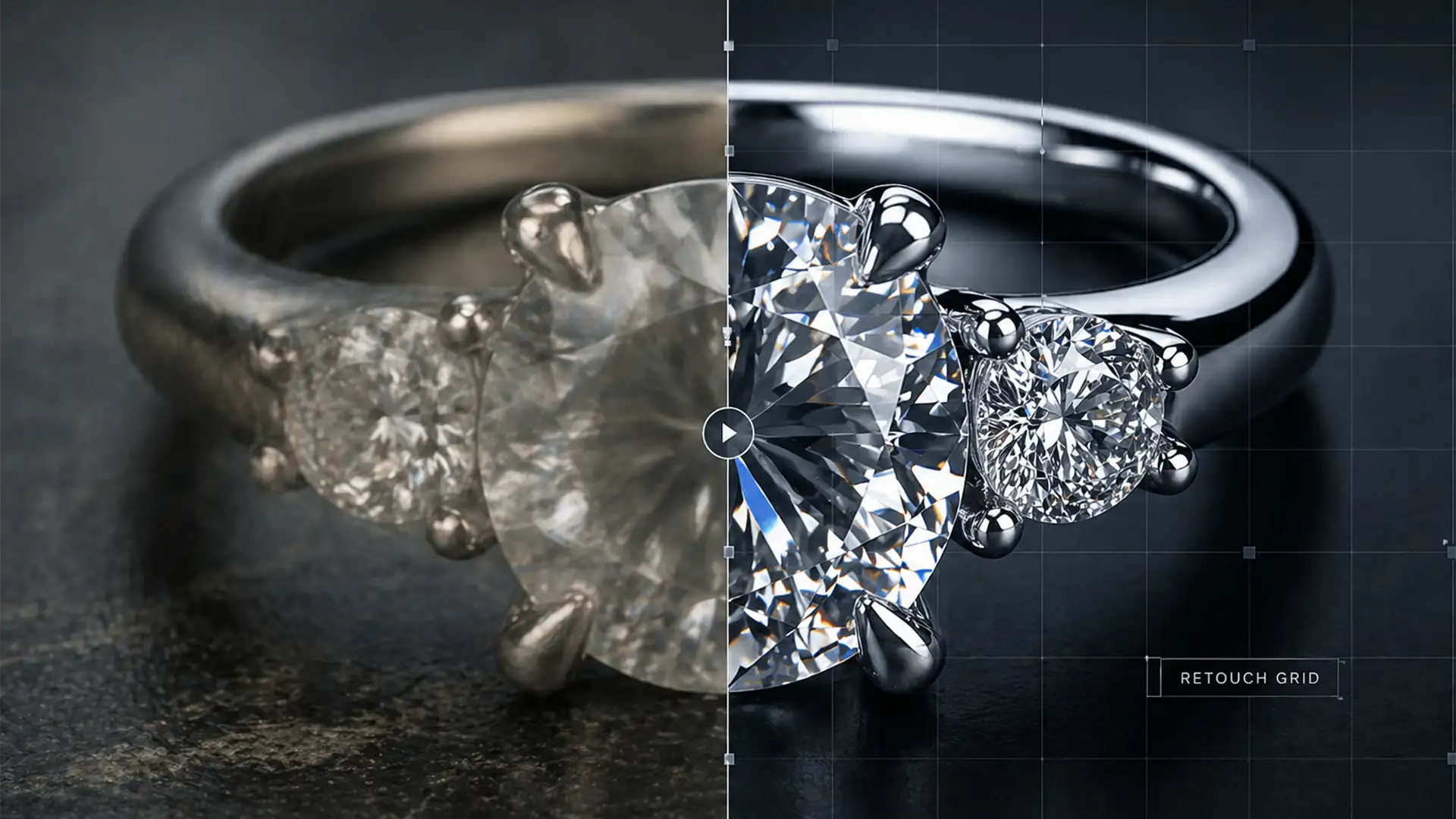

Are you tired of watching Adobe Photoshop v25.0’s Generative Fill turn your high-end commercial jewelry photos into melted plastic? You are not alone. While AI tools are revolutionizing background replacement, they frequently fail when confronted with the rigid geometry and high-contrast micro-textures of fine jewelry.
The result is “AI mud”: warped gemstone facets, destroyed linear gradients on metallic bands, and specular highlights that morph into dull smudges. If you want to maintain your brand’s luxury appeal, mastering jewelry retouching AI artifact repair is no longer optional—it is a critical workflow requirement. Here is exactly how to restore structural integrity to your AI-edited jewelry photography.
The Problem: Why AI Fails at Fine Jewelry
Jewelry photography relies entirely on precise light behavior. Algorithms trained on broad datasets do not understand the physics of light passing through a diamond or the flawless gradient of polished platinum. When you use Generative Fill or Neural Filters near a piece of jewelry, the AI attempts to blend the surrounding pixels, leading to catastrophic generative fill artifacts.
To fix this, retouchers must utilize advanced manual techniques to rescue the subject while keeping the AI-generated background intact.
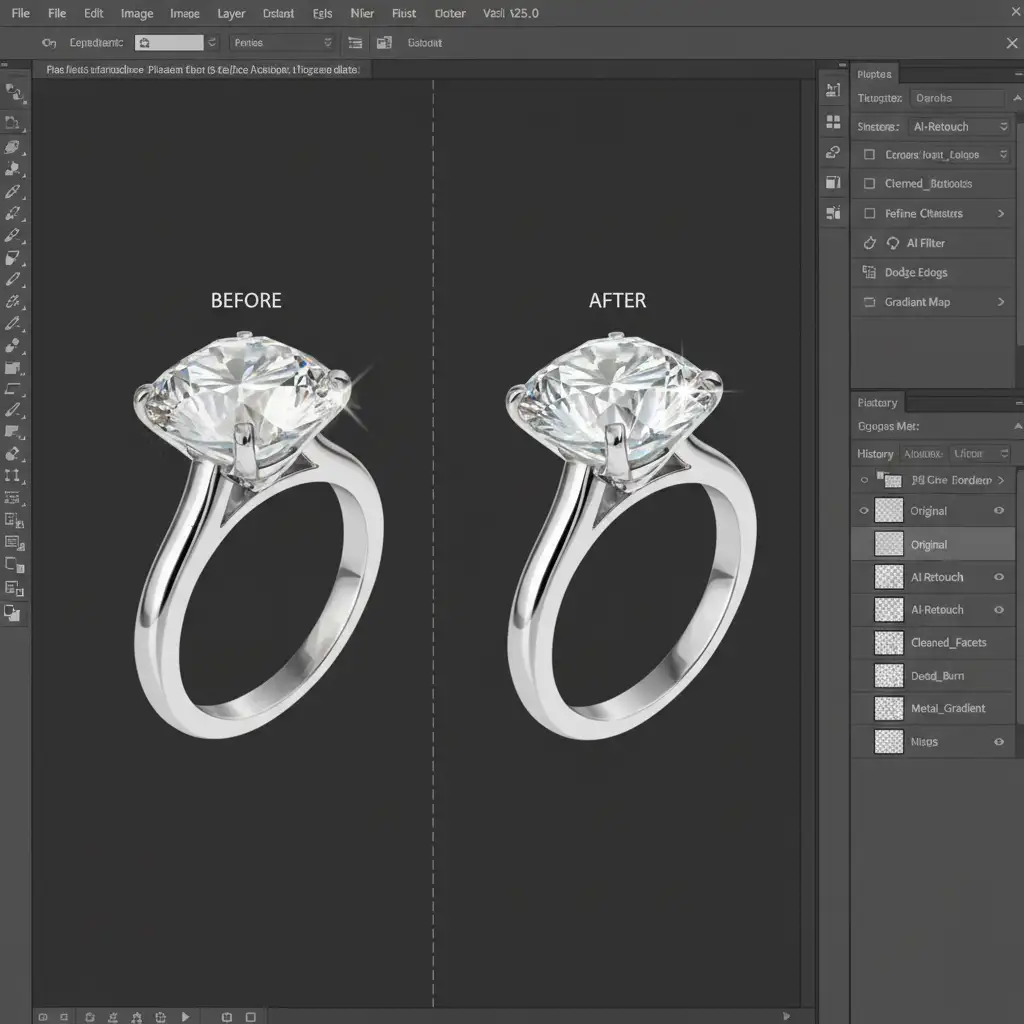
3 Professional Methods for Jewelry Retouching AI Artifact Repair
Method 1: The Quick Fix Using Luminosity Masking
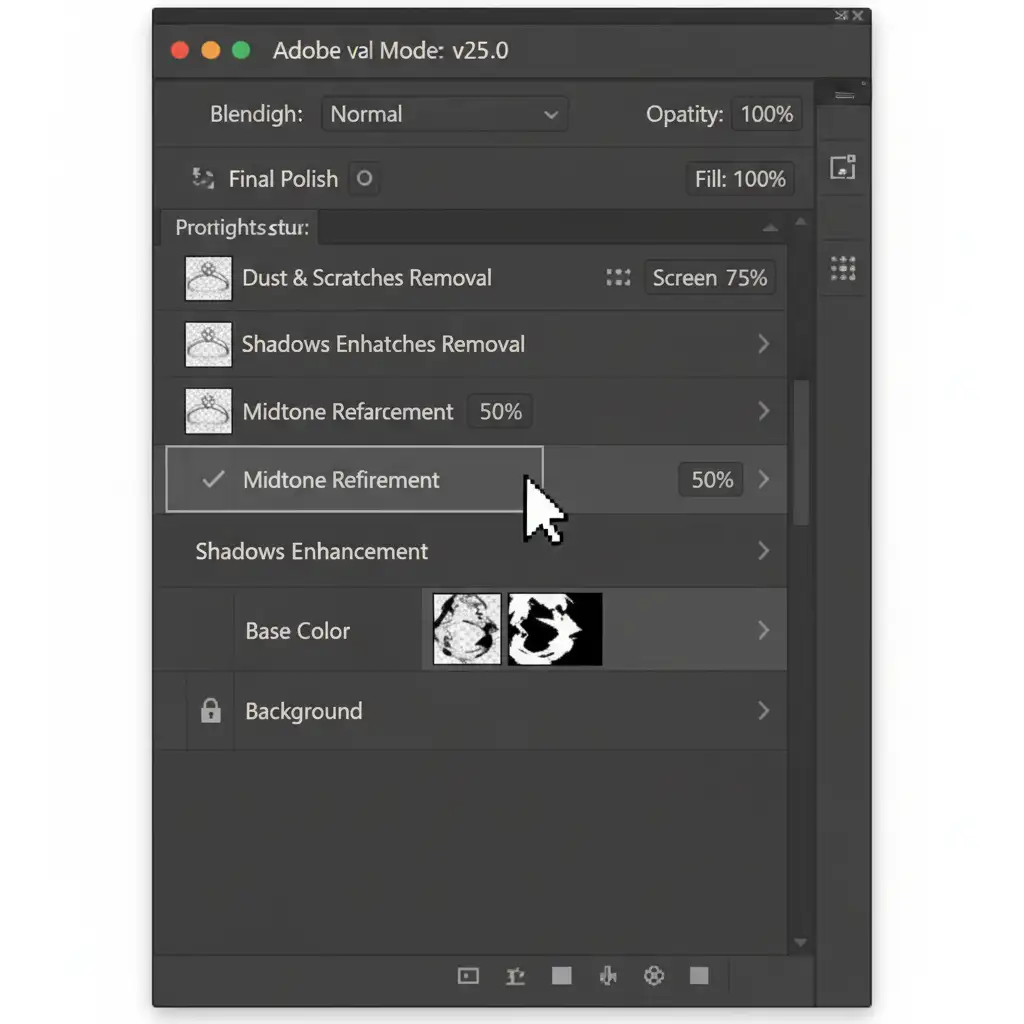
When AI blurs your gemstone facets but the surrounding background looks great, your fastest rescue method is luminosity masking. This technique allows you to target only the brightest parts of the image—the facets and highlights—and restore them from the original capture.
Step-by-Step Execution:
- Place your original, untouched image on a layer directly above your AI-edited layer.
- Add a black layer mask to the original image layer to hide it.
- Go to Image > Apply Image. In the dialog box, set the blending mode to ‘Normal’ and target the RGB channel. This creates a luminosity mask targeting the highlights.
- Using a soft white brush, gently paint over the gemstone on the mask.
- This reveals the original, razor-sharp facets and specular highlights while keeping the AI-generated background untouched.
Method 2: The Pro Workaround Using Frequency Separation
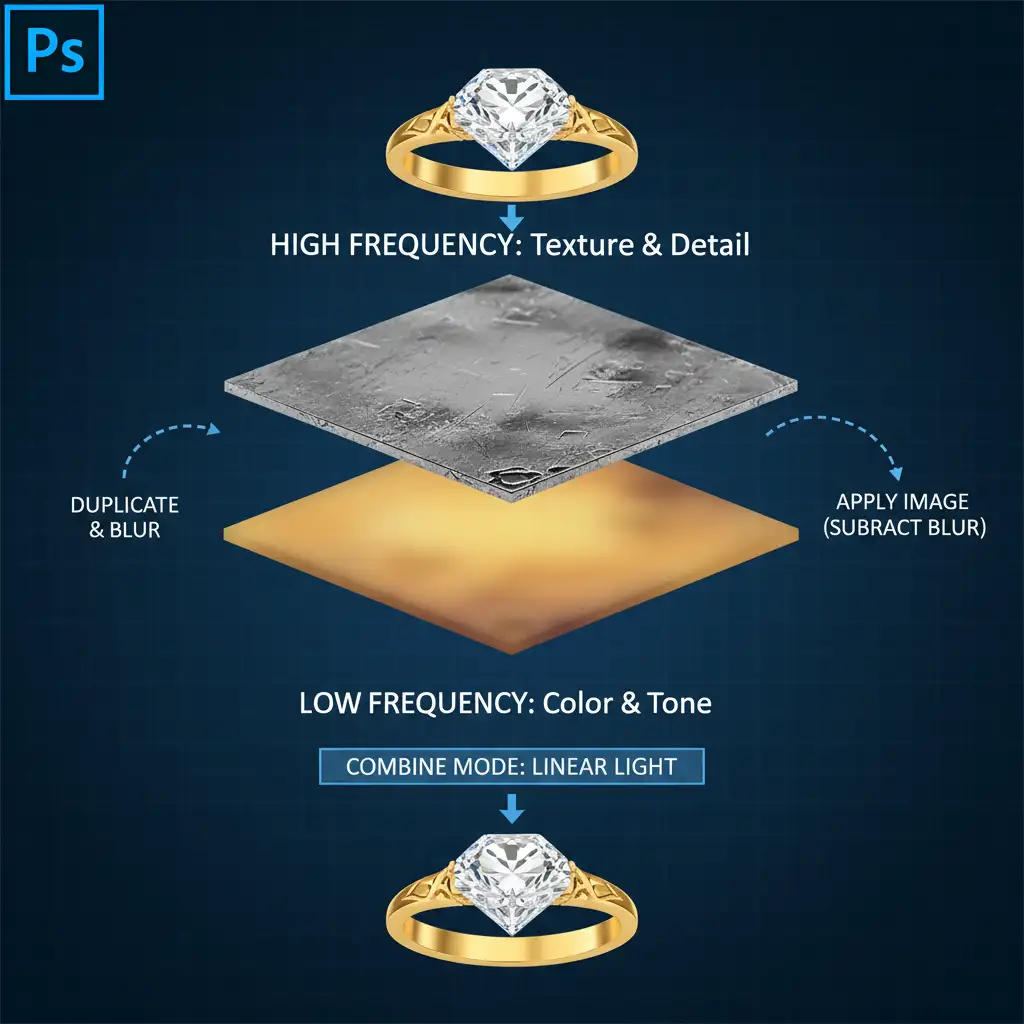
When generative AI destroys the smooth gradients of a metallic band, resulting in ugly gradient banding and warped reflections, frequency separation is the industry-standard rescue tool. This separates your image into two distinct layers: color/tone (Low Frequency) and texture (High Frequency).
Step-by-Step Execution:
- Run your standard Frequency Separation action (separating the image into an 8-bit or 16-bit texture and tone stack).
- Select the Low-Frequency (Color/Tone) layer.
- Select the Mixer Brush tool. Set it to a clean brush, low wetness (around 20%), and high mixing (around 90%).
- Carefully brush along the directional lines of the metallic band. This smooths out the warped, muddy AI color gradients without destroying the sharp structural edges preserved on the high-frequency texture layer.
Method 3: Pen Tool Vector Paths and Noise Matching
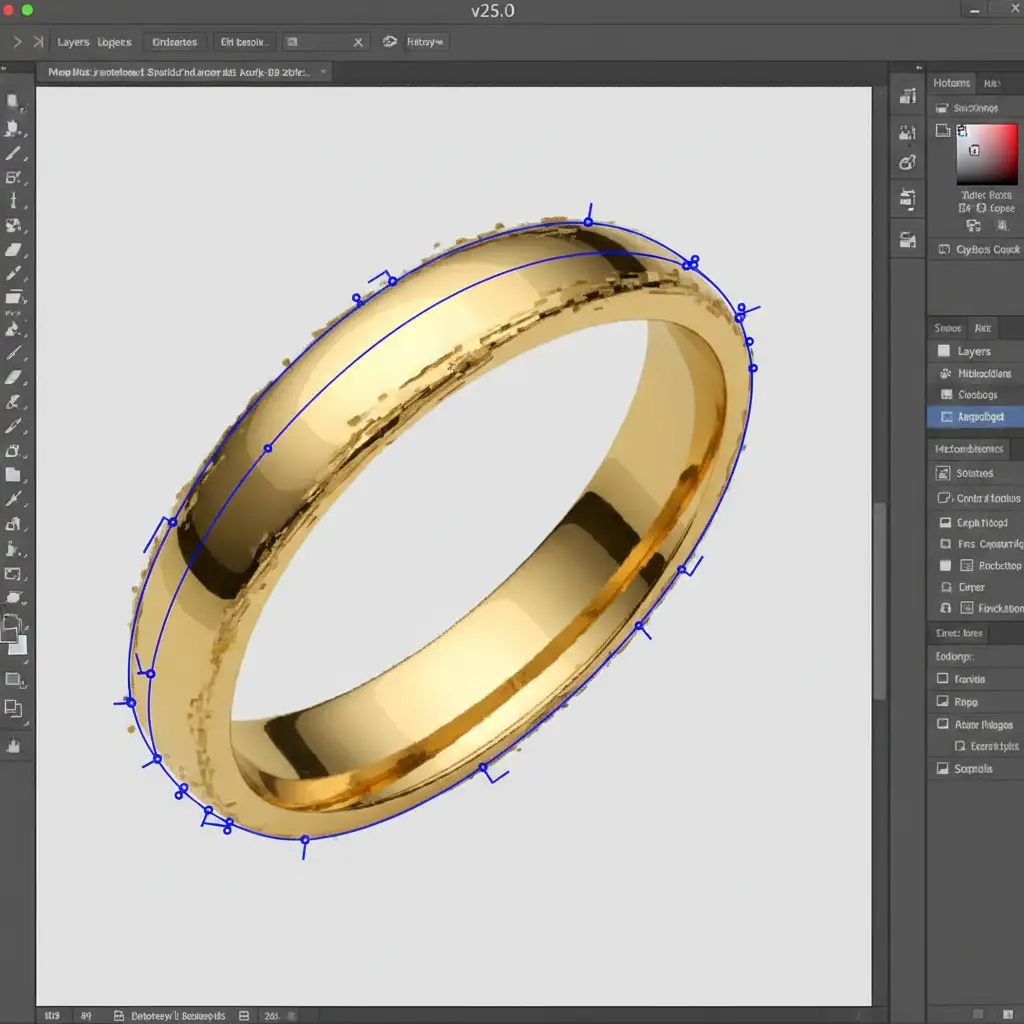
Sometimes, the AI damage is so severe that the edges of the jewelry are completely eroded. In these cases, you must manually rebuild the geometry using pen tool vector paths and execute precise noise matching so the repair doesn’t look like a plastic 3D render.
Step-by-Step Execution:
- Select the Pen Tool (P) and trace the exact curve of the damaged metallic band.
- Convert the path to a selection and fill it with a gradient that mimics the original lighting setup.
- The crucial step: AI tools often leave mismatched noise profiles, making your smooth vector repair look fake. Create a new layer above your repair, fill it with 50% gray, and set the blending mode to Overlay.
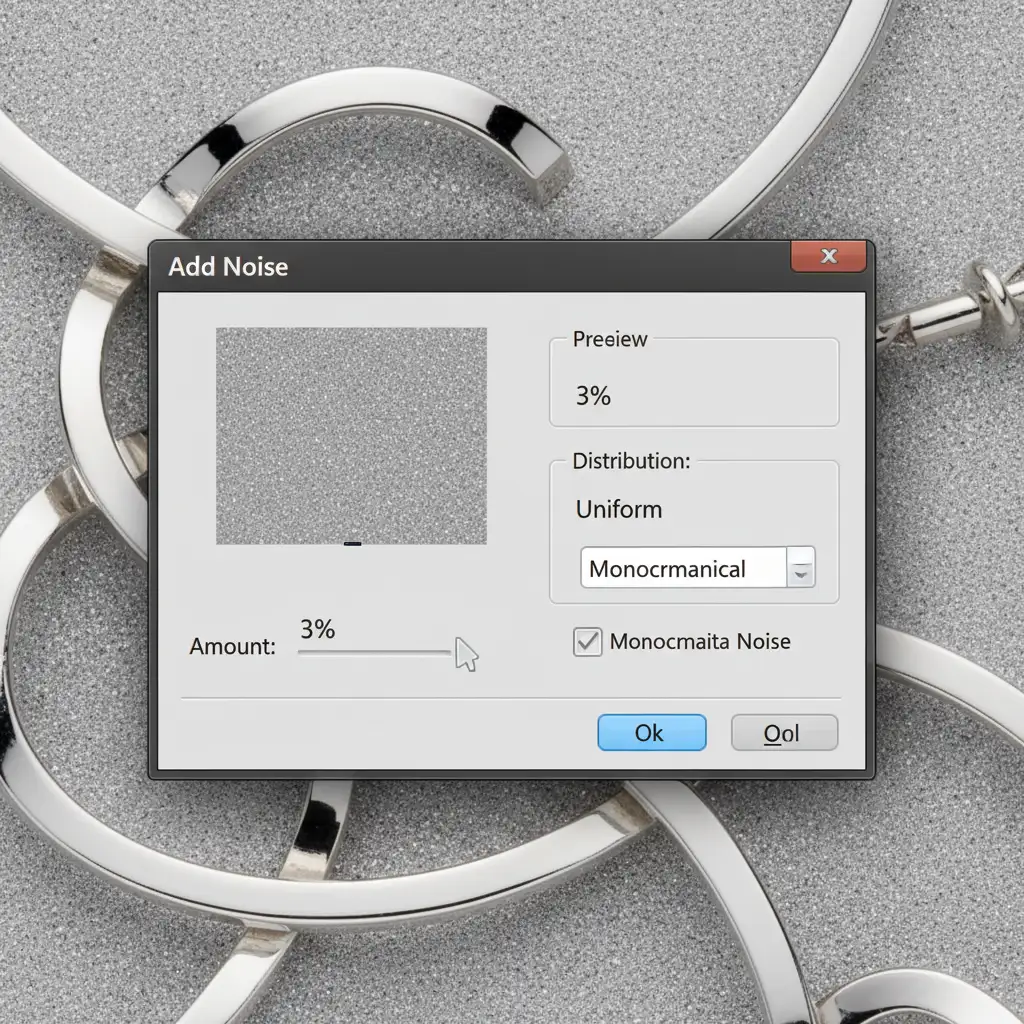
- Go to Filter > Noise > Add Noise. Select ‘Uniform’ and ‘Monochromatic’.
- Adjust the percentage until the grain perfectly matches the camera sensor noise of the original photograph. Clip this noise layer to your vector repair.
Flawless Jewelry Retouching Requires Human Expertise
While AI features in Photoshop v25.0 are incredible for speeding up background cleanup, they lack the contextual awareness required for fine jewelry. Fixing generative fill artifacts, understanding specular light behavior, and matching high-frequency textures require the trained eye of a professional retoucher.
If you are spending hours trying to fix AI-muddied jewelry photos, it is time to outsource to the experts. Image Work India and Cloud Retouch specialize in high-end commercial jewelry retouching. Our team of expert human retouchers understands the precise geometry of gemstone facets and the exact physics of metallic reflections. We guarantee pixel-perfect brilliance that no AI can replicate.
Stop settling for “AI mud.” Contact Image Work India and Cloud Retouch today to elevate your commercial jewelry photography to flawless, luxury standards.




