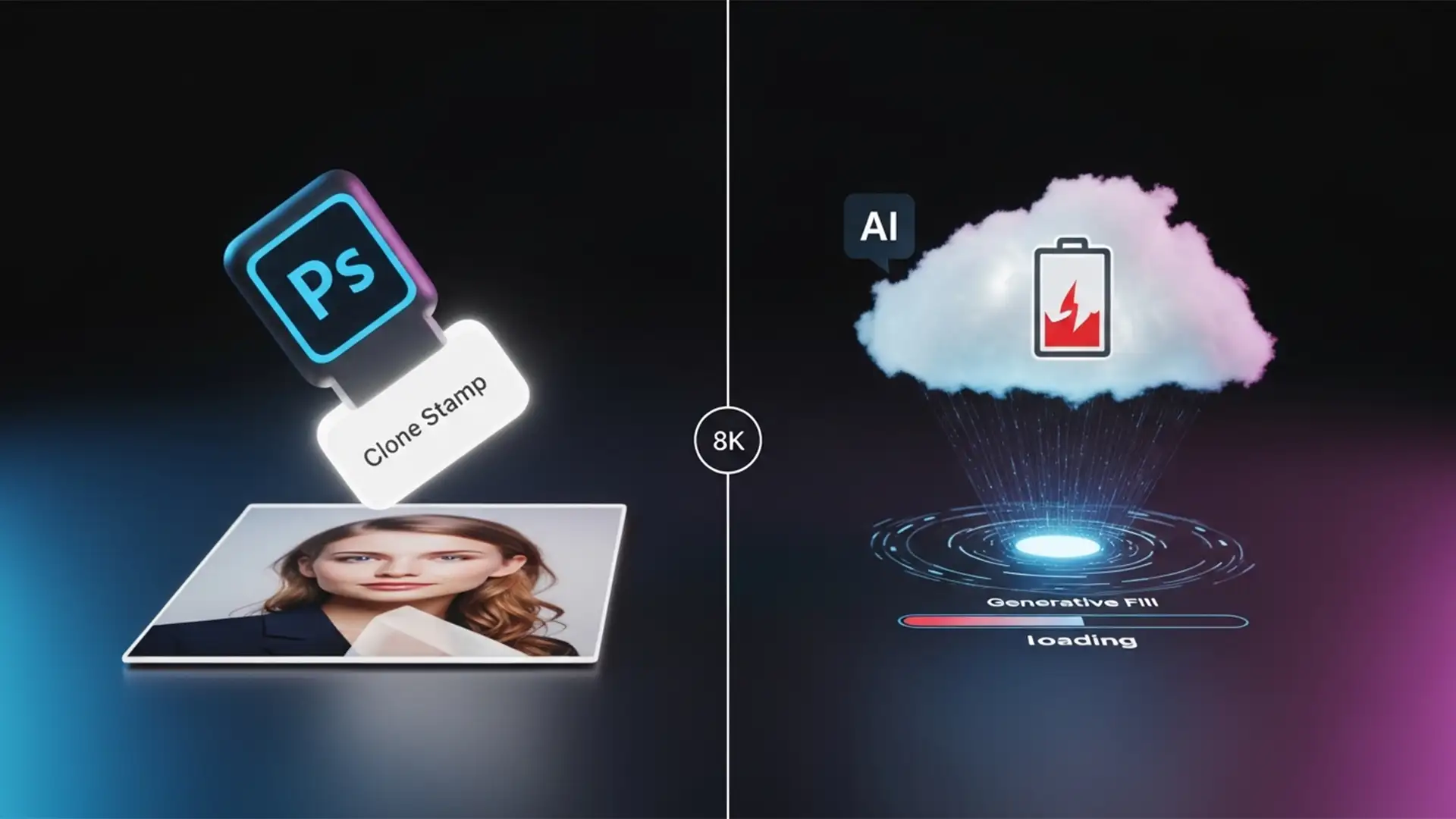

Are you mindlessly lassoing every tiny dust spot and hitting “Generate”? If you are editing a batch of portraits in Photoshop v25.0 or newer, you might be draining your monthly allocation faster than you realize. Every time you use cloud-based AI for a minor blemish or stray hair, you sacrifice precious time to cloud latency and burn through your account limits.
This is where micro-retouching AI credit optimization becomes critical. By strategically balancing Photoshop’s traditional, locally rendered tools with powerful AI features, you can drastically speed up your workflow and save your credits for the heavy lifting.
Here is the definitive guide to stopping the drain and optimizing your retouching process.
The Generative Fill Trap: Why Optimization Matters
When Adobe introduced Generative Credits for cloud-based AI tools like Generative Fill and Generative Expand, it revolutionized image manipulation. However, it also introduced a new bottleneck.
Users frequently exhaust their monthly credit allocation by relying on text prompts and cloud generation for micro-retouching. The technical reality is simple: sending a 50-pixel selection to Adobe’s servers for cloud processing takes seconds and costs a credit. Meanwhile, traditional local algorithms handle the exact same task in milliseconds for free.
To maximize efficiency, you need a hybrid workflow. Save Generative Fill strictly for complex background generation, major object removal, and extending canvases. For everything else, rely on the methods below.
Method A: The Quick Fix (Spot Healing & Clone Stamp)
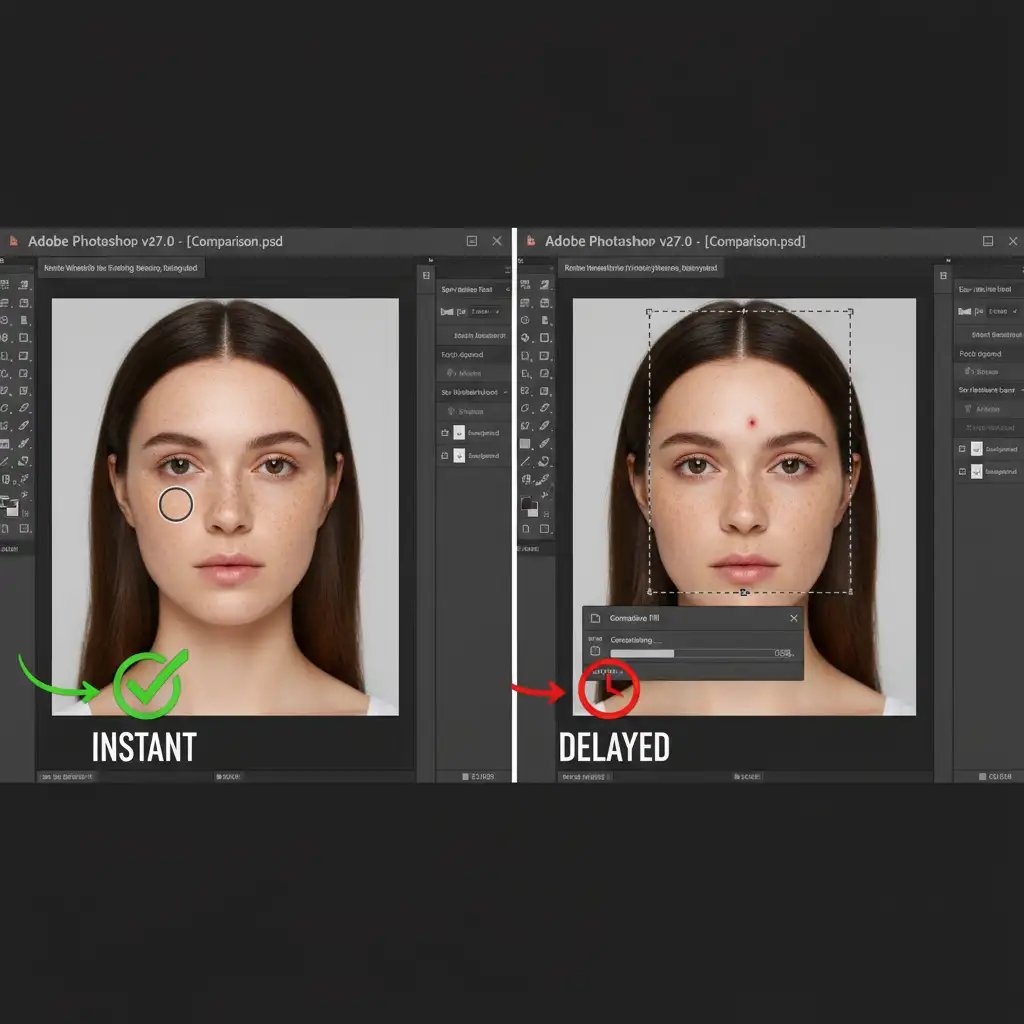
For single-pixel dust, minor skin blemishes, and stray hairs, the Spot Healing Brush and the Clone Stamp tool remain unmatched in speed.
Instead of drawing a marquee, clicking Generative Fill, and waiting for three variations to load, simply tap the Spot Healing Brush. Because it relies on local rendering, the fix is instantaneous. If you need precise texture replication, create a new blank layer, set your Clone Stamp tool to sample “Current & Below,” and manually paint out the distraction.
Method B: The Pro Workaround (Frequency Separation)
When it comes to skin smoothing, many users are tempted to use cloud-based Neural Filters or run multiple Generative Fill prompts. This is a massive drain on AI credits and often results in plastic-looking, over-processed skin.
Instead, utilize Frequency Separation. This traditional retouching technique splits your image into two layers: one for color/tone (low frequency) and one for texture (high frequency).
- Duplicate your background layer twice.
- Apply a Gaussian Blur to the low layer.
- Apply “Apply Image” to the high layer and set the blending mode to Linear Light.
- Remember to rasterize layer smart objects if necessary before applying these destructive edits.
This method allows you to smooth uneven skin tones on the low layer using a Mixer Brush while preserving the exact original skin pores on the high layer—all without touching your credit balance.
Method C: The Technical Deep-Dive (Local Remove Tool)
The Remove Tool is one of Photoshop’s most powerful recent additions, bridging the gap between traditional healing and AI. However, by default, it may ping the cloud for complex removals.
You can force Photoshop to keep this process entirely local. This ensures seamless object removal without consuming a single Generative Credit.
How to fix it:
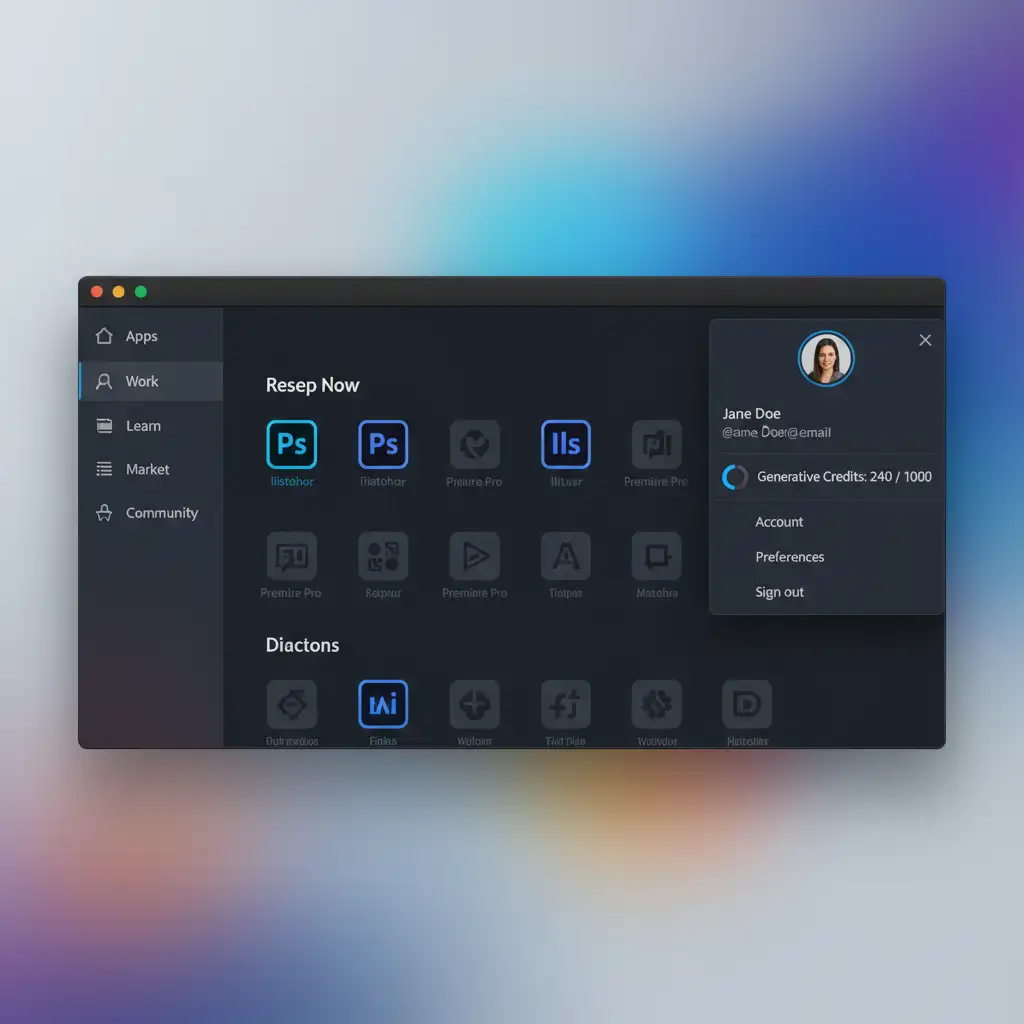
- Select the Remove Tool (nested under the Spot Healing Brush).
- Look at the top Options bar.
- Check the box that says Process on device (or uncheck “Allow cloud processing” depending on your exact minor version).
Tracking Your Generative Credit Balance
Even with perfect micro-retouching AI credit optimization, you will eventually need to use Generative Fill for complex background replacements. It is crucial to monitor your usage so you aren’t caught off guard mid-project.
You can check your balance directly through your Adobe Creative Cloud account. Navigate to the Creative Cloud desktop app or the Adobe website, click on your profile avatar, and look for the Generative Credits counter.
Stop Wasting Time (and Credits) on Tedious Edits
Mastering micro-retouching AI credit optimization will save you money, reduce cloud latency frustration, and make you a faster retoucher. But even with the most optimized workflow, high-volume retouching is a massive time sink.
Running out of AI credits or spending too many hours on tedious micro-retouching? Let the experts at Image Work India and Cloud Retouch handle the heavy lifting. We provide world-class, bulk image editing and high-end retouching services for photographers, e-commerce brands, and agencies.
Stop stressing over credit limits and start focusing on scaling your business. Contact Image Work India today to get a custom quote for your next retouching project!




