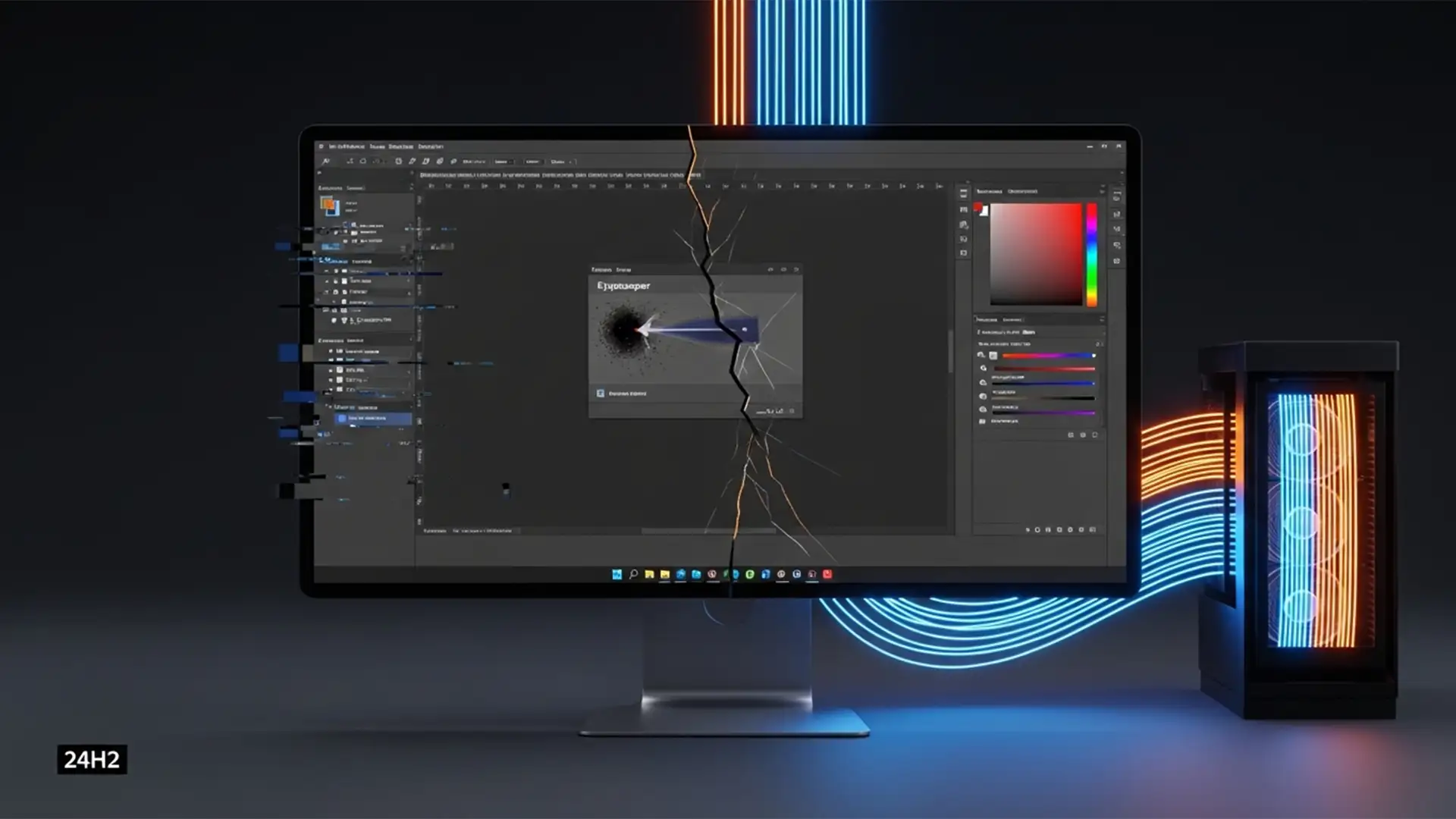

You just updated your workstation to Windows 11 24H2, fired up Photoshop 2025 (v26.x), and immediately noticed something was wrong. Dialog boxes are inexplicably cropped. Your cursor alignment is completely off. Worst of all, the Eyedropper tool is picking up entirely incorrect colors.
If this sounds familiar, you are not alone. The recent OS update introduced fractional scaling conflicts between the Windows rendering engine and Adobe’s interface, causing severe workflow disruptions for professional retouchers.
Fortunately, you do not have to roll back your operating system. In this guide, we will walk you through the definitive Photoshop 2025 Windows 24H2 UI fix so you can restore your workspace, fix multi-monitor DPI mismatches, and get back to editing.
Why the Windows 11 24H2 Update Breaks Photoshop 2025
The root of this problem lies in how Windows 11 version 24H2 handles system-level display rendering and Windows Advanced Color profiles. When these new OS-level scaling rules interact with Photoshop v26, fractional scaling conflicts occur.
This causes the Adobe UI engine to miscalculate the physical pixels on your monitor. The result? Cropped dialogs, unclickable panels, and an Eyedropper tool that samples pixels offset from your actual cursor location.
Here are the three proven methods to resolve these display bugs.
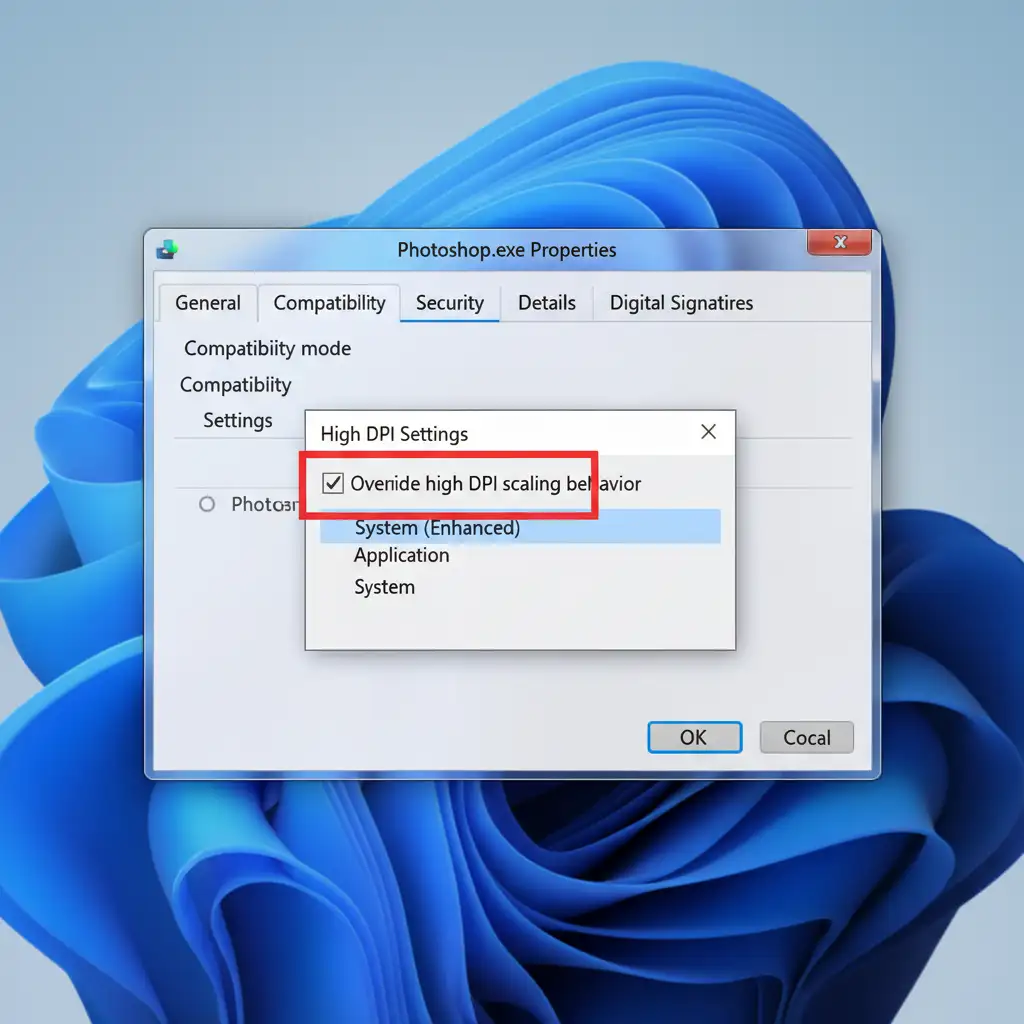
Method 1: The Quick Fix – Override High DPI Scaling
The fastest way to bypass the conflict is to force Windows to handle the scaling instead of letting Photoshop attempt it.
- Close Photoshop completely.
- Locate your Photoshop.exe shortcut (usually found in C:\Program Files\Adobe\Adobe Photoshop 2025).
- Right-click the executable and select Properties.
- Navigate to the Compatibility tab.
- Click on Change high DPI settings.
- Check the box that says Override high DPI scaling behavior.
- In the dropdown menu beneath it, select System (Enhanced).
- Click Apply and OK.
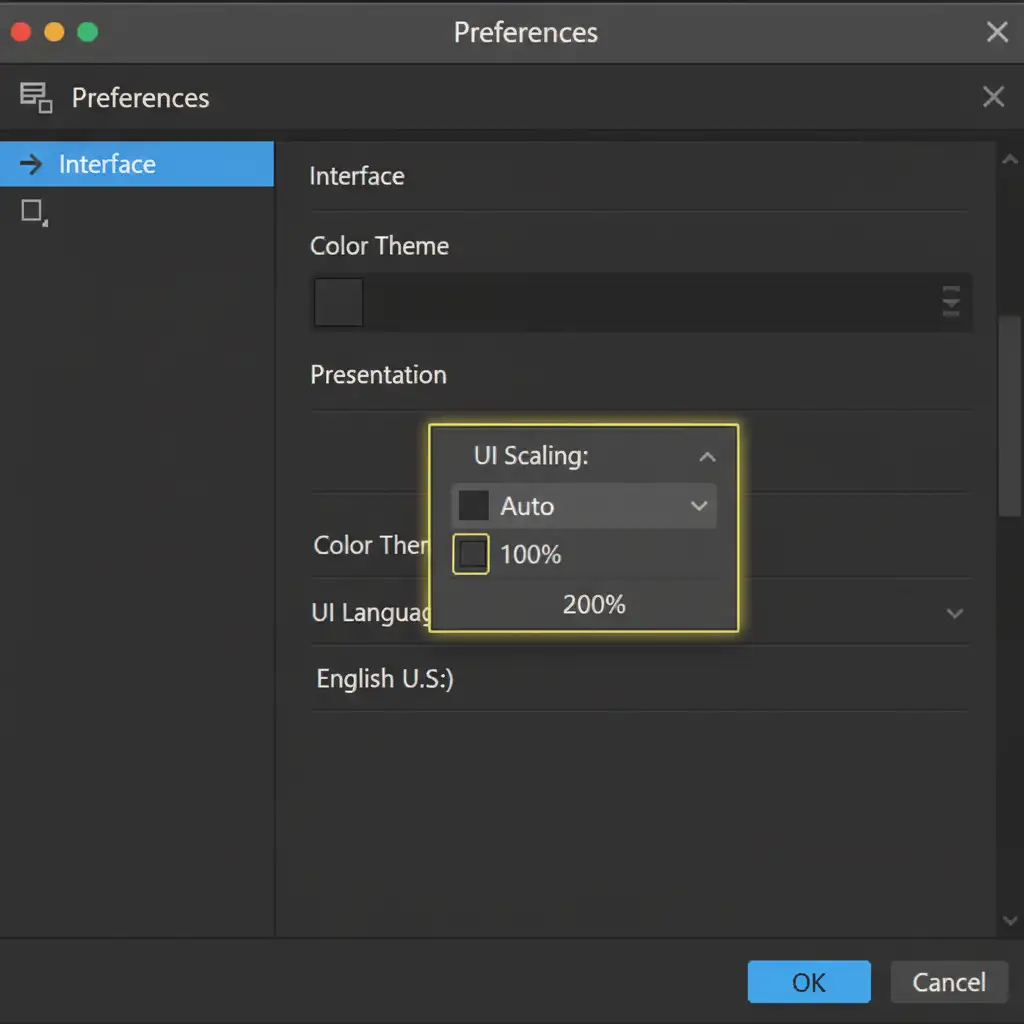
Method 2: The Pro Workaround – Internal UI Adjustment
If overriding the system settings does not fully resolve the Eyedropper tool inaccuracy, you need to manually adjust the internal UI scaling within Photoshop’s preferences.
- Open Photoshop 2025.
- Go to Edit > Preferences > Interface (or Photoshop > Settings > Interface on Mac, though this specific bug is Windows-centric).
- Locate the Presentation panel.
- Change the UI Scaling dropdown from Auto to either 100% or 200%, depending on your monitor’s native resolution (avoid fractional scaling like 150% in Windows display settings if possible).
- Restart Photoshop to apply the changes.
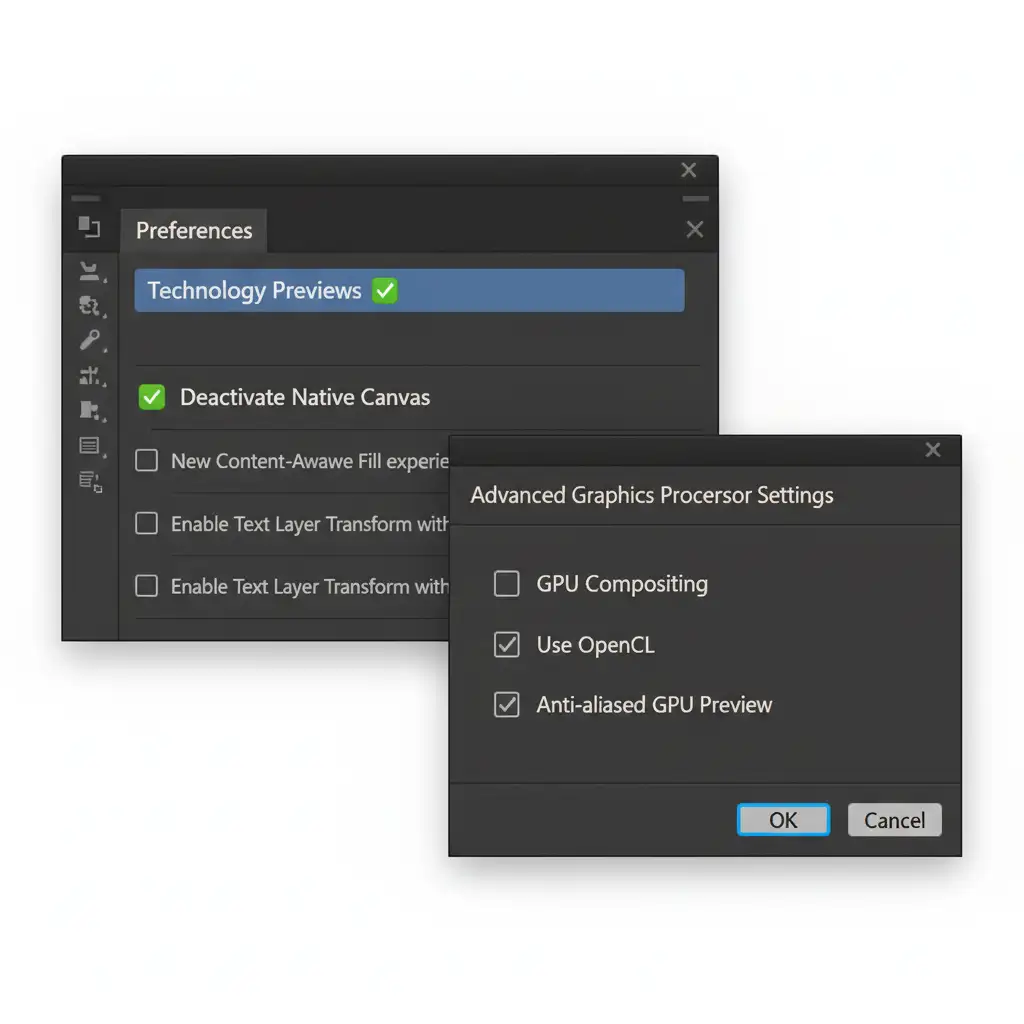
Method 3: The Technical Deep-Dive – GPU Compositing and Canvas Tweaks
Sometimes the UI scaling bug triggers secondary rendering issues, causing a black canvas or grayed-out tools. This requires disabling specific modern rendering features that clash with the new Windows update.
- Navigate to Edit > Preferences > Technology Previews.
- Check the box labeled Deactivate Native Canvas.
- Next, switch to the Performance tab on the left sidebar.
- Click on Advanced Settings under the Graphics Processor Settings.
- Uncheck GPU Compositing.
- Click OK and restart Photoshop.
Note: Disabling GPU compositing may slightly reduce zooming smoothness, but it ensures UI stability and accurate tool functionality.
Bonus Tip: Clean Install Display Drivers
To ensure optimal performance after applying these fixes, verify that your graphics drivers are up to date. If you use an NVIDIA card, switch from the “Game Ready” drivers to the latest Studio Drivers, which are specifically optimized for creative applications like Photoshop v26.
Stop Fighting Software Bugs. Start Scaling Your Business.
Troubleshooting a Photoshop 2025 Windows 24H2 UI fix takes valuable time away from what actually matters: delivering stunning imagery to your clients and growing your business.
When software bugs, scaling issues, and tedious masking tasks slow down your production pipeline, it is time to bring in the experts. At Image Work India and Cloud Retouch, we provide world-class, bulk photo retouching and editing services for e-commerce, real estate, fashion, and commercial photographers.
You shoot. We edit. Let our team of professional retouchers handle the heavy lifting with pixel-perfect precision so you never have to stress over an Adobe update again.
Contact Image Work India and Cloud Retouch today for a free trial and see how we can streamline your post-production workflow!




