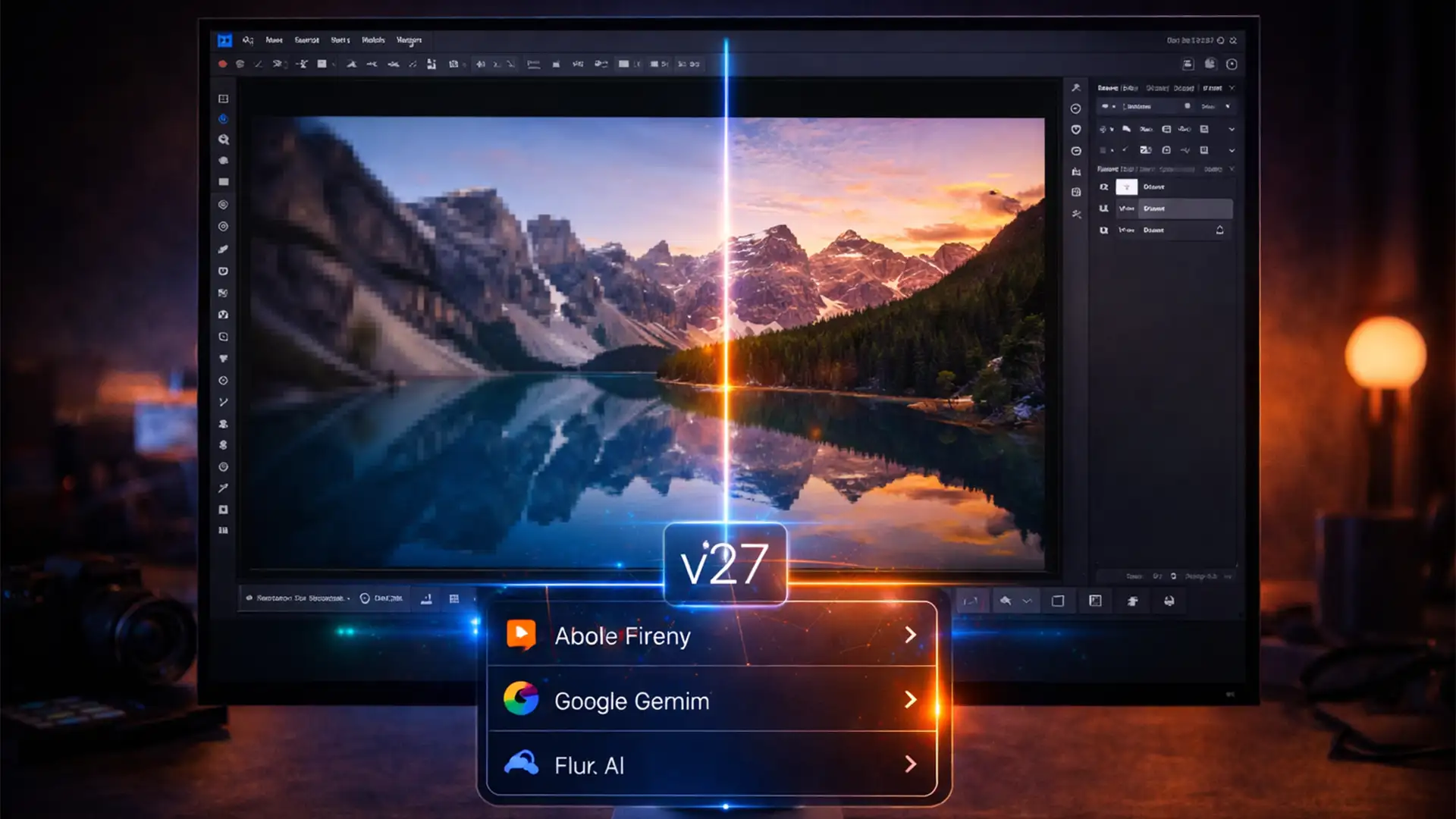

You just opened a high-resolution file in Photoshop 2026 (v27.x), ready to edit. But when you zoom out to check the overall composition, the canvas looks terribly pixelated. Sound familiar?
This frustrating workspace display bug is currently plaguing users on both Windows 11 and macOS Tahoe. Even though your exported files remain perfectly sharp, working on a blurry preview makes accurate retouching impossible. Fortunately, you do not need a new computer. This issue stems from a software conflict with the latest rendering engines. Here is your definitive Photoshop 2026 blurry preview fix to restore a crystal-clear workspace.
Why is My Photoshop 2026 Canvas Blurry?
The root cause of this workspace display bug is a communication error between Photoshop’s new Native Canvas acceleration and your system’s GPU compositing engine.
When you view an image at non-integer zoom levels (such as 66.7 percent or 33.3 percent), the graphics card driver struggles to properly render the cached image tiles. Instead of applying smooth display scaling, the software defaults to a low-resolution rendering algorithm. The result is jagged edges and a blurry preview that misrepresents your actual high-resolution file.
How to Apply the Photoshop 2026 Blurry Preview Fix
Depending on your specific hardware setup, one of the following three methods will force Photoshop to render your canvas correctly.
Method 1: The Quick Fix (Deactivate Native Canvas)
The most consistent solution for Windows 11 and macOS Tahoe users is to bypass the problematic rendering engine entirely.
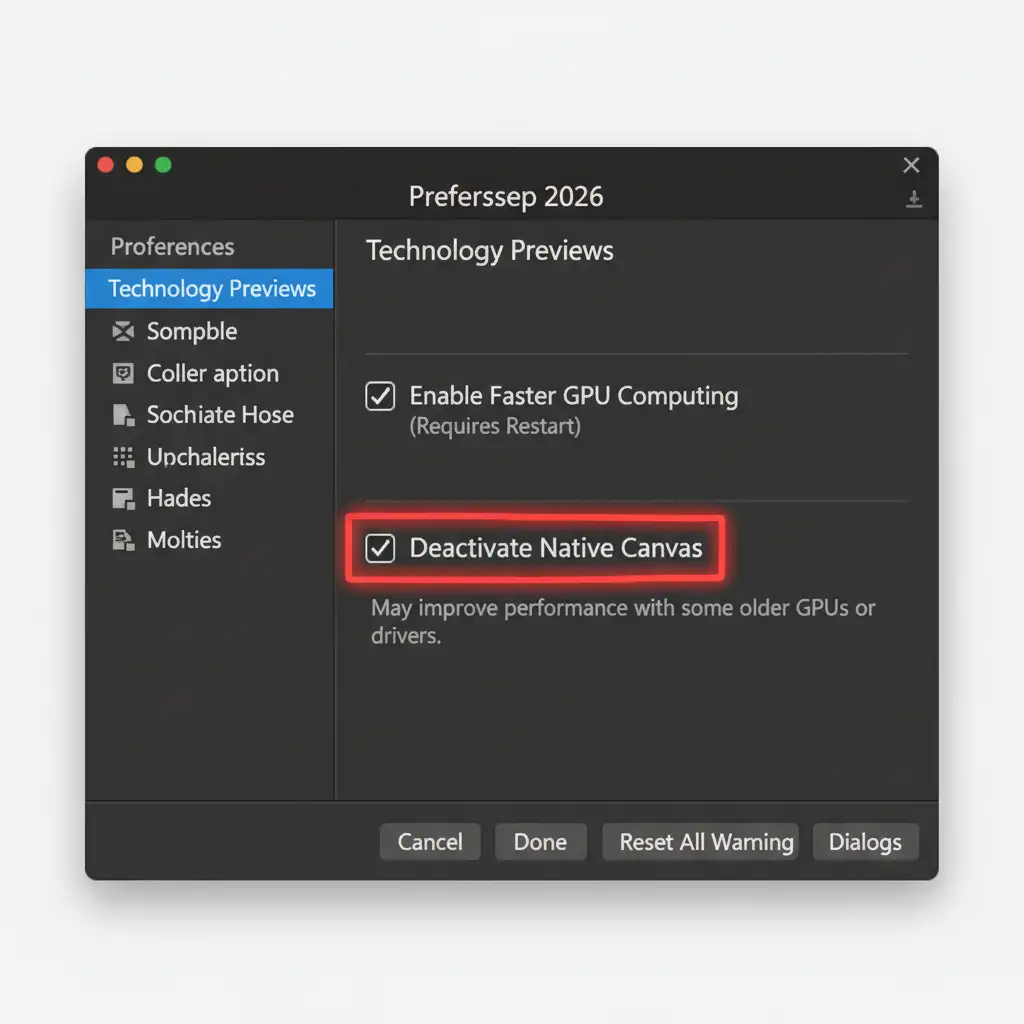
- Navigate to Edit > Preferences > Technology Previews (on Windows) or Photoshop > Settings > Technology Previews (on Mac).
- Locate the checkbox labeled Deactivate Native Canvas.
- Check the box to enable this feature.
- Completely restart Photoshop to force the software to use the legacy rendering engine.
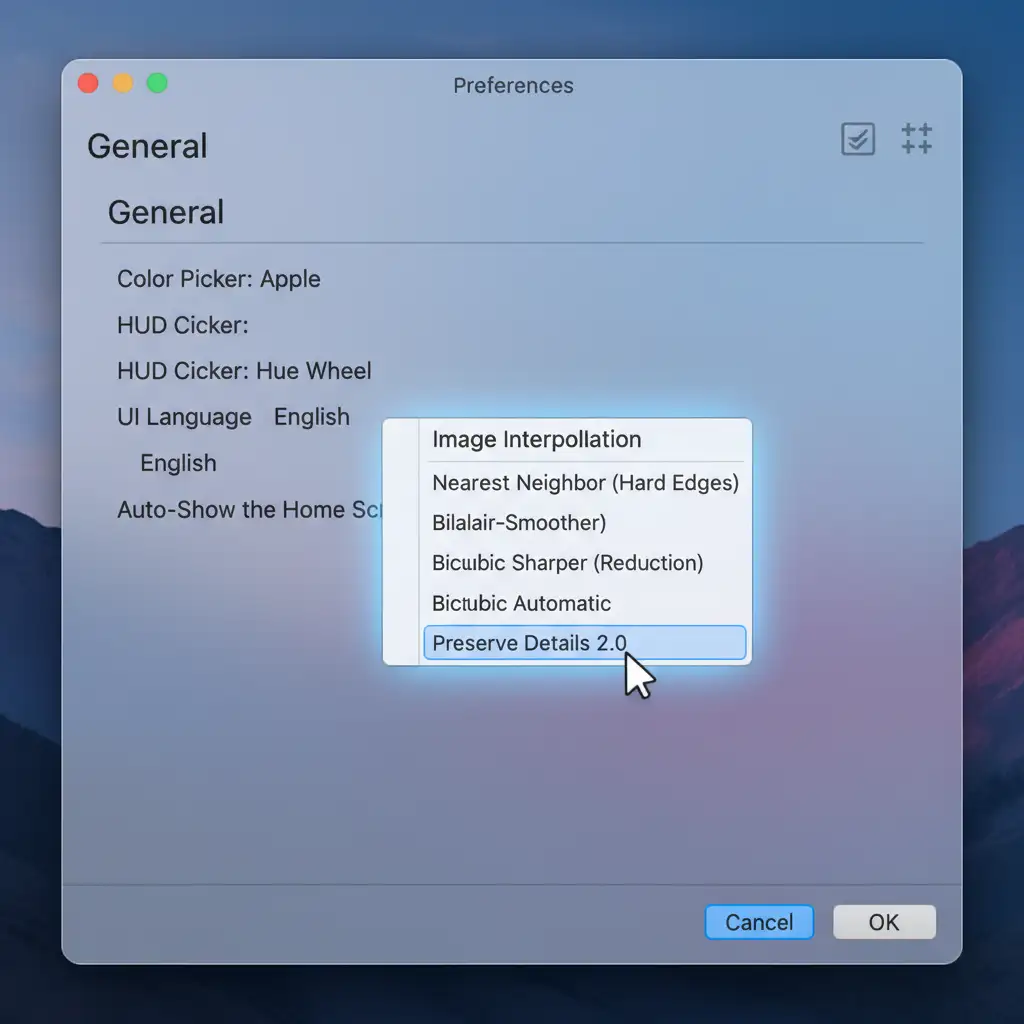
Method 2: The Pro Workaround (Image Interpolation)
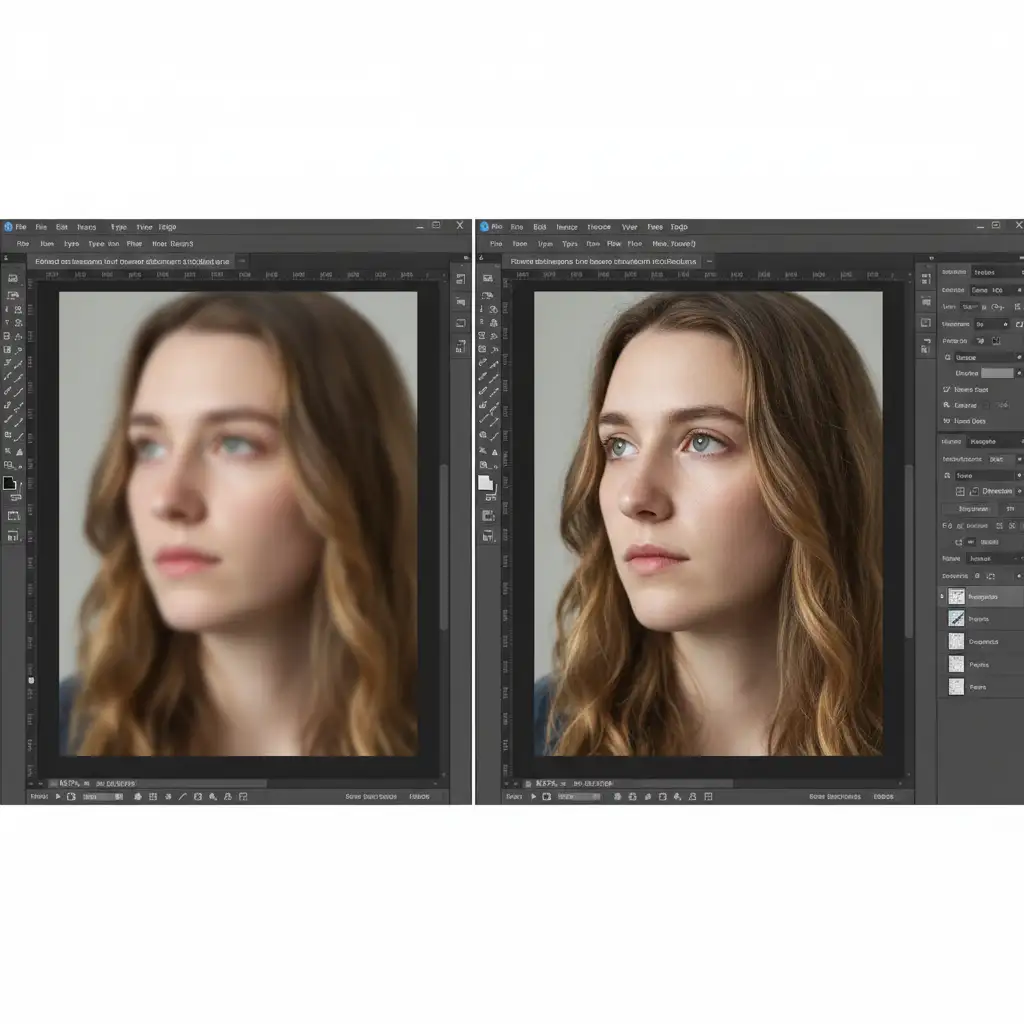
If you frequently work with heavily transformed layers, the way Photoshop calculates anti-aliasing during previews can cause pixelation.
First, get into the habit of converting scaled layers into Smart Objects before transforming them. This preserves the original pixel data. Next, adjust your interpolation settings:
- Go to Preferences > General.
- Find the Image Interpolation dropdown menu.
- Change the setting to Bicubic Automatic.
This ensures that the preview rendering algorithm correctly smooths the edges of your layers instead of pixelating them during live edits.
Method 3: The Technical Deep-Dive (GPU and Cache Optimization)
If the canvas remains blurry, your VRAM allocation and OpenGL rendering settings may be bottlenecking the display. Optimizing your cache allows Photoshop to draw high-resolution tiles faster.
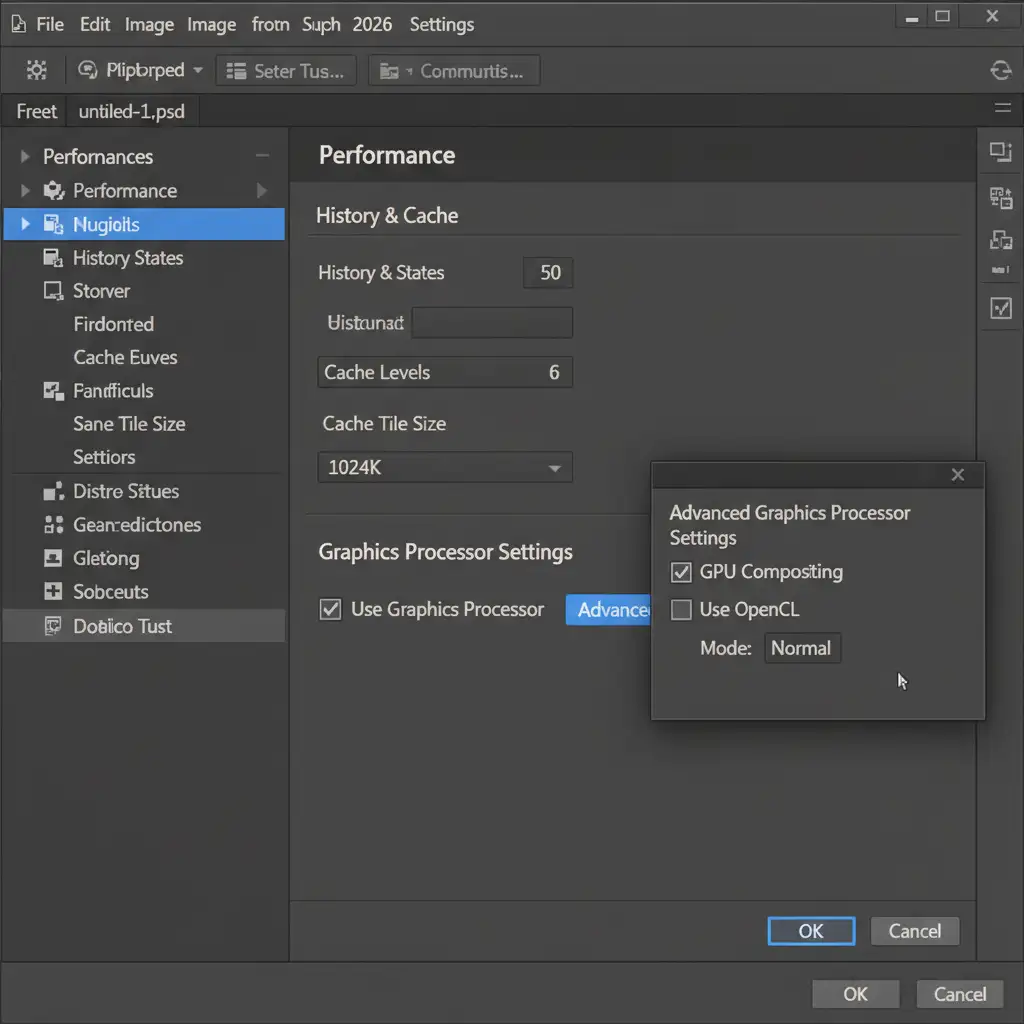
- Navigate to Preferences > Performance.
- Ensure Use Graphics Processor is checked.
- Click the Advanced Settings button and verify that GPU Compositing is enabled.
- Under the History & Cache section, set your Cache Levels to 4 or 6.
- Set your Cache Tile Size to 1024K (ideal for modern high-resolution displays).
- Click OK and restart the software.
Note: Always ensure your Nvidia Studio Drivers or Apple Silicon graphics drivers are updated to the latest version to prevent hardware acceleration conflicts.
Stop Fighting Software Bugs-Let the Experts Handle Your Retouching
Troubleshooting a Photoshop 2026 blurry preview fix takes time away from what you do best: shooting and creating. When software updates disrupt your workflow, your deadlines don’t pause.
If you need pixel-perfect results without the technical headaches, let the experts at Image Work India and Cloud Retouch handle the heavy lifting. We specialize in high-volume, premium photo editing, clipping paths, and high-end retouching for photographers and e-commerce brands worldwide.
Stop wrestling with cache levels and GPU errors. Contact Image Work India today to outsource your retouching and get flawless, print-ready images delivered directly to your inbox.




