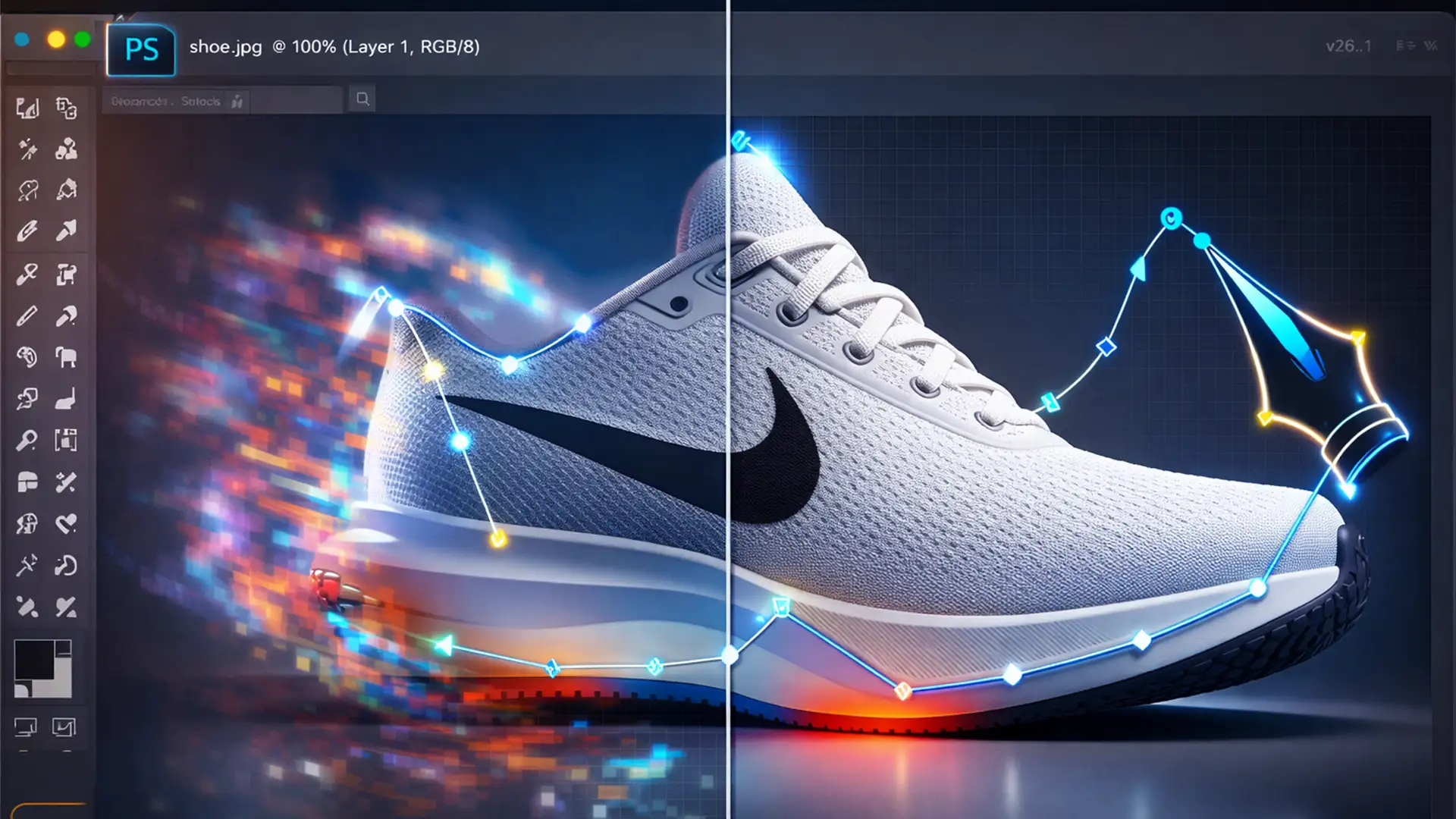

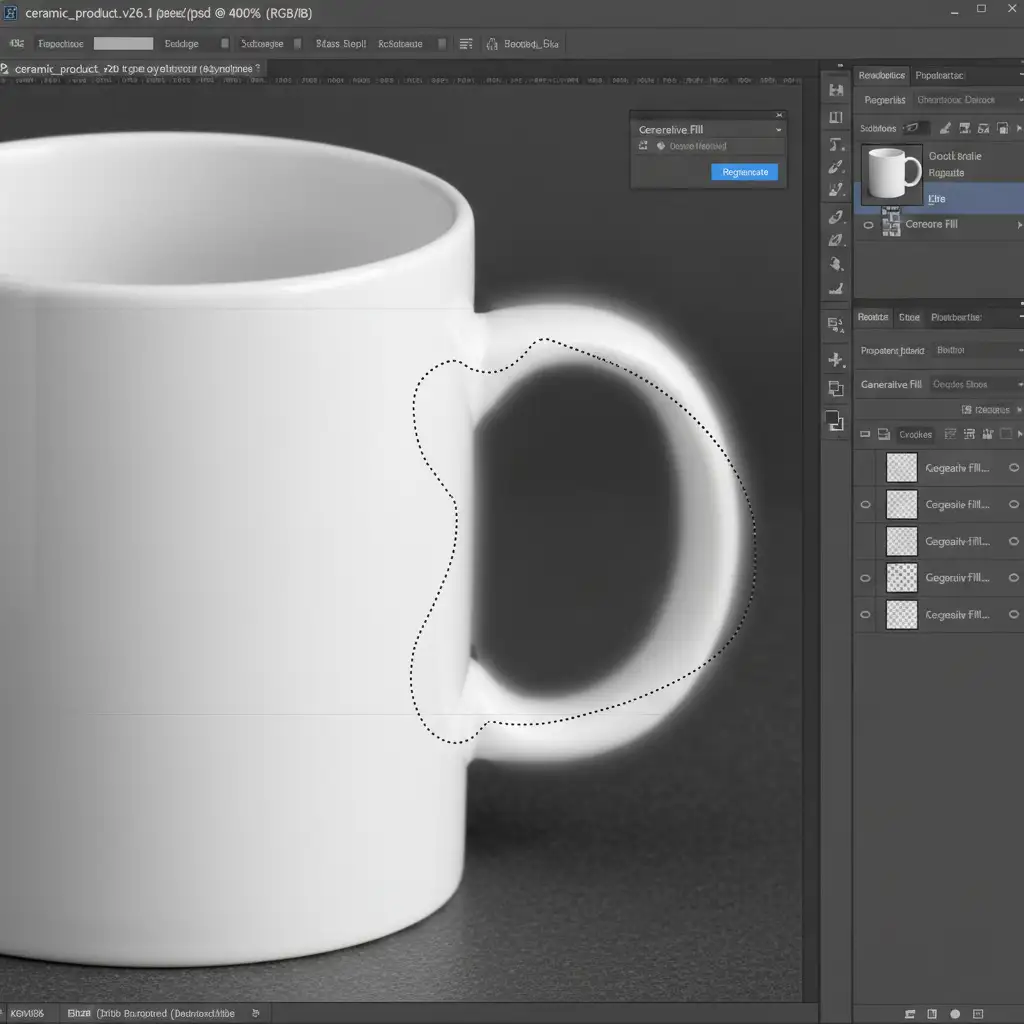
You spend minutes drawing a pixel-perfect pen path around an e-commerce product, activate Generative Fill, and suddenly—your crisp edge is ruined. Photoshop v26.1’s integrated Firefly Image 3 model is notoriously aggressive, automatically feathering mask boundaries by 3 to 5 pixels. This creates a messy selection bleed that alters pixels far outside your marching ants, destroying hard edges.
If you need a reliable Photoshop Generative Fill selection bleed fix, you are in the right place. Let’s explore why this happens and three professional workarounds to restore your pixel-perfect boundaries.
Why is Photoshop v26.1 Bleeding Outside the Selection?
The core issue stems from the updated AI contextual awareness radius in the latest Photoshop build. To prevent harsh generative seams, the software forcibly overrides hard-edged lasso or pen tool selections. It internally feathers the mask boundary to seamlessly blend the generated content with the original image.
While this works well for landscapes, it is a nightmare for e-commerce retouchers. The result is unwanted selection bleed and prominent edge halos that ruin the sharp outlines required for product photography.
3 Ways to Apply the Photoshop Generative Fill Selection Bleed Fix
Because the software currently forces this blending behavior, you must use strategic editing techniques to bypass the auto-feathering. Here are three proven methods.
Method 1: The “Contract Selection” Quick Fix
The fastest way to mitigate AI feathering is to offset the automatic bleeding overlap before you generate your new pixels.
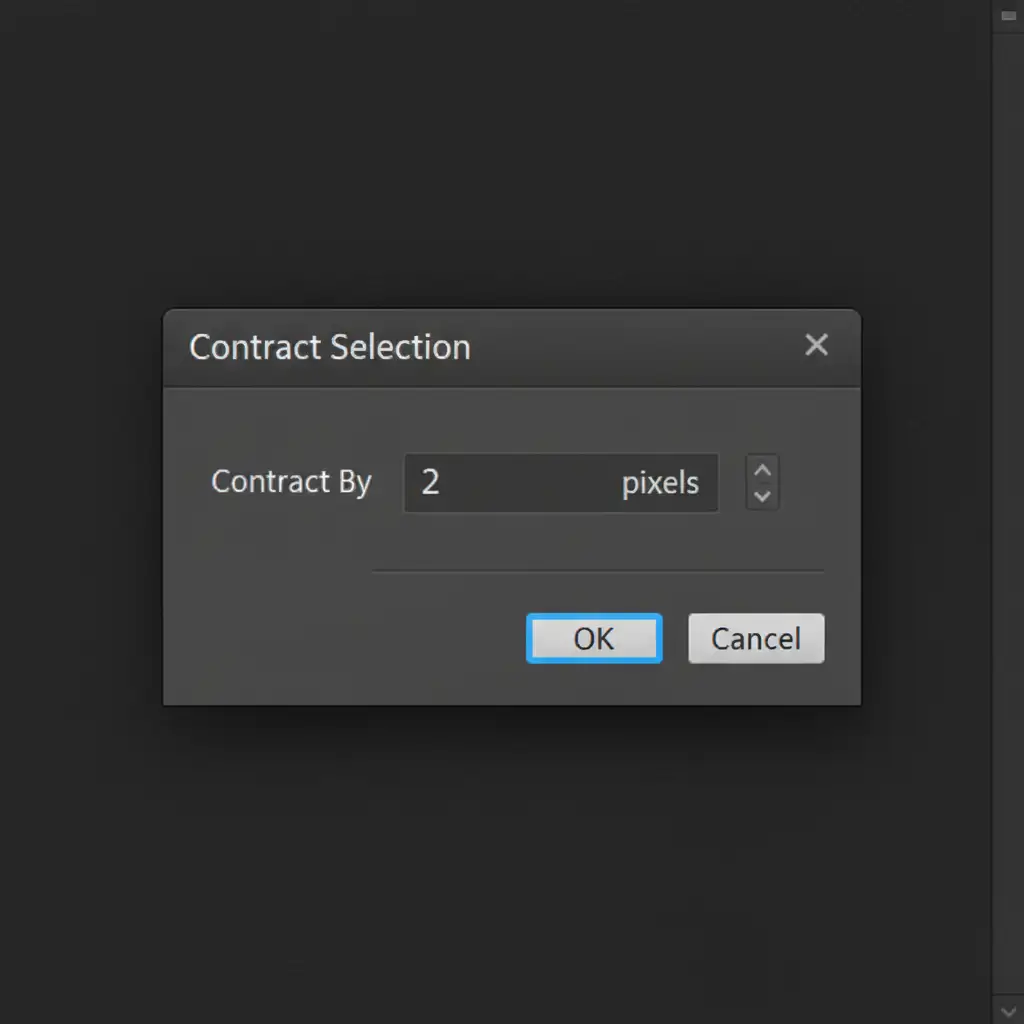
- Make your precise selection around your subject (the marching ants should be visible).
- Navigate to Select > Modify > Contract.
- Shrink the selection by 2 to 3 pixels.
- Use the Contextual Task Bar to apply your Generative Fill.
By pulling the selection inward, the mandatory 3-5 pixel AI bleed will stop exactly at your intended product edge, preventing it from spilling over into your subject.
Method 2: The Layer Masking Isolation Workaround (Pro Method)
For high-end e-commerce retouching, relying on the AI to guess the boundary is too risky. This professional workaround forces a crisp boundary using manual Layer Masking.
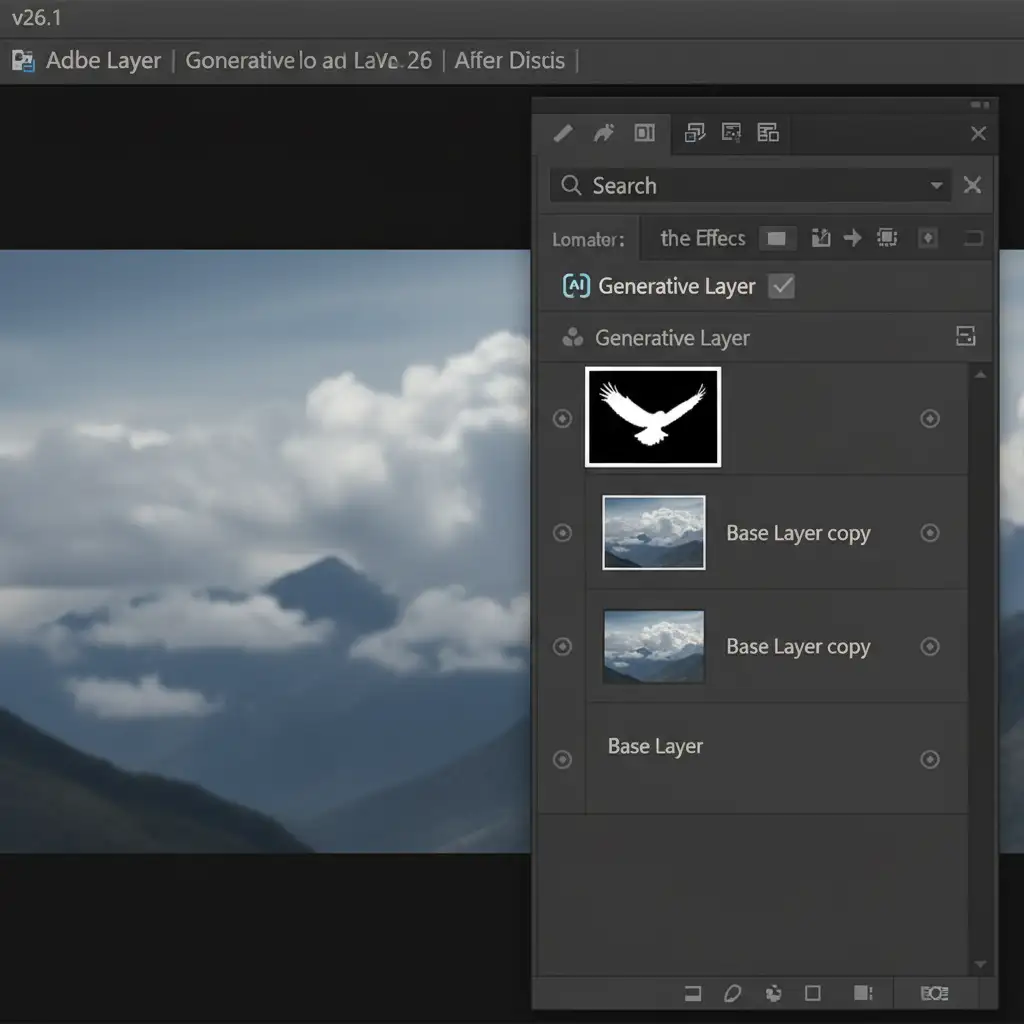
- Duplicate your base layer to preserve the original pixels.
- Run Generative Fill on the duplicate layer (ignoring the bleed for now).
- Once generated, you may optionally rasterize the generative layer if you are finished editing the prompt.
- Cmd/Ctrl-click your original sharp path or selection to load the exact boundaries.
- Apply a hard-edged Layer Mask to the Generative Fill layer.
This technique effectively hides the bleed behind a mathematically perfect mask, ensuring the Firefly Image 3 model cannot alter your product’s interior pixels.
Method 3: Technical Deep-Dive into Density and Feather Adjustments
Sometimes, the selection bleed is exacerbated by how Photoshop renders AI masks or utilizes your system’s hardware. If the first two methods fail, you need to adjust the mask properties and system settings directly.
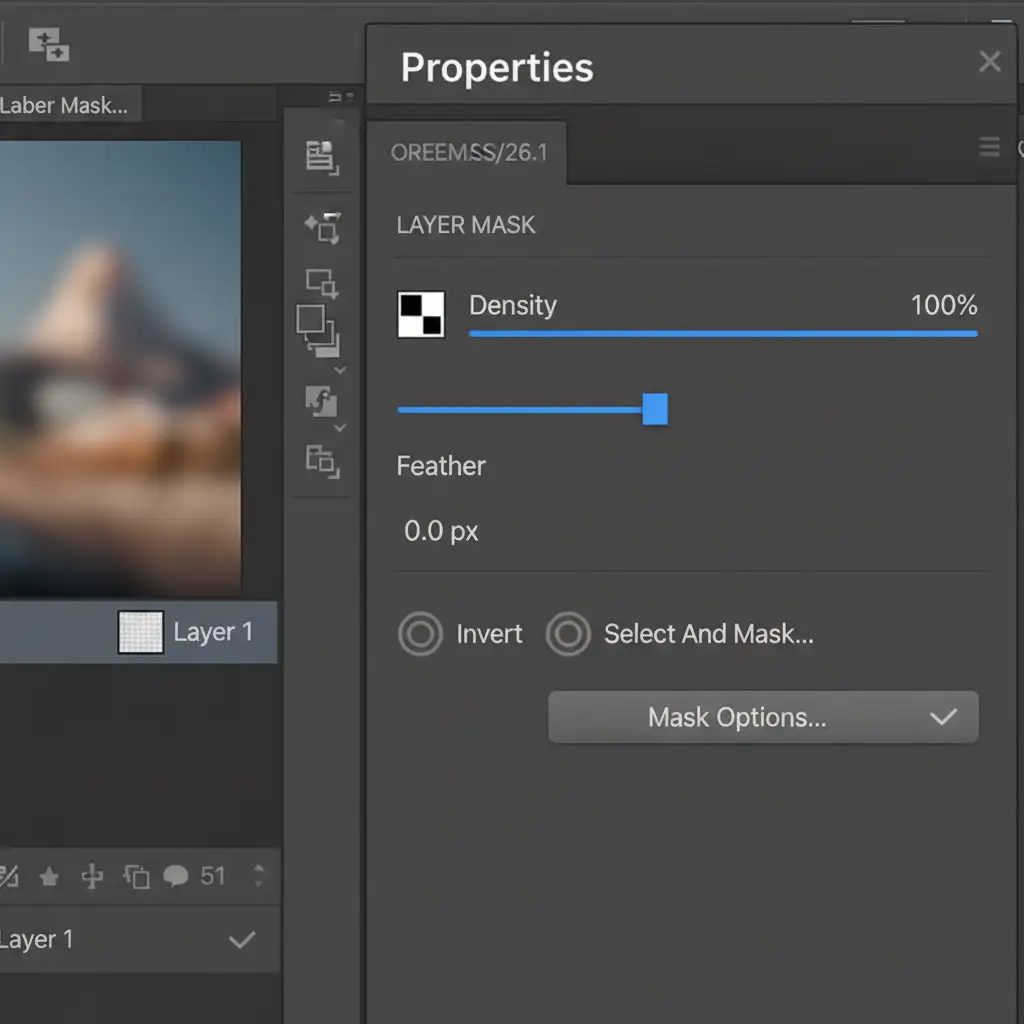
Adjusting Mask Feathering
- Select the Generative layer mask in your Layers panel.
- Open the Properties Panel.
- Locate the mask feathering slider. Ensure this is set precisely to 0.0px. Photoshop sometimes defaults to a slight feather on AI layers.
Optimizing Hardware Settings
If you still see sub-pixel errors or edge halos, the issue might be rendering-based:
- Go to Preferences > Performance.
- Check your GPU acceleration settings. Ensure your graphics driver is fully updated to render AI masks accurately.
- Turn off “Legacy Compositing” if it is enabled.
- Clear your local Generative cache to force the software to render fresh edge data.
Stop Fighting AI—Let the Professionals Handle It
Managing the quirks of the Firefly Image 3 model takes time away from scaling your business. While this Photoshop Generative Fill selection bleed fix works, applying it to hundreds of product photos per day is incredibly tedious.
Struggling with AI artifacts ruining your product photos? Outsource your editing queue to Image Work India and Cloud Retouch. Our professional retouchers do not rely on unpredictable AI boundaries; we guarantee pixel-perfect, artifact-free edges for your e-commerce catalogs every single time.
Contact us today to streamline your workflow and get flawless product imagery delivered on your schedule.




