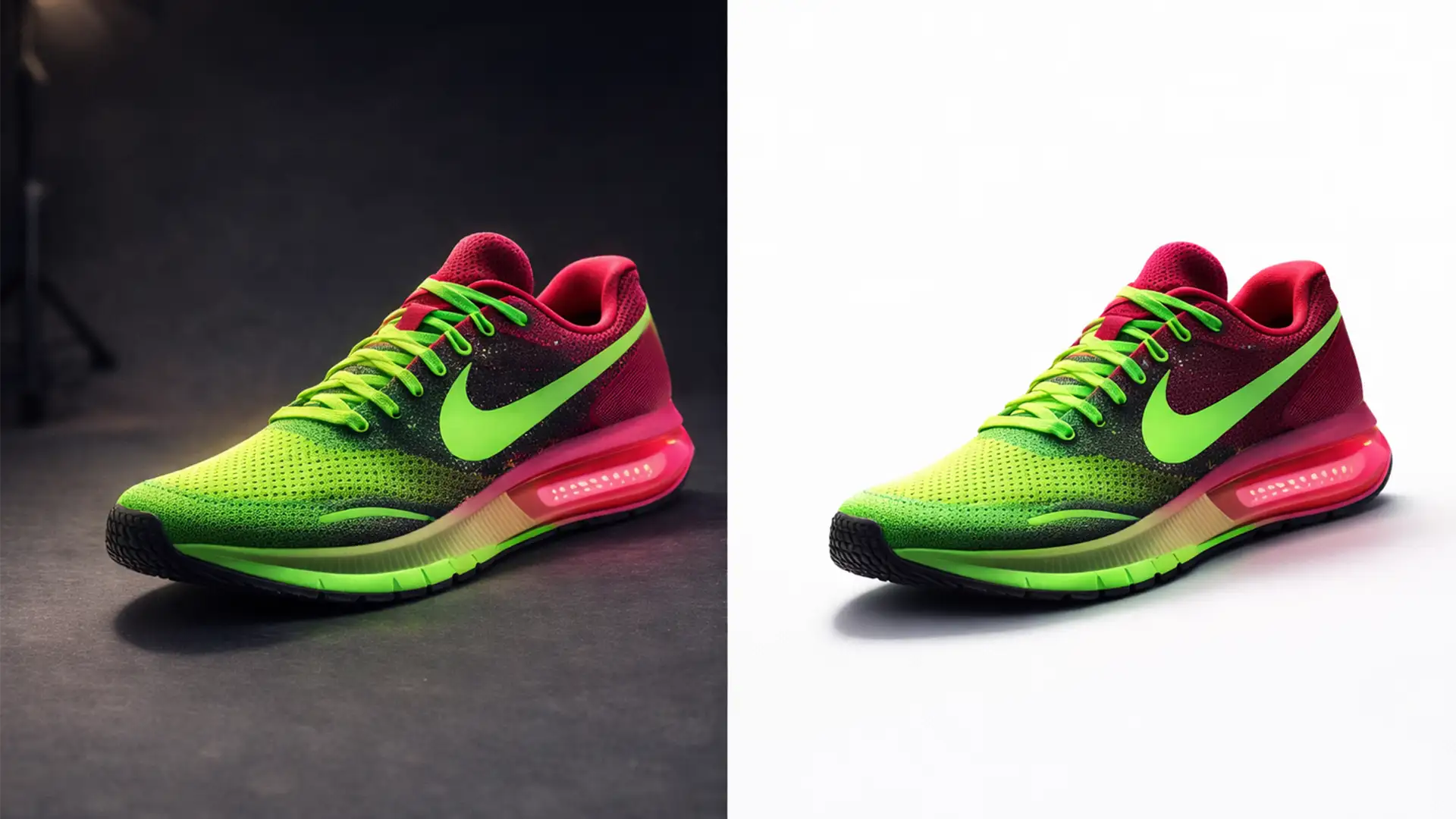

E-commerce marketplace compliance dictates one universal rule: your primary product images must sit on a pure RGB 255,255,255 background. However, achieving this often introduces a massive headache for retouchers. When you use automated selection tools or harsh clipping paths to remove the studio backdrop, the natural contact shadow gets stripped away with it.
The result? A product that looks unnatural, awkwardly floating in a sea of white space.
The technical challenge lies in isolating those delicate shadow pixels. You need to create a seamless gradient of luminosity from the dark shadow core to absolute white—without introducing hard edges, color banding, or inheriting muddy color casts from the original studio floor.
If you are struggling with preserving contact shadows for 255 RGB white background standards, this guide breaks down the three best techniques in Photoshop CC v25.x to keep your products grounded and compliant.
The E-commerce Dilemma: Floating Products vs. RGB 255 Compliance
When shooting products, the physical interaction between the item and the surface creates a “contact shadow.” This shadow is critical for visual weight and realism. However, because most studio backdrops are off-white or light gray (around RGB 230-240), simply turning up the exposure to hit the required RGB 255 white point will completely blow out and erase the subtle shadow details.
To maintain e-commerce compliance without sacrificing realism, you must separate the product from its shadow, and the shadow from the background.
Here are three ways to do exactly that.
3 Ways to Preserve Contact Shadows in Photoshop CC v25.x
Method 1: The Quick Fix (Multiply Blend Mode)
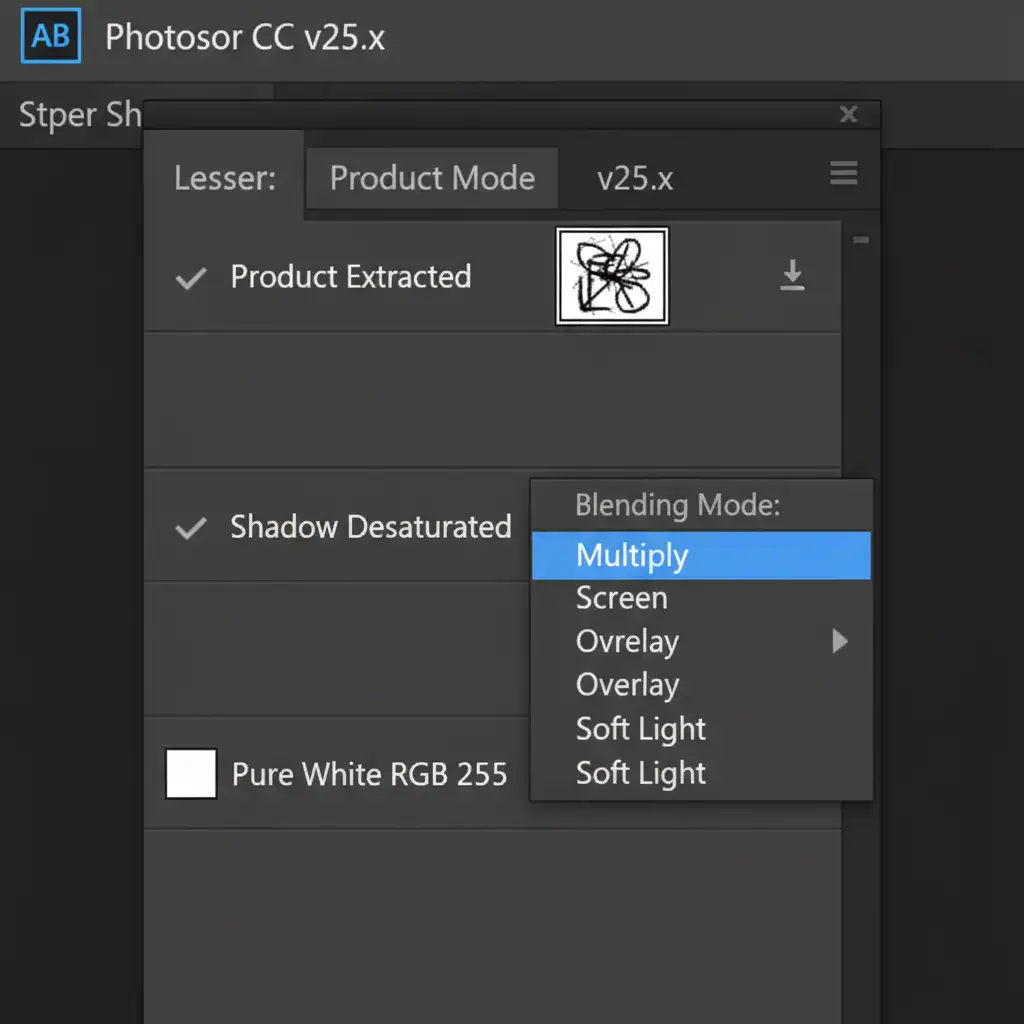
This is the fastest method for clean studio shots where the original background is already a neutral gray or white. The Multiply blend mode mathematically multiplies the luminosity of the base layer by the blend layer, effectively hiding white pixels while keeping dark pixels visible.
- Duplicate the Original Image: Create a copy of your base image layer.
- Add a White Background: Place a pure white Solid Color fill layer (RGB 255,255,255) directly below your duplicated layer.
- Mask the Shadow: On the top layer, add a layer mask and hide everything except the immediate shadow area beneath the product.
- Desaturate: Press Ctrl+Shift+U (Windows) or Cmd+Shift+U (Mac) on the shadow layer. This removes any unwanted color casts bouncing off the original studio backdrop.
- Apply Multiply: Change the layer’s blending mode from Normal to Multiply. The gray background will vanish into the white fill layer beneath it, leaving only the dark contact shadow.
Method 2: The Pro Workaround (Masking and Curves)
When the Multiply method leaves harsh edges or the original background is slightly textured, you need precise control over the white point.
- Extract the Product: Use the Pen Tool to draw a precise clipping path around the product. Extract the product onto its own layer.
- Isolate the Shadow: Create a layer beneath the extracted product that contains the original background and shadow.
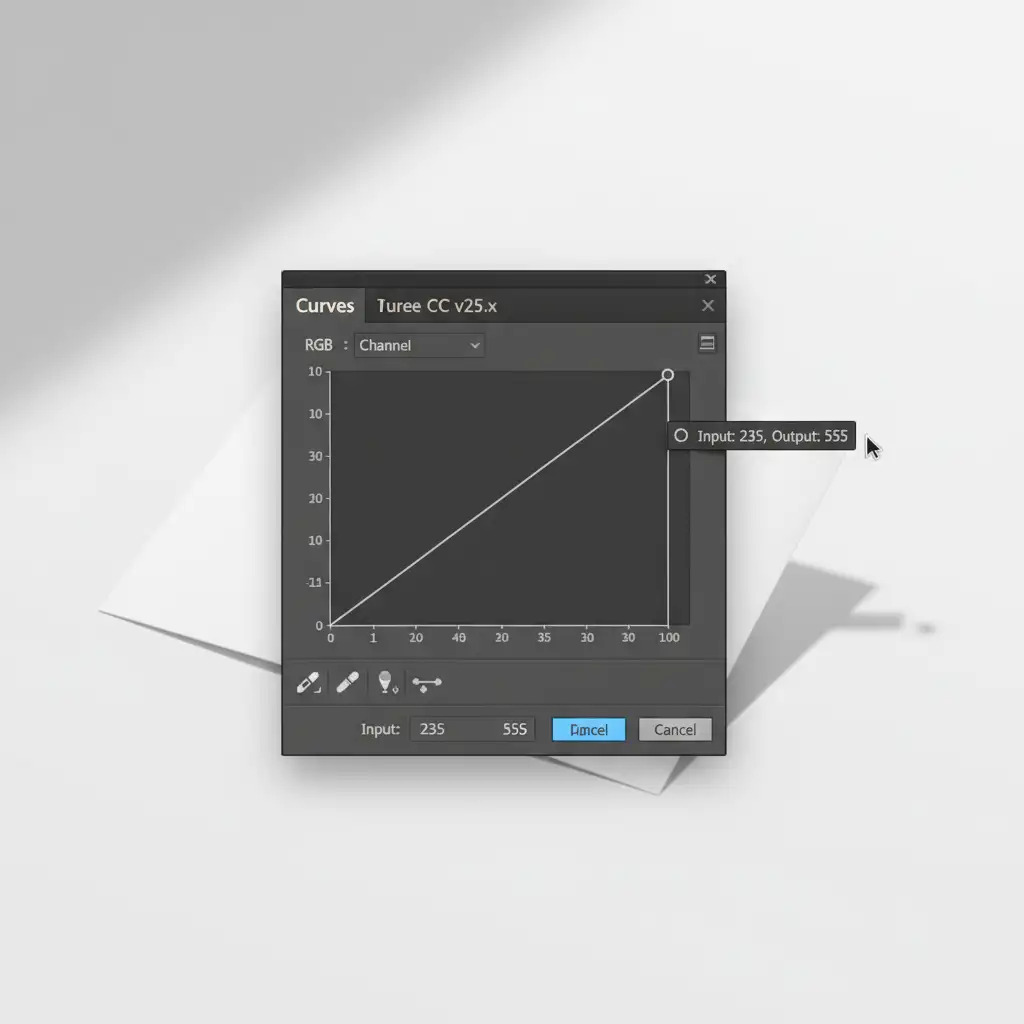
- Apply a Curves Adjustment: Add a Curves adjustment layer and clip it directly to your shadow layer (Alt+Click between the layers).
- Clip the White Point: In the Curves properties, grab the top-right node (the white point slider) and drag it sharply to the left. Watch your Info panel until the background surrounding the shadow registers strictly as 255 RGB.
- Feather the Edges: Because forcing the white point can create jagged transitions, add a layer mask to the shadow layer. Use a soft, low-opacity brush to carefully paint away any harsh edges, ensuring seamless feathering into the pure white background.
Method 3: The Technical Deep-Dive (Channel Masking)
For complex shadows—like those cast by glass, jewelry, or intricate shapes—channel masking offers the most accurate, pixel-perfect shadow extraction.
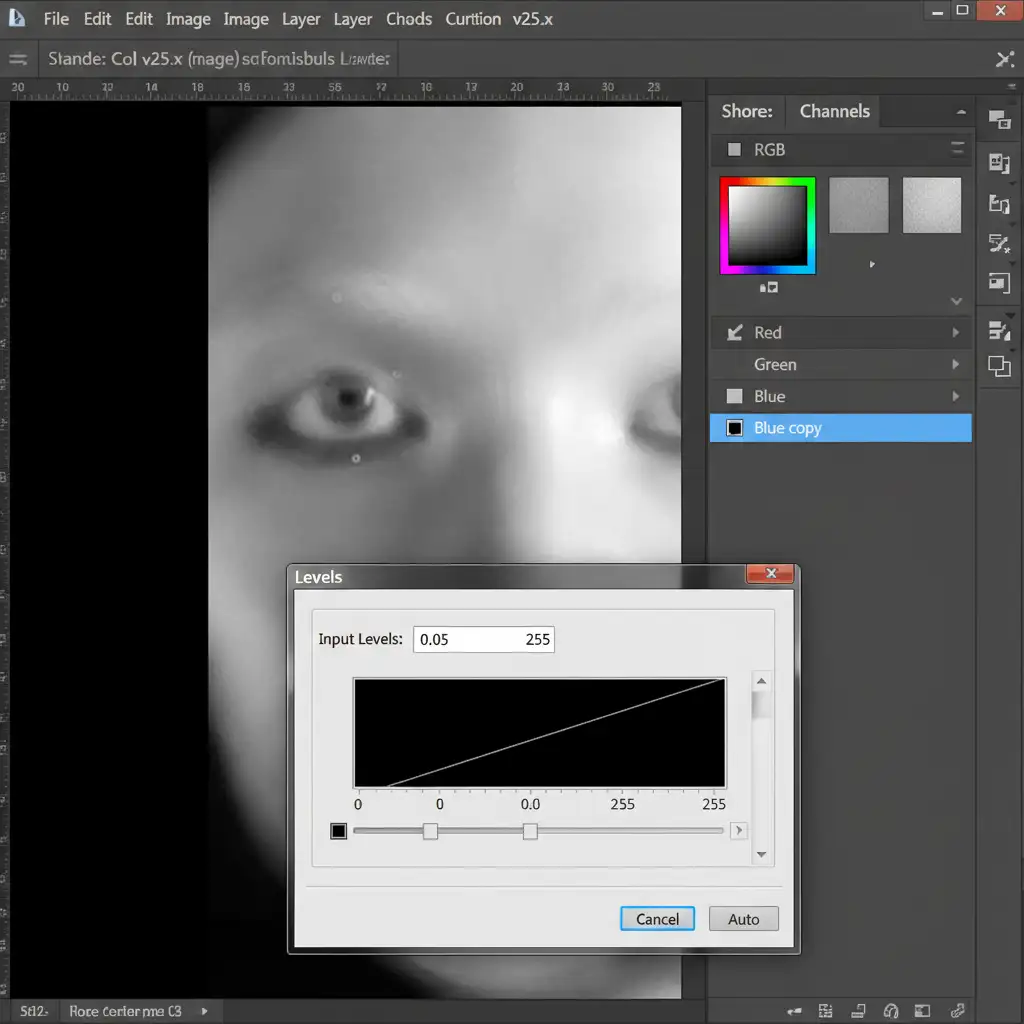
- Find High Contrast: Navigate to the Channels panel. Click through the Red, Green, and Blue channels to find the one with the highest contrast between the dark shadow and the light background (usually Green or Blue).
- Duplicate the Channel: Drag that channel to the “New Channel” icon to duplicate it. This creates an Alpha channel.
- Force the Black and White: Press Ctrl+L (Windows) or Cmd+L (Mac) to open the Levels tool directly on this duplicated channel. Push the black slider right to make the shadow completely black, and the white slider left to make the background pure white.
- Load the Selection: Ctrl+Click (or Cmd+Click) the thumbnail of the duplicated channel to load it as a selection.
- Invert and Mask: Invert the selection (Ctrl+Shift+I). Go back to your Layers panel, create a solid black fill layer beneath your clipped product, and apply the selection as a precise opacity mask. You now have a flawless, mathematically perfect shadow that sits cleanly over a 255 white background.
Why High-Volume E-Commerce Demands Perfection
Marketplaces like Amazon, eBay, and Google Shopping use automated algorithms to scan primary images. If your background registers at RGB 253 or contains stray pixels from a poorly masked shadow, your listing can be suppressed or rejected entirely.
While the techniques above are highly effective, executing channel masks and curves adjustments on hundreds or thousands of SKUs is incredibly time-consuming. When scaling an e-commerce catalog, your time is better spent on strategy, photography, and marketing—not pixel-peeping layer masks.
Stop Struggling with Shadows: Let the Experts Handle It
Preserving contact shadows for 255 RGB white backgrounds requires a delicate balance of technical Photoshop skills and an artistic eye for realism. If your products are floating, or if your team is bogged down by complex masking requirements, it is time to outsource the heavy lifting.
Struggling to scale your e-commerce catalog editing?
Let Image Work India and Cloud Retouch handle your high-volume clipping paths and shadow retention. Our expert retouchers specialize in flawless, marketplace-compliant product photos, ensuring perfect RGB 255 backgrounds while preserving the natural shadows that drive conversions.
Contact Image Work India today to get a custom quote and elevate your e-commerce imagery to the highest professional standard.




