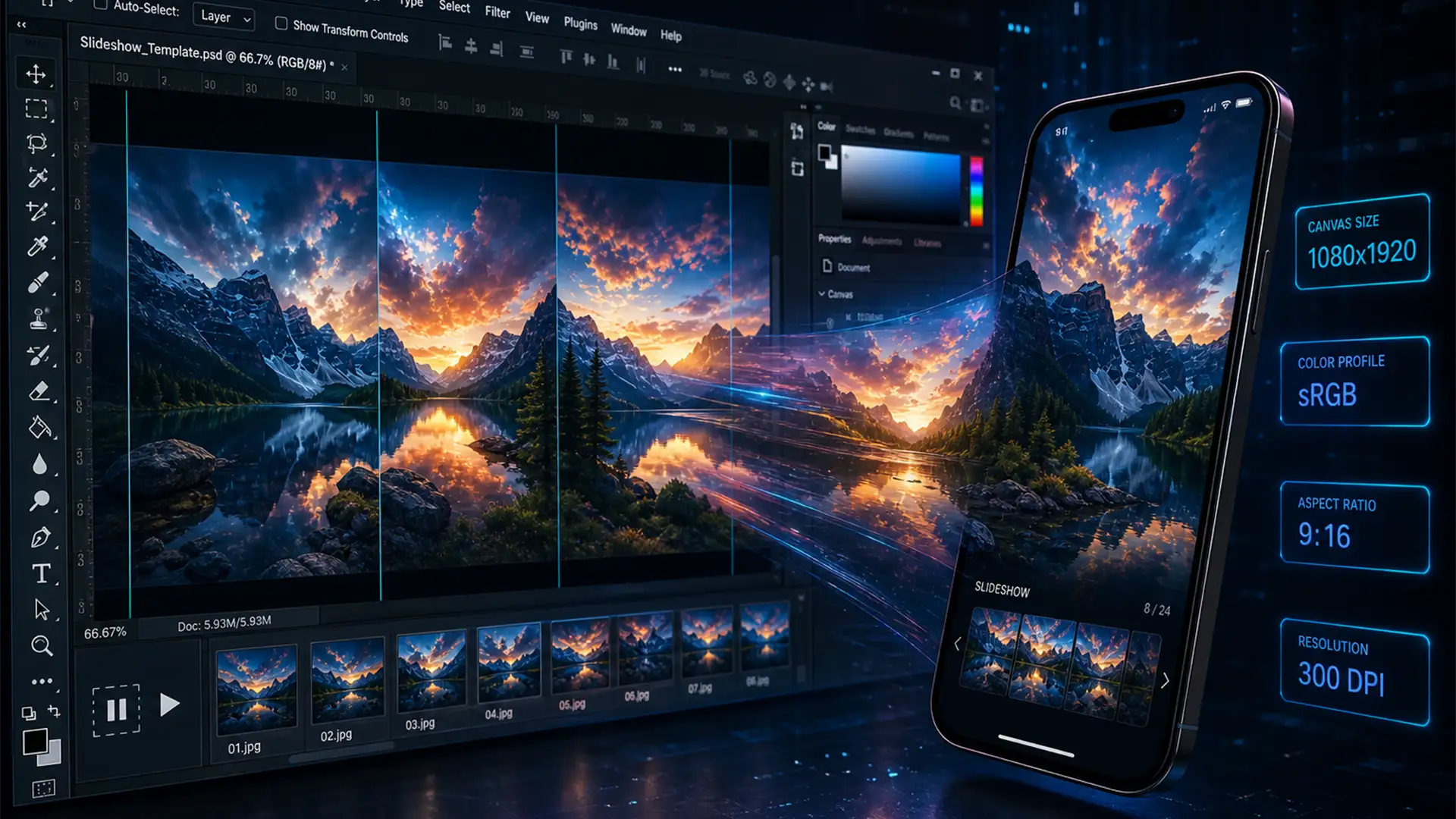

You spent hours perfectly grading your images, but the moment you upload them, your TikTok photo dump looks like a pixelated, desaturated mess. Sound familiar?
This happens because TikTok’s algorithm applies aggressive lossy compression to large files. If you upload native camera resolutions (like 4K or 8K) or use the wrong color profiles, the app forces server-side downsampling that destroys your image quality.
To bypass this algorithm entirely, you need to feed the app exactly what it wants. In this guide, we will break down the precise tiktok photo dump export settings photoshop professionals use to guarantee crystal-clear slideshows every single time.
Why TikTok Ruins Your High-Resolution Photos
When you upload a massive 30-megapixel image to a mobile app, the platform has to shrink it to save bandwidth. TikTok uses poor server-side resampling methods to achieve this. If your file is too large, it triggers this heavy compression.
Furthermore, if your images are exported in the Adobe RGB or ProPhoto RGB formats, TikTok strips that data, resulting in severe color banding and dull, muddy tones.
The secret to a perfect photo dump is taking control of the pixel dimensions, aspect ratio, and color profile embedding before the image leaves Photoshop.
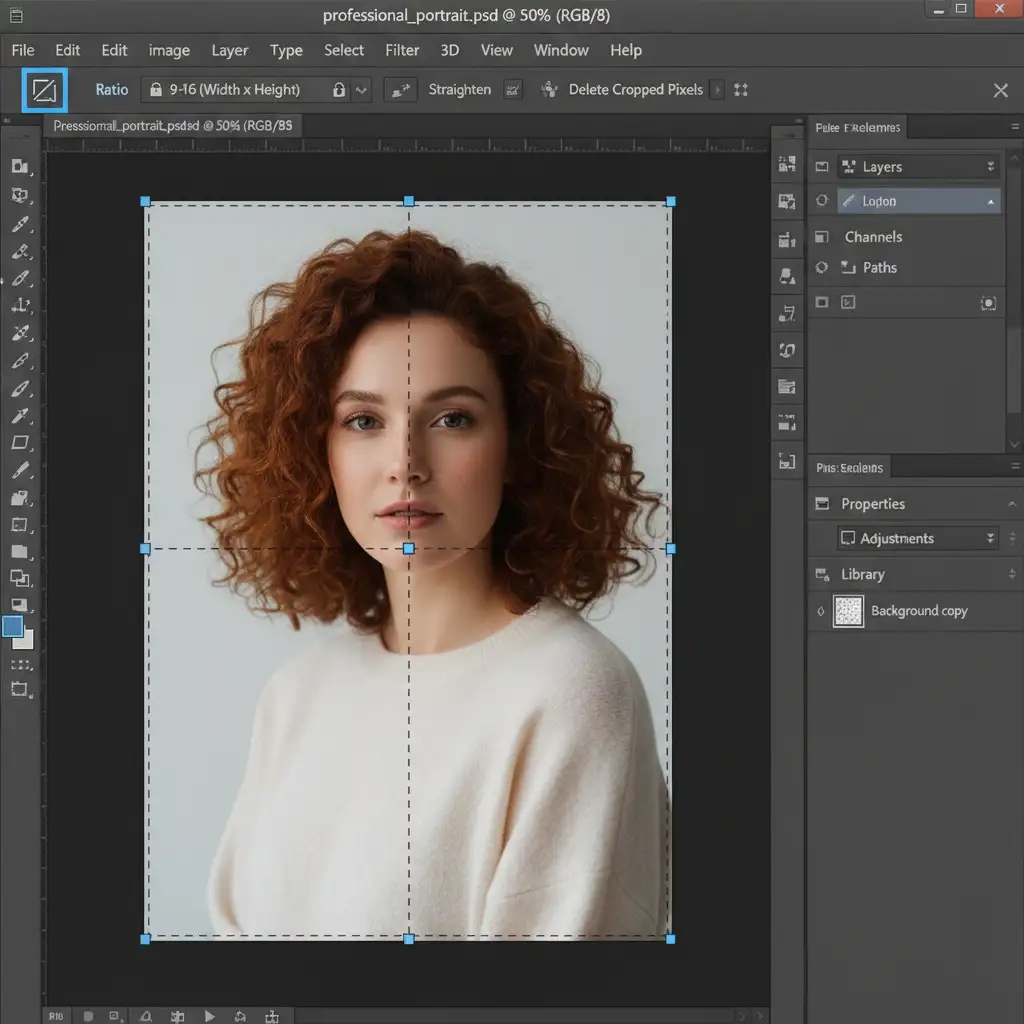
Method 1: The Quick Fix (Export As)
If you just need to format a few images quickly, Photoshop’s standard export dialog is your best starting point.
- Set the Aspect Ratio: Select the Crop Tool (C). In the top options bar, set the ratio precisely to 9:16. Frame your subject and hit Enter.
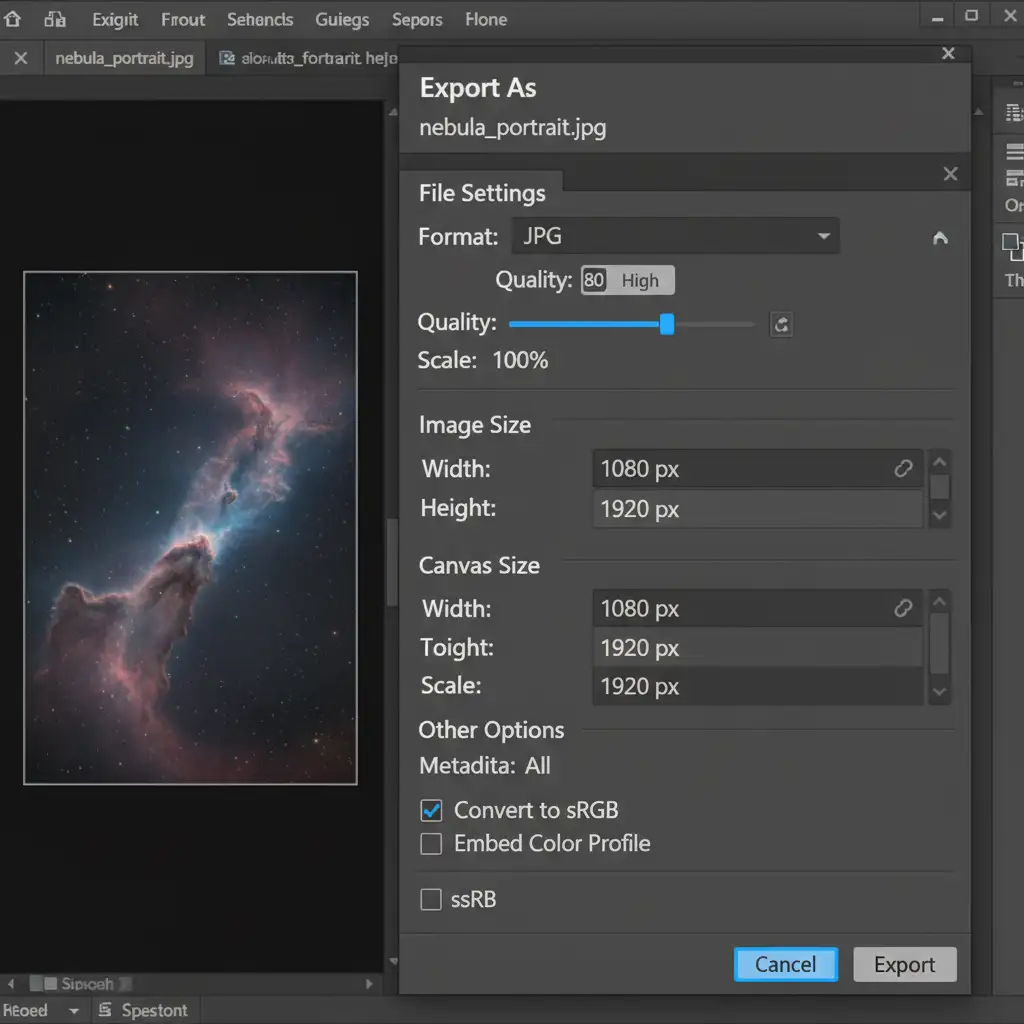
- Open Export As: Navigate to File > Export > Export As.
- Dial in the Settings:
- Set Format to JPG (or PNG if you have graphic overlays).
- Under Image Size, set the Width to 1080px and Height to 1920px.
- Under Color Space, ensure Embed Color Profile and Convert to sRGB are both checked.
Method 2: The Pro Workaround (Save for Web Legacy)
For photographers who want absolute control over edge sharpness during downscaling, the traditional Save for Web Legacy method remains superior. This method prevents the softness that often occurs when drastically reducing image size.
- Resize First: Go to Image > Image Size. Change the dimensions to 1080×1920. Under the Resample dropdown, select Bicubic Sharper (reduction). This specific algorithm retains crisp edges when sizing down.
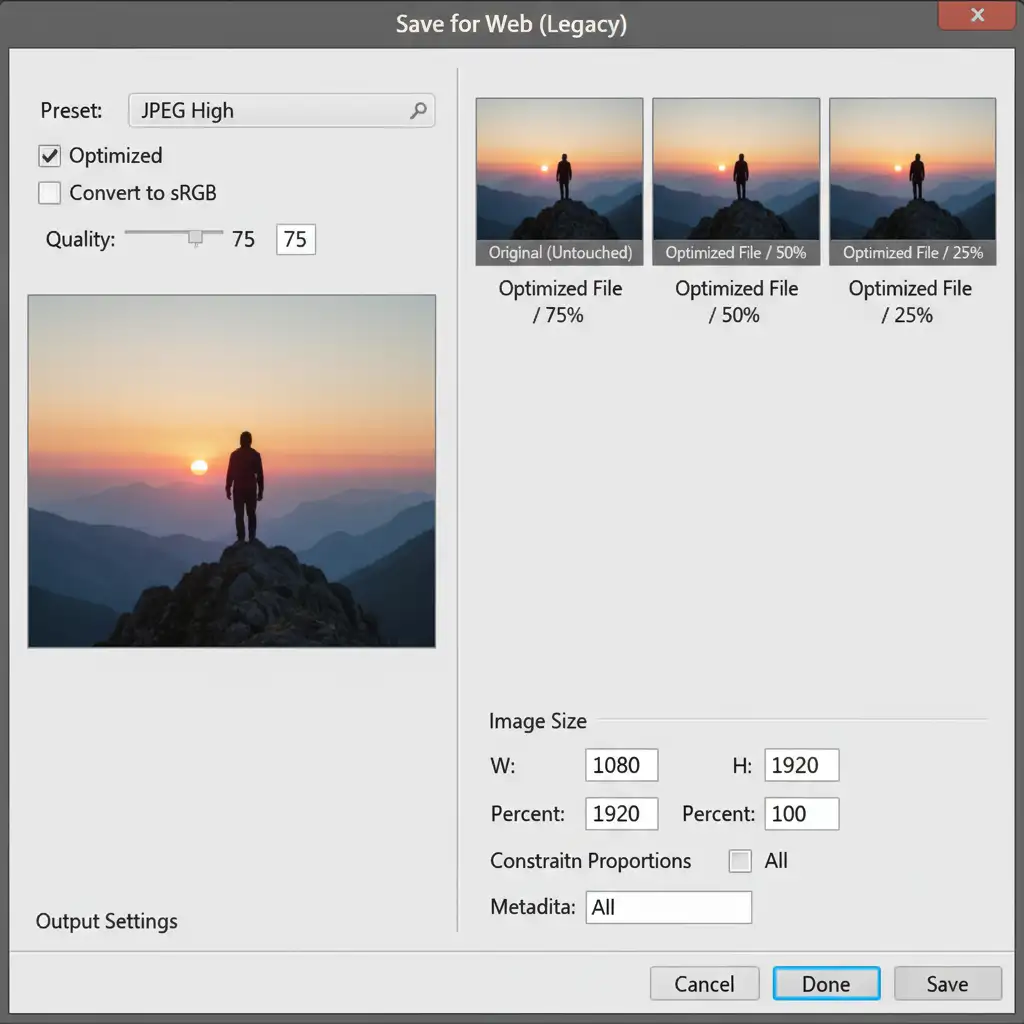
- Open Save for Web: Go to File > Export > Save for Web (Legacy).
- Optimize the Export:
- Select JPEG High or Very High (keep Quality between 70-80 to keep the file size ideally under 1MB).
- Check the Optimized box.
- Check the Convert to sRGB box to ensure your sRGB color space is locked in.
Method 3: The Technical Deep-Dive (Batch Processing)
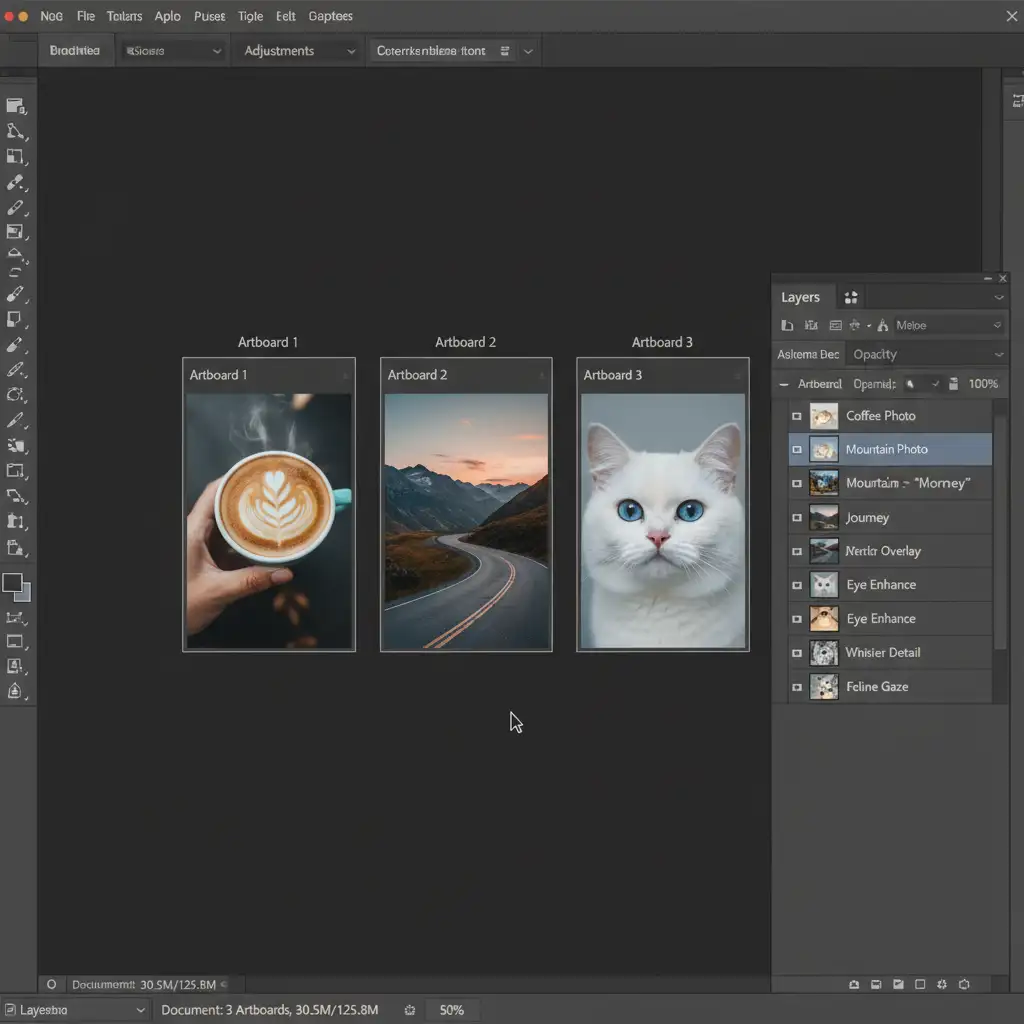
If you are a social media manager or creator putting together massive 35-image photo dumps, resizing them one by one is inefficient. Using Photoshop Artboards allows for a seamless batch export.
- Set Up Artboards: Create a new document. Set the dimensions to 1080×1920 and check the “Artboards” box.
- Duplicate and Frame: Duplicate the artboard for as many photos as you have. Place your images into the respective artboards and frame them perfectly within the 9:16 boundary.
- Batch Export: Go to File > Export > Artboards to Files.
- Finalize Settings: Uncheck “Include Background in Export” (unless you have transparent gaps you want filled with white). Set the File Type to JPEG, check Include ICC Profile (to embed sRGB), and run the export.
This guarantees uniform dimensions and zero color shifting across your entire TikTok slideshow.
Scale Your Social Media Content with Image Work India
Manually adjusting aspect ratios, utilizing bicubic sharper resampling, and managing color profiles for hundreds of images takes valuable time away from actual content creation. If your brand or agency relies on high-volume, flawless social media assets, you don’t have to do it alone.
Image Work India and Cloud Retouch provide expert, high-volume image editing and formatting services. Whether you need bulk color correction, background removal, or precise formatting to bypass social media compression algorithms, our professional retouchers ensure your visual content always looks premium.
Stop letting algorithms ruin your brand’s aesthetic. Contact Cloud Retouch today for expert bulk editing services and keep your photo dumps looking pristine.




