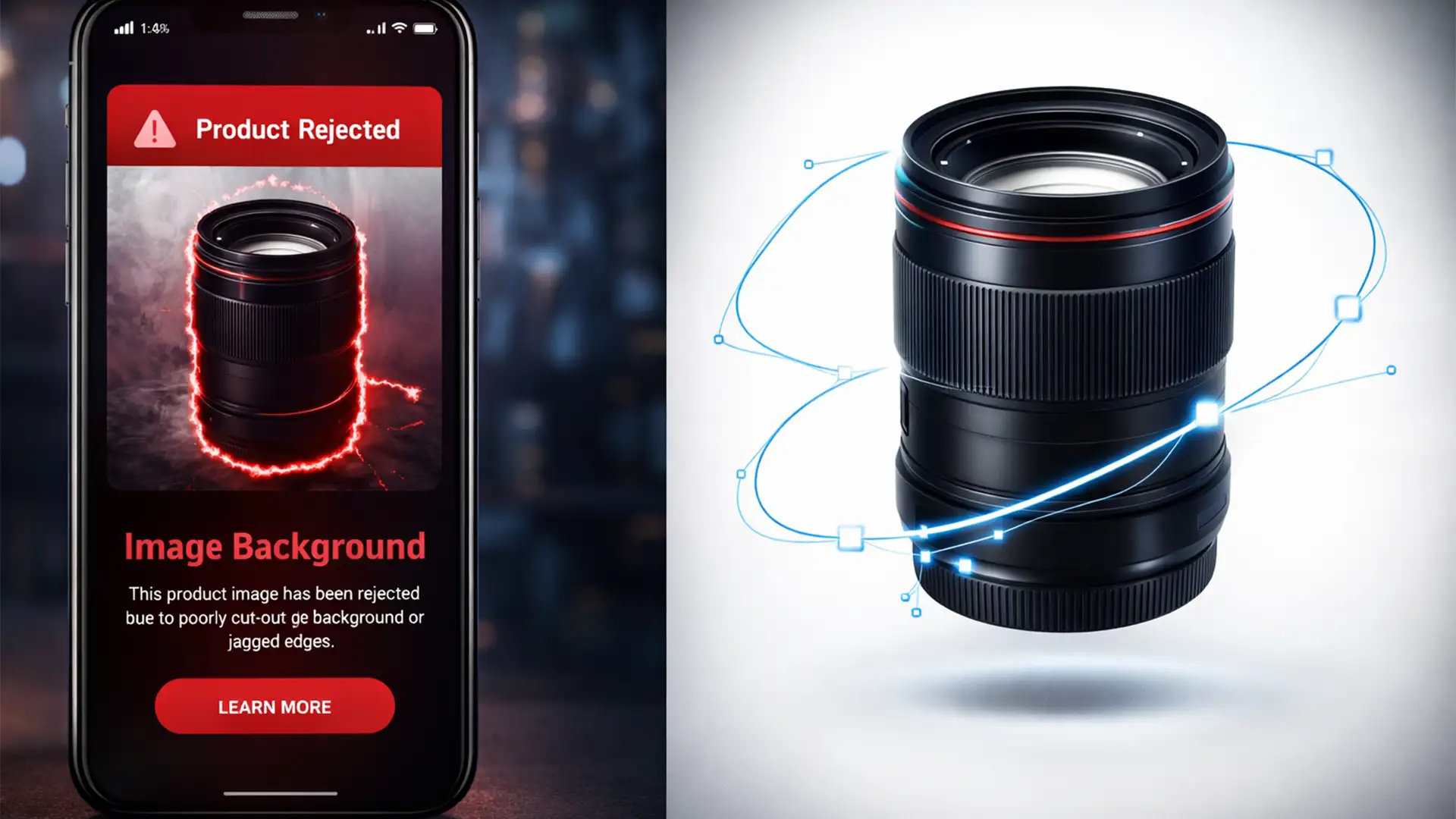

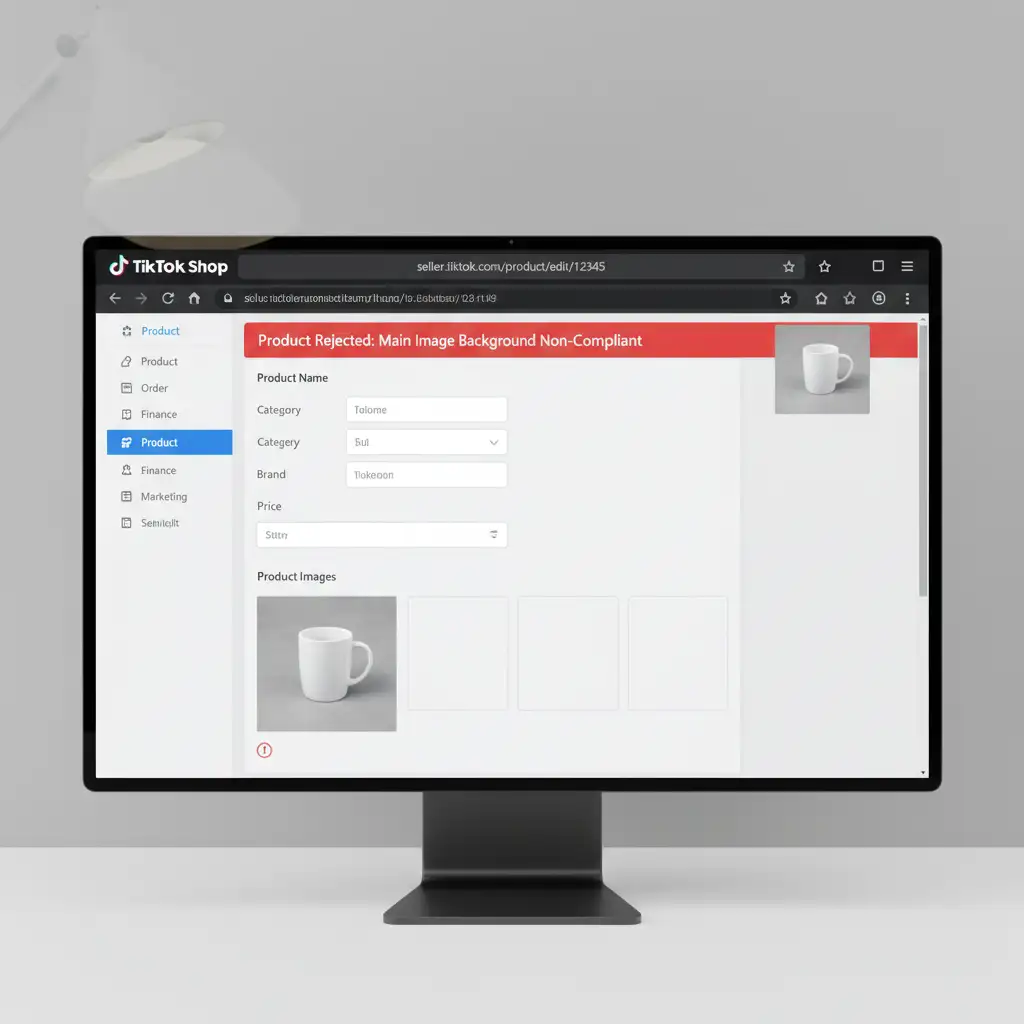
You’ve sourced the perfect product, optimized your listing, and hit publish on TikTok Shop—only to be hit with an immediate “Product Rejected” notification. The culprit? Your main image background.
TikTok Shop’s automated algorithms are notoriously strict, requiring an absolute pure white background (Hex #FFFFFF or RGB 255) for all main product images. If you’ve been relying on fast, one-click AI background removers, you are likely leaving behind 1-2 pixel gray halos, jagged edges, or accidentally clipping the product itself. TikTok’s AI bots instantly flag these imperfections as non-compliant, leading to listing rejections or shadowbans.
In this guide, we will explain why a manual clipping path is the only foolproof method for TikTok Shop main image compliance and how to execute it perfectly in Photoshop 2024.
Why TikTok Shop Rejects AI-Generated Backgrounds
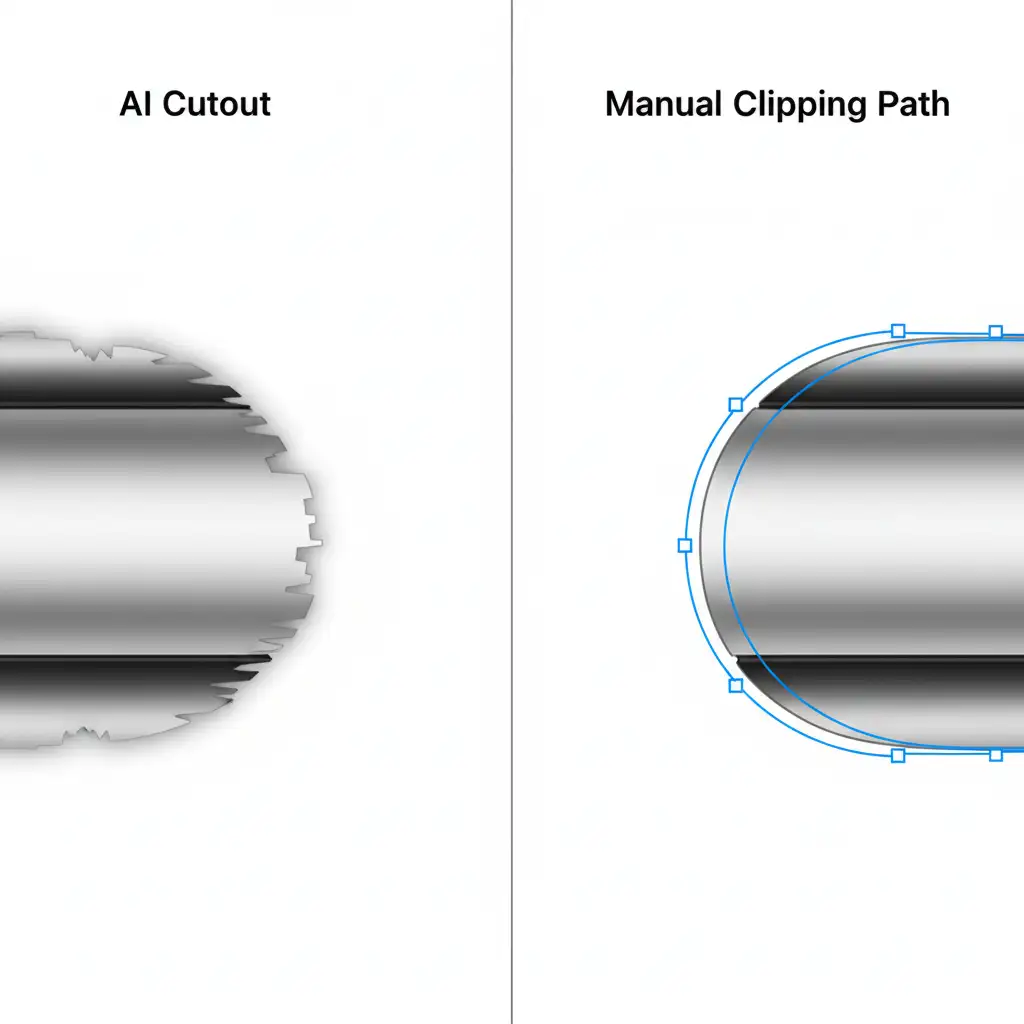
TikTok Shop’s automated product listing algorithm is designed to maintain a clean, uniform shopping experience. When sellers use automated background removal tools, the software often struggles with anti-aliasing (the smoothing of jagged pixel edges).
This results in AI background removal artifacts:
- Fringing (Gray Halos): A thin, off-white or gray border left around the product.
- Jagged Edges: Stair-stepping pixelation where the AI failed to interpret the product’s curve.
- Incomplete Masking: Shadows or original background elements left intact.
When TikTok’s bots scan the image, they detect pixels that are not exactly RGB 255, 255, 255. Even a pixel reading RGB 253 will trigger an e-commerce compliance failure.
The Core Requirement: Pure White Background (RGB 255)
To guarantee compliance, your image must sit on a mathematically perfect white canvas. This is where a manual clipping path utilizing a Bezier curve becomes essential. Unlike AI tools that guess pixel boundaries, a clipping path creates a hard vector line around your product. This ensures perfectly smooth edges that seamlessly blend into the required pure white canvas without triggering the marketplace’s quality control filters.
How to Fix TikTok Shop Image Rejections in Photoshop 2024 (v25.x)
If your images are being flagged, you need to open Photoshop 2024 and correct the background data. Here are three methods, ranging from a quick patch to a bulletproof, catalog-ready workflow.
Method A: The Quick Fix (AI Object Selection + Solid Color)
If you have a very simple geometric product, you might get away with Photoshop’s built-in AI, provided you force the background color correctly.
- Select the Object Selection Tool (W) or use the ‘Remove Background’ button in the Contextual Task Bar.
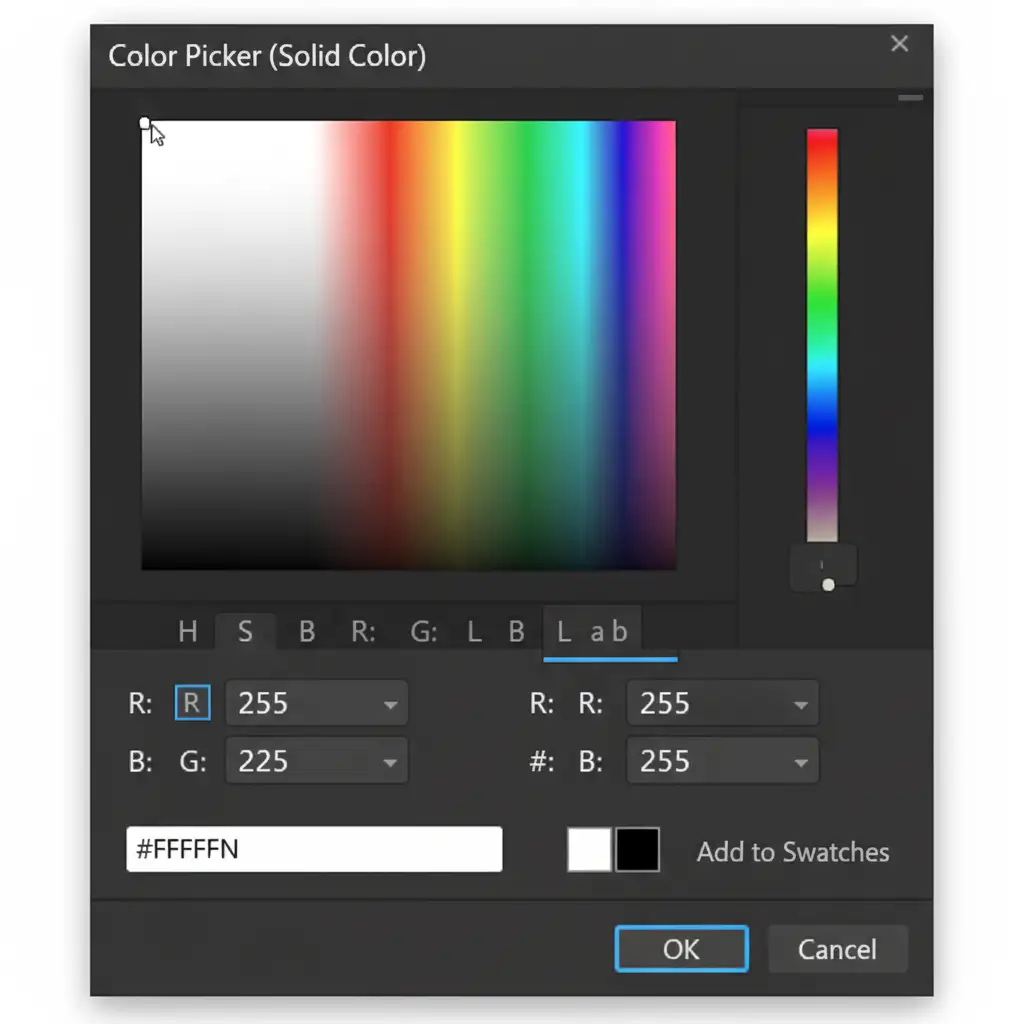
- Once the subject is masked, create a new Solid Color adjustment layer.
- Drag this layer beneath your product layer.
- Set the hex code to exactly #FFFFFF.
Warning: While this guarantees the background is white, it does not fix AI background removal artifacts. If the AI left a halo around your product, TikTok will still reject it.
Method B: The Pro Workaround (Manual Pen Tool Clipping Path)
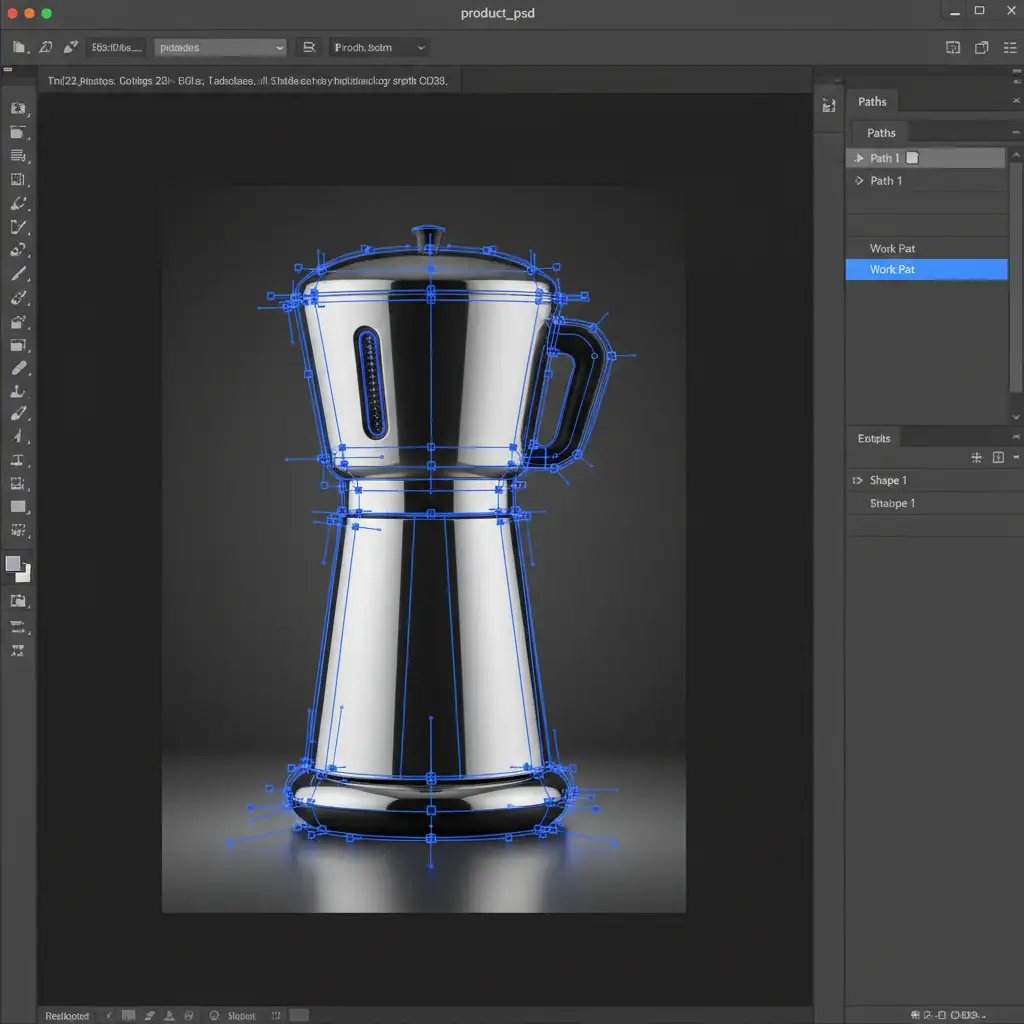
This is the industry standard for e-commerce compliance. By manually drawing the path, you eliminate all risk of automated rejection.
- Select the Pen Tool (P).
- Meticulously draw a vector path around the product, clicking and dragging to create smooth Bezier curves. Cut 1-2 pixels inside the product edge to avoid capturing any of the original background.
- Open the Paths panel. Double-click the “Work Path” to save it.
- Ctrl-click (Windows) or Cmd-click (Mac) the path thumbnail to convert it into a marching-ants selection.
- Go to Select > Modify > Feather and apply a 0.5px feather to soften the edge realistically.
- Apply a layer mask to the product layer, and place it over a pure white background.
Method C: The Technical Deep-Dive (Batch Action Scripting)
For sellers managing hundreds of SKUs, manually setting up the canvas for every clipping path is inefficient. You can create a Batch Action script in Photoshop that automates the compliance formatting after the manual clipping path is drawn.
- Record an Action: Start recording a new Action in the Actions panel.
- Set Background: Add a solid layer dropped to absolute 255 white.
- Color Profile: Go to Edit > Convert to Profile and select sRGB. This prevents web color shifting which can sometimes cause pure white to render slightly off-white on different browsers.
- Resize: Force an 800x800px canvas size with a 1:1 aspect ratio (TikTok Shop’s preferred dimension).
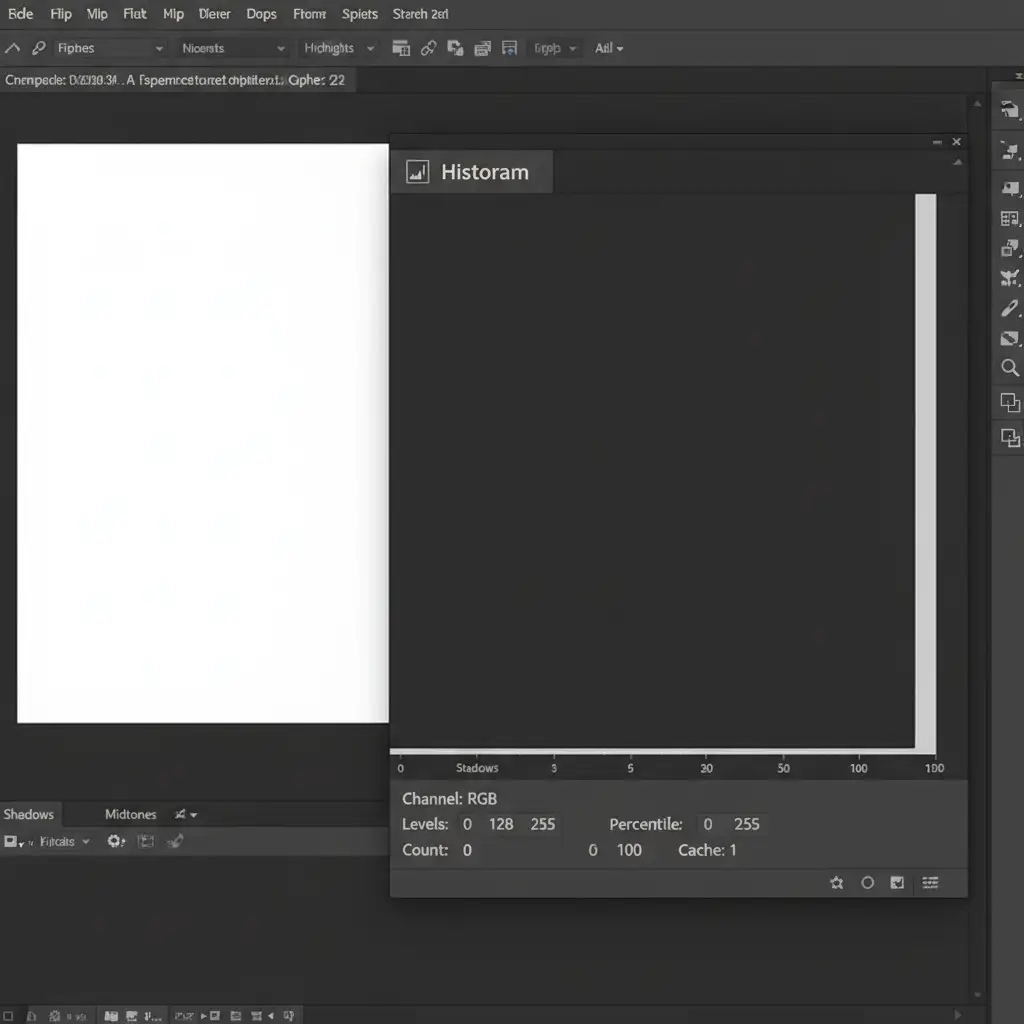
- Verify: Open the Histogram panel to verify there is zero data in the extreme highlights except for a massive spike at the absolute pure white edge.
Stop Dealing with Rejections: Scale Your TikTok Shop Images
Fixing one image with the Pen Tool takes a few minutes. Fixing a catalog of 500 products takes weeks. If you are constantly battling TikTok Shop product rejections and losing out on valuable sales time, you need a professional editing partner.
At Image Work India and Cloud Retouch, we specialize in e-commerce image compliance. Our team of expert retouchers manually draws pixel-perfect clipping paths for every single image, guaranteeing a pure white background (RGB 255) that flawlessly passes TikTok Shop’s automated filters on the first try.
Stop relying on risky AI cutouts. Contact Image Work India or Cloud Retouch today to get perfectly compliant, high-converting product images scaled for your entire catalog.




