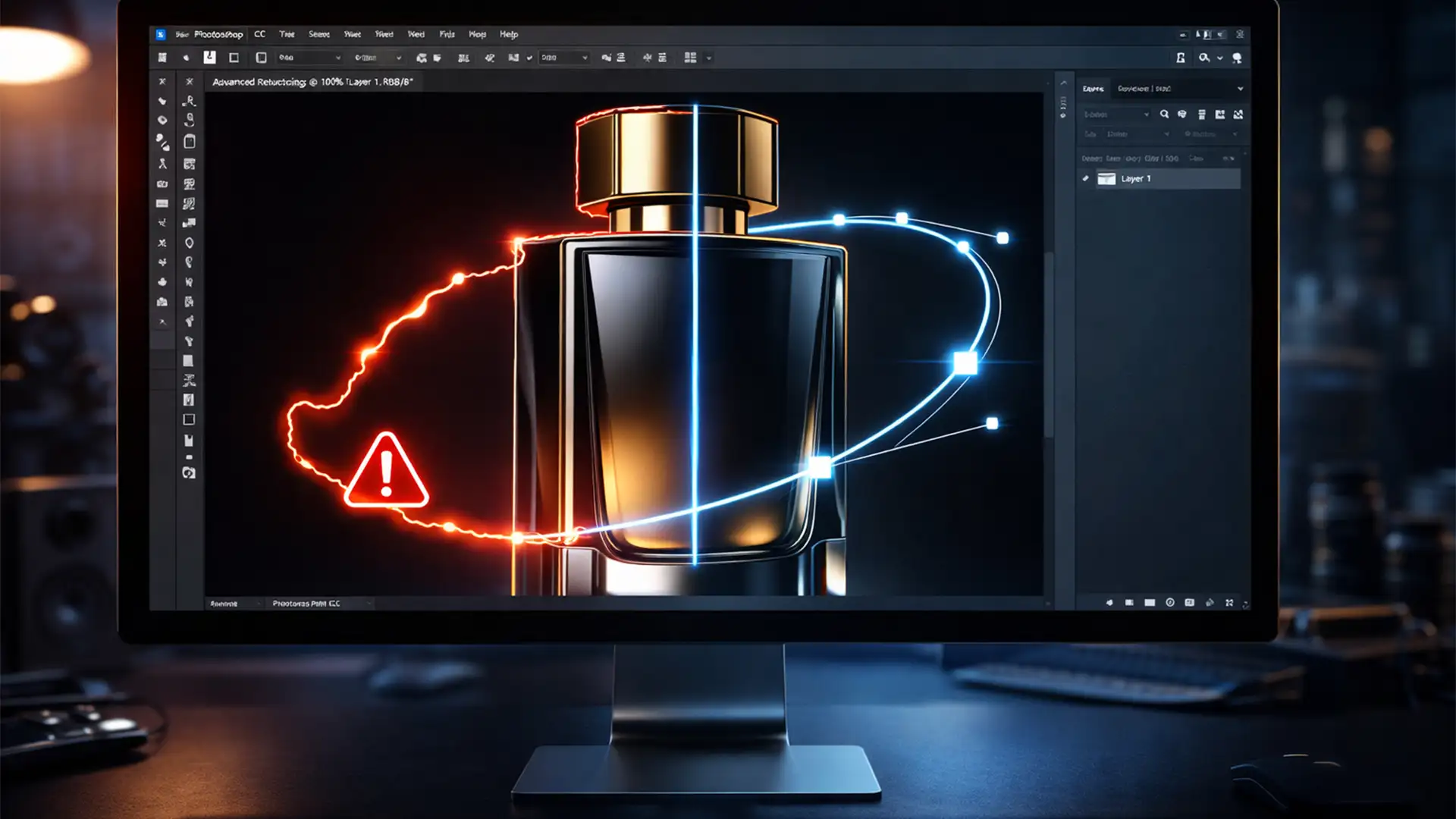

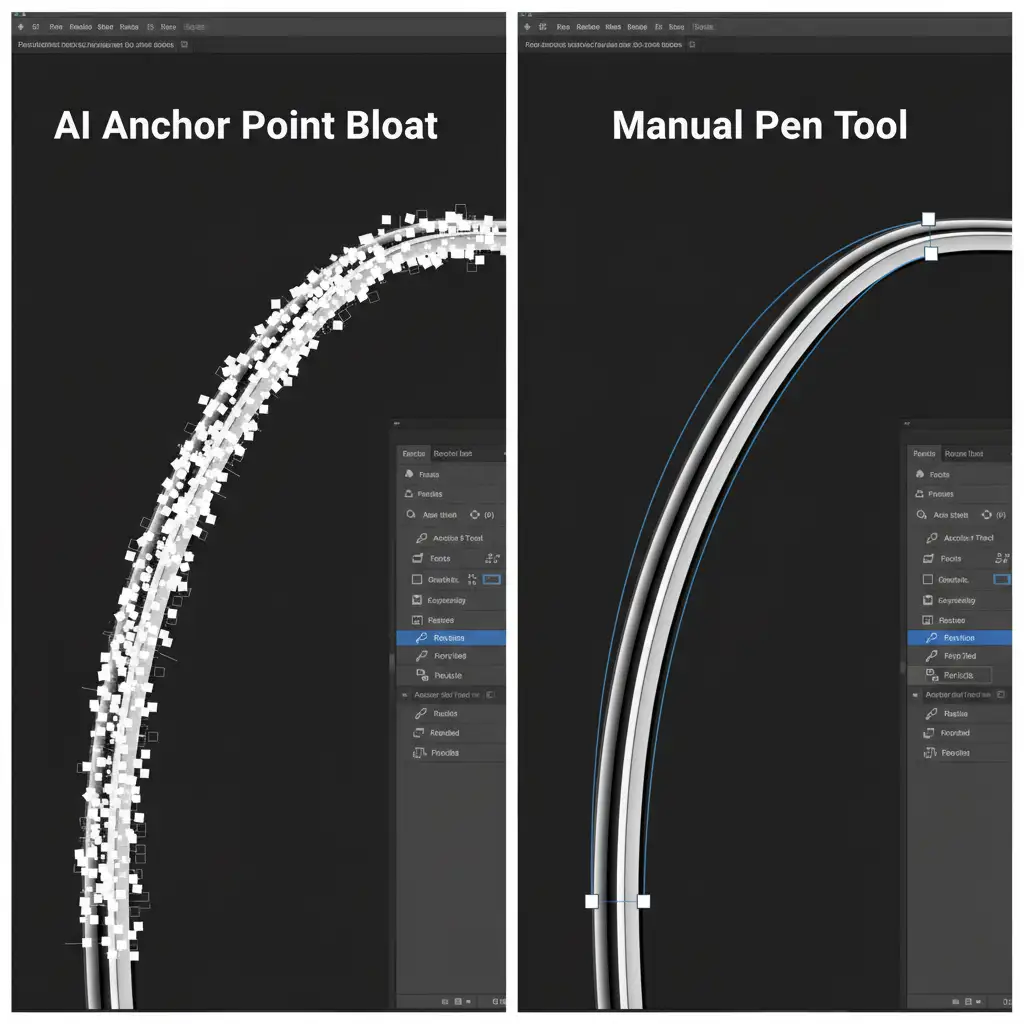
You clicked “Select Subject” in Photoshop, and it looked great at a glance. But zoom in to 400 percent, and the truth is revealed: jagged edges, color halos, and a bloated mess of anchor points. If you are editing product photos for Amazon or high-end e-commerce, these Adobe Sensei AI selections will fail strict compliance checks. AI tools are incredibly fast, but they cannot natively generate the flawless, continuous vector paths required for professional clipping paths. If you are struggling with fixing AI clipping path artifacts in Photoshop, you need the hybrid workflow to turn automated messes into pixel-perfect precision.
Why Adobe Sensei AI Fails High-End E-Commerce Standards
In Photoshop CC v24.x through v25.x+, automated tools like the Object Selection Tool utilize Adobe Sensei AI to generate incredibly fast masks. However, the core technical issue lies in the translation of these pixel-based selections into exact mathematical Bezier curves.
When AI encounters complex boundaries-such as transparent plastics, reflective metals, or soft fabrics-it relies on anti-aliasing to blend the edge. When you attempt to convert these marching ants into a vector path, the software panics. The result? Severe haloing and massive anchor point bloat that renders the file unusable for strict vendor guidelines that require a true, hard-edged Clipping Path.
The Pro Workaround: Fixing AI Clipping Path Artifacts in Photoshop
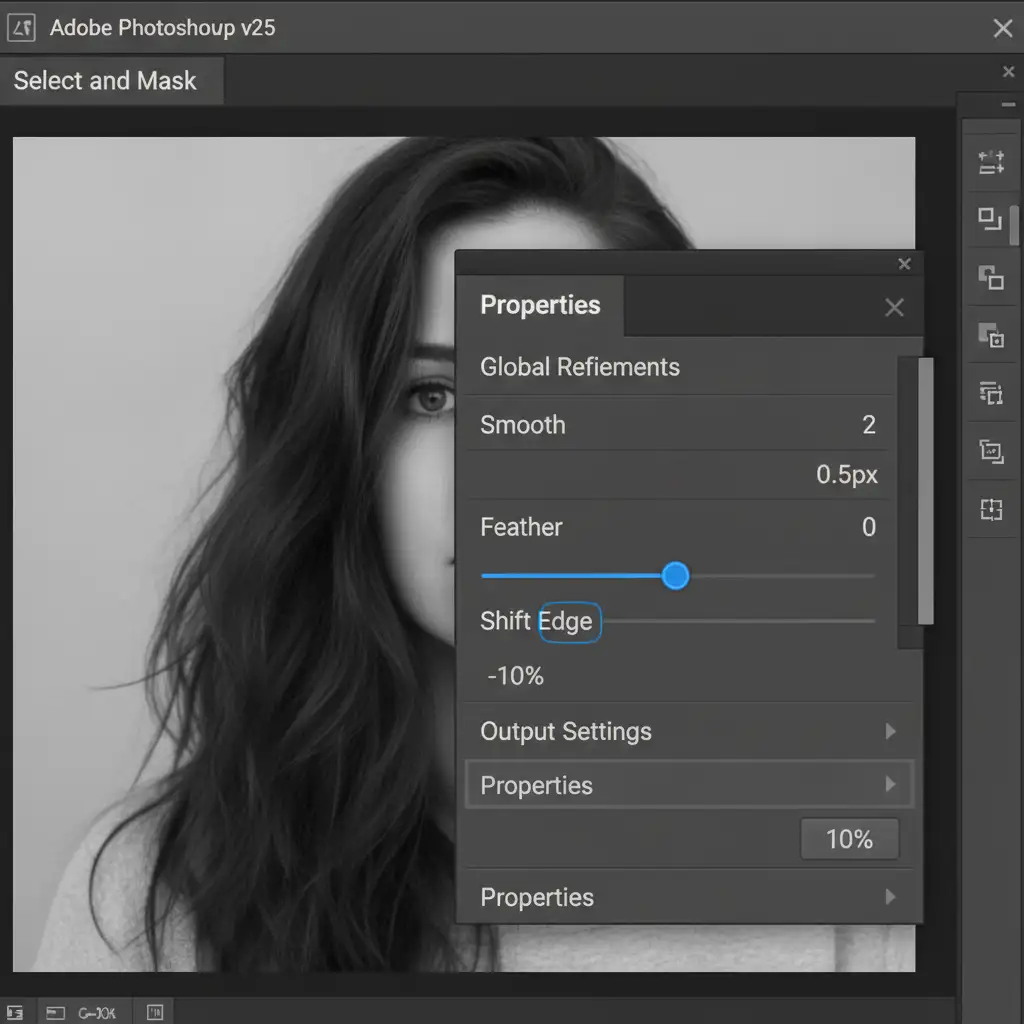
To achieve e-commerce compliance, professionals use a hybrid workflow. This process leverages AI for the heavy lifting of the initial mask, but relies on manual edge refinement and vector masking to guarantee a flawless finish.
Method 1: The Hybrid Workflow (Best for Anchor Point Bloat)
This is the industry-standard method for translating an AI selection into a clean vector path without starting from scratch.
- Generate the Base Selection: Use the Object Selection Tool to isolate your product.
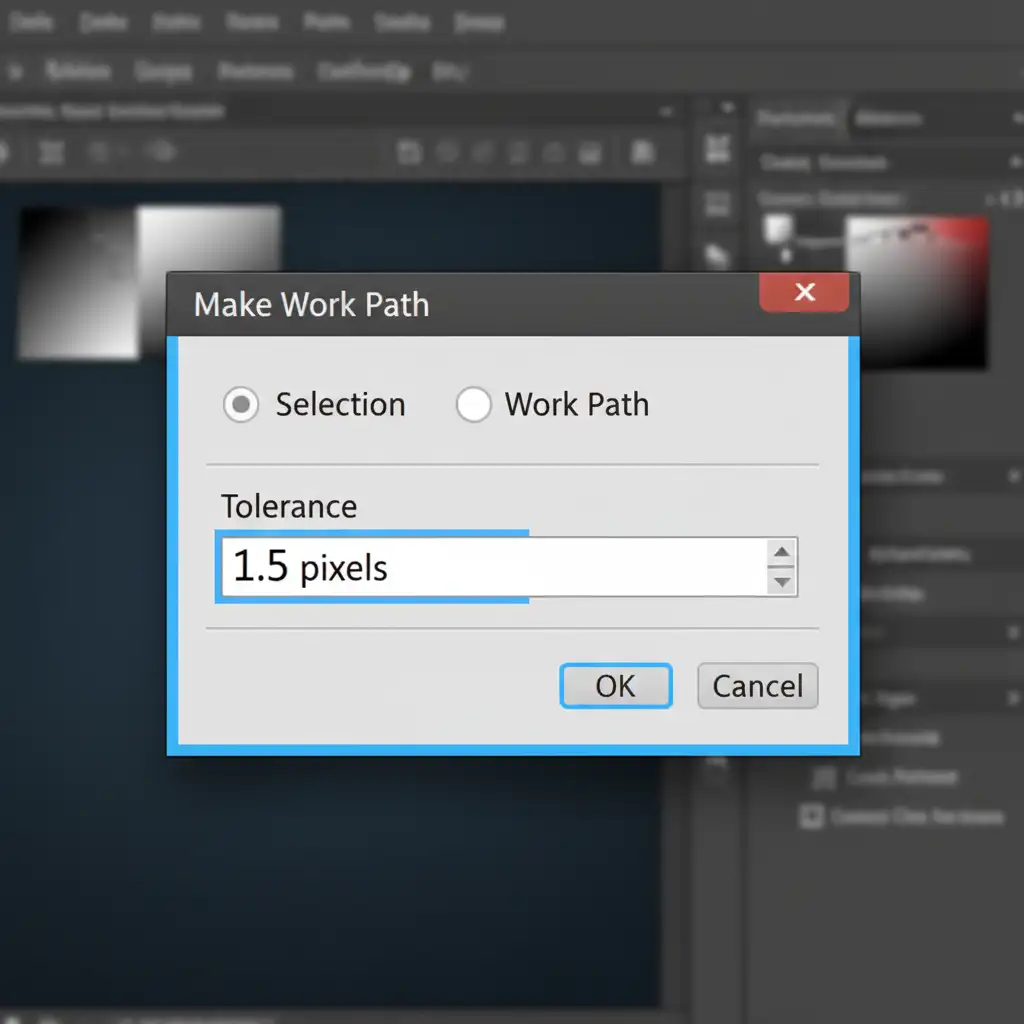
- Convert to Work Path: Open the Paths panel and Alt-click (Option-click on Mac) the “Make work path from selection” icon.
- Set the Tolerance: This is the critical step. Set the Tolerance to 1.5 pixels. Anything lower will cause extreme anchor point bloat; anything higher will destroy the accuracy of the shape.
- Manual Refinement: Select the Direct Selection Tool (A) and the Pen Tool (P). Manually delete the clusters of excess anchor points generated by the AI. Re-draw the flawed segments using continuous Bezier curves to ensure a hard, crisp edge.
Method 2: The Quick Fix (Select and Mask Edge Shift)
If you are outputting to a raster Layer Mask rather than a strict vector Clipping Path, you can quickly bite into the selection to remove light halos.
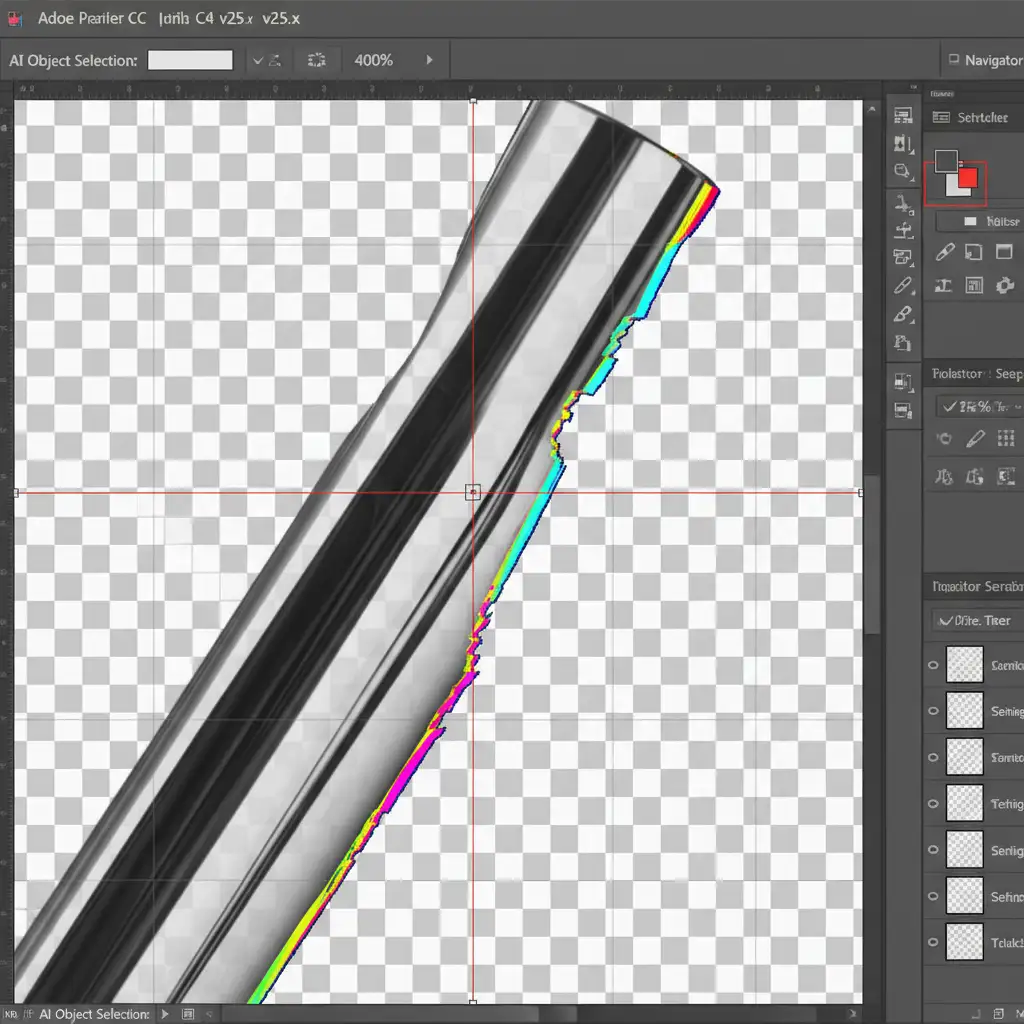
- With your AI-generated marching ants active, open the Select and Mask workspace.
- Navigate to the Global Refinements panel.
- Adjust Smooth to 2 to round off jagged pixel data.
- Set Feather to 0.5px to slightly soften the transition.
- Apply a Shift Edge of -10 percent. This chokes the mask inward, effectively cutting off the color fringing and haloing left by the AI.
Method 3: The Technical Deep-Dive (Alpha Channel Contrast)
For highly complex objects where direct path conversion fails entirely, bypass the Paths panel and use channel data.
- Use the AI selection to roughly isolate the core object.
- Switch to the Channels panel and inspect the Red, Green, and Blue channels. Duplicate the channel with the highest contrast between the subject and the background to create an Alpha Channel.
- Press Ctrl+L (Cmd+L) to open Levels. Crush the blacks and whites to calculate exact edge contrast, forcing the gray anti-aliased pixels into solid black or white.
- Ctrl-click the Alpha Channel to load it as a selection. Go to Select > Modify > Contract and shrink it by 1 pixel.
- Apply your final vector path manually over this heavily optimized edge data.
Stop Fighting AI-Let the Experts Handle Your Clipping Paths
Fixing AI clipping path artifacts in Photoshop is a necessary skill, but it is incredibly tedious. When you have hundreds or thousands of SKUs to process for an upcoming e-commerce launch, spending 15 minutes manually repairing anchor point bloat on every single image will destroy your profit margins and your production schedule.
You don’t have to do this yourself.
At Image Work India and Cloud Retouch, we specialize in 100% hand-drawn, pixel-perfect manual clipping paths. We don’t rely on automated shortcuts that fail Amazon compliance checks. Our expert retouching teams deliver flawless vector masking, complex alpha channel cutouts, and high-end edge refinement at scale.
Need flawless, e-commerce compliant product images without the tedious workflow? Contact Image Work India and Cloud Retouch today for a free trial and discover the precision that AI simply cannot match.




