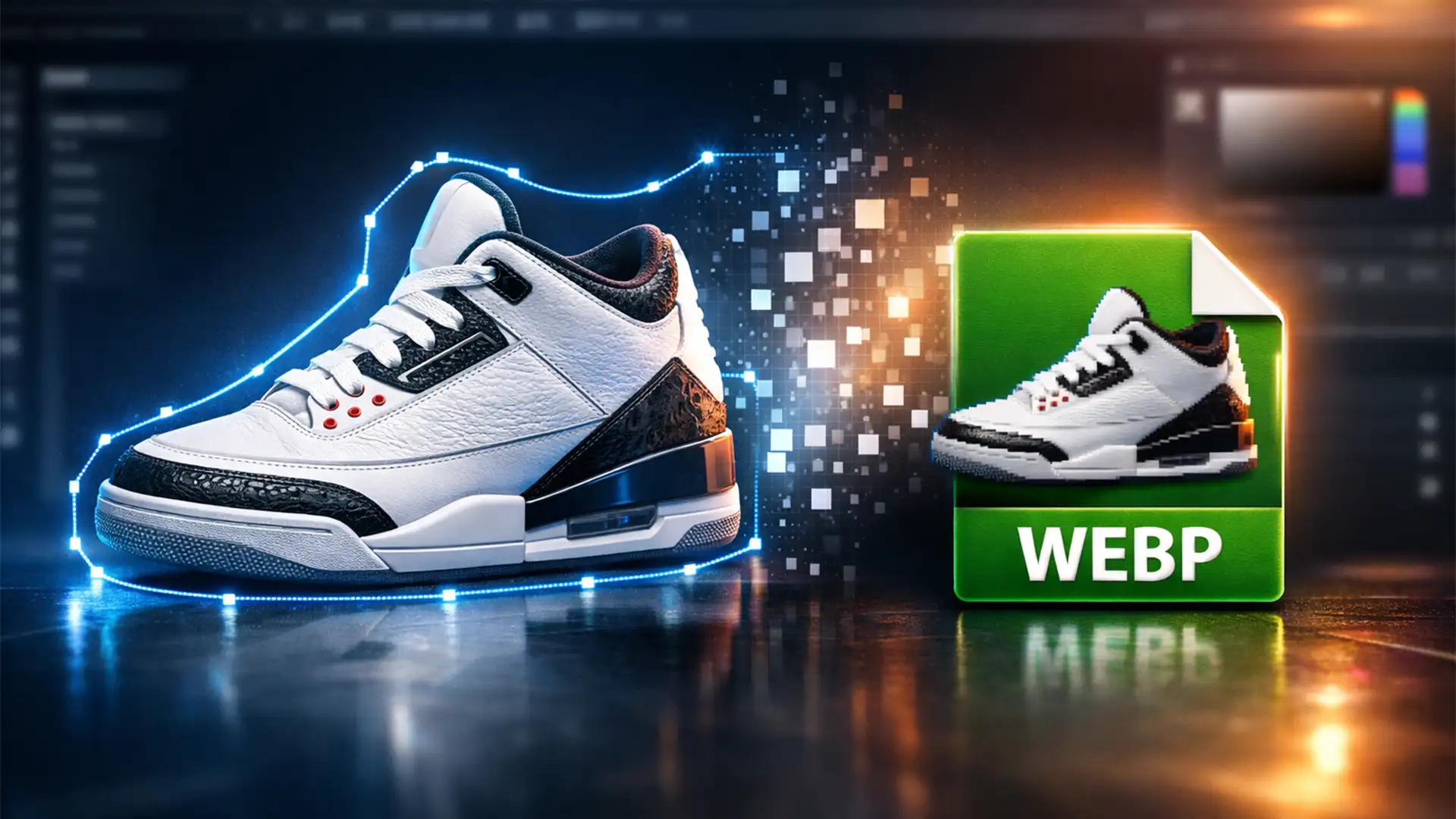

You want the lightning-fast load times of WebP, but you absolutely need the precision of vector clipping paths for dynamic e-commerce background removal. You hit “Save a Copy” in Photoshop, upload the image to your CMS, and suddenly, your embedded paths are gone. Your product silhouettes are broken.
Why does this happen? Standard WebP export strips Adobe’s proprietary metadata, leaving you with a flattened image. If you are tired of choosing between Core Web Vitals and dynamic background flexibility, you are in the right place. Let’s break down the exact technical workflows for preserving clipping paths in WebP export, ensuring your online store remains both blazing fast and visually flawless.
Why Do Clipping Paths Disappear in WebP Files?
WebP is an incredible format for e-commerce, offering superior lossless compression and smaller file sizes compared to JPEG and PNG. However, WebP inherently handles embedded vector paths differently than legacy formats like TIFF or EPS.
Starting with Photoshop v23.2, Adobe introduced Photoshop native WebP support. While this streamlined exporting, it created a massive headache for retouchers and web developers. Standardizing a WebP file often strips out Adobe’s proprietary 8BIM metadata—the exact data block where Photoshop stores your carefully drawn working paths and EPS-style clipping paths.
When e-commerce platforms require that embedded path for dynamic background removal or color-switching, a standard WebP export fails because it only contains a rasterized image. To fix this, you need to adapt your workflow.
3 Workflows for Preserving Clipping Paths in WebP Export
Depending on your CMS requirements and web development capabilities, there are three distinct ways to bypass this limitation.
Method 1: The Quick Fix (Alpha Transparency & Layer Masks)
If your platform doesn’t strictly require the mathematical vector path and only needs the transparent background, you can convert your path data into alpha transparency.
- Open your image in Photoshop.
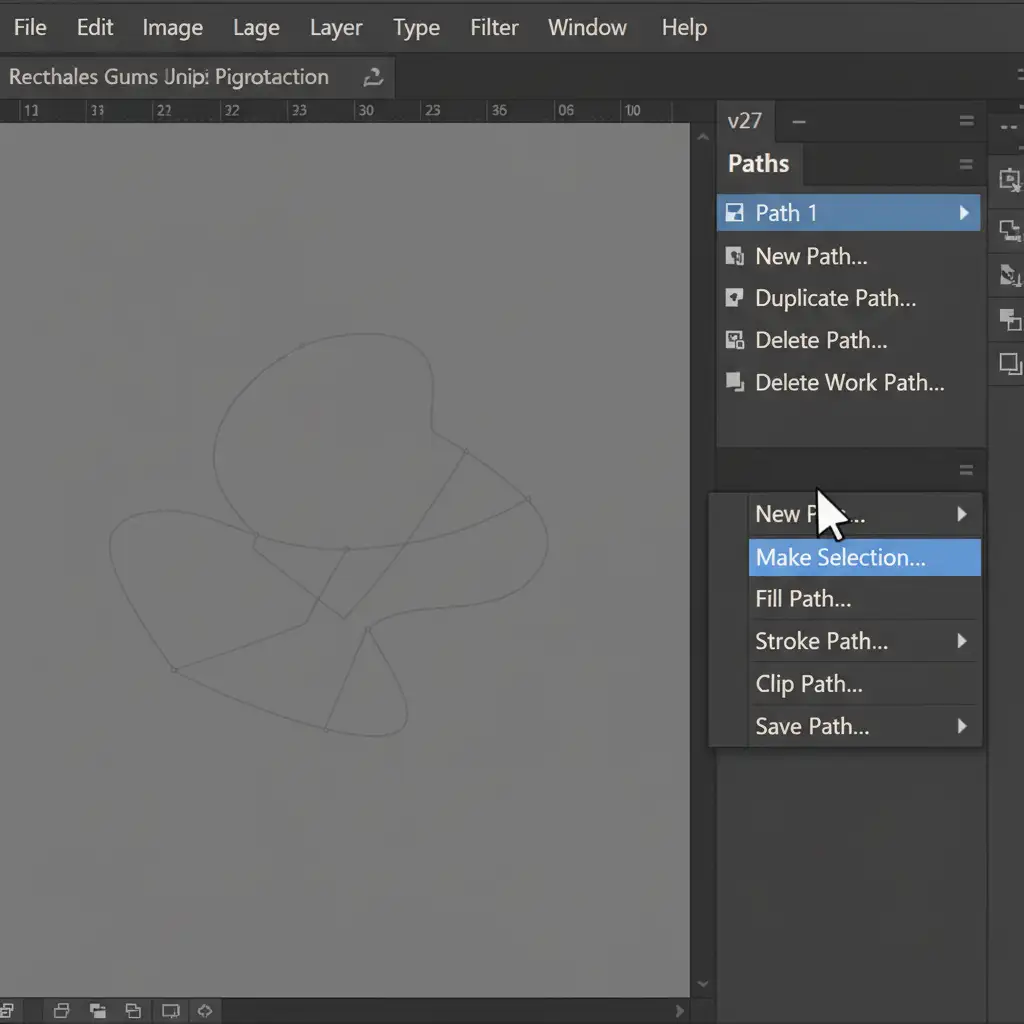
- Navigate to the Paths panel.
- Right-click your active Clipping Path and select Make Selection. Set the feather radius to 0 pixels to keep edges sharp.
- Go to your Layers panel, select your product layer, and click the Add Layer Mask icon.
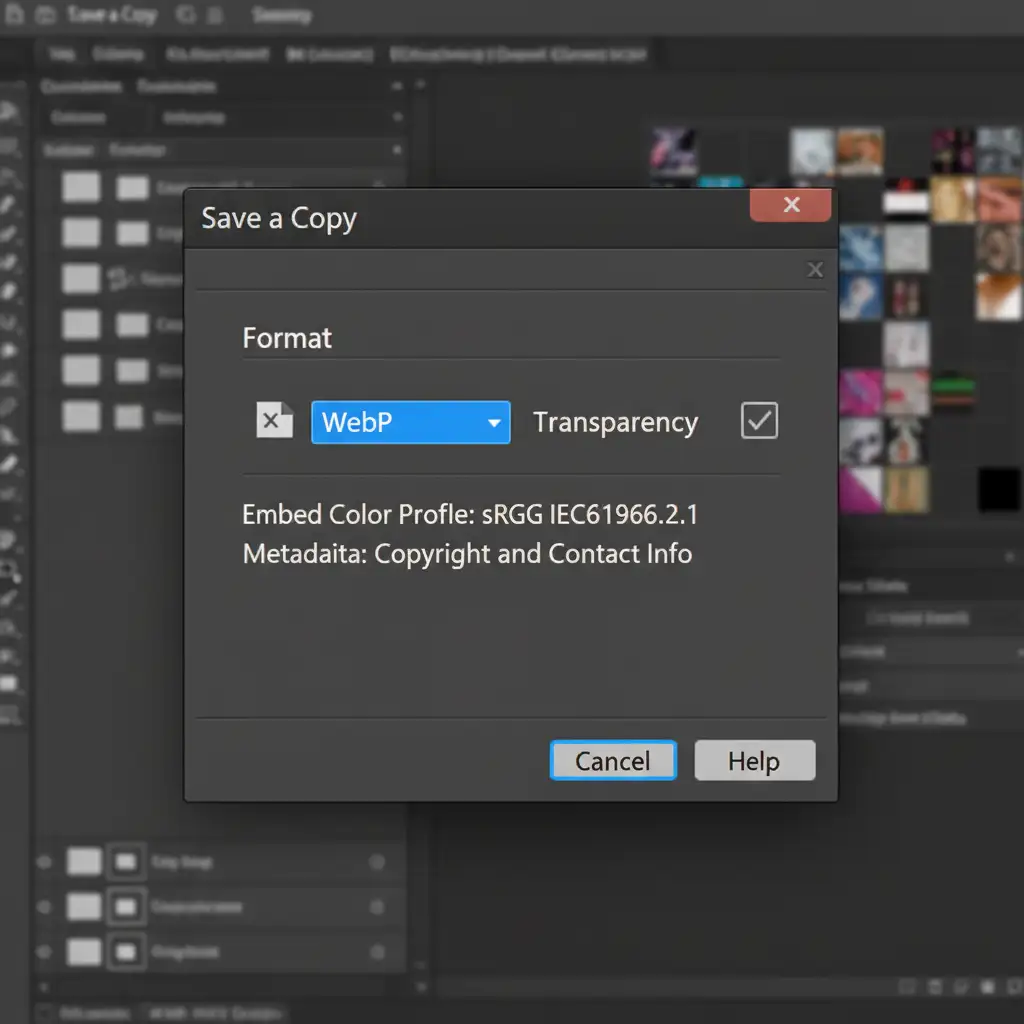
- Go to File > Save a Copy, choose WebP, and ensure the Transparency box is checked.
Method 2: The Pro Workaround (SVG Clip-Path & WebP Hybrid)
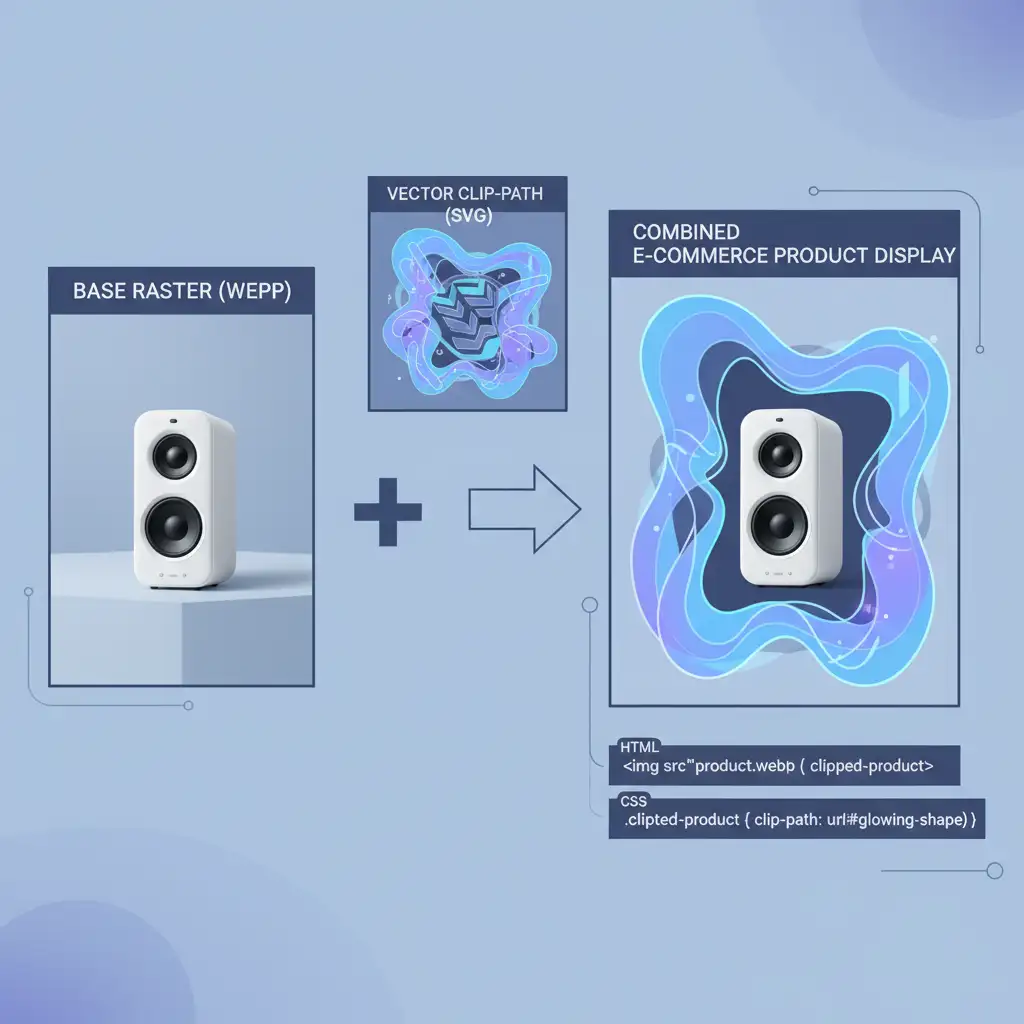
For modern headless e-commerce builds that strictly require vector data for programmatic manipulation, relying on a rasterized mask isn’t enough. The most web-optimized solution is separating the image payload from the vector data.
- Export your product image as a standard WebP file (this acts as your lightweight raster base).
- Export your clipping path out of your design software as an inline SVG.
- Use CSS to overlay the SVG clip-path over the WebP image in your frontend code.
This hybrid approach guarantees the lowest possible file size while maintaining infinite vector scalability for the silhouette.
Method 3: The Technical Deep-Dive (ExifTool & Metadata Injection)
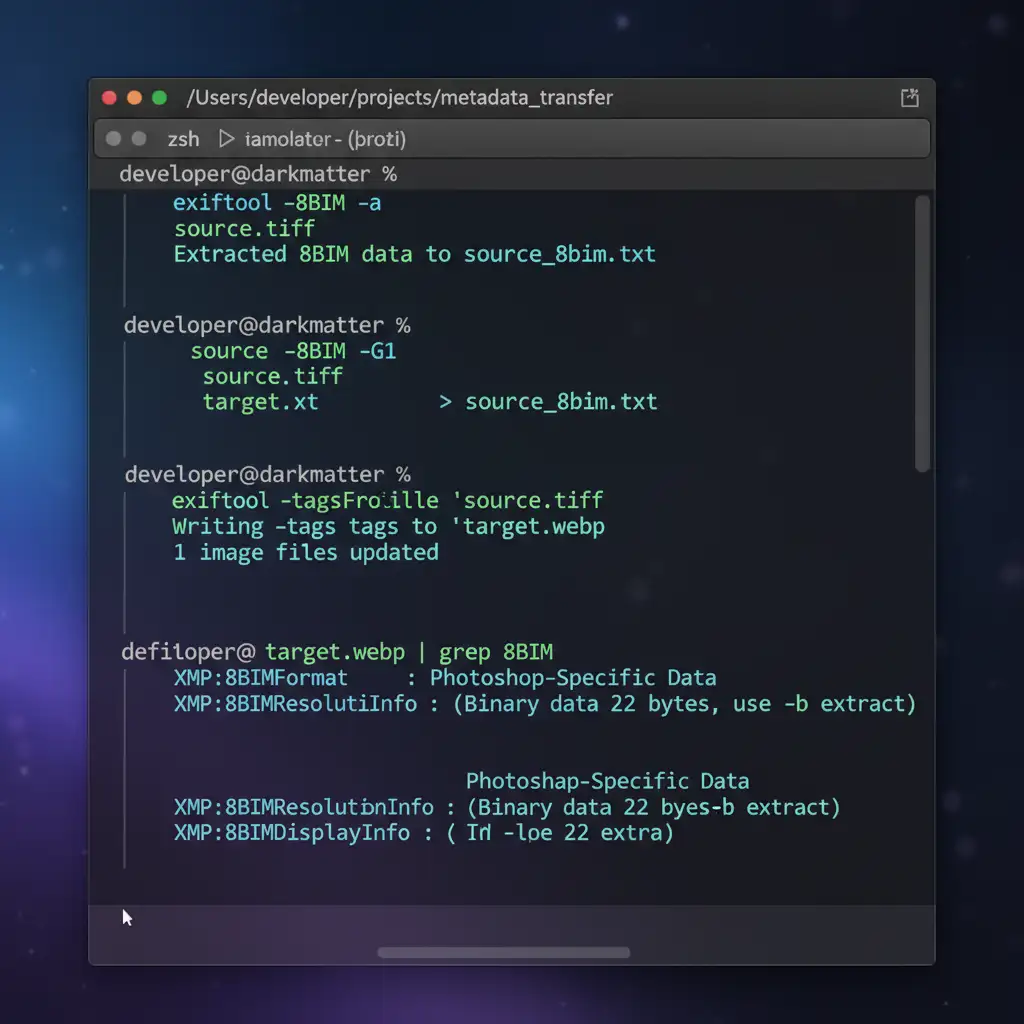
If your specific PIM (Product Information Management) system demands a single, self-contained file containing both the WebP image and the raw vector path, you must manually inject the metadata. This requires command-line tools like cwebp and ExifTool.
- Export your fully clipped product image from Photoshop as a TIFF file (which natively retains 8BIM metadata).
- Use Google’s cwebp command-line tool to convert the TIFF into a WebP file.
- Use ExifTool to copy the specific 8BIM metadata block from the original TIFF directly into the header of the new WebP file.
The command looks like this: exiftool -tagsfromfile source.tif -Photoshop:all target.webp
This forces the WebP file to carry the exact vector nodes, bypassing Photoshop’s export limitations.
Scale Your Image Optimization with Image Work India
Preserving clipping paths in WebP export is a highly technical process. When you are managing thousands of SKUs, manually managing SVG overlays, layer masks, or command-line metadata injections is a massive drain on your team’s resources.
You don’t have to do this alone. At Image Work India and Cloud Retouch, we specialize in high-volume, pixel-perfect clipping paths and advanced image optimization tailored for modern e-commerce. Whether you need bulk WebP conversion that retains flawless alpha transparency, or complex hybrid vector-raster deliverables for your development team, our expert retouchers handle the heavy lifting.
Stop wrestling with metadata and start speeding up your storefront. Contact Image Work India today to streamline your e-commerce image pipeline.




