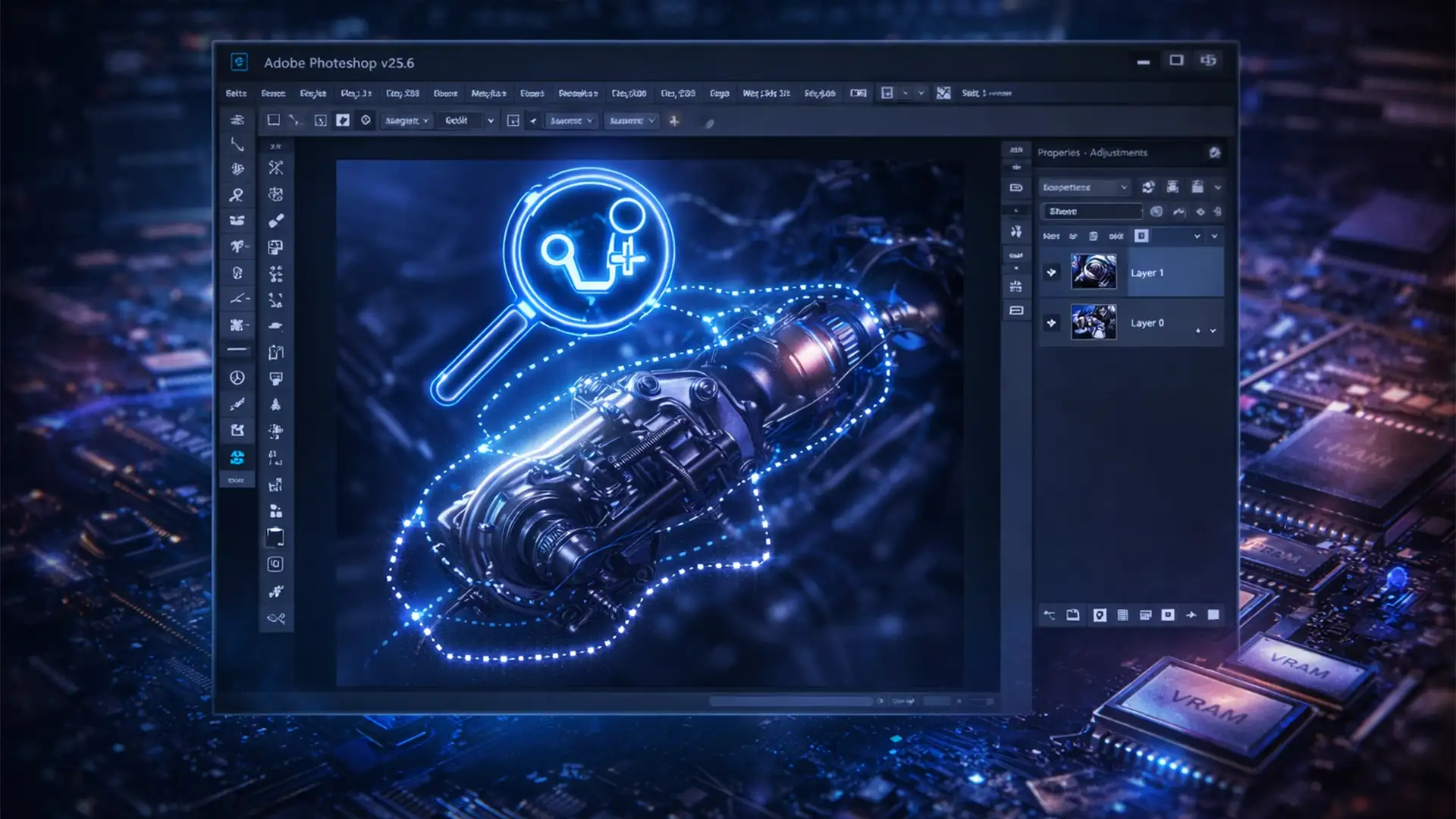

You are halfway through tracing a complex product image, and suddenly, the cursor freezes. The marching ants stutter, your fastening points drop in the wrong places, and frustrating input latency completely ruins your workflow. If you are dealing with this exact scenario, you are not alone.
Since the latest update, many professionals have encountered severe cursor delay when making complex selections. Fortunately, the Photoshop v25.6 magnetic lasso lag solution is straightforward once you understand what is causing the bottleneck.
In this guide, we will break down exactly why this micro-stuttering occurs and walk you through three proven methods to restore your tool speed-from quick setting tweaks to deep-dive performance optimizations.
Why is the Magnetic Lasso Lagging in Photoshop v25.6?
The root cause of this tool latency comes down to a conflict in how the software renders graphics on modern machines. In Photoshop v25.6, the Magnetic Lasso tool relies heavily on dynamic edge contrast calculations to snap to the borders of your subject.
When you are working on high-resolution displays or large 16-bit files, the real-time generation of these fastening points overloads your VRAM allocation. This data bottleneck triggers a conflict between Photoshop’s Native Canvas rendering engine and your system’s GPU compositing, resulting in the dreaded cursor freeze and delayed path rendering.
How to Fix Magnetic Lasso Lag (3 Proven Methods)
Whether you need a quick workaround or a permanent technical fix, these three methods will eliminate the lag and get your hardware acceleration back on track.
Method 1: The Quick Fix (Optimize Tool Settings)
The easiest way to reduce the real-time calculation load on your computer is to adjust how the tool behaves in the Options Bar.
- Select the Magnetic Lasso tool.
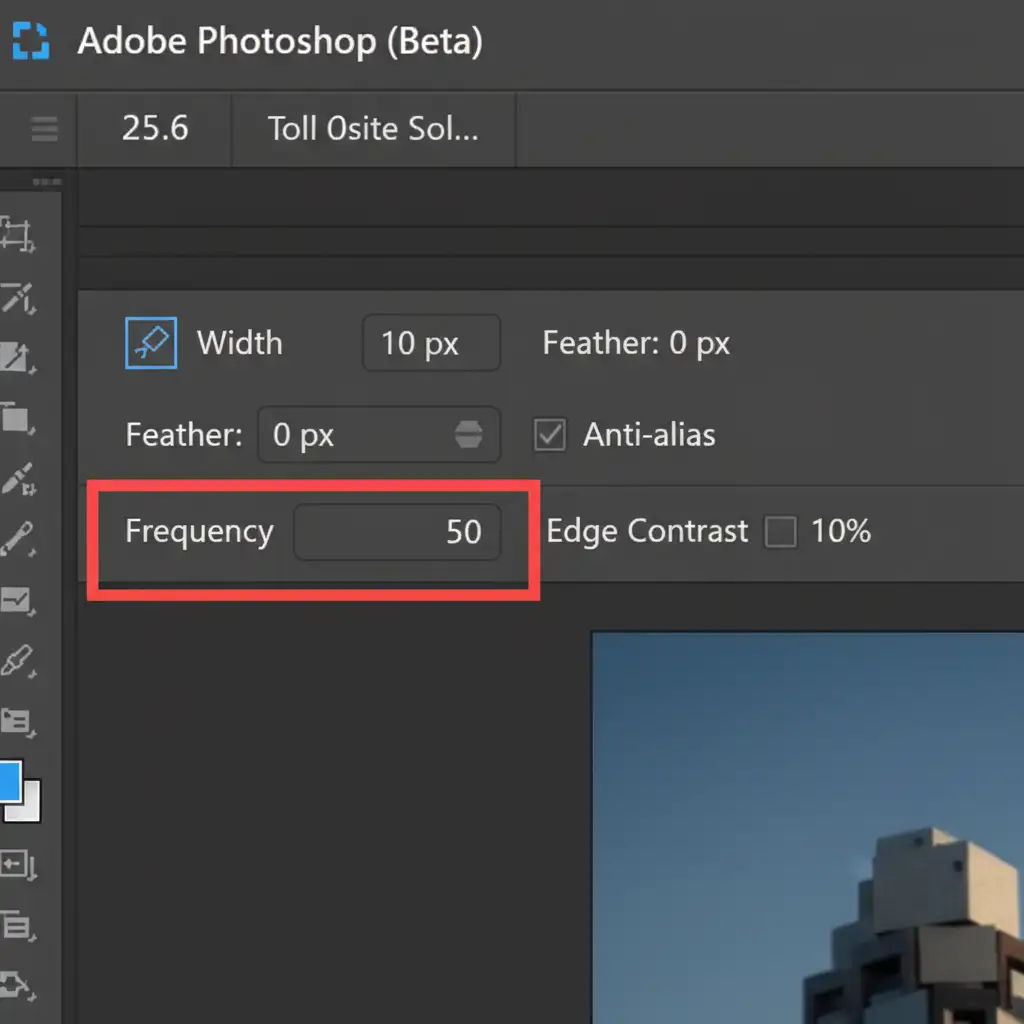
- Look at the top Options Bar and lower the Frequency to 50 or below. This reduces the number of fastening points the software forces your CPU to calculate per second.
- Increase the Width setting slightly so the tool doesn’t have to work as hard to find contrasting pixels.
- Pro Tip: Press the Caps Lock key to switch your cursor to the precise crosshair. This simple action forces a UI redraw and instantly minimizes micro-stutters.
Method 2: The Technical Deep-Dive (Disable GPU Conflicts)
If adjusting the tool settings doesn’t solve the input latency, you need to address the conflict between your graphics card and Photoshop’s rendering engine.
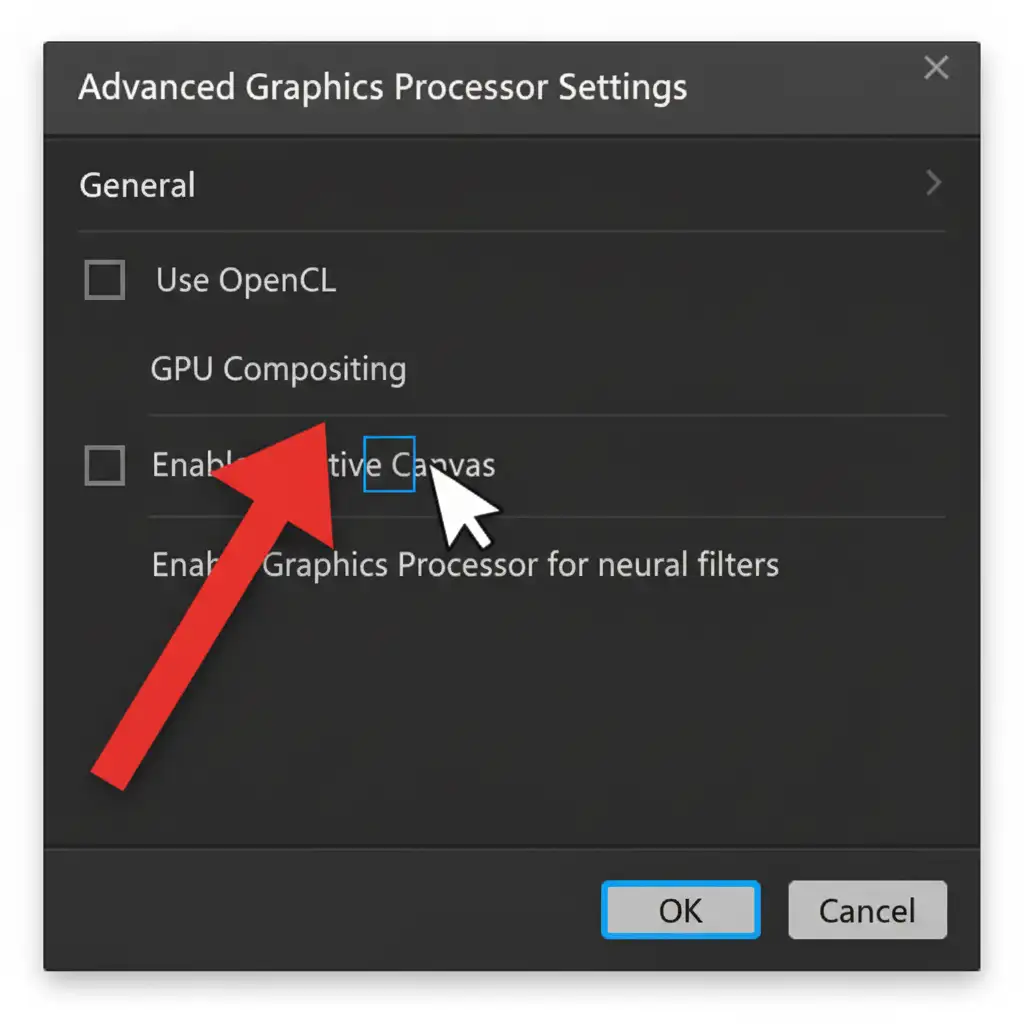
Step 1: Turn off GPU Compositing
- Navigate to Edit > Preferences > Performance (on Windows) or Photoshop > Settings > Performance (on Mac).
- Under the Graphic Processor Settings section, click on Advanced Settings.
- Uncheck the box labeled GPU Compositing.
- Click OK and test the tool.
Step 2: Deactivate Native Canvas
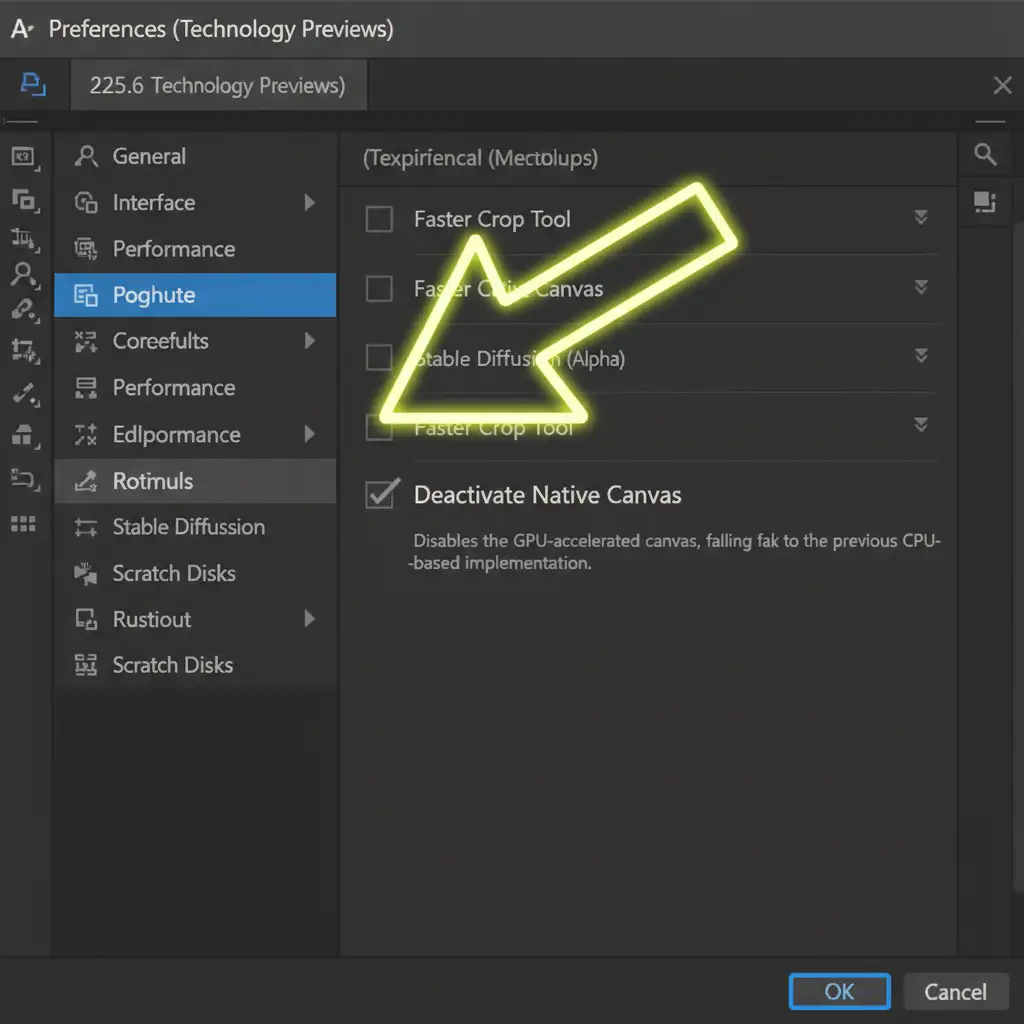
If the lag persists after disabling GPU Compositing, the Native Canvas engine is likely the culprit.
- Go to Preferences > Technology Previews.
- Find and check the box that says Deactivate Native Canvas.
- You must restart Photoshop for this change to take effect.
Method 3: The Pro Workaround (Leverage Adobe Sensei AI)
Professional retouchers rarely rely on the Magnetic Lasso for complex selections anymore, primarily because manual edge detection is prone to anti-aliasing issues and lag. Instead, bypass the calculation delays entirely by using AI.
- Select the Object Selection Tool or click Select Subject.
- Let Adobe Sensei AI generate the base selection instantly.
- Switch to the standard Lasso tool (which does not calculate edge contrast dynamically and therefore does not lag).
- Hold Shift to add to your selection, or Alt/Option to subtract, quickly refining the marching ants without any VRAM overload.
Prevent Future Latency: VRAM and Scratch Disks
To prevent future performance drops when working with large files, ensure your system is properly optimized. Always leave at least 20% of your hard drive free to act as a Scratch Disk, allowing Photoshop to offload temporary data when your VRAM allocation maxes out. Keeping your graphics drivers updated will also ensure smoother hardware acceleration across all Adobe tools.
Stop Fighting Photoshop Lag-Let the Experts Handle Your Cutouts
Troubleshooting software conflicts like the Photoshop v25.6 magnetic lasso lag solution takes valuable time away from your core business. If you are tired of fighting laggy tools, frozen cursors, and tedious edge refinement for complex cutouts, it’s time to outsource the heavy lifting.
Let the expert retouchers at Image Work India and Cloud Retouch handle your clipping paths and image masking. We deliver pixel-perfect precision, flawless anti-aliasing, and incredibly fast turnaround times-no matter how complex the subject is.
[Contact Image Work India today] to streamline your post-production workflow and get back to doing what you do best.




