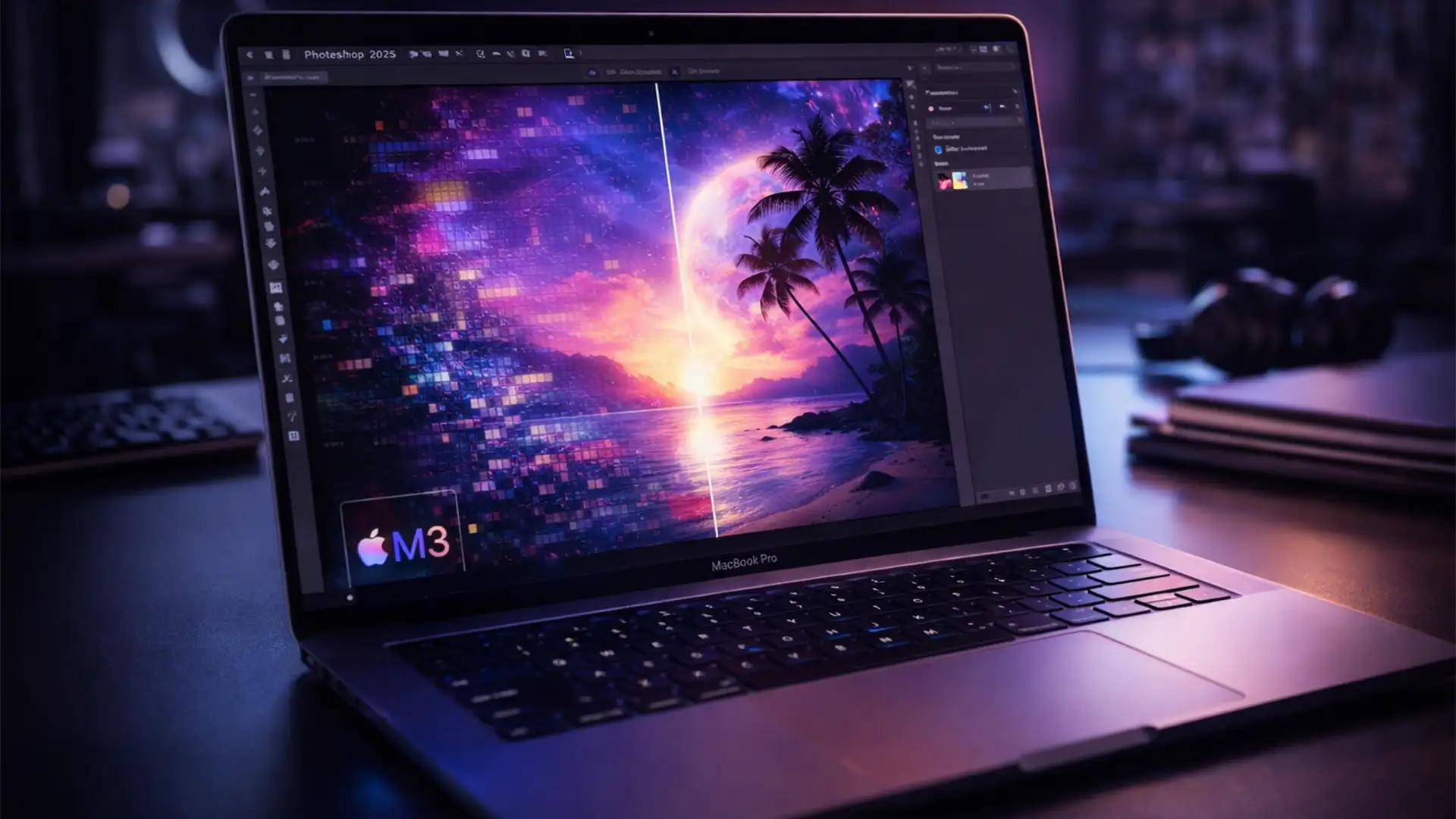

You just invested in a top-tier Apple Silicon M3 Mac, expecting a flawless creative workflow. But the moment you boot up Photoshop 2025 and grab the brush tool, your workspace turns into a strobe light.
If you are experiencing rapid screen tearing, black boxes, or aggressive canvas flickering when zooming and panning, you are not alone. This glitch completely breaks your concentration and ruins productivity. Fortunately, the Photoshop M3 Mac flickering fix takes less than two minutes to implement.
Below, we break down the exact hardware and software settings you need to change to stabilize your workspace and get back to editing.
Why is Photoshop Flickering on My M3 Mac?
The flickering issue in Photoshop 2025 (specifically versions v25.x and v26.x) on Apple Silicon M3, M3 Pro, and M3 Max chips is caused by a hardware-software handshake error.
It stems from a three-way conflict between:
- Adobe’s Metal API GPU acceleration.
- Adobe’s new Native Canvas rendering technology.
- Apple’s ProMotion Display (which uses a variable 120Hz refresh rate) running on macOS Sonoma or Sequoia.
When the variable refresh rate of your Mac’s screen desyncs with Photoshop’s internal screen drawing updates, the result is severe screen tearing and visual artifacting. To fix this, we need to force Photoshop and macOS to communicate at a locked, stable rate.
Step-by-Step Fixes for Photoshop M3 Mac Flickering
Method 1: Deactivate Native Canvas (The Quick Fix)
The most effective way to eliminate the glitch is to revert Photoshop to its older, more stable rendering engine.
- Open Photoshop.
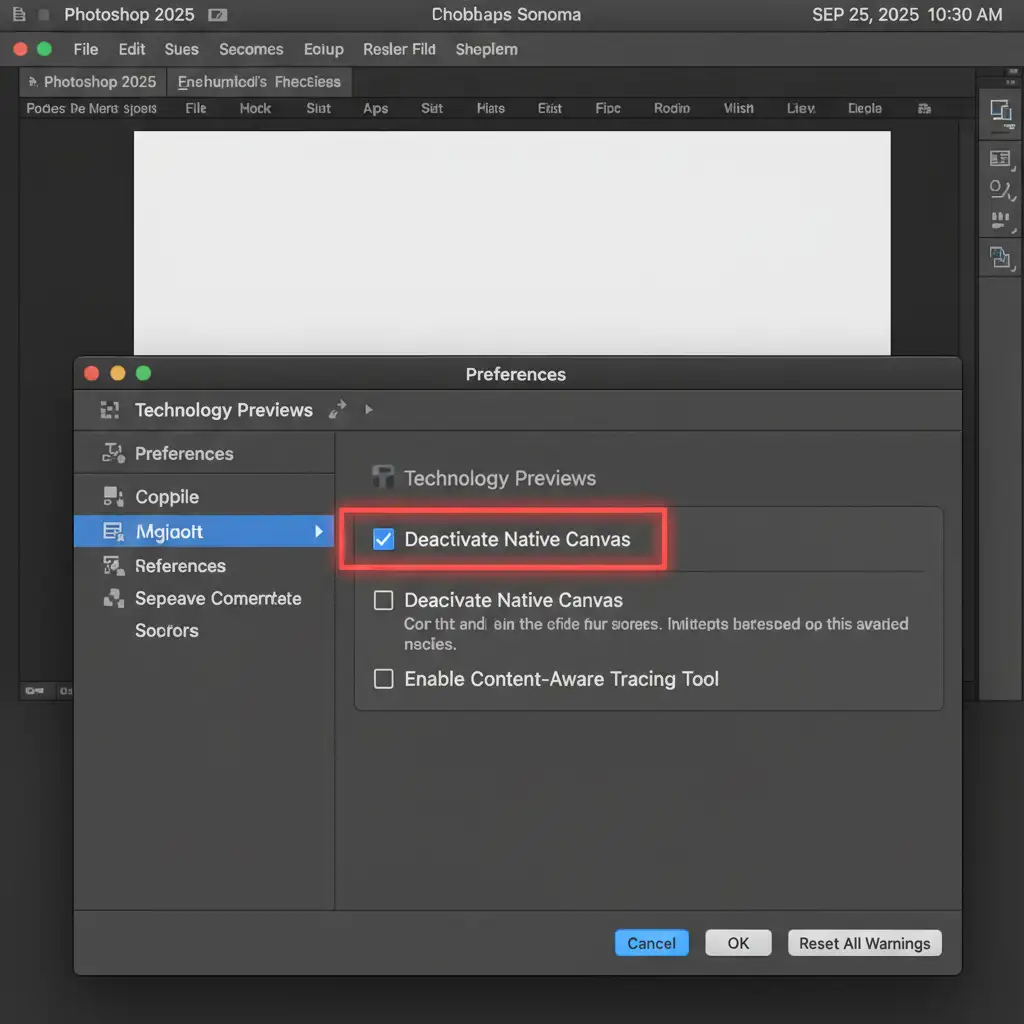
- Navigate to Photoshop > Settings > Technology Previews (on macOS).
- Locate the checkbox labeled Deactivate Native Canvas and check it.
- Restart Photoshop for the changes to take effect.
Method 2: Lock ProMotion Display to 60Hz (The Pro Workaround)
If disabling Native Canvas doesn’t entirely resolve the black boxes, the next step is to stop your Mac’s variable refresh rate from conflicting with Photoshop’s redraw rate.
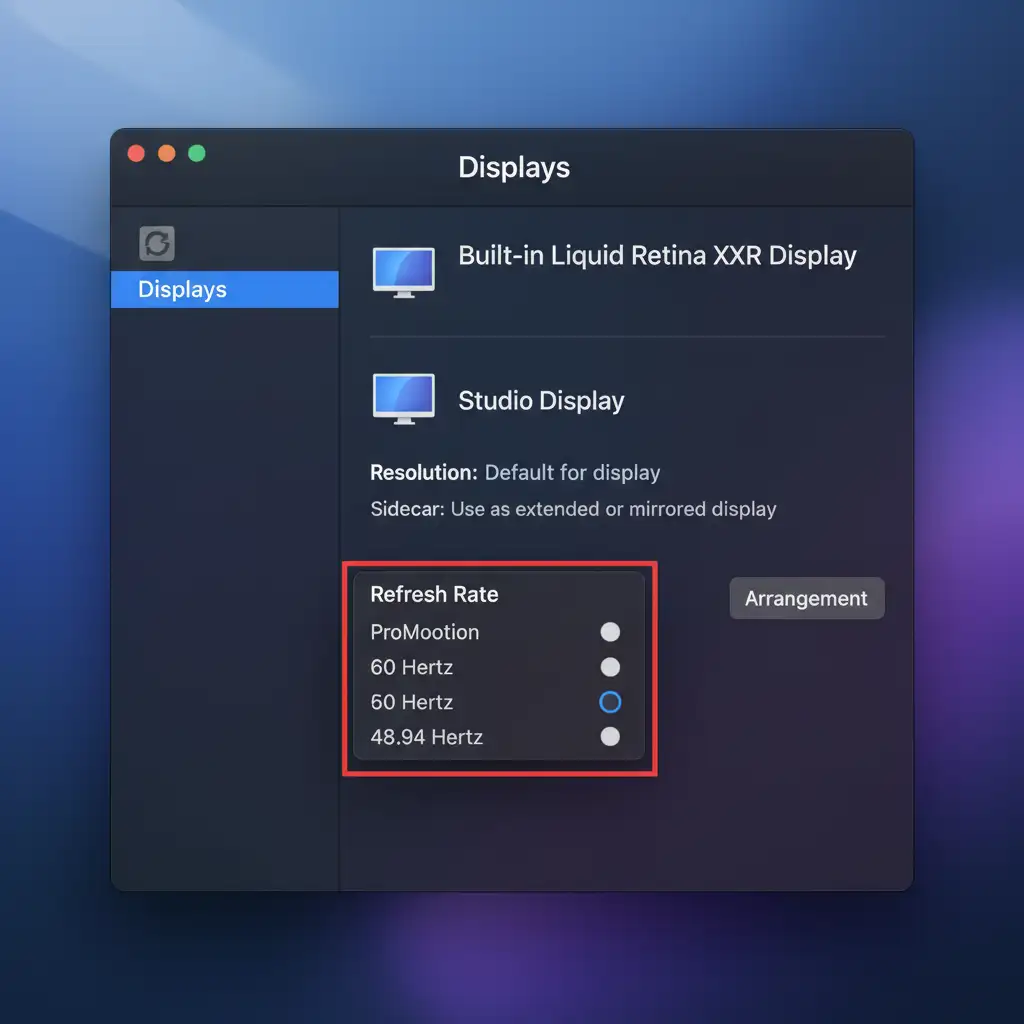
- Open your Mac’s System Settings.
- Scroll down and click on Displays.
- Find the Refresh Rate dropdown menu.
- Change the setting from ProMotion to a locked 60 Hertz.
Method 3: Tweak Advanced GPU Compositing Settings
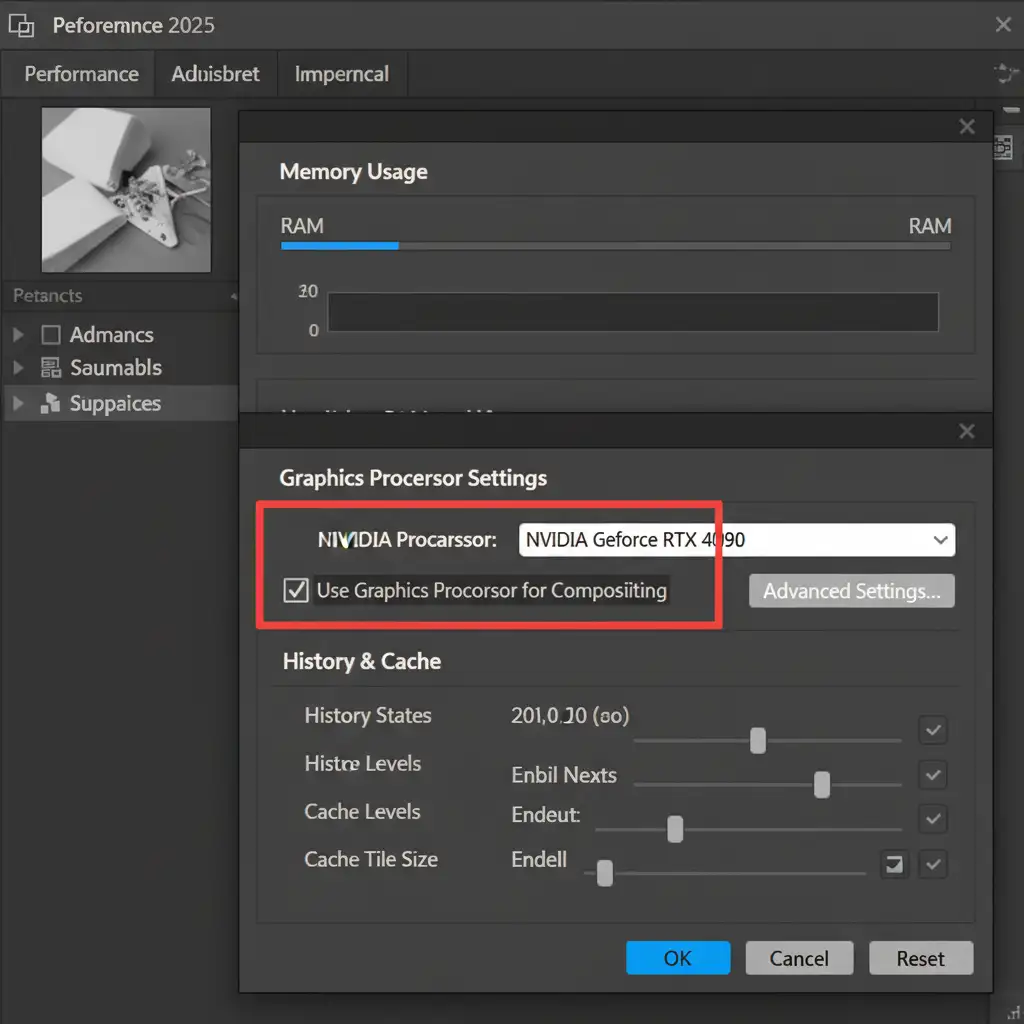
Sometimes the issue runs deeper into how Photoshop utilizes your Mac’s unified memory and graphics cores. Adjusting your Graphics Processor Settings can force a more stable rendering pipeline.
- Go to Photoshop > Settings > Performance.
- Under the Graphics Processor Settings section, click the Advanced Settings button.
- Uncheck the box for GPU Compositing.
- Alternative: If you need GPU Compositing for specific 3D workflows, try changing the Drawing Mode from ‘Advanced’ to ‘Basic’.
Method 4: Clear Your VRAM Cache
After making changes to your GPU and display settings, corrupted visual data might still be lingering in your system’s memory.
To ensure a completely clean slate:
- Inside Photoshop, go to Edit > Purge > All.
- Close Photoshop completely.
- Restart your Mac to clear out any residual VRAM Cache states.
Stop Troubleshooting and Start Creating
Dealing with constant software bugs, unoptimized updates, and hardware conflicts drains your time and creative energy. You didn’t invest in an Apple Silicon M3 to spend hours reading technical forums-you bought it to create stunning visuals.
If you are tired of wrestling with software glitches and want to focus purely on growing your business, let the experts handle the heavy lifting. At Image Work India and Cloud Retouch, our dedicated teams provide flawless, high-volume professional retouching services. From complex masking and color correction to high-end commercial photo editing, we deliver pixel-perfect results so you never have to worry about a flickering canvas again.
Contact Image Work India and Cloud Retouch today to streamline your post-production workflow.




