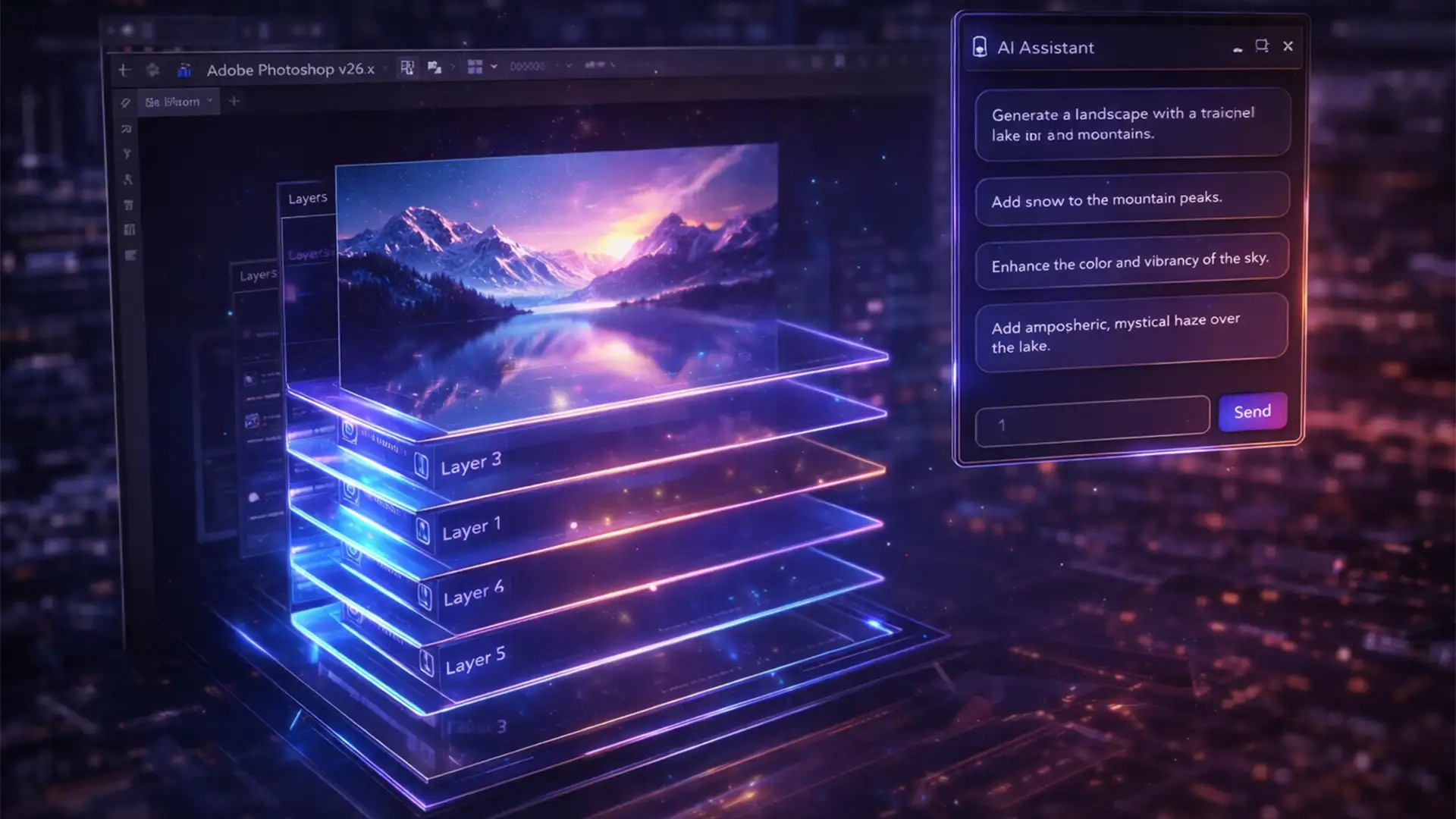

You type a detailed command into the new Photoshop AI Assistant, expecting flawless results. “Make the sky blue and add a vintage car.” Instead of a masterpiece, you get a blended, hallucinated mess. Worse, your second prompt completely overwrites the perfect edit you just generated.
If you are struggling with context degradation during conversational prompting in Photoshop v25.x and beta v26.x, you are not alone. Adobe’s new agentic AI is powerful, but it frequently loses its train of thought during complex edits. Here is your definitive Photoshop AI Assistant multi-step prompt guide to force strict boundaries and stack edits flawlessly.
Why Adobe’s Agentic AI Loses Context
With the integration of the Firefly Image 3 Model, Adobe introduced agentic AI capabilities into Photoshop. This allows for conversational, context-aware prompting where the software is supposed to remember your previous instructions.
However, in practice, the AI struggles with iterative generation. When you stack multiple commands, the system experiences context degradation. It either attempts to process all variables simultaneously-resulting in merged, unnatural outputs-or it treats the active Generative Layer as a blank slate, overwriting your previous Generative Fill or Generative Expand data.
To achieve professional results, you must change how you communicate with the software and how you structure your layer stack.
Method 1: The Quick Fix – Sequential Prompt Engineering
The most common mistake users make is grouping multiple actions into a single sentence. The AI Assistant parses data better when instructions are explicitly separated by time-based transitional phrases and commas.
The Wrong Way:
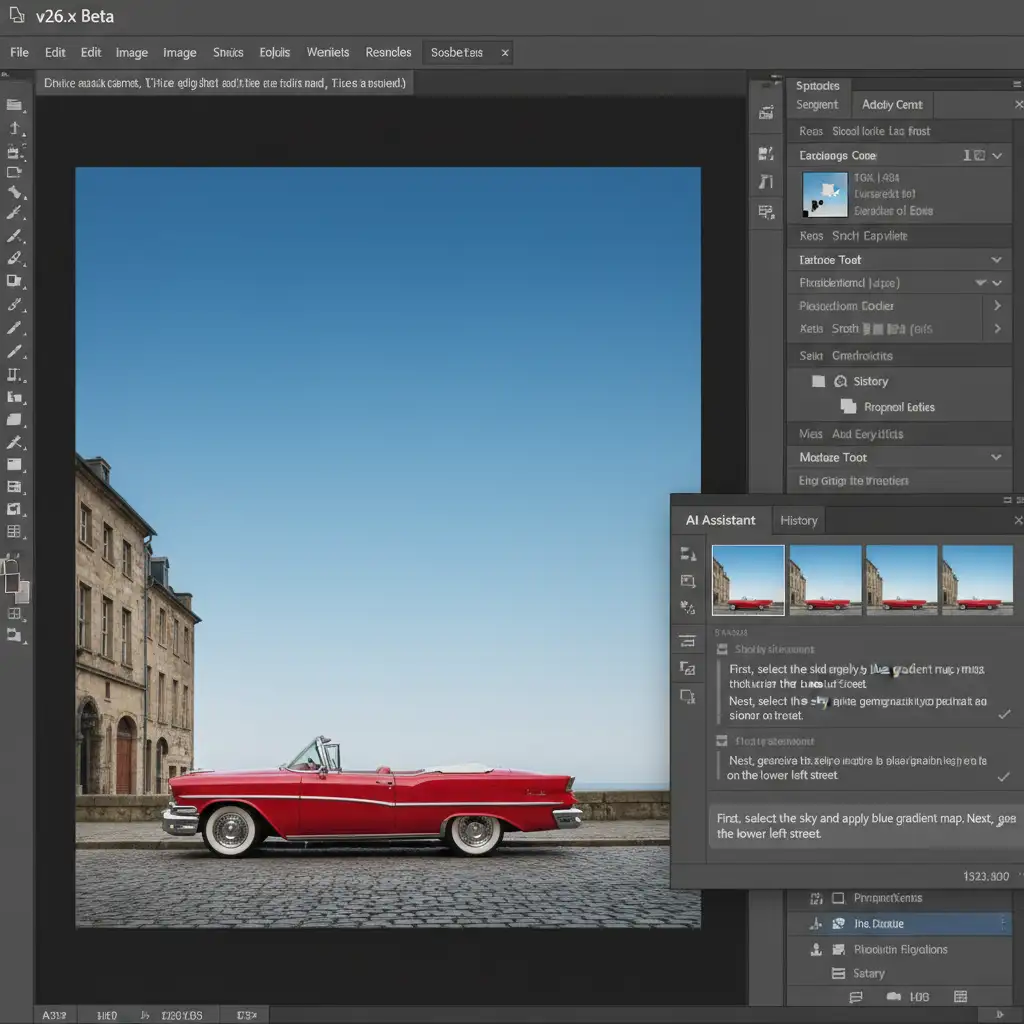
“Select the sky and apply a blue gradient map and generate a vintage red car on the lower left street.”
The Right Way:
“First, select the sky and apply a blue gradient map. Next, generate a vintage red car on the lower left street.”
By using “First,” “Next,” and “Finally,” you force the AI to execute Smart Actions sequentially rather than simultaneously.
Method 2: The Pro Workaround – Smart Objects for Iterative Generation
Even with perfect prompt engineering, the AI Assistant will occasionally overwrite the active layer if you continue the conversation. To build complex compositions, you must isolate your AI generations.
Step-by-Step Layer Isolation
- Run your initial prompt to create your first element.
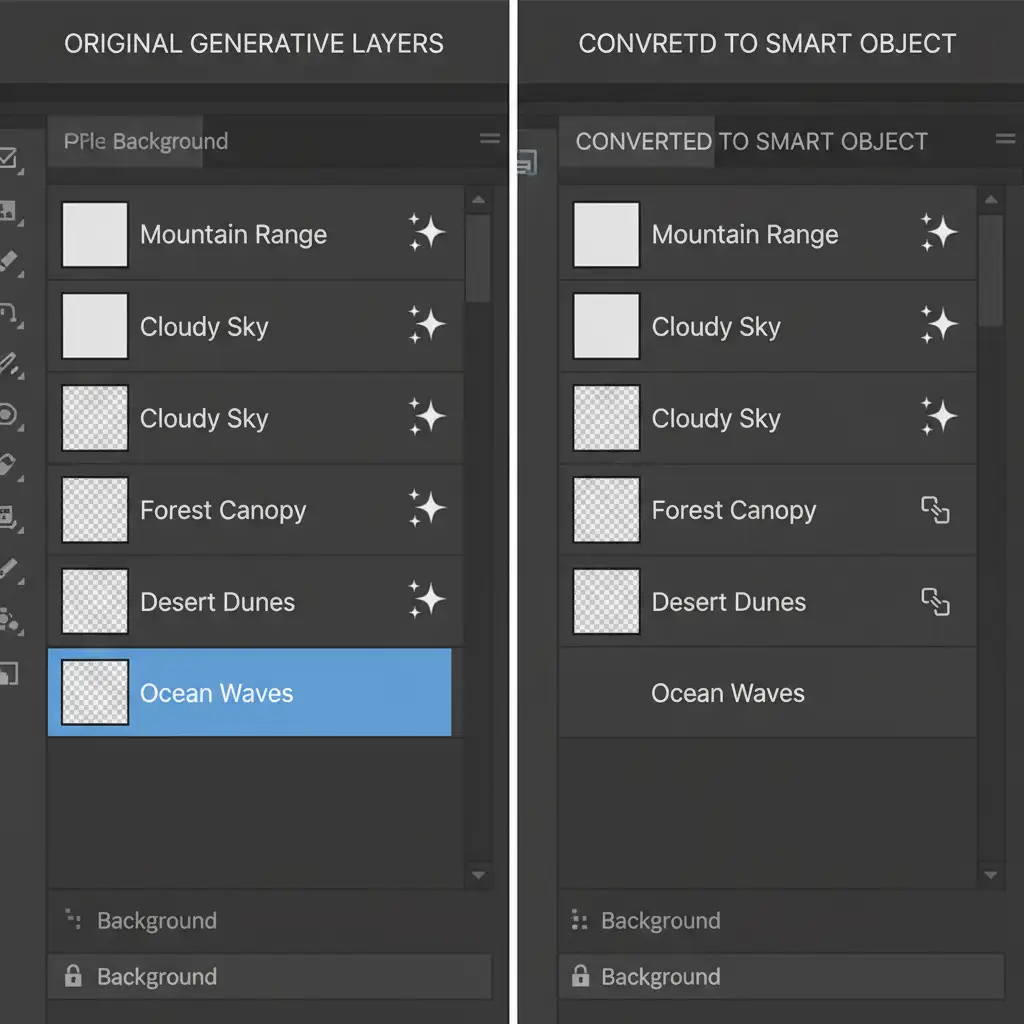
- Once the generation is complete, right-click the new Generative Layer in the Layers panel.
- Select Convert to Smart Object.
- Create a new blank layer above it before initiating your next prompt.
Converting the layer to a Smart Object locks the pixel data. When you issue the next command in the AI Assistant, the system is forced to read the Smart Object as a flattened reference image rather than an editable generative state, preserving your initial work.
Method 3: The Technical Deep-Dive – Cache Clearing & Manual Boundaries
If the AI Assistant begins to hallucinate severely or ignore your prompts entirely, the conversational history cache has likely become corrupted or overloaded.
Flush the Conversational History
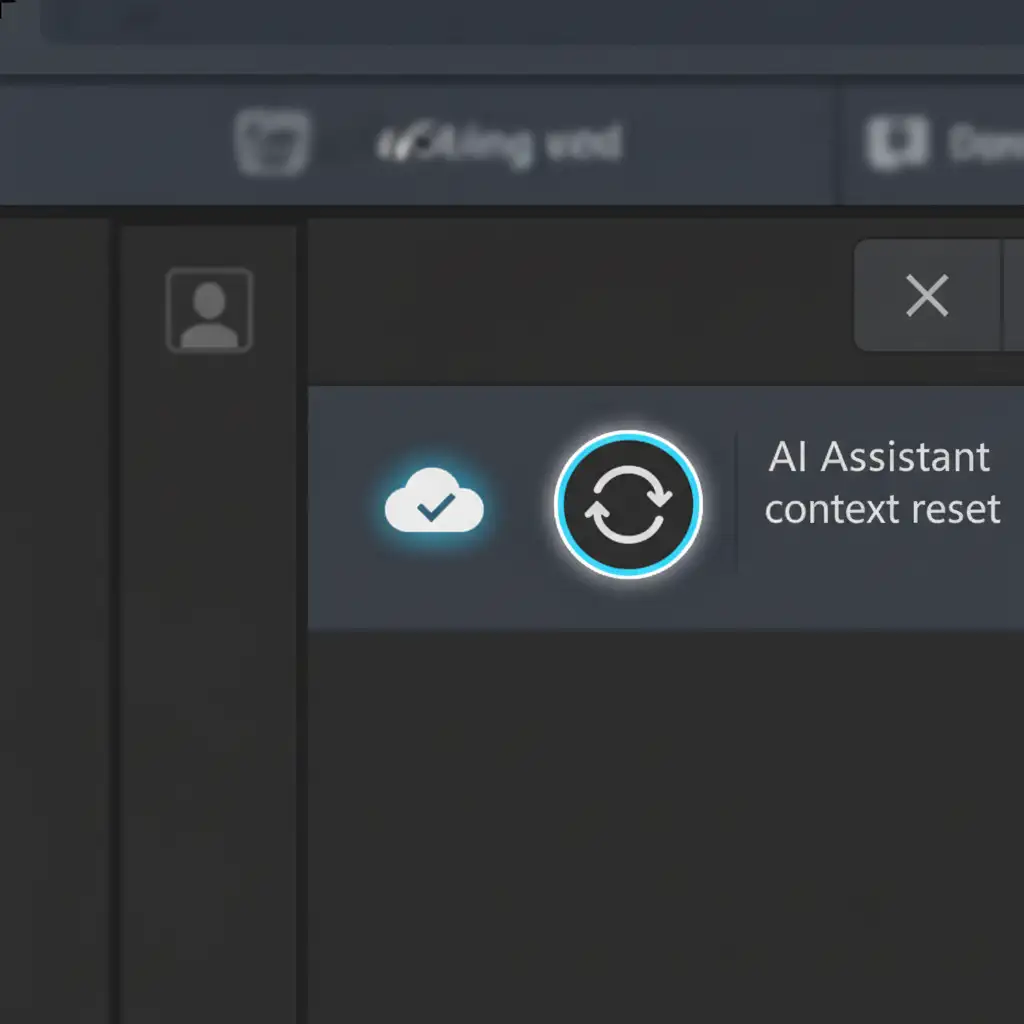
Navigate to the AI Assistant panel and locate the context reset button (usually represented by a circular arrow or a clear chat icon). Clicking this flushes the conversational history, giving the Firefly Image 3 Model a clean slate.
Verify Cloud Processing
Agentic AI relies heavily on Adobe’s servers. Look at the top right corner of your Photoshop interface. Ensure the Creative Cloud sync icon is active and not showing a disconnected state. Interruptions in cloud processing directly cause failed multi-step prompts.
Force Strict Boundaries
Do not rely entirely on the AI to understand spatial commands like “on the left.” Before typing your prompt, manually select your target area using the Object Selection Tool or Lasso Tool. This creates a hard mask that restricts the AI’s output to a specific pixel boundary.
Stop Fighting the AI-Let the Experts Handle It
Mastering this Photoshop AI Assistant multi-step prompt guide will drastically reduce your frustration with context degradation. However, prompt engineering, converting Smart Objects, and managing cloud caches takes time-time you could spend scaling your business.
If you are struggling to get perfect, predictable results from AI, stop leaving your brand’s visual quality to chance. Let the human experts at Image Work India and Cloud Retouch handle your complex, high-volume retouching needs. We combine industry-leading manual retouching techniques with advanced workflows to deliver pixel-perfect accuracy every single time.
Contact Image Work India today to streamline your post-production workflow and get flawless images delivered on your schedule.




