

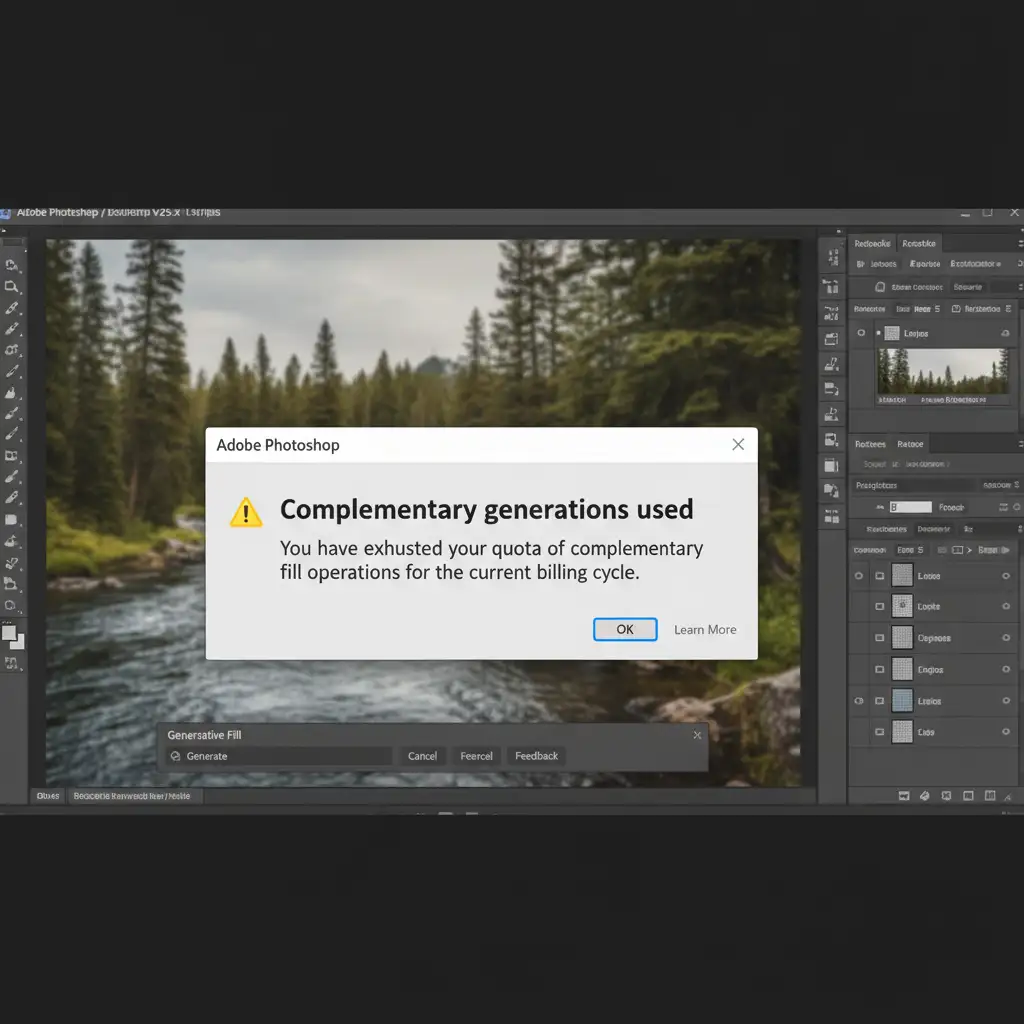
You are a premium subscriber paying for Adobe Creative Cloud. You load up a critical project, select an area to use Generative Fill, and suddenly, you are blocked by a frustrating message. Why is Adobe locking you out when you know you have plenty of Generative Credits left?
This local entitlement sync failure is a known bug affecting Photoshop v24.6 (Beta) through v25.x+. Instead of recognizing your paid status, the software incorrectly defaults to a “free tier” or expired state. If you are looking for the definitive complementary generations used error photoshop fix, you are in the right place. Below are the three proven methods to restore your access to Adobe Firefly AI features immediately.
Why the ‘Complementary Generations Used’ Error Happens
Adobe introduced Generative Credits to manage the server load for features like Generative Fill and Generative Expand. Premium users receive a large monthly allocation of these credits. However, a breakdown in cloud authentication between your local Creative Cloud Desktop App and Adobe’s licensing servers can cause Photoshop to “forget” your premium status.
This error is most commonly triggered by:
- A disrupted entitlement sync.
- Pending Adobe Terms of Use updates that act as a hidden roadblock.
- A corrupted local authentication token (specifically the opm.db file).
Method 1: The Quick Fix (Account Sync Refresh)
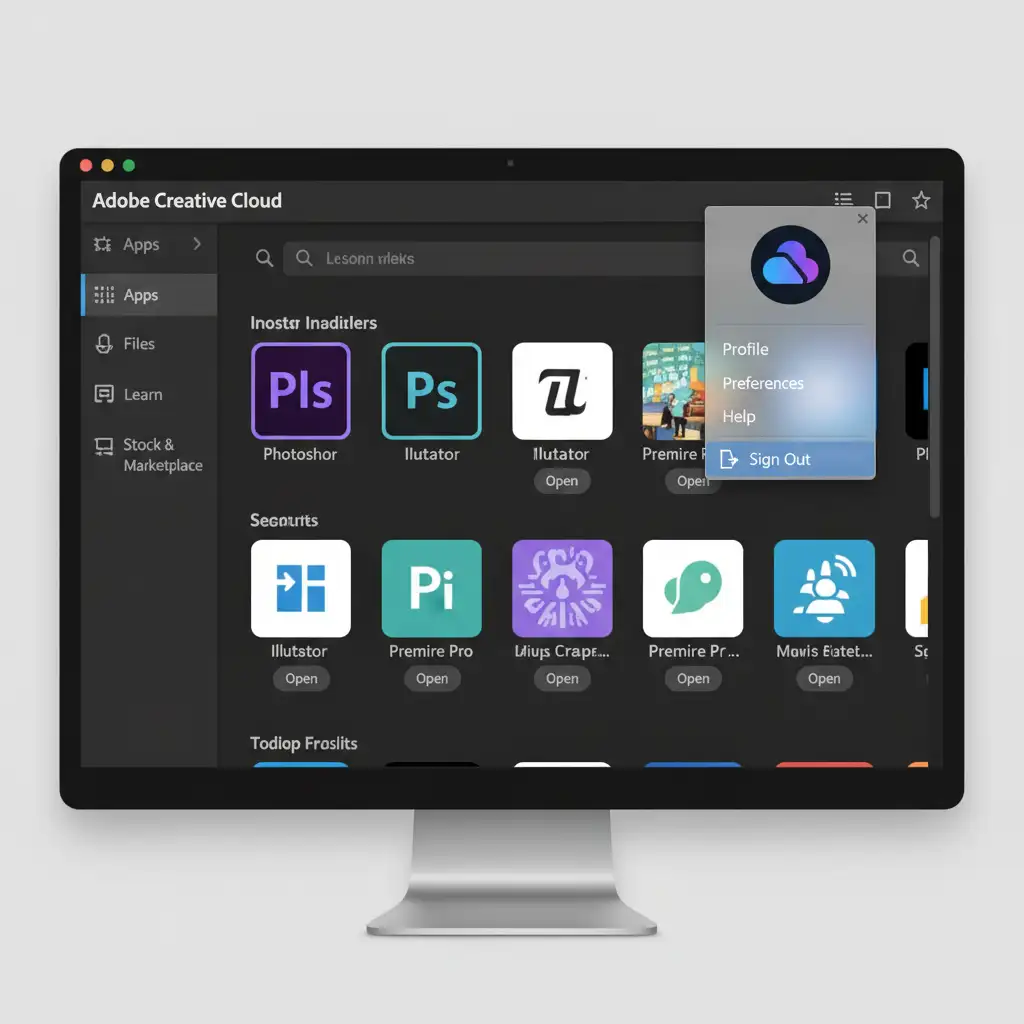
The easiest way to force a fresh entitlement sync is to completely sign out and sign back into your desktop client. Simply closing Photoshop is not enough; you must clear the session from the Creative Cloud app.
Step-by-Step Instructions:
- Save your work and close Adobe Photoshop completely.
- Open the Creative Cloud Desktop App.
- Click on your profile picture in the top right corner.
- Select Sign Out from the dropdown menu.
- Close the Creative Cloud app, relaunch it, and sign back in with your premium Adobe credentials.
- Open Photoshop and test Generative Fill.
Method 2: The Pro Workaround (Accept Updated Terms of Use)
Often, Adobe pushes updates to their Generative AI Terms of Use. If you haven’t explicitly accepted them, Adobe quietly throttles your account to a free tier, triggering the error.
Step-by-Step Instructions:
- Open your preferred web browser and navigate to account.adobe.com.
- Log in using your Creative Cloud credentials.
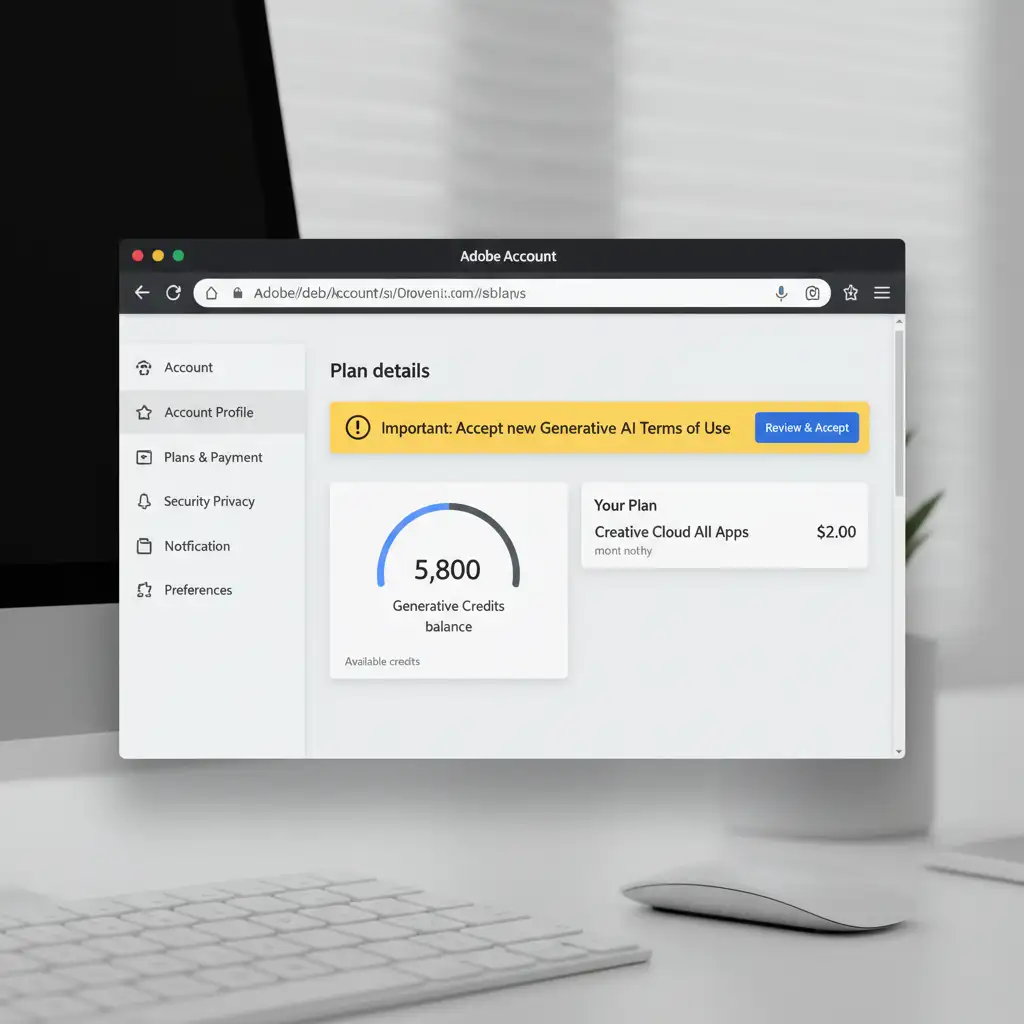
- Navigate to your Plan details dashboard.
- Look for a notification banner prompting you to accept the new Generative AI Terms of Use.
- Accept the terms. While on this page, verify your Generative Credits balance to ensure your pool has reset.
- Restart Photoshop.
Method 3: The Technical Deep-Dive (Clearing the OOBE Cache)
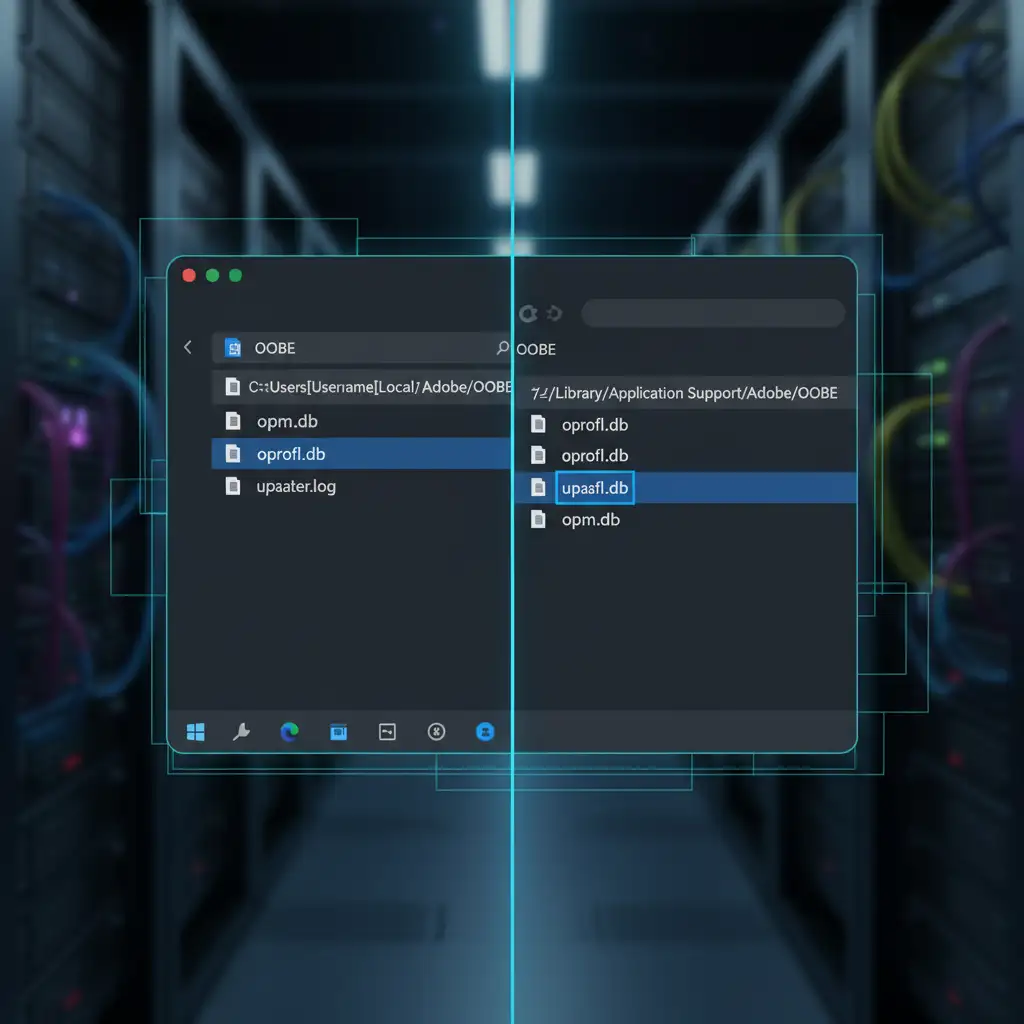
If the first two methods fail, your local authentication database is likely corrupted. You will need to perform manual cache clearing by deleting the opm.db file located inside the hidden OOBE folder. This forces Adobe to rebuild your connection to the server from scratch.
Step-by-Step Instructions:
Step 1: Kill Adobe Background Processes
- Windows: Open Task Manager (Ctrl + Shift + Esc). End the tasks for CCLibrary.exe and CCXProcess.exe.
- Mac: Open Activity Monitor. Force quit CCLibrary and CCXProcess.
Step 2: Locate and Delete the opm.db File
- Windows Users: Open File Explorer. Ensure “Hidden items” are checked in the View tab. Navigate to: C:/Users/[Your Username]/AppData/Local/Adobe/OOBE. Find the opm.db file and delete it.
- Mac Users: Open Finder. Click “Go” in the top menu bar, hold the Option key, and click “Library”. Navigate to: ~/Library/Application Support/Adobe/OOBE. Move the opm.db file to the trash.
Step 3: Relaunch and Re-authenticate Open the Creative Cloud Desktop App. You will be prompted to log in again. Once authenticated, your premium Generative AI features will be fully restored.
Skip the Troubleshooting: Partner with Image Work India & Cloud Retouch
Software bugs, entitlement sync issues, and AI generation limits drain time that should be spent growing your business. If you are tired of searching for a complementary generations used error photoshop fix just to get your daily work done, it is time to upgrade your workflow.
At Image Work India and Cloud Retouch, we provide flawless, high-volume professional image editing services that scale perfectly with your business needs. Whether you need complex background removals, high-end commercial retouching, or bulk eCommerce image processing, our expert team handles the technical heavy lifting so you don’t have to fight with software errors.
Stop wrestling with Generative Credits. Contact Cloud Retouch today to discover how our professional editing services can streamline your production pipeline and deliver pixel-perfect results every time.




