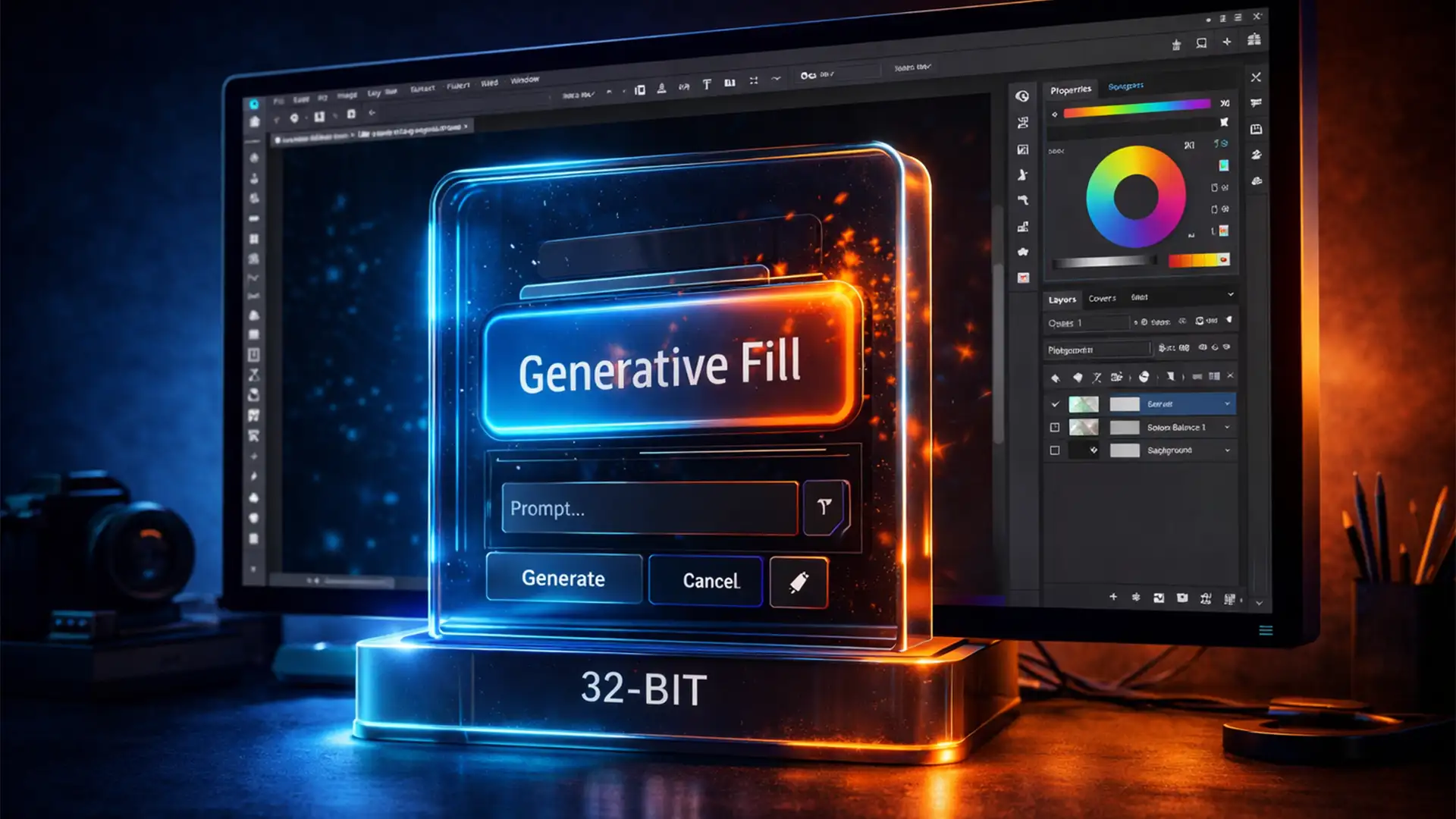

You are deep into a high-end compositing workflow, ready to use Photoshop’s latest AI magic on your pristine 3D render or HDR photograph. You make your selection, but the Generative Fill button on the Contextual Task Bar is stubbornly grayed out. Frustrating, right?
You haven’t broken Photoshop, and your software isn’t glitching. The culprit is hiding in plain sight: your document’s bit-depth. If you are encountering the Generative Fill grayed out 32-bit mode error, it is a direct clash between Adobe Firefly’s current technical capabilities and high-dynamic-range data.
Here is the exact technical breakdown of why this happens, and the professional workarounds to get your Generative AI tools running again without compromising your master files.
Why is Generative Fill Disabled in 32-Bit Mode?
In Photoshop v25.0 and newer, Generative Fill and Generative Expand are powered by the Adobe Firefly Image Model. While incredibly powerful, Firefly AI models are currently trained exclusively on standard 8-bit and 16-bit RGB image data.
When you open an HDR image, a 3D render EXR file, or a 32-bit TIFF, Photoshop automatically operates in 32-Bits/Channel mode. Because the Adobe cloud AI cannot process these 32-bit floating-point color values, the Generative Fill button on the Contextual Task Bar-along with the Edit > Generative Fill menu option-becomes entirely disabled to prevent processing errors.
To use these tools, you must adapt your workflow to feed the AI the bit-depth and Color Profile it understands.
How to Fix Generative Fill Grayed Out Errors
Depending on your workflow requirements, there are three ways to resolve this limitation.
Method A: The Quick Fix (Convert to 16-Bit)
If you do not strictly need to maintain 32-bit floating-point data for your final output, the fastest solution is to step down your bit-depth.
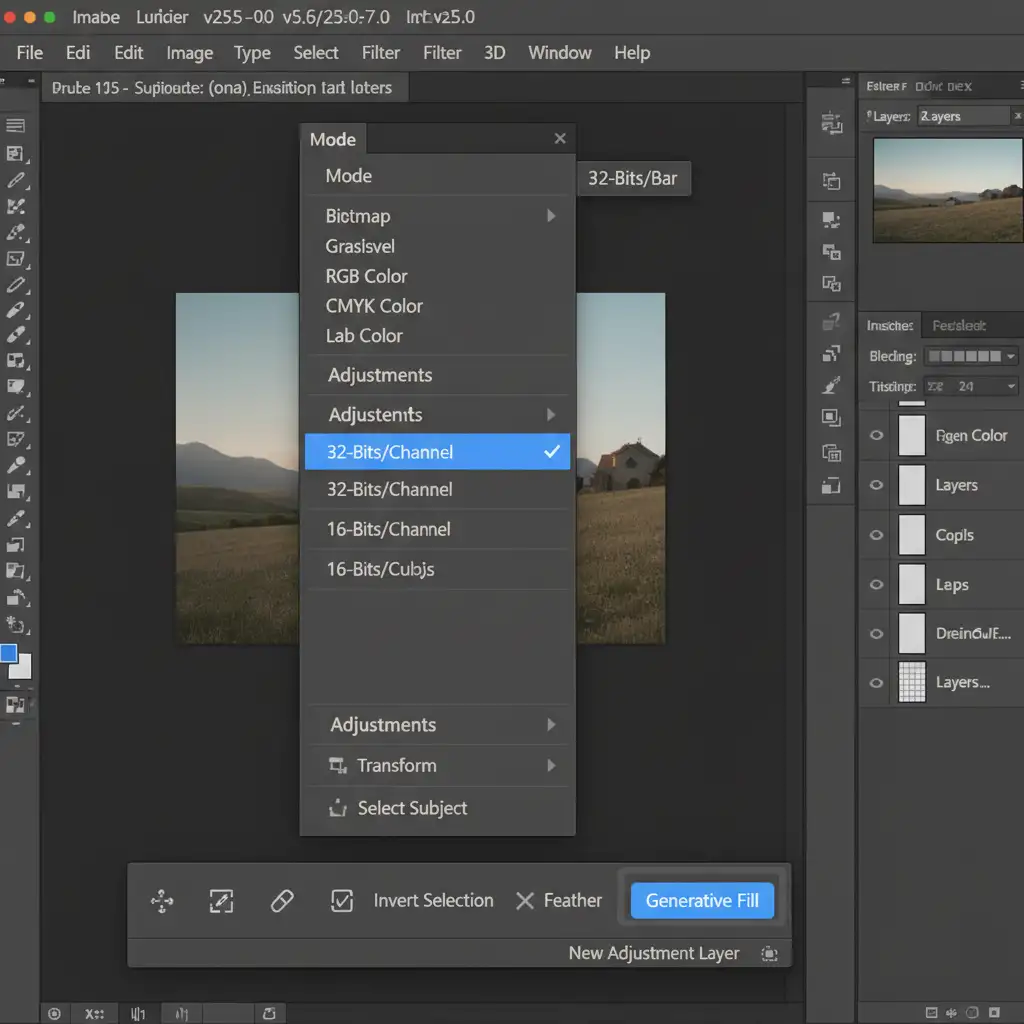
- Navigate to the top menu bar and select Image > Mode.
- Look for the checkmark next to 32-Bits/Channel.
- Click on 16-Bits/Channel (or 8-Bits/Channel).
- Photoshop will prompt you to merge your layers. Choose your preferred option (merging is often safer for complex composites).
- Once the document is converted to 16-bit RGB Color Mode, the Generative Fill button will instantly activate.
Method B: The Pro Workaround (Preserve 32-Bit Master Data)
Professional retouchers working with EXR files or complex HDR composites cannot afford to lose their 32-bit data. To preserve your 32-bit master file while still leveraging Generative AI, use this duplicate workflow:
- Do not flatten or convert your original 32-bit master file.
- Go to Image > Duplicate to create a working copy of your document.
- Change the bit-depth of this copy to 16-bit (Image > Mode > 16-Bits/Channel).
- Make your selection and run your Generative Fill prompts on the 16-bit copy.
- Once the AI generates the perfect addition, click and drag that newly generated AI layer (or Smart Object) back into your original 32-bit master document tab.
Photoshop will automatically convert that specific generated layer to 32-bit, retaining your original HDR background data perfectly intact.
Method C: The Technical Deep-Dive (Secondary Blockers)
If dropping to 16-bit RGB Color Mode does not resolve the grayed-out button, you may be facing secondary blockers. Run through this quick diagnostic checklist:
- Check Color Modes: Adobe Firefly strictly requires RGB. Ensure you are not in CMYK, Grayscale, or Indexed Color modes under Image > Mode.
- Verify Cloud Connectivity: Generative AI requires cloud processing. Verify your Creative Cloud desktop app is synced and you have an active internet connection.
- Check Account Age Requirements: Adobe strictly disables generative AI tools for minors. Ensure the birthdate on your Adobe account confirms you are over 18.
- Rasterize Conflicting Layers: Occasionally, complex Smart Objects or locked adjustment layers can block the Contextual Task Bar. Try creating a new blank layer at the top of your stack, make your selection there, and attempt the fill.
Elevate Your High-End Retouching with Image Work India
Navigating technical bottlenecks like the Generative Fill grayed out 32-bit mode error can slow down your creative pipeline. When you are dealing with high-volume e-commerce imagery, complex HDR architectural composites, or high-end beauty retouching, every minute counts.
You don’t have to fight the software alone.
At Image Work India and Cloud Retouch, our team of expert retouchers handles the heavy lifting for you. From flawless 32-bit compositing and advanced masking to seamless AI integration and bulk image editing, we deliver pixel-perfect results tailored to your exact specifications.
Struggling with complex HDR workflows or high-end retouching limitations? Contact Image Work India today to scale your post-production pipeline with industry-leading quality and turnaround times. Let us handle the technical hurdles so you can focus on the creative vision.




