
You are drawing a precise path with the Object Selection or Quick Selection tool, but the marching ants are trailing agonizingly seconds behind your cursor. Infuriating, right?
This specific visual delay in Photoshop version 25.x (2024) running on macOS Sonoma (14.x) is crippling workflows for professional photo editors and designers. The core culprit isn’t your hardware; it is a direct software clash between macOS Sonoma’s updated window server memory allocation and Photoshop’s internal rendering engines.
If you are battling this frustrating latency, we have the exact technical workarounds to resolve the Photoshop 2024 selection tool lag macOS Sonoma conflict and get your editing speed back to normal.
Understanding the macOS Sonoma and Photoshop 25.x Conflict
When you use selection tools like the Quick Selection Tool or Magic Wand, Photoshop relies heavily on your system’s graphics processing unit. However, in macOS Sonoma (14.x), changes to how the operating system handles VRAM and memory allocation have created a bottleneck with Adobe’s GPU acceleration features.
Specifically, Sonoma’s window server struggles to communicate efficiently with Photoshop’s Native Canvas and OpenCL settings. This results in a severe UI refresh loop, where the actual selection is being made in the background, but the visual rendering of the marching ants lags significantly behind your physical mouse movement.
Here are three proven methods to bypass this rendering engine clash.
3 Methods to Fix Photoshop 2024 Selection Tool Lag on macOS Sonoma
Method 1: The Quick Fix – Deactivate Rulers and Guides
It sounds overly simple, but background rendering of UI elements like rulers and guides is a known trigger for the UI refresh loop during selections in Photoshop 2024.
When active, the software constantly attempts to redraw these elements alongside your complex selection paths, overwhelming the memory allocation.
How to fix it:
- Press Cmd + R to hide your Rulers.
- Press Cmd + ; to hide your Guides.
- Attempt your selection again.
If the lag persists, move on to the more advanced rendering engine adjustments.
Method 2: The Pro Workaround – Disable Native Canvas
Native Canvas is a modern rendering feature designed to improve UI performance, but it is currently the primary source of friction with macOS Sonoma. Disabling this forces Photoshop to rely on its older, vastly more stable rendering engine.
How to fix it:
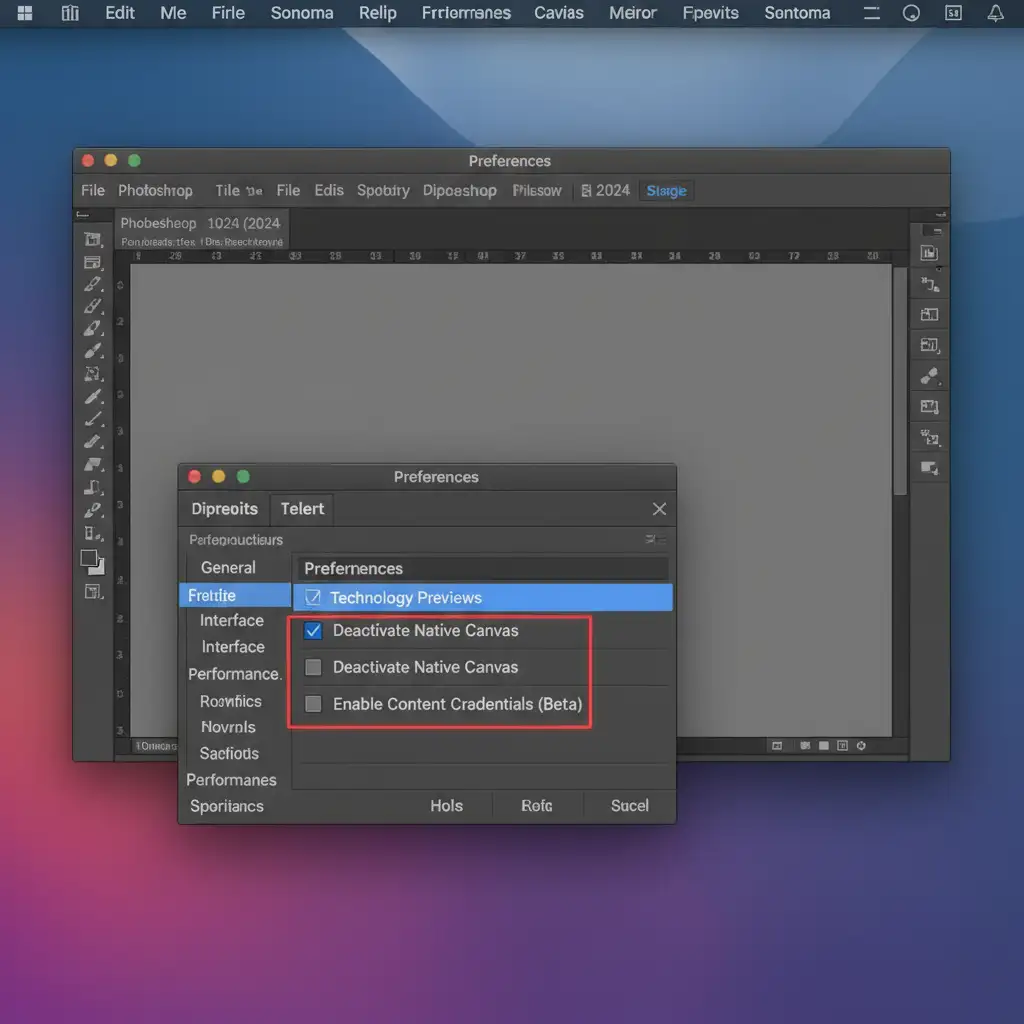
- Navigate to Photoshop > Preferences > Technology Previews.
- Locate the checkbox labeled Deactivate Native Canvas and check it.
- Completely restart Photoshop for the changes to take effect.
Method 3: The Technical Deep-Dive – Optimize GPU and Cache Settings
If turning off Native Canvas doesn’t entirely eliminate the cursor lag, you need to manually throttle how Photoshop utilizes your GPU and clear out bloated memory that is clogging your scratch disk.
Adjusting GPU Drawing Mode:
- Go to Preferences > Performance.
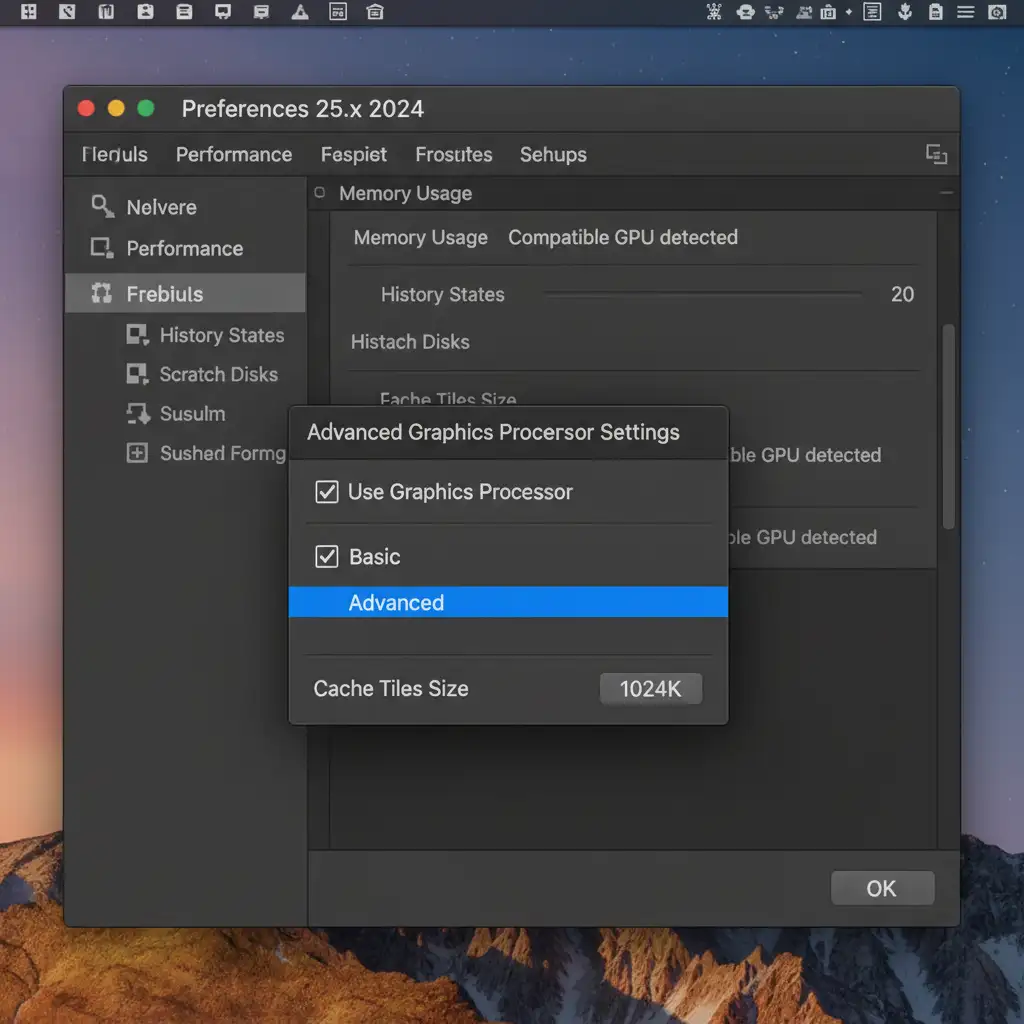
- Under the Graphic Processor Settings section, click on Advanced Settings.
- Change the Drawing Mode dropdown from Advanced to Basic. This reduces the strain on OpenCL and forces the software to prioritize stability over high-end visual smoothing.
- While in the Performance tab, reduce your History States to 20 to free up active RAM.
Executing a Complete Cache Purge: Bloated cache files can severely impact the responsiveness of selection tools.
- Navigate to the top menu bar.
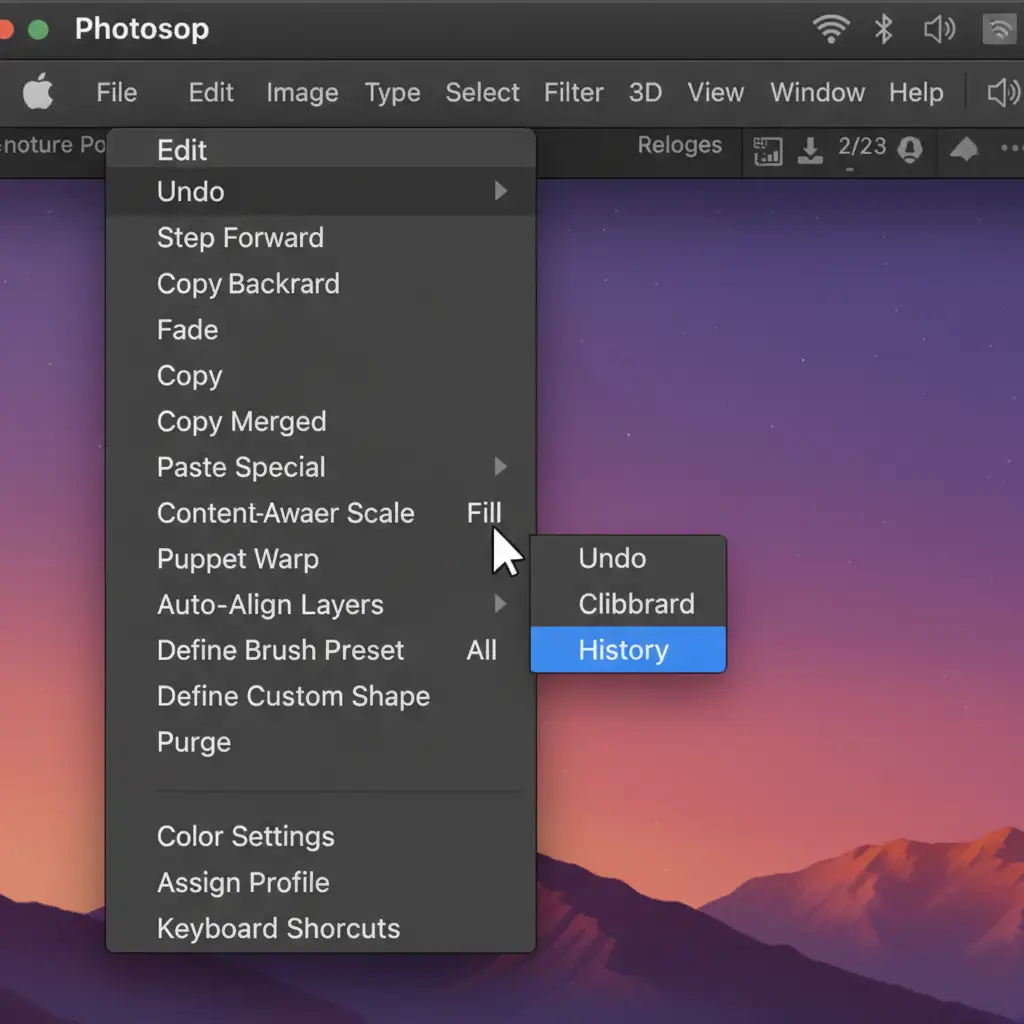
- Click Edit > Purge > All.
- Click OK when prompted. This will execute a complete cache purge, clearing your clipboard and history, immediately freeing up system resources.
Stop Fighting Software Lag: Scale Your Editing Workflow
Troubleshooting software conflicts like the Photoshop 2024 selection tool lag on macOS Sonoma drains valuable time that you should be spending on creative direction and client acquisition. When technical glitches slow down your output, your agency’s profitability takes a direct hit.
You don’t have to manage these technical headaches alone.
At Image Work India and Cloud Retouch, we specialize in providing flawless, high-volume image editing solutions for creative agencies, e-commerce brands, and professional photographers. Whether you need complex clipping paths, advanced masking, or pixel-perfect retouching, our dedicated team of experts delivers zero-delay, high-quality results.
Stop wrestling with your software. Scale your post-production workflow today by outsourcing your heavy lifting to Image Work India and Cloud Retouch. Contact us now to discuss your custom retouching needs.




