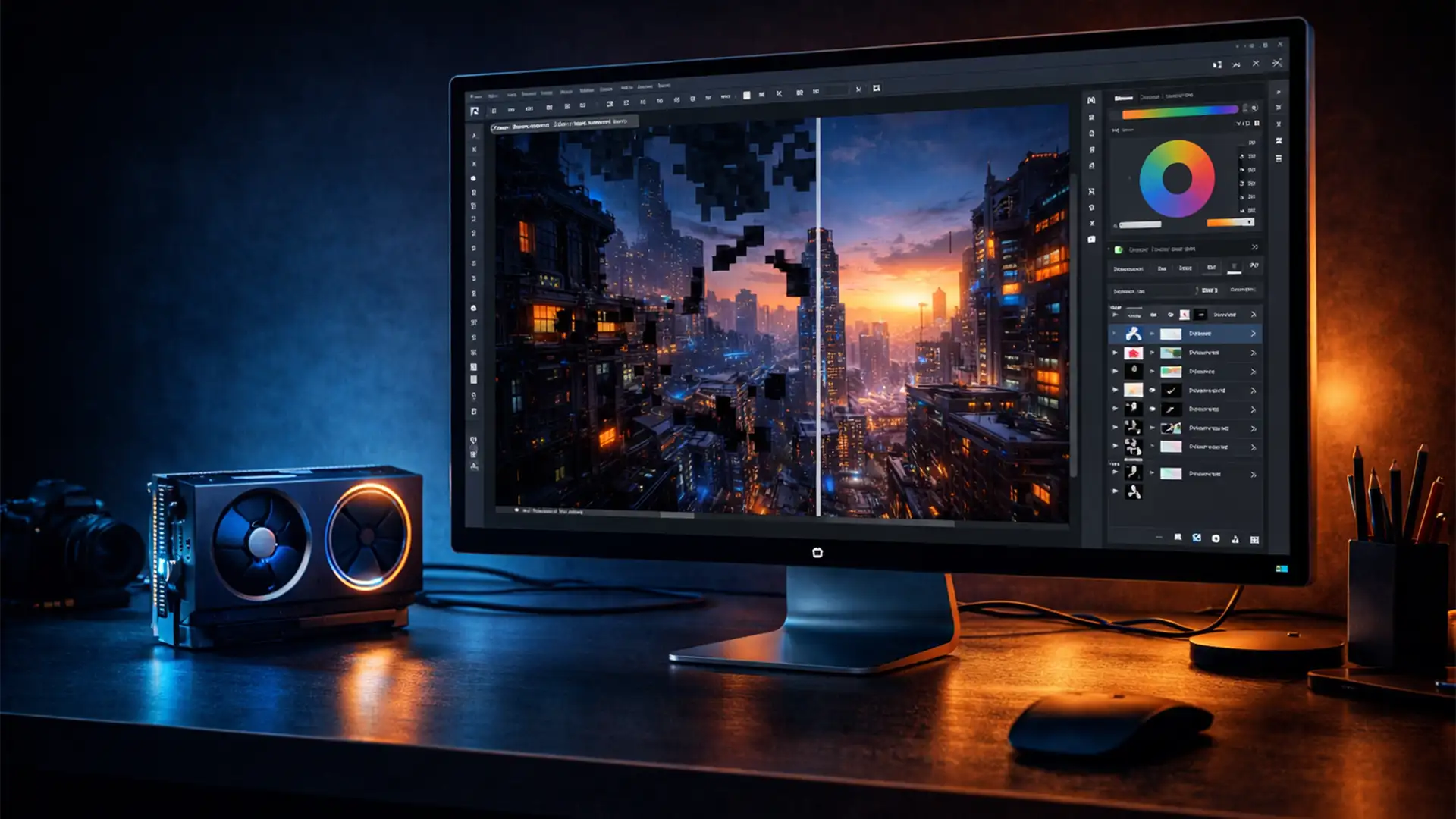

You are in the middle of a complex retouching job. You grab the Remove Tool to seamlessly erase a distraction, but instead of a beautifully generated background, you get blocky, corrupted black spots. If the Photoshop Remove Tool causing black artifacts is bringing your workflow to a halt, you are not alone.
This glitch frequently appears in Photoshop v24.5 through v25.x, turning what should be a magical editing moment into a frustrating mess. Fortunately, the culprit is usually a simple miscommunication between your system’s graphics processor and Adobe’s OpenCL settings. Here is exactly how to eliminate these glitches and get back to editing.
Why is the Remove Tool Creating Black Spots?
The Remove Tool utilizes advanced AI rendering to analyze the pixels surrounding your brush stroke and generate seamless replacements. Because this requires massive computational power, Photoshop relies heavily on GPU acceleration to process the data in real-time.
When there is a mismatch between Photoshop’s processing pipeline and your system’s graphics drivers-specifically regarding OpenCL rendering-the output breaks down. Instead of generating new textures (similar to how Generative Fill operates), the tool fails and leaves behind corrupted, black blocky artifacts.
Here are the three most effective methods to fix this rendering error.
Method 1: Disable OpenCL in Performance Settings (The Quick Fix)
The fastest way to stop the Photoshop Remove Tool from causing black artifacts is to disable the specific processing framework that is failing: OpenCL.
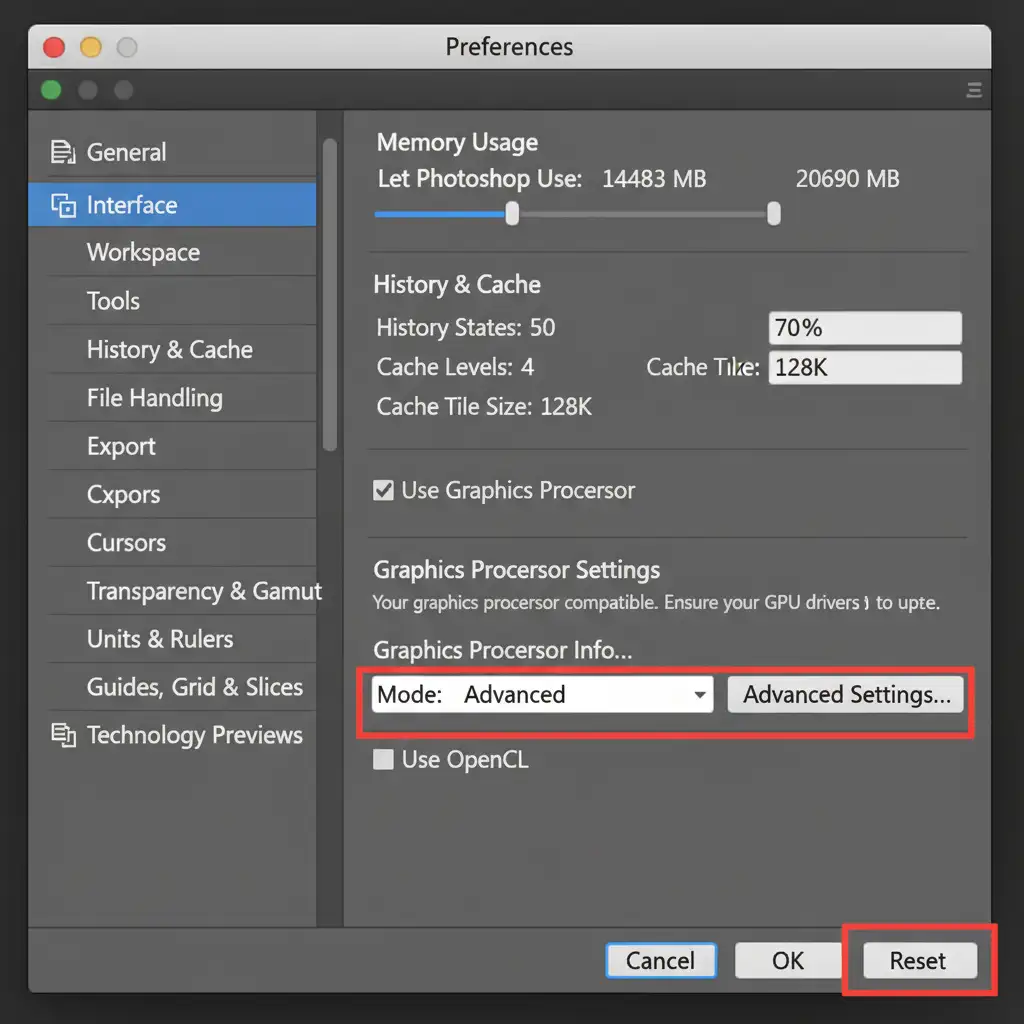
- Navigate to Edit > Preferences > Performance (on Windows) or Photoshop > Settings > Performance (on Mac).
- Look for the Graphics Processor Settings section on the right side of the window.
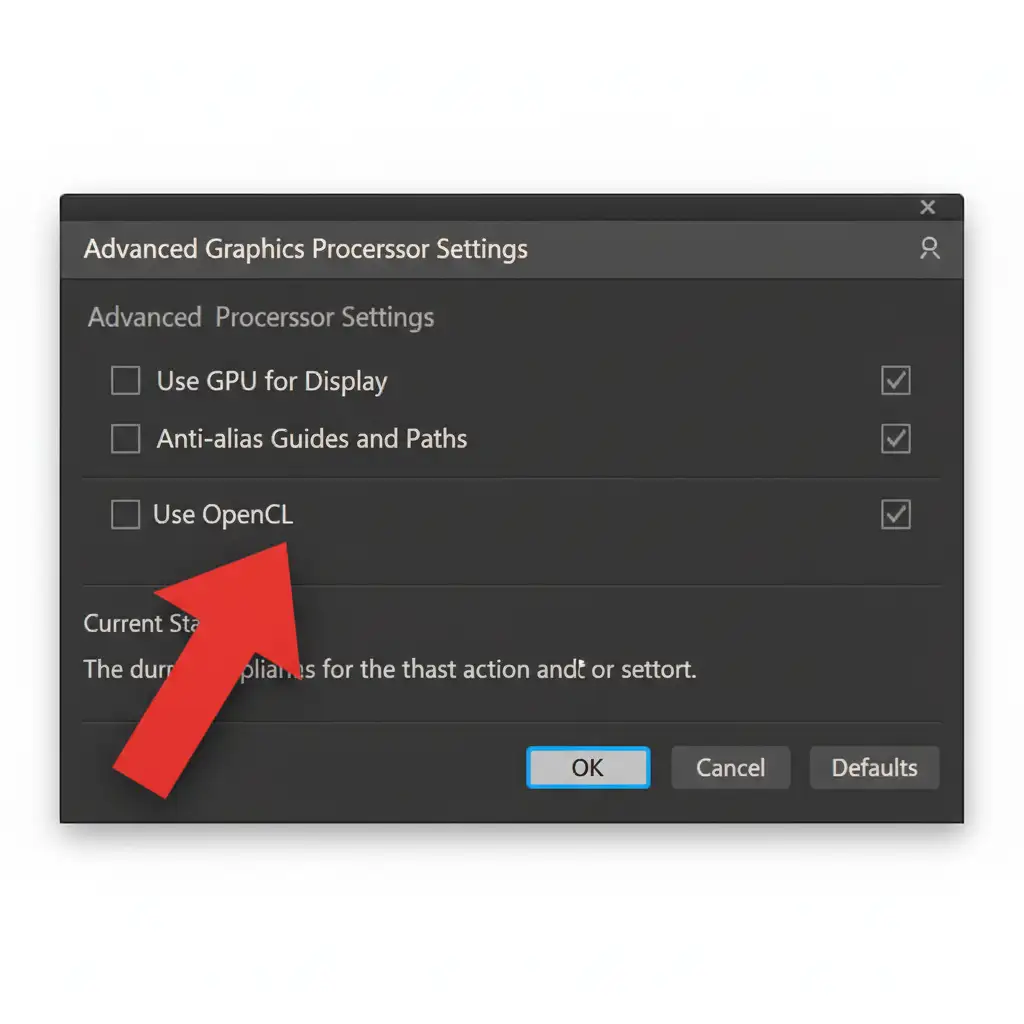
- Click the Advanced Settings button.
- In the new dialog box, uncheck the box labeled Use OpenCL.
- Click OK, and completely restart Photoshop.
Method 2: The Non-Destructive Blank Layer Workaround
If you prefer to keep OpenCL enabled for other filters, you can often bypass the artifact glitch by altering how the Remove Tool interacts with your layer stack.
By forcing the AI to process the data on a separate layer, you reduce the strain on the rendering engine.
- Create a new, blank layer directly above your working image layer.
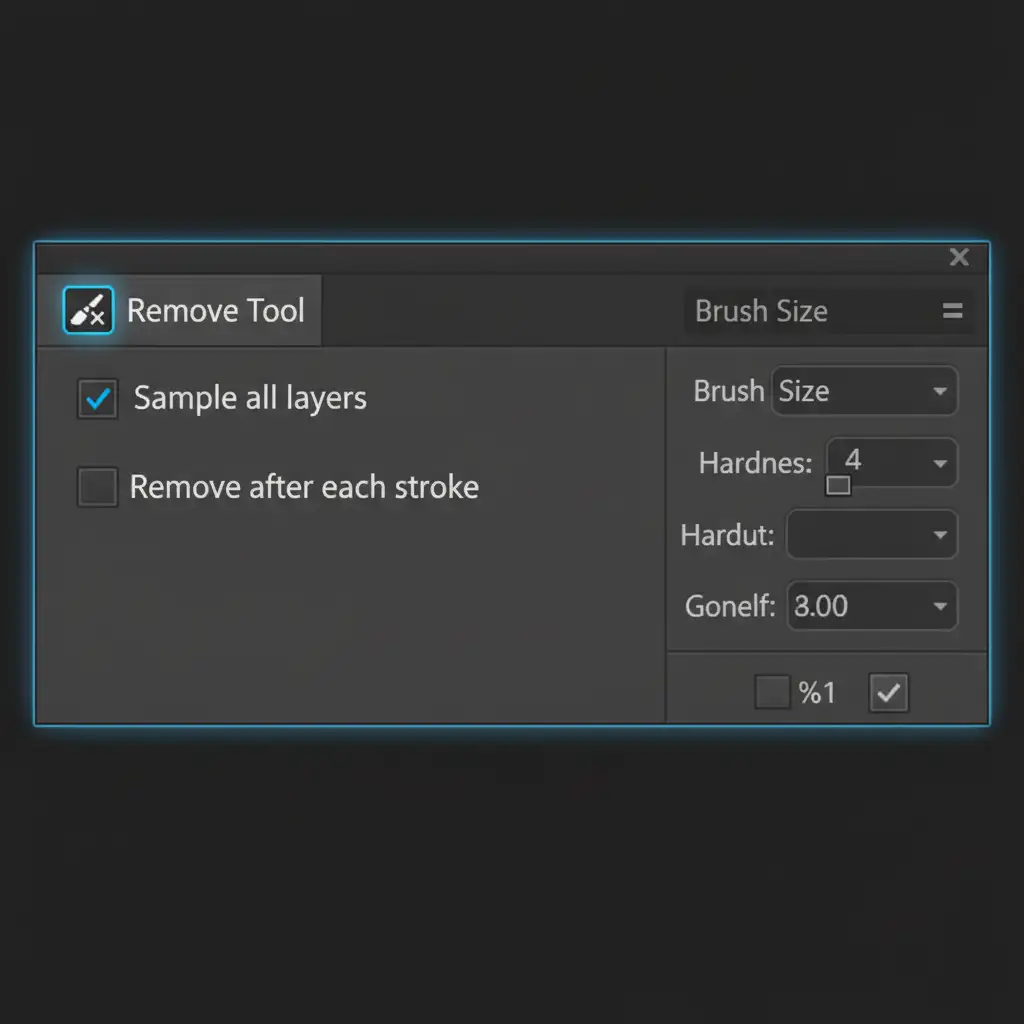
- Select the Remove Tool from your toolbar.
- In the top options bar, ensure that the Sample all layers checkbox is selected.
- Pro Tip: If you still experience minor glitches, look at the options bar and uncheck “Remove after each stroke.” This allows you to paint over multiple areas manually and hit “Enter” to execute the AI rendering all at once, preventing the GPU from stuttering between strokes.
Method 3: Switch to a Studio Graphics Driver and Purge Cache
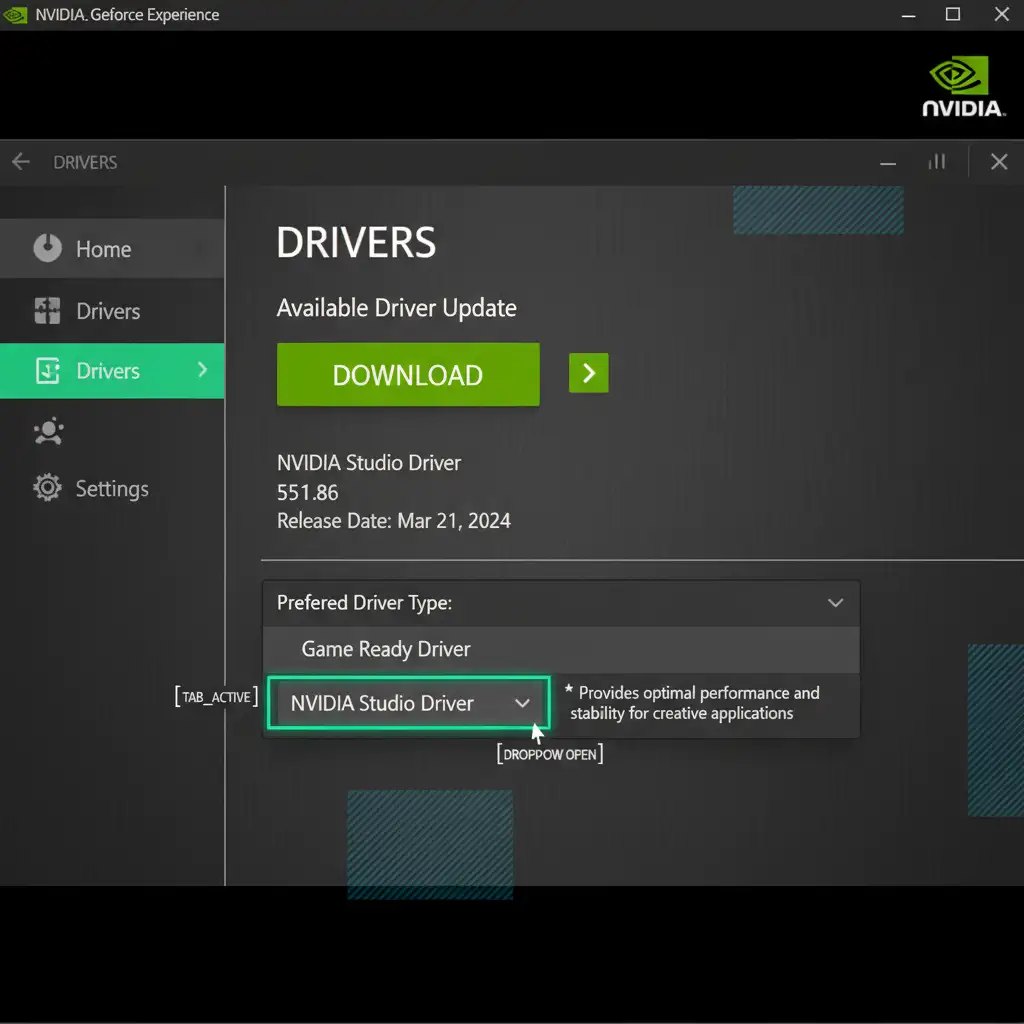
If you are using a Windows PC with a dedicated graphics card, outdated or gaming-focused drivers frequently clash with Photoshop’s AI tools. “Game Ready” drivers prioritize frame rates, while “Studio” drivers prioritize stability in creative applications.
- Open your GPU control panel (e.g., NVIDIA GeForce Experience or AMD Adrenalin).
- Navigate to the Drivers tab.
- Click the three vertical dots (or preferences menu) and switch your driver preference from “Game Ready Driver” to NVIDIA Studio Driver (or PRO Edition for AMD). Download and install the latest version.
Perform a Final Cache Purge
After updating your drivers, clear out any corrupted data that might be lingering in Photoshop’s memory.
- Go to Edit > Purge > All.
- Finally, open the Creative Cloud desktop app and ensure the Remove Tool component itself is fully updated to the latest version.
Skip the Troubleshooting: Let the Retouching Experts Handle It
Fixing the Photoshop Remove Tool causing black artifacts is a necessary step if you are handling your own edits, but dealing with persistent software glitches, hardware limitations, and constant troubleshooting drains your most valuable resource: your time.
If you are a commercial photographer, e-commerce brand, or creative agency, your time is better spent shooting and scaling your business-not fighting with graphics drivers and performing repetitive cache purges.
At Image Work India and Cloud Retouch, we specialize in high-end, flawless image editing. Our dedicated experts utilize enterprise-grade hardware and advanced retouching techniques to ensure every image is delivered artifact-free, pixel-perfect, and ready for publication.
Stop wrestling with AI errors. Contact Image Work India today and let our professional retouching team elevate your portfolio while you focus on what you do best.




