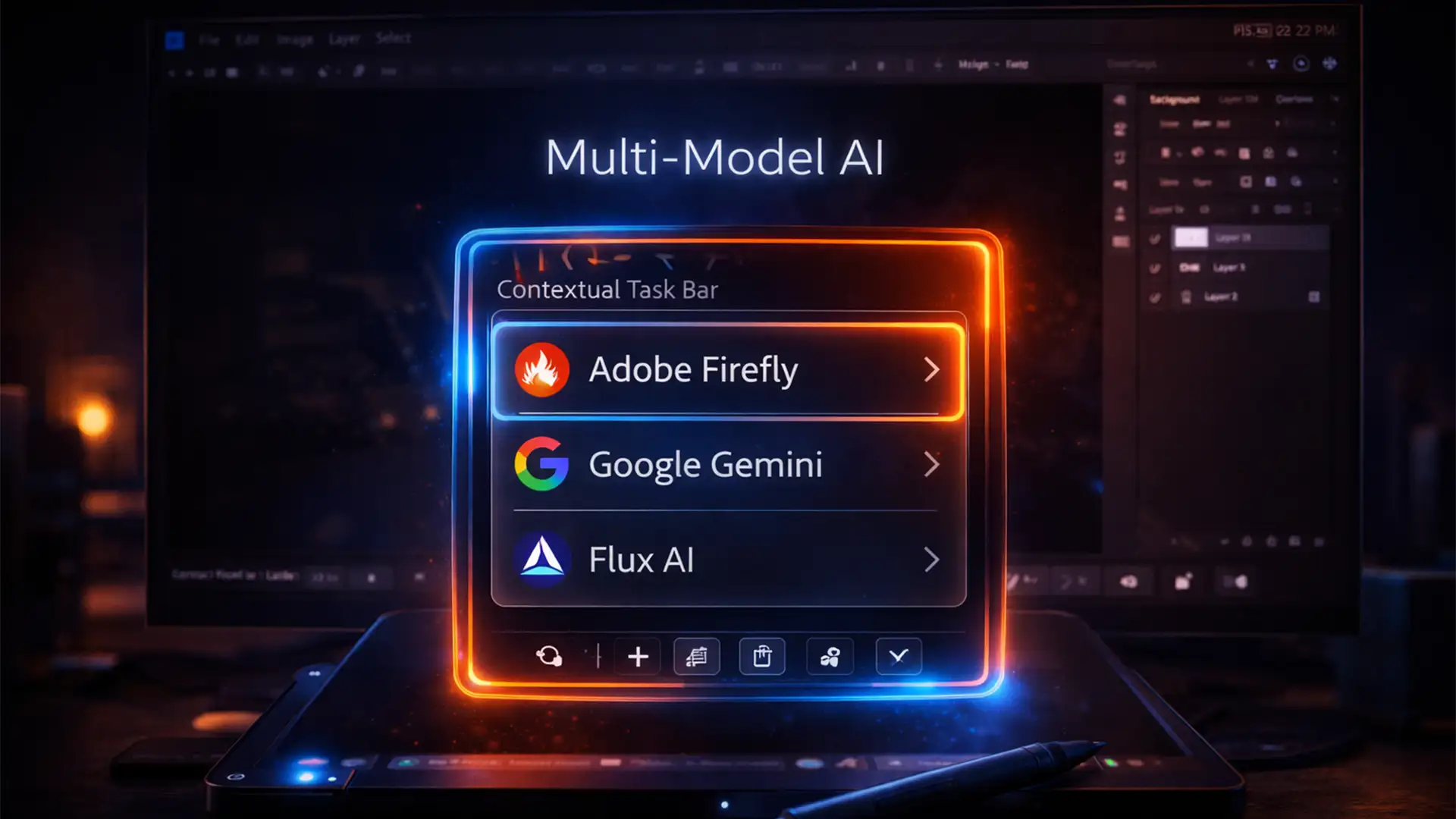

You just upgraded to Adobe Photoshop v27.x, eager to test out the highly anticipated multi-model generative features. You draw your selection, hit Generative Fill, and wait to choose between Adobe Firefly, Google Gemini, or Flux AI. But there is a glaring problem: the photoshop 2026 ai model selection missing bug has struck. You are stuck with the default Firefly output, and the dropdown menu is nowhere to be found.
This missing UI element is incredibly frustrating, especially when you need specific rendering styles from third-party engines. Usually, this issue stems from hidden Technology Previews, regional API restrictions, or a corrupted Creative Cloud Cache.
In this guide, we will walk you through the exact steps to force the Multi-Model Generative AI dropdown to appear so you can get back to creating.
Why is the AI Model Dropdown Missing in Photoshop 2026?
Adobe introduced Gemini Integration and open-source Flux AI support to give retouchers more flexibility. However, because these rely on external API calls, Adobe often hides the feature if your local settings, regional network, or application cache are misaligned.
Here are the three proven methods to restore your AI model selection.
Method A: The Quick Fix – Enable Contextual Task Bar AI Options
Often, the feature is active in the background, but the Contextual Task Bar simply isn’t displaying the UI element.
- Open your workspace and ensure the task bar is visible by navigating to Window > Contextual Task Bar.
- Make a selection on your canvas to trigger the Generative Fill prompt.
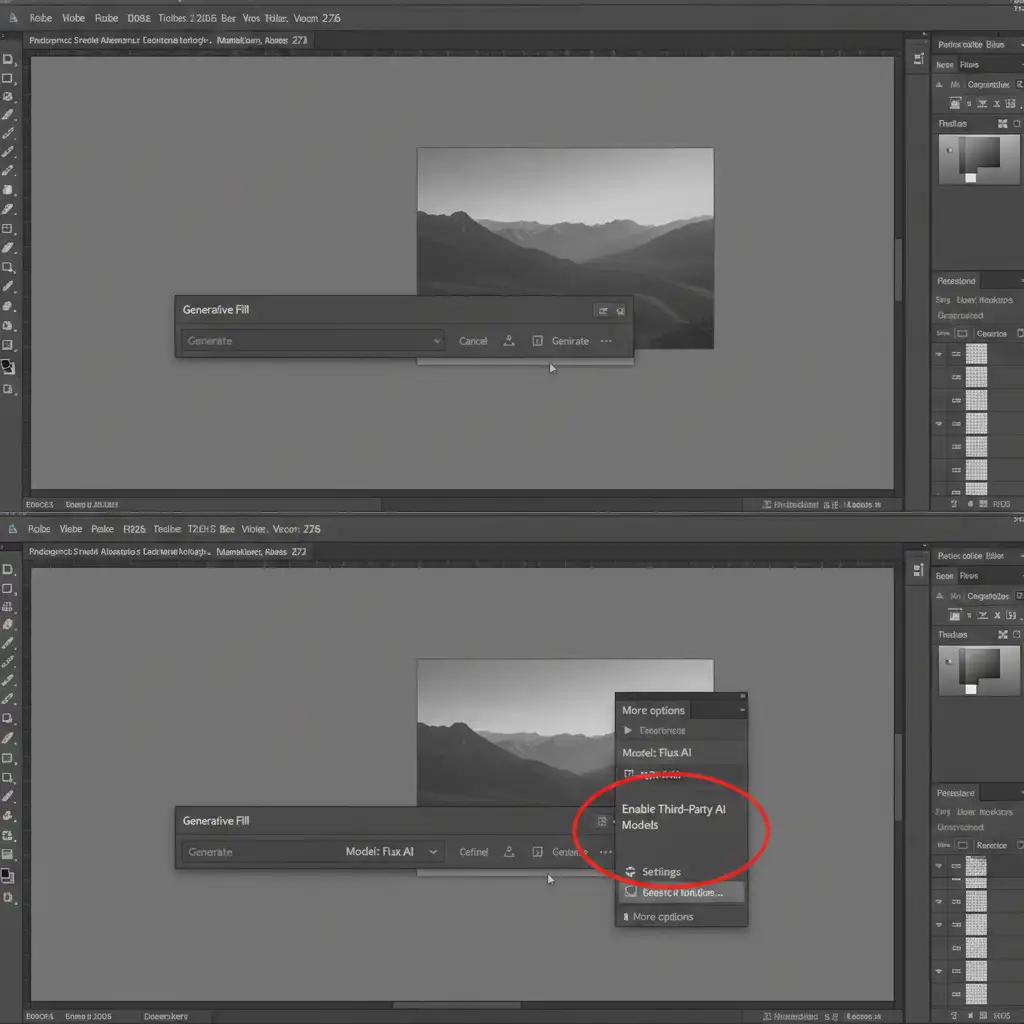
- If the model dropdown is missing, click the three-dot menu on the far right of the task bar.
- Select Task Bar Settings.
- Check the box labeled ‘Enable Third-Party AI Models’.
Method B: The Pro Workaround – Smart Object API Injection
If adjusting the task bar doesn’t work, you might be facing a UI bug where the dropdown fails to render entirely. You can bypass the task bar and force the software to use your preferred engine via the Preferences menu.
- Convert your active layer to a Smart Object (Right-click layer > Convert to Smart Object). This occasionally forces Photoshop to refresh its API calls.
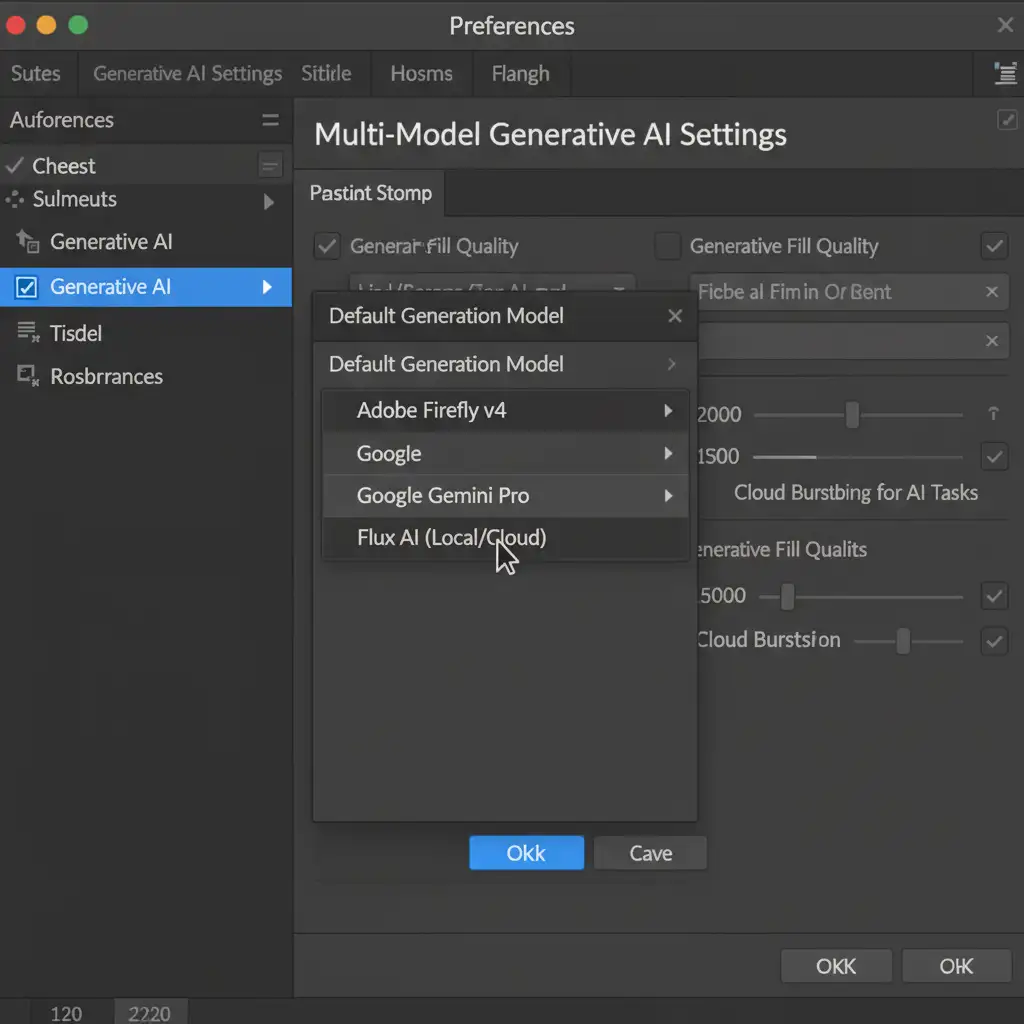
- Navigate to Edit > Preferences > Generative AI.
- Look for the “Default Generation Model” section.
- Manually change the dropdown from Adobe Firefly to your preferred engine (e.g., Gemini or Flux).
- Apply your Generative Fill. The software will now bypass the missing task bar UI and route your prompt directly to the selected model.
Method C: The Technical Deep-Dive – Technology Previews & Cache Clear
If you still cannot access Flux or Gemini, the feature is likely disabled at the application level due to an outdated Creative Cloud Cache or disabled Technology Previews.
1. Activate Technology Previews
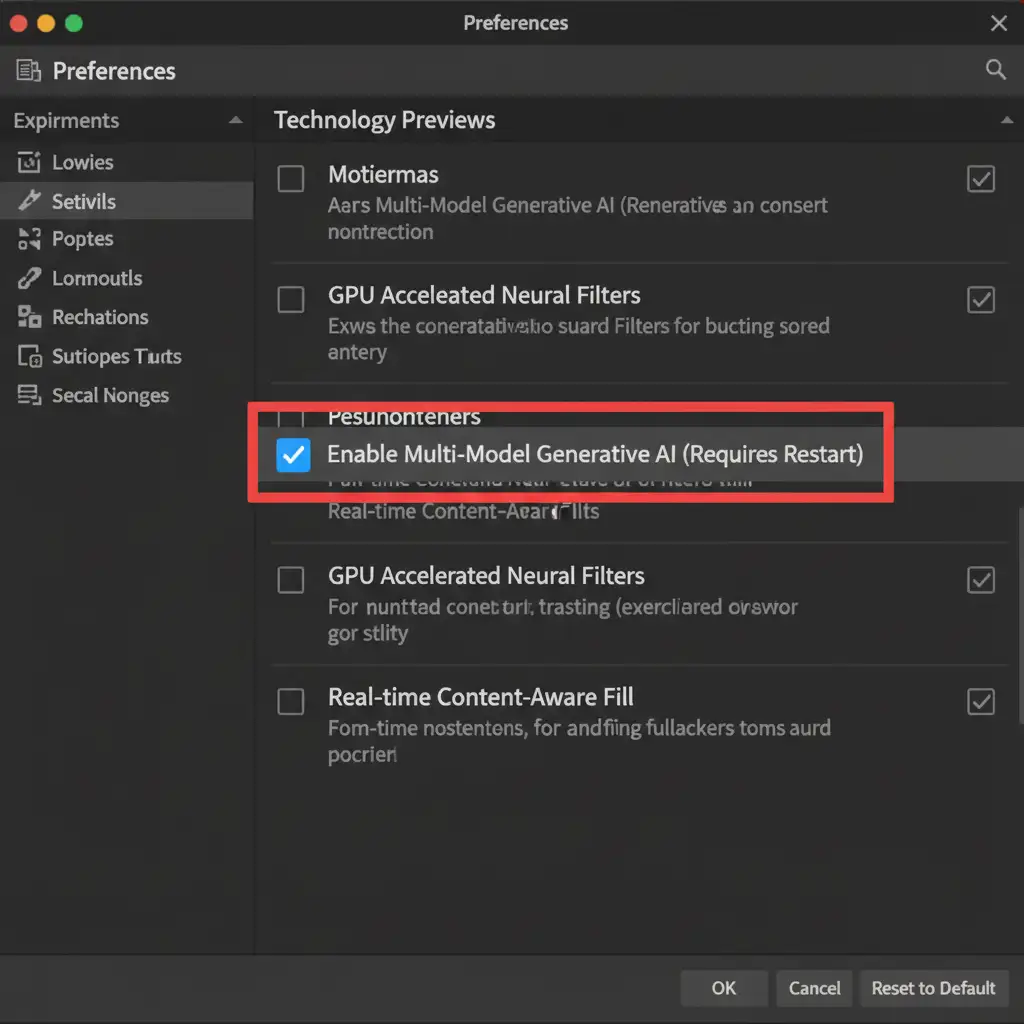
Go to Edit > Preferences > Technology Previews. Scroll down and ensure that the ‘Enable Multi-Model Generative AI’ checkbox is ticked. If it is unchecked, Photoshop will strictly default to Firefly.
2. Update and Clear the Cache
Sometimes, API restrictions trigger a failsafe that disables third-party models. To reset this:
- Close Photoshop completely.
- Open the Adobe Creative Cloud Desktop App, navigate to Updates, and verify you are running the latest version of Photoshop v27+.
- Open your computer’s file explorer and navigate to: AppData/Roaming/Adobe/Adobe Photoshop 2026/CT Font Cache.
- Delete the contents of this folder to force Photoshop to rebuild its UI and API connections on the next launch.
Stop Fighting AI and Start Delivering Flawless Images
Fixing the photoshop 2026 ai model selection missing error gives you access to incredible tools like Gemini and Flux. However, even the most advanced Multi-Model Generative AI can leave behind weird artifacts, unnatural textures, and blending errors that require hours of meticulous manual correction.
If you are spending more time fixing AI mistakes than focusing on your creative vision, it is time to bring in the professionals.
At Image Work India and Cloud Retouch, our expert team specializes in high-end, pixel-perfect image editing. Whether you need flawless commercial retouching, complex background extractions, or seamless composite blending that AI simply cannot achieve, we deliver industry-leading results at scale.
Don’t let software bugs slow down your workflow. Let us handle the heavy lifting. Contact Image Work India and Cloud Retouch today to elevate your imagery to the next level.




