
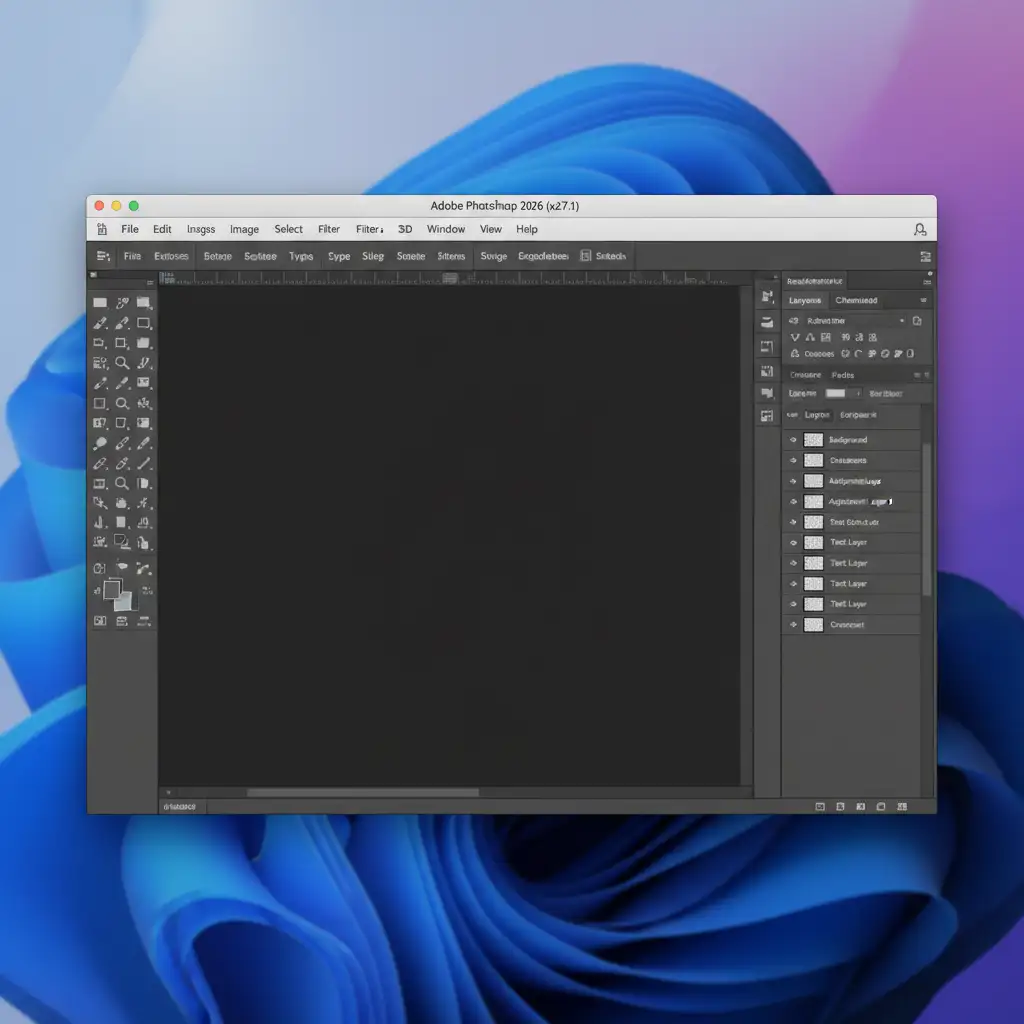
You just updated to Photoshop 2026 (v27.1), opened a crucial project, and suddenly—nothing. Your entire canvas is replaced by a solid black document window. Deadlines are looming, and this viewport rendering glitch is bringing your post-production workflow to a complete halt.
You are not alone. This is a known VRAM allocation conflict between Photoshop’s newly updated rendering engine and the unified memory architecture of the latest Apple Silicon (M4 and M5) chips. Fortunately, applying a Photoshop 2026 black document window fix takes less than two minutes.
Here are three proven methods to resolve this macOS 15+ bug and restore your workspace without sacrificing overall software performance.
Why is the Photoshop 2026 Canvas Black on M-Series Macs?
The black screen bug in Photoshop v27.1 stems from how the software communicates with your Mac’s hardware. Adobe introduced a new Metal rendering engine designed to push the limits of GPU acceleration. However, when this engine attempts to cache large smart objects or high-resolution layers, it occasionally miscalculates the available memory on M4 and M5 chips.
Because Apple Silicon uses a unified memory architecture (where the CPU and GPU share the same RAM pool), the VRAM allocation fails. Instead of rendering the pixels, Photoshop defaults to a completely black canvas.
How to Fix the Photoshop 2026 Black Document Window
Depending on your specific hardware configuration, one of the following three methods will bypass the Metal rendering conflict and bring your image back.
Method 1: Disable GPU Compositing (The Quick Fix)
The fastest way to resolve the black canvas issue is to stop Photoshop from using the GPU to composite multiple layers to the screen. This forces the CPU to handle the final rendering step, which bypasses the VRAM allocation error entirely.
- Open Photoshop 2026.
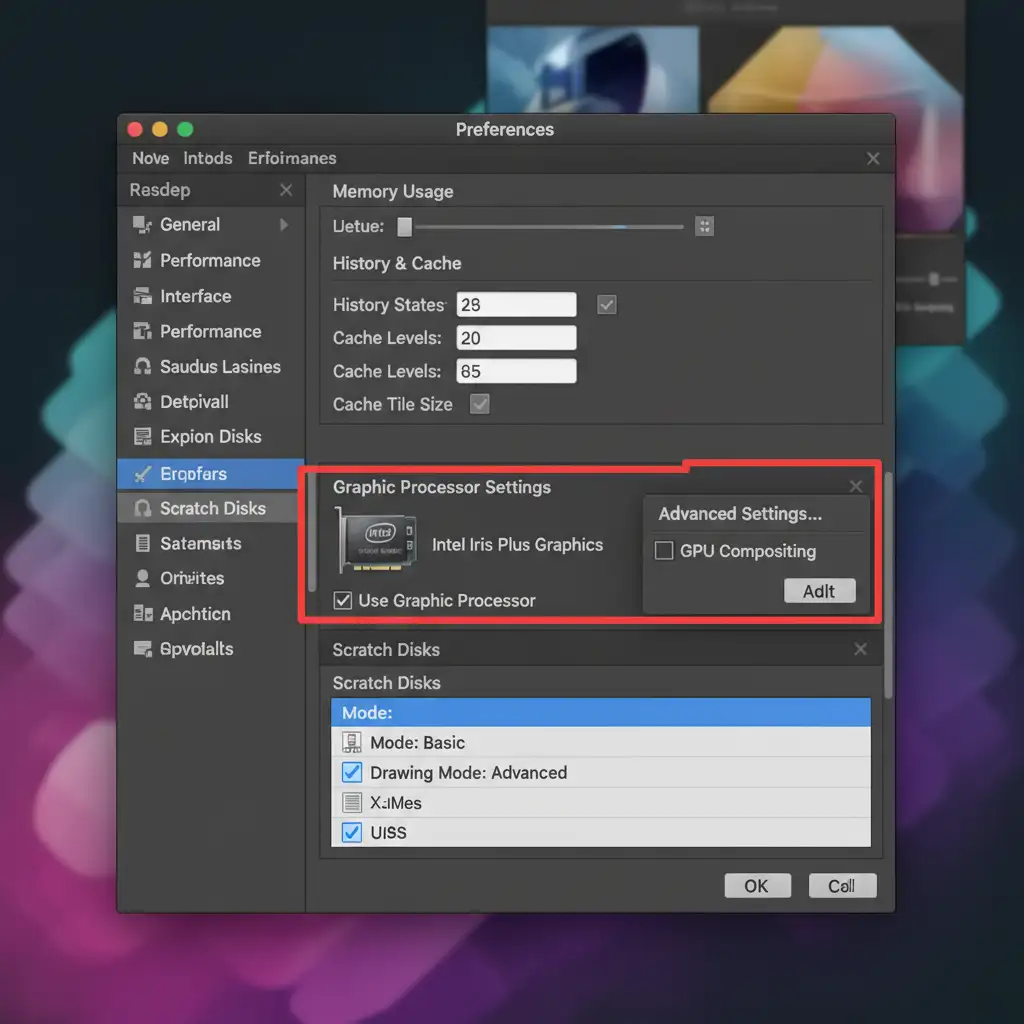
- In the top menu bar, navigate to Photoshop > Settings > Performance (or Preferences > Performance on older macOS layouts).
- Look for the Graphic Processor Settings section.
- Click on Advanced Settings.
- Uncheck the box labeled GPU Compositing.
- Click OK and restart Photoshop.
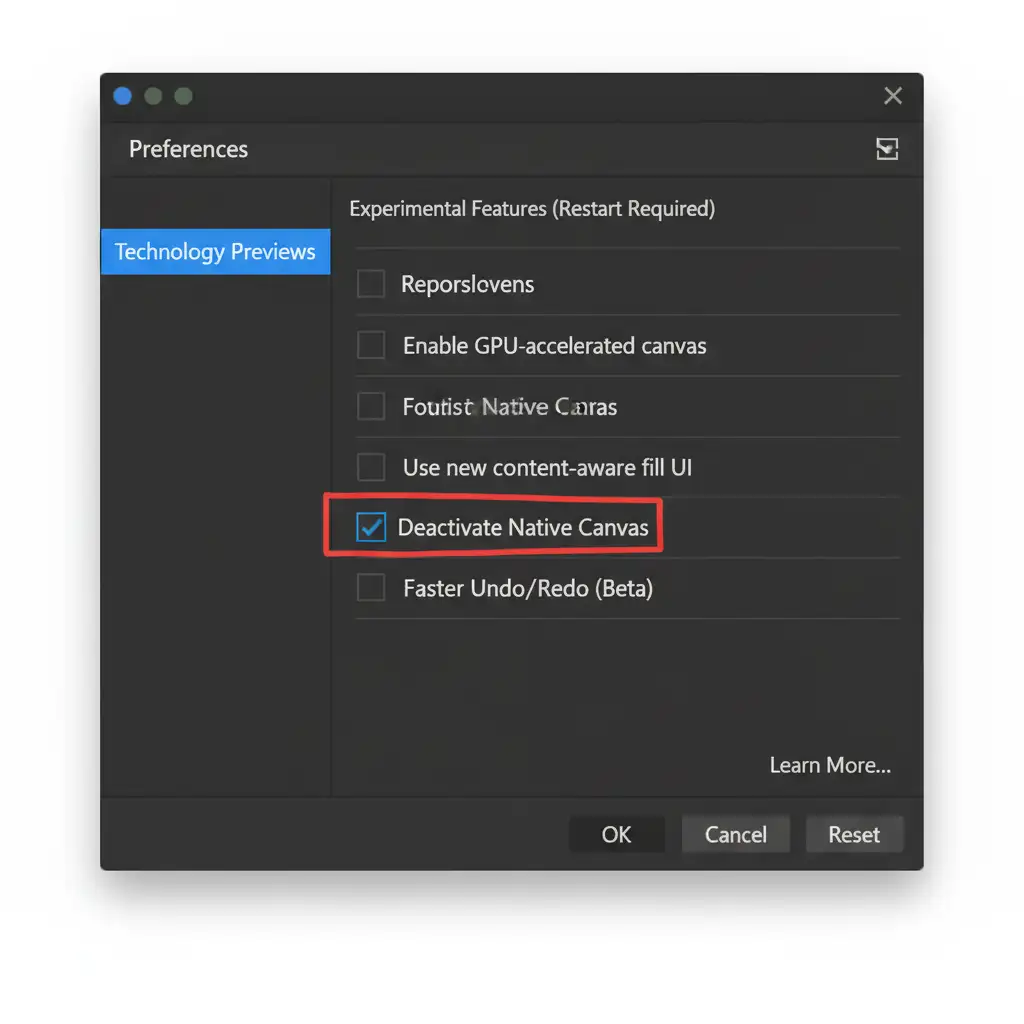
Method 2: Deactivate Native Canvas (The Pro Workaround)
If disabling GPU Compositing makes your brush strokes feel sluggish, you can try reverting to Adobe’s older display rendering method. This keeps general GPU acceleration turned on but forces Photoshop to bypass the new M4/M5 optimized rendering engine.
- Navigate to Photoshop > Settings > Technology Previews.
- Scroll through the list of experimental features.
- Check the box for Deactivate Native Canvas (on some localized versions, this may be labeled Use Legacy Display).
- Click OK.
- Close and reopen Photoshop to apply the changes.
Method 3: Clear the UXP Cache and Optimize RAM (The Deep-Dive)
If the black screen persists, the issue might be rooted in corrupted temporary files or a unified memory leak within macOS 15+. Clearing the UXP Cache forces Photoshop to rebuild its interface assets from scratch.
- Close Photoshop completely.
- Open a new Finder window.
- In the top Apple menu bar, click Go, hold down the Option (⌥) key, and click Library when it appears.
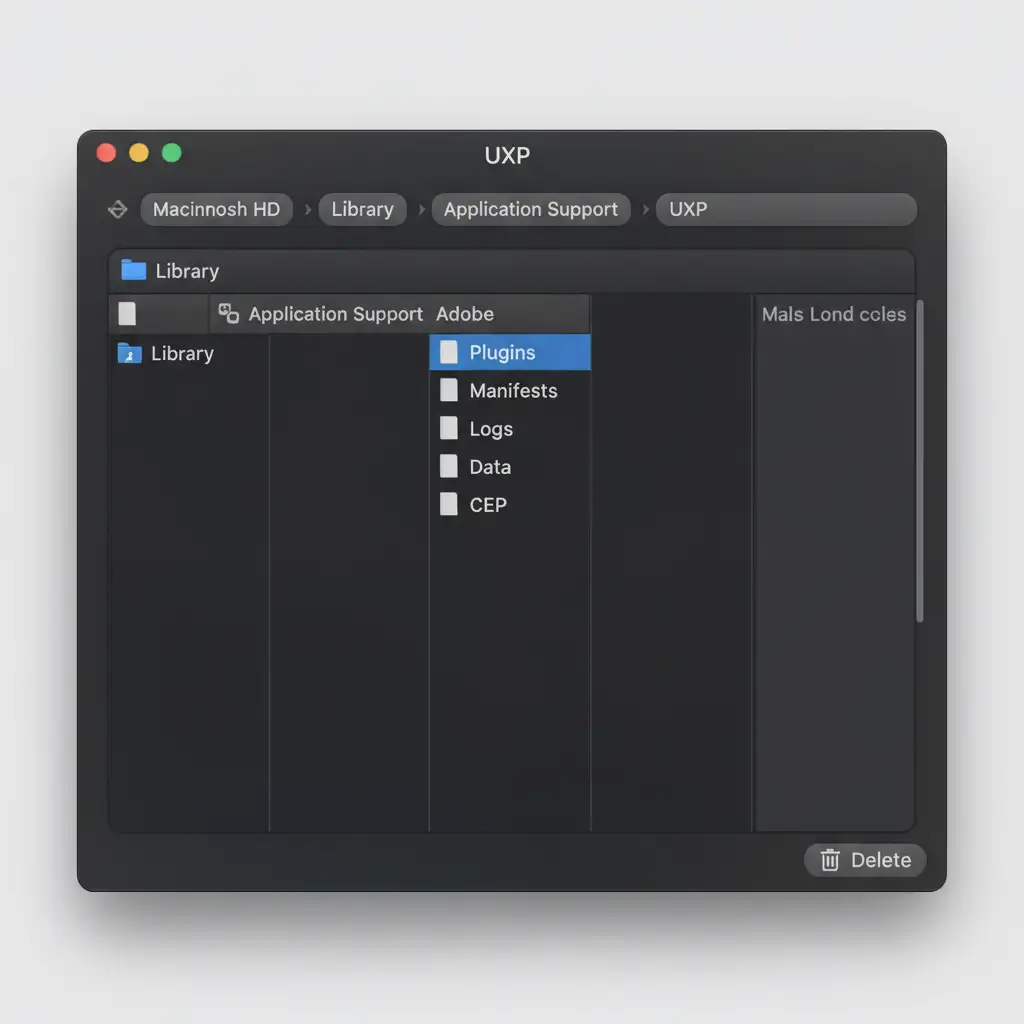
- Navigate to the following path: Application Support / Adobe / UXP.
- Delete the entire contents of the UXP cache folder. Empty your Mac’s trash bin.
- Update macOS: Go to System Settings > General > Software Update and ensure you are running the latest minor version of macOS 15 to patch known memory leaks.
- Reallocate RAM: Open Photoshop, go to Settings > Performance, and increase the Memory Usage slider to allow Photoshop to use up to 80% of your available RAM.
Focus on Your Creativity, Let Us Handle the Rest
Troubleshooting software bugs like the Photoshop 2026 black document window fix eats into your most valuable asset: your time. When you are managing high-volume commercial photography, e-commerce catalogs, or complex real estate shoots, you cannot afford to have technical glitches slow down your delivery schedule.
At Image Work India and Cloud Retouch, we eliminate the friction of post-production. Our expert team of retouchers uses state-of-the-art hardware and flawlessly optimized software to deliver pixel-perfect image editing, clipping paths, and high-end retouching at scale.
Stop fighting your software and start scaling your business. [Contact Cloud Retouch today] to learn how our dedicated offshore editing teams can streamline your workflow and deliver flawless results, every single time.




