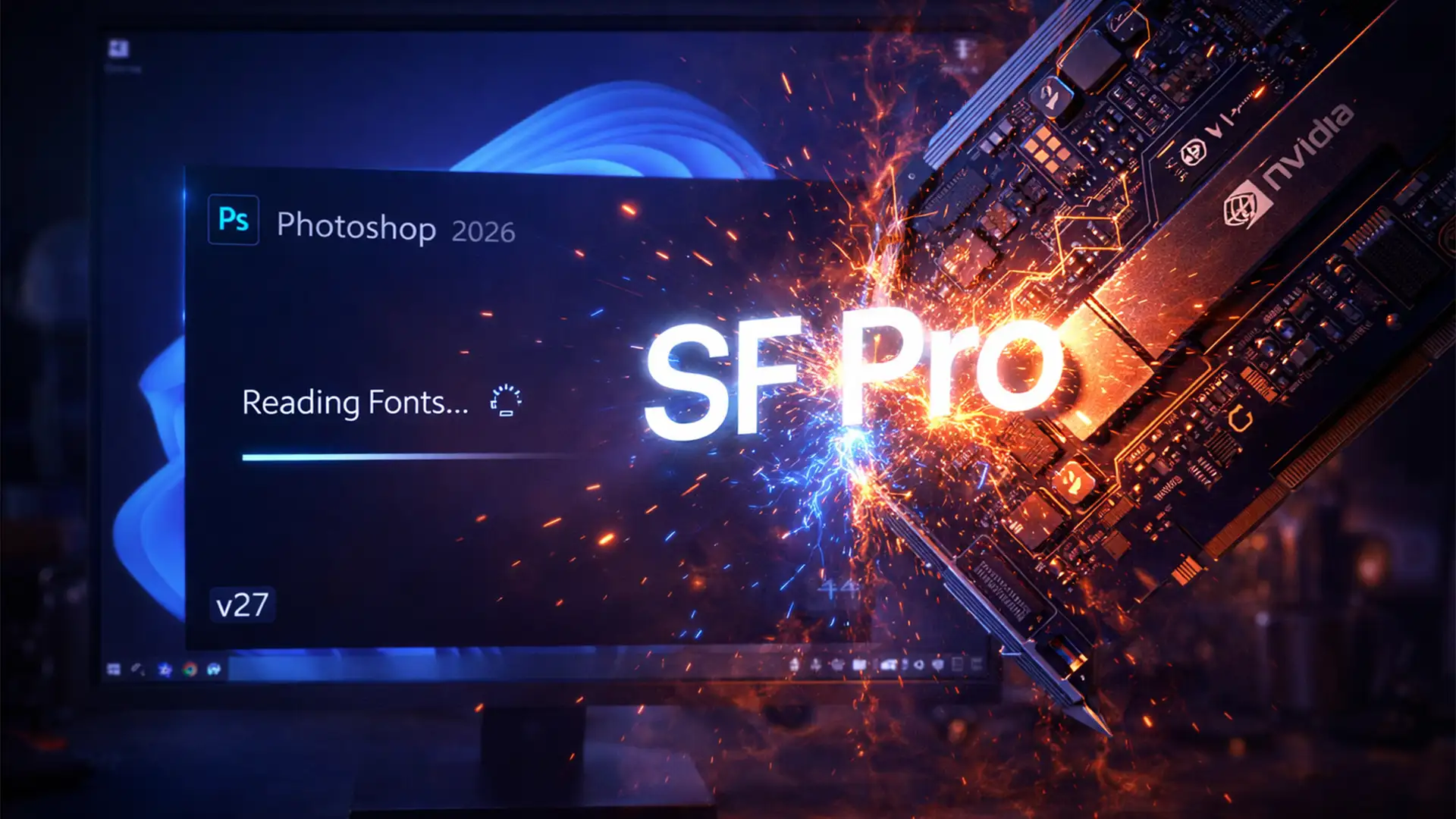

You are on a tight deadline, you launch Adobe Photoshop 2026 (v27.x) on Windows 11, and everything grinds to a halt. The splash screen gets stuck on “Reading Fonts,” or worse, you click the Type Tool and your entire system hard freezes before you can even make a selection and see the marching ants.
If you are a UI/UX designer who recently installed Apple’s SF Pro font on your PC, you are not alone. This frustrating crash is caused by a variable font rendering loop between the SF Pro font family and your graphics driver. Let’s walk through the ultimate photoshop 2026 freezing sf pro font fix so you can restore your software’s stability and get back to work.
Why is Photoshop 2026 Freezing on Windows 11?
The root cause of this hard freeze comes down to how the Photoshop 2026 text engine interacts with your hardware. When you boot up the software or activate the Type Tool, Photoshop attempts to rasterize and preview the variable fonts installed on your system using GPU acceleration.
Apple’s SF Pro font family features complex variable font weights. When combined with the latest NVIDIA Studio Driver on Windows 11, a rendering conflict occurs. The GPU pipeline fails to process the variable font data correctly, which corrupts the CT Font Cache. This corruption triggers an infinite loop, ultimately hanging the application.
Here is exactly how to resolve the conflict, ranging from a quick system tweak to a deeper technical optimization.
How to Apply the Photoshop 2026 Freezing SF Pro Font Fix
Method 1: The Quick Fix – Uninstall the Conflicting Font
The fastest way to bypass the freezing issue is to simply remove the font causing the infinite loop. If you don’t strictly need SF Pro for your current Windows workflow, removing it will instantly stabilize the text engine.
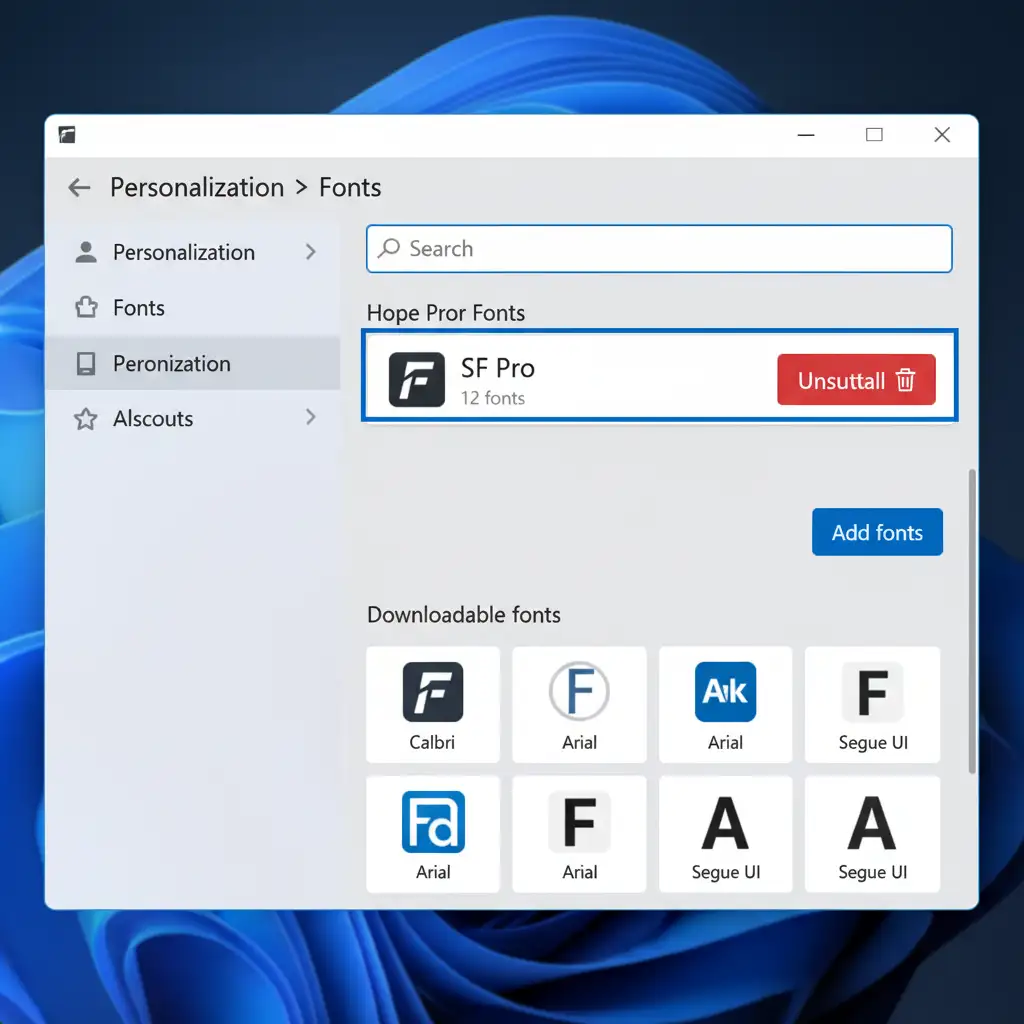
- Open your Windows 11 Settings.
- Navigate to Personalization > Fonts.
- In the search bar, type SF Pro.
- Click on the font family and select Uninstall.
- Restart your PC and launch Photoshop 2026.
Method 2: The Pro Workaround – Clear the CT Font Cache
If uninstalling the font doesn’t immediately fix the issue, or if you previously uninstalled it but Photoshop is still crashing, your font registry is likely holding onto corrupted data. You need to manually clear Adobe’s cache.
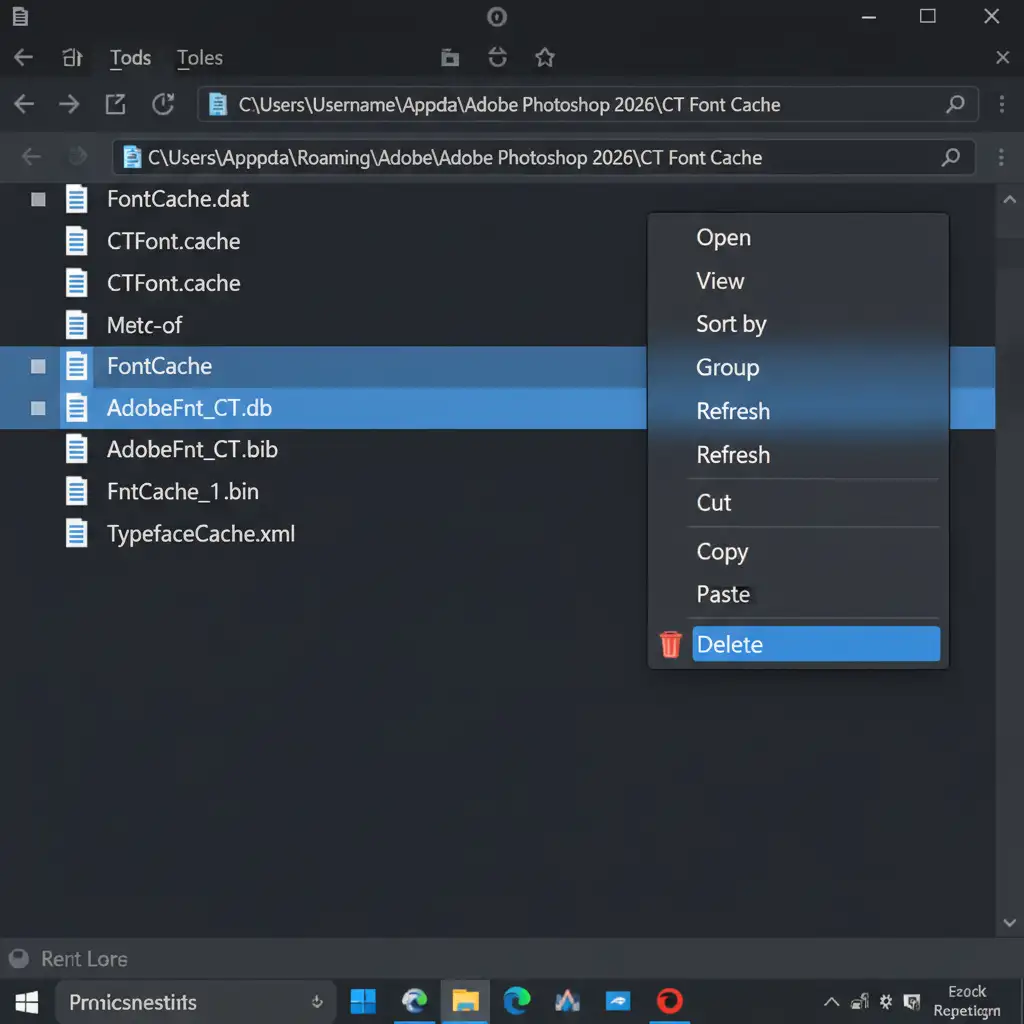
- Ensure Photoshop 2026 is completely closed (check Task Manager to be sure).
- Open Windows File Explorer.
- Navigate to the following path: C:\Users\[YourUsername]\AppData\Roaming\Adobe\Adobe Photoshop 2026\CT Font Cache (Note: You may need to enable “Hidden items” in the View menu to see the AppData folder).
- Select all files inside the CT Font Cache folder and delete them.
- Launch Photoshop. The software will force a clean rebuild of the font registry, bypassing the previous corruption.
Method 3: The Technical Deep-Dive – Optimize GPU Compositing
For users who absolutely must keep the SF Pro font installed for cross-platform UI/UX design, you can alter how Photoshop utilizes your graphics card to prevent the crash.
First, ensure you perform a clean installation of the latest NVIDIA Studio Driver (rather than the Game Ready Driver), as it is specifically optimized for creative applications. Once updated, adjust your internal Photoshop settings:
- Open Photoshop 2026.
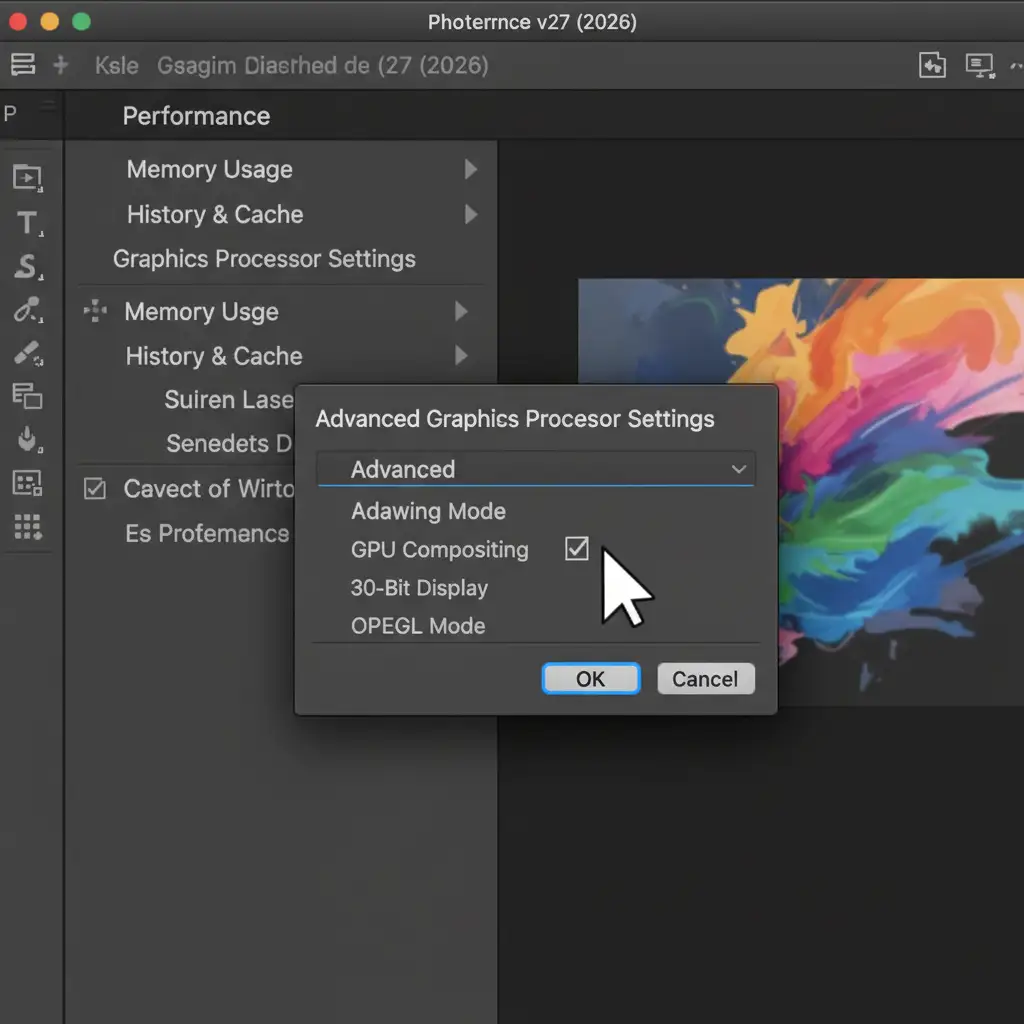
- Go to Edit > Preferences > Performance.
- Under the Graphics Processor Settings section, click on Advanced Settings.
- Uncheck the box labeled GPU Compositing.
- Click OK and restart Photoshop.
Disabling GPU Compositing stops the software from pushing the variable font rendering through the unstable GPU pipeline, relying instead on standard processing to rasterize the text.
Stop Fighting Software: Let the Experts Handle Your Edits
Troubleshooting a photoshop 2026 freezing sf pro font fix takes valuable time away from what you do best-creating. When software bugs, driver updates, and hardware conflicts start eating into your profit margins and causing you to miss deadlines, it is time to scale your workflow.
Struggling with Photoshop performance? Outsource your bulk photo editing to Image Work India and Cloud Retouch. Our team of professional retouchers operates on high-end, fully optimized workstations to deliver flawless, rapid, and professional post-production services. Whether you need complex clipping paths, high-end beauty retouching, or bulk e-commerce editing, we handle the technical heavy lifting so you don’t have to.
Contact Image Work India today to get a free quote and discover how we can streamline your creative pipeline.




