
You just finished culling and color-grading a massive gallery in Lightroom. You right-click a hero shot, select “Edit in Photoshop,” and… you wait. The spinning wheel appears, your system fans spin up, and seconds turn into minutes. If you are experiencing a severe handshake delay between these two industry-standard applications, you aren’t alone.
The Photoshop 2026 slow opening from Lightroom fix is currently one of the most searched troubleshooting queries among professional retouchers. The recent v27.x updates introduced powerful AI tools, but they also brought a frustrating sync bug that stalls your workflow.
In this guide, we will break down exactly why this lag happens and give you three proven methods to restore your software speed immediately.
Why is Photoshop 2026 Lagging When Opening from Lightroom?
The root cause of this frustrating handshake delay lies in the newly introduced AI sync bridge and background caching processes in Photoshop 2026 (v27.x).
When you trigger the Edit In Photoshop command, the Adobe IPC Broker and Dynamic Link manager initiate a sequence of background checks. In version 27.x, the software stalls while verifying cloud assets, checking for neural filter updates, and waiting for Generative Fill preloading into your system’s VRAM. Instead of immediately rendering your TIFF or PSD file, the system gets bottlenecked trying to load AI modules you might not even use for that specific edit.
Fortunately, you can bypass these bottlenecks with a few quick settings adjustments.
How to Apply the Photoshop 2026 Slow Opening from Lightroom Fix
Here are three distinct methods to eliminate the lag, ranging from a quick settings tweak to a deep-dive system optimization.
Method 1: The Quick Fix – Disable the Start Workspace
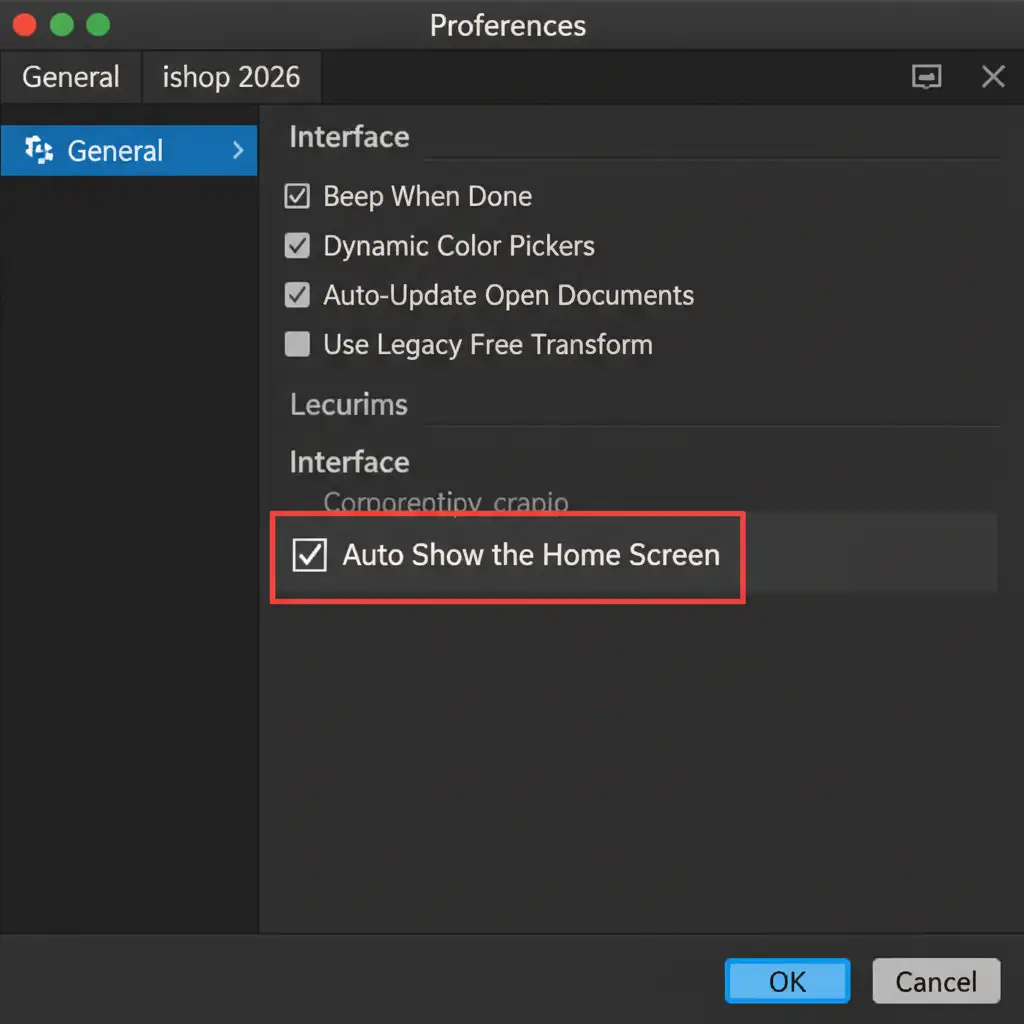
The easiest way to stop Photoshop from verifying cloud assets and stalling the Dynamic Link is to disable the Home Screen. This prevents the software from attempting to load the heavy start workspace during the handoff.
- Open Photoshop 2026.
- Navigate to Edit > Preferences > General (Windows) or Photoshop > Settings > General (Mac).
- Locate the option labeled Auto Show the Home Screen.
- Uncheck this box and click OK.
- Restart Photoshop.
Method 2: The Pro Workaround – Use Smart Objects
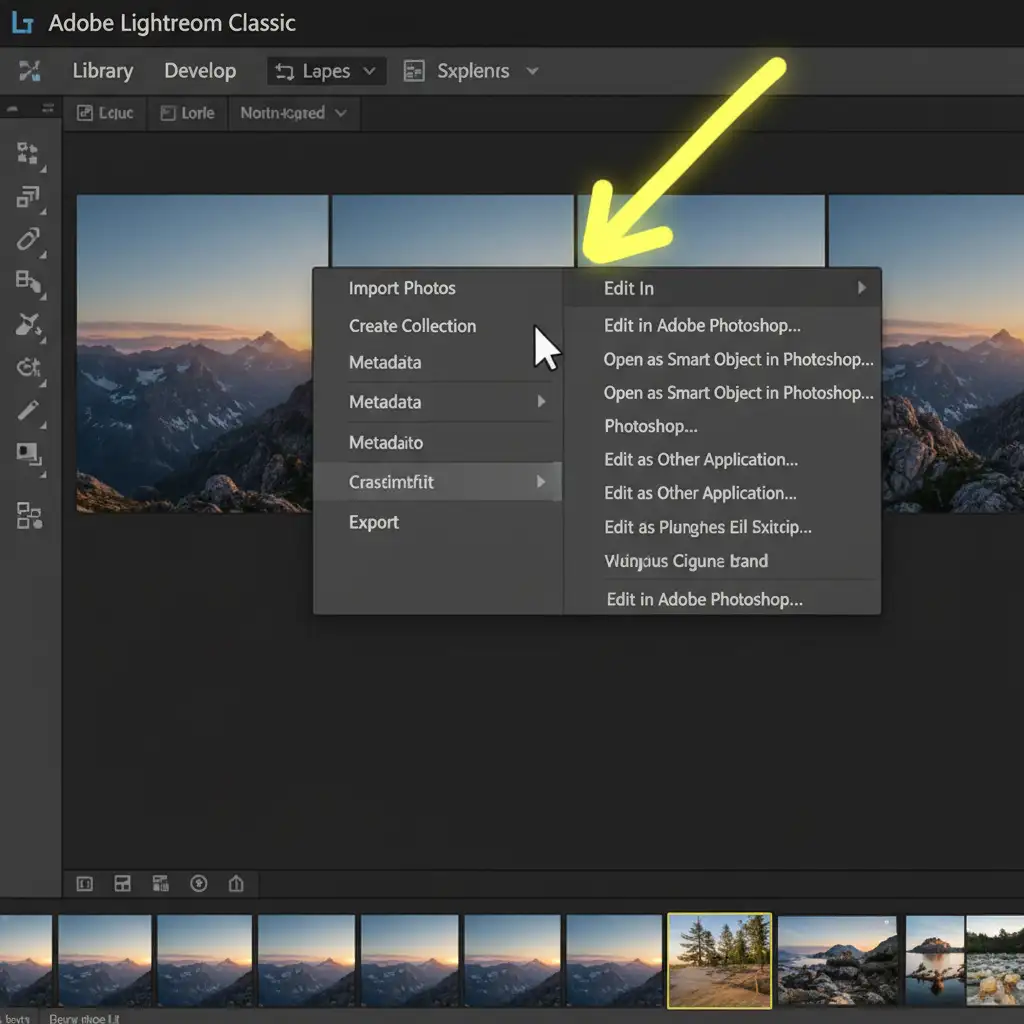
If you want to completely bypass the standard raster render pipeline and force an immediate handoff, use the Smart Object workflow. By doing this, Lightroom skips the initial step where it tries to rasterize the image, instantly sending the RAW data to Photoshop.
- In Lightroom Classic, right-click the image you want to edit.
- Hover over Edit In.
- Select Open as Smart Object in Photoshop.
Not only does this eliminate the handshake delay, but it also preserves your RAW data, allowing you to double-click the Smart Object layer in Photoshop to make non-destructive Camera Raw adjustments later.
Method 3: Deep-Dive Optimization – Cache, GPU, and IPC Broker
If the first two methods don’t fully resolve the issue, your system might be struggling with VRAM allocation or a stalled IPC Broker. Follow these technical steps to clear the pipeline.
Step A: Expand Camera Raw Cache Lightroom needs breathing room to process high-resolution files before sending them over.
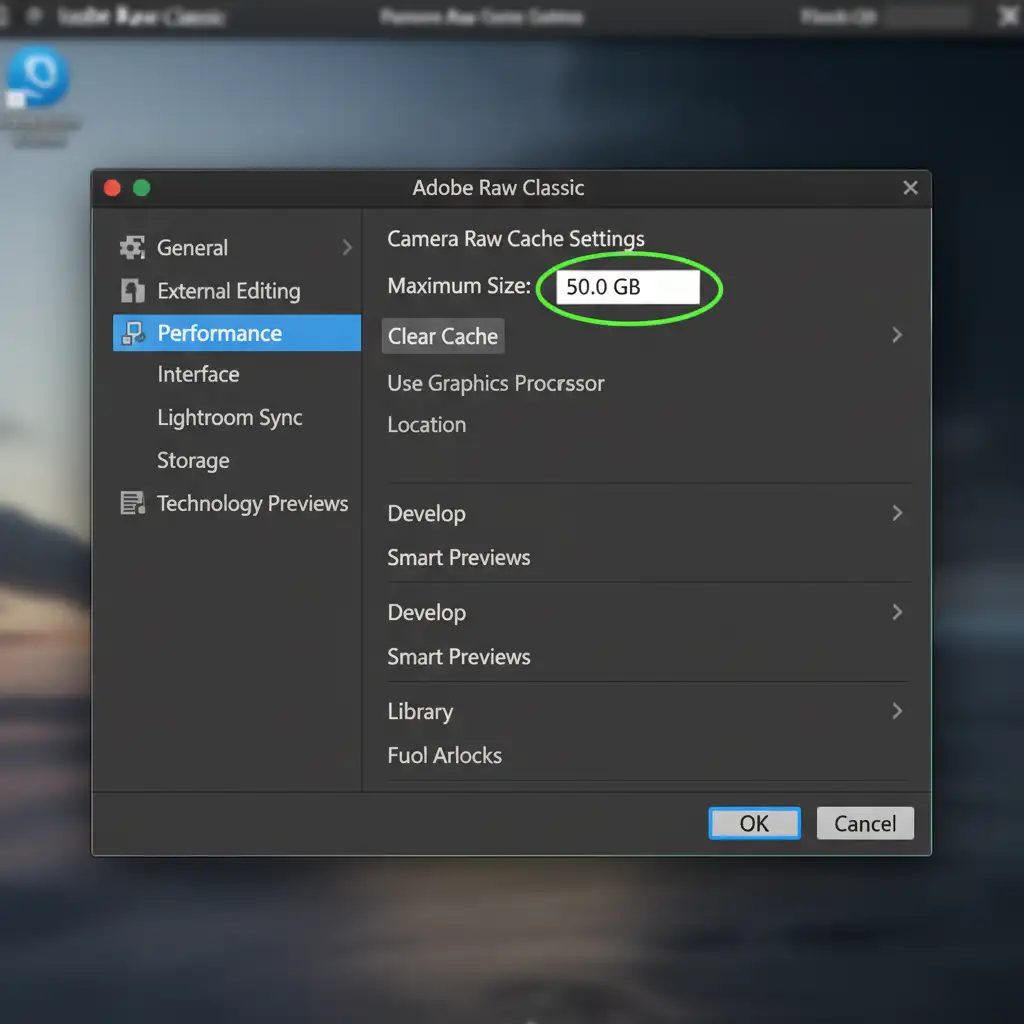
- In Lightroom, go to Edit > Preferences > Performance.
- Under the Camera Raw Cache Settings, change the Maximum Size to 50.0 GB.
Step B: Isolate GPU Acceleration Sometimes, GPU acceleration conflicts with the new AI modules in v27.x.
- In Photoshop, go to Preferences > Performance.
- Temporarily uncheck Use Graphics Processor.
- Try sending a file from Lightroom. If it opens instantly, you need to update your Nvidia/AMD graphics drivers before turning GPU acceleration back on.
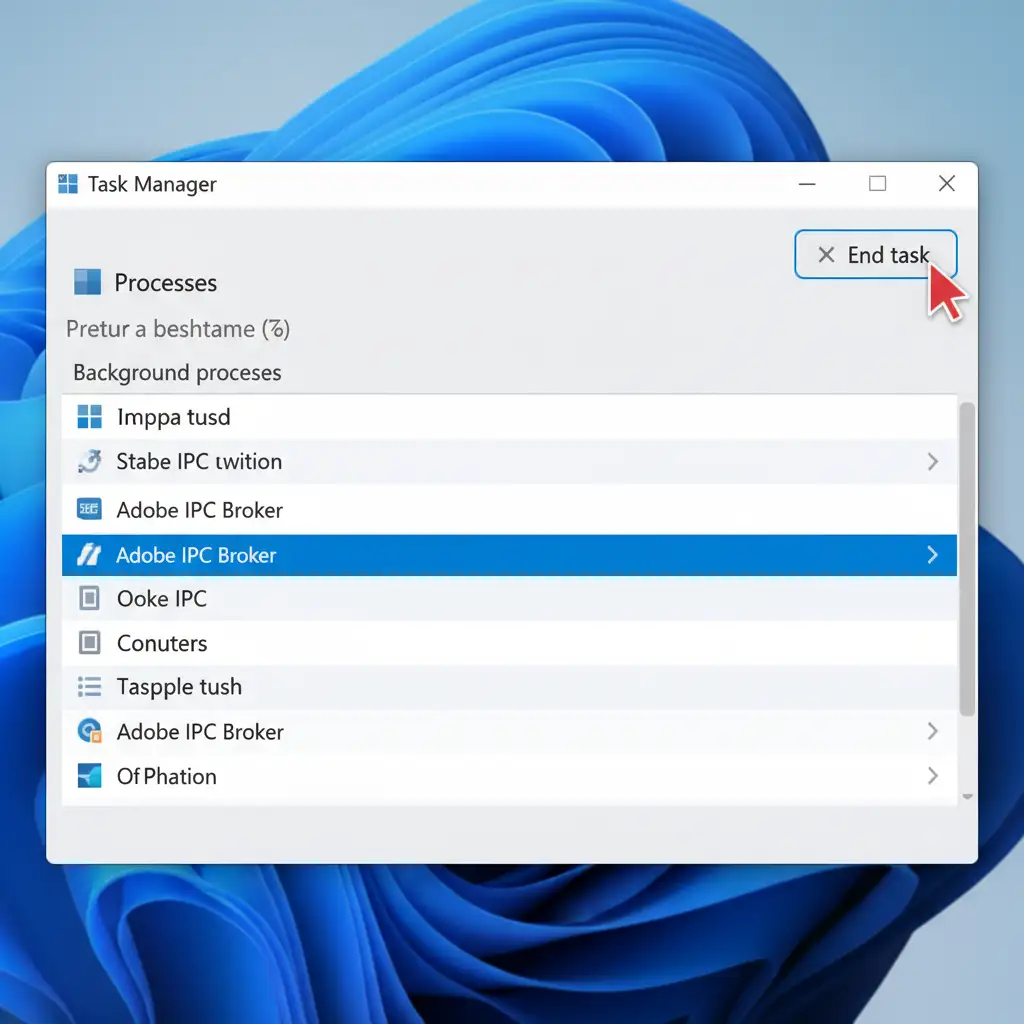
Step C: Terminate the Adobe IPC Broker If the connection is completely dead, the background sync process has crashed.
- Press Ctrl + Shift + Esc to open Windows Task Manager (or Activity Monitor on Mac).
- Locate Adobe IPC Broker in the background processes list.
- Right-click and select End Task.
- Try the “Edit in Photoshop” command again. This forces the dynamic link to restart cleanly.
Stop Troubleshooting, Start Scaling Your Business
Software bugs like the Photoshop 2026 slow opening from Lightroom error drain your most valuable resource: time. As a professional photographer, every minute you spend fighting with cache settings, stalled dynamic links, and software updates is a minute you aren’t shooting, marketing, or growing your business.
Why do it all yourself?
At Image Work India and Cloud Retouch, we specialize in taking the technical burden off your shoulders. We provide world-class, high-volume photo editing, clipping path, and high-end retouching services for photographers, e-commerce brands, and agencies worldwide.
Skip the software lag. Send us your RAW files, and let our team of expert retouchers deliver pixel-perfect results while you focus on what you do best.
Contact Image Work India Today to get a free trial and see how seamlessly we can integrate into your workflow.




