
You’ve just upgraded your multi-monitor setup, ready to edit with more screen real estate. But the moment you drag Photoshop 2024 (v25.x) over to your second screen, everything grinds to a halt. Canvas stutter ruins your workflow, brush lag makes precise masking impossible, and you might even be greeted by a frustrating “Display Not Supported” error.
If this sounds familiar, you aren’t alone. This hardware acceleration conflict is one of the most common bottlenecks for creative professionals this year. Fortunately, applying a reliable Photoshop external monitor lag fix 2024 is straightforward once you understand how your operating system handles graphics processing. In this guide, we’ll show you exactly how to optimize your GPU acceleration, synchronize your display settings, and get back to seamless editing.
Why Does Photoshop 2024 Lag on a Second Screen?
To fix the problem, you first need to understand the root cause. When you move the Photoshop application window from your primary laptop screen to an external monitor, the operating system must seamlessly hand over the rendering tasks. Frequently, the OS fails to allocate the dedicated graphics card to the secondary display, defaulting instead to your system’s underpowered integrated graphics chip.
This GPU misallocation is severely exacerbated by two common configuration errors:
- Mismatched Display Refresh Rate: Pairing a 144Hz laptop screen with a 60Hz external monitor forces the rendering engine to stutter as it tries to sync frames.
- Conflicting UI Scaling: If your primary monitor is scaled to 125% and your secondary is at 100%, the resulting VRAM allocation overhead skyrockets, causing immediate brush lag and canvas freezing.
How to Fix External Monitor Lag in Photoshop 2024
Follow these three methods to restore peak performance and eliminate cross-monitor lag.
Method 1: Synchronize OS Display Settings (The Quick Fix)
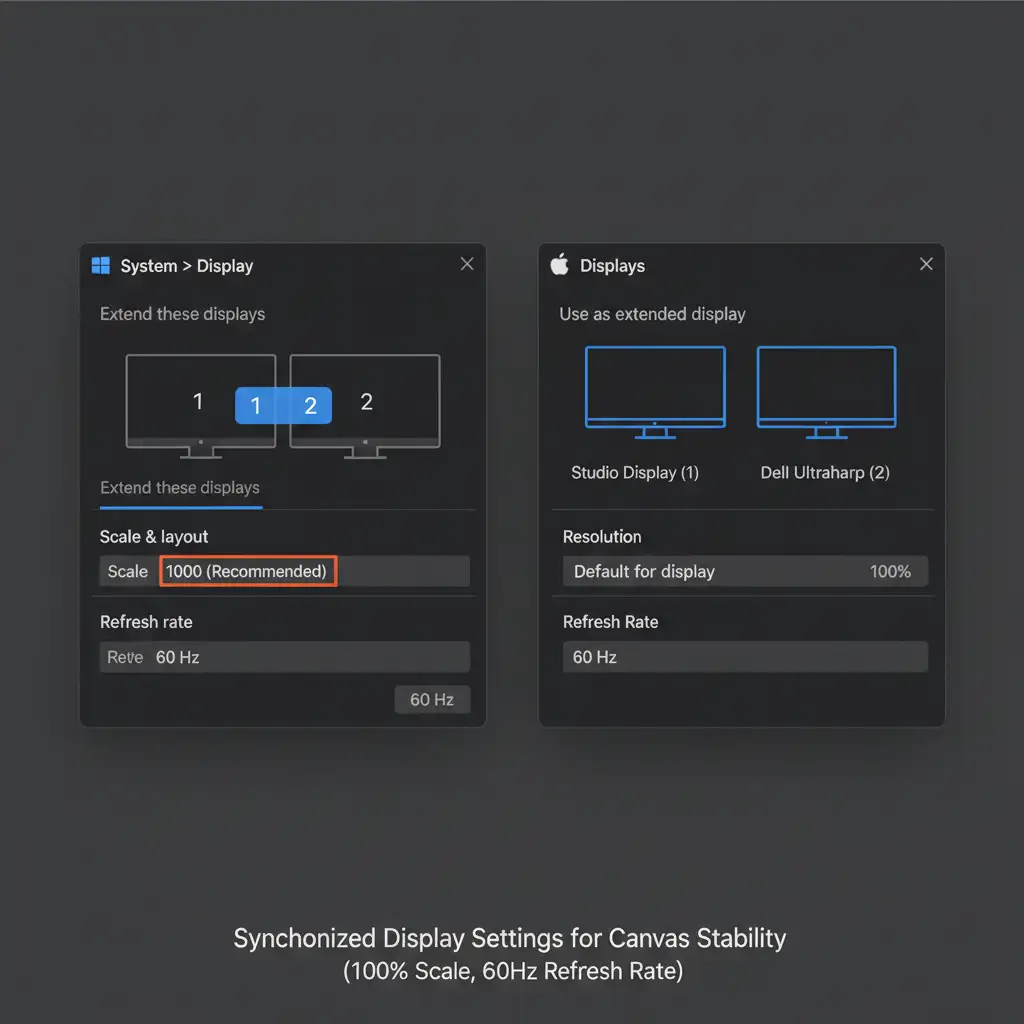
The fastest way to resolve OS-level rendering conflicts is to ensure both of your monitors are speaking the exact same language. You must synchronize your refresh rates and UI scaling percentages.
- For Windows: Right-click your desktop and select Display Settings. Click on your primary monitor, note the “Scale” percentage, and ensure your secondary monitor matches it perfectly. Then, go to Advanced Display and ensure the refresh rate (Hz) is identical for both screens.
- For macOS: Open System Settings > Displays. Ensure the scaled resolution and refresh rates are aligned across your built-in display and external monitor.
Method 2: Force Dedicated GPU Assignment (The Technical Deep-Dive)
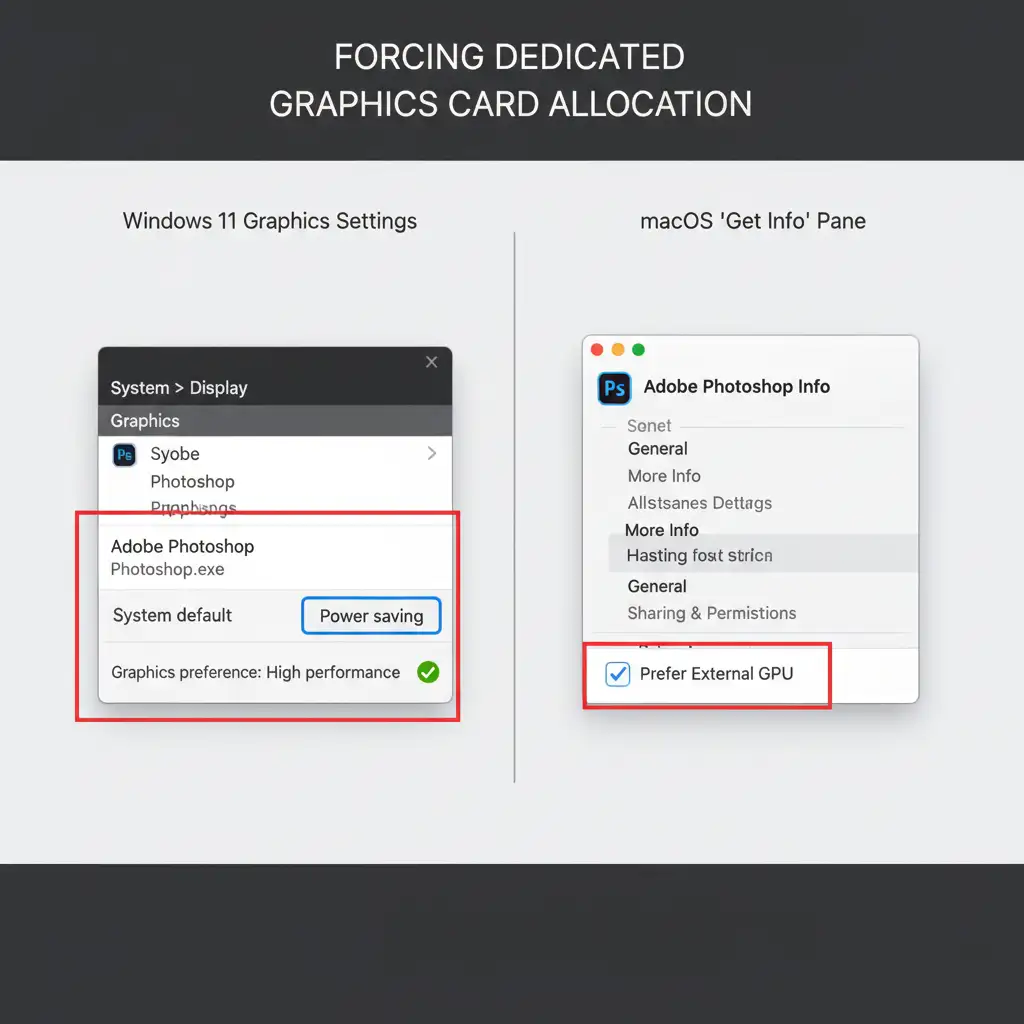
If synchronizing your monitors didn’t cure the lag, your OS is likely starving Photoshop of necessary GPU resources. You need to force High Performance mode so Photoshop always utilizes your dedicated GPU, regardless of which monitor it lives on.
On Windows:
- Navigate to Settings > System > Display > Graphics.
- Browse the app list for Photoshop.exe. If it isn’t there, click “Browse” and locate it in your Adobe program files.
- Click Options and change the graphics preference from “Let Windows decide” to High Performance.
- Pro Tip: Ensure your NVIDIA Studio or AMD PRO drivers are updated to the latest 2024 releases for optimal OpenCL/OpenGL compatibility.
On macOS (Intel-based Macs):
- Open Finder and navigate to your Applications folder.
- Right-click the Photoshop app icon and select Get Info.
- Check the box labeled Prefer External GPU.
Method 3: Tweak Photoshop Performance Preferences (The Pro Workaround)
If your OS is configured correctly but you still experience stuttering when zooming or panning, you need to adjust how Photoshop handles hardware acceleration internally.
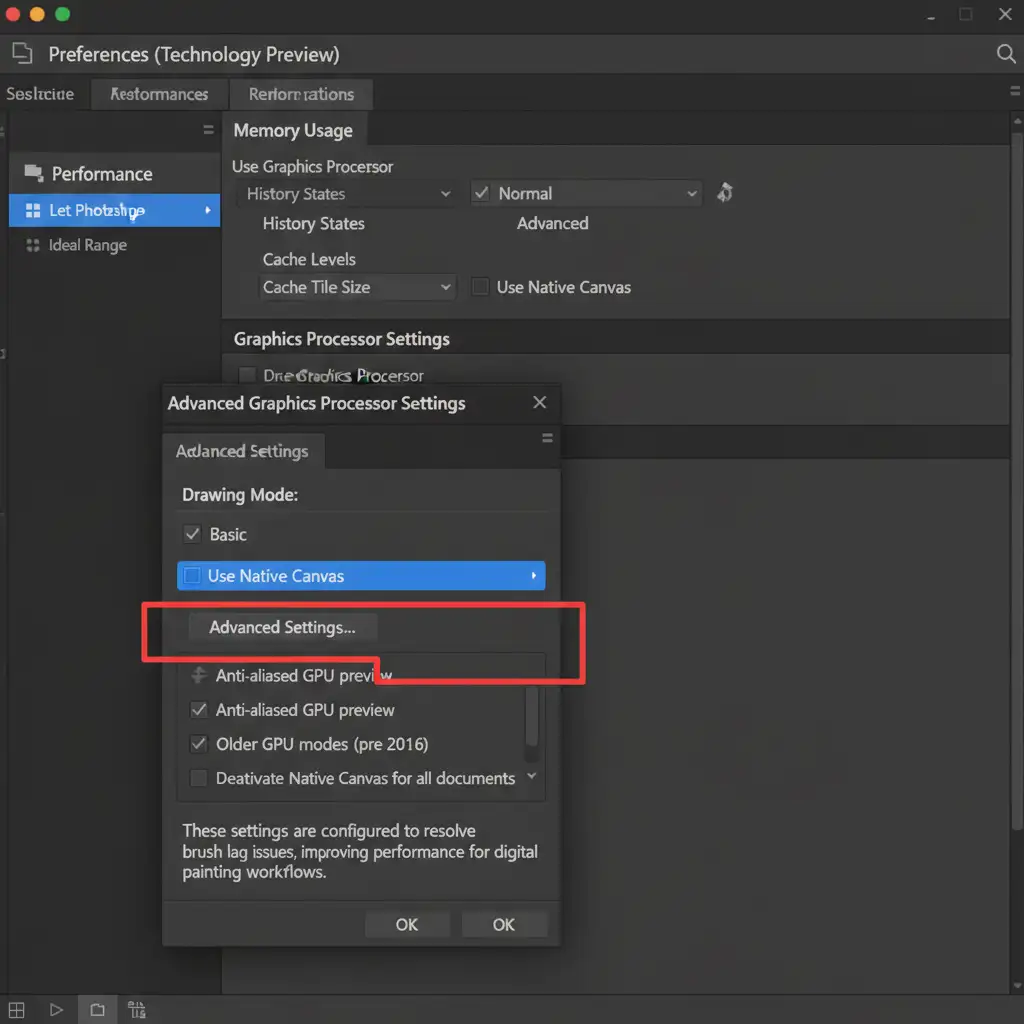
- Open Photoshop and navigate to Edit > Preferences > Performance (Windows) or Photoshop > Settings > Performance (Mac).
- Under the Graphics Processor Settings block, click Advanced Settings.
- Change the Drawing Mode dropdown from ‘Advanced’ to Basic.
- If the issue persists, temporarily uncheck Use Native Canvas. This reduces the strain on your GPU during multi-monitor rendering.
- While you are in the preferences menu, ensure your scratch disk is assigned to your fastest internal SSD to prevent secondary bottlenecks.
Let the Experts Handle the Heavy Lifting
Troubleshooting a Photoshop external monitor lag fix in 2024 can eat up hours of your valuable time. Hardware bottlenecks, driver conflicts, and constant software updates often pull you away from what you do best: creating stunning visuals.
If you are tired of fighting your workstation and want to scale your creative output without the technical headaches, let the experts step in. At Image Work India and Cloud Retouch, we specialize in high-volume, professional image editing and retouching. Our teams utilize fully optimized, high-end workstations to deliver flawless, lightning-fast results. Whether you need complex clipping paths, high-end beauty retouching, or bulk e-commerce editing, we handle the heavy lifting so you don’t have to.
Contact us today to streamline your workflow and get your time back.




