
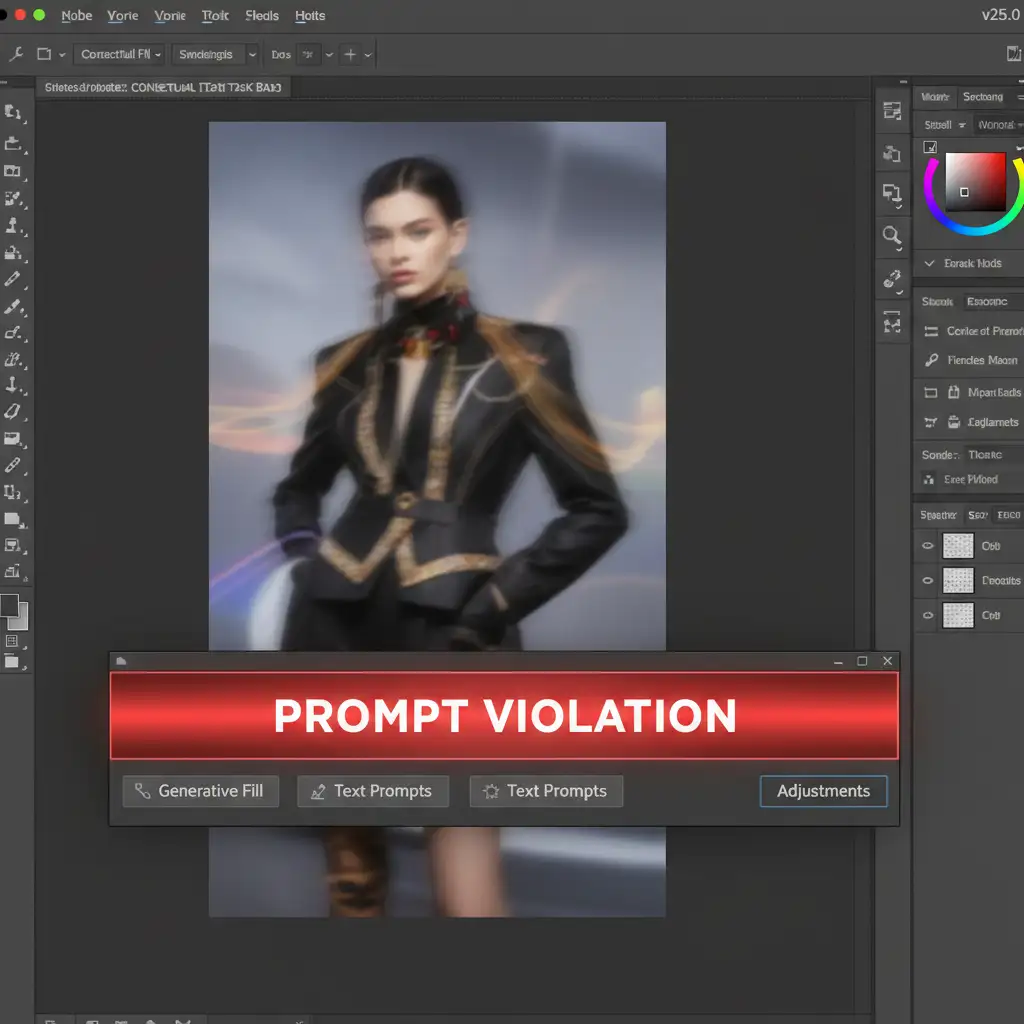
You are in the middle of a high-end fashion or medical retouching project. You make a precise selection, type a standard instruction into Generative Fill, and suddenly-a glaring red banner appears. The dreaded prompt violation error. Nothing ruins a professional editing workflow faster than an overzealous AI safety filter flagging innocent terms like “wet” or “shoot” as inappropriate.
If you are tired of battling false positives in Adobe Photoshop v25.0 and newer, you are not alone. In this guide, we will show you exactly how to execute a reliable photoshop firefly prompt violation error fix so you can reclaim your time, bypass the restrictions, and get back to flawless retouching.
Why Do Prompt Violations Happen in Photoshop?
Adobe’s integration of the Adobe Firefly Image Model into Photoshop brought incredible capabilities, but it also introduced strict cloud-based processing rules. To prevent the generation of inappropriate content, Adobe utilizes an aggressive safety API.
The ‘Prompt Violation’ error occurs for two main reasons:
- Linguistic Flags: Your text prompt contains keywords that trigger the safety filter (even in innocent contexts).
- Visual Context Flags: The image area you selected contains visual elements (like excessive skin tones in fashion edits) that trigger a false positive when analyzed by the AI.
Here is how to bypass these roadblocks using three professional techniques.
Method 1: The Quick Fix – Semantic Prompt Rewording
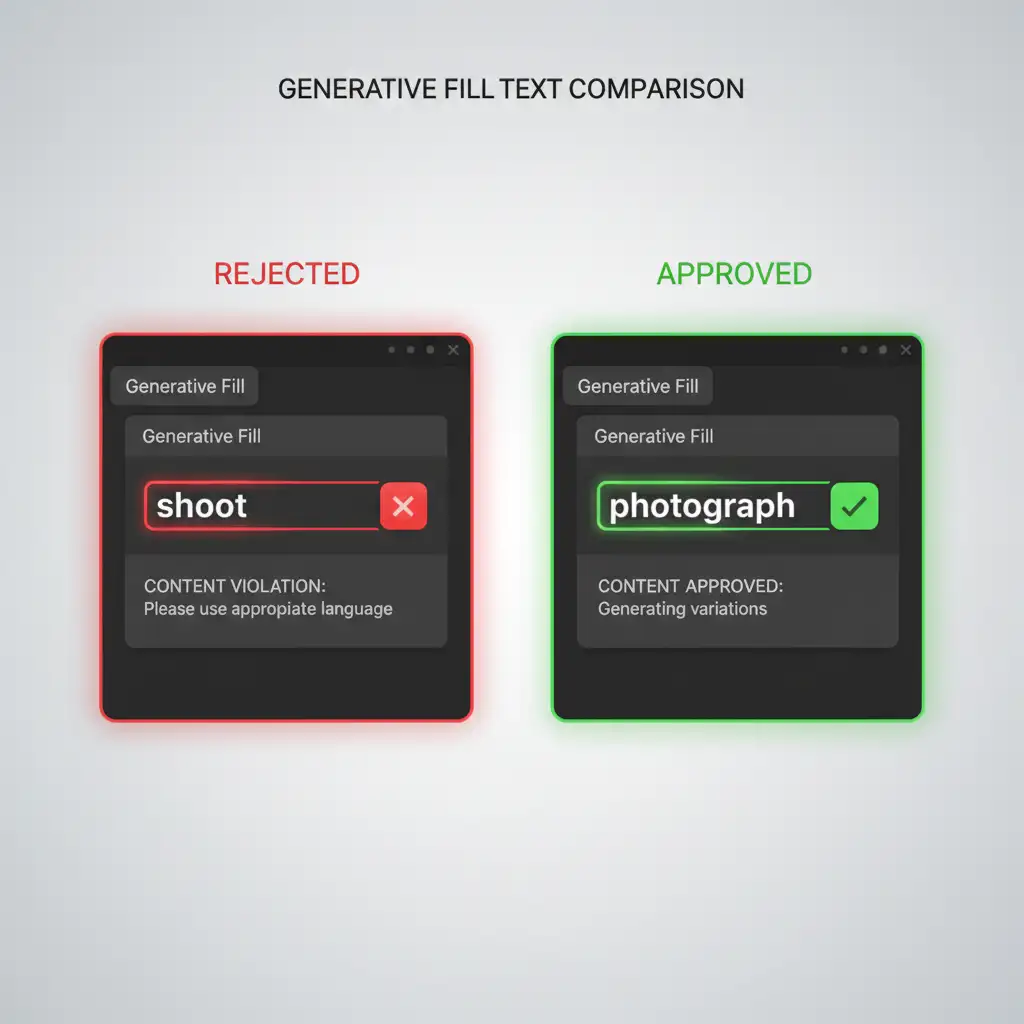
The most common trigger for a prompt violation is linguistic. Because the AI lacks human nuance, prompt engineering becomes essential. You must swap ambiguous or potentially restricted words for strictly literal, safe synonyms.
Common Swaps for Professional Editors:
- Change “shoot” to “photograph” or “capture”
- Change “wet” to “water droplets” or “damp texture”
- Change “bare” to “empty” or “uncovered”
By keeping your prompts highly descriptive but stripping away any words that could be misinterpreted by the safety API, you can instantly resolve most text-based errors.
Method 2: The Pro Workaround – The Blank Prompt Technique
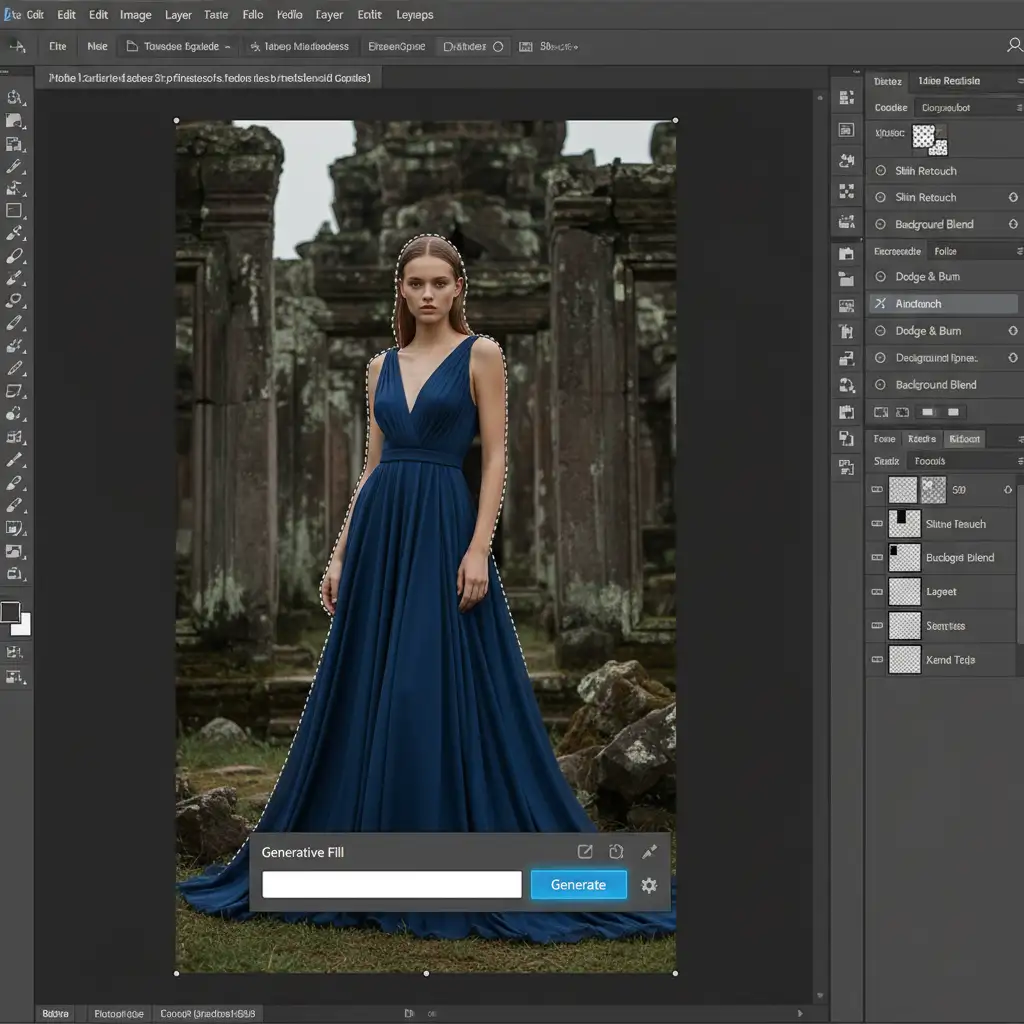
If rewording your prompt still results in an error, the filter might be hyper-fixated on the combination of your text and the image. The best way to bypass the linguistic safety filter entirely is to use the Blank Prompt Technique.
How to Execute the Blank Prompt:
- Select your target area using the Lasso Tool.
- Click Generative Fill on the Contextual Task Bar.
- Leave the text box completely empty.
- Hit Generate.
By leaving the prompt blank, Firefly relies 100% on the surrounding visual context to fill the space. This is highly effective for background removal, extending scenes via Generative Expand, or removing blemishes without triggering text-based safety protocols.
Method 3: Selection Refinement and Reference Images
Sometimes, the text isn’t the problem at all. The actual pixels you selected are triggering the block. For instance, selecting an area of skin-toned clothing can cause the AI to mistakenly flag the image for nudity.
Refine Your Marching Ants
If you suspect a visual false positive, modify your marching ants selection. Try selecting less of the problematic area or breaking the generation into smaller, bite-sized sections.
Utilize the Reference Image Feature
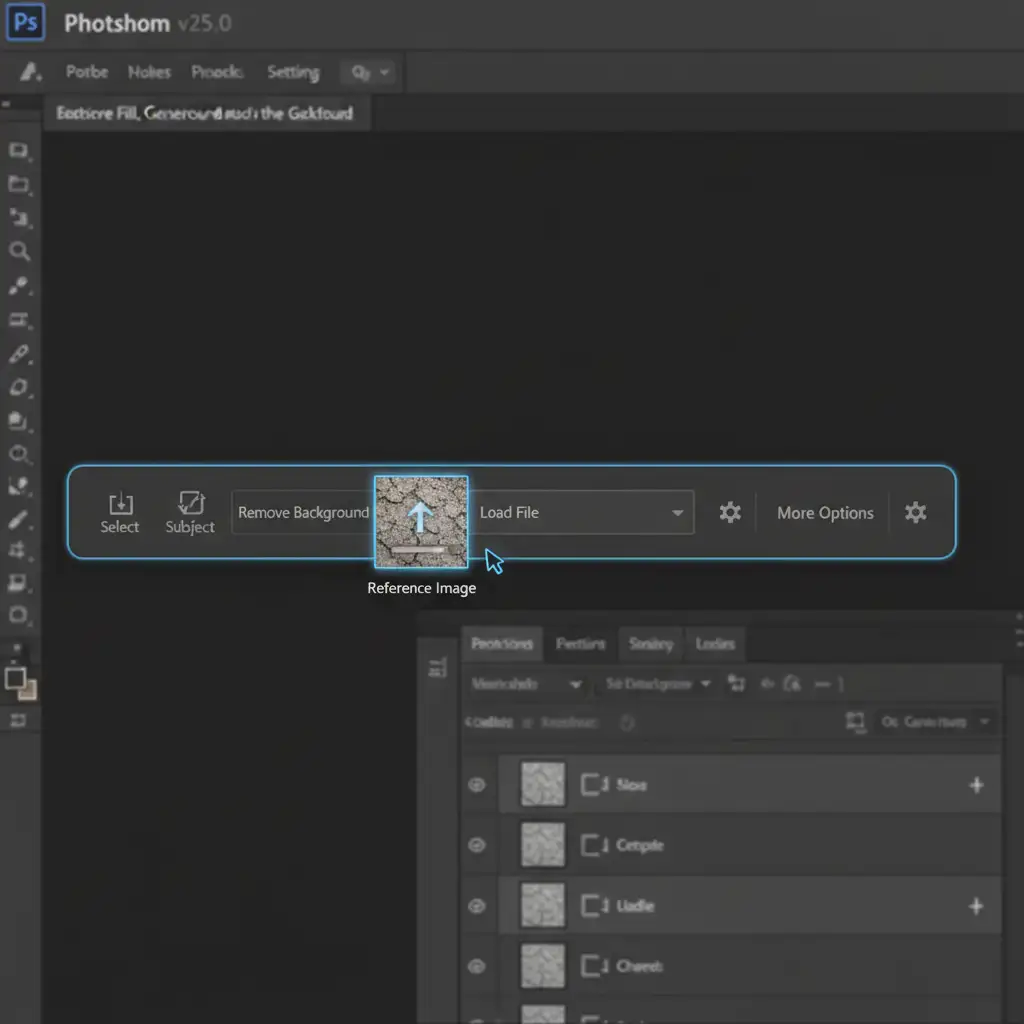
In the latest Photoshop releases, Adobe introduced the Reference Image tool. Instead of typing a prompt that might get blocked, you can upload a reference image directly into the Contextual Task Bar.
This guides the AI visually. Because you are bypassing text inputs, the chances of hitting an API safety flag drop significantly.
Fallback Techniques: Traditional Retouching
If the AI servers are entirely uncooperative, remember that traditional Photoshop tools do not rely on cloud-based safety filters.
- Content-Aware Fill: Excellent for removing objects without AI generation.
- Layer Masking: Ideal for manual compositing and blending when Firefly refuses to generate the assets you need.
Stop Fighting AI Filters-Let the Experts Handle It
Dealing with a photoshop firefly prompt violation error fix in the middle of a tight deadline is frustrating. While prompt engineering and blank generations can save your workflow, they still cost you valuable time and disrupt your creative process.
You don’t have to fight with overly aggressive AI filters. At Image Work India and Cloud Retouch, our team of expert human retouchers handles complex, high-volume editing without the limitations of AI false positives. From high-end fashion retouching to intricate medical image manipulation, we deliver flawless, pixel-perfect results on time, every time.
Ready to streamline your workflow? Contact Image Work India and Cloud Retouch today and let our professionals handle the heavy lifting.




