
You highlight a stray trash can in the background of your perfect commercial shot, leave the prompt blank, and hit “Generate.” Instead of a clean background, Photoshop 2025 replaces the trash can with a distorted, three-legged chair.
If you are dealing with Photoshop 2025 Generative Fill problems where the AI stubbornly adds random objects instead of removing them, you are not alone. This frustrating error is a byproduct of how Adobe’s latest AI models interpret blank prompts and tight selections.
Here is exactly why this happens and how to fix your workflow to guarantee seamless blending and clean background removals every time.
Why is Photoshop 2025’s Generative Fill Hallucinating?
In previous versions, leaving the Generative Fill text box blank was the universal shortcut for “remove this object.” However, with the integration of the Adobe Firefly V3 (and V4) models in Photoshop v26.x and v27.x, the software’s logic has shifted.
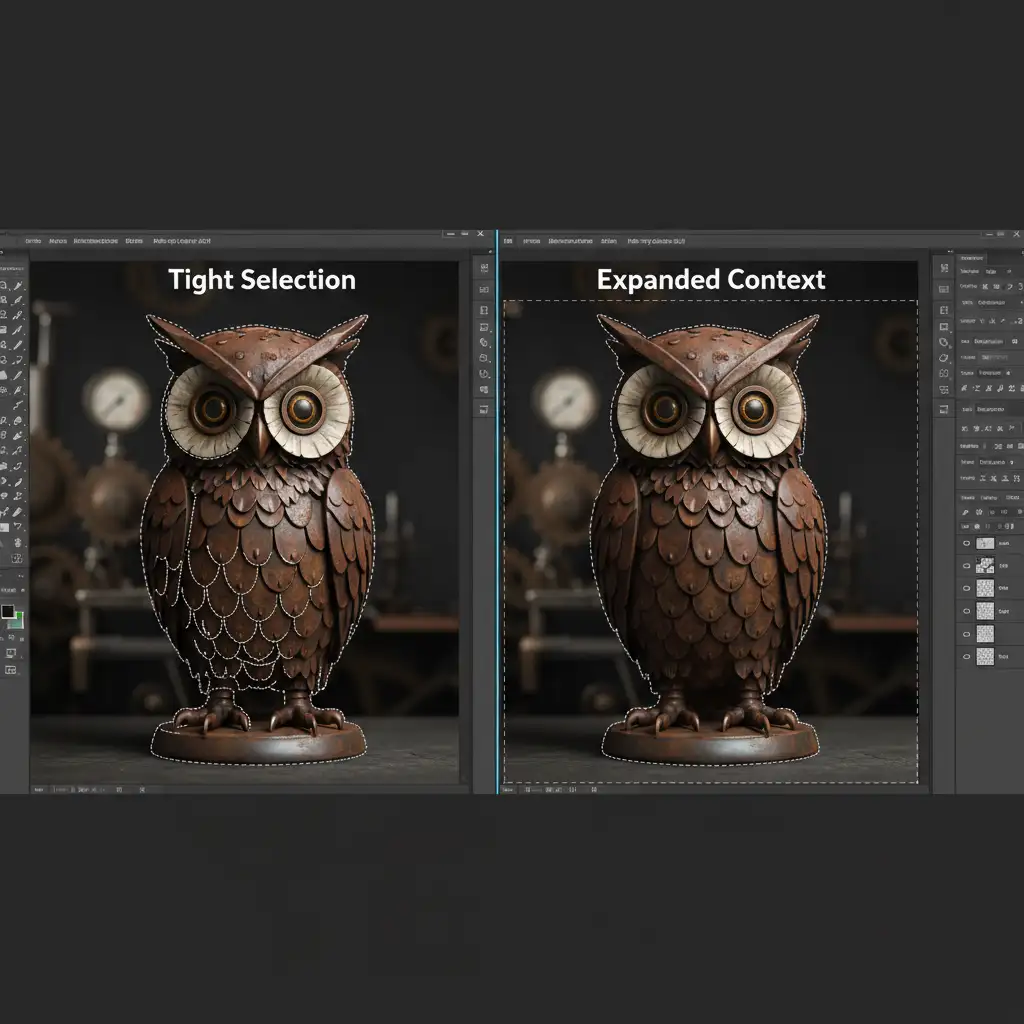
The new Firefly models are incredibly powerful but highly sensitive to pixel context. When you create a tight selection—where the “marching ants” hug the object exactly—the AI lacks the surrounding background data needed to understand what should replace the object. Instead of defaulting to a Content-Aware Fill style removal, the AI treats the empty void as a blank canvas for generation. This leads to an AI hallucination, where the software guesses what could go there, resulting in extra limbs, bizarre geometric shapes, or completely unrelated items.
To stop this, you need to either change the tool you are using or change how you feed context to the AI.
Method 1: The Quick Fix – Switch to the AI Remove Tool
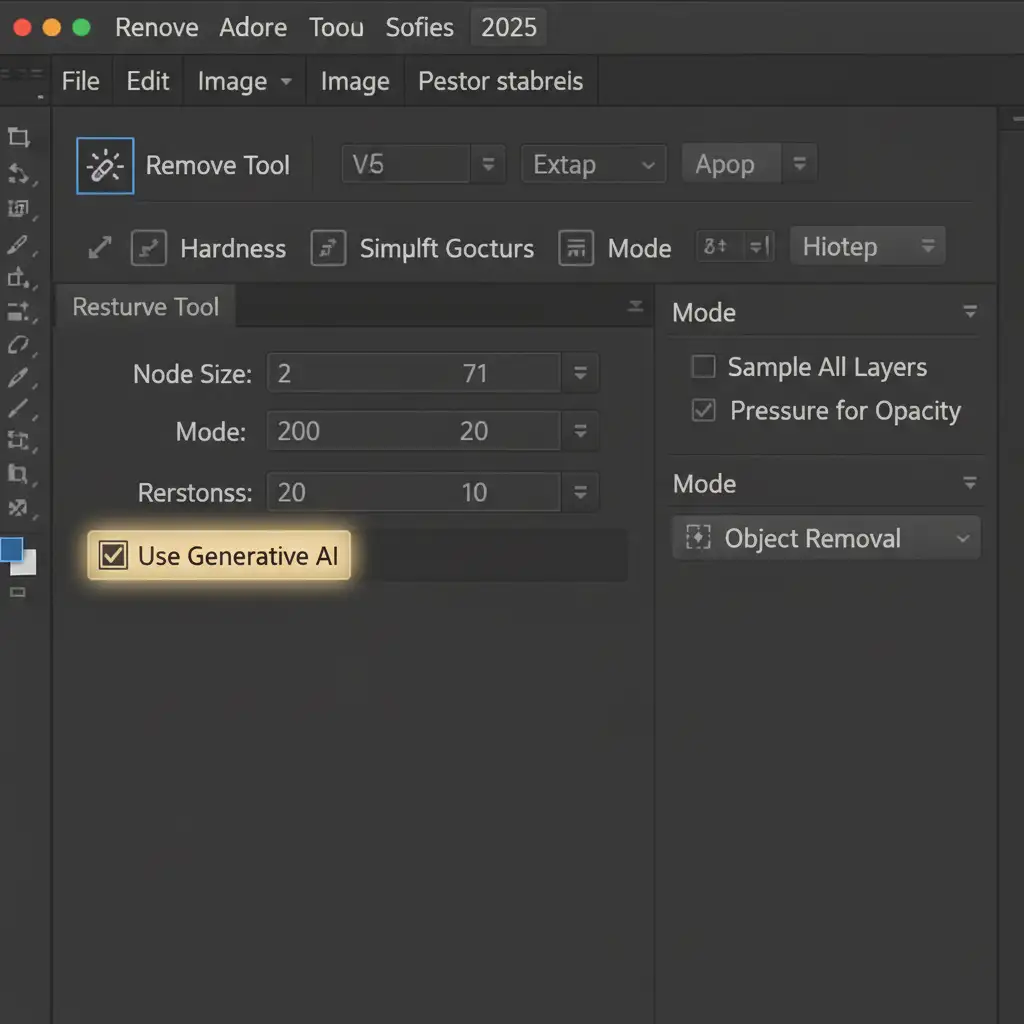
If your goal is strictly deletion, stop using Generative Fill. Adobe has intentionally separated the logic for generation and removal in the 2025 update. The Remove Tool (J) is now algorithmically prioritized for deletion and uses the same high-end AI models.
- Select the Remove Tool from your toolbar.
- Look at the top options bar and ensure the Use Generative AI box is checked.
- Brush over the unwanted object.
Because the tool is hard-coded for removal, it will not hallucinate new objects into your scene.
Method 2: The Pro Workaround – Expand Your Selection
If you must use Generative Fill for a complex removal, you have to give the Adobe Firefly V3 model more room to breathe. Tight selections cause errors; expanded selections provide the pixel data necessary for seamless blending.
- Make your initial selection around the object using the Lasso Tool.
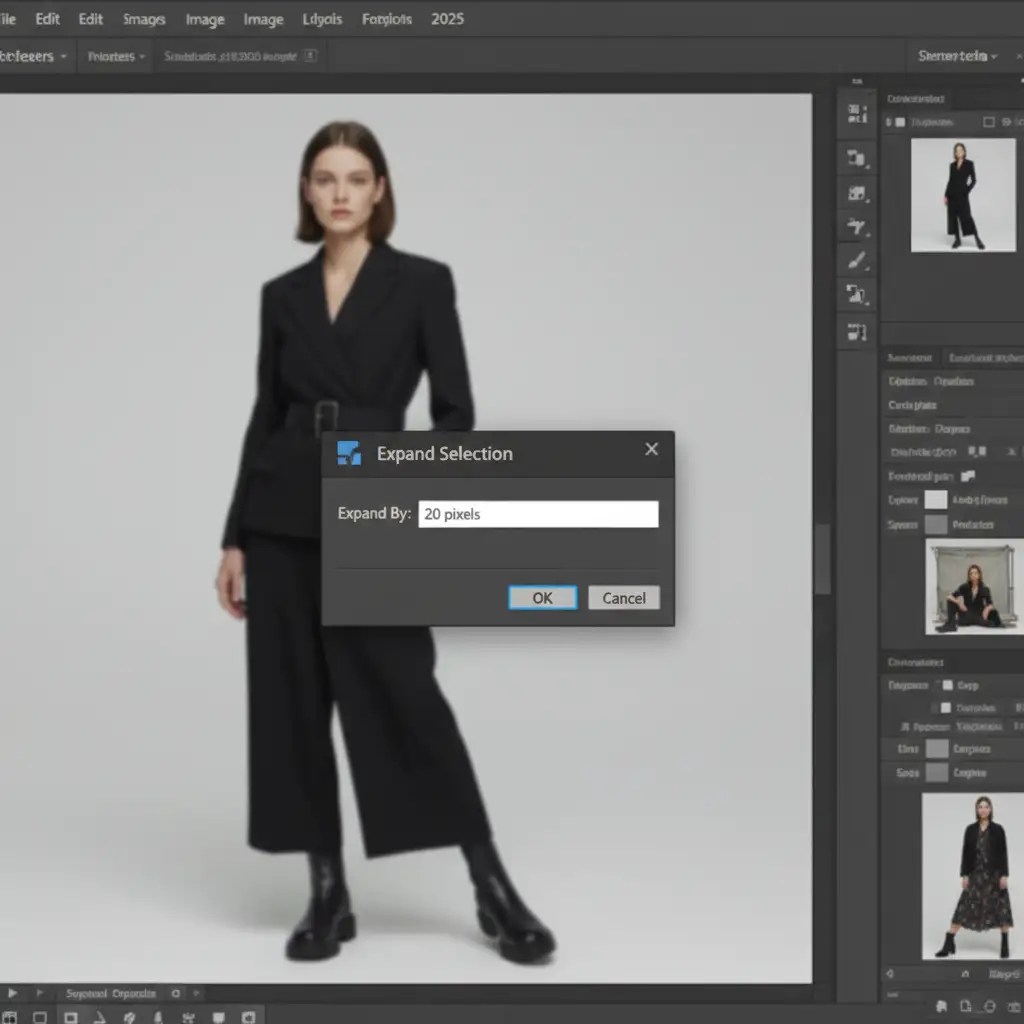
- Navigate to Select > Modify > Expand.
- Expand your selection by 10 to 20 pixels (depending on your image resolution).
- Leave the prompt completely blank and hit Generate.
By pushing the marching ants outward, the AI can read the surrounding background textures and confidently replicate them, eliminating random object generation.
Method 3: The Technical Deep-Dive – Explicit Prompts & Cache Purging
Because Photoshop currently lacks a dedicated “negative prompt” box to tell the AI what not to do, you must guide it with explicit positive commands.
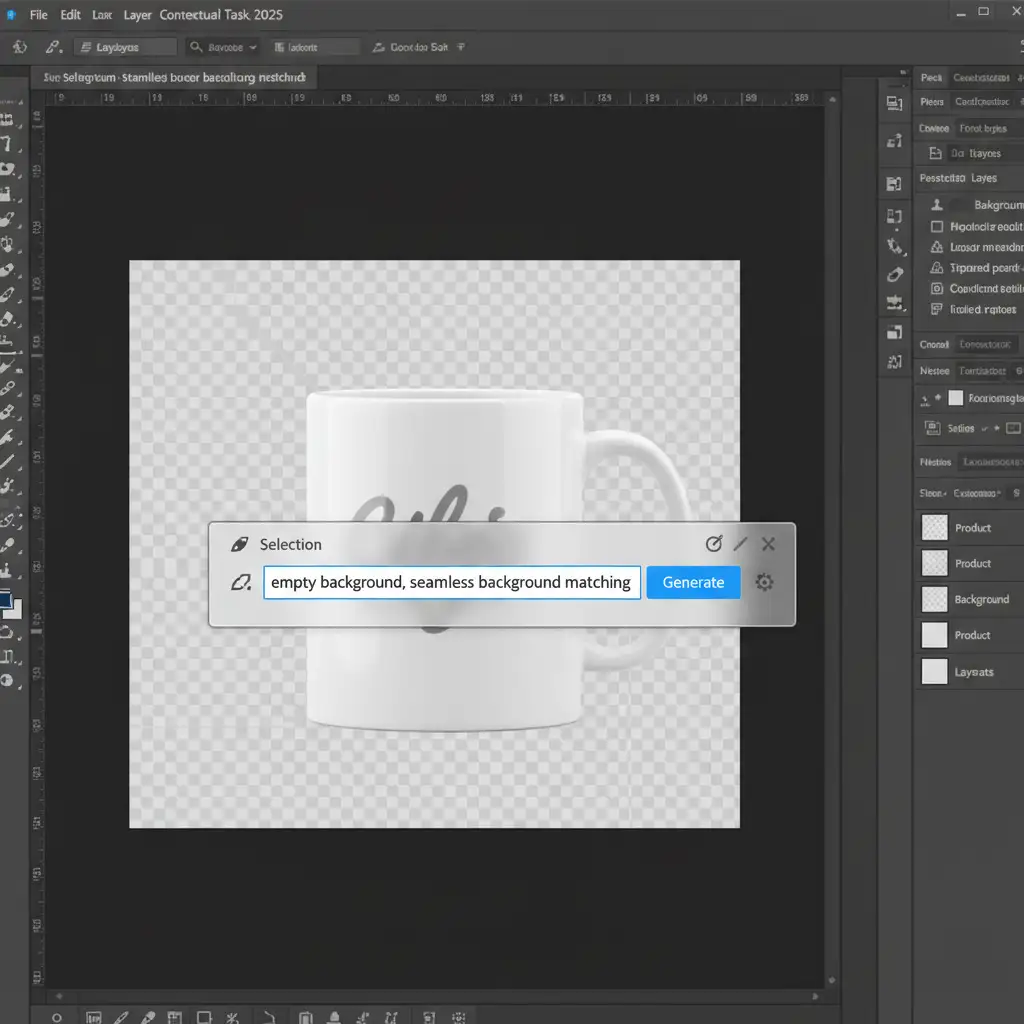
Instead of leaving the Contextual Task Bar blank, type direct removal commands. Phrases like ’empty background’, ‘seamless background matching’, or ‘clean texture’ force the AI to focus on matching the environment rather than inventing new subjects.
Still seeing glitches? Sometimes the AI generation cache holds onto corrupted data from previous failed prompts.
- Go to Edit > Purge > All to clear the cache.
- Double-check your Creative Cloud desktop app to ensure you are running the absolute latest build of Photoshop v27.x, as Adobe frequently pushes silent patches to the Firefly module to reduce hallucinations.
Stop Fighting the AI—Let the Experts Handle It
Fixing Generative Fill adding objects in Photoshop 2025 requires a deep understanding of how AI interprets pixel context. While these workarounds will fix the immediate issue, battling AI hallucinations across hundreds of e-commerce product photos, real estate listings, or editorial portraits drains your valuable time.
You don’t have to do it yourself.
At Image Work India and Cloud Retouch, our expert retouchers combine cutting-edge AI tools with decades of manual, pixel-perfect editing experience. Whether you need complex background removals, seamless object deletion, or high-volume commercial clipping paths, we deliver flawless results that AI simply cannot guarantee on its own.
Stop wasting hours trying to prompt the AI into submission. [Contact Image Work India and Cloud Retouch today] for professional, commercial-grade image manipulation that gets it right the first time.




