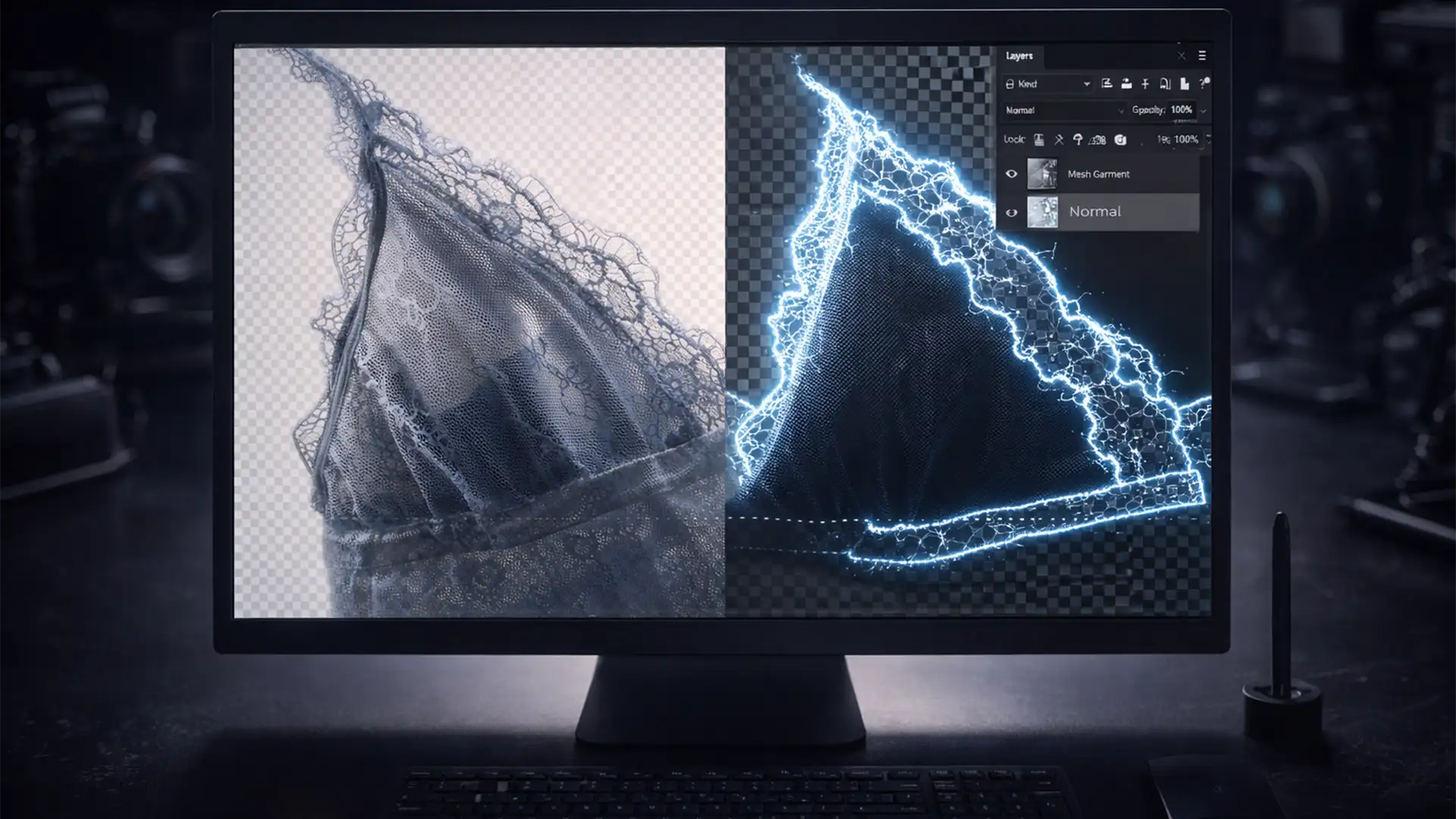

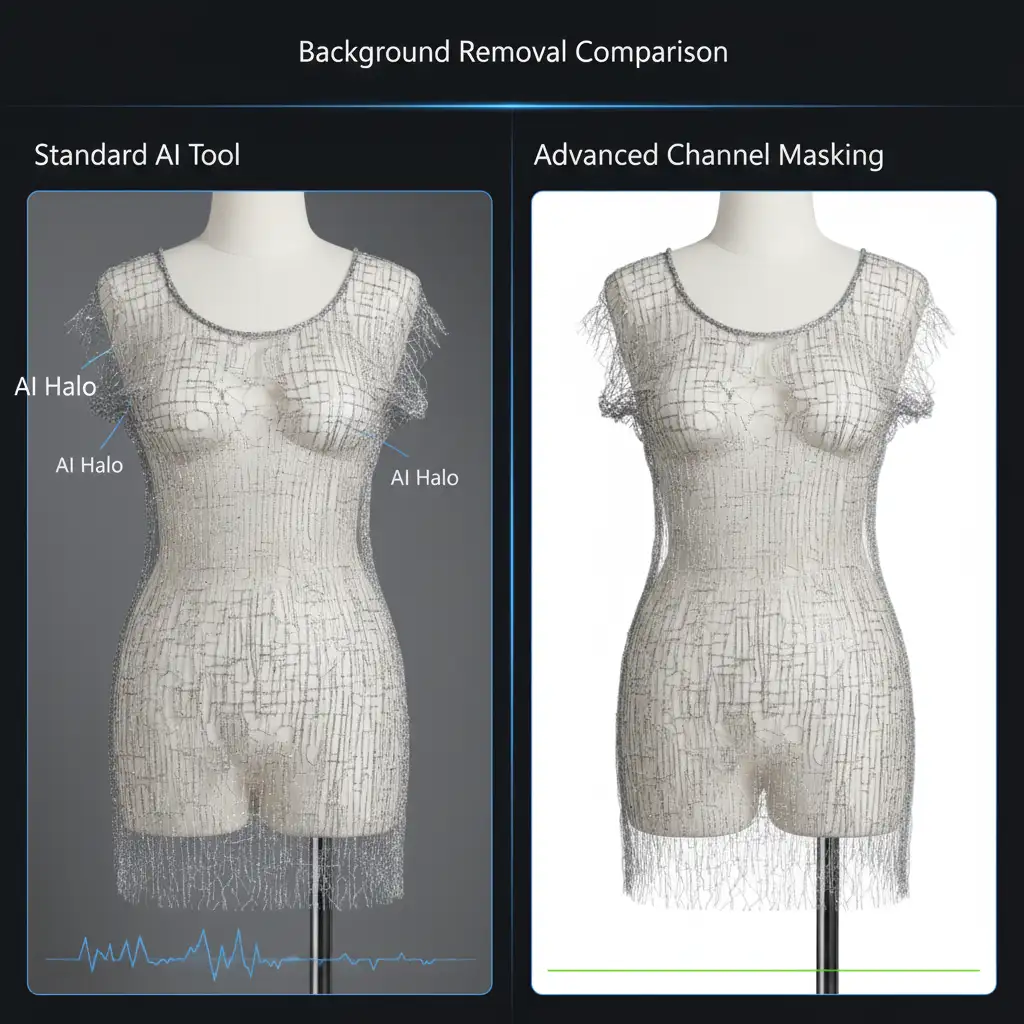
If you manage a high-volume eCommerce studio, you already know the nightmare of processing sheer fabrics. You run a standard automated action, and the result is a disaster: the dreaded “AI Halo” where background colors bleed through the mesh holes, or worse, the algorithm aggressively deletes the delicate threads entirely, treating them as background noise.
When dealing with strict image requirements for Amazon and Shopify, relying on one-click solutions for complex apparel leads to rejected listings and lost sales.
In this guide, we will break down how to bypass failing automated tools and build a flawless batch background removal for mesh fabrics AI workflow using advanced Photoshop masking techniques.
The Problem with AI Background Removal on Complex Fabrics
Current AI background removal algorithms, including those in Photoshop v25.x and popular standalone web tools, are optimized for solid edges. When they encounter semi-transparent pixels, mesh, lace, and sheer fabrics, the edge detection algorithms fail.
The software cannot differentiate between the fine thread of a mesh garment and the studio backdrop. As a result, high-volume eCommerce studios cannot rely on standard “Remove Background” quick actions. You need a predictable batching method that preserves the transparency profile without requiring ten minutes of manual pen tool work per image.
Method 1: The Select and Mask Quick Fix
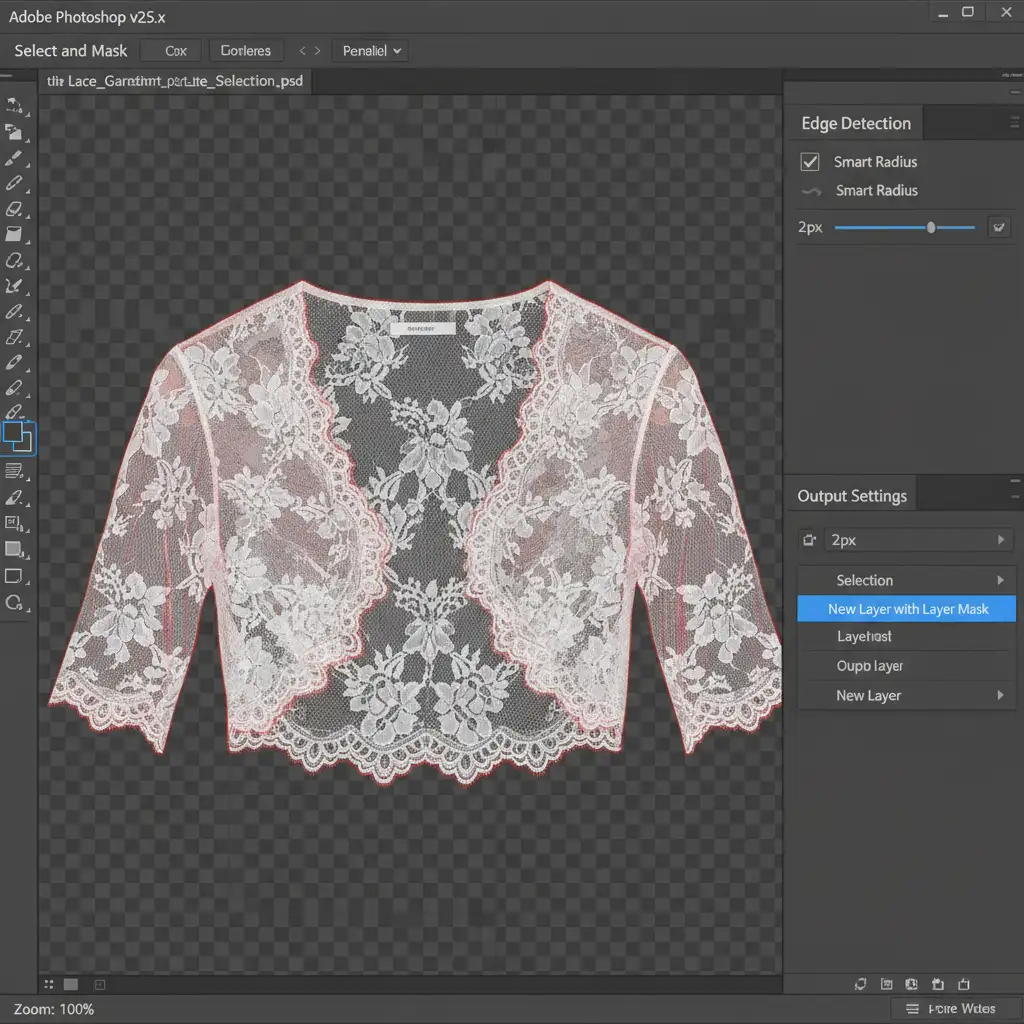
If your source images have a highly consistent, solid contrasting background, you can utilize a refined AI approach. By combining automated selection with manual refinement, you can record a reliable Action for your Batch Processing pipeline.
Configuring the Refine Edge Tool
- Open your image in Photoshop and open the Select and Mask workspace.
- Click Select Subject to generate the initial boundary.
- Select the Refine Edge Brush Tool from the left toolbar.
- Carefully paint over the mesh and sheer fabric areas where the background is showing through.
- In the Properties panel under Edge Detection, check Smart Radius and set the slider between 1px and 3px. This forces the algorithm to recalculate the semi-transparent pixels specifically within the mesh gaps.
- Under Output Settings, select New Layer with Layer Mask.
- Crucial Step: Record this exact sequence as a Photoshop Action so it can be applied to similar images.
Method 2: The Pro Workaround Using Alpha Channels
For maximum precision, professional retouchers abandon AI edge detection entirely in favor of luminosity and color data. This Alpha Channel method guarantees that no threads are lost to aggressive AI deletion.
Creating a High-Contrast Channel Mask
- Open your image and navigate to the Channels Panel.
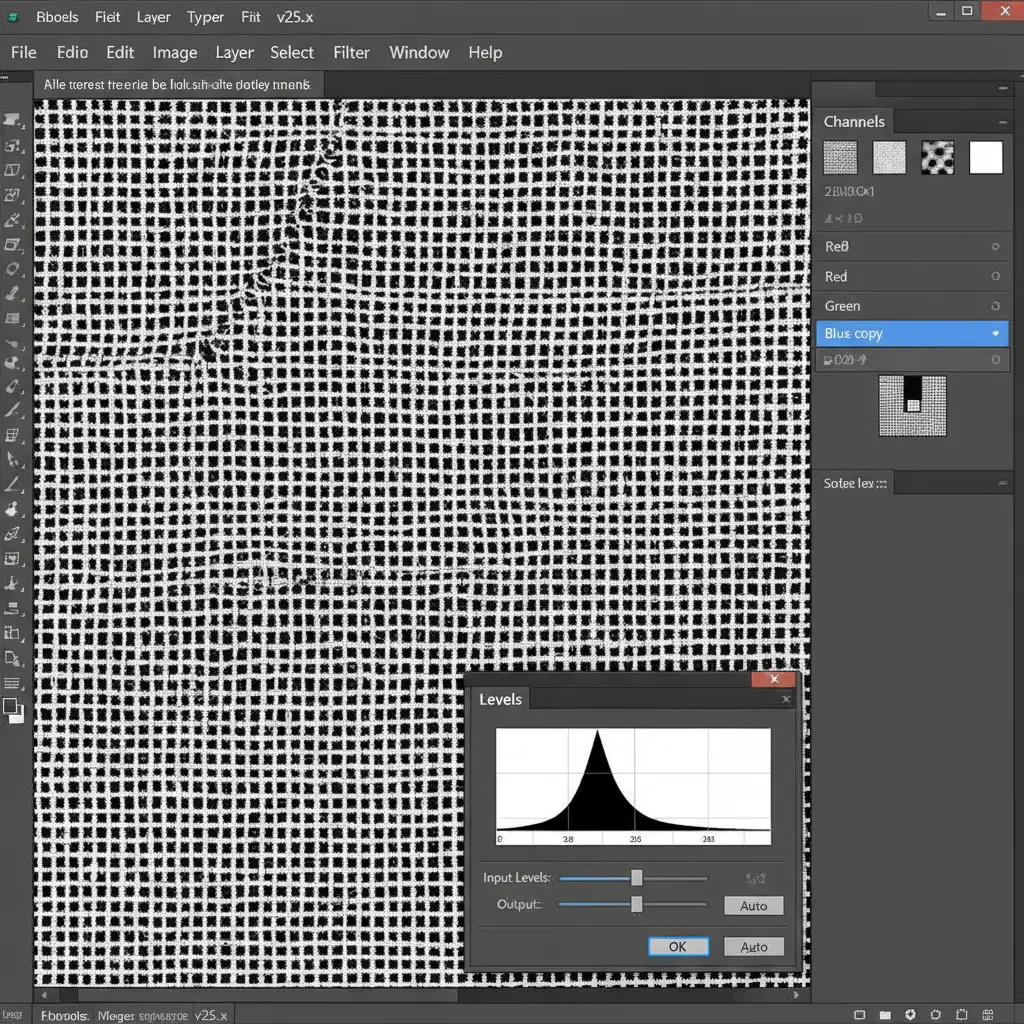
- Click through the Red, Green, and Blue channels to find the one with the highest contrast between the mesh fabric and the background.
- Duplicate this high-contrast channel.
- With the duplicated channel selected, open a Levels adjustment (Ctrl/Cmd + L).
- Push the black and white sliders inward to force the mesh threads to pure black and the background to pure white (or vice versa, depending on the garment color).
- Load this channel as a selection (Ctrl/Cmd + Click the channel thumbnail).
- Return to the RGB channel, invert the selection (Shift + Ctrl/Cmd + I), and apply it as a layer mask.
- Record this precise sequence into an Action. Because this relies on math rather than AI guessing, it is highly stable for batching.
Method 3: Scaling Up – Creating a Photoshop Droplet
Once you have recorded your Action (using either Method 1 or Method 2), you need to deploy it across your eCommerce catalog. Running an Image Processor script on 1,000+ images requires specific system configurations to prevent crashes.
Configuring the Droplet and GPU Acceleration
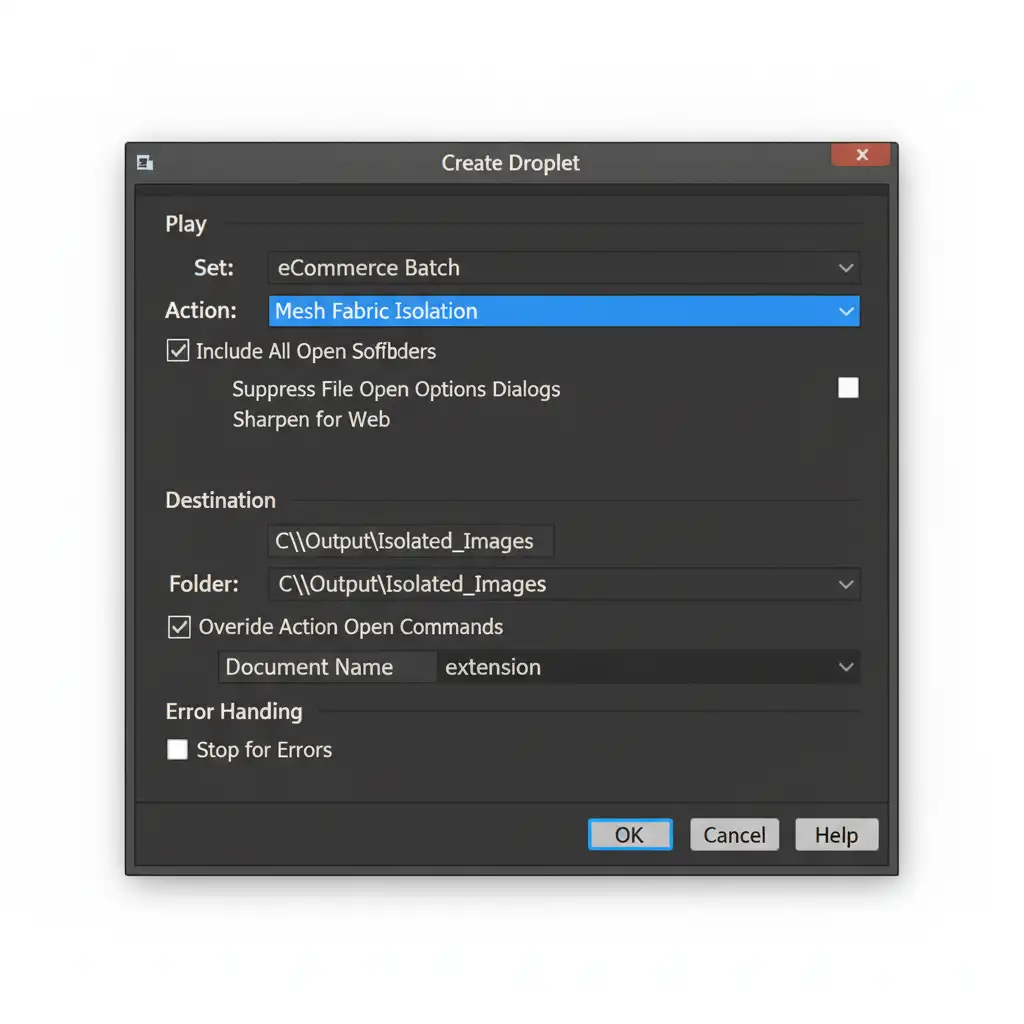
- Navigate to File > Automate > Create Droplet.
- Choose a save destination for the Droplet application.
- In the “Play” section, select the Action you recorded for the mesh extraction.
- Mandatory: Check the box for Override Action Open Commands. This ensures the Droplet processes the new files rather than repeatedly opening the original file you used to record the Action.
- Preventing Crashes: Complex Alpha Channel calculations and Refine Edge algorithms consume massive memory. Before running your Droplet, go to Edit > Preferences > Performance. Ensure Use Graphics Processor is enabled. Click Advanced Settings and verify that Use OpenCL is checked. This enables GPU Acceleration, drastically reducing processing time and preventing Photoshop from hanging during massive batch runs.
Stop Wasting Time on Complex Masking
Perfecting a batch background removal for mesh fabrics AI workflow requires deep technical knowledge of Alpha Channels, Clipping Paths, and GPU optimization. Even with a perfect Photoshop Droplet, lighting variations across different photoshoots can still cause automated actions to fail, requiring tedious manual cleanup.
If you are struggling with high-volume eCommerce catalogs featuring complex materials like mesh, sheer fabrics, or lace, let the experts handle it.
Outsource to Image Work India and Cloud Retouch. Our team of professional retouchers specializes in pixel-perfect manual clipping paths and advanced transparent masking at an unbeatable scale. We guarantee flawless edges, zero “AI Halos,” and rapid turnaround times tailored for Amazon and Shopify standards.
Contact Image Work India today to streamline your post-production pipeline and get your products online faster.




