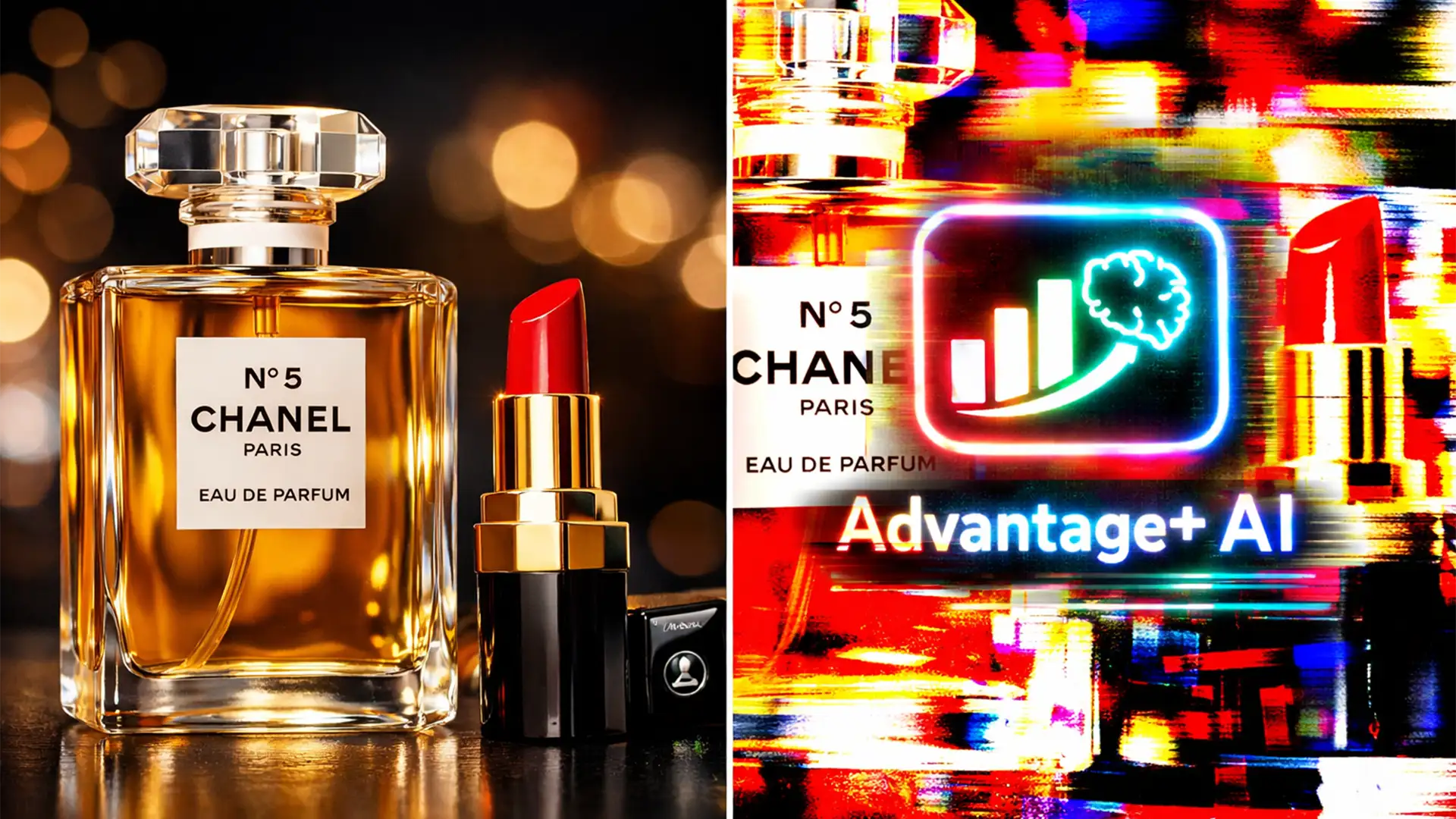

You just invested thousands of dollars into high-end product photography and professional retouching. Your brand colors are dialed in perfectly. But the moment you launch your campaign in Meta Ads Manager, the images look terrible. The colors are blown out, the contrast is harsh, and your meticulously composed shots are awkwardly cropped.
Welcome to the hidden cost of Meta’s AI auto-adjustments. While designed to help novice advertisers, these aggressive algorithmic tweaks often destroy professional visual integrity. If you want to maintain strict brand compliance and protect your visual assets, you need to know exactly how to disable Meta Advantage+ automatic image enhancements.
Here is the definitive guide to locking down your ad creatives and stopping the algorithm from ruining your hard work.
Why Meta’s AI is Ruining Your Ad Creatives
Meta’s Advantage+ creative optimizations were introduced to automate the heavy lifting of ad creation. By default, the platform applies Standard Enhancements to your uploads. This means the algorithm actively alters brightness, artificially boosts contrast, applies generic image filters, and forces aspect ratio cropping to fit different placements.
For brands with strict visual guidelines, this is a nightmare. These AI auto-adjustments can:
- Distort carefully calibrated color profiles (making brand colors look cheap or inaccurate).
- Ruin professional skin retouching by over-sharpening pixels.
- Introduce unauthorized visual elements or text overlays.
- Break brand compliance by awkwardly cropping logos out of the frame.
To preserve your brand’s visual integrity, you must take back control of your ad creative optimization.
How to Disable Meta Advantage+ Automatic Image Enhancements
There are three distinct methods to secure your assets within Meta Ads Manager, ranging from a quick ad-level toggle to a comprehensive account-level lockdown.
Method 1: The Quick Ad-Level Fix
The most direct way to stop these unwanted changes is to manually intercept them during the media upload process at the Ad level.
- Navigate to your ad creation screen in Meta Ads Manager.
- Click Add Media and upload your meticulously retouched image or video.
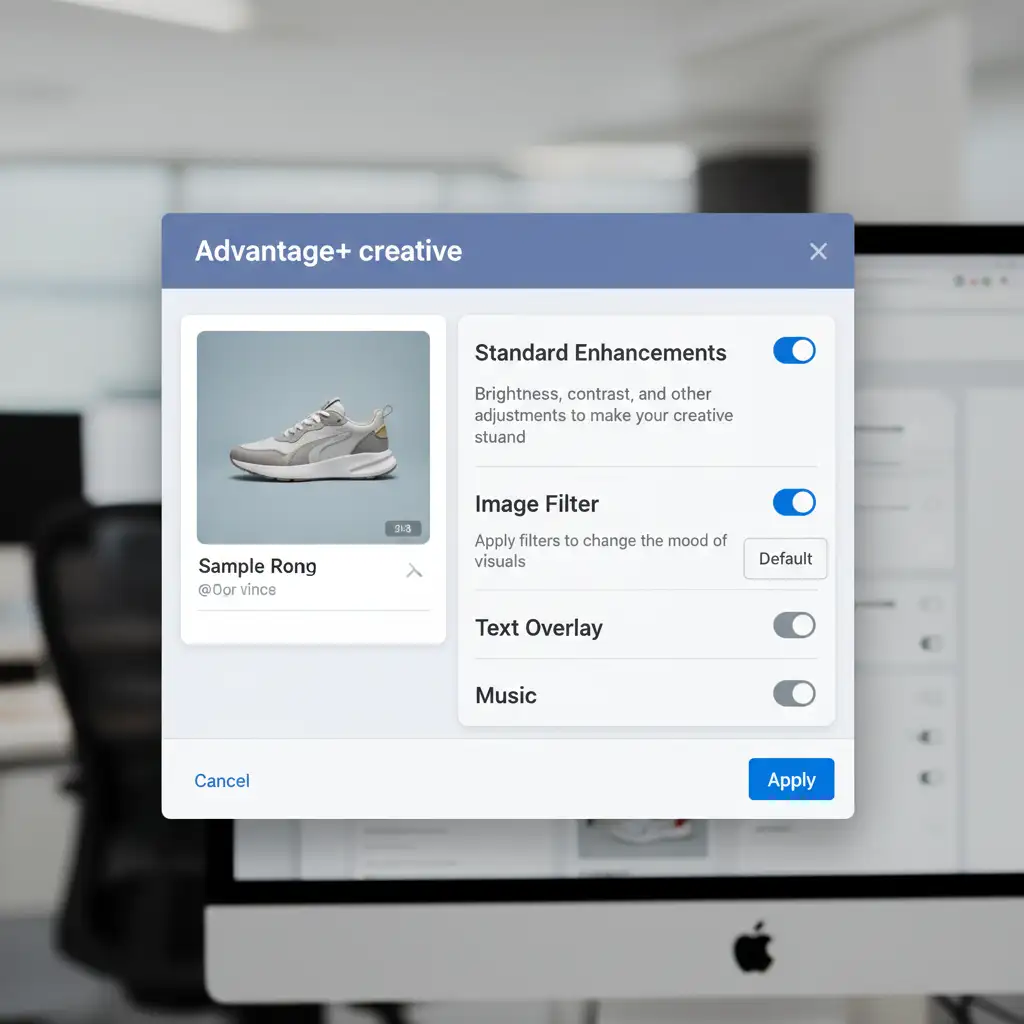
- Once the upload finishes, the Advantage+ creative menu will automatically pop up.
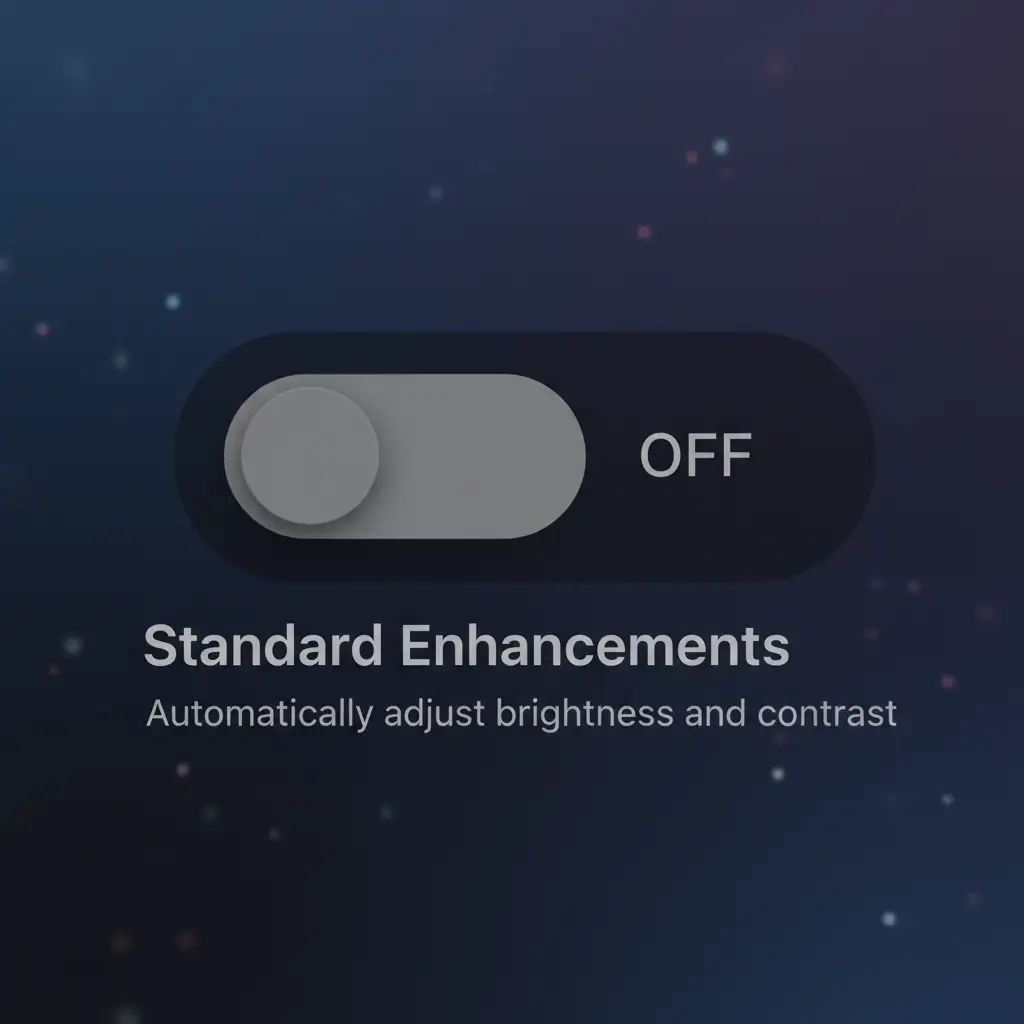
- Locate the toggles for Standard Enhancements and Image Filter.
- Switch them to the OFF position before clicking Done.
Method 2: The Pro Workaround (Pre-Cropping by Placement)
Even with enhancements turned off, Meta’s algorithm may still attempt aggressive aspect ratio cropping if your image doesn’t perfectly fit the placement (e.g., forcing a square image into a 9:16 Reels format).
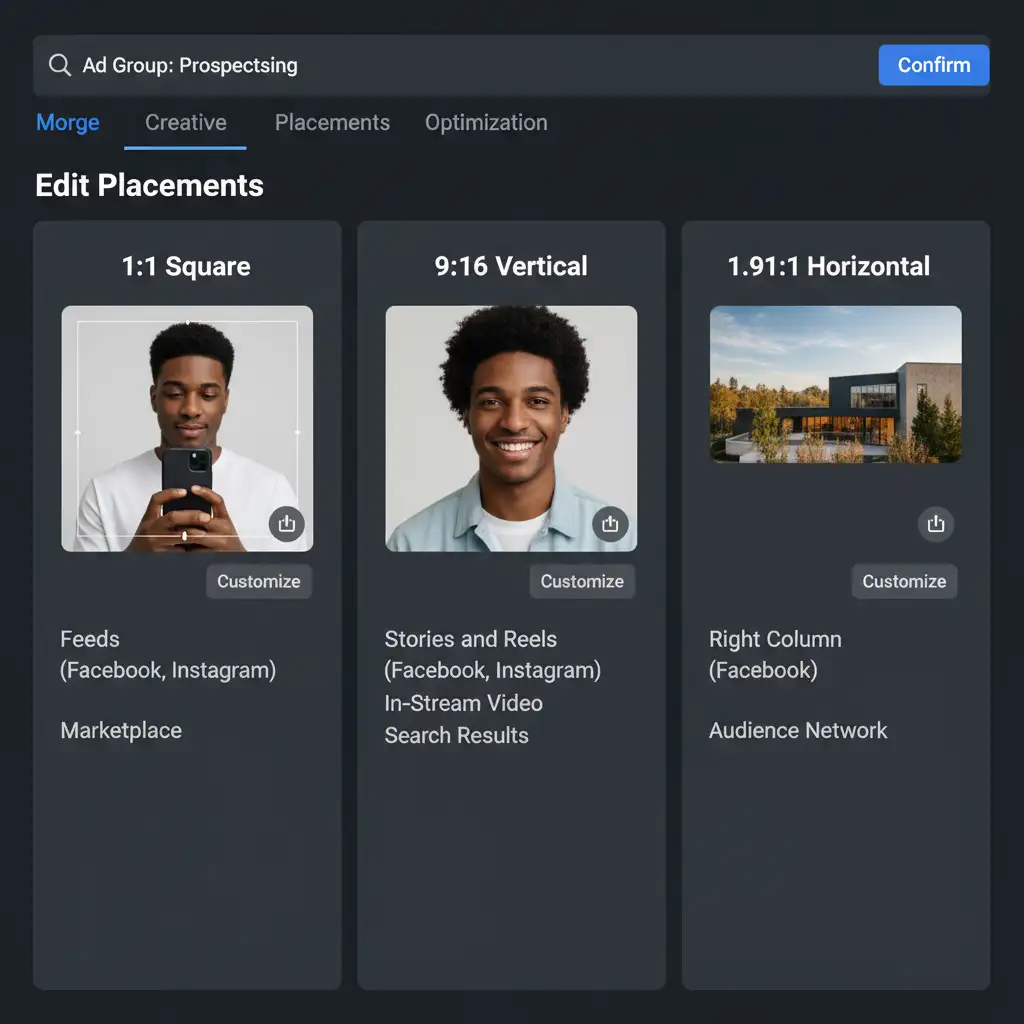
The professional workaround is to use the Edit Group feature to manually upload pre-formatted assets for every specific placement.
- Create your assets in specific ratios prior to uploading: 1:1 (Feed), 9:16 (Stories/Reels), and 1.91:1 (Right Column/Search).
- In the Ad setup, click the Edit Group button next to your media.
- Manually assign your pre-cropped images to their corresponding placements.
- By filling these slots with exact-match resolutions, you bypass the algorithm’s trigger for auto-cropping and layout adjustments.
Method 3: The Technical Deep-Dive (Account-Level Settings)
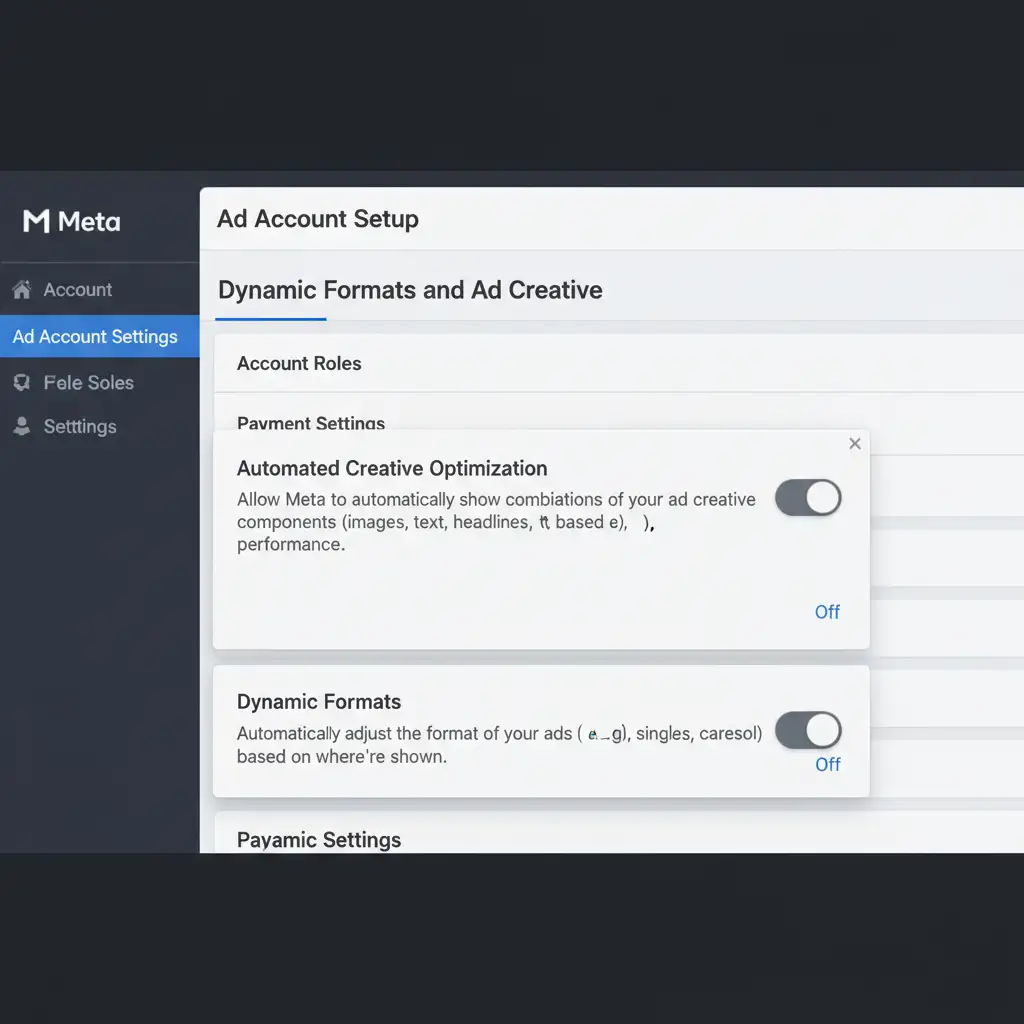
If you are running large-scale catalog ads or want a permanent safeguard across your entire ad account, you need to adjust your account-level settings to restrict dynamic formats.
- Open your Ad Account Settings in Meta Business Manager.
- Navigate to the automated rules and creative optimization sections.
- Ensure that Dynamic Formats and automated ad creative optimizations are restricted or disabled.
- This locks the visual integrity of both standalone ad assets and dynamic product catalogs, ensuring Meta serves the exact image file you provided without algorithmic interference.
Stop Letting Algorithms Ruin Your Brand
Disabling Meta’s automatic image enhancements is only half the battle. To truly stand out in a crowded digital feed, your ad creatives need to be flawless before they even touch the Ads Manager platform.
If you are tired of battling algorithms and want your products to look premium, perfect, and brand-compliant every single time, you need professional post-production. Image Work India and Cloud Retouch specialize in high-end photo retouching, precise color correction, and pixel-perfect formatting tailored specifically for digital ad placements.
Don’t let aggressive AI ruin your expensive product photography. Let our expert team deliver flawless, ready-to-upload assets that convert. Contact Image Work India and Cloud Retouch today to elevate your brand’s visual standard.




