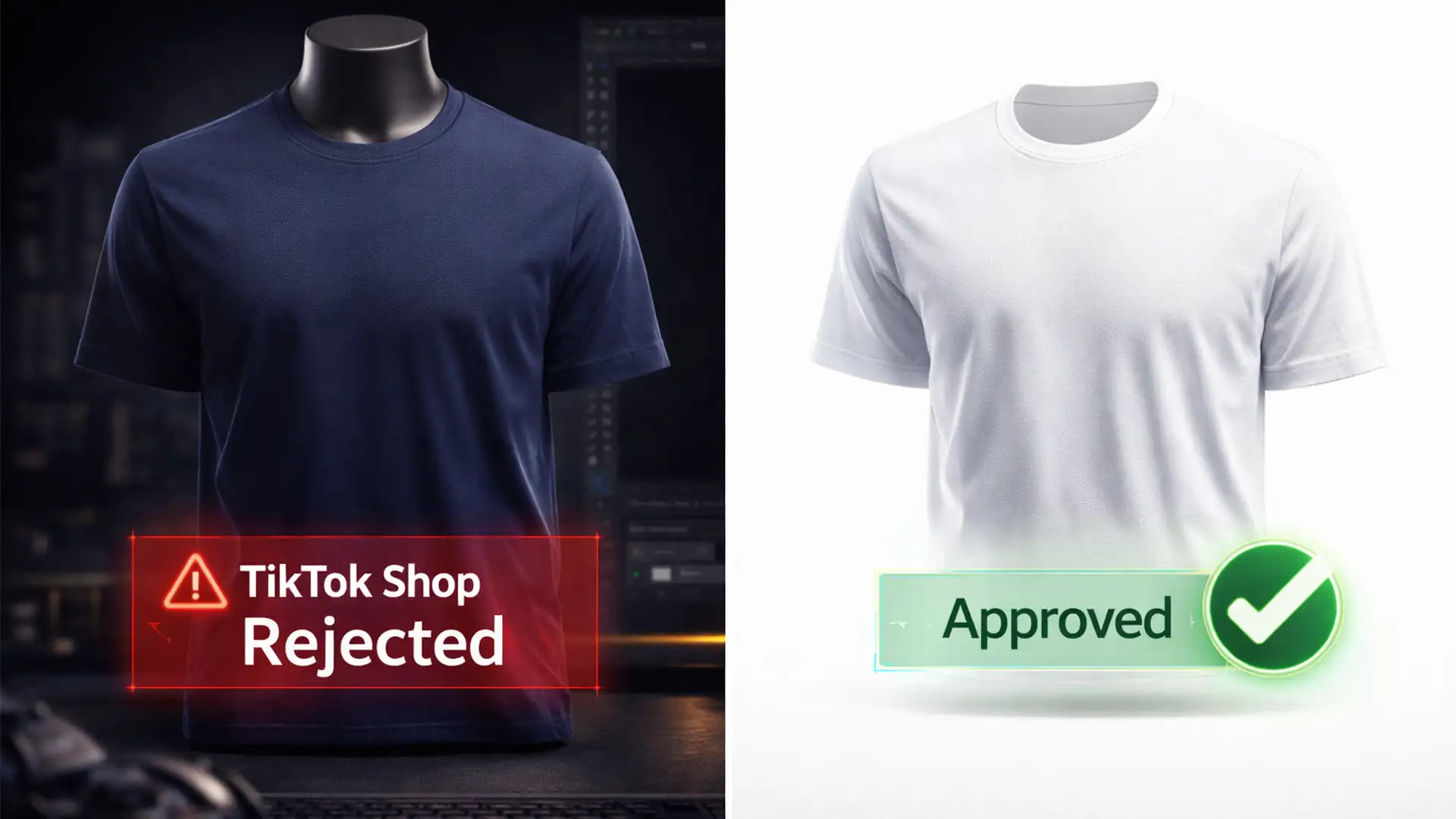

Are your apparel listings stuck in a constant loop of TikTok Shop rejections? You are not alone. TikTok Shop’s automated image moderation algorithm is notoriously strict, frequently flagging apparel photos for non-compliant backgrounds, visible mannequins, or incorrect aspect ratios. Every hour your product is hidden is lost revenue.
The secret to bypassing these automated filters and boosting your sales is mastering ghost mannequin editing for TikTok Shop requirements. In this guide, we break down the exact Photoshop workflows—from rapid AI fixes to pro-level composites—that guarantee your product images get approved on the first try.
Why TikTok Shop Rejects Apparel Images
Before opening Photoshop, you need to understand what the platform’s algorithm is looking for. TikTok Shop prioritizes a clean, distraction-free shopping experience. If your images trigger the automated image moderation system, your listing gets suspended instantly.
To pass the checks, your apparel images must adhere to these strict mandates:
- Aspect Ratio: Strictly 1:1 (Square).
- Resolution: Minimum 800×800 pixels (1200×1200 pixels is highly recommended for zoom functionality).
- Background: Pure white (Hex code #FFFFFF).
- Presentation: Unobstructed view of the garment, zero watermarks, and no visible mannequins or hangers.
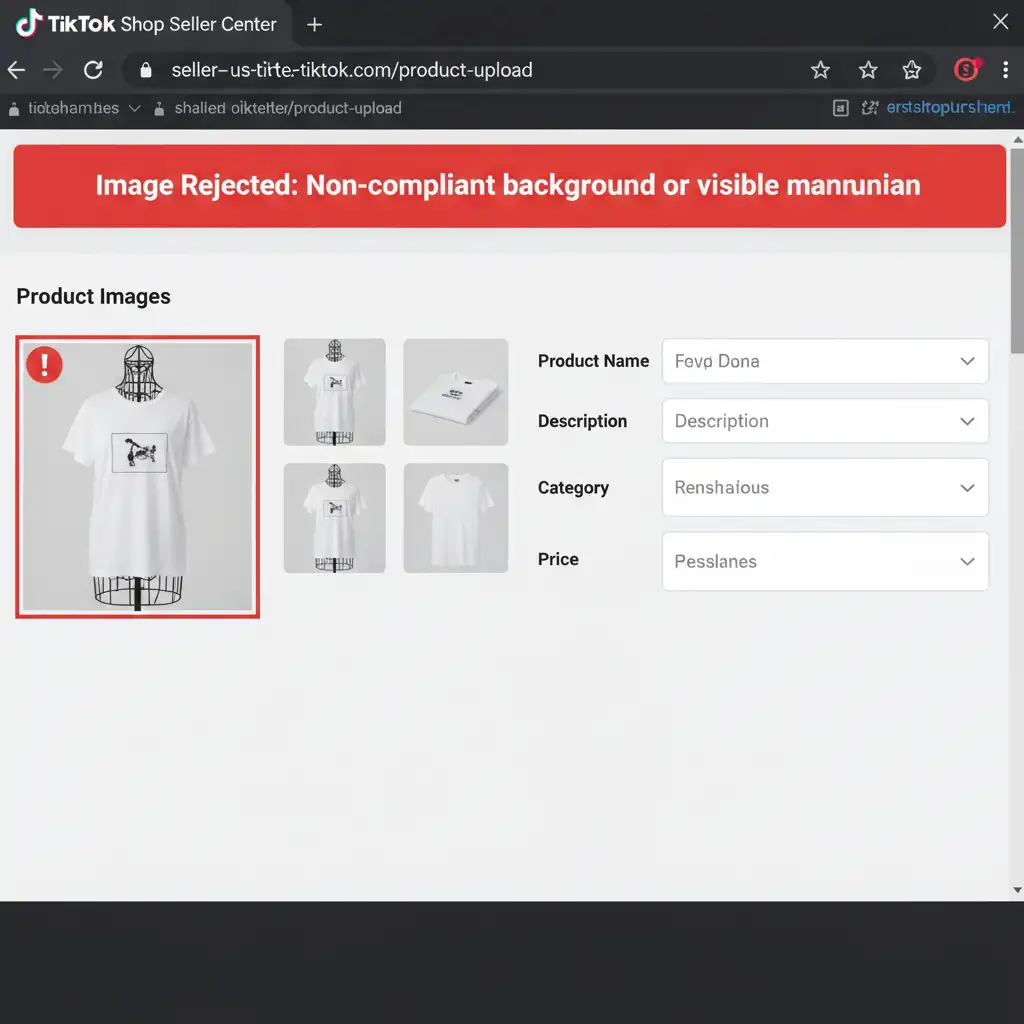
The Core Solution: The Ghost Mannequin Technique
The ghost mannequin (or “hollow man”) effect allows you to showcase the fit, drape, and volume of a garment without a distracting mannequin body violating platform policies. Achieving this requires precise background removal and a flawless neck joint composite to synthesize the inside of the collar.
Here is how to execute this perfectly in Adobe Photoshop (v24.x and v25.x).
Step-by-Step Photoshop Workflows
Method A: The Quick Fix (For Fast Compliance)
If you have hundreds of SKUs and need immediate compliance, you can leverage Photoshop’s AI capabilities for a rapid fix.
- Isolate the Garment: Open your raw mannequin photo. Use the Object Selection Tool to highlight the garment.
- Apply the Background: Invert your selection and apply a solid pure white (#FFFFFF) background to satisfy the platform’s color requirements.
- Synthesize the Collar: Select the visible mannequin parts showing through the neck or sleeves. Use Generative Fill with a prompt like “inside back collar of a cotton t-shirt” to instantly replace the mannequin with realistic fabric.
While fast, Generative Fill can sometimes create inconsistent fabric textures. For high-ticket items, you need Method B.
Method B: The Pro Workaround (Neck Joint Composite)
This is the industry-standard method for premium e-commerce photography. It requires a dual-shot photography approach: one photo of the garment on the mannequin (front exterior), and a second photo of the garment inside-out to capture the inner back collar and brand tag.
- Create a Precise Path: Open the front exterior photo. Select the Pen Tool and carefully draw a clipping path around the edges of the garment, ensuring you cut inside the mannequin lines so no plastic or wire shows.
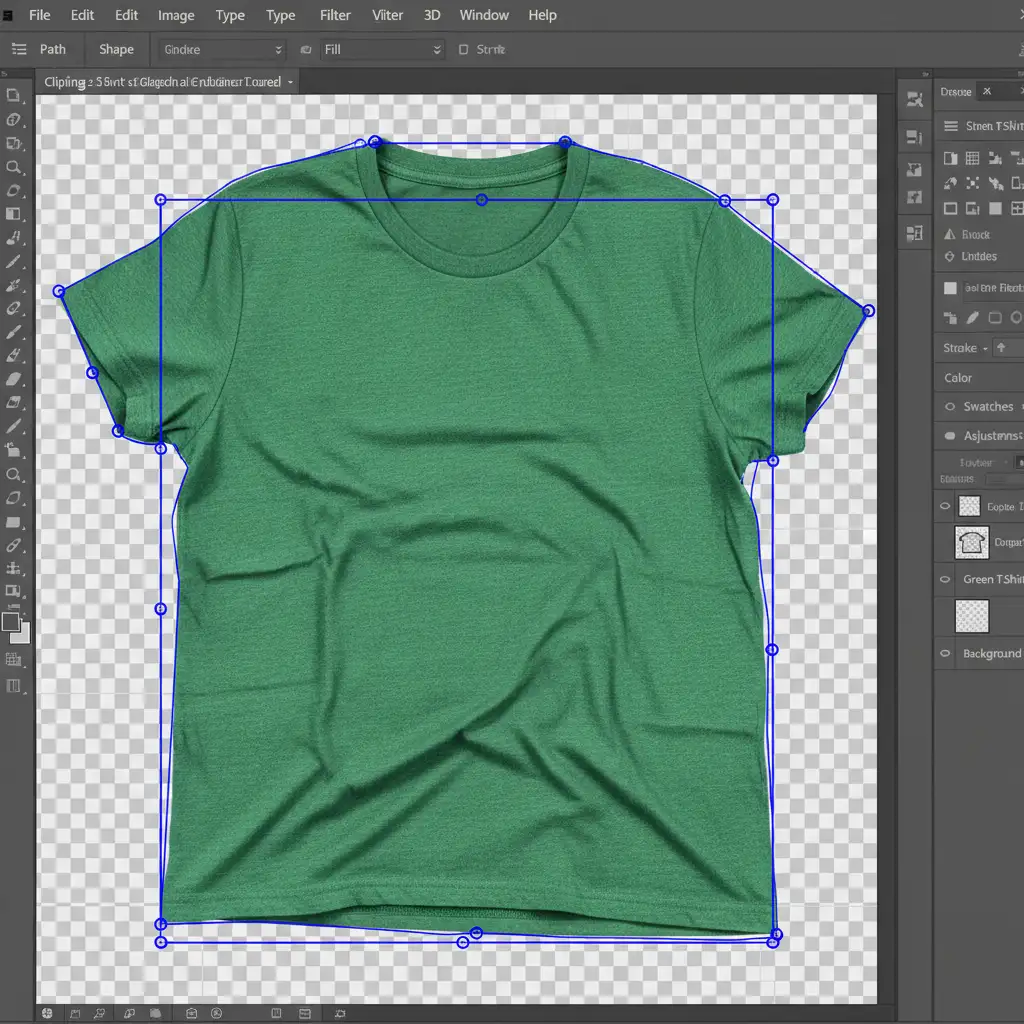
- Organize Your Hierarchy: Convert your path to a selection and apply a layer mask. Bring your second photo (the inside-out collar shot) into the document. Place this layer below your front garment layer.
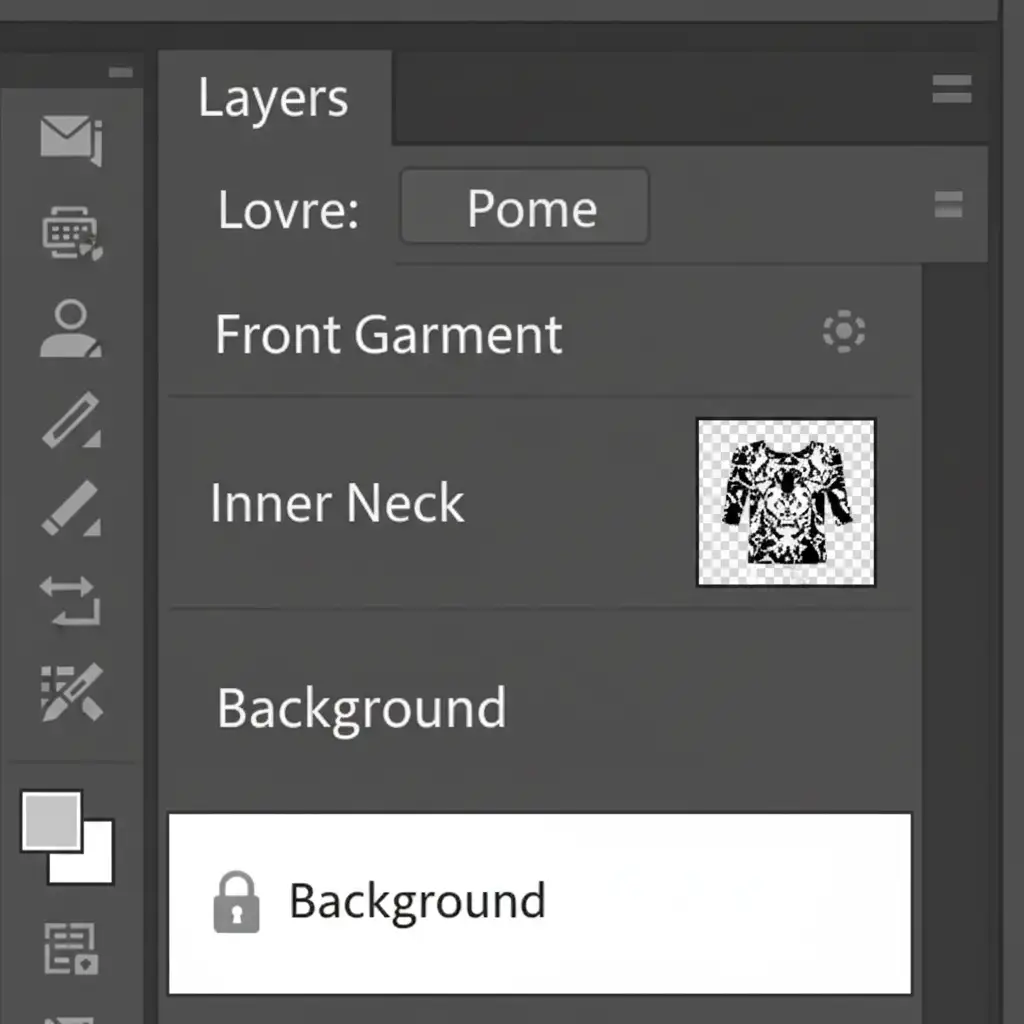
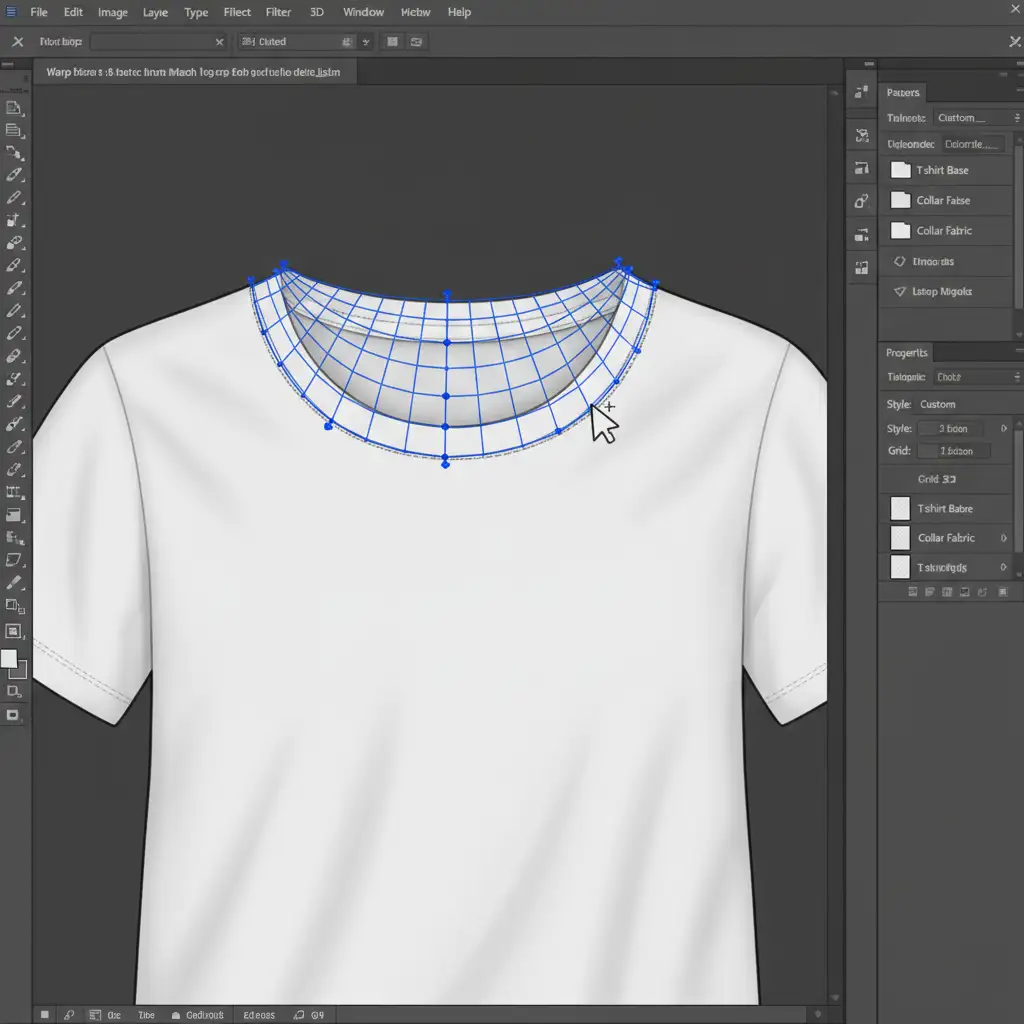
- Align the Seams: Select the Inner Neck layer. Press Ctrl+T (or Cmd+T) and activate the Warp Tool. Gently push and pull the grid anchor points to align the shoulder seams of the inner collar perfectly with the front garment. Mask out any excess fabric.
Method C: The Technical Deep-Dive (TikTok-Specific Export)
Even a flawless neck joint composite will be rejected if the file metadata and dimensions are wrong. Your export settings are the final barrier to approval.
- Crop the Canvas: Use the Crop Tool set to a strict 1:1 aspect ratio.
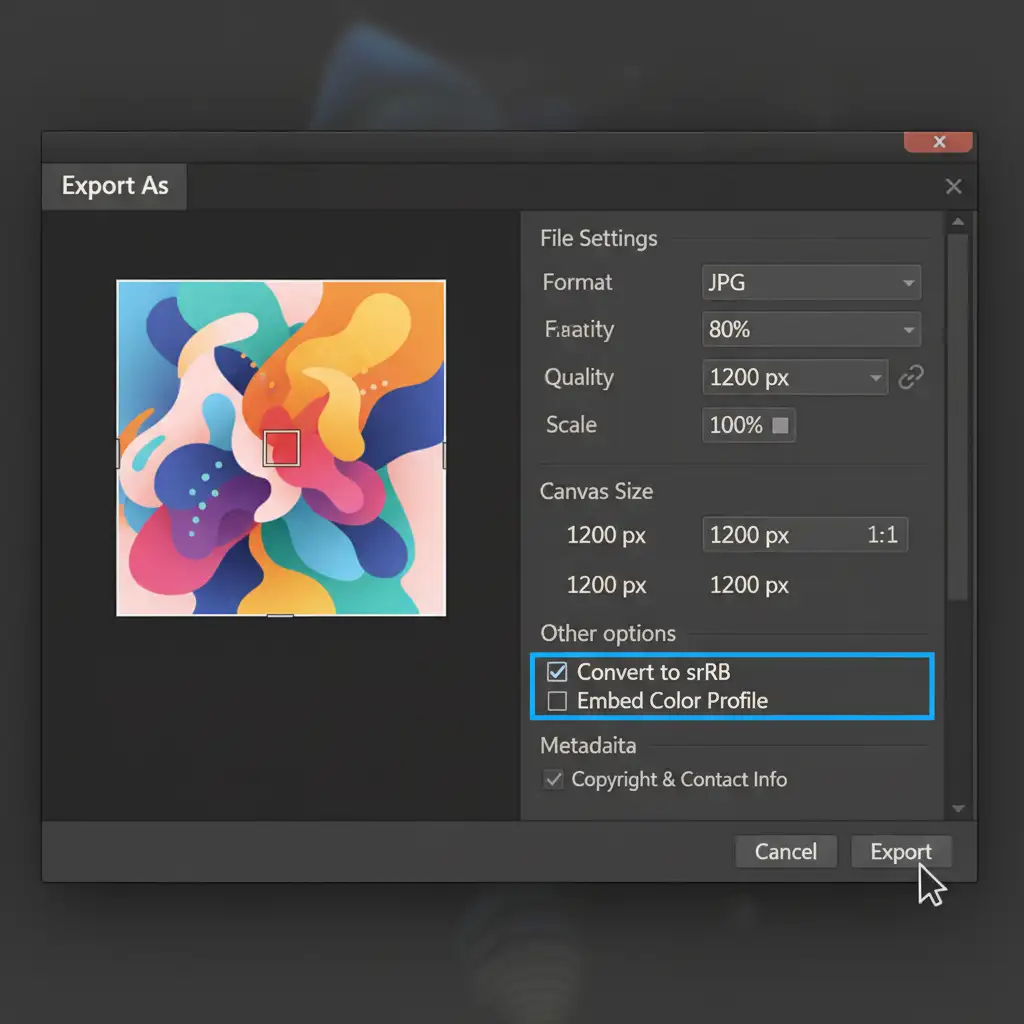
- Set Dimensions: Go to File > Export > Export As. Set the canvas width and height to 1200x1200px.
- Embed Color Profiles: Mobile screens display colors differently. You must check the Convert to sRGB box to embed the sRGB color profile. This prevents your vibrant red dress from looking dull brown on the TikTok app, reducing customer return rates.
Pro Tip: If you are processing a massive catalog, record these export steps as an Action and create Photoshop Droplets to batch process your final PSDs into TikTok-ready JPEGs automatically.
Stop Fighting the Algorithm. Let the Experts Handle It.
Perfecting ghost mannequin editing for TikTok Shop requirements takes hours of meticulous Pen Tool work and composite adjustments. If you are a high-volume seller, spending your day masking out mannequins means you aren’t spending your day scaling your business.
At Image Work India and Cloud Retouch, we specialize in pixel-perfect e-commerce image editing. Our team of professional retouchers handles complex clipping paths, seamless neck joint composites, and strict platform compliance checks so you don’t have to.
Stop risking listing suspensions and lost revenue. [Contact Image Work India and Cloud Retouch today] for automated, high-volume ghost mannequin editing that guarantees 100% TikTok Shop approval and maximizes your conversion rates.




