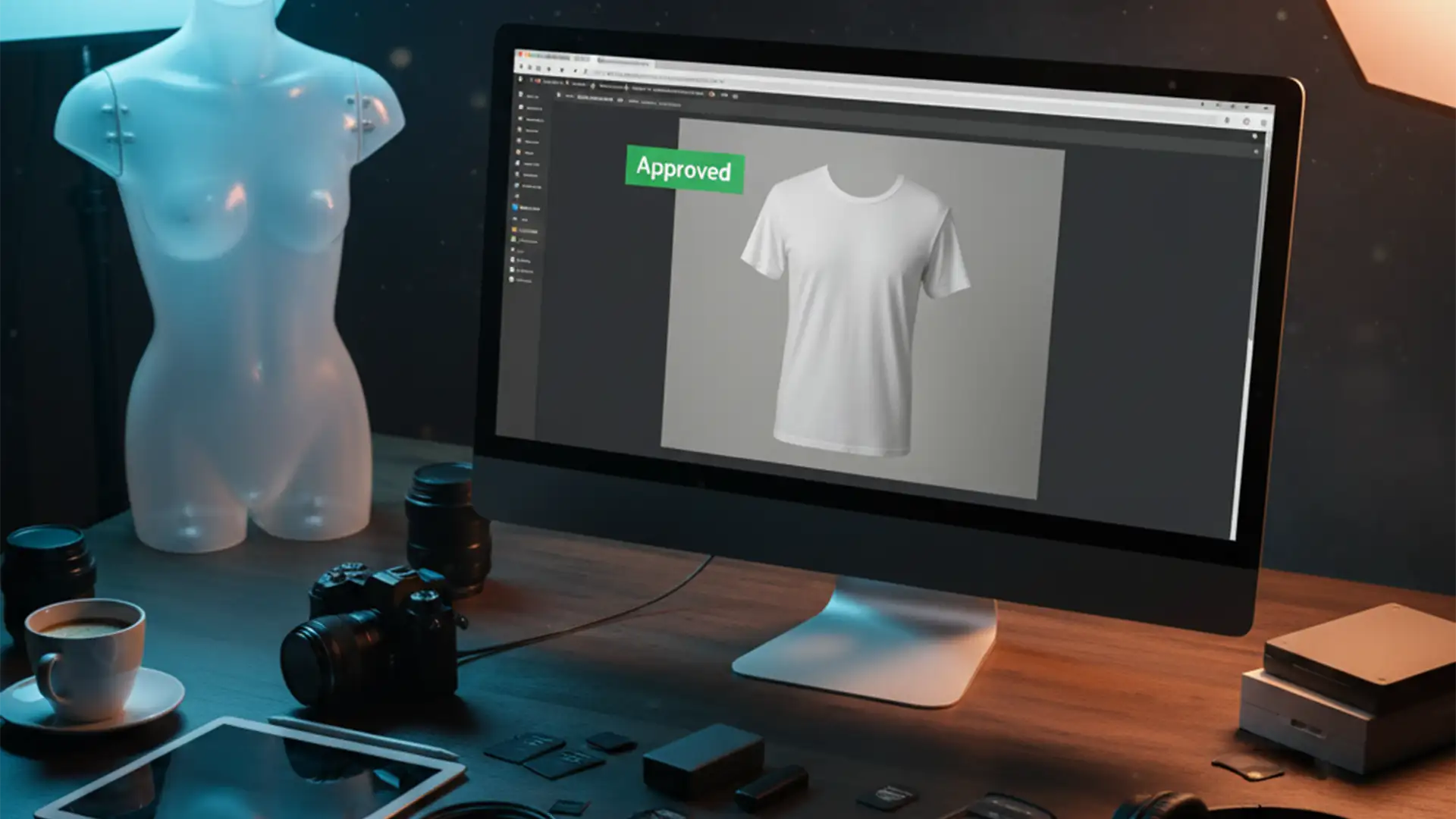

You just spent hours editing a massive batch of e-commerce apparel shots, uploaded them to the Adobe Stock Contributor Portal, and boom—rejected. The reason? “Missing Model Release.” But there’s no model! It’s a plastic dummy or a ghost mannequin edit.
This frustrating Adobe Stock mannequin model release issue happens constantly to contributors and e-commerce brands. The platform’s AI screening tools (and even rushed human reviewers) easily mistake the realistic 3D drape of clothing for a real person. Don’t throw away your hard work. In this guide, we’ll show you exactly how to bypass these false flags using proper asset categorization, clever tagging, and professional apparel retouching techniques so your catalog gets approved on the first try.
Why Adobe Stock Rejects Mannequin Photos
Stock photography guidelines are incredibly strict regarding personal likeness and intellectual property. When you submit a photo of a shirt that looks like it’s being worn by an invisible person, Adobe’s algorithm detects the human-like form. Because it cannot verify the identity of the “person” wearing the clothes, it automatically triggers a rejection under the “Missing Model Release” guideline.
The core issue lies in your submission settings and metadata. If you don’t explicitly tell the system that the asset is property-based (or purely inanimate), the default assumption is that a human model is present.
How to Fix the Adobe Stock Mannequin Model Release Issue
Depending on your workflow, there are three distinct ways to solve this problem, ranging from quick portal tweaks to advanced Photoshop metadata embedding.
Method 1: The Quick Fix (Submission Settings & Tagging)
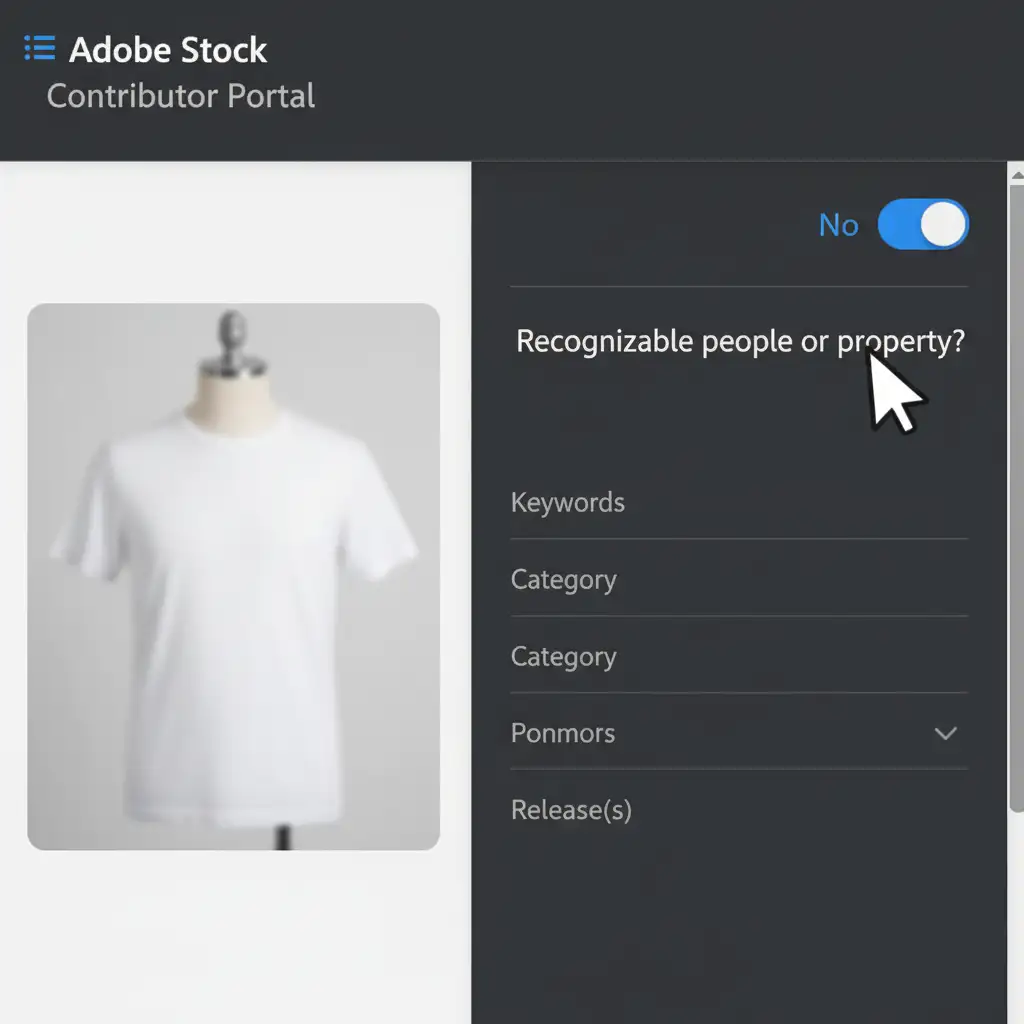
The easiest way to prevent false rejections is to correct your asset categorization directly inside the Adobe Stock Contributor Portal. You need to explicitly tell the AI that there is no human in the photo.
- Toggle the Property Setting: When uploading your image, locate the “Recognizable people or property?” question on the right-hand sidebar. You must set this toggle to “No”.
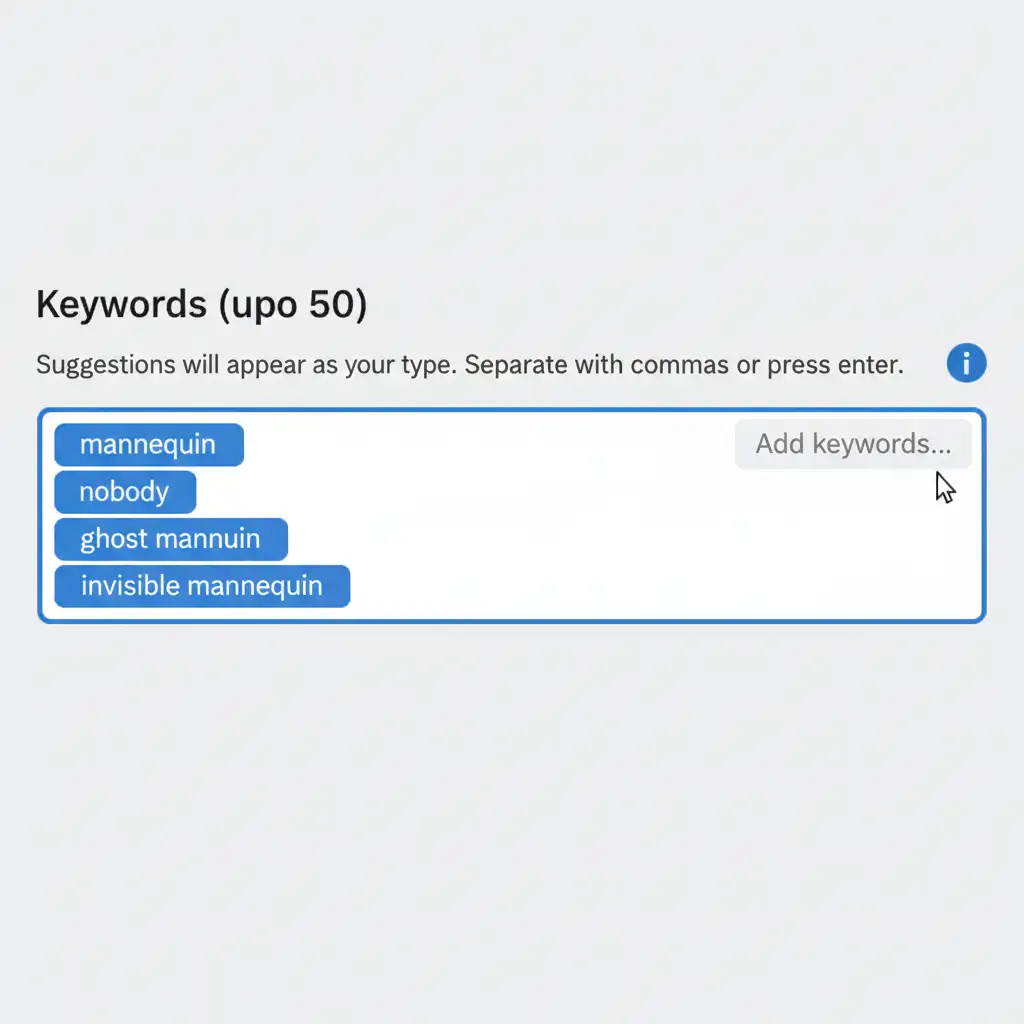
- Contextual Tagging: Do not rely on visual recognition alone. You must add specific keywords to your submission to force the reviewer to understand the context. Use terms like mannequin, nobody, ghost mannequin, and invisible mannequin.
Method 2: The Pro Workaround (Dummy Releases)
If your image has already been rejected and a simple re-upload doesn’t work, you can “hack” the system by providing exactly what it’s asking for—but tailored to your inanimate object.
- The Dummy Property Release: Resubmit the image and attach a standard Property Release. In the description field, clearly state: “Object is a generic, unbranded store mannequin.”
- The ‘N/A’ Model Release: Alternatively, you can upload a standard Model Release form. In the fields requiring the model’s name and details, write “N/A – This is a plastic mannequin.” Human reviewers will see this attached document, read the note, and manually approve the asset.
Method 3: The Technical Deep-Dive (Photoshop & IPTC Metadata)
If you produce high volumes of e-commerce imagery, the safest route is to bake the solution directly into the file during post-production. This prevents the Adobe Stock mannequin model release issue before the file ever leaves your hard drive.
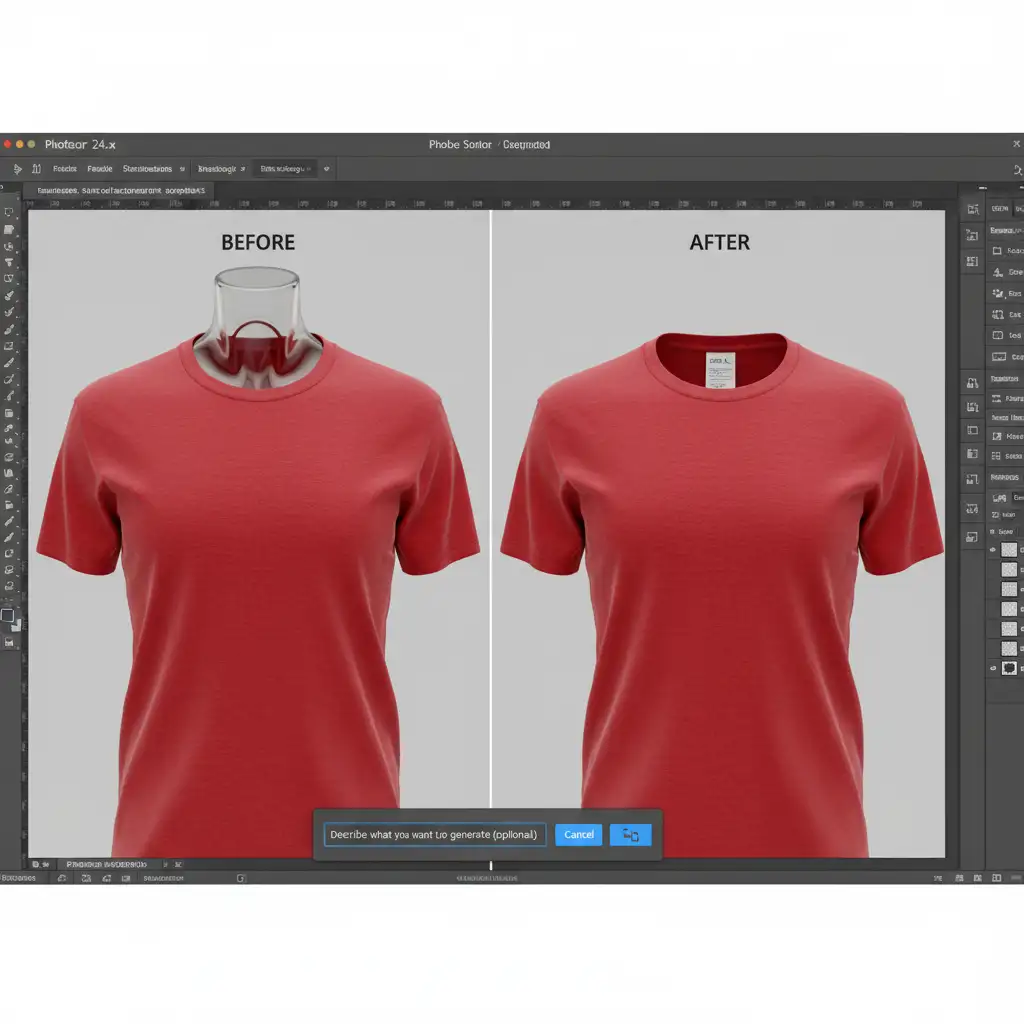
Flawless Neck Joint Removal
Sometimes, a small piece of the plastic mannequin’s neck or arm joint is accidentally left in the frame. AI scanners flag these plastic joints as human skin. During your apparel retouching process (using Photoshop v24.x or newer), you must completely erase these elements. Use the Clone Stamp tool or Generative Fill to rebuild the inner collar of the garment, creating a pure, flawless ghost mannequin.
Embedding IPTC Metadata
Once the neck joint removal is complete, embed an exemption note directly into the file’s IPTC metadata. Adobe Stock reads this data automatically upon upload.
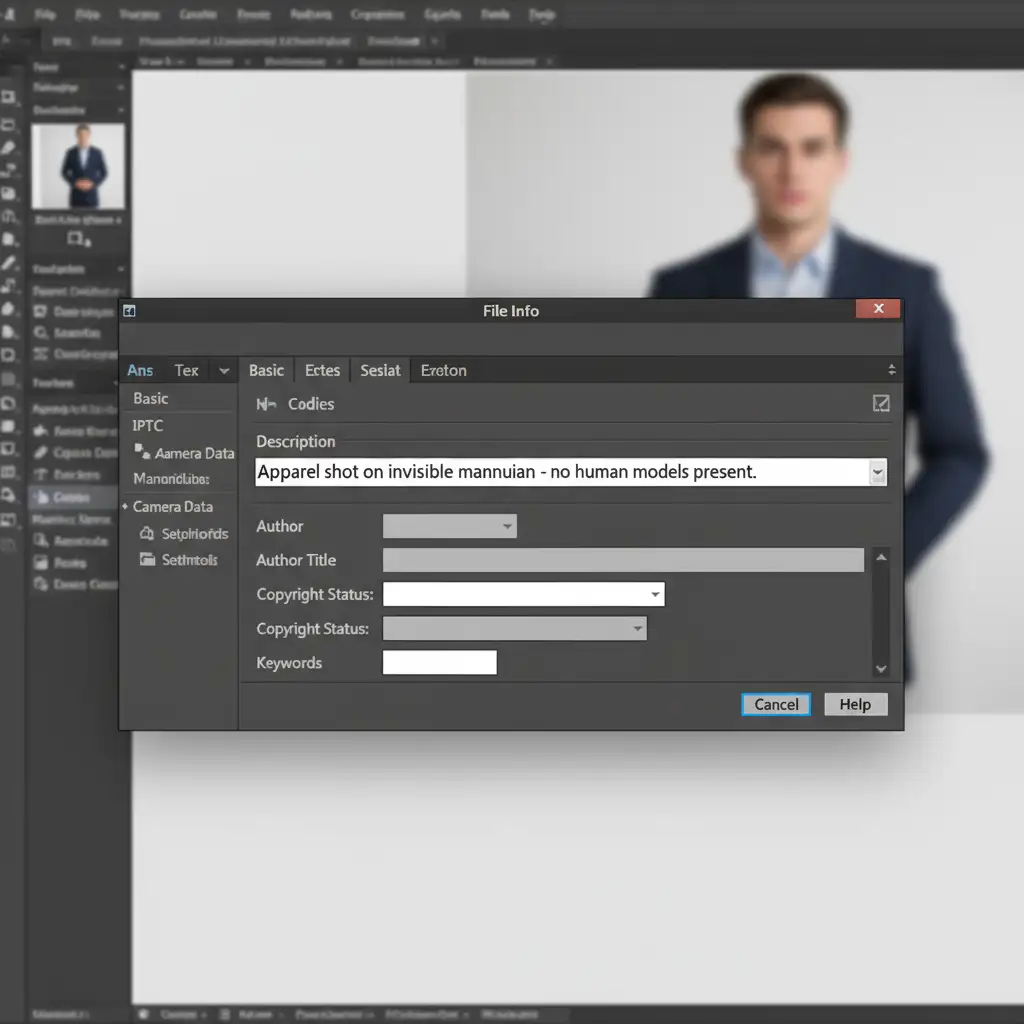
- In Photoshop, go to File > File Info.
- In the Description/Caption field, type: “Apparel shot on invisible mannequin – no human models present.”
- Export your JPEG. This embedded data acts as a permanent shield against automated rejections.
Stop Guessing, Start Selling: Let the Experts Handle Your E-Commerce Retouching
Dealing with the Adobe Stock mannequin model release issue is a massive time-sink. When you are managing hundreds or thousands of SKUs, you don’t have time to fight with AI algorithms over asset categorization or spend hours perfecting neck joint removals with Generative Fill.
That’s where we come in.
At Image Work India and Cloud Retouch, we specialize in high-volume, premium apparel retouching. Our expert team knows exactly how to edit, format, and tag your ghost mannequin imagery so it meets the strictest stock photography guidelines and e-commerce standards. We deliver flawless, platform-ready images that get approved on the very first try—saving you time, money, and endless frustration.
Ready to scale your catalog without the headaches? Contact Image Work India and Cloud Retouch today for a free trial, and let us perfect your e-commerce visuals.




