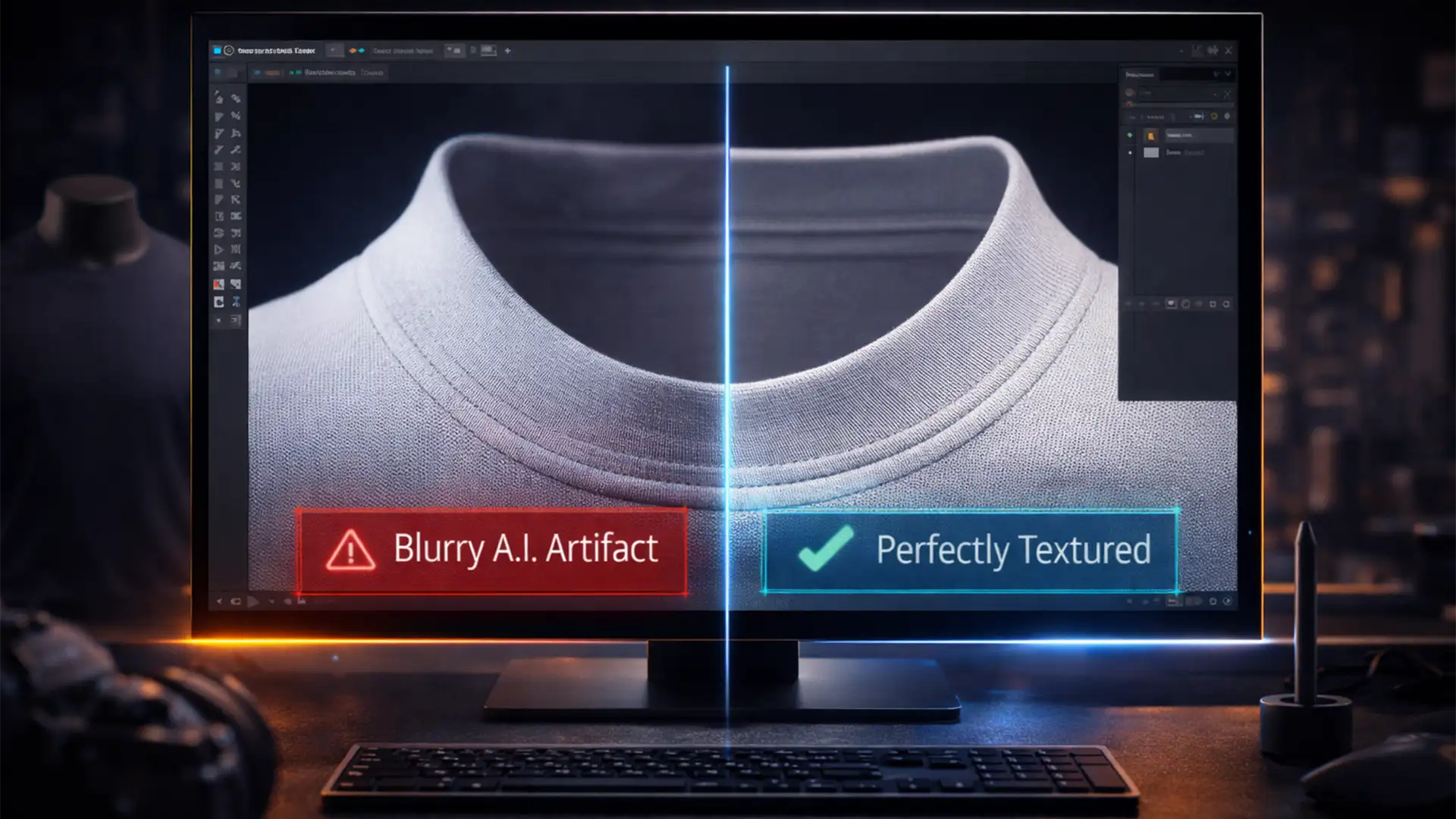

You just photographed a stunning seasonal apparel line. You are in Photoshop 2025, perfectly executing the ghost mannequin effect, and you turn to Generative Fill to seamlessly reconstruct the inner collar. But instead of crisp cotton weaves or sharp ribbed textures, you get a soft, blurry AI artifact that screams “fake.”
If you are trying to fix blurry generative fill in Photoshop 2025 for apparel, you are dealing with a known, highly frustrating technical bottleneck. When editing commercial product photos, losing intricate fabric details to linear upscaling ruins the professional illusion.
Let’s break down exactly why this happens in the latest Photoshop builds (v26.x and v27.x beta) and, more importantly, how to fix it to restore high-resolution fabric textures.
Why is Photoshop 2025 Generative Fill Blurry on High-Res Apparel?
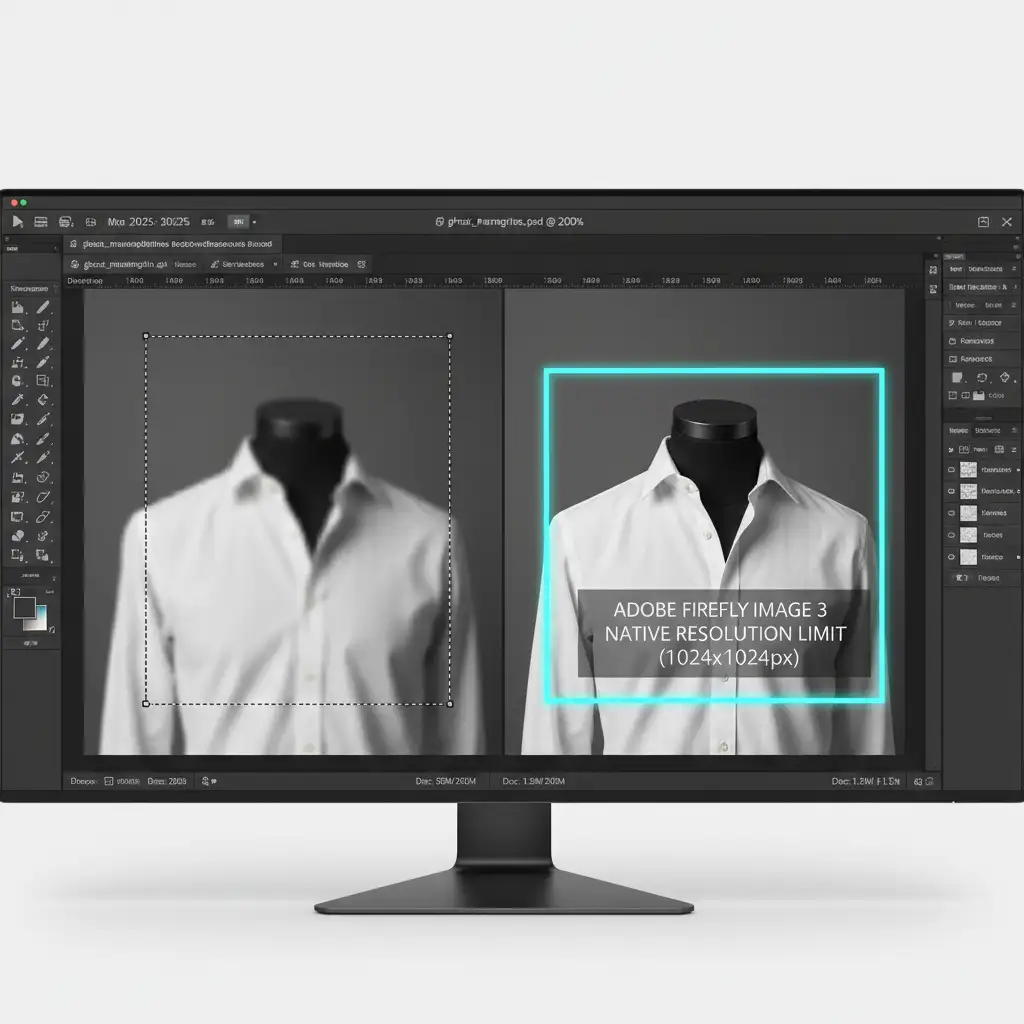
The Generative Fill feature in Photoshop 2025 is powered by the highly advanced Adobe Firefly Image 3 model. However, it has a strict native 1024×1024 resolution limit.
When you select an area larger than 1024×1024 pixels on a high-resolution commercial product image (like a missing neck joint on a 45-megapixel raw file), Photoshop does not generate a massive, high-res patch. Instead, it generates a 1024px patch and forcefully upscales it to stretch across your selection.
This linear upscaling destroys intricate details. While it might look fine on a smooth sky or a distant background, it completely fails at fabric texture synthesis. The result is a distinctly soft, blurry AI artifact that compromises your entire ghost mannequin effect.
How to Fix Blurry Generative Fill AI Artifacts (3 Proven Methods)
You don’t have to abandon AI tools entirely. By adjusting your workflow, you can bypass the resolution limits and restore photorealistic fabric weaves.
Method 1: The Quick Fix (Chunk Generation)
The simplest way to avoid upscaling blur is to never let Photoshop upscale in the first place.
Instead of selecting the entire missing neck or inner collar area at once, break the job into smaller pieces.
- Use the Rectangular Marquee or Lasso Tool.
- Select smaller segments of the garment (ensure your selection is visually under 1024×1024 pixels).
- Run Generative Fill on these smaller chunks sequentially.
Because the selection is smaller than the limit, Firefly outputs the generation at a 1:1 pixel ratio natively. The fabric will remain sharp, though blending multiple generations together can be time-consuming.
Method 2: The Pro Workaround (Texture Matching)
If you need to generate a large area at once, the structural lighting and shadows of the AI fill might be perfect, even if the texture is blurry. You can fix the blur by manually transplanting the original fabric texture over the AI generation.
- Generate your large fill for the inner collar.
- Convert the resulting Generative Layer into Smart Objects.
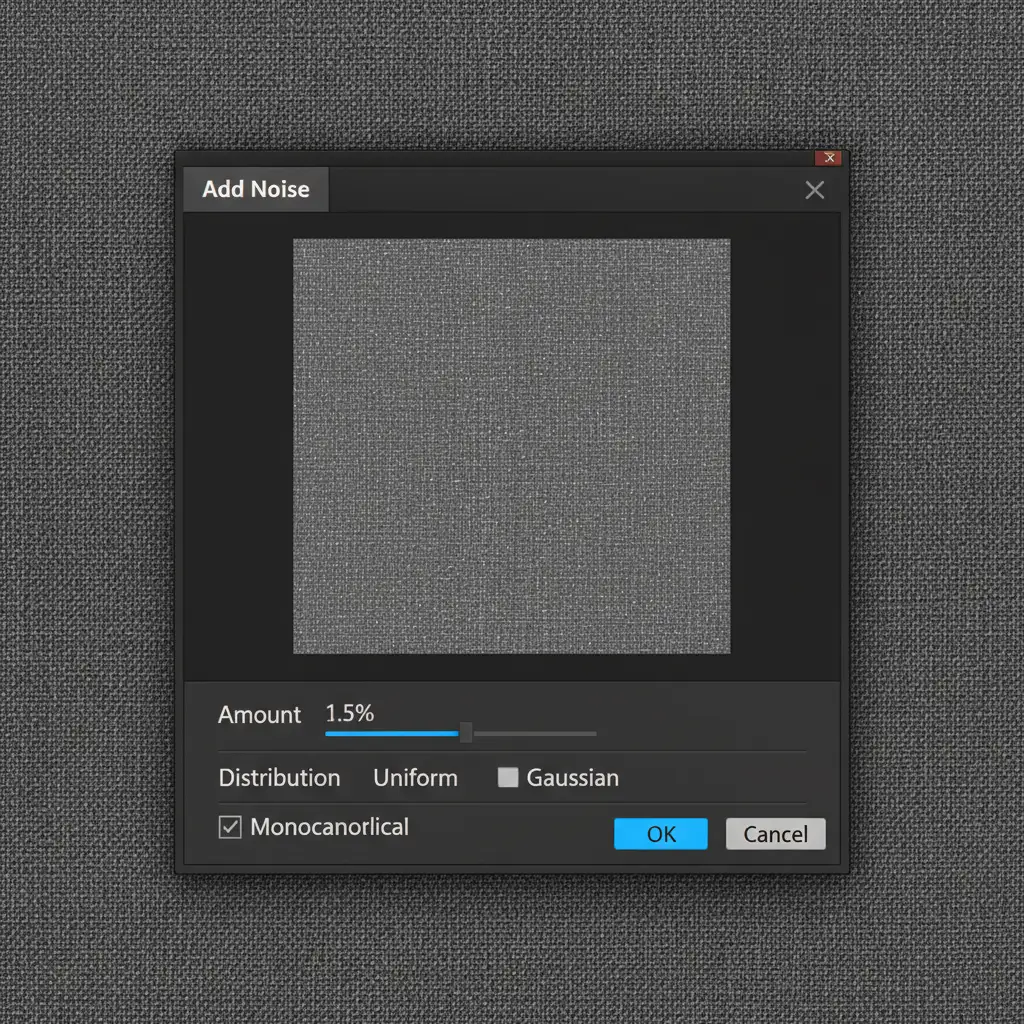
- To break up the unnatural smoothness, go to Filter > Noise > Add Noise. Apply a subtle Gaussian Noise (set to 1-2 percent, Uniform, Monochromatic).
- Next, duplicate your base raw fabric layer and drag it above the generative layer.
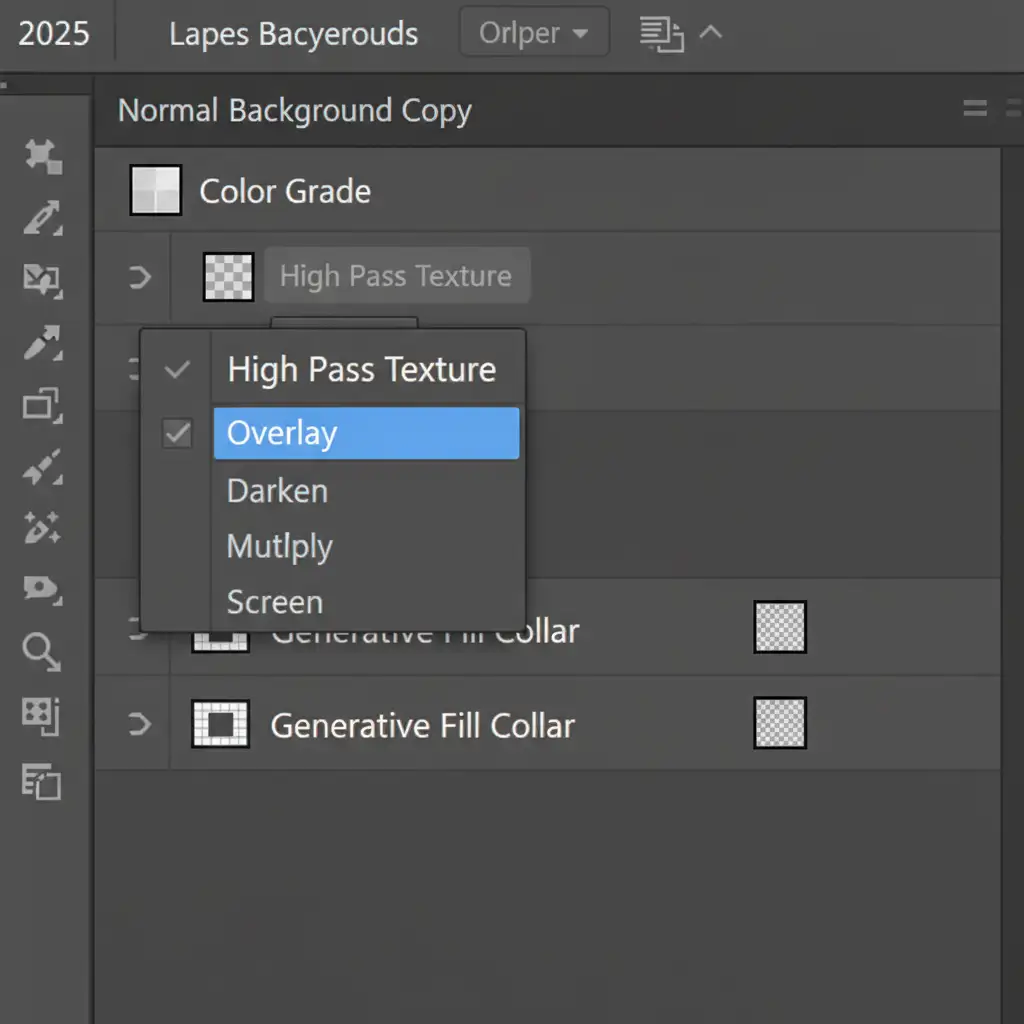
- Apply a High Pass filter to this duplicated layer (Filter > Other > High Pass) with a Radius of 1-3px to isolate the fabric weave.
- Set this layer’s blending modes to Overlay or Soft Light.
- Create a Clipping Mask to clip the High Pass texture layer directly to the blurry Generative layer.
This instantly transfers the crisp, original fabric texture over the blurry AI fill, restoring realism.
Method 3: The Technical Deep-Dive (Neural Filter Upscaling)
If the generation is structurally perfect but lacks sharpness, you can use Photoshop’s built-in AI upscaler to fix the AI generator’s mistakes.
- Rasterize your blurry Generative Layer.
- Navigate to Filter > Neural Filters.
- Toggle on the Super Zoom filter.
- Enhance the image details to restore sharpness and remove JPEG-style compression artifacts.
- Output the result as a New Document.
- Drag the newly sharpened, high-res fabric patch back into your master file.
- Use advanced layer masking with a soft brush to blend the newly sharpened AI fabric seamlessly with the original raw apparel photograph.
Don’t Let AI Artifacts Derail Your Catalog Launch
Fixing blurry generative fills and synthesizing fabric textures requires a deep understanding of Photoshop 2025’s technical limitations. While these workarounds are highly effective, executing them flawlessly across hundreds of seasonal product photos is incredibly tedious and drains your studio’s resources.
You don’t have to do it alone.
Image Work India and Cloud Retouch specialize in high-volume, premium ecommerce photo editing. Our expert retouchers handle complex ghost mannequin effects, precise fabric texture matching, and flawless color correction so you don’t have to fight with AI artifacts.
Ready to scale your product photography without sacrificing quality? Contact Image Work India and Cloud Retouch today to ensure your next seasonal catalog launch is sharp, professional, and delivered on time.




