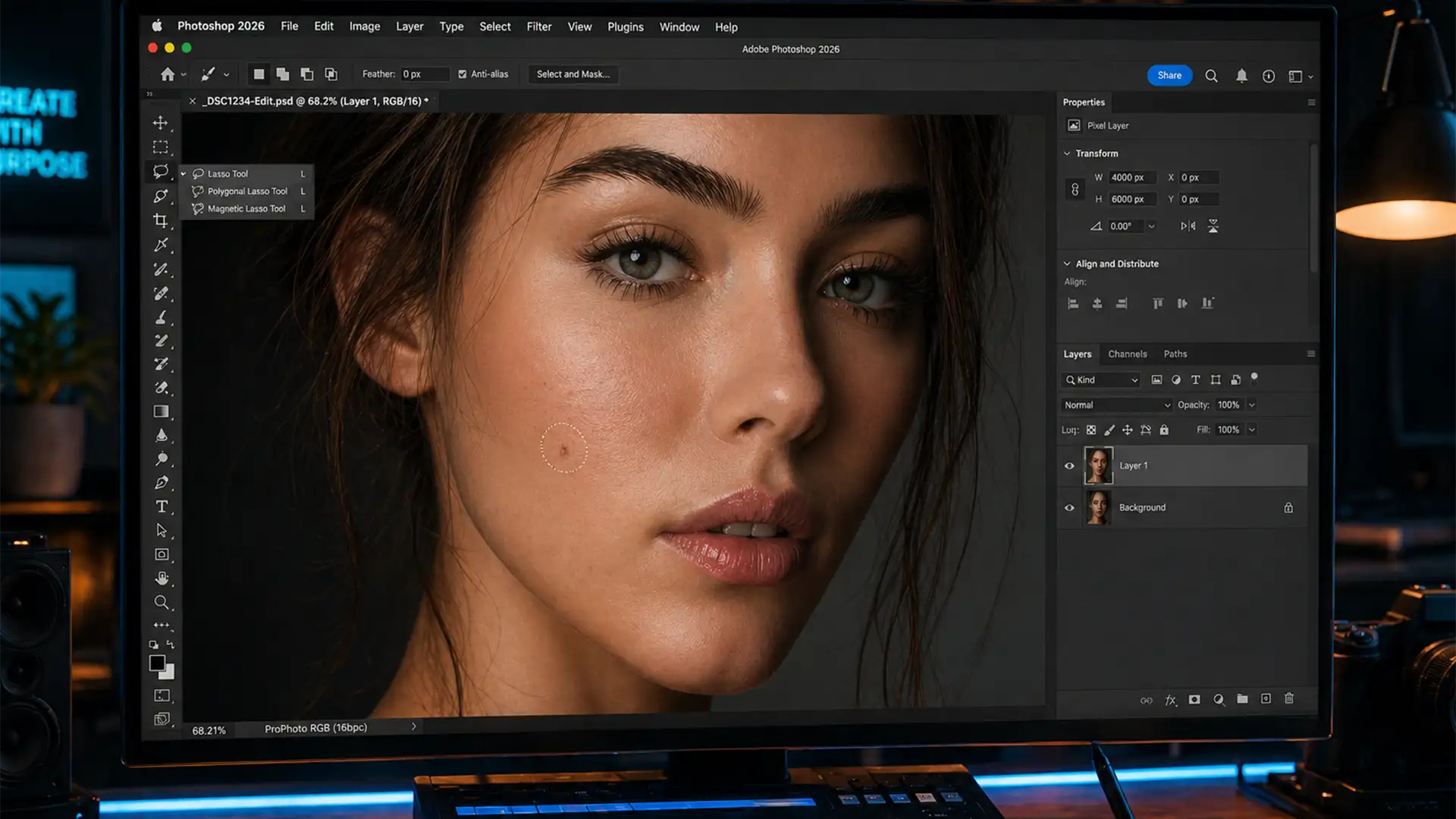

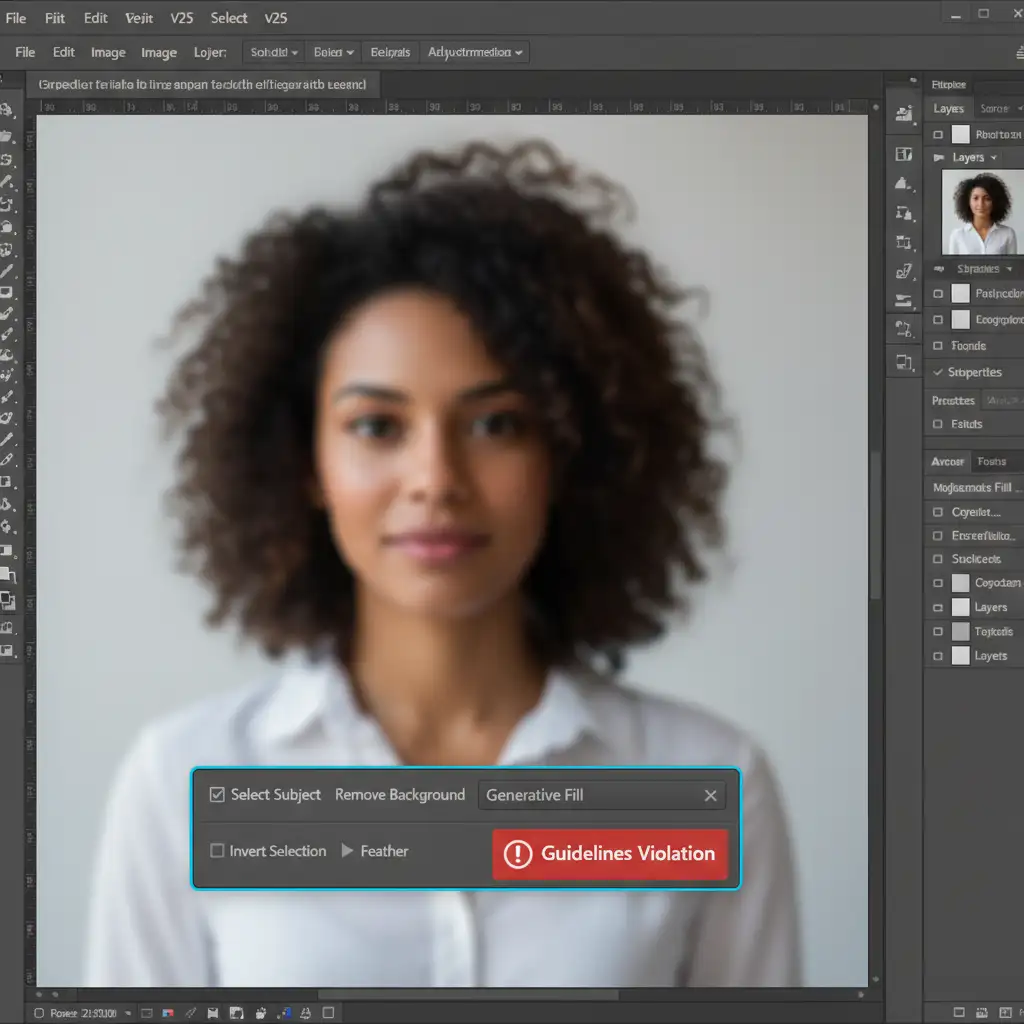
You are in the middle of a high-end beauty retouching session. You grab the Lasso Tool, circle a minor skin blemish, type “smooth skin” into the Contextual Task Bar, and hit Generate. Instead of a flawless edit, you are slapped with a frustrating red warning: Guidelines Violation.
If you edit portraits, boudoir, or fashion photography in Adobe Photoshop (v24.6 Beta through the current v25.x and v26.x releases), you have likely hit this roadblock. Adobe’s Firefly AI employs aggressive content moderation, frequently misinterpreting standard skin retouching as a violation of its safety filters.
Fortunately, you do not have to abandon AI in your workflow. Here are the exact Photoshop Generative Fill skin prompt workarounds professional retouchers use to bypass these filters and get back to work.
Why Does Firefly AI Flag Skin Retouching?
Adobe Firefly AI is programmed with strict safety guidelines to prevent the generation of NSFW content, deepfakes, and non-consensual structural facial modifications.
The problem? The filter is overly sensitive. Words like “skin,” “body,” “face,” or even “smooth” trigger the AI’s defensive mechanisms. When you attempt to run Generative Fill over a large area of skin, the system assumes you are trying to alter the subject’s anatomy or generate inappropriate content, resulting in an immediate block.
3 Proven Photoshop Generative Fill Skin Prompt Workarounds
To keep your workflow moving, you need to change how you communicate with the AI. Here are three reliable methods to bypass the safety filters.
Method 1: The Blank Prompt Technique (The Quick Fix)
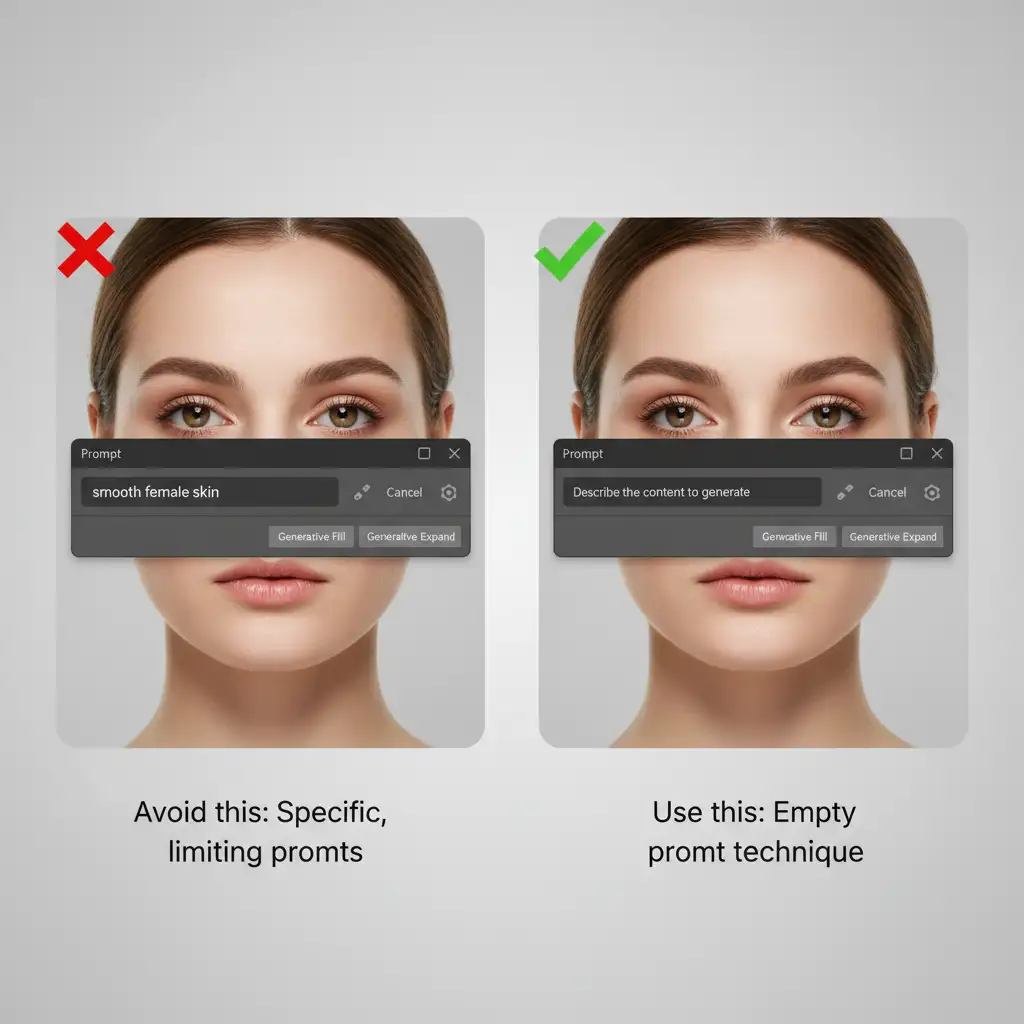
The easiest way to avoid triggering a text-based filter is to use no text at all. When you leave the prompt box entirely empty, Generative Fill defaults to acting like a highly advanced version of Content-Aware Fill.
- Select the blemish using the Lasso Tool.
- Click Generative Fill in the Contextual Task Bar.
- Leave the text box completely blank.
- Hit Generate.
Firefly will automatically sample the surrounding pixels and seamlessly remove the blemish without running your request through the text-moderation filter. If you feel you must type something to guide the AI, rely on clinical, non-anatomical prompt engineering. Use terms like remove spot, clean surface, or smooth texture. Never use the word “skin.”
Method 2: Micro-Selections and Masking (The Pro Workaround)
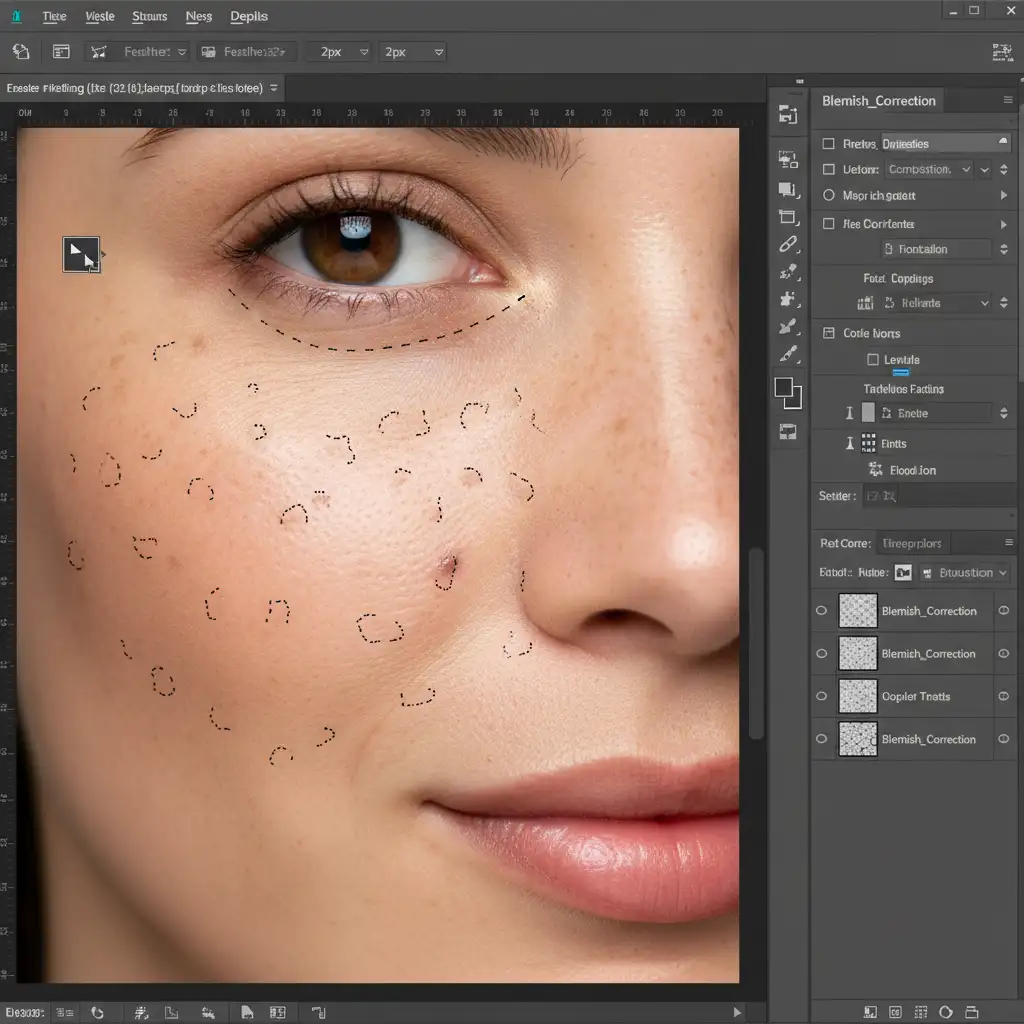
The larger your selection, the more likely the AI is to flag it. Selecting an entire cheek or forehead forces the AI to analyze structural facial features, which increases the risk of a violation.
Instead, rely on micro-selections.
- Select the Lasso tool and set your feathering to 2px.
- Zoom in tight on the subject’s face.
- Make tiny, precise selections strictly around the exact blemishes you want to remove.
- Hold Shift to select multiple small blemishes at once.
- Ensure you are completely avoiding recognizable facial features like eyes, lips, or nostrils.
- Run Generative Fill with an empty prompt.
By keeping the selected area small, the AI registers the task as simple spot healing rather than facial manipulation.
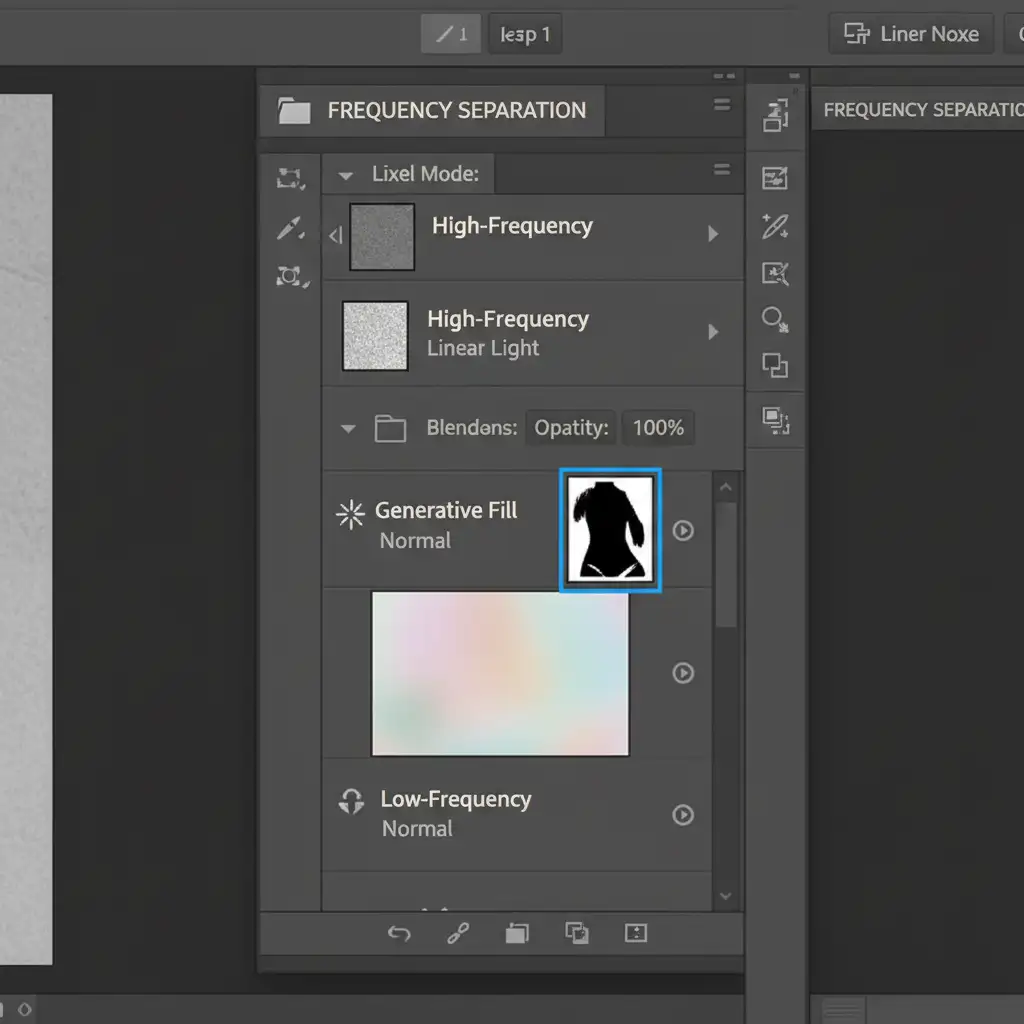
Method 3: The Frequency Separation Hybrid (The Technical Deep-Dive)
For high-end fashion and beauty retouching, standard Generative Fill often destroys natural skin texture, leaving a plastic, over-smoothed look. To fix color blotchiness without triggering the AI—and while preserving pores—you need to combine AI with traditional techniques.
- Run your standard Frequency Separation action to split your image into a High-Frequency layer (texture) and a Low-Frequency layer (color and tone).
- Select the Low-Frequency layer.
- Use the Lasso Tool to select areas of uneven skin tone or color blotchiness.
- Click Generative Fill and leave the prompt blank.
Because you are only asking the AI to generate color and tone gradients on a blurred layer, it rarely triggers a Guidelines Violation. More importantly, your original skin texture remains perfectly intact on the High-Frequency layer above it.
Stop Fighting the AI: Scale Your Retouching Workflow
While these Photoshop Generative Fill skin prompt workarounds are effective, they still require manual intervention, precise masking, and constant troubleshooting. When you are processing hundreds of images for an e-commerce campaign, fashion editorial, or high-volume studio output, fighting with AI safety filters is a massive drain on your time and profitability.
You don’t have to do this yourself.
At Image Work India and Cloud Retouch, our teams of expert retouchers specialize in high-volume, flawless skin retouching. We utilize advanced, proprietary workflows that combine the best of AI efficiency with meticulous, human-led frequency separation—guaranteeing perfect texture and tone without the bottleneck of software errors.
Tired of fighting AI filters for perfect skin? Let us handle the heavy lifting. Contact Image Work India and Cloud Retouch today for professional, high-volume retouching services that scale with your business.




