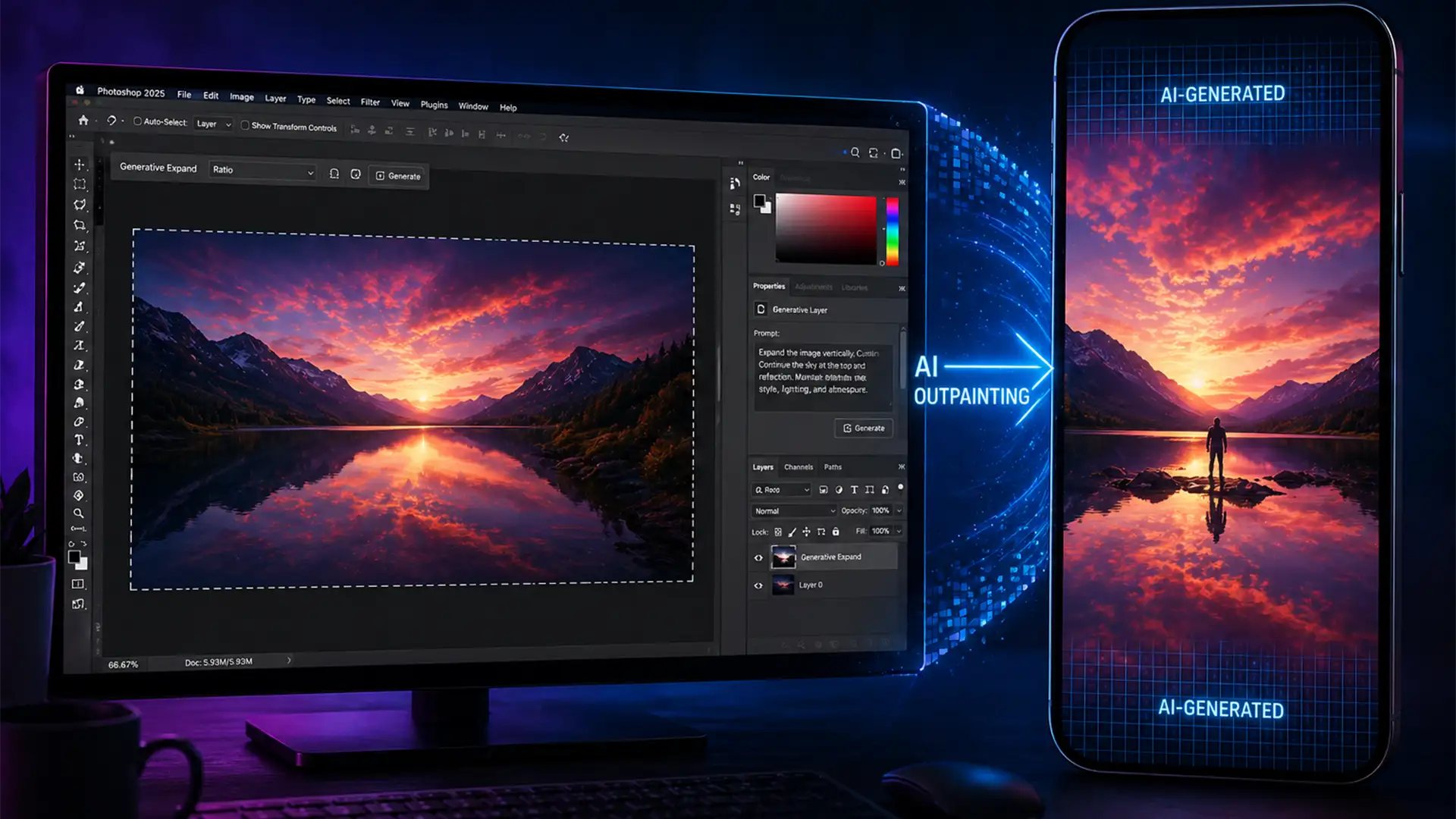

You finally captured the perfect wide-angle photograph, but there is a glaring problem: you need it for TikTok. When you crop a horizontal landscape to fit a native 9:16 canvas, you lose critical subject details and environmental context.
Historically, fixing this meant hours of manual cloning. Today, Adobe Photoshop’s Firefly AI Engine allows you to invent accurate top and bottom pixel data instantly. However, many creators run into a frustrating roadblock: blurry, low-resolution outputs caused by Firefly natively limiting generation tiles to 1024×1024 pixels.
In this guide, we will break down exactly how to use AI outpainting for TikTok vertical conversion while bypassing resolution limits to achieve crystal-clear, professional results.
The Challenge of 9:16 Social Media Formatting
Social media marketers and creators constantly battle aspect ratios. While horizontal formats rule YouTube and traditional web design, platforms like TikTok, Instagram Reels, and YouTube Shorts demand a strict 9:16 aspect ratio.
Aggressive cropping destroys composition. The solution is Outpainting—the process of using AI to generate new background elements outside the original boundaries of your image. Below are three distinct methods to achieve a flawless vertical conversion in Adobe Photoshop v25.0 and above.
Method 1: The Quick Fix (Generative Expand)
If you are working with standard web-resolution images and need a fast turnaround, Photoshop’s built-in Generative Expand tool is your best starting point.
- Open your horizontal image in Photoshop v25.0+.
- Select the Crop Tool (C).
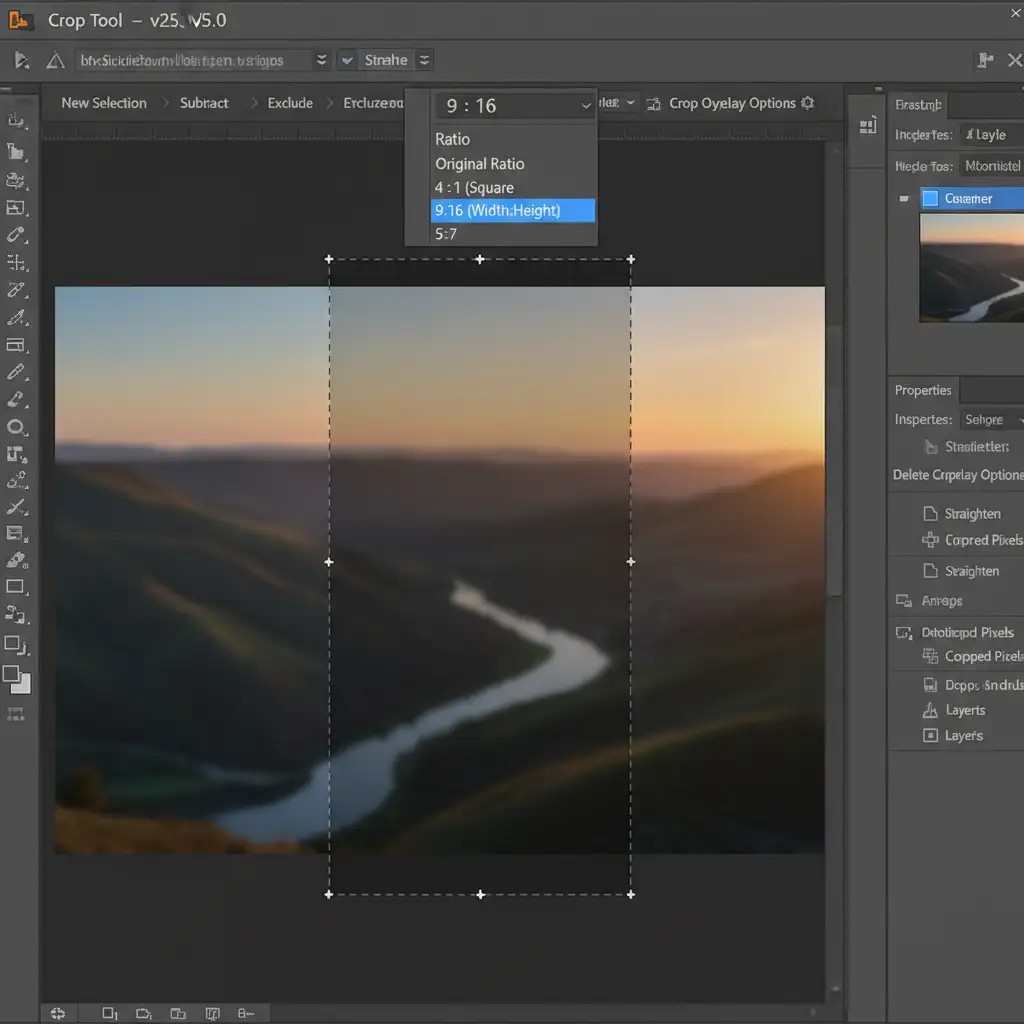
- In the top options bar, change the Aspect Ratio dropdown to 9:16.
- Drag the crop handles vertically to frame your subject in the center.
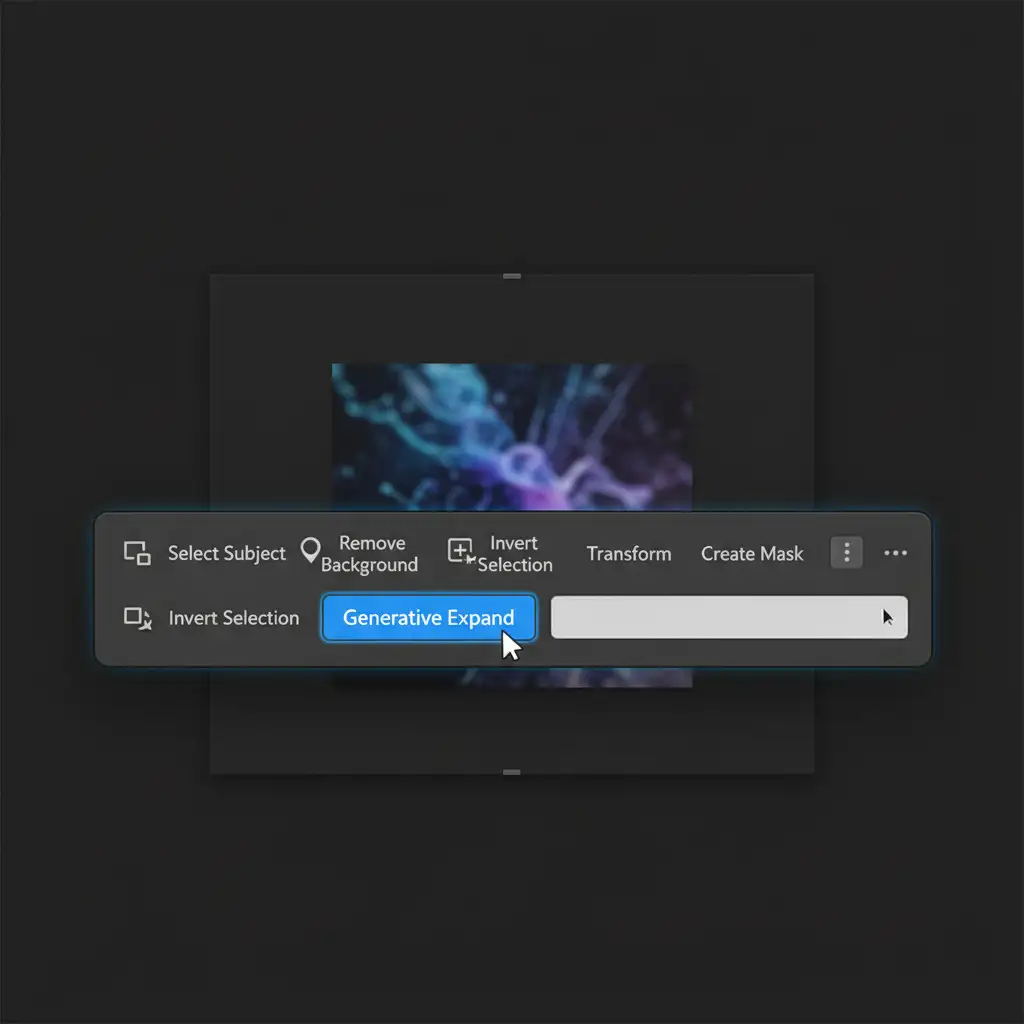
- Look at the Contextual Taskbar floating on your screen and click Generative Expand. Leave the text prompt blank and hit Generate.
Photoshop will analyze the existing pixels and invent the missing top and bottom environments.
Method 2: The Pro Workaround (Content-Aware Scale)
Sometimes, Generative Expand creates textures that look slightly unnatural. If you have clear skies or empty floors, combining AI with traditional stretching techniques yields better results.
- Convert your original background layer into a Smart Object to protect your source pixels.
- Expand your canvas to a 9:16 Aspect Ratio using the Crop tool (set the fill to Background Color, not Generative Expand).
- Duplicate the Smart Object.
- Use Content-Aware Scale (Edit > Content-Aware Scale) to stretch the non-critical areas (like a blank sky or a solid floor) upward and downward.
- If there are small gaps left over, use the Rectangular Marquee Tool to select them, and apply Generative Fill to patch the holes seamlessly.
- Mask the layers with a soft brush to blend the lighting perfectly.
Method 3: The Technical Deep-Dive (Bypassing the 1024×1024 Limit)
This is the most critical workflow for professional editors dealing with high-resolution photography. Because the Firefly AI Engine limits its processing to 1024×1024 pixel tiles, a single massive Generative Expand on a 4K image will result in blurry, upscaled pixels at the top and bottom.
To achieve true resolution upscaling via outpainting, you must work in chunks.
- Select the Crop Tool, set it to 9:16, and expand your canvas using a solid Background Color.
- Grab the Rectangular Marquee Tool (M).
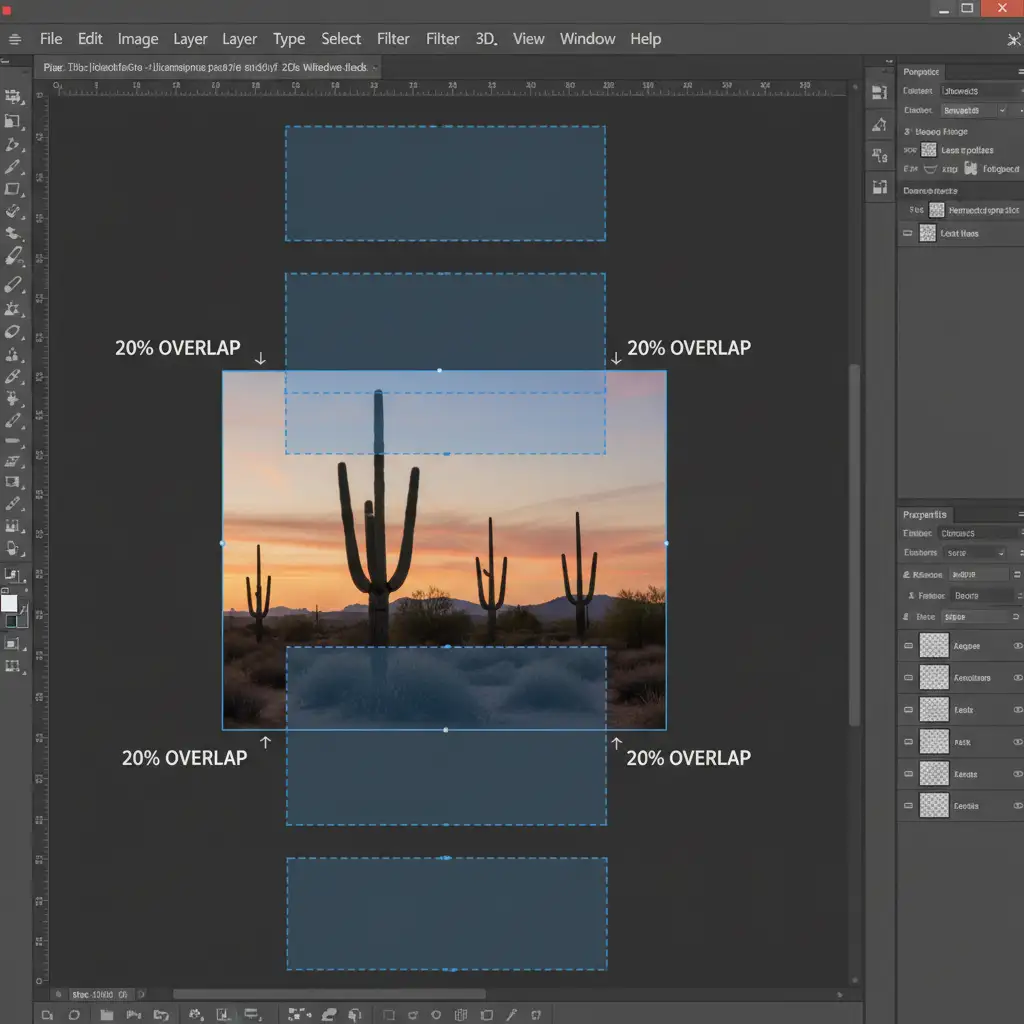
- Select a small chunk of the empty canvas at the top or bottom. Crucial step: Ensure your selection is under 1024×1024 pixels, and ensure it overlaps the original high-res image by exactly 20 percent.
- Click Generative Fill on the Contextual Taskbar with a blank prompt.
- Repeat this process, working your way up and down the canvas in small, overlapping blocks.
By forcing the AI to render smaller sections, you bypass the resolution limit, forcing Firefly to generate maximum-quality pixels that perfectly match your original high-res photo.
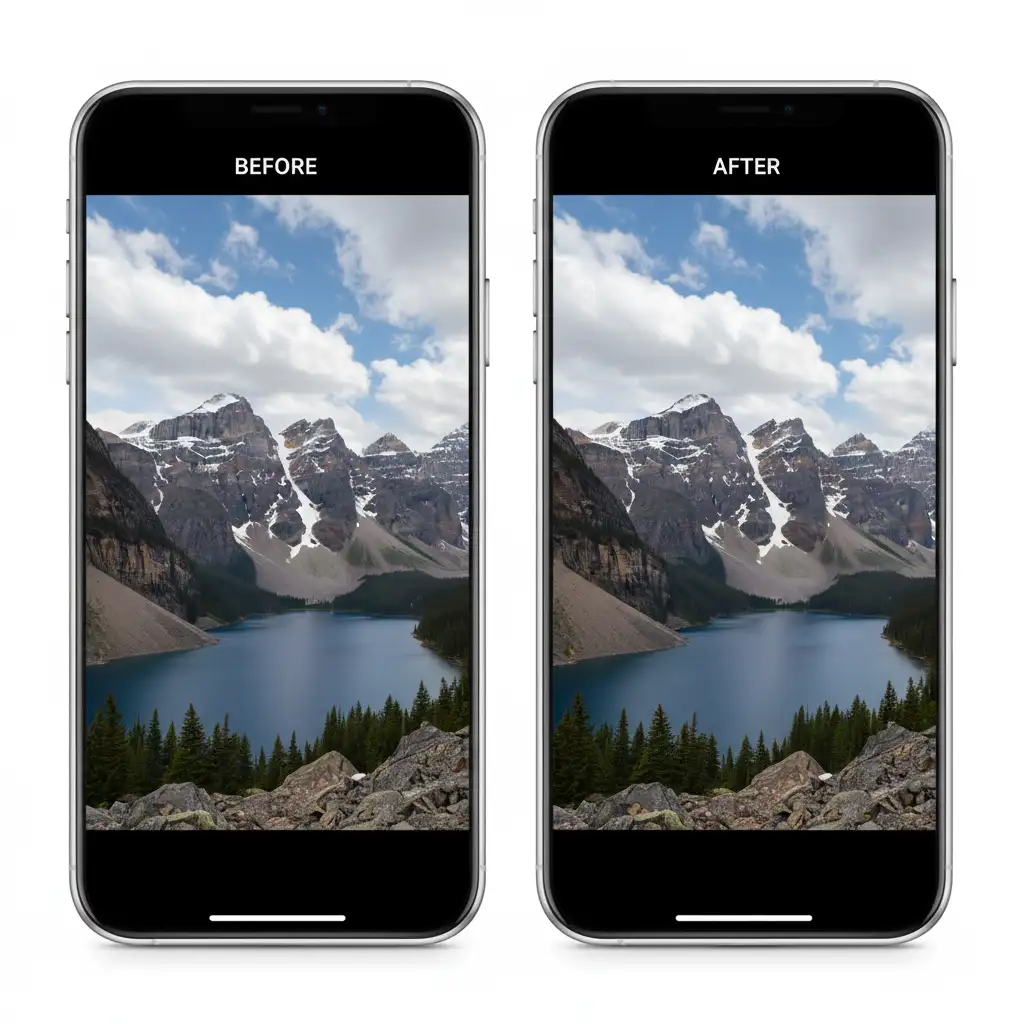
Before and After: The Power of AI Outpainting
When executed correctly, this chunked Generative Fill method transforms a standard landscape into an immersive, full-screen vertical experience perfect for TikTok campaigns.
Scale Your Social Media Campaigns with Image Work India
Mastering AI outpainting for TikTok vertical conversion is a game-changer, but executing the “chunking” method across hundreds of campaign assets is incredibly time-consuming. You shouldn’t have to choose between blurry social media posts and spending hours manually generating 1024×1024 pixel tiles.
If you are struggling to scale your image formatting for high-volume social media campaigns, let the experts handle it. Image Work India and Cloud Retouch provide elite, high-volume retouching and formatting services. Our dedicated team utilizes advanced AI workflows and manual blending techniques to deliver flawless, high-resolution social media assets tailored exactly to your brand’s specifications.
Stop wrestling with aspect ratios. Contact Image Work India today and let us transform your visual content for the vertical era.




