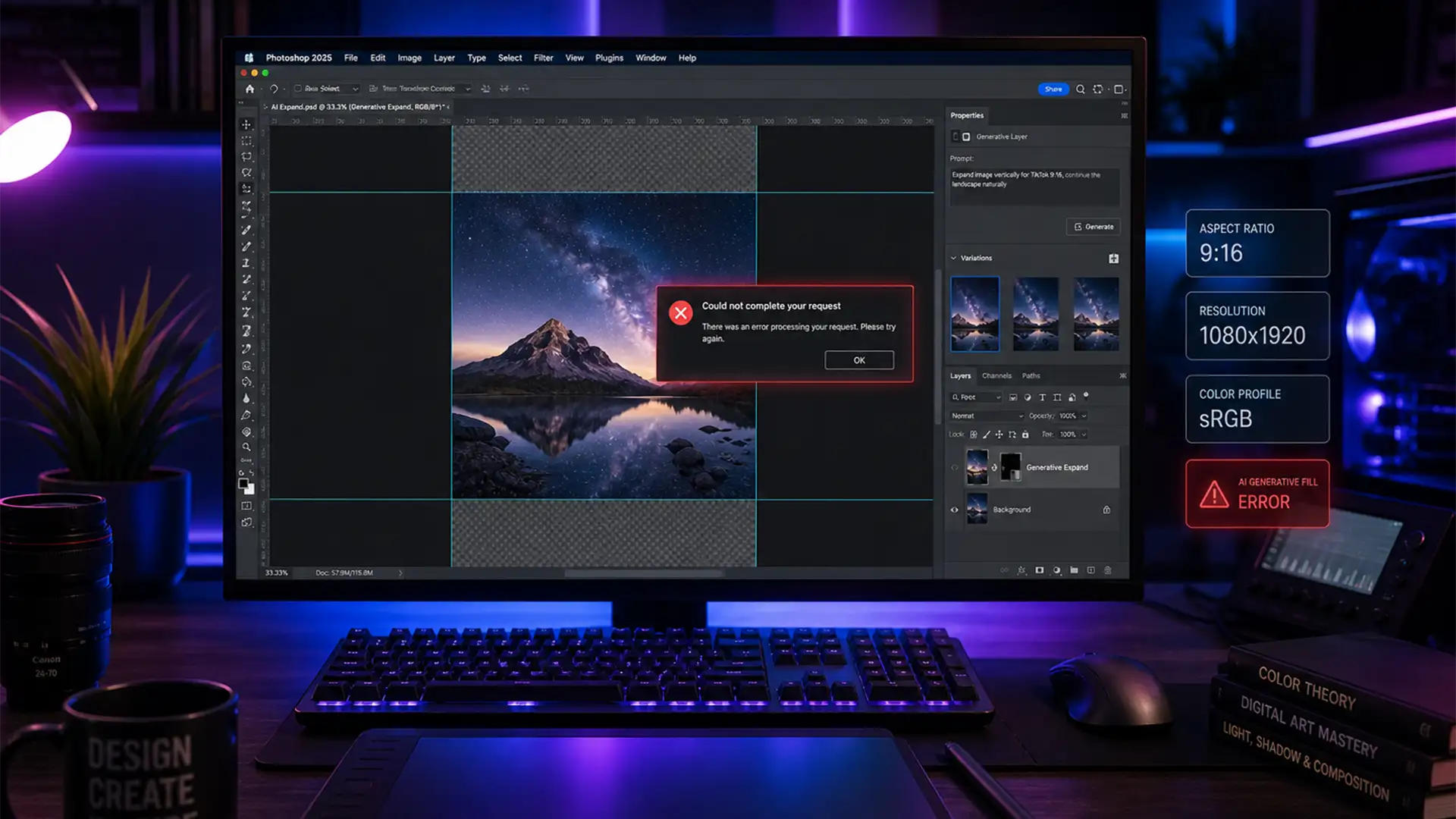

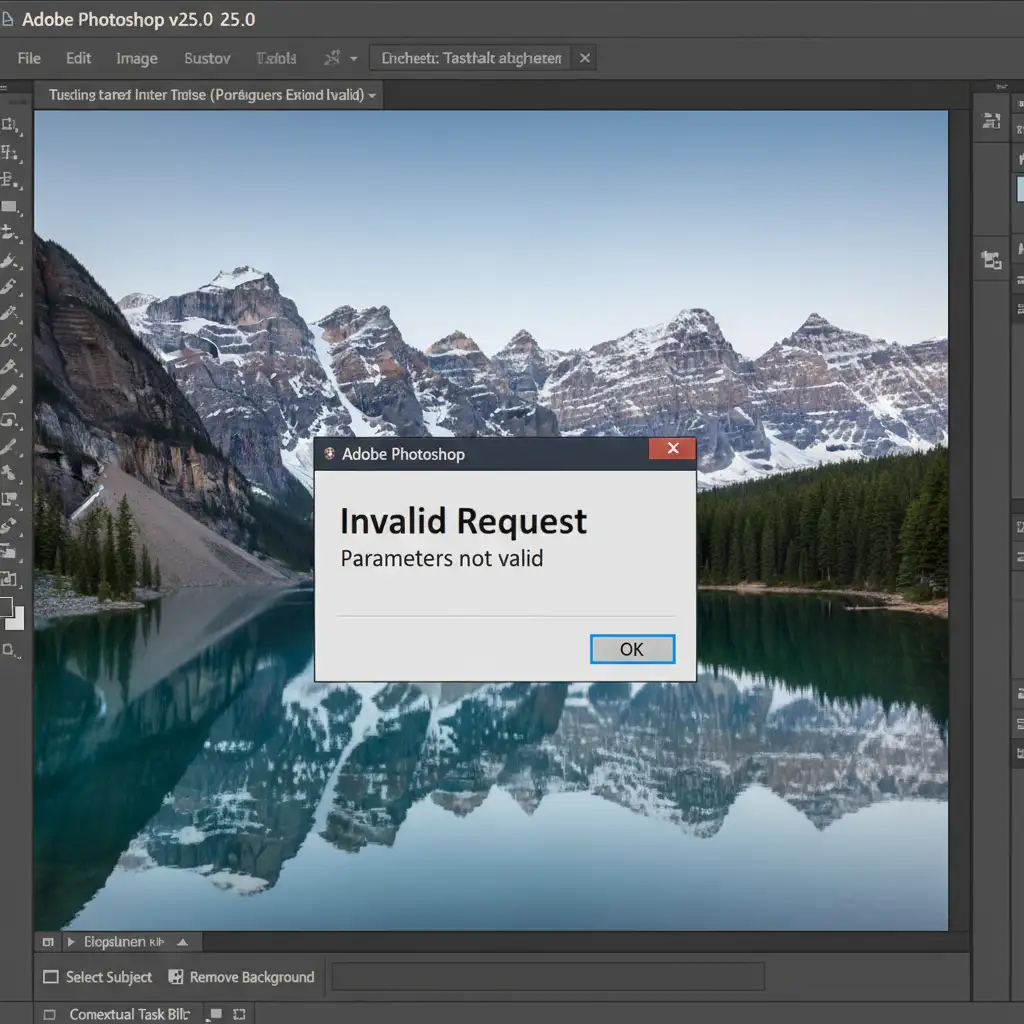
You’ve spent hours perfecting a landscape photo, only to realize you need it in a 9:16 vertical format for TikTok or Instagram Reels. You fire up Adobe Photoshop v25.0, grab the Crop Tool, and hit Generative Expand—only to be slammed with a frustrating “Invalid Request” or “Parameters Not Valid” error.
If you are staring at a failed Adobe Firefly generation and a looming content deadline, you aren’t alone. This specific timeout happens because you’ve hit a hidden resolution limit in Photoshop’s cloud processing engine. Fortunately, we have the exact 30-second workarounds to fix the photoshop generative expand invalid request 9:16 error and get your content published flawlessly.
Why Does the “Invalid Request” Error Happen?
When you attempt to convert a high-resolution horizontal image into a 9:16 vertical format, you are asking Photoshop to generate a massive amount of new pixel data.
Behind the scenes, the Adobe Firefly cloud server has a maximum generation tile limit (historically capped at 1024×1024 pixels per generation block). When you attempt an extreme aspect ratio change on a high-resolution file, the requested generative area exceeds the permissible bounding box parameters.
Because the requested area is too large, the cloud processing request times out or fails entirely, triggering the “Invalid Request” flag.
3 Proven Methods to Fix the Photoshop Generative Expand Error
To bypass this resolution limit, you need to change how Photoshop calculates the newly generated pixels. Here are three professional workarounds, ranging from quick fixes to technical resets.
Method A: The Quick Fix (Canvas Size & Generative Fill)
Instead of forcing the Crop Tool to do all the heavy lifting in one click, you can manually adjust your canvas and use piece-meal generation.
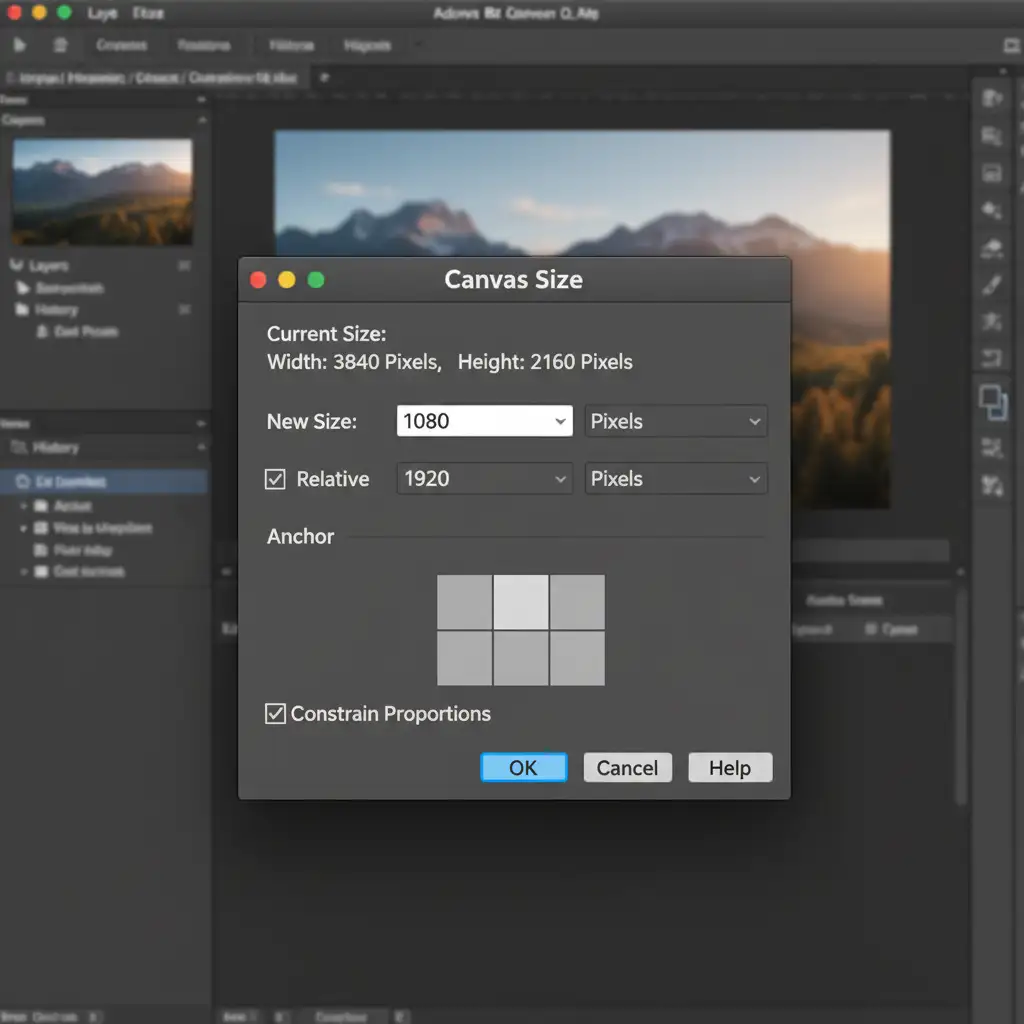
- Navigate to Image > Canvas Size in the top menu bar.
- Change your measurement unit to Pixels or Percent, and adjust the Width and Height to match a 9:16 ratio (e.g., 1080px by 1920px).
- Ensure the anchor point is set to the center so your original image stays in the middle. Click OK.
- Use the Rectangular Marquee tool to select the newly created empty transparent areas at the top and bottom. (Pro tip: slightly overlap your selection with the original image edge).
- Click Generative Fill on the Contextual Task Bar and hit generate without typing any prompts.
Method B: The Pro Workaround (Downscale Before Expanding)
If you strictly want to use the Generative Expand feature, you must temporarily lower the image’s resolution to stay within Adobe Firefly’s bounding box limits.
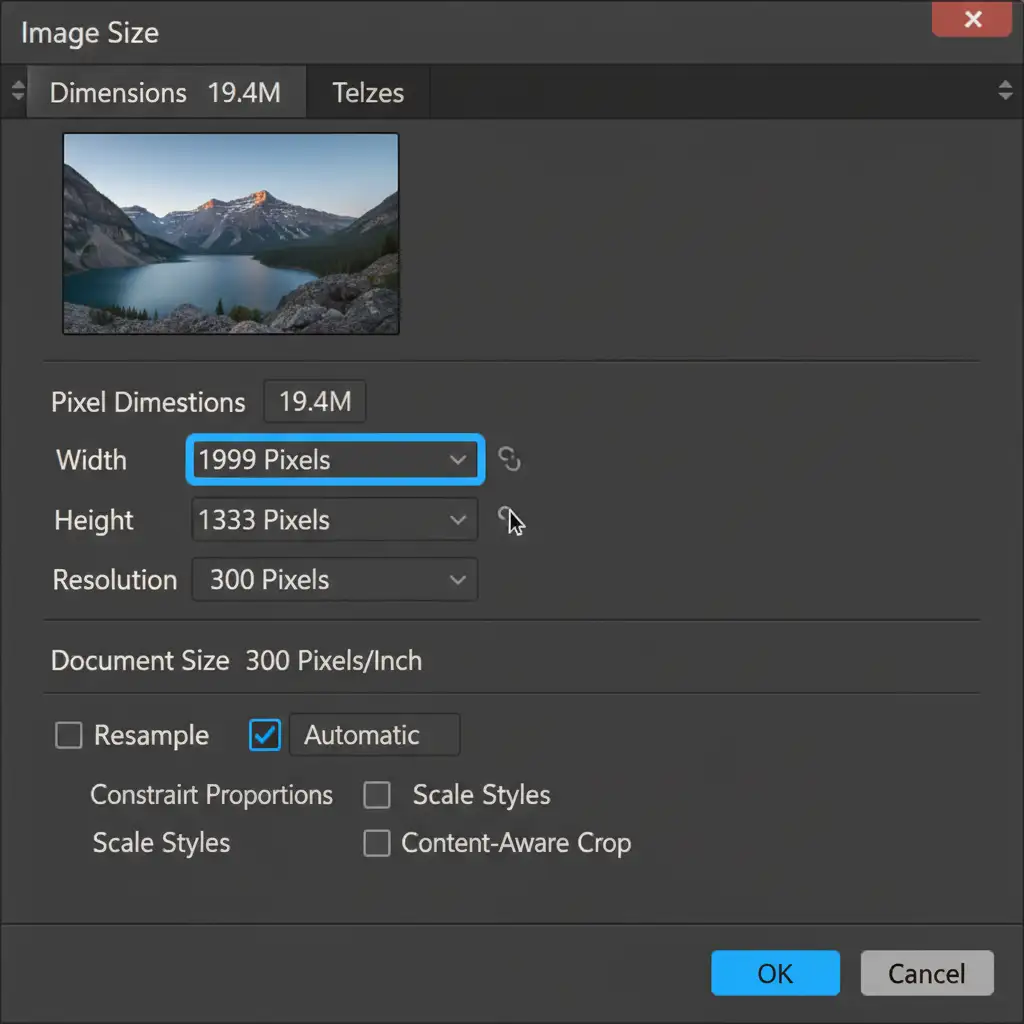
- Go to Image > Image Size.
- Reduce the image’s longest edge to under 2000px. Click OK.
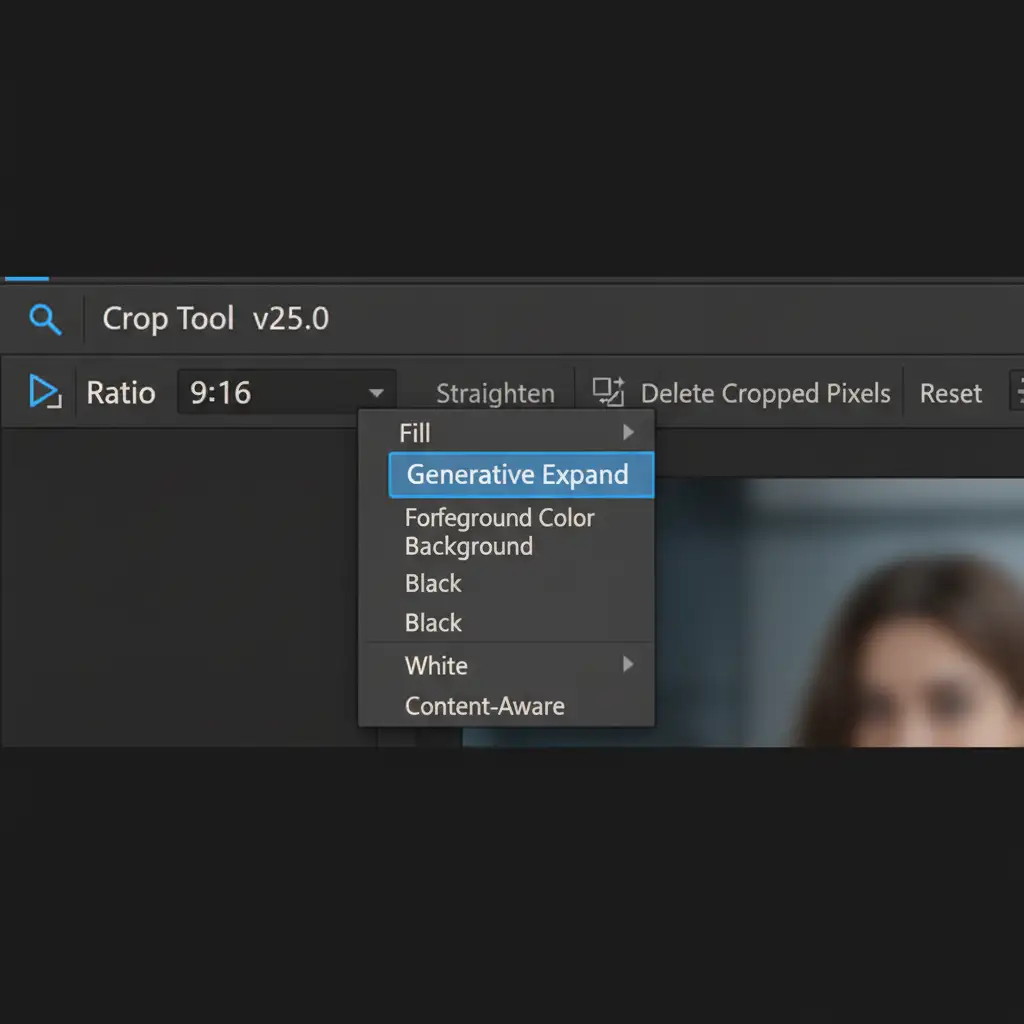
- Select the Crop Tool (C).
- In the top options bar, select the 9:16 preset and ensure the Fill dropdown is set to Generative Expand.
- Drag your crop box to the desired vertical size and hit the checkmark.
- Once the generation is complete, restore your image’s original quality using Upscaling tools like Photoshop’s Neural Filters (Super Zoom) or Preserve Details 2.0.
Method C: The Technical Deep-Dive (Reset GPU & Cache)
Sometimes the Firefly API times out not just because of size, but due to GPU acceleration bugs in Photoshop v25.x and Beta builds. If Methods A and B fail, try resetting your system parameters.
- Disable GPU Acceleration: Go to Edit > Preferences > Performance (Windows) or Photoshop > Settings > Performance (Mac). Uncheck “Use Graphics Processor”. Restart Photoshop.
- Reset the Contextual Task Bar: If the taskbar is glitching, click the three-dot menu on the bar and select “Reset Bar Position” or toggle it off and on via the Window menu.
- Sync Creative Cloud: Ensure your Adobe Creative Cloud desktop app is synced and updated to the latest version. This refreshes your generative cloud token and clears corrupted local cache data that might be triggering the invalid parameter flag.
Stop Fighting Software Limits. Let the Experts Handle It.
Navigating the photoshop generative expand invalid request 9:16 error is manageable for a single image, but what happens when you have hundreds of campaign assets that need to be reformatted for TikTok, Instagram Reels, and YouTube Shorts?
Manual downscaling, piece-meal generation, and upscaling eat into your valuable creative time.
If you are struggling with bulk image resizing, background extensions, and formatting for social media, Image Work India and Cloud Retouch are here to help. Our team of expert retouchers specializes in flawless, high-volume editing. We handle the technical hurdles, complex aspect ratio conversions, and advanced generative workflows so you can focus on scaling your business.
Don’t let software limitations slow down your content pipeline. Contact Image Work India today and let our professionals deliver pixel-perfect results, every single time.




