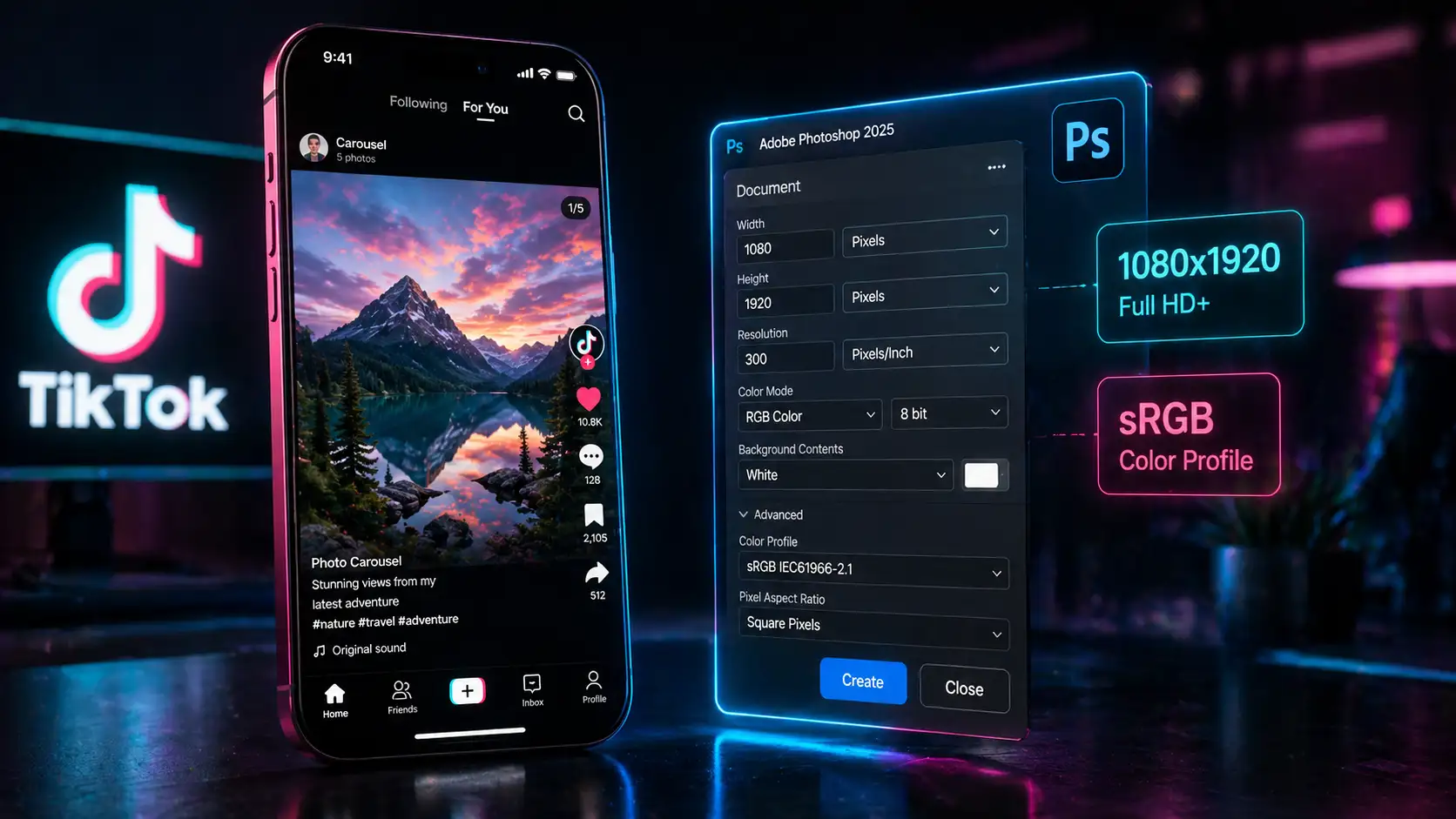

You just spent hours color grading the perfect photoshoot in Photoshop. You upload the images to a TikTok photo carousel, hit publish, and immediately notice it—a soft, blurry, pixelated mess.
TikTok’s aggressive backend downscaling destroys high-resolution photography. When you upload massive, 300 PPI print-ready files, the platform forces them into tiny, web-friendly containers, causing severe artifacting.
To fix this, you need to feed the app exactly what it wants. In this guide, we break down the definitive Photoshop export settings for TikTok carousel blur, ensuring your images stay razor-sharp from the desktop to the feed.
Why Does TikTok Blur Your Photos?
The core issue is a mismatch between professional photography standards and social media display parameters. When you upload an image that exceeds TikTok’s native display limits, you trigger the TikTok compression algorithm.
This algorithm uses aggressive lossy compression to save server space. If your image is larger than the standard 1080×1920 resolution, or if it carries bloated file data (like Adobe RGB color profiles and heavy EXIF data), TikTok’s servers will automatically crush the file. The result is that distinct, muddy blur. To prevent this, you must optimize your files before they leave Photoshop.
The Exact Photoshop Export Settings for TikTok Carousel Blur
Stop using “Save for Web (Legacy).” In Photoshop 2024 (v25.x and above), the modern Export As dialog provides the exact controls needed to bypass TikTok’s compression triggers. Here is the step-by-step workflow.
Step 1: Force Native Dimensions and Downsample
Never let TikTok resize your images. You must resize the canvas perfectly to fit mobile screens.
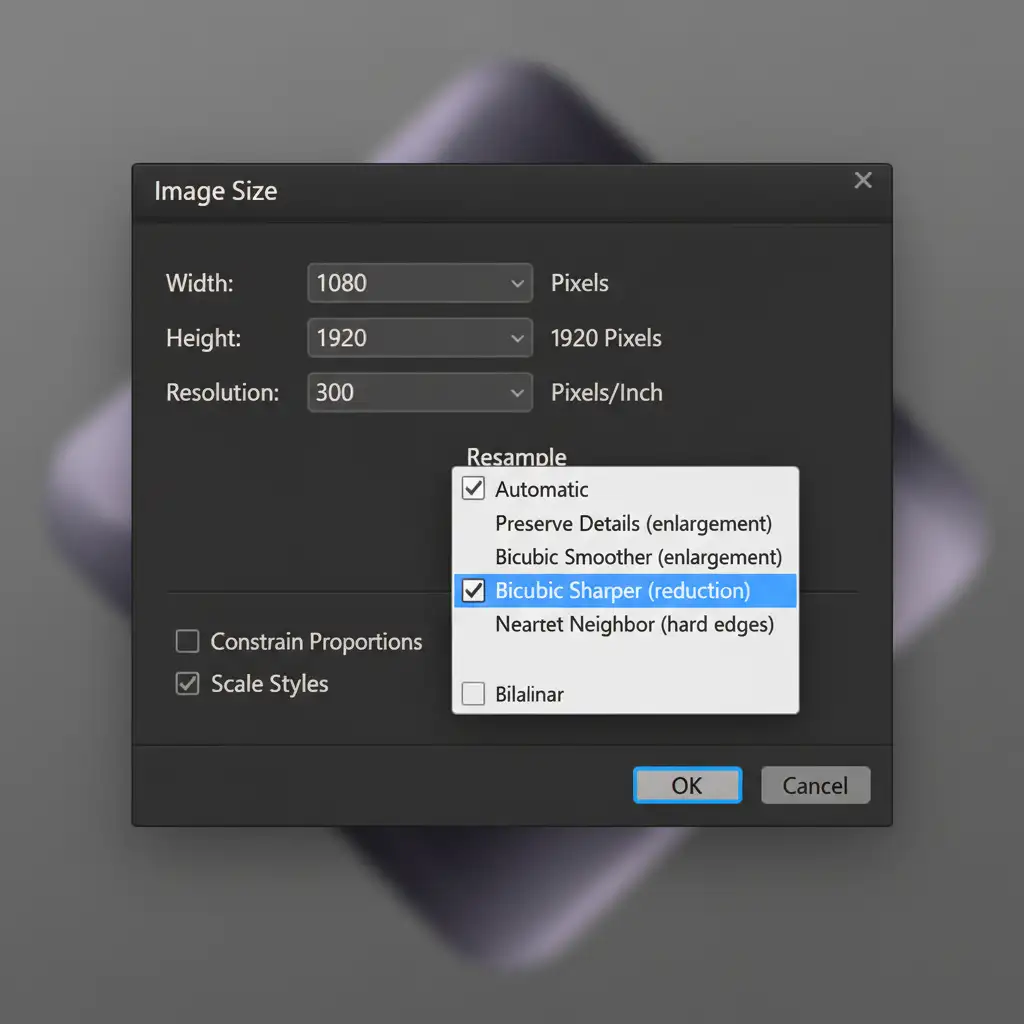
- Go to Image > Image Size.
- Set the Width to 1080 Pixels and the Height to 1920 Pixels.
- Change the Resample method to Bicubic Sharper (reduction). This specific resampling algorithm is designed to retain edge contrast when shrinking large files.
Step 2: The Pro Workaround (Targeted Pre-Sharpening)
Because any compression softens an image, you need to artificially over-sharpen your photo slightly to counteract the softening effect.
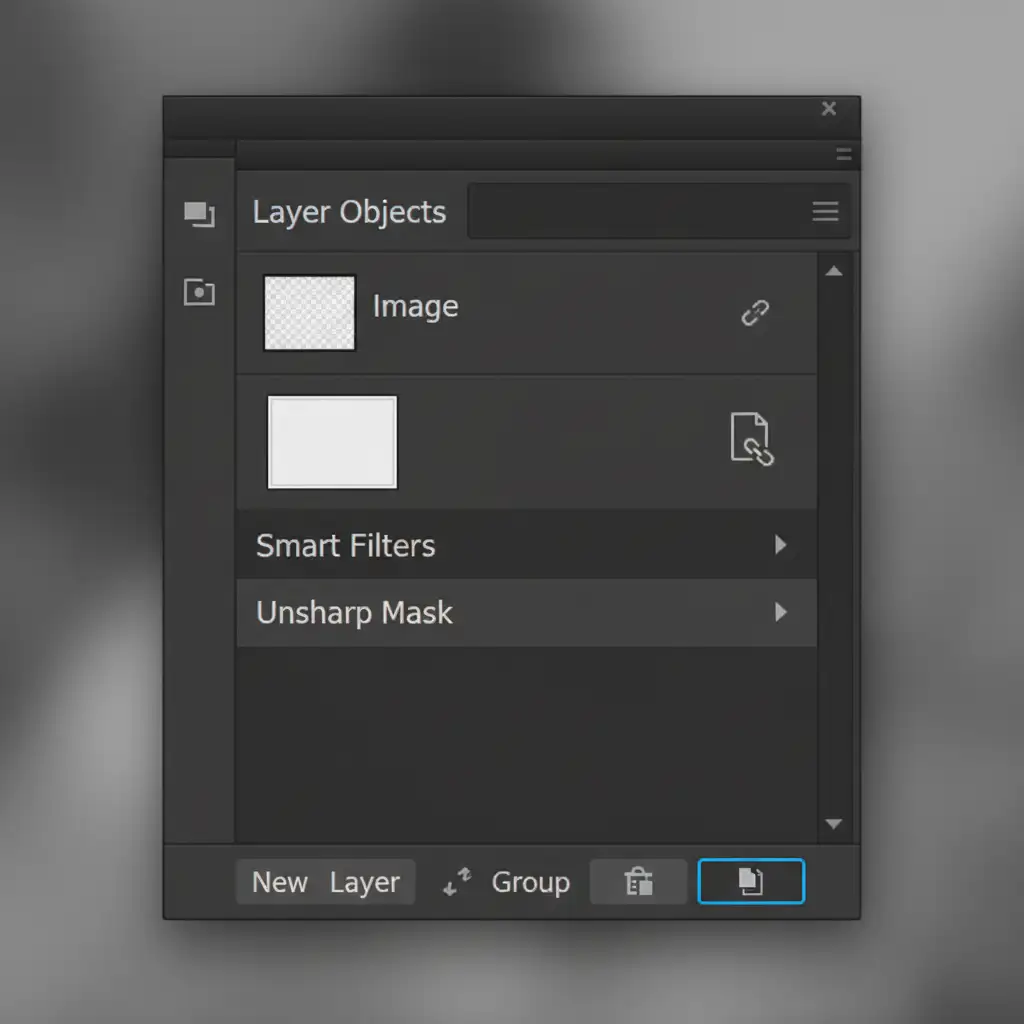
- Convert your final image layer into Smart Objects (Right-click layer > Convert to Smart Object).
- Go to Filter > Sharpen > Unsharp Mask. Set the Amount to 80% and the Radius to 1.0 Pixels.
- Alternative Method: Apply a High Pass filter (Filter > Other > High Pass) at a 1.5-pixel radius, and set the layer blending mode to Overlay.
Step 3: The “Export As” Configuration
This is where the magic happens. We need to create a lightweight file that sneaks past TikTok’s file-size checks without triggering secondary server-side compression.
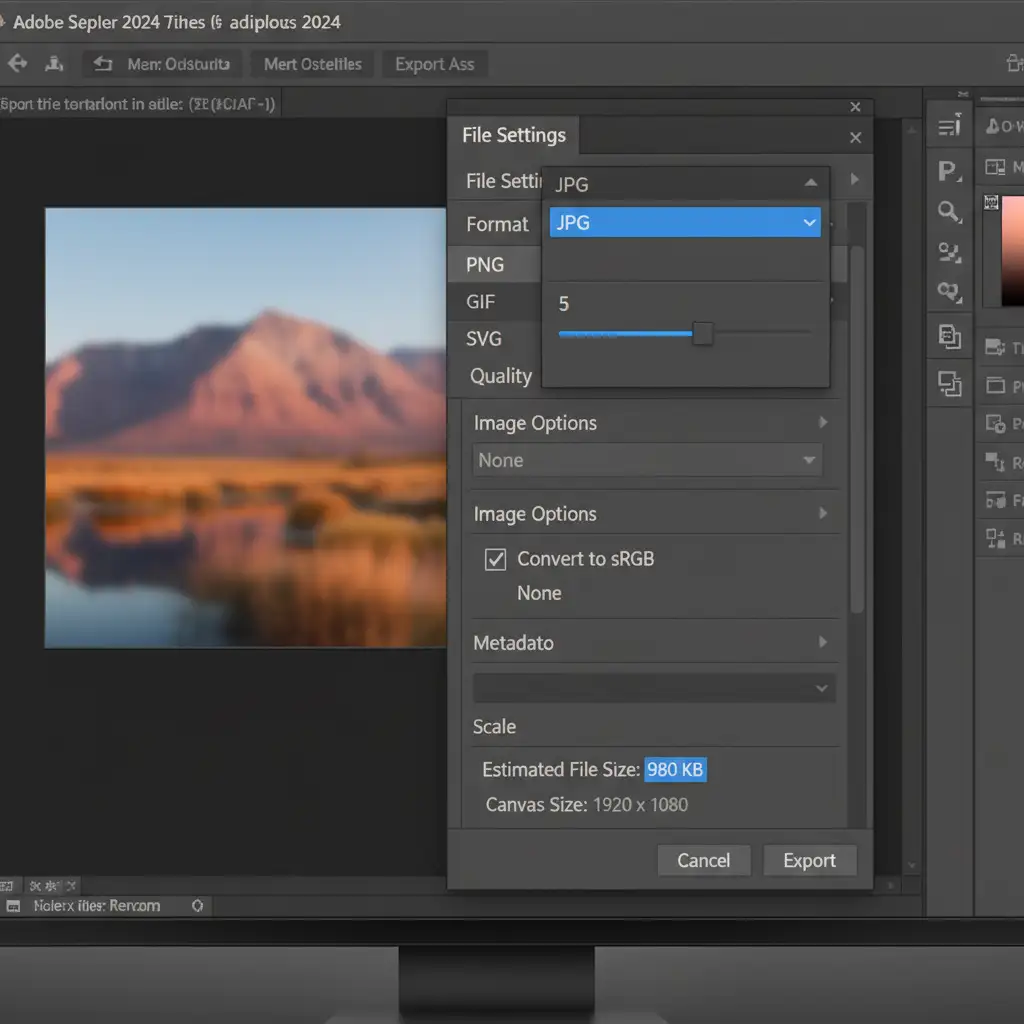
- Go to File > Export > Export As.
- Set the Format to JPG.
- Set the Quality slider to 5 or 6. (This keeps the file size under 1MB, which is crucial).
- Under Color Space, check Convert to sRGB. TikTok only reads the sRGB color space; uploading in Adobe RGB or ProPhoto will cause your colors to look washed out and muddy.
- Under Metadata, select None. Stripping unnecessary EXIF metadata reduces file bloat.
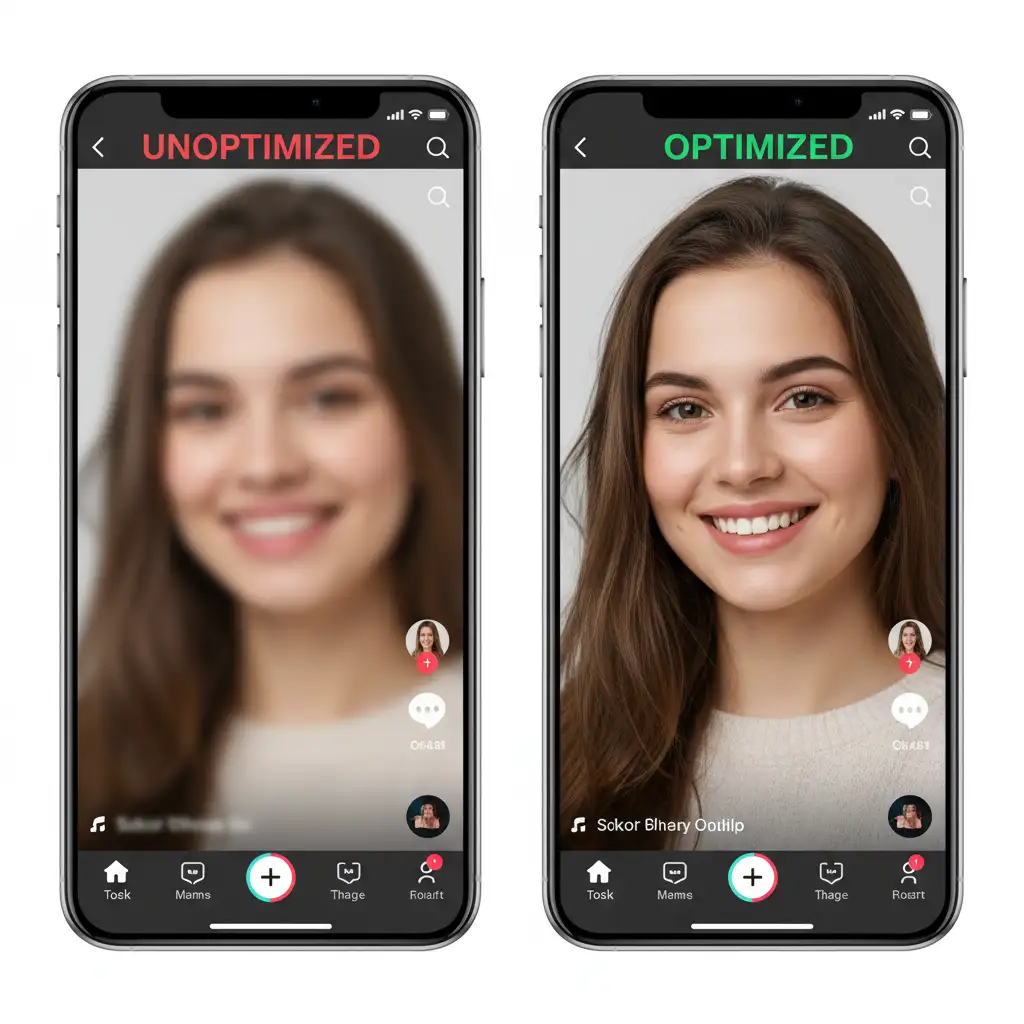
The Results: Optimized vs. Unoptimized
By following these exact steps, you deliver a file that requires zero processing on TikTok’s end. Because the dimensions are perfect, the color profile is web-native, and the file size is low, TikTok simply hosts the image as-is.
Scale Your Social Media Content with Image Work India & Cloud Retouch
Perfecting the Photoshop export settings for TikTok carousel blur is easy for one image, but what if you have a campaign with hundreds of photos? Manually resizing, applying Smart Filters, and tweaking export dialogs for every single asset is a massive drain on your creative team’s time.
That’s where we step in. Image Work India and Cloud Retouch offer expert, high-volume batch processing and professional photo retouching services. Whether you need pixel-perfect images for your brand’s social media, e-commerce product catalogs, or high-end editorial campaigns, our team ensures your visuals look flawless on every single platform.
Stop fighting compression algorithms and let us handle the technical heavy lifting. Contact Image Work India and Cloud Retouch today to streamline your post-production workflow.




