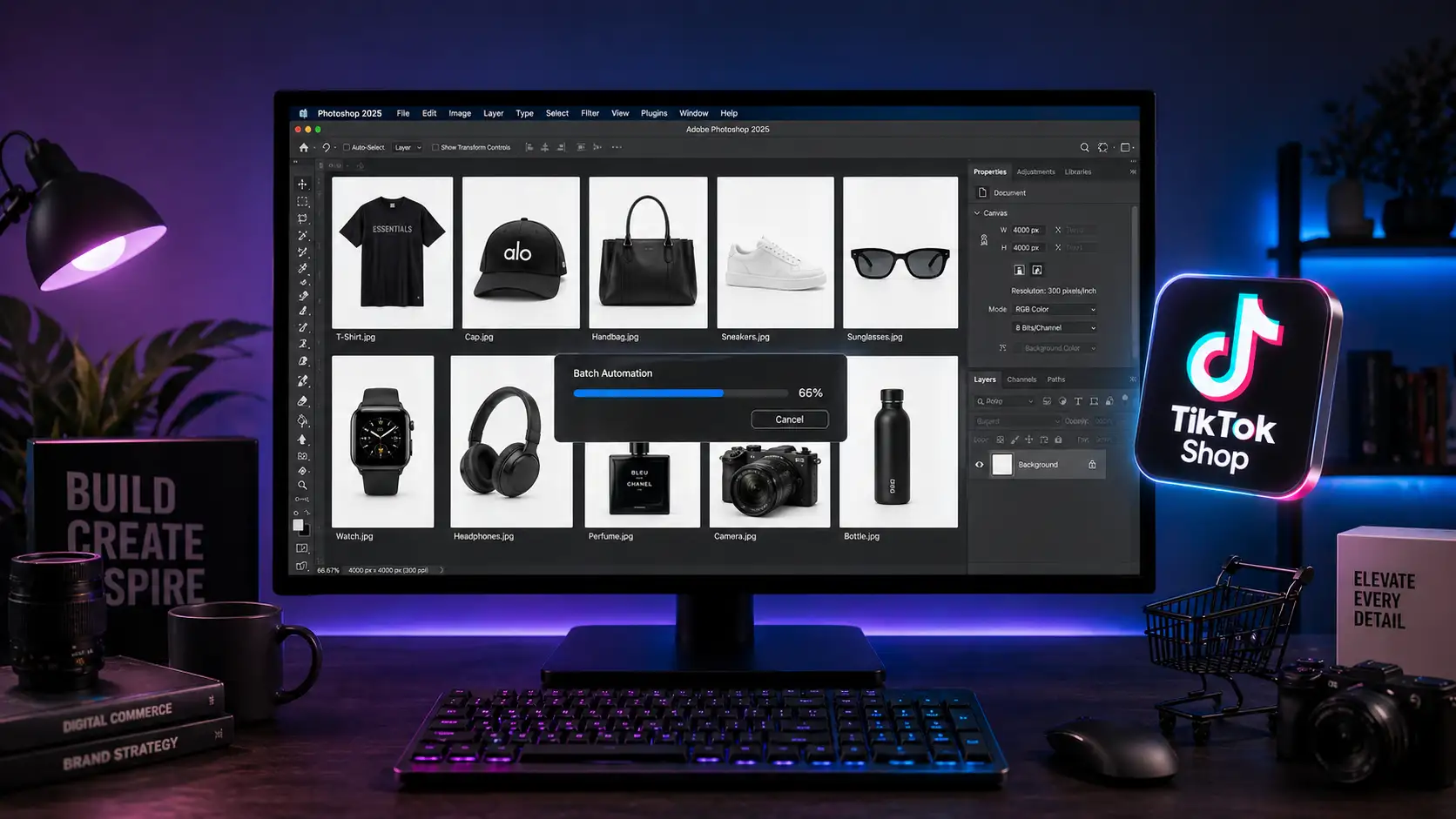

Are your product listings getting shadowbanned or outright rejected on TikTok Shop? You are not alone. E-commerce sellers are bleeding revenue daily because their raw photography triggers “Invalid Color Profile” or “Incorrect Dimensions” errors during upload. TikTok Shop’s strict 2024 image compliance rules mean that even minor metadata bloat or a non-square aspect ratio will result in immediate catalog rejection. Processing hundreds of SKUs manually is a massive technical bottleneck.
This guide will show you how to execute a complete TikTok Shop image compliance bulk fix using Photoshop v25.x. We will cover automated workflows that conform your entire catalog to exact specifications in minutes, saving you hours of tedious manual formatting.
Understanding TikTok Shop’s 2024 Image Compliance Rules
Before automating the solution, you must understand exactly what the TikTok Shop algorithm requires to approve a product image:
- Aspect Ratio: Exactly 1:1 (Square).
- Dimensions: Minimum 800×800 pixels.
- Background: Pure white (RGB 255,255,255).
- File Size: Maximum 5MB per image.
- Color Profile: Strict adherence to the sRGB color space.
When uploading raw photography directly from a camera, files are often saved in Adobe RGB or ProPhoto RGB, lack the correct aspect ratio, and carry heavy EXIF data. Here are three methods to fix these issues at scale using Photoshop.
Method A: The Quick Fix Using Image Processor
If your images are already on a pure white background and just need resizing and color correction, Photoshop’s built-in Image Processor is the fastest route.
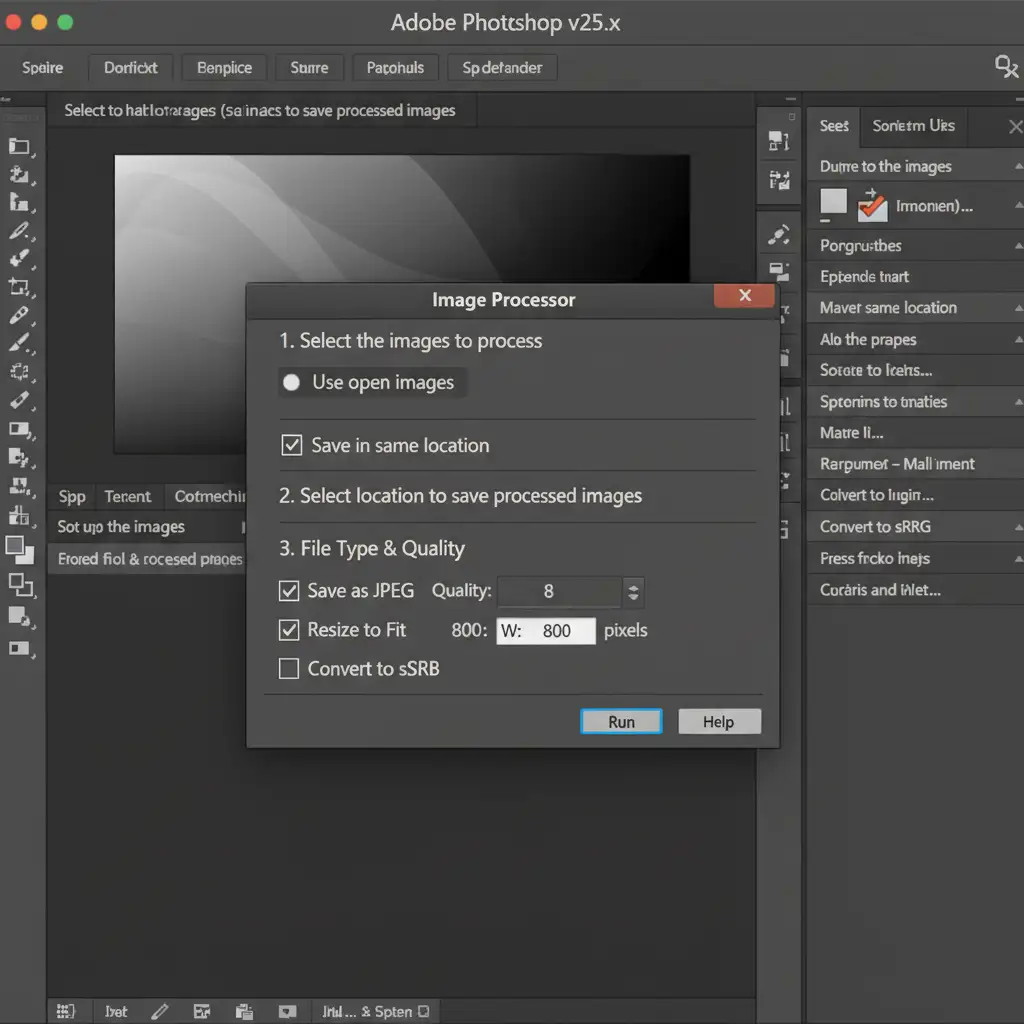
- Open Photoshop v25.x and navigate to File > Scripts > Image Processor.
- Select the images to process: Choose the folder containing your raw product photos.
- Select location to save processed images: Create a new destination folder.
- File Type: Check Save as JPEG. Set the Quality to 8 (this helps keep the file under the 5MB limit).
- Resize to Fit: Check this box and enter 800 for both W (Width) and H (Height).
- Color Profile: Check Convert to sRGB.
- Click Run.
Method B: The Pro Workaround with Custom Actions
If your images are rectangular and require canvas expansion without distorting the product, you need to create a custom Action Set and utilize Batch Automation.
Step 1: Record the Action
- Open a sample product image in Photoshop.
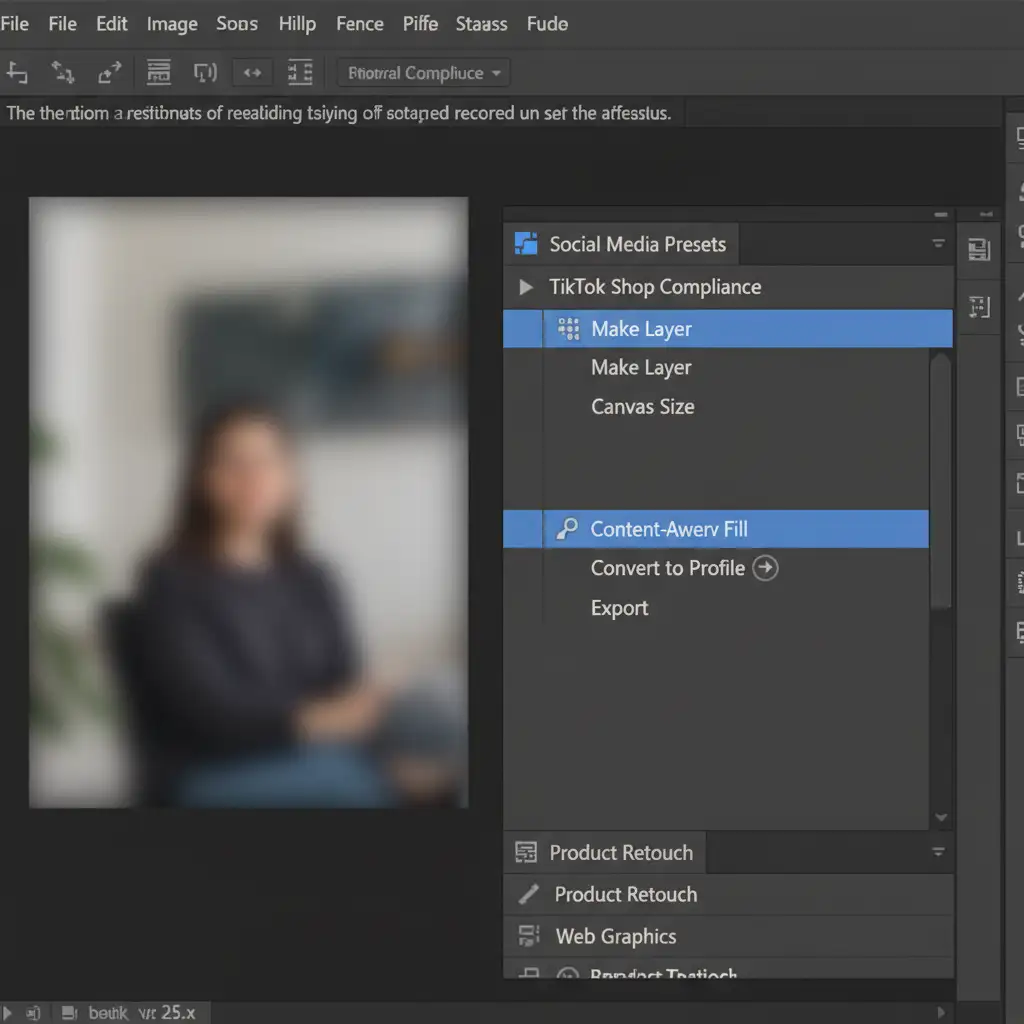
- Open the Actions panel (Window > Actions) and create a New Action. Name it “TikTok Shop Compliance”. Hit Record.
- Unlock Background: Double-click the background layer to unlock it.
- Fix Canvas Size: Go to Image > Canvas Size. Change the units to Percent. Whichever dimension is smaller, use Generative Expand or Content-Aware Fill to expand the canvas to a 1:1 Aspect Ratio (e.g., matching the width to the height).
- Assign Color Profile: Go to Edit > Convert to Profile and select sRGB IEC61966-2.1.
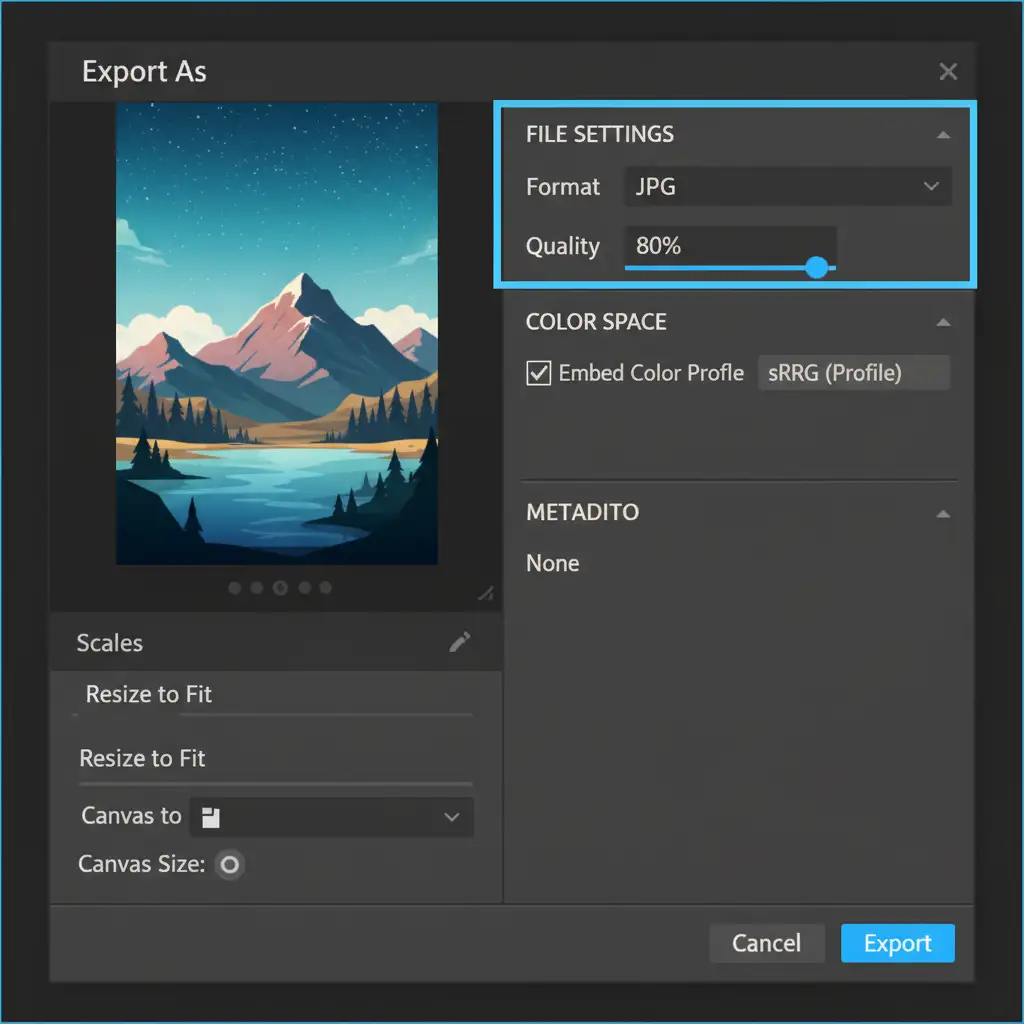
- Metadata Stripping: Go to File > Export > Export As. Select JPG, set quality to 80%, ensure “Embed Color Profile” is checked, but set Metadata to “None”. This strips unnecessary EXIF data to guarantee the file stays under 5MB.
- Stop recording the action.
Step 2: Run Batch Automation
With your action recorded, navigate to File > Automate > Batch. Select your “TikTok Shop Compliance” action, choose your source folder of non-compliant images, and let Photoshop process the entire catalog automatically.
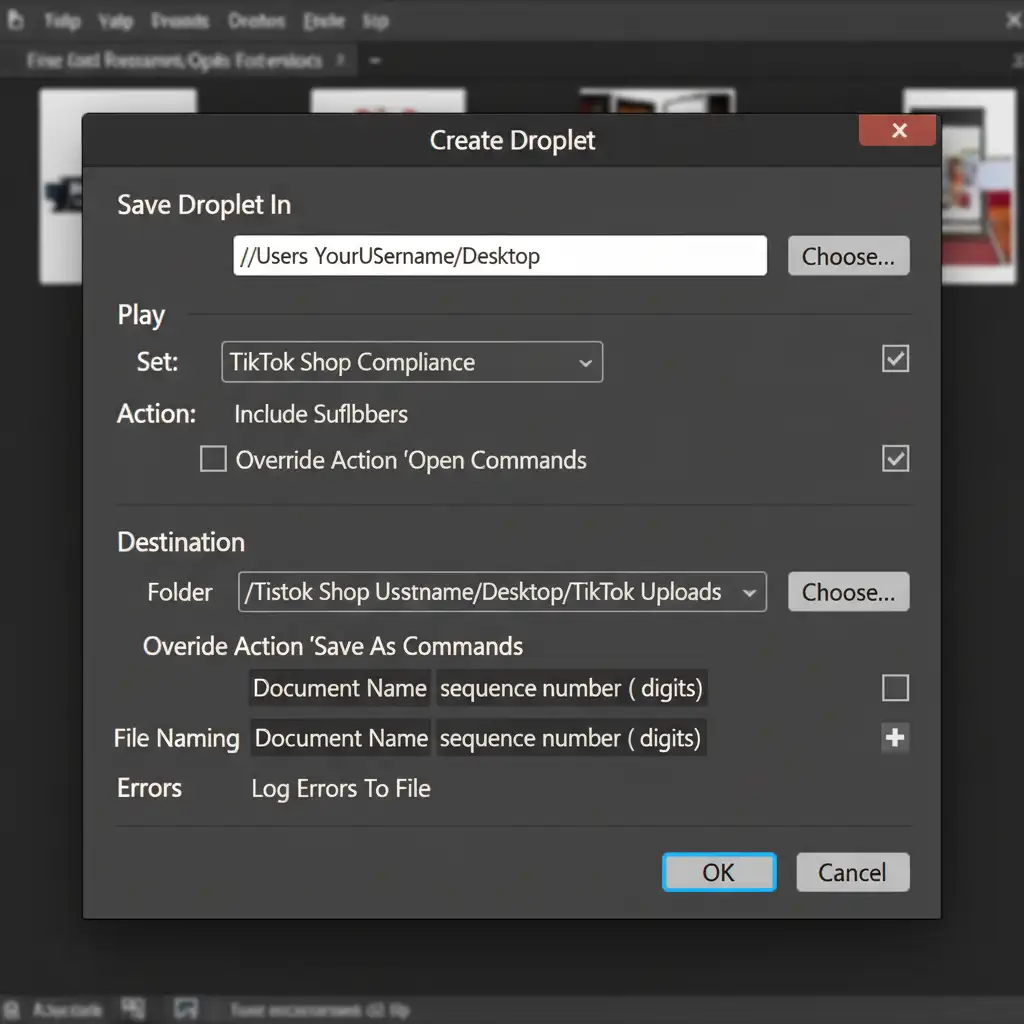
Method C: The Technical Deep-Dive Using a Photoshop Droplet
For e-commerce managers handling continuous inventory updates, opening Photoshop every time you need to process images is inefficient. The ultimate solution is creating a Photoshop Droplet.
A Droplet packages your custom Action into a standalone, executable app that lives on your computer’s desktop.
- Go to File > Automate > Create Droplet.
- Choose a save location (e.g., your Desktop) and name it “TikTok-Shop-Formatter.exe” (or .app for Mac).
- Under the Play section, select the Action Set and Action you created in Method B.
- Set the Destination to a specific “Ready for Upload” folder.
- Click OK.
Now, you can simply drag and drop folders of raw product photography directly onto the Droplet icon on your desktop. Photoshop will launch in the background, run the compliance checks, and output perfect, upload-ready files at the OS level.
Scale Your E-Commerce Catalog Without the Headache
Mastering the TikTok Shop image compliance bulk fix will save your store from shadowbans and keep your sales flowing. However, if your raw photography requires complex background removal, detailed retouching, or you simply have thousands of SKUs that require a human touch to ensure absolute perfection, automated scripts can only take you so far.
Struggling with thousands of product images? Let Image Work India and Cloud Retouch handle your bulk catalog compliance.
Our expert retouchers specialize in e-commerce image formatting. We manually guarantee 100% strict compliance with TikTok Shop, Amazon, and Shopify standards—including perfect clipping paths, pure white backgrounds, and exact color profiles. Stop fighting with software errors and start scaling your sales. Contact Image Work India today to outsource your image editing pipeline.




