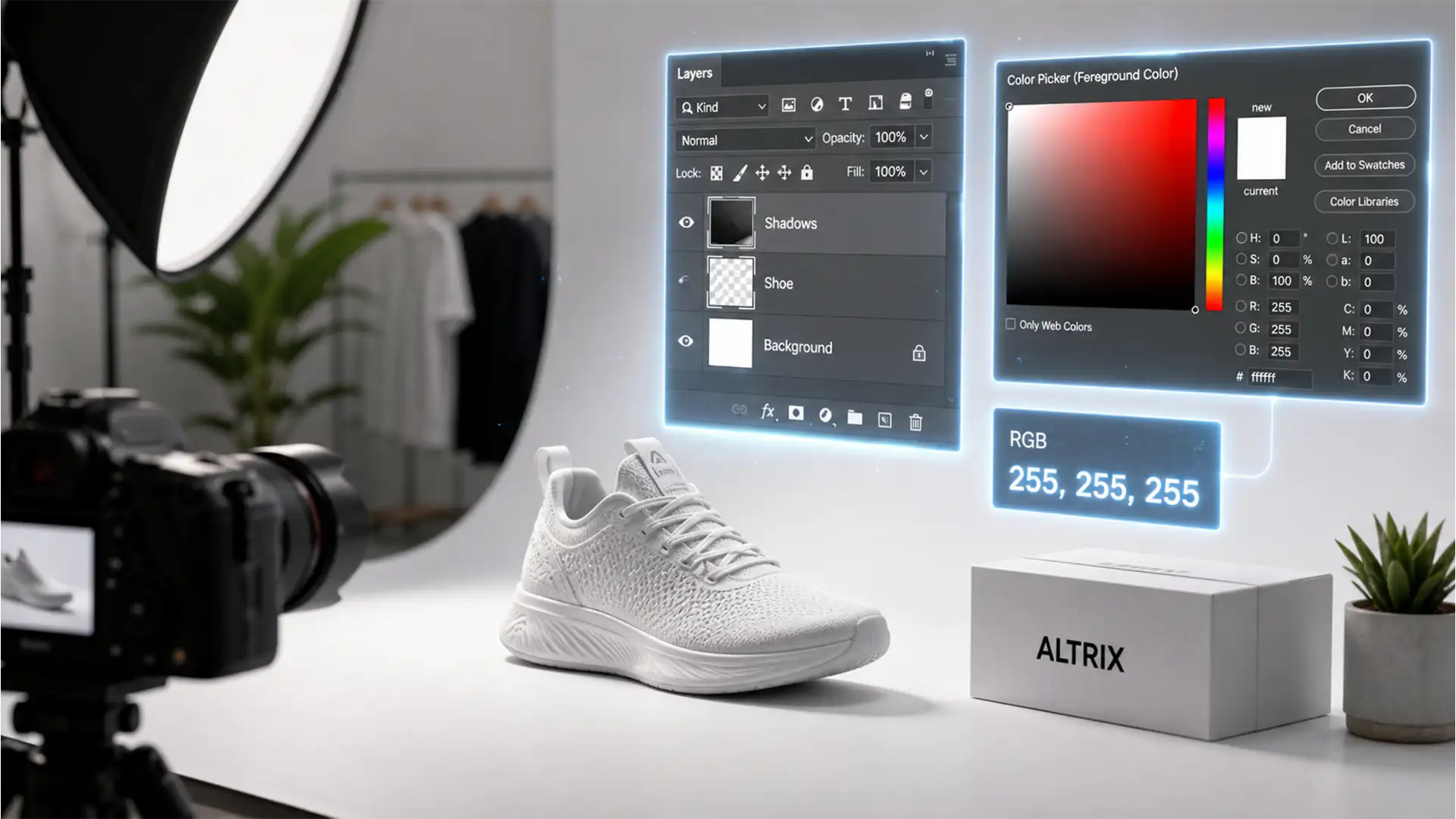

You’ve spent hours perfecting your product photos, only to log into Seller Central and see the dreaded “Search Suppressed” warning. The culprit? Your product shadows.
Amazon’s A9 algorithm is ruthless when it comes to image guidelines. If an unrefined drop shadow bleeds too far, altering the strict pure white background requirement, or pushes your product outside the 85% frame-fill limit, your listing vanishes from search results. Creating Amazon compliant natural shadows in Photoshop isn’t just about making your product look premium—it’s about keeping it visible to buyers.
Let’s fix this technical challenge and master the art of compliant e-commerce editing.
Why Amazon Suppresses Non-Compliant Product Shadows
Amazon enforces strict primary image guidelines for a reason: consistency. Every main product image must feature a pure white background (exactly RGB 255, 255, 255) and the product itself must fill 85 percent of the image frame.
The technical challenge arises when sellers try to add depth. A poorly executed shadow can easily:
- Introduce off-white pixels (e.g., RGB 250, 250, 250) at the edges of the canvas.
- Extend the visual boundaries of the product, violating the 85% frame-fill ratio.
- Look artificial, reducing buyer trust.
To succeed, you must generate depth through ambient occlusion and precise shadow mapping without compromising the pristine white environment. Before starting any shadow work, always ensure your product is perfectly isolated using a professional clipping path.
3 Methods to Create Amazon Compliant Natural Shadows in Photoshop
Whether you need a fast fix for a massive catalog or a studio-quality cast shadow, Photoshop (v24.x and newer) offers specific workflows to keep your images compliant.
Method A: The Quick Fix (Layer Styles & Masking)
This method is ideal for simple objects that just need a slight grounding effect to avoid looking like they are floating.
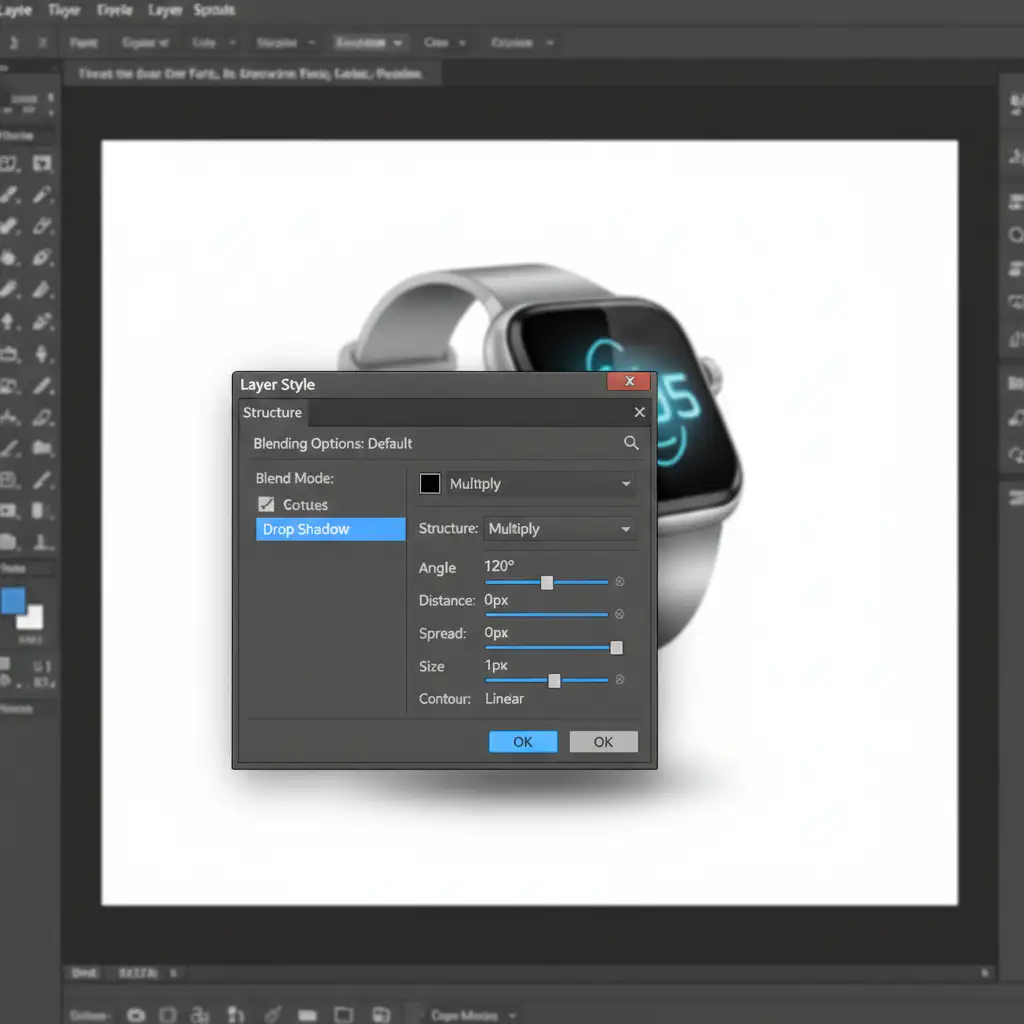
- Apply a Drop Shadow: Double-click your isolated product layer to open the Layer Style dialog. Add a Drop Shadow with an opacity of 15 to 25 percent. Keep the distance low.
- Separate the Layer: Right-click the “Drop Shadow” effect in your Layers panel and select Create Layer. This detaches the shadow from the product layer, allowing independent editing.
- Refine with a Mask: Add a layer mask to your new shadow layer. Use a soft black brush to erase unrealistic edges, ensuring the shadow doesn’t stretch too far and trigger search suppression.
Method B: The Pro Workaround (Cast Shadows)
When your product is lit from a specific angle, a standard drop shadow looks fake. You need a directional cast shadow.
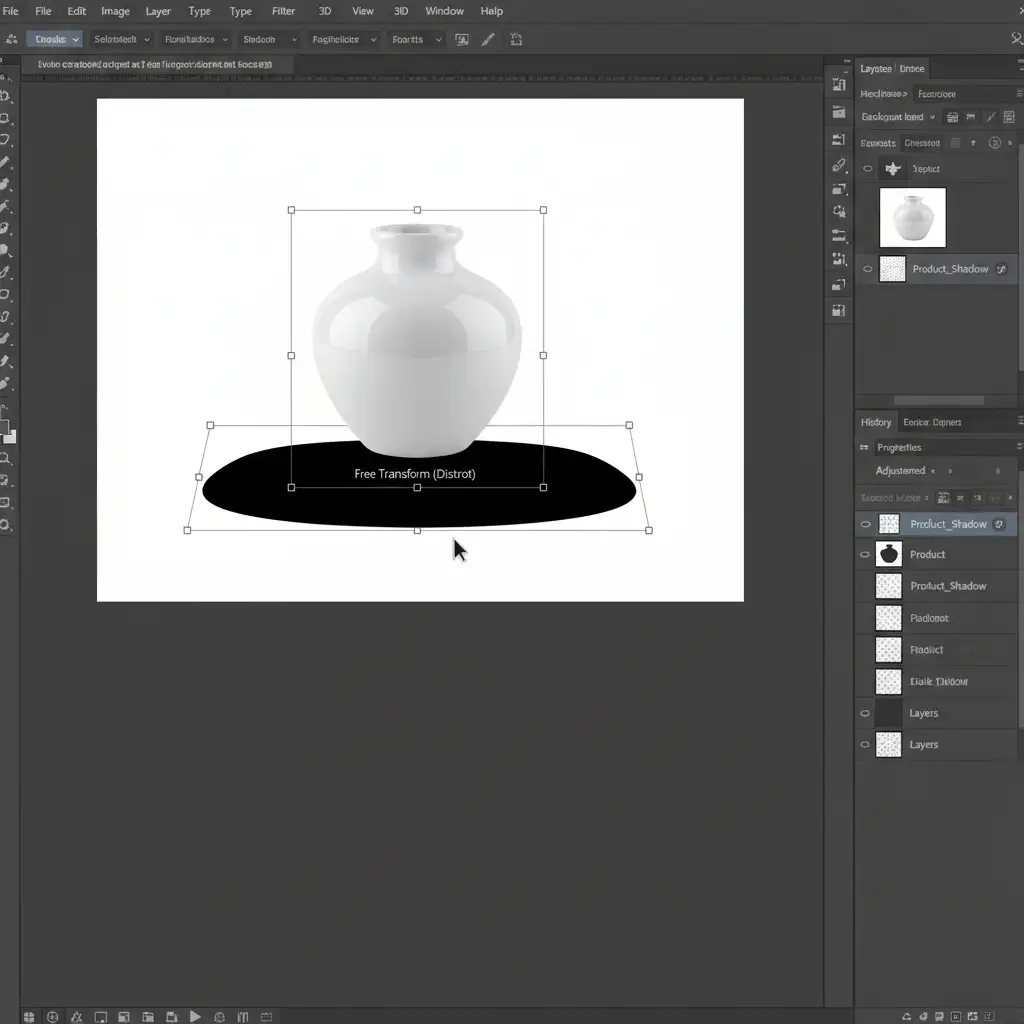
- Duplicate and Fill: Duplicate your product layer. Lock the transparent pixels on the duplicated layer and fill the product silhouette completely with black.
- Distort the Shadow: Press Ctrl+T (Windows) or Cmd+T (Mac) for Free Transform. Hold Ctrl (or Cmd) and drag the top bounding box node downward to lay the black silhouette flat against the “floor,” matching your original light source.
- Soften the Edges: Apply a Gaussian blur to the black silhouette to soften the harsh edges.
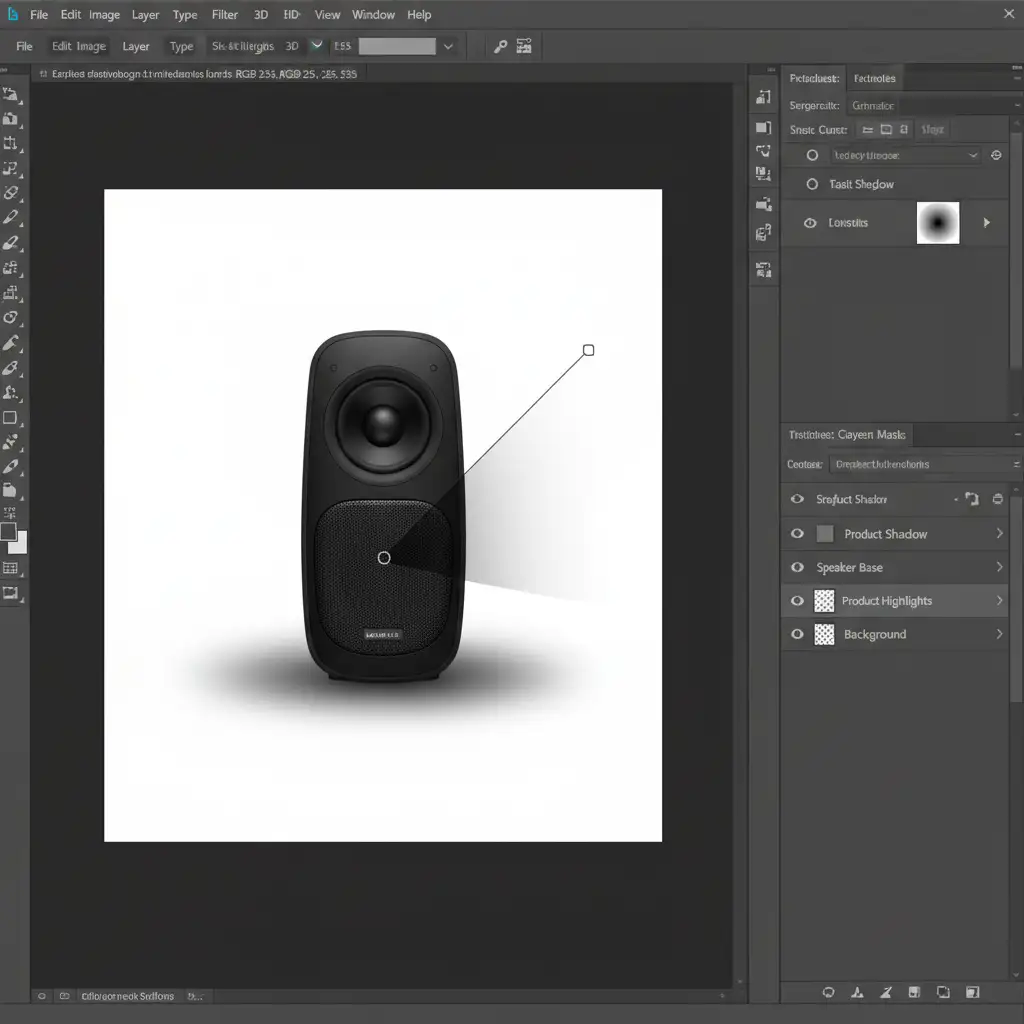
- Create Light Falloff: Real shadows fade as they move away from the object. Add a layer mask to the shadow layer, select the Gradient tool (Black to White), and drag it across the shadow to create a realistic light falloff.
Method C: The Technical Deep-Dive (Painting Contact Shadows)
For the absolute highest level of realism, manual painting is required. This mimics ambient occlusion—the darkest part of a shadow where the product physically touches the surface.
- Setup the Layer: Create a new layer beneath your product layer. Change the blending mode to Multiply.
- Paint the Contact Point: Select a soft round brush and drop the Flow to 5 percent. Carefully and repeatedly paint right under the base of the product where it touches the floor. This builds up a dense, realistic contact shadow.
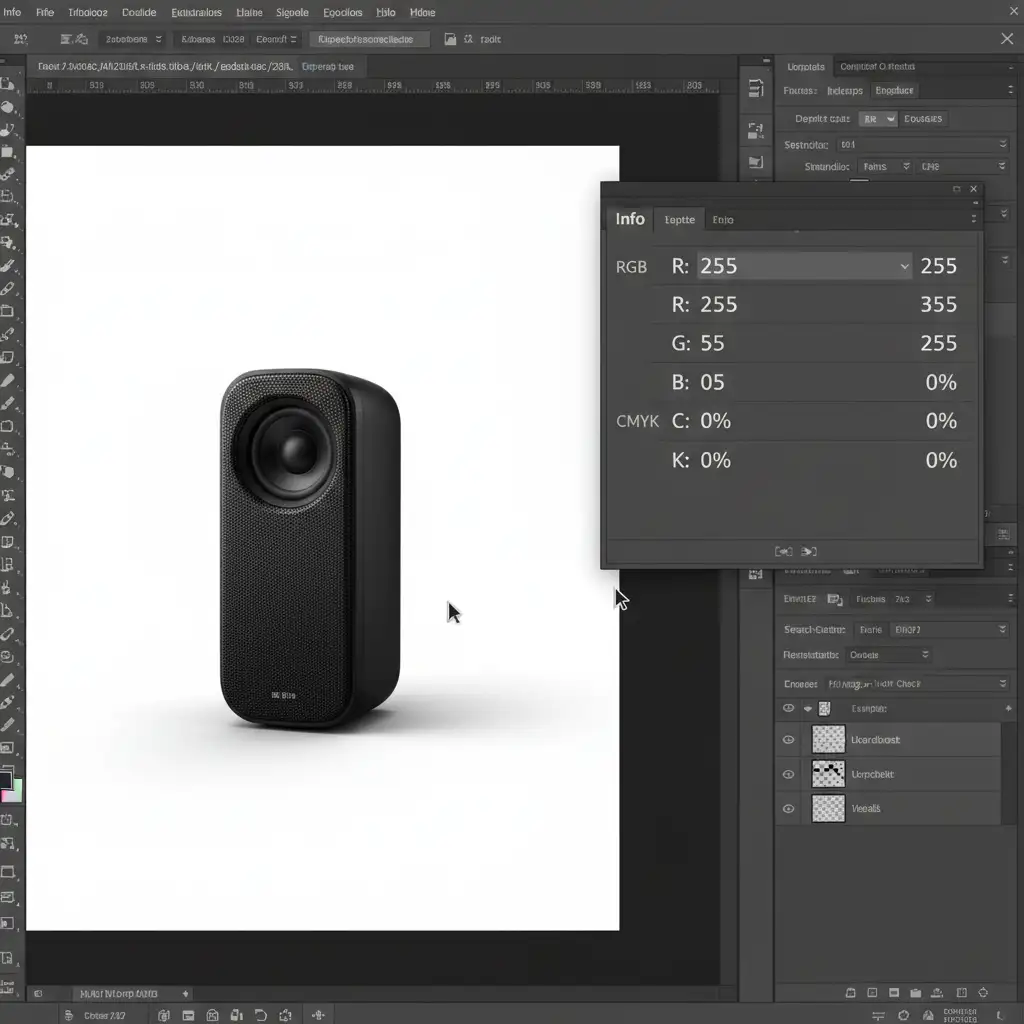
- Verify Compliance: This is the most critical step. Open your Info Panel (F8). Hover your eyedropper tool over the white background surrounding your new shadow. Ensure the background remains exactly RGB 255, 255, 255. If the shadow extends too far, use an eraser or mask to pull it back.
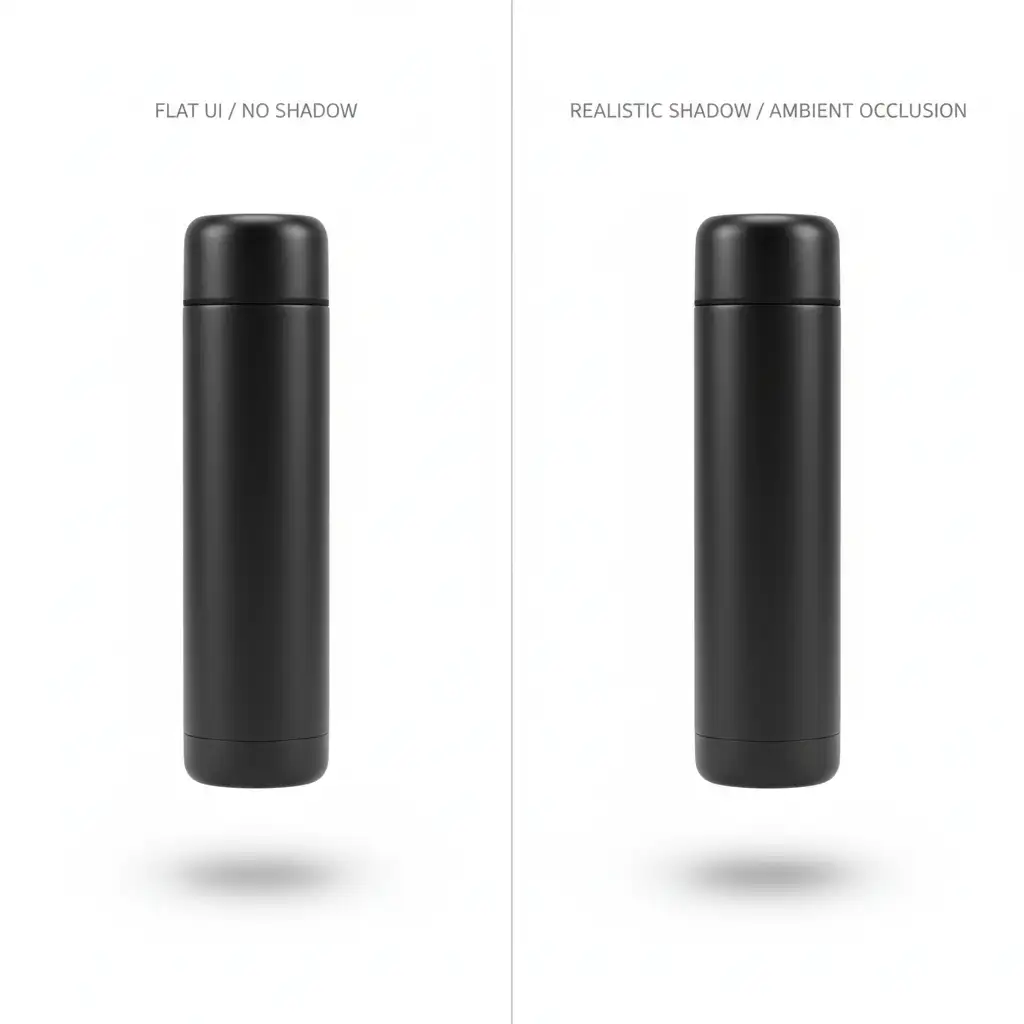
Before & After: The Impact of a Compliant Shadow
A flat product on a white background looks unnatural. A poorly shadowed product gets suppressed. A perfectly shadowed product looks premium, grounds the item, and converts browsers into buyers—all while keeping Amazon’s A9 algorithm happy.
Scale Your E-Commerce Imagery with Image Work India & Cloud Retouch
Creating Amazon compliant natural shadows in Photoshop is a meticulous process. When you are managing a catalog of hundreds or thousands of SKUs, manually checking RGB values and painting contact shadows becomes a massive bottleneck for your business.
Creating compliant, high-converting product shadows at scale requires precision. Outsource your Amazon image editing to Image Work India and Cloud Retouch.
Our expert retouchers specialize in strict e-commerce marketplace guidelines. From pixel-perfect clipping paths to realistic drop shadows and cast shadows, we guarantee 100% compliance with Amazon’s 85% frame-fill and RGB 255 rules. Stop worrying about search suppression and start focusing on scaling your sales.
[Contact Image Work India Today for a Free Trial Trial] and see the difference studio-quality retouching makes for your listings.




