

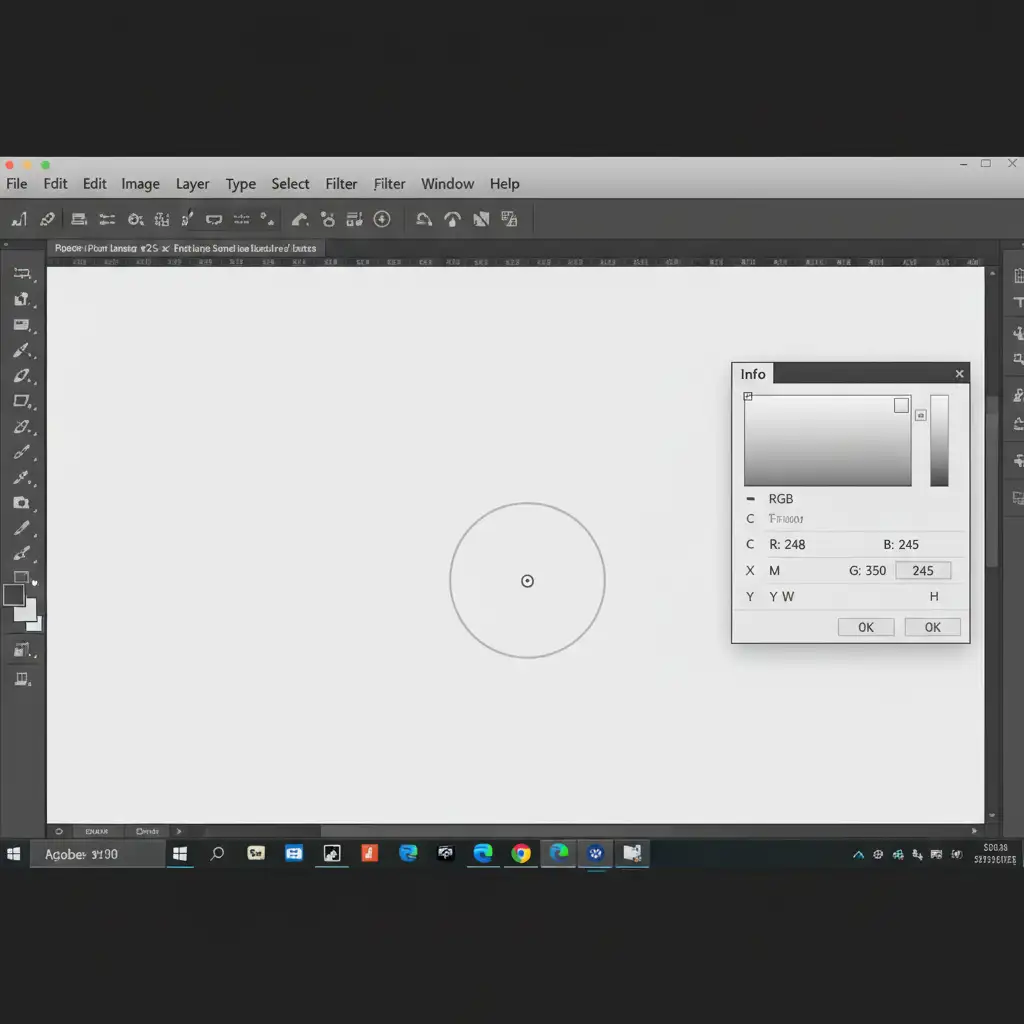
You just spent hours photographing and editing your latest product, only to wake up to an Amazon suppression error. The culprit? Your background isn’t perfectly white. While it might look white to the naked eye, strict e-commerce algorithms see an off-white RGB value of 250, 248, or 245 instead of a pure RGB 255, 255, 255.
This tiny pixel discrepancy is enough to get your listing hidden from buyers. Fortunately, fixing the RGB 255 255 255 background error in Photoshop is a straightforward process once you know the right workflow.
Here is exactly how to force a perfect white background, satisfy Amazon product photography guidelines, and get your listings live.
Why E-commerce Platforms Suppress Your Images
Marketplaces like Amazon and eBay enforce rigid visual standards. They require the primary product image to have a pure white background—specifically the Hex code #FFFFFF in the RGB color model.
In modern software environments like Photoshop v24.x and v25.x, this error is incredibly common. Even if you cut out your product perfectly, three hidden issues often cause a non-white background:
- Soft Brush Masking: Leaving semi-transparent pixels around the edges of your product.
- Color Profile Conversion: Mishandling the shift between Adobe RGB and sRGB.
- Lossy JPG Compression: Saving your file in a format that alters exact pixel data during export, shifting your 255 white point downward.
Let’s fix it using three reliable methods.
How to Fix the RGB 255 255 255 Background Error in Photoshop
Method 1: The Quick Fix (Solid Color Layer)
If you need a rapid solution and have a product with hard, clean edges, this is your go-to method.
- Open your image in Photoshop.
- Select the Object Selection Tool (W) and click on your product to isolate it.
- Invert the selection by pressing Ctrl+Shift+I (Windows) or Cmd+Shift+I (Mac).
- Create a new Solid Color Adjustment Layer.
- In the color picker dialog, set the hex code exactly to #FFFFFF.
This forces everything outside your product selection to be mathematically pure white.
Method 2: The Pro Workaround (Threshold & Levels Diagnostic)
For products with complex edges, shadows, or reflective surfaces, you need to adjust the background manually without destroying the product’s natural lighting.
First, we need to identify the problem areas using the Photoshop Info Panel and a Threshold diagnostic layer.
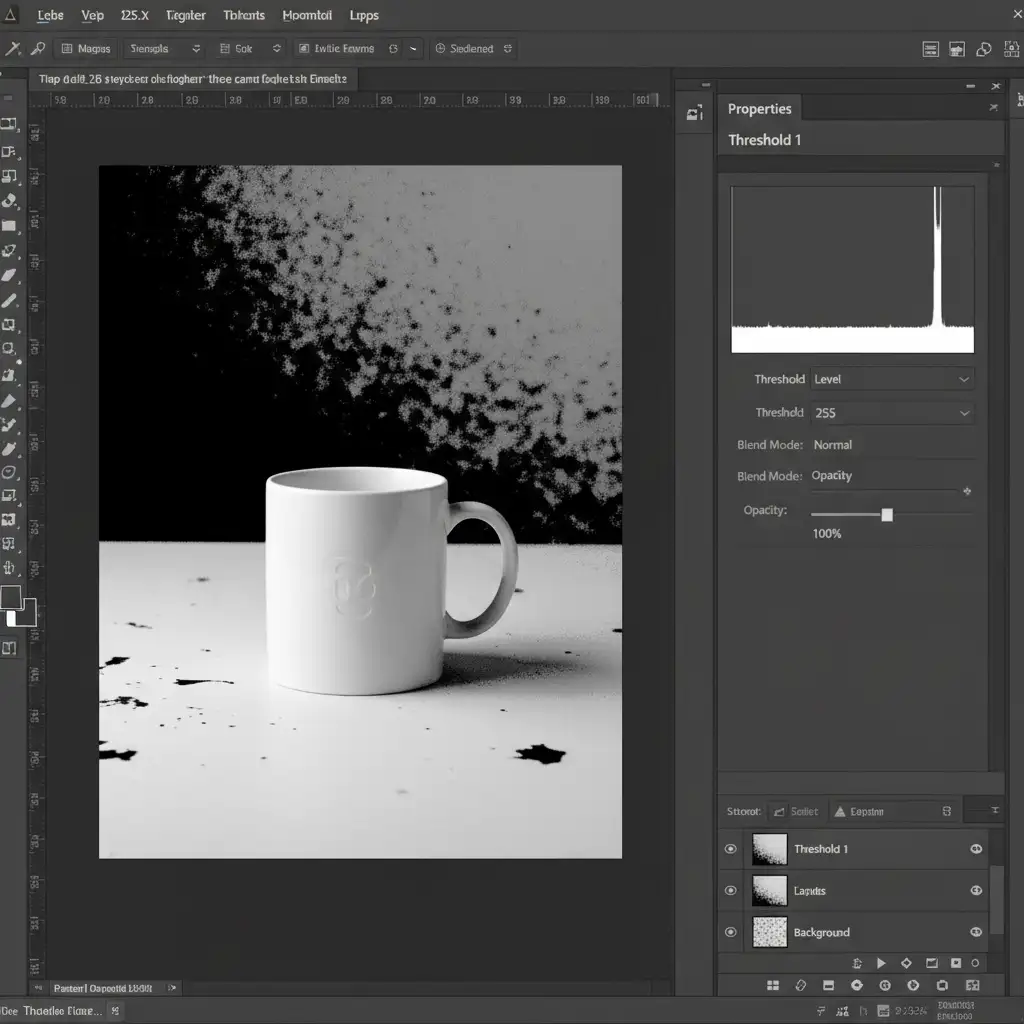
- Set Up the Diagnostic: Add a Threshold adjustment layer at the very top of your layer stack. Set the value to exactly 255.
- Read the Output: This layer acts as a binary diagnostic tool. Any pixel that is pure white (255) will remain white. Any pixel that is 254 or lower will turn stark black. This instantly reveals the hidden off-white pixels causing your suppression error.
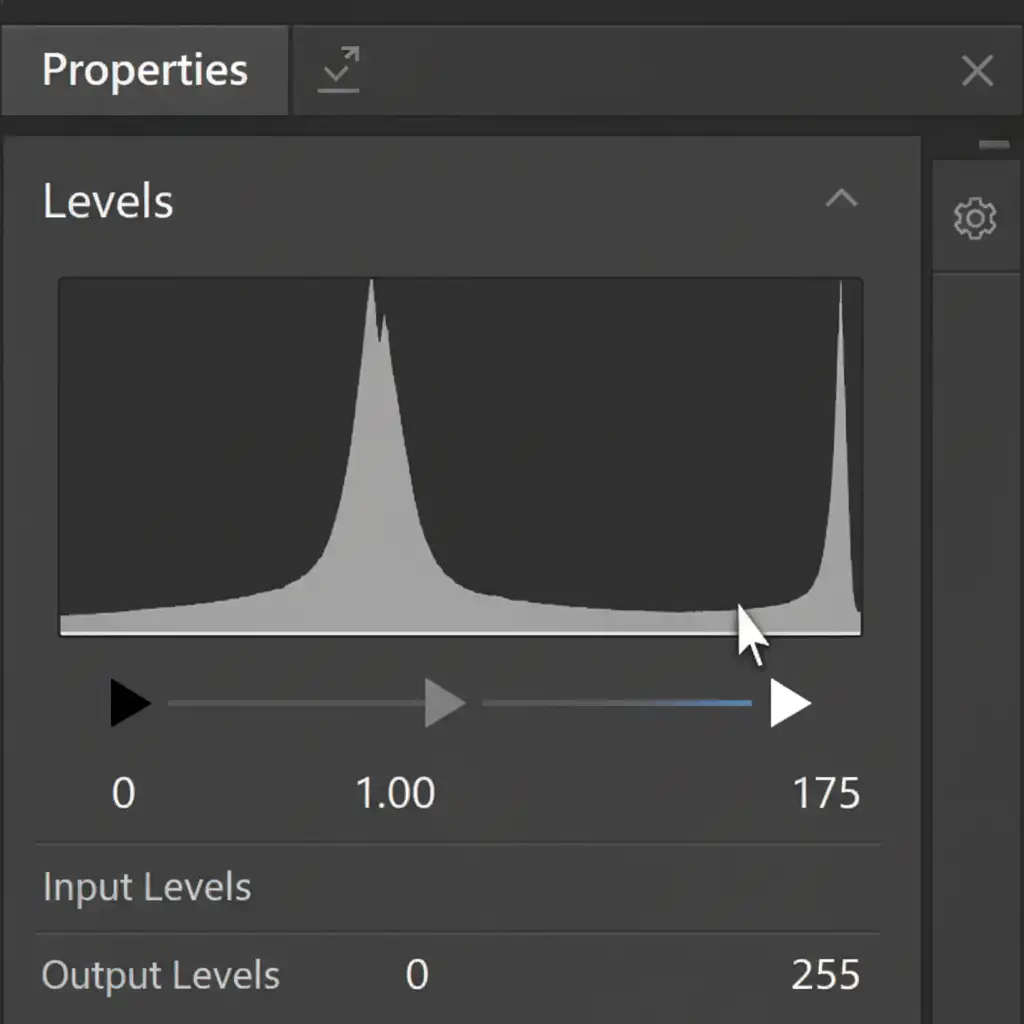
- Apply the Fix: Add a Levels adjustment layer below your Threshold layer.
- Adjust the White Point: Look at the Levels histogram. Click and drag the right-side white slider inward to the left. Watch your document window—as you drag, the black diagnostic pixels will vanish, turning into pure white.
- Clean Up: Once the background is completely white in the Threshold view, delete the Threshold layer. Your background is now a perfect 255, 255, 255.
Method 3: The Technical Deep-Dive (Color Profiles & Exporting)
You can have a perfect 255 background in your working document, but if you export it incorrectly, lossy JPG compression will ruin your hard work.
To ensure your file remains compliant when uploaded to Amazon, you must manage your color space.
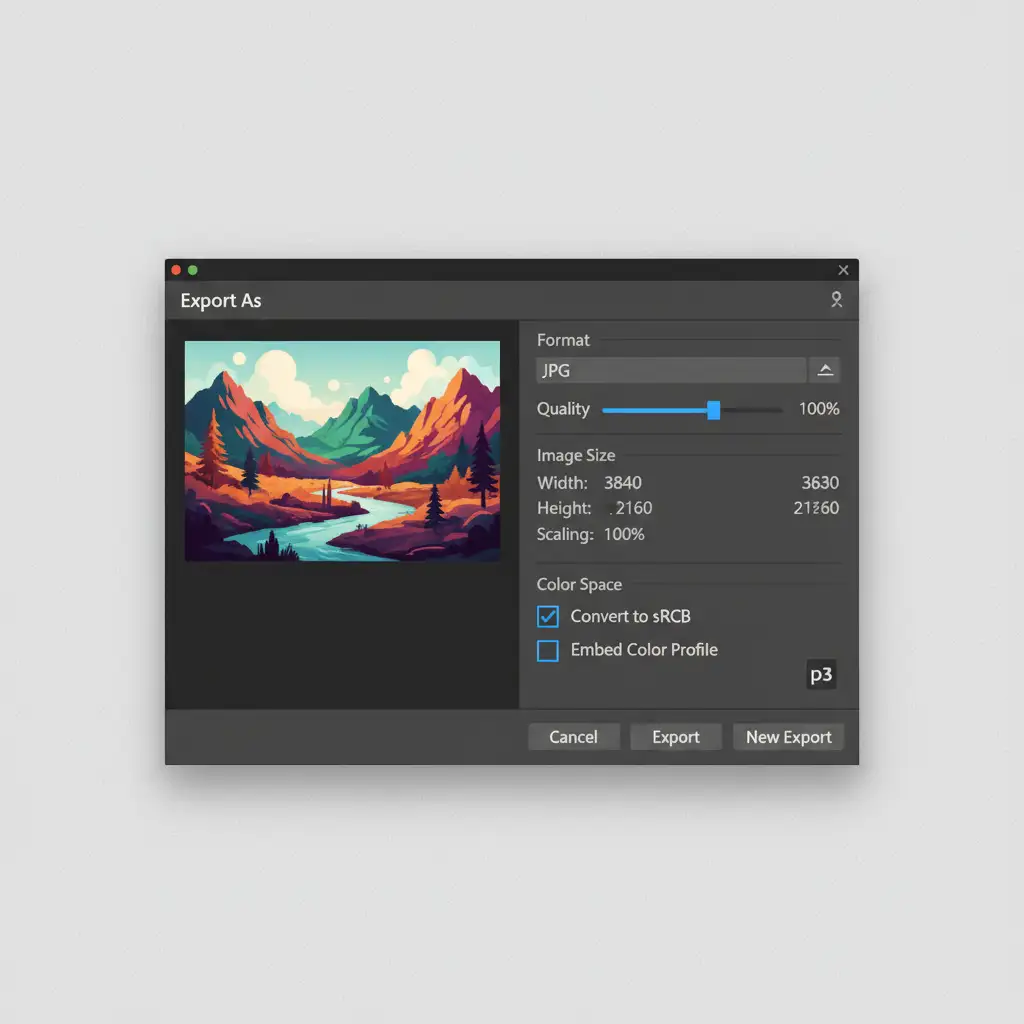
- Convert to the Correct Profile: Navigate to Edit > Convert to Profile. Under the Destination Space, select sRGB IEC61966-2.1. This is the standard color space for all web browsers and e-commerce platforms.
- Export Safely: Do not use “Save As.” Instead, navigate to File > Export > Export As.
- Lock in the Pixels: Select JPG as your format and set the Quality to 100%.
- Embed the Profile: Crucially, ensure the Embed Color Profile and Convert to sRGB checkboxes are ticked. This prevents compression algorithms from shifting your 255 white point back to 254 or lower.
Stop Fighting the Algorithm: Outsource Your Image Editing
Fixing the RGB 255 255 255 background error in Photoshop is entirely manageable for a handful of images. But if you are managing a catalog of hundreds or thousands of SKUs, manually adjusting histograms and threshold layers is a massive drain on your time and resources.
Image Work India and Cloud Retouch specialize in high-volume, pixel-perfect e-commerce photo editing. We understand Amazon’s strict product photography guidelines inside and out. Our expert retouching teams guarantee 100% marketplace-compliant images with flawless 255 pure white backgrounds, crisp masking, and perfect color profiles—every single time.
Stop worrying about listing suppressions and start focusing on scaling your sales. Contact Image Work India and Cloud Retouch today to get your products looking perfect and selling faster.




