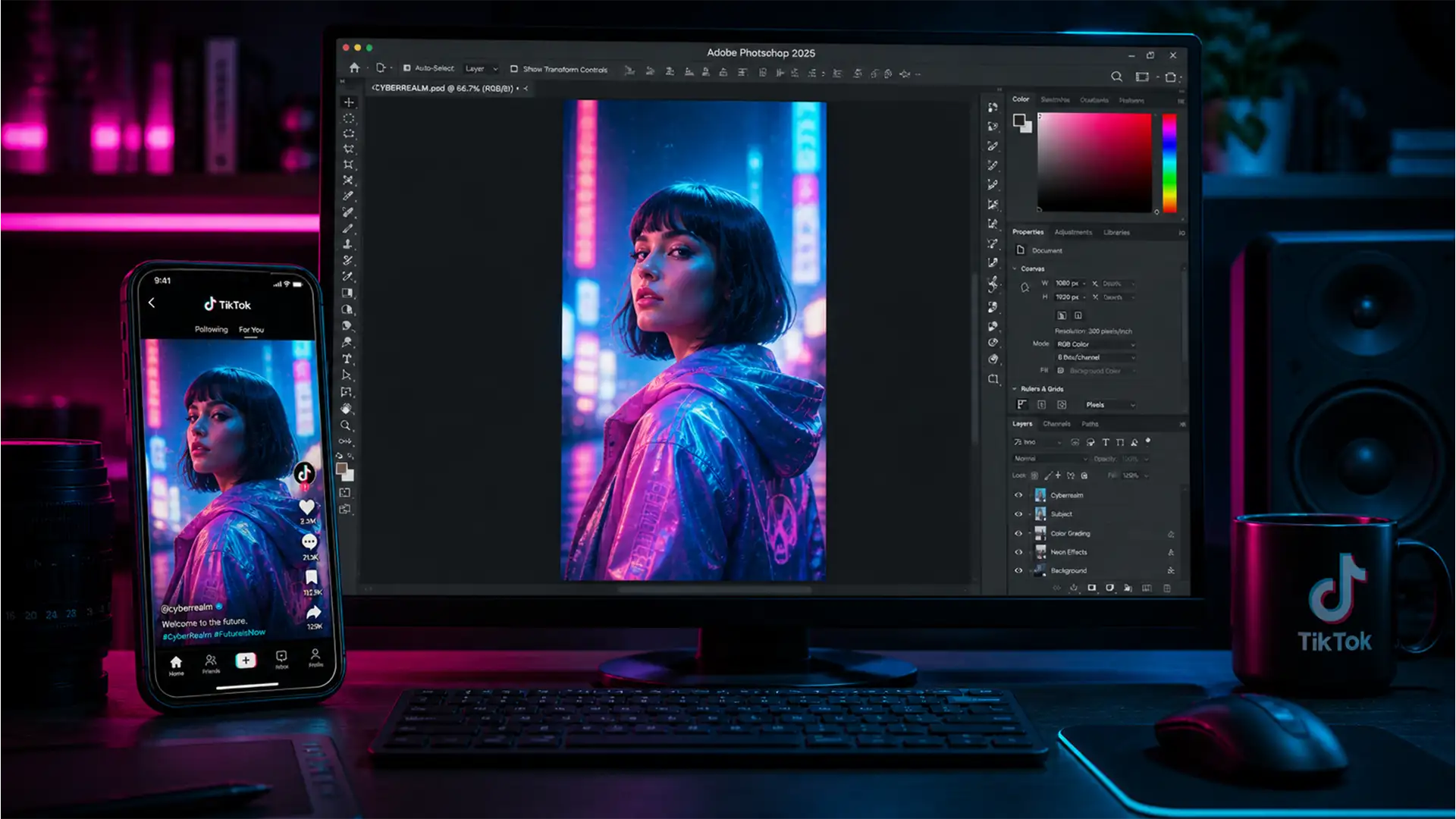

You just spent hours perfecting an edit in Photoshop 2025. The colors pop, the details are razor-sharp, and the composition is flawless. But the second you upload it to a TikTok photo carousel, disaster strikes. Your vibrant reds turn muddy, the crisp edges blur into a pixelated mess, and your masterpiece looks like it was shot on a decade-old flip phone.
You’re not alone. TikTok’s aggressive compression algorithm ruthlessly penalizes files that don’t meet its strict web-standard delivery criteria. Fortunately, beating this algorithm is simple once you understand the platform’s backend rules. Let’s lock in your pixel-perfect quality with the definitive TikTok export settings for Photoshop 2025.
Why TikTok Ruins Your Photoshop Exports (The Technical Truth)
Before applying the fix, you need to understand the enemy: compression artifacts and forced color conversions.
When you upload an image to TikTok, the platform’s algorithm scans the file’s metadata, dimensions, and color profile. If your file exceeds optimal dimensions or utilizes non-web color profiles (like CMYK or Adobe RGB), TikTok forcefully converts and compresses it. This forceful conversion is the primary cause of immediate desaturation and ugly color banding.
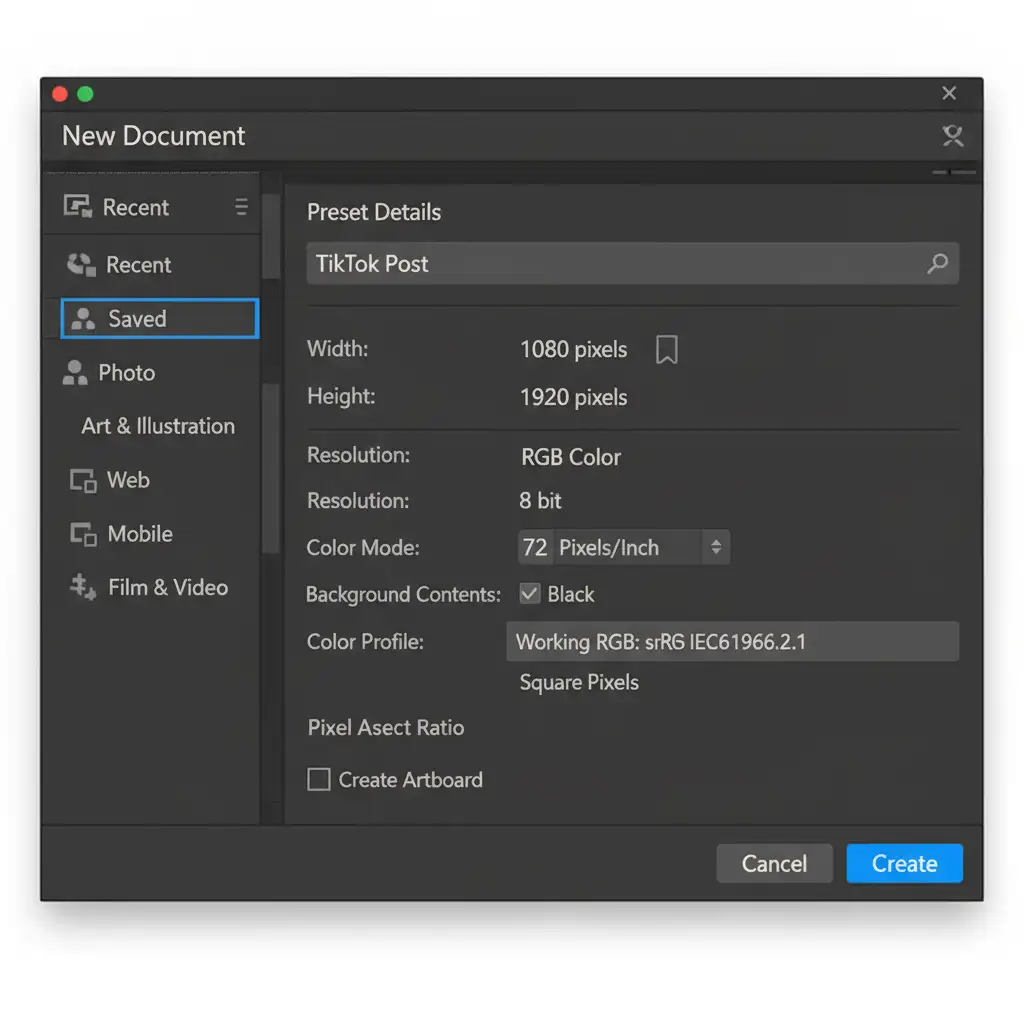
Furthermore, failing to match TikTok’s native 1080 x 1920 pixel resolution (a strict 9:16 aspect ratio) forces the app to downscale or upscale your image. This introduces pixelation and ruins image sharpness. To bypass this, your Photoshop files must be strictly prepared for web-standard delivery.
Method 1: The Quick Fix (Optimized “Export As” Settings)
If you are exporting standard photos or graphics for a TikTok carousel, you must ensure your file is speaking the platform’s language. Here is the bulletproof workflow for static images.
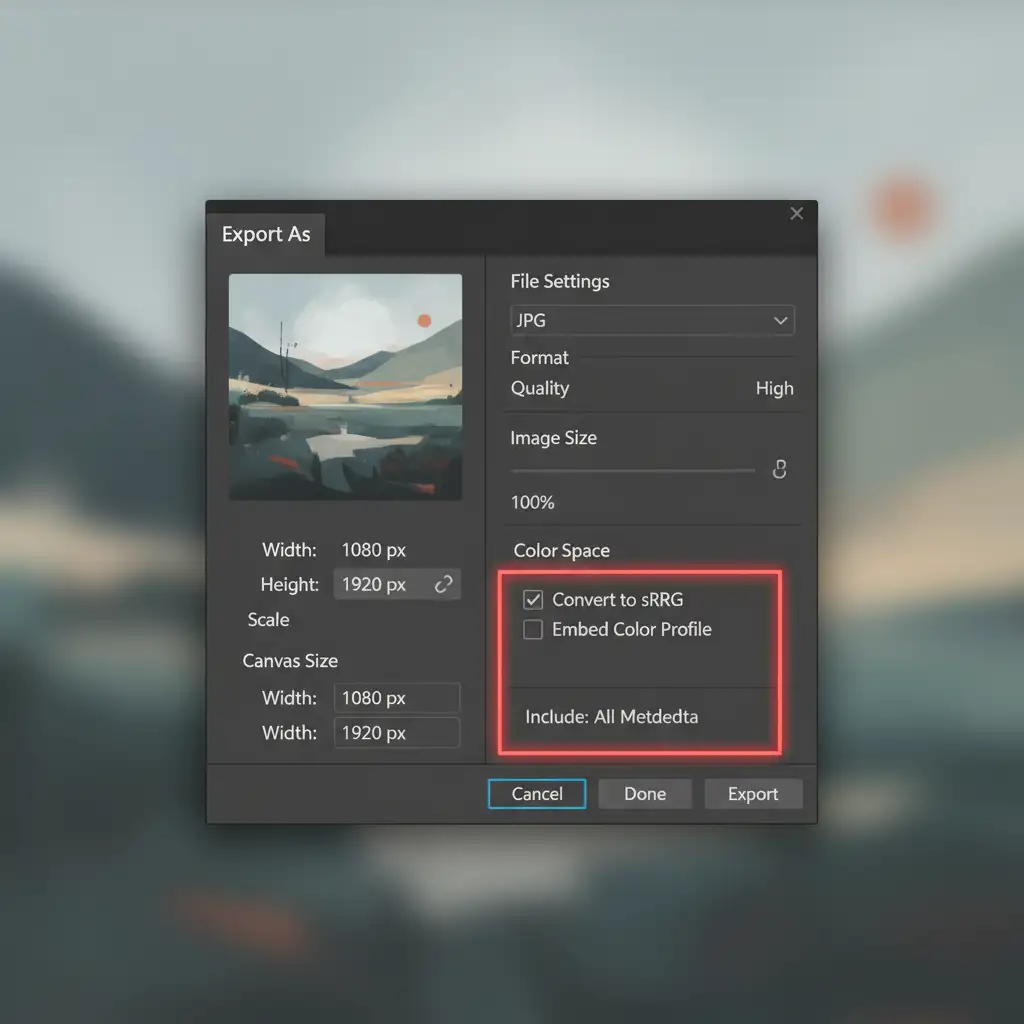
- Navigate to File > Export > Export As.
- Set the Format to PNG or high-quality JPG.
- Verify your Canvas Size: Ensure Width is exactly 1080px and Height is 1920px.
- The Golden Rule: Under the Color Space section, you must check both ‘Convert to sRGB’ and ‘Embed Color Profile’.
The sRGB color space is the universal standard for web and mobile displays. Embedding this profile prevents TikTok from guessing your color data and altering your vibrant tones.
Method 2: The Pro Workaround (Artboards & TikTok Safe Zones)
For creators designing complex graphics, text-heavy posts, or UI-sensitive content, relying on standard canvas dimensions isn’t enough. You need to account for TikTok’s interface overlay.
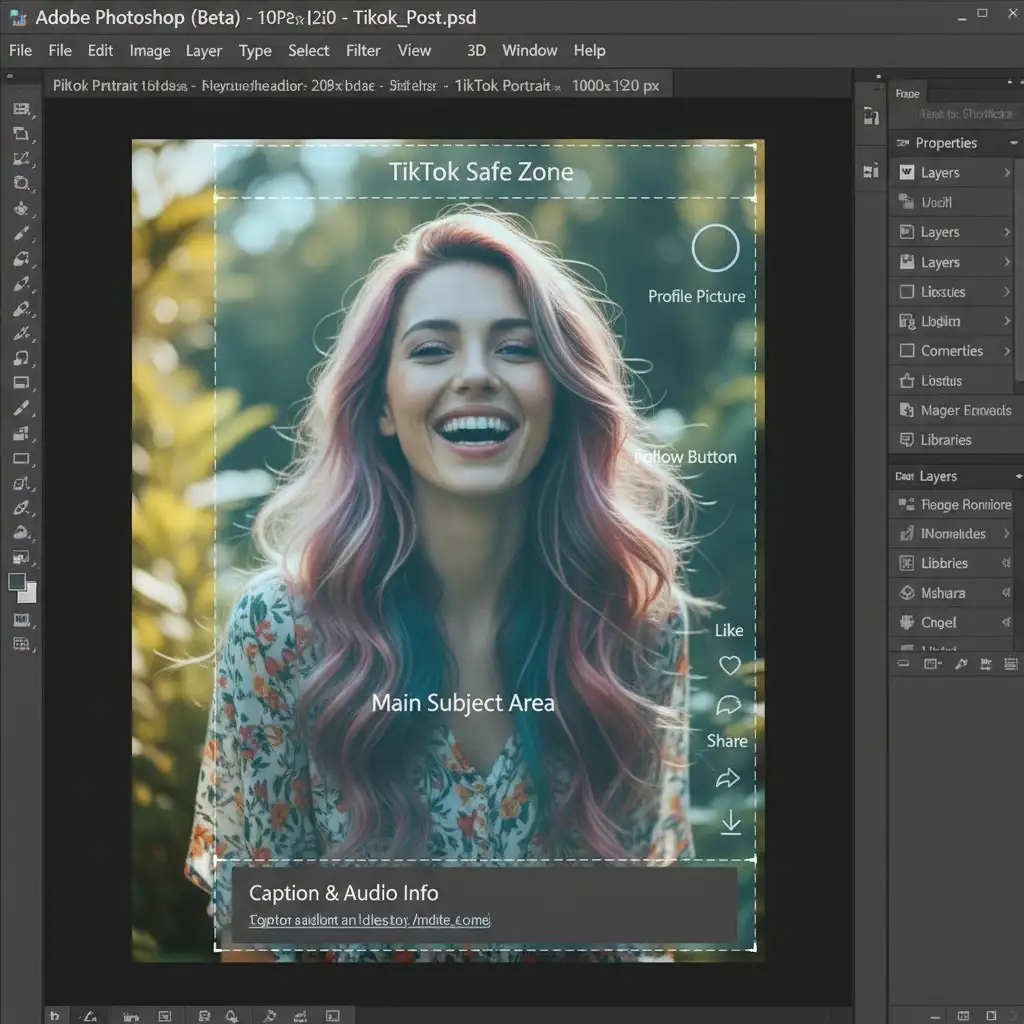
- Create a new document using the Artboard tool set exactly to 1080×1920.
- Place a TikTok UI Safe Zone overlay layer on top of your design. This ensures your subject or text isn’t obscured by the app’s profile buttons, captions, or right-side engagement icons.
- Rasterize any complex smart objects or heavy adjustment layers before export. This bakes the effects into the pixels, preventing rendering errors during compression.
- Select your Artboard layer in the layers panel, right-click, and choose Quick Export as PNG (ensuring your quick export preferences are set to sRGB).
Method 3: The Technical Deep-Dive (Bypass Image Compression Entirely)
If you are still experiencing quality loss in photo carousels, there is a secret backdoor: forcing TikTok to treat your static image as a high-quality video file. TikTok’s video compression algorithm handles gradients and high-resolution details much better than its photo algorithm.
Here is how to render your static image as a video:
- Go to Window > Timeline and click Create Video Timeline.
- Stretch your static image layer to last for 3 to 5 seconds.
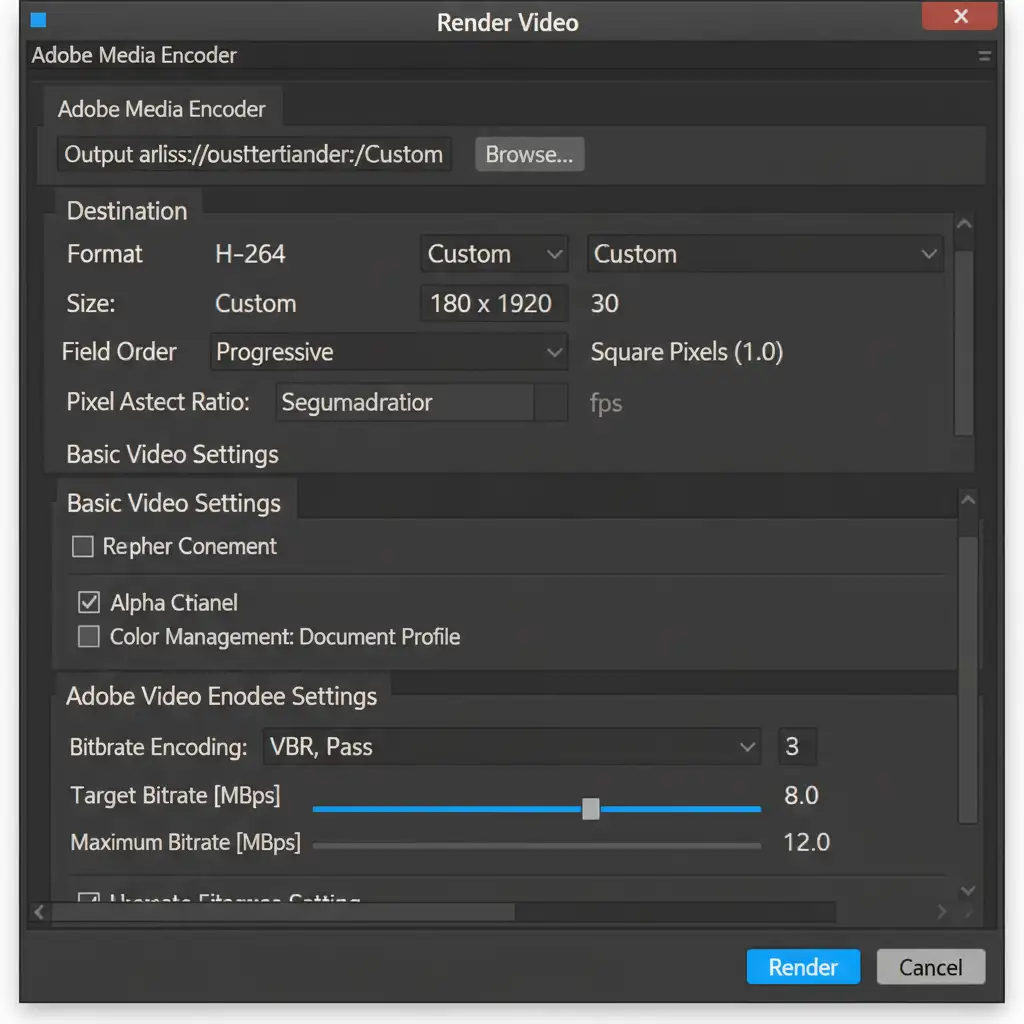
- Navigate to File > Export > Render Video.
- Set the format to the H.264 codec. This is the most widely supported and efficient codec for social media.
- Ensure the resolution is set to 1080×1920 and the frame rate is 30fps.
- Under the Adobe Media Encoder settings, change the bitrate encoding to variable bitrate (VBR), 1 Pass.
- Set your target bitrate to 8 Mbps.
This specific 8 Mbps VBR setting hits the “sweet spot” for TikTok—high enough to retain pristine detail, but low enough to avoid triggering the platform’s aggressive secondary compression upon upload.
Stop Fighting Compression Algorithms: Let the Experts Handle It
Figuring out the perfect TikTok export settings for Photoshop 2025 is just the tip of the iceberg. Between managing sRGB color spaces, configuring Adobe Media Encoder settings, and ensuring aspect ratios are flawless across every single social platform, formatting can eat up hours of your valuable creative time.
Struggling to keep your content looking crisp across social platforms? Let the experts at Image Work India and Cloud Retouch handle your high-volume image formatting, resizing, and retouching. Whether you are an e-commerce brand, a high-volume studio, or a creative agency, our dedicated team ensures your visuals are optimized for flawless, pixel-perfect delivery every single time.
Contact Image Work India today and never worry about platform compression ruining your hard work again.




