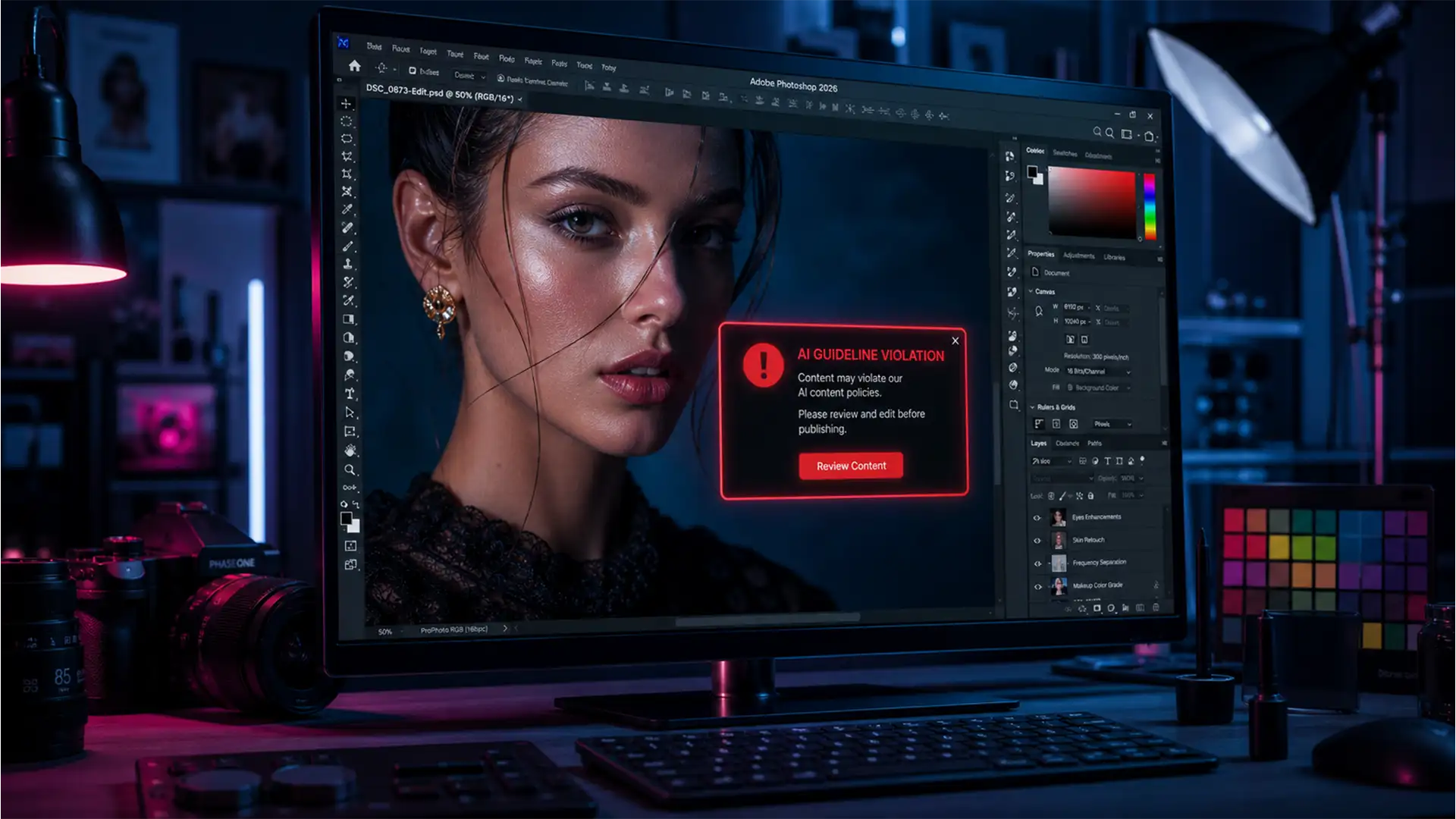

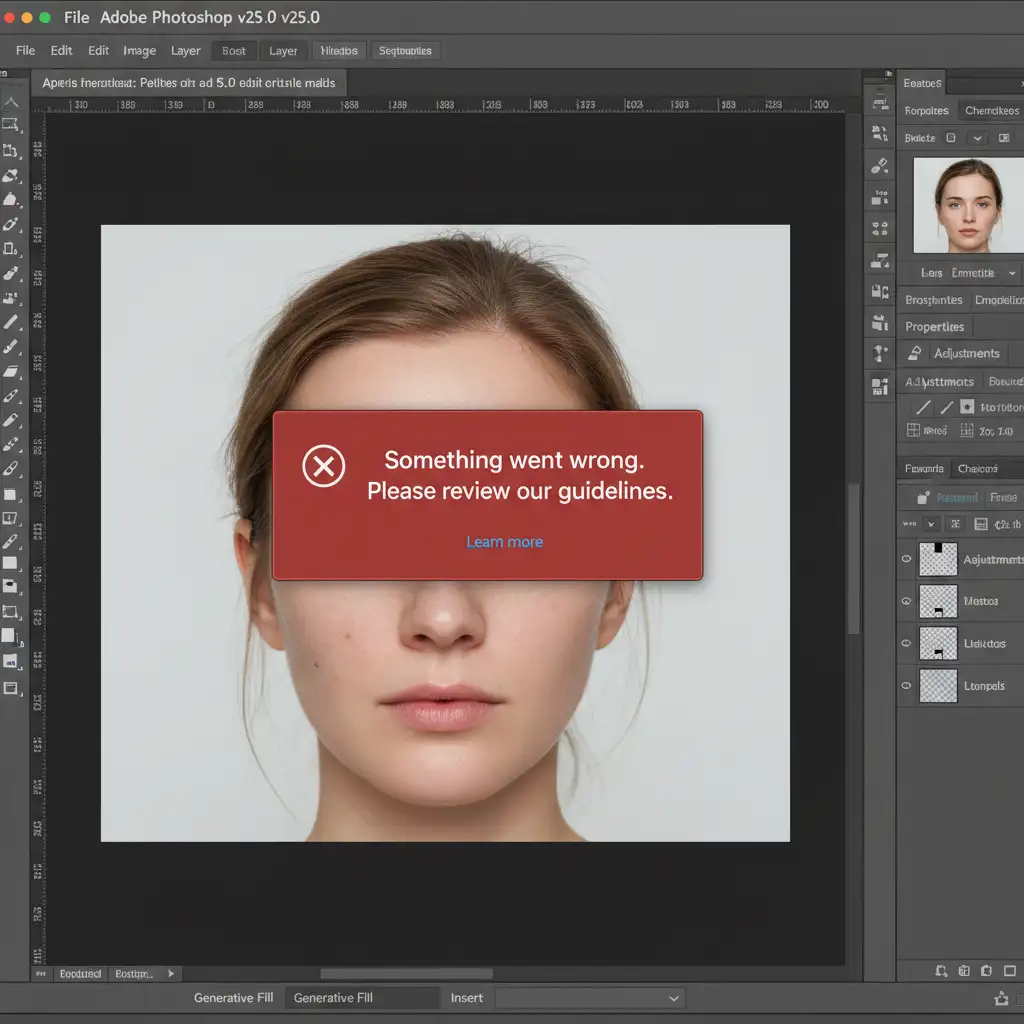
You are on a tight deadline, finalizing a high-end commercial portrait in Adobe Photoshop v25.0+. You lasso a minor blemish, hit Generative Fill, and instead of flawless skin, you are hit with a glaring red box: “Something went wrong. Please review our guidelines.”
If you are tired of your workflow grinding to a halt because Adobe Firefly thinks a collarbone shadow is a policy breach, you are not alone. The algorithmic moderation is heavily biased against generating or altering human skin, resulting in endless false positives. Fortunately, there is a reliable Photoshop AI skin retouching violation fix to bypass these filters and get your project back on track.
Why is Adobe Firefly Flagging My Retouching?
In recent updates, Adobe integrated Firefly into Photoshop’s Generative Fill. To prevent misuse, Adobe enforces strict AI moderation guidelines. Unfortunately, these automated safety filters lack nuance.
When retouching large areas of bare skin, shadows that resemble sensitive areas, or specific anatomical curves, the AI frequently triggers a false positive. You will typically see one of two errors:
- “We are experiencing higher than normal demand…”
- “Something went wrong. Please review our guidelines.”
This algorithmic friction is a massive headache for professional portrait photographers. To maintain a smooth, non-destructive editing workflow, you need to rely on techniques that either bypass the cloud entirely or guide the AI more strictly.
3 Methods for a Photoshop AI Skin Retouching Violation Fix
If you are locked out by AI safety guidelines, here are three proven methods to execute a flawless skin retouch without triggering the algorithm.
Method 1: The Quick Fix – Force the Offline Remove Tool
The fastest way to bypass cloud-based AI moderation is to force Photoshop to use its local, non-cloud healing algorithms. The Remove Tool is incredibly powerful, but by default, it tries to ping the Firefly servers.
How to do it:
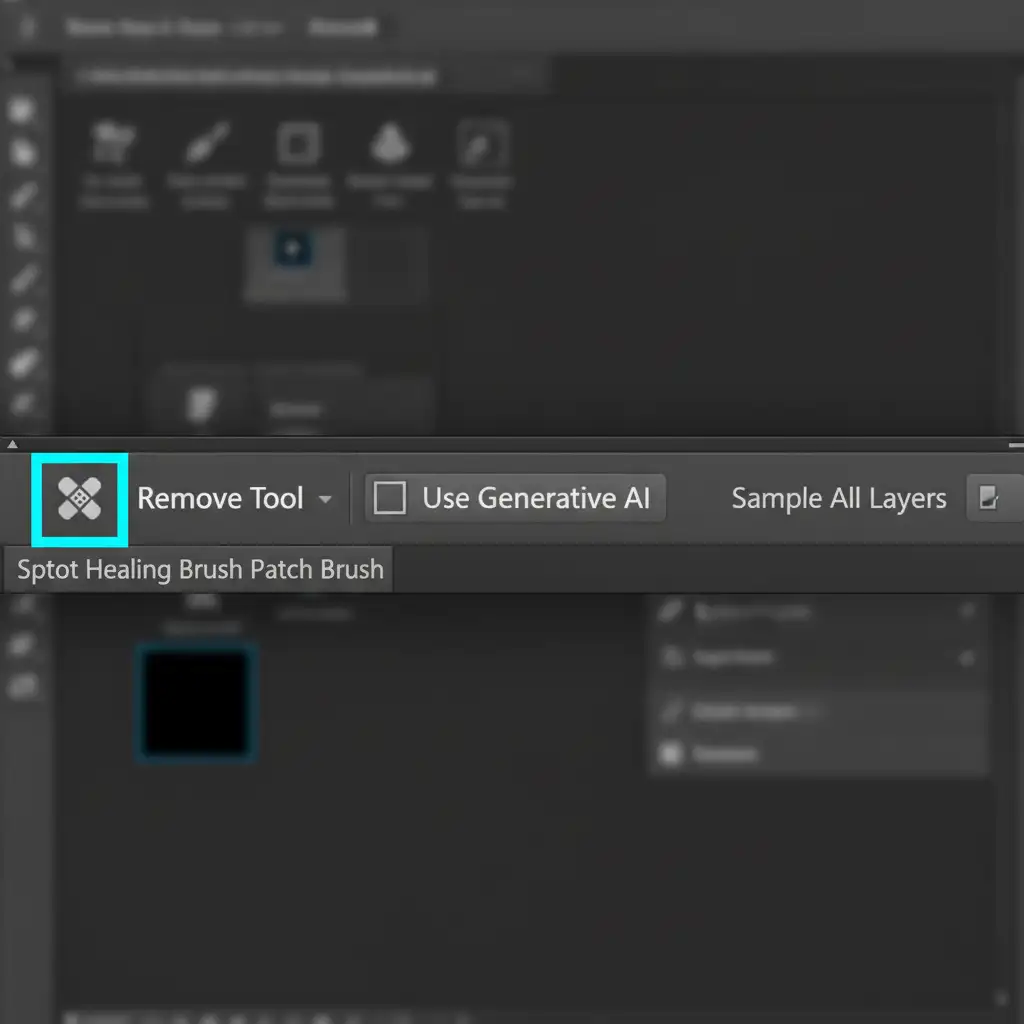
- Select the Remove Tool (J) from your toolbar.
- Look at the top properties bar.
- Uncheck the box that says “Use Generative AI”.
By disabling this, you force the software to rely on localized algorithmic healing. It easily patches blemishes and stray hairs without ever sending your image to the cloud, completely avoiding the violation error.
Method 2: The Pro Workaround – Traditional Frequency Separation
If the automated tools are failing you, it is time to return to the industry standard for high-end beauty retouching: Frequency Separation. This technique separates texture from color, allowing you to fix skin perfectly without relying on AI.
How to do it:
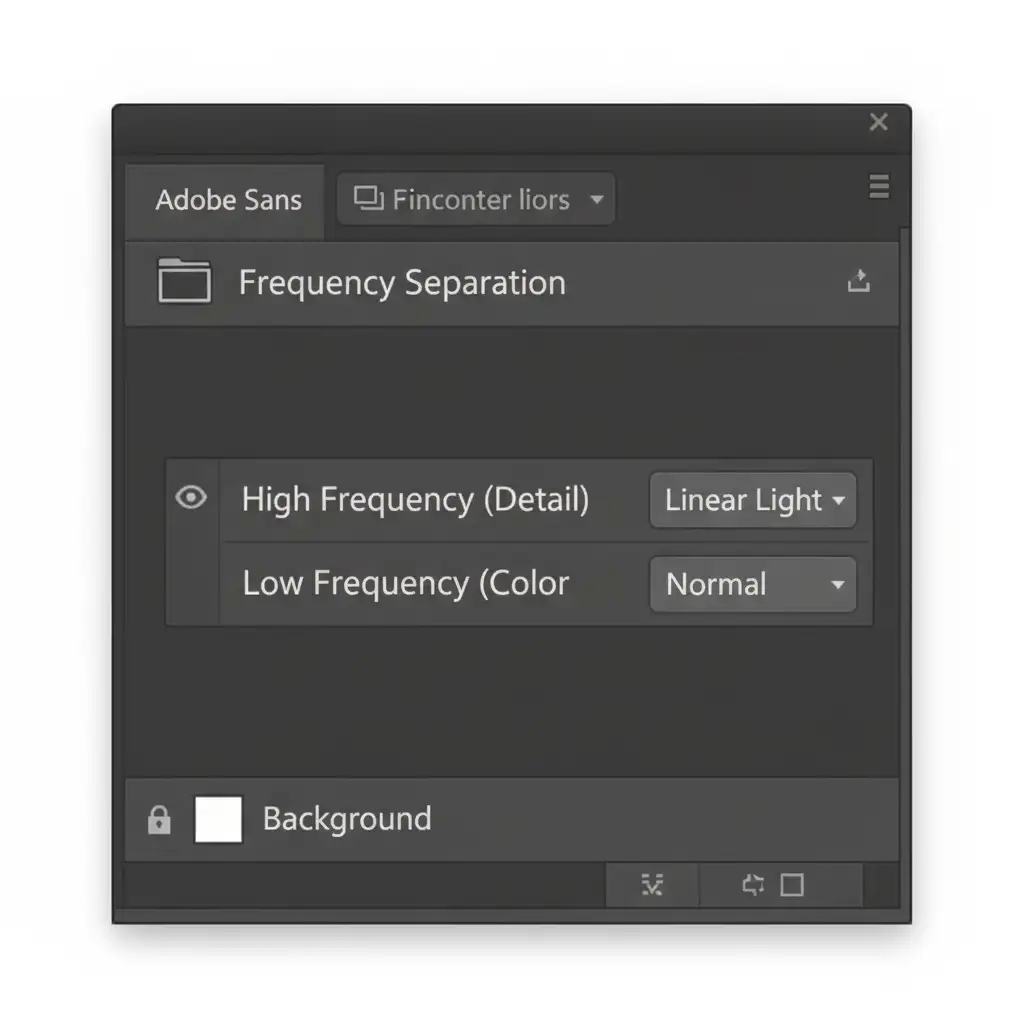
- Duplicate your background layer twice. Group them into a folder.
- Name the bottom layer Low Frequency (Color) and the top layer High Frequency (Detail).
- Select the Low layer and apply a Gaussian Blur until the skin texture softens.
- Select the High layer. Go to Image > Apply Image. Set the blending mode to Subtract (or Add, depending on your bit depth) to extract the texture. Change this layer’s blend mode to Linear Light.
- Use the Clone Stamp tool (Sample: Current Layer) on the High layer to remove blemishes, and a soft brush on the Low layer to even out skin tones.
This is the ultimate non-destructive editing workflow. It requires zero AI intervention, meaning zero false flags.
Method 3: The Technical Deep-Dive – Hybrid AI Masking
Sometimes, you absolutely need Generative Fill to handle complex texture recreation. If you must use it, you have to change how you prompt the AI to avoid triggering the safety filters.
Blank prompts force the AI to guess the context of the image, which dramatically increases the false-positive flag rate on human skin. Furthermore, wide selections confuse the algorithm.
How to do it:
- Make extremely tight selections. Use the Lasso Tool to create tight marching ants directly around the blemish. Avoid including the edges of clothing, necklines, or shadows that might confuse the safety filter.
- Do not leave the prompt blank.
- Enter highly specific, neutral, and clinical prompts such as “smooth skin texture”, “remove mole”, or “heal blemish”.
By providing explicit, clinical instructions and restricting the selection area via precise Layer Masking, you significantly reduce the chances of the AI misinterpreting the edit.
Stop Fighting the Algorithm: Outsource Your Retouching
Navigating constant AI guidelines, troubleshooting error messages, and manually building frequency separation layers consumes valuable time. If you are spending hours fighting the software instead of shooting new clients, it is time to upgrade your pipeline.
Stop fighting automated AI guidelines. At Image Work India and Cloud Retouch, our team of professional retouchers specializes in flawless, high-end commercial skin retouching that algorithms simply cannot match. We handle the heavy lifting—from complex blemish removal to perfect color grading—ensuring your final images are pristine, policy-compliant, and delivered on time.
Ready to streamline your workflow? Contact Image Work India and Cloud Retouch today and let our experts handle the pixels while you focus on the big picture.




