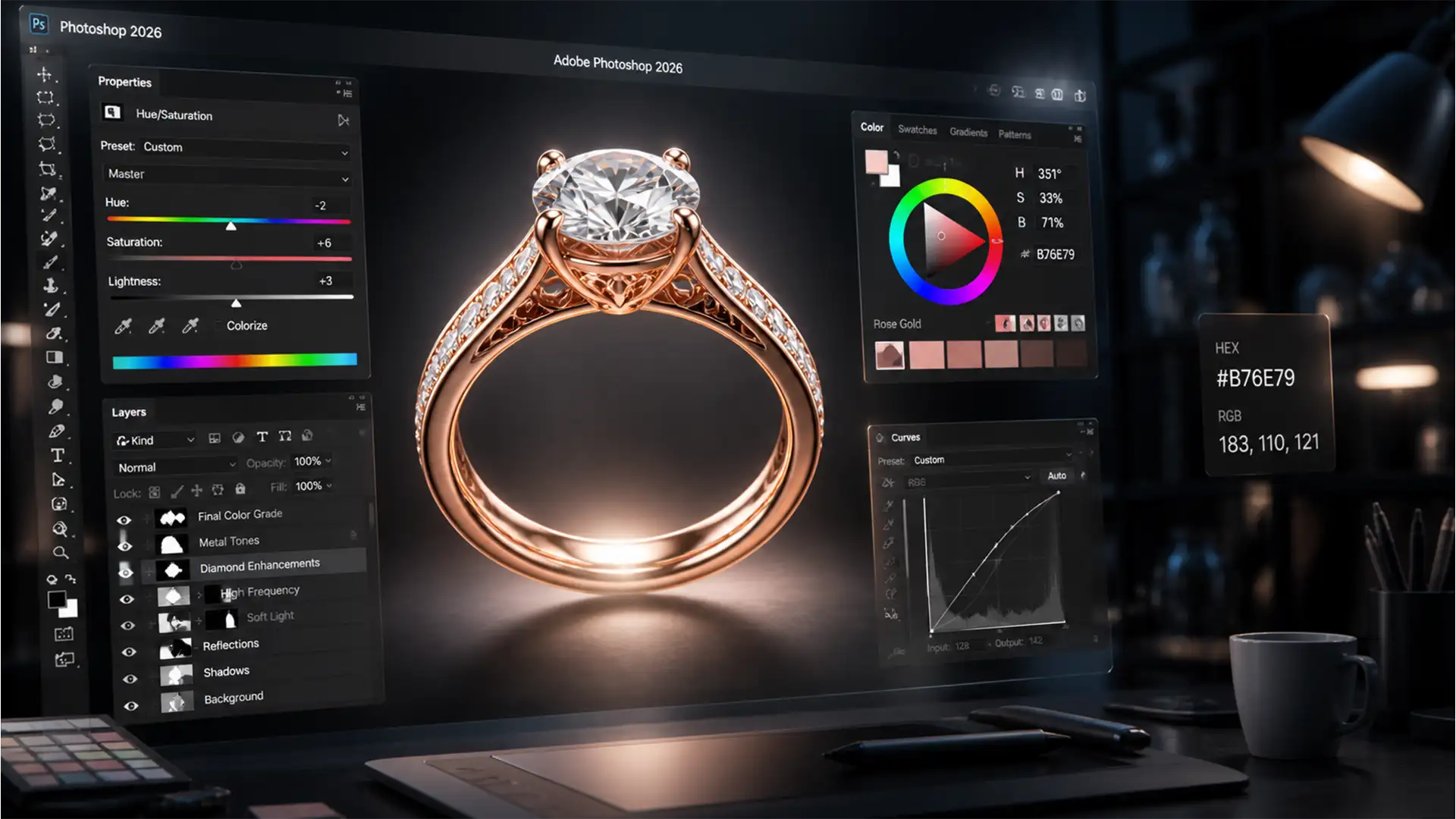

If you retouch high-end jewelry, you already know the nightmare: highlights that look too silver and shadows that turn a muddy, unappealing brown. Maintaining Rose Gold color consistency in Photoshop 2026 across an entire catalog is one of the most frustrating challenges in post-production. Because rose gold is a complex alloy of gold and copper, its appearance is highly volatile under varying studio strobes.
When you transition these images from sRGB web galleries to CMYK print catalogs, those chaotic color shifts become glaringly obvious. Stop guessing your RGB values. In this guide, we will break down the exact, standardized workflows you need to lock in perfect, uniform rose gold tones across your entire product line without destroying the metallic luster.
The Rose Gold Dilemma: Why It’s So Hard to Match
Unlike standard silver or yellow gold, rose gold requires a delicate balance of warm, peachy-pink midtones and copper-brown shadows. When a photographer adjusts their lighting setup, the physical jewelry reacts differently, causing massive inconsistencies from shot to shot.
To fix this, retouchers must standardize their target HEX or Lab color values while preserving the 3D volume of the piece. Here is exactly how to do it using the latest tools in Photoshop v27.
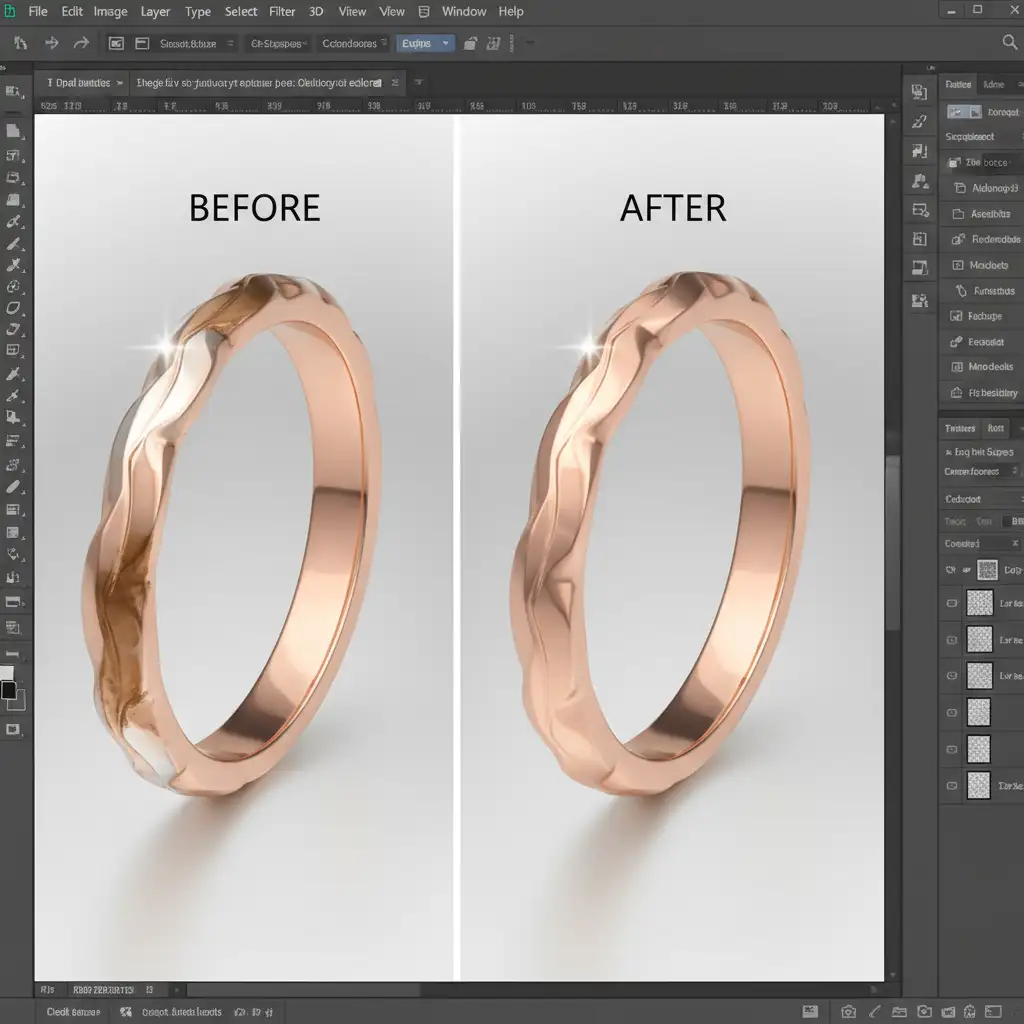
3 Workflows for Rose Gold Color Consistency in Photoshop 2026
Depending on your deadline and the required level of precision, you can approach this color-matching issue in three distinct ways.
Method 1: The Quick Fix (Solid Color Fill Layer)
When you need to rapidly unify a batch of jewelry images for an e-commerce upload, a Solid Color Fill layer is your fastest option.
- Create a Solid Color Fill Layer above your jewelry base layer.
- Set the HEX code to your brand’s target rose gold tone (e.g., #B76E79).
- Change the layer’s Blending Modes to either Color or Soft Light, depending on the contrast of the original image.
- Apply Clipping Masks to ensure the color only affects the metal and doesn’t bleed onto the gemstones or background.
- Adjust the opacity to around 40-60% to blend the unified color with the natural metallic reflections.
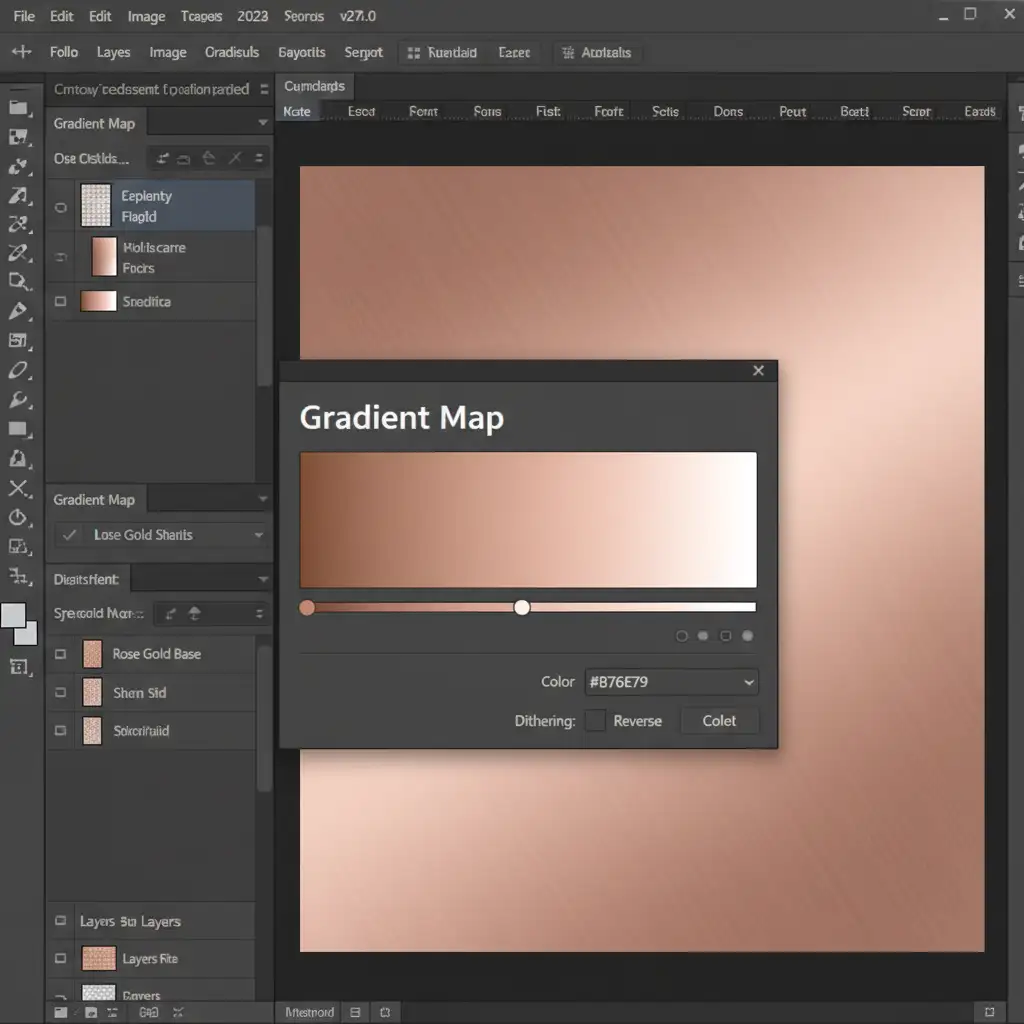
Method 2: The Pro Workaround (Gradient Map for Volume)
The quick fix is great, but it can sometimes flatten the 3D volume of the metal. For premium catalogs, you need to map specific colors to the shadows, midtones, and highlights.
- Add a Gradient Map adjustment layer and clip it to your jewelry layer.
- Open the gradient editor and set strict anchor points:
- Shadows: Warm copper-brown.
- Midtones: Peachy-pink.
- Highlights: Bright, warm white.
- Change the blending mode to Luminosity. This is the secret step: it forces the image to retain the original lighting reflections while strictly enforcing the new color consistency.
Method 3: The Technical Deep-Dive (Standardizing Your Workspace)
If you manage a team of retouchers, you cannot rely on visual guessing. You must build a standardized environment using strict color profiles and data tracking.
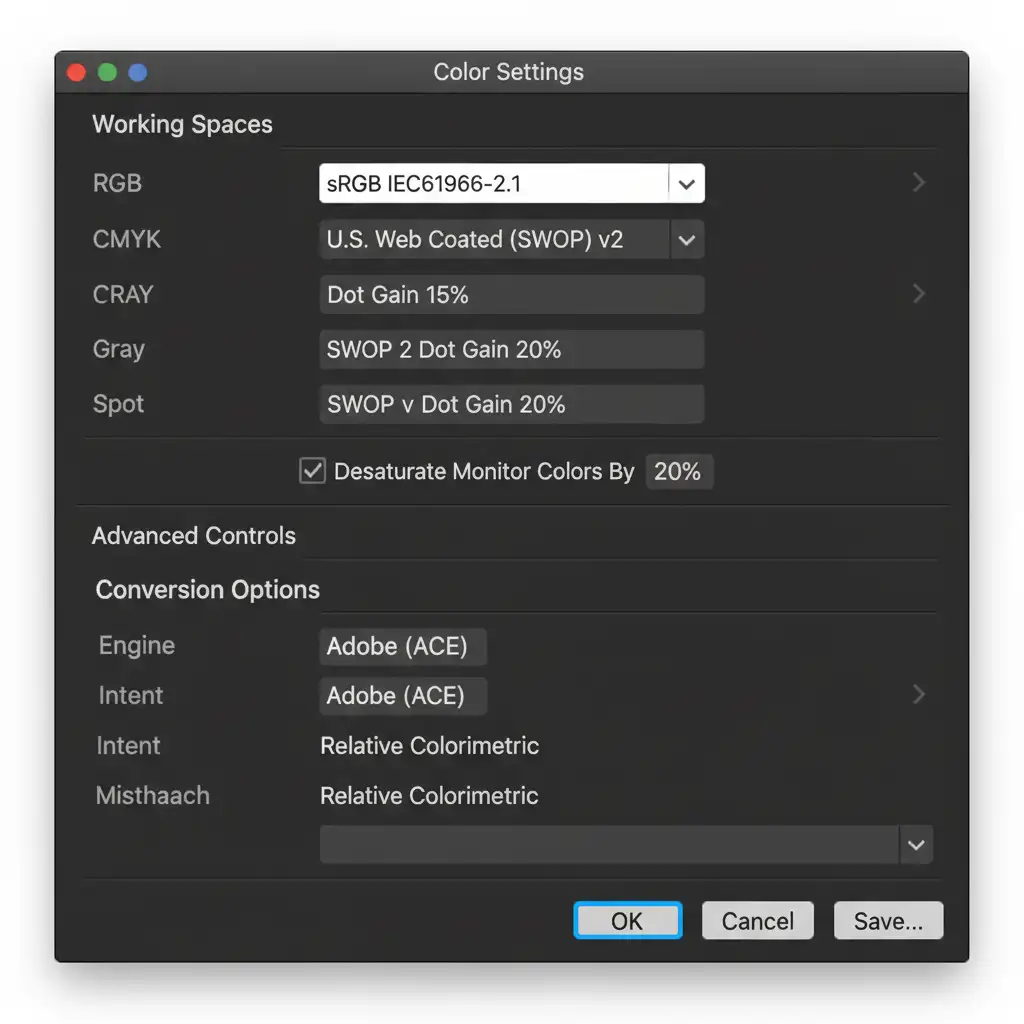
1. Configure Color Settings
Navigate to Edit > Color Settings. Ensure your working space is set to sRGB IEC61966-2.1 for web outputs. If you are prepping for a physical catalog, ensure your ICC Profiles are correctly aligned with your printer’s specifications. If your monitors vary, activate Desaturate Monitor Colors By 20% to help calibrate the visual output across different workstations.
2. Lock in Target Coordinates
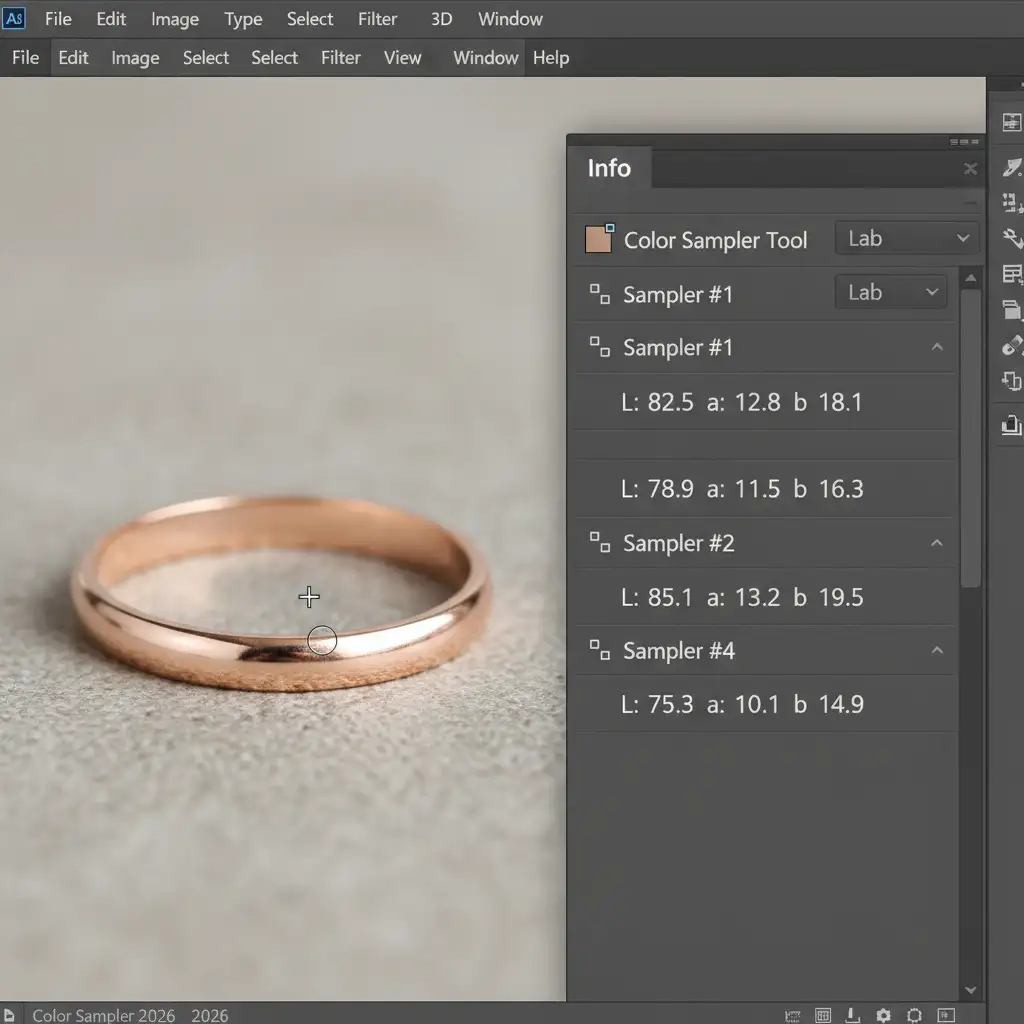
Instead of eyeballing the metal, use the Color Sampler Tool.
- Place a sample point on a midtone area of your “perfect” reference image.
- Open the Info panel and set the readout to the Lab color space. Lab separates lightness (L) from color (a and b), making it much easier to match the exact hue without being distracted by the brightness of the studio strobes.
- Save this entire setup as a Custom Workspace Preset for your retouching team.
Scale Your Jewelry Retouching Output
Achieving perfect Rose Gold color consistency in Photoshop 2026 is highly technical work. While Gradient Maps and Lab color tracking will solve your color shift errors, executing this across hundreds of catalog images requires immense time and specialized skill.
Need absolute perfection for your upcoming jewelry catalog without the endless hours of manual color matching?
Image Work India and Cloud Retouch specialize in premium jewelry retouching services. Our expert teams utilize strict, standardized workflows to guarantee pixel-perfect color consistency, flawless metallic luster, and stunning gemstone clarity across your entire product line.
Stop fighting with your RGB values. Contact Image Work India today and let our professionals handle your high-end jewelry retouching.




