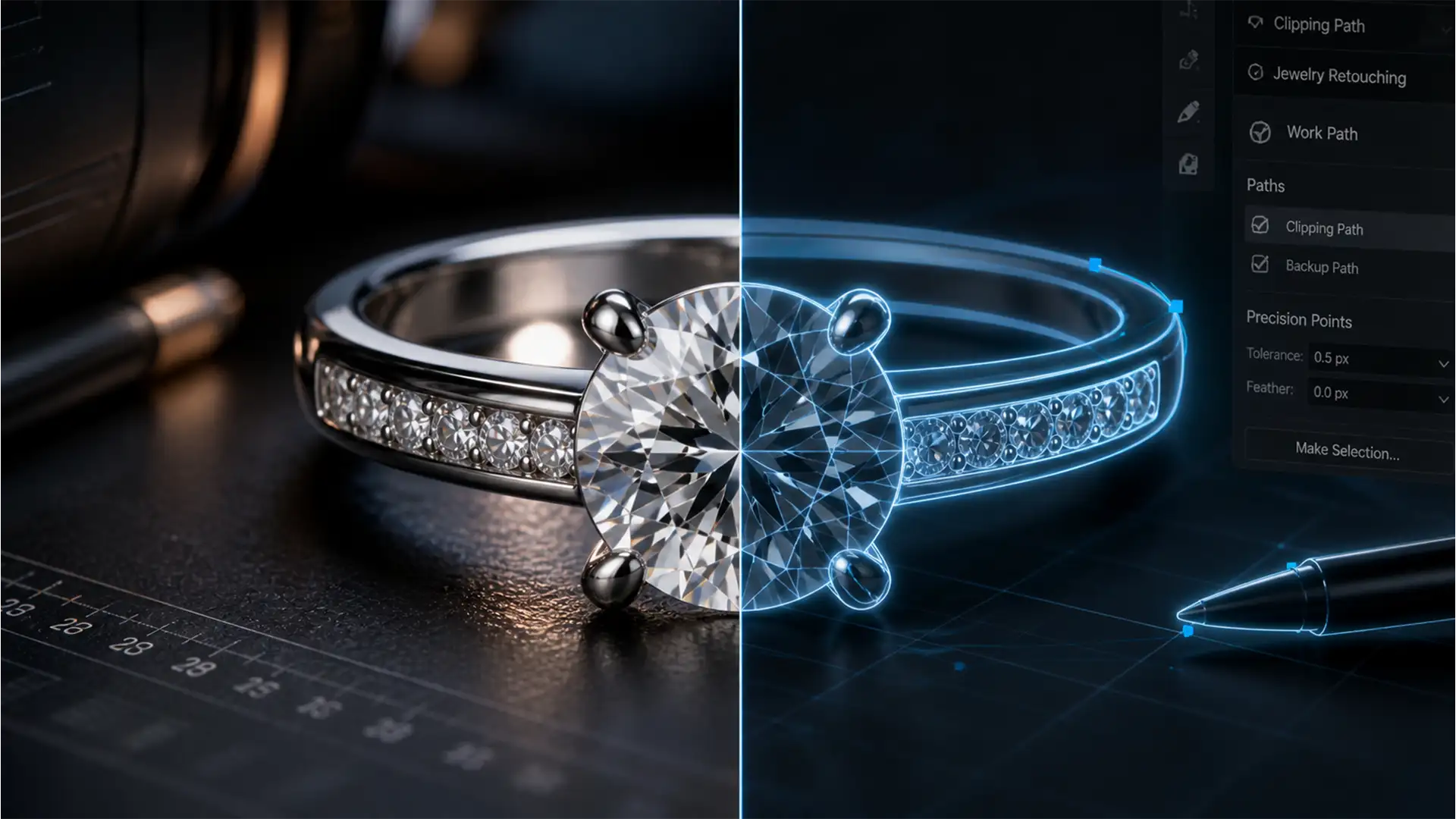

You just ran a batch of expensive jewelry product photos through an AI background remover, expecting a perfect transparent PNG. Instead, you are staring at a disaster. Diamond prongs are clipped off. Delicate silver chains have vanished. You are experiencing the frustrating reality of automated jewelry background removal artifacts.
Because automated masking algorithms rely heavily on contrast, they frequently misinterpret highly reflective, microscopic edges as background noise. This edge degradation and opacity bleed instantly destroys the commercial viability of your e-commerce assets. But do not panic—you do not have to start from scratch. Here is how to restore those missing high-frequency details using a hybrid editing approach that combines AI speed with manual precision.
Why AI Fails on Fine Jewelry Details
An in-depth analysis of Adobe Photoshop v25.x and v26.x, as well as popular web-based AI background removers, reveals a persistent flaw when processing high-frequency details in product photography.
Automated masking algorithms are trained to look for hard edges and color contrast. However, highly reflective jewelry components—like silver chains or diamond prongs—often reflect the exact color of the background. Furthermore, these elements have microscopic pixel widths. Machine learning models struggle with this lack of contrast, causing severe edge degradation, semi-transparent opacity bleed, and clipped structural prongs.
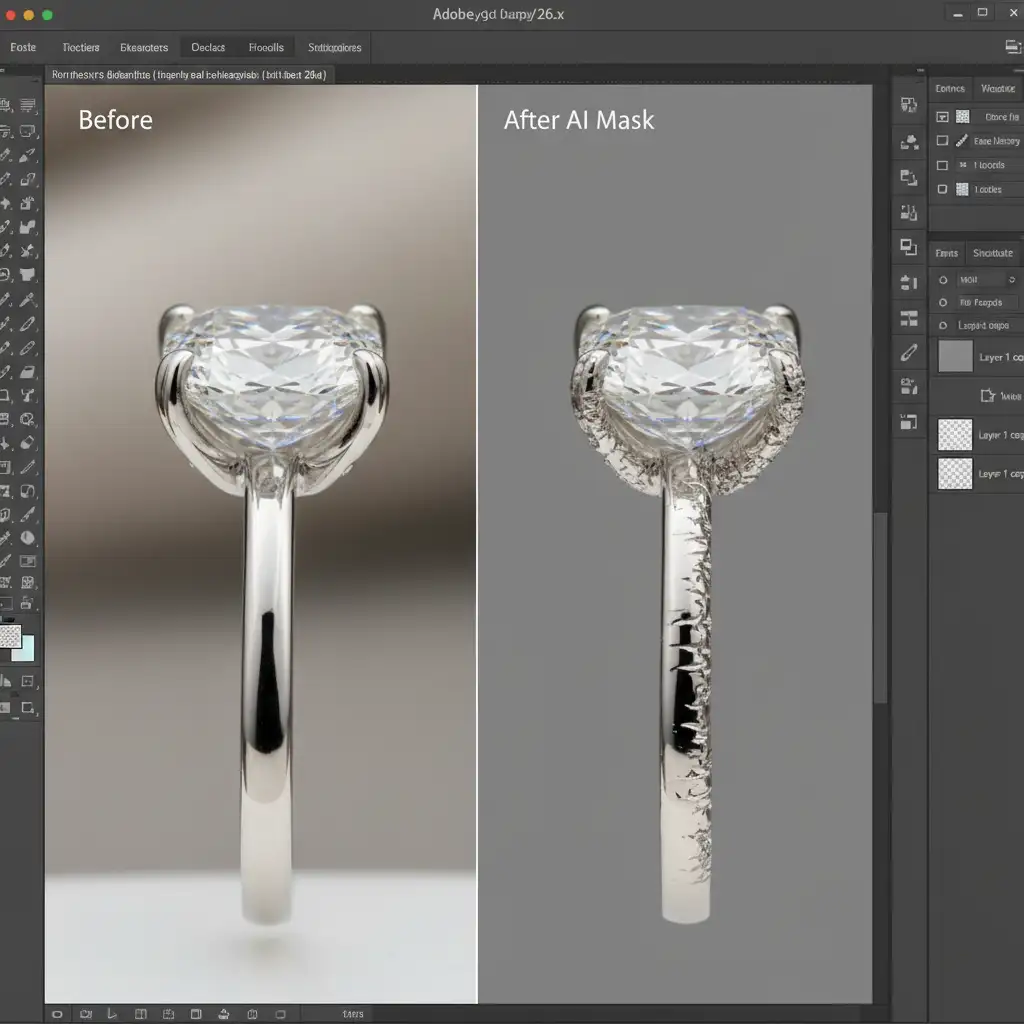
3 Ways to Fix Automated Jewelry Background Removal Artifacts
To salvage your e-commerce asset, you need to utilize a hybrid editing approach. Let the AI handle the bulk of the background removal, and use these manual Photoshop techniques to restore the precision of your fine jewelry edges.
Method 1: The Quick Fix (Select and Mask Refinement)
If the AI generated a decent base mask but struggled with anti-aliasing around the edges, you can force the mask to expand and harden.
- Open your AI-generated layer mask in the Photoshop Select and Mask workspace.
- Select the Refine Edge Brush Tool (shortcut: R).
- Carefully paint over the missing chains or blurred prongs.
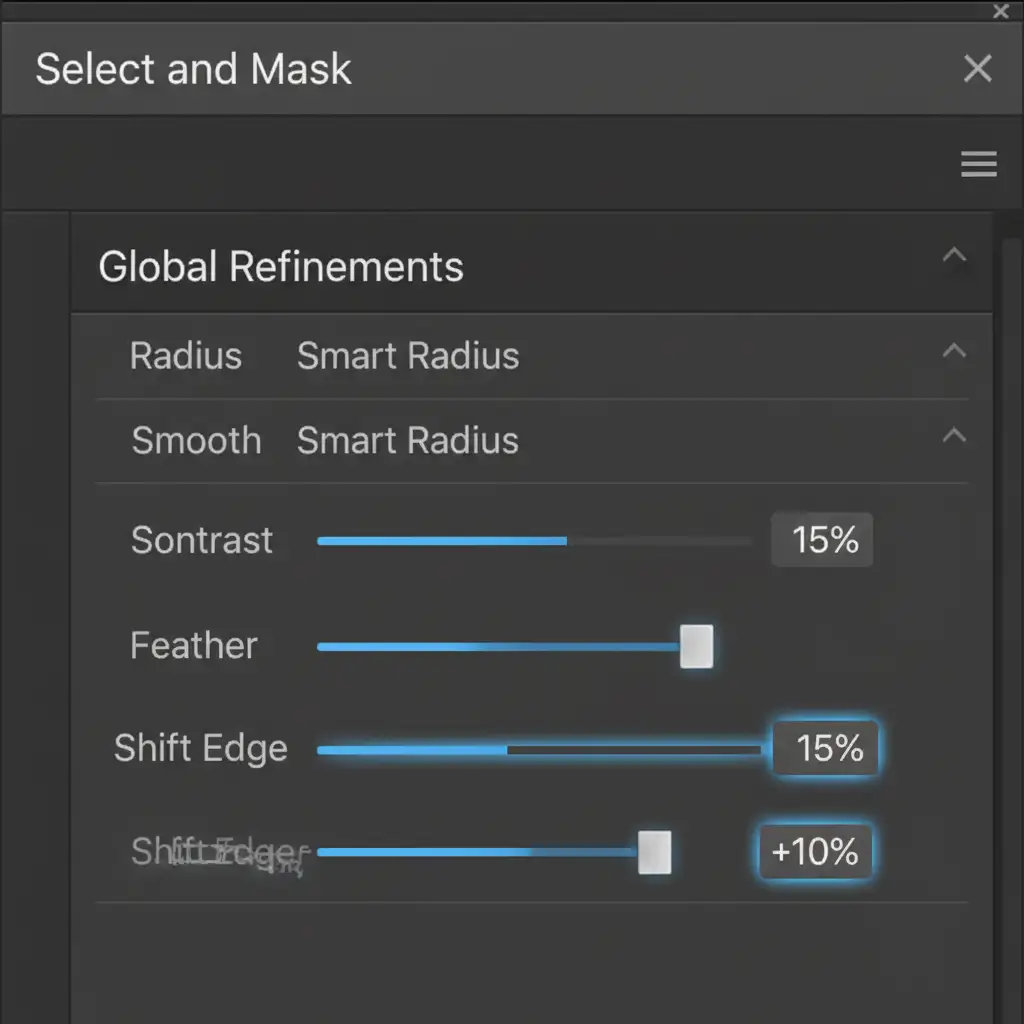
- Navigate to the Global Refinements panel. Increase the Contrast slider to 15% and adjust Shift Edge to +10%.
This forces the algorithmic mask to expand outward and harden around the metallic edges, eliminating soft opacity bleed.
Method 2: The Pro Workaround (Hybrid Vector Masking)
When the AI completely obliterates a structural element, you must rely on a vector mask to rebuild the edge manually.
- Duplicate the original, unmasked image layer and place it directly above your AI-masked layer.
- Select the Pen Tool (shortcut: P).
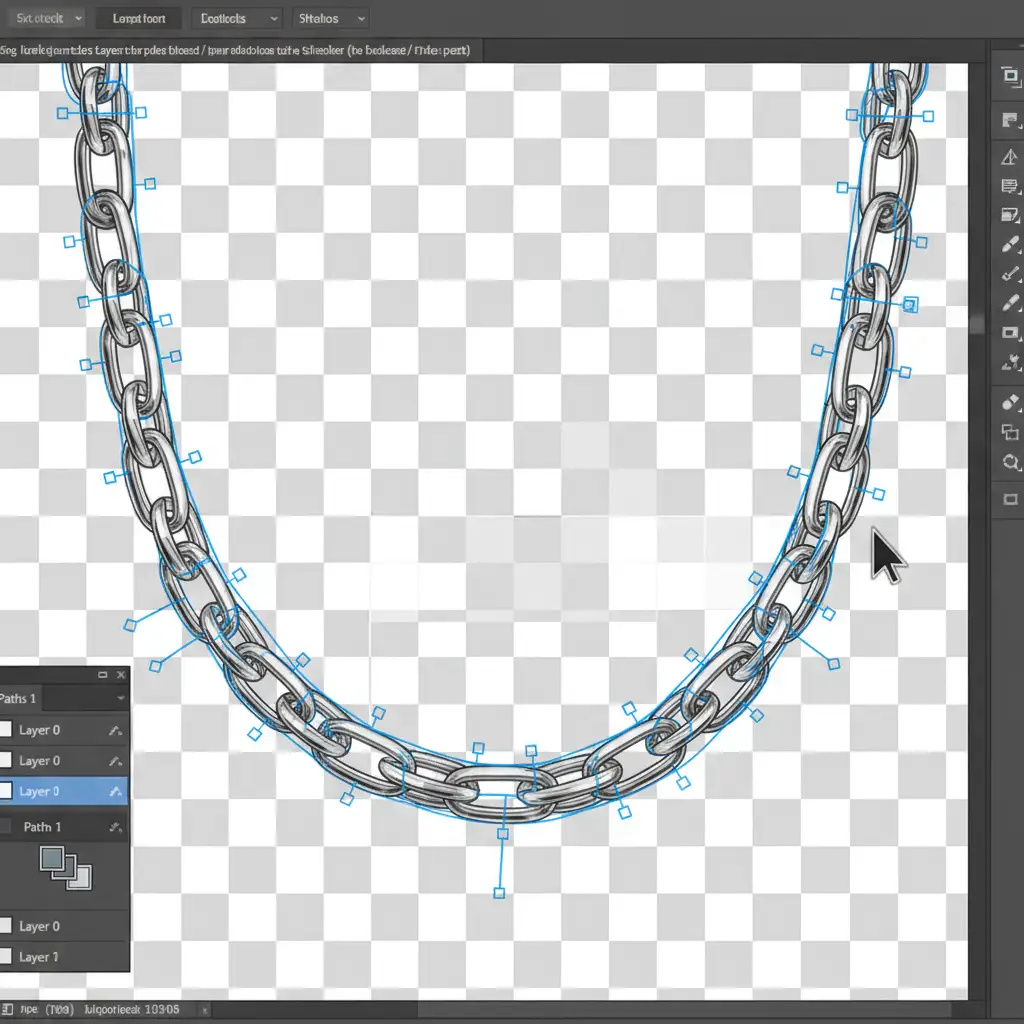
- Draw a precise clipping path strictly around the broken prongs or thin chains that the AI missed.
- Convert this path to a selection (Right-click > Make Selection > 0 Feather).
- Apply a layer mask to this duplicated layer.
- Group it with the AI base layer.
By layering a hand-drawn clipping path over the AI base, you restore perfect, hard edges exactly where the machine learning model failed.
Method 3: The Technical Deep-Dive (High-Contrast Channel Masking)
For intricate pieces with extensive high-frequency details, bypass the AI mask entirely for the detail areas and build a luminance mask.
- Open the Channels panel.
- Inspect the Red, Green, and Blue channels to find the one with the most contrast between the shiny jewelry and the background (this is typically the Blue channel).
- Duplicate this high-contrast channel.
- Open Image > Adjustments > Levels (shortcut: Ctrl/Cmd + L).
- Crush the blacks and peak the whites by pulling the outer sliders inward until the jewelry silhouette is stark black against a pure white background.
- Invert the channel (Ctrl/Cmd + I), load it as a selection, and apply it to your layer mask.
This channel masking technique uses the actual pixel data of the photograph to create a flawless, pixel-perfect selection, completely avoiding AI artifacts.
Stop Wasting Time on AI Mistakes
Fixing automated jewelry background removal artifacts takes time, patience, and a deep understanding of advanced Photoshop techniques. When you are processing hundreds of SKUs for an e-commerce launch, spending 15 minutes repairing clipped prongs and opacity bleed on every single image is simply not scalable.
Stop wasting hours fixing AI mistakes. Hire Image Work India and Cloud Retouch for flawless, hand-drawn clipping paths and pixel-perfect jewelry retouching. Our expert team bypasses the flaws of automated tools, guaranteeing maximum visual impact, sharp edges, and commercial-ready assets that drive sales. Contact us today to elevate your product photography.




