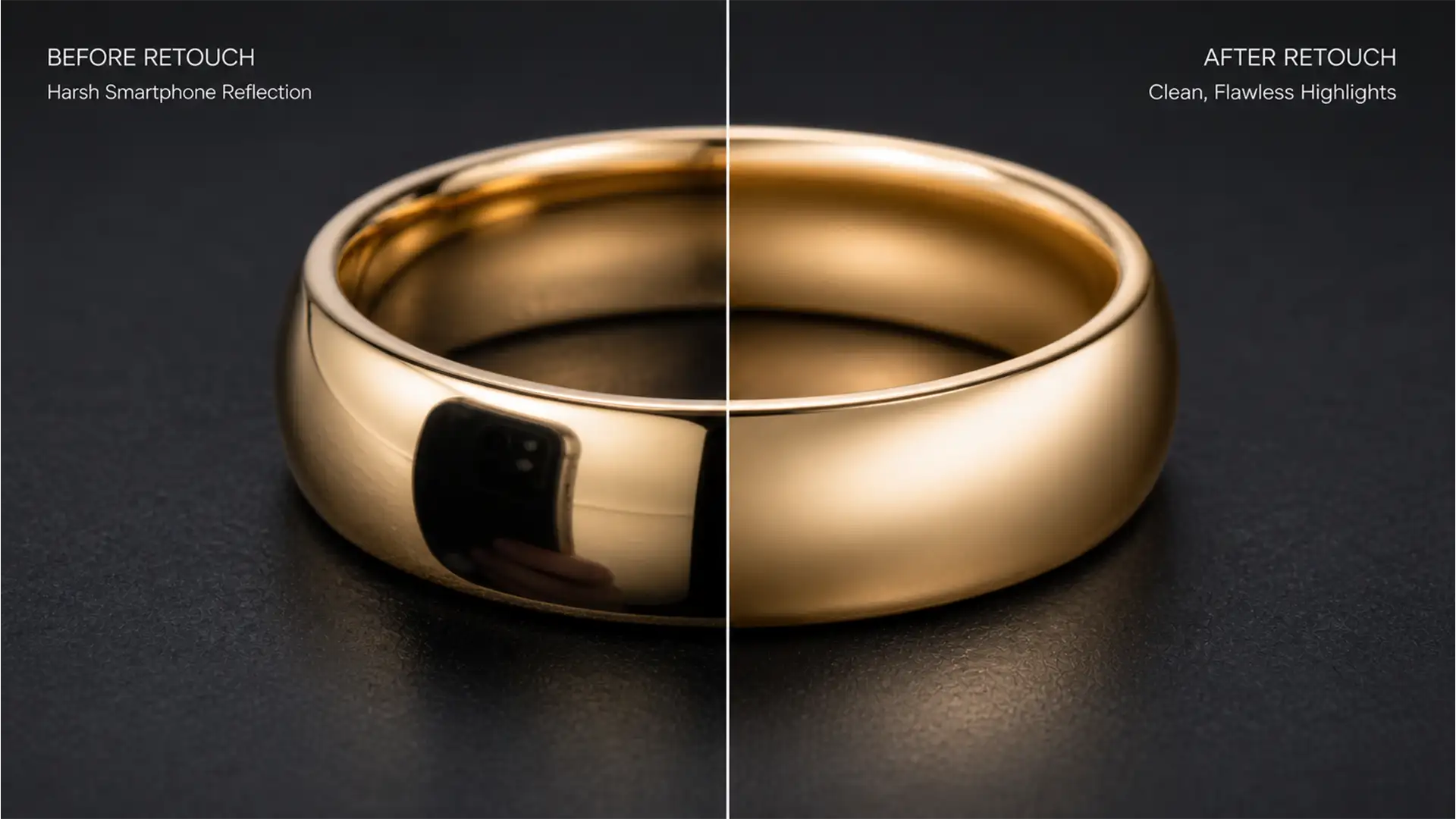

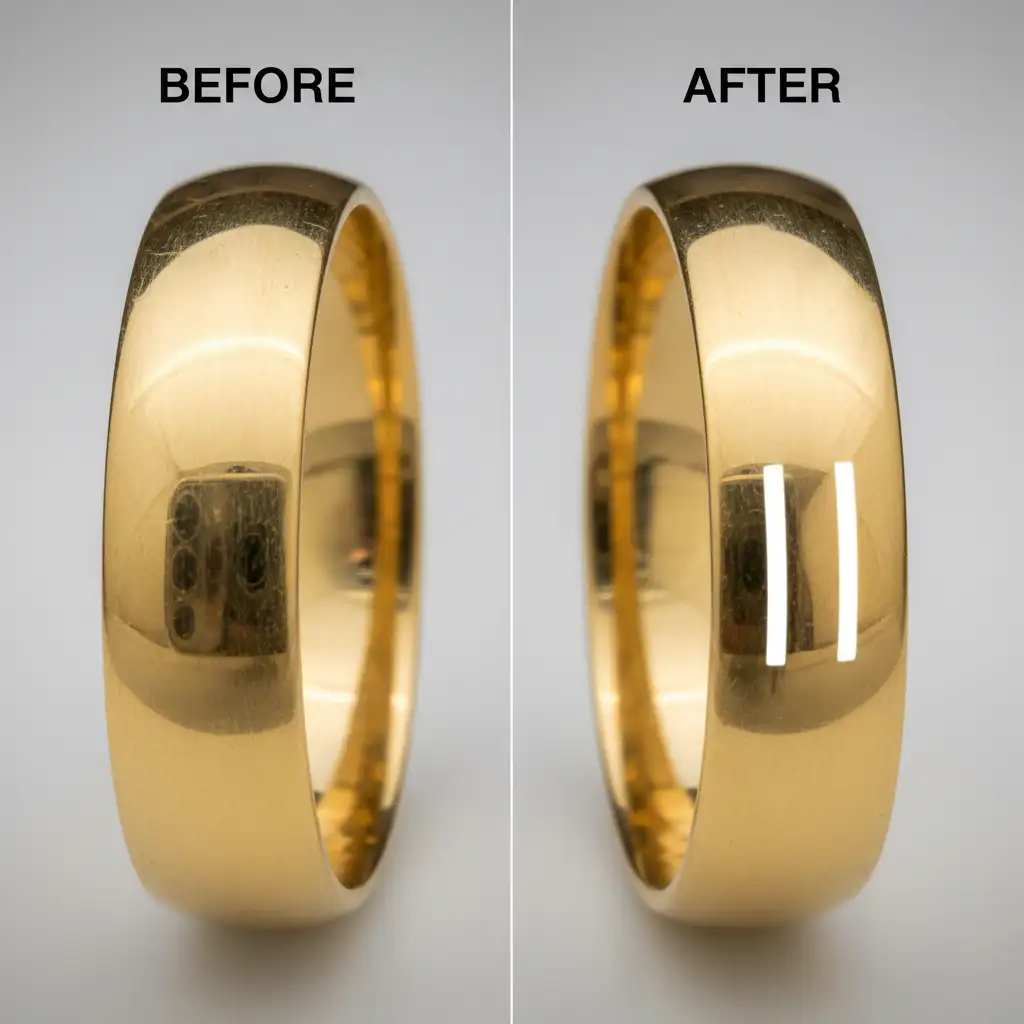
You’ve just shot a stunning gold ring for your e-commerce store, but when you zoom in, there it is: a dark, rectangular block right in the middle of the band. Highly reflective convex surfaces are notorious for catching smartphone and camera lens reflections. These dark spots disrupt the metallic specular highlights, instantly ruining the 3D volume and making the piece look cheap. If you’ve tried the standard Spot Healing Brush, you know it often leaves muddy, smudged pixels on high-contrast gold.
In this guide, we’ll show you exactly how to remove smartphone reflections from gold jewelry using Adobe Photoshop v25.x without destroying that natural metallic shine.
Why Convex Gold Surfaces Are So Hard to Retouch
Polished gold acts like a distorted mirror. When you take a photo, the convex shape of a ring or bracelet bends the surrounding environment into the frame—including your camera lens or smartphone. Because gold relies on a delicate balance of bright specular highlights and deep, smooth shadows to communicate its 3D volume, standard cloning techniques often flatten the image. To maintain commercial appeal, you need non-destructive editing workflows that preserve the structural integrity of the metal.
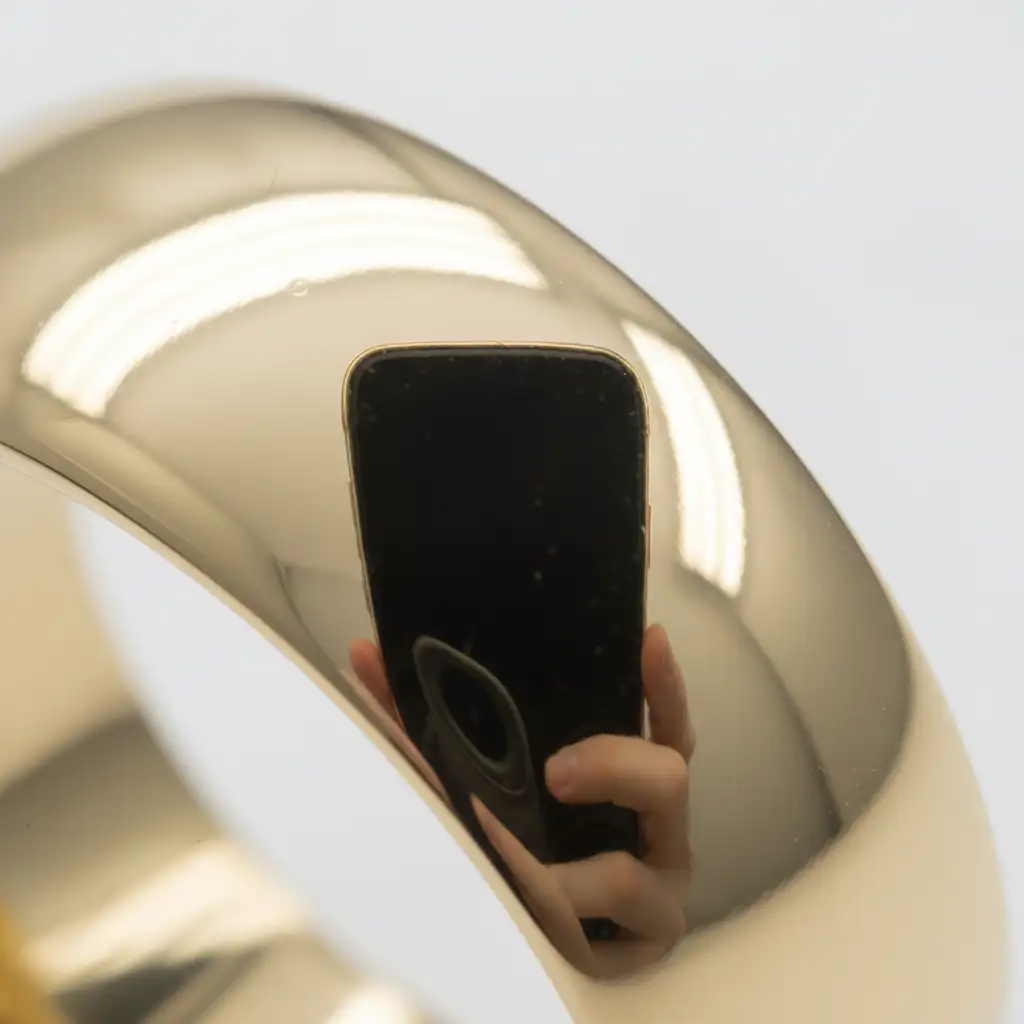
3 Professional Methods to Remove Smartphone Reflections from Gold Jewelry
Depending on the complexity of the reflection and your required turnaround time, there are three primary ways to tackle this issue in Photoshop.
Method 1: The Quick Fix Using Generative Fill (Photoshop v25.x)
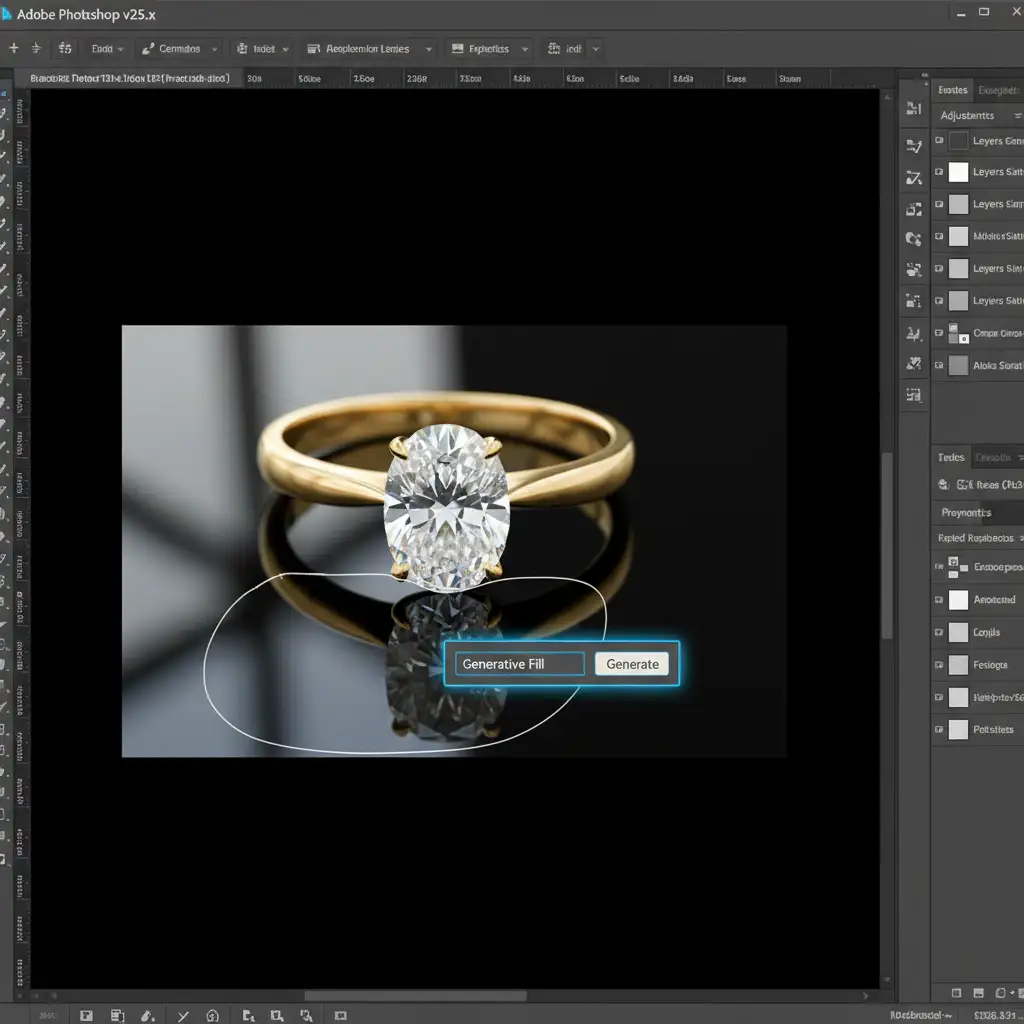
For straightforward reflections on relatively smooth bands, AI provides the fastest path to a clean surface. Generative Fill analyzes the surrounding pixels and seamlessly blends the anomaly.
- Select the Lasso Tool (L).
- Make a tight selection around the dark smartphone reflection. Do not select too much of the surrounding gold, or the AI may alter the shape of the ring.
- Locate the Photoshop Contextual Task Bar.
- Click Generative Fill. Leave the text prompt blank and click Generate.
- Review the three variations provided in the Properties panel and select the one that best matches the natural gold gradient.
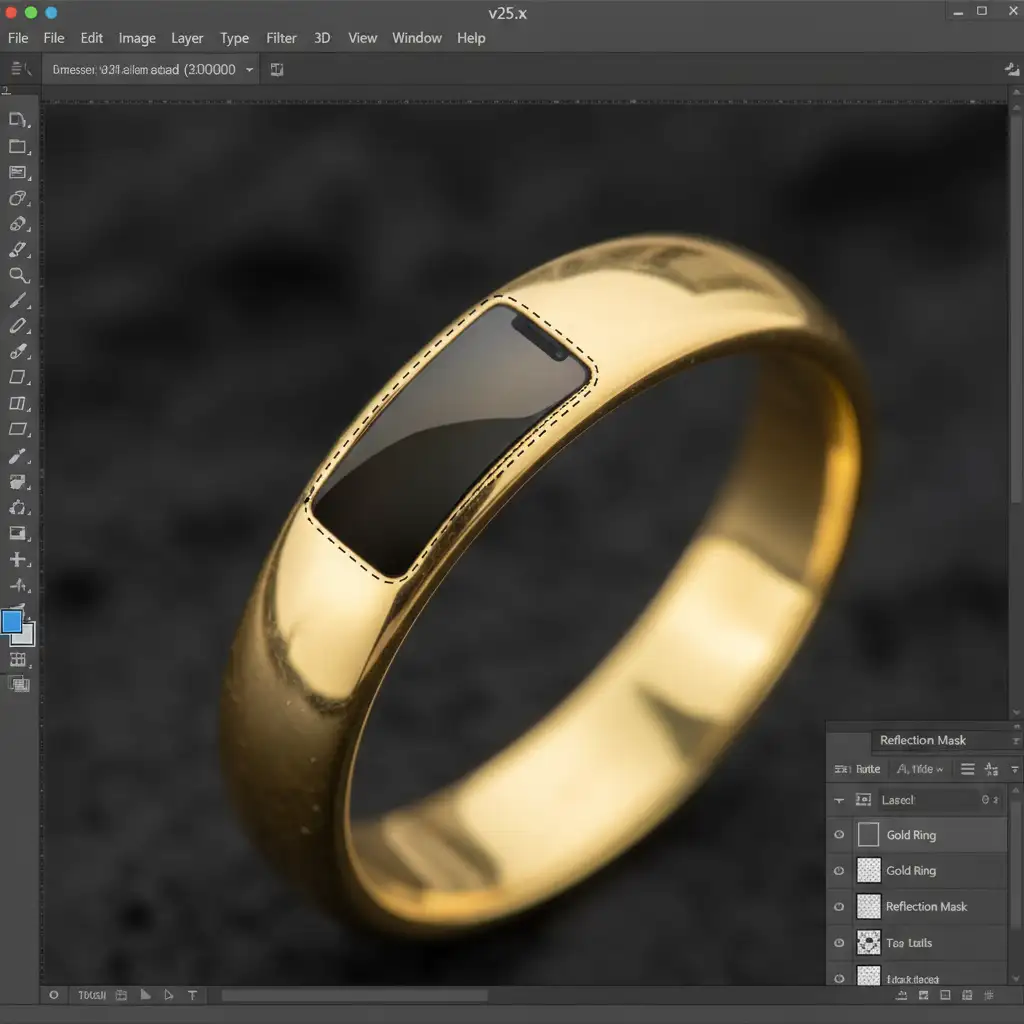
Method 2: The Pro Workaround with the Clone Stamp Tool
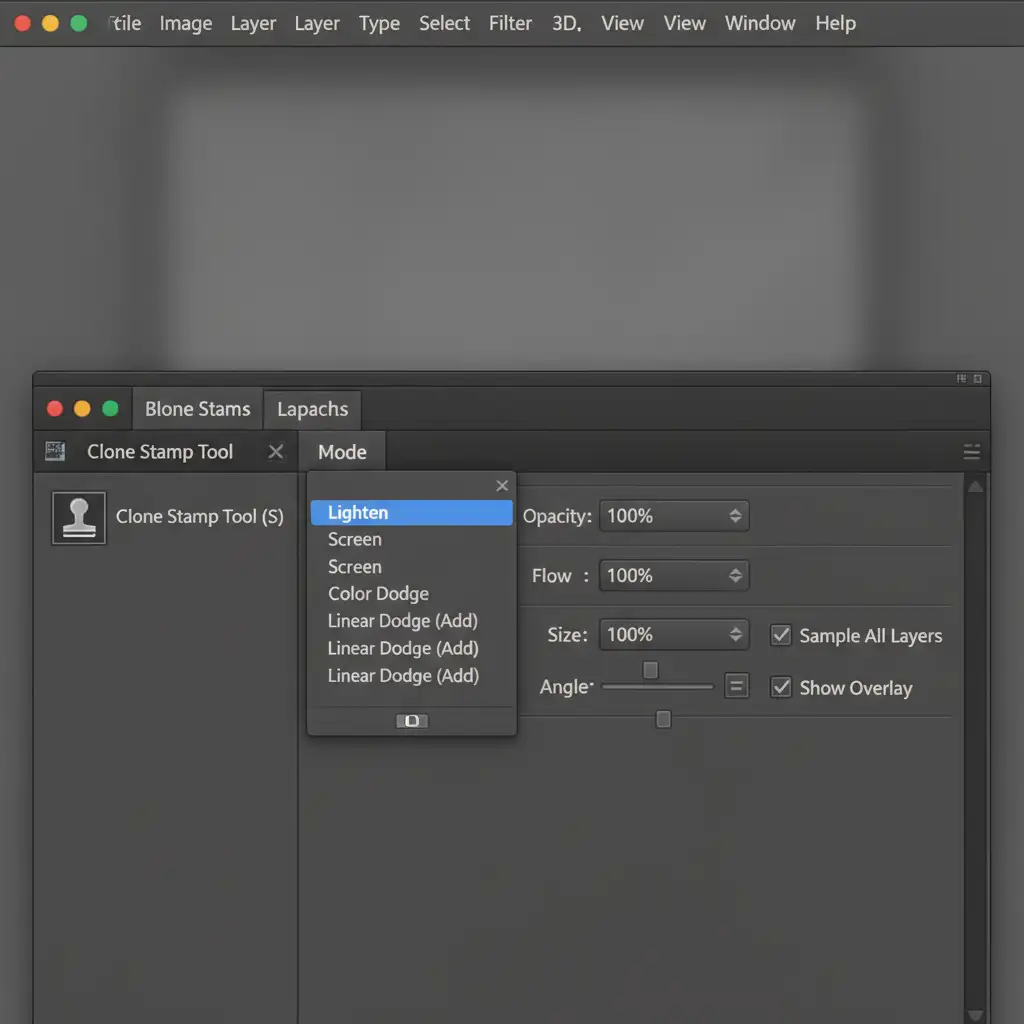
Sometimes AI hallucinates or removes critical structural lines. When you need precise control over high-contrast reflections, the Lighten Blend Mode is your best friend. Because the smartphone reflection is inherently darker than the surrounding gold, this method ensures you only replace the dark pixels.
- Create a new blank layer for non-destructive editing.
- Select the Clone Stamp Tool (S).
- In the top options bar, change the Blend Mode from Normal to Lighten.
- Set your Opacity and Flow to around 30-50% for a gradual build-up.
- Alt-click (Option-click on Mac) to sample an adjacent bright gold area.
- Carefully paint over the dark phone reflection. The Lighten mode ensures the lighter metallic shine replaces the dark block without affecting the surrounding bright pixels.
Method 3: The Technical Deep-Dive (Manual Gradient Reconstruction)
For complex, highly polished, and curved surfaces where both AI and cloning fail, you must reconstruct the metallic gradient manually. This requires careful color sampling and layer masking.
- Create a new empty layer above your background image.
- Select the Eyedropper Tool (I) and sample the highlight, midtone, and shadow colors of the gold immediately surrounding the reflection.
- Select a soft round Brush Tool (B) with a low flow (10%).
- Paint a smooth gradient over the reflection area, transitioning manually from the highlight to the shadow color to mimic the convex curve.
- Group the painted layer and apply a Layer Mask. Paint on the mask with black to restrict your gradient strictly to the ring band, ensuring sharp, crisp edges against the background.
Final Polish: Matching Grain for Realism
Manual painting often looks too smooth, making it look like plastic rather than metal. To fix this, select your painted layer, go to Filter > Noise > Add Noise. Add 1 to 2 percent monochromatic Gaussian Noise to match the original image sensor grain.
Stop Struggling with Jewelry Retouching
Learning to remove smartphone reflections from gold jewelry takes time, patience, and an expert eye for metallic gradients. When you are managing an e-commerce catalog with hundreds of SKUs, spending 15 minutes per image fixing camera reflections simply isn’t scalable.
Struggling to get consistent commercial-quality jewelry photos? Hire Image Work India or Cloud Retouch to perfectly polish your e-commerce catalog. Our specialized jewelry retouching teams handle complex metallic reflections, color correction, and pixel-perfect masking so you can focus on growing your brand. Contact us today for a free trial and see the difference professional retouching makes.




